

Overview
The Campaigns module is a core component for enabling partners to execute co-marketing initiatives effectively. It allows administrators to create comprehensive campaigns that can include various marketing tactics such as email, microsites, and social syndication. Each campaign can be designed with specific objectives and target audiences, providing a structured framework for partner marketing efforts. This centralized management ensures that all partner-led marketing activities are consistent with the vendor's brand and strategic goals.
Administrators can monitor the status and performance of each campaign, making it easier to track ROI and optimize future marketing spend. The module supports both single-touch and multi-touch campaigns, offering flexibility in how marketing efforts are structured and executed by partners. This capability is crucial for empowering partners with ready-to-use, high-impact marketing tools while maintaining overall control and visibility for the vendor.
Viewing Campaign Summaries
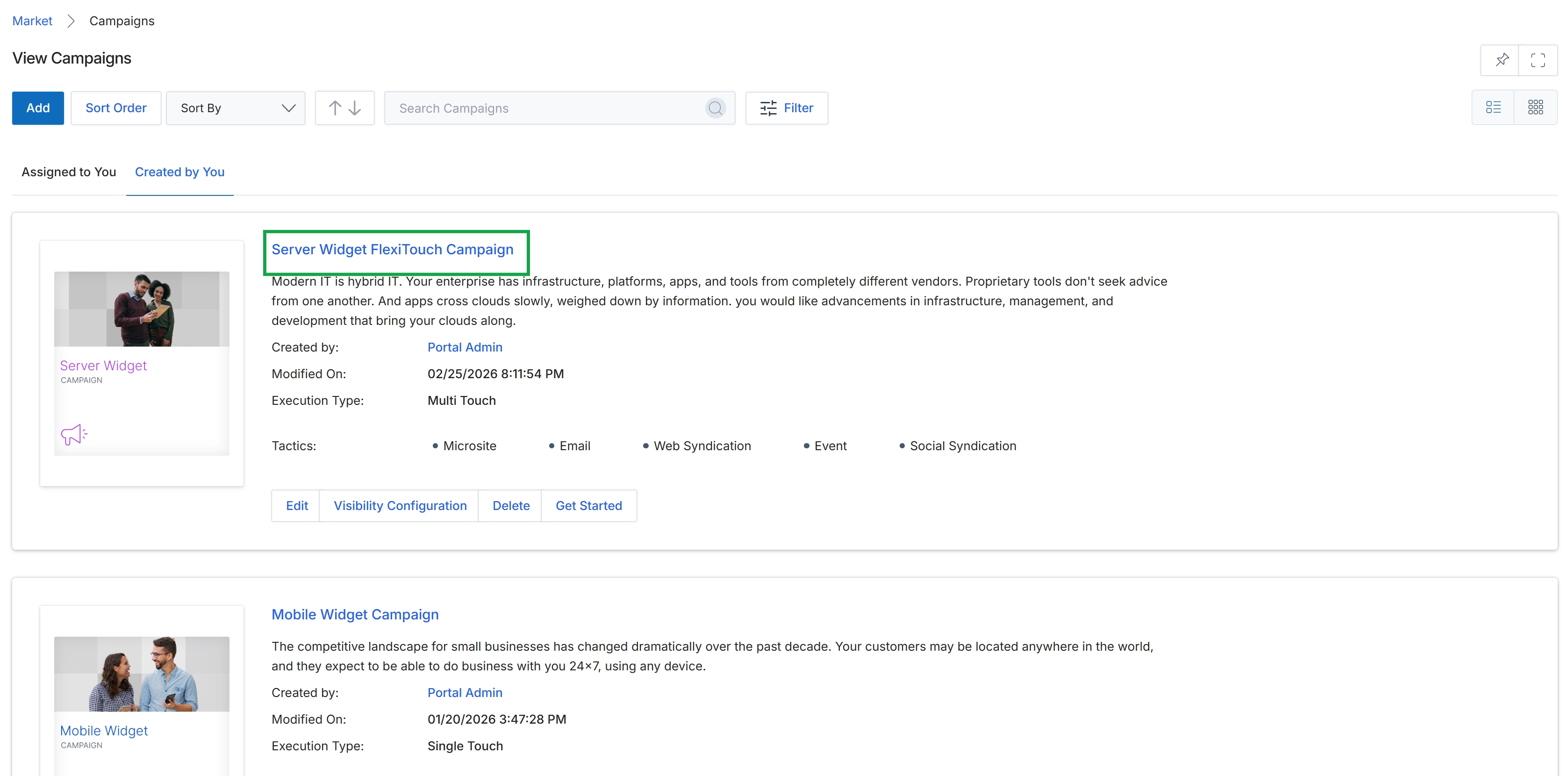
Click the Server Widget FlexiTouch Campaign title.
Reviewing Campaign Details
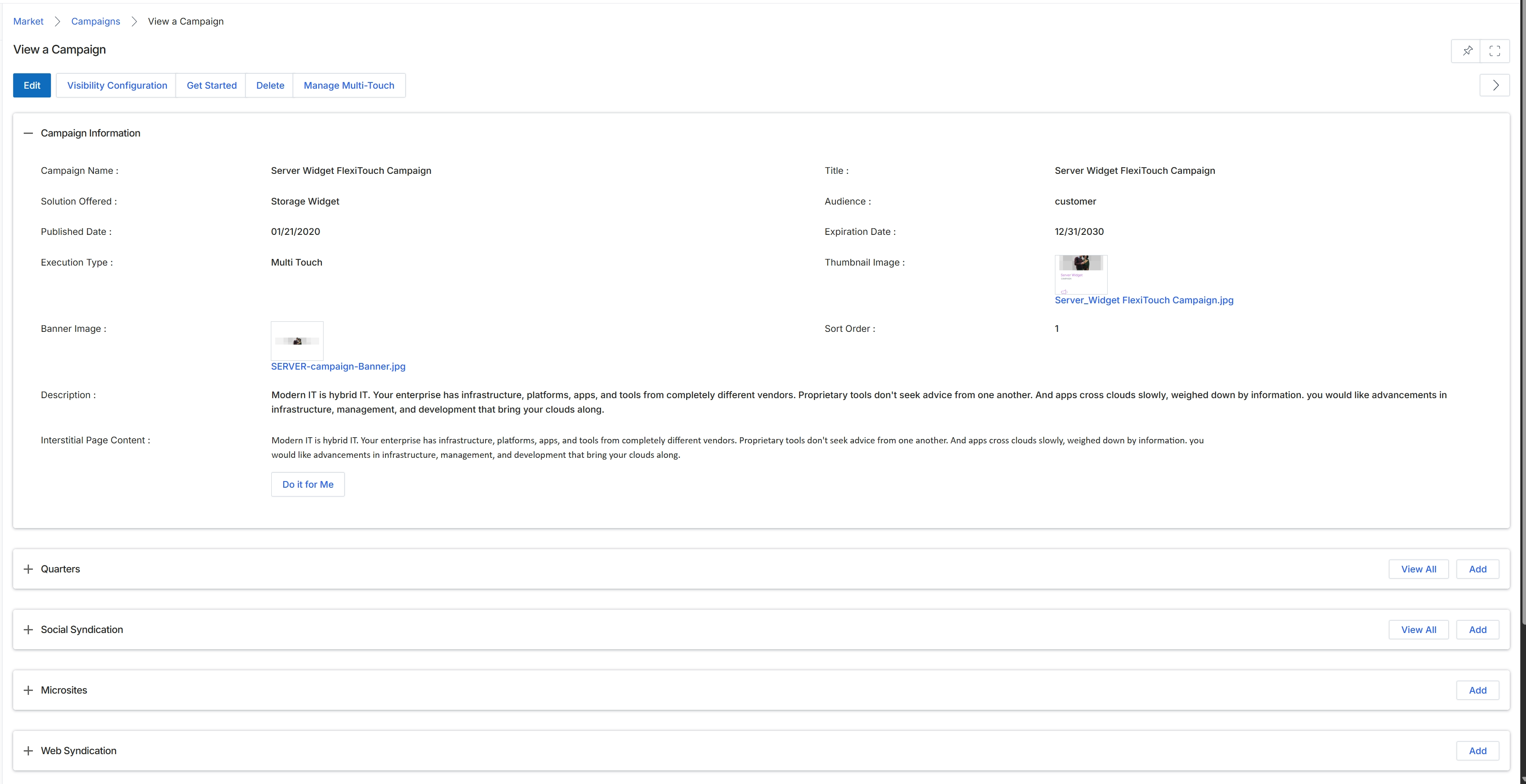
This screen displays the detailed information for a specific multi-touch campaign within the Market module. It provides a comprehensive overview of the campaign's configuration, including its name, the solution it offers, its publication and expiration dates, and the type of execution. Administrators use this view to review all aspects of a campaign after it has been created or to prepare for further actions like editing or managing its multi-touch components. The screen also presents collapsible sections for related marketing elements such as Quarters, Social Syndication, Microsites, and Web Syndication, allowing for a structured review of all associated assets and activities. This view is crucial for understanding the scope and setup of a campaign before it is launched or modified.
Review the detailed information presented for the selected multi-touch campaign.
Buttons
| Button | Description |
|---|---|
| Edit | Click to modify the campaign's details. |
| Visibility Configuration | Click to configure who can see and access this campaign. |
| Get Started | Click to initiate the campaign setup or launch process. |
| Delete | Click to remove this campaign. |
| Manage Multi-Touch | Click to manage the various components and stages of this multi-touch campaign. |
| View All | Click to view all quarters associated with this campaign. |
| Add | Click to add a new quarter to this campaign. |
| View All | Click to view all social syndication activities linked to this campaign. |
| Add | Click to add a new social syndication activity for this campaign. |
| Add | Click to add a new microsite for this campaign. |
| Add | Click to add a new web syndication for this campaign. |
Campaign Information
| Field | Description |
|---|---|
| Campaign Name | The name of the multi-touch campaign. |
| Solution Offered | The product or solution promoted by this campaign. |
| Published Date | The date when the campaign was made live or visible. |
| Execution Type | Indicates that this is a multi-touch campaign, involving multiple marketing tactics. |
| Banner Image | The banner image associated with the campaign. |
| Description | A detailed description of the campaign's purpose and content. |
| Interstitial Page Content | Content displayed on an interstitial page related to the campaign. |
| Title | The title of the campaign. |
| Audience | The target audience for this campaign. |
| Expiration Date | The date when the campaign is scheduled to end. |
| Thumbnail Image | A thumbnail image representing the campaign. |
| Sort Order | The numerical order for displaying this campaign. |