

Overview
Multi-touch campaigns are a core component of the Market module, enabling vendors to provide partners with structured marketing initiatives. These campaigns often contain various assets and tactics, such as microsites, email templates, and social syndication, designed to be executed by partners. Effective management of these campaigns requires precise control over their visibility and who within the partner network can access and utilize them.
This visibility configuration ensures that campaigns are only presented to relevant partners based on their geographic location, language preferences, and assigned roles. By allowing granular control over access, administrators can tailor the partner experience, ensuring partners only see campaigns pertinent to their market and capabilities, thereby streamlining operations and improving campaign adoption and success rates.
Accessing Visibility Configuration
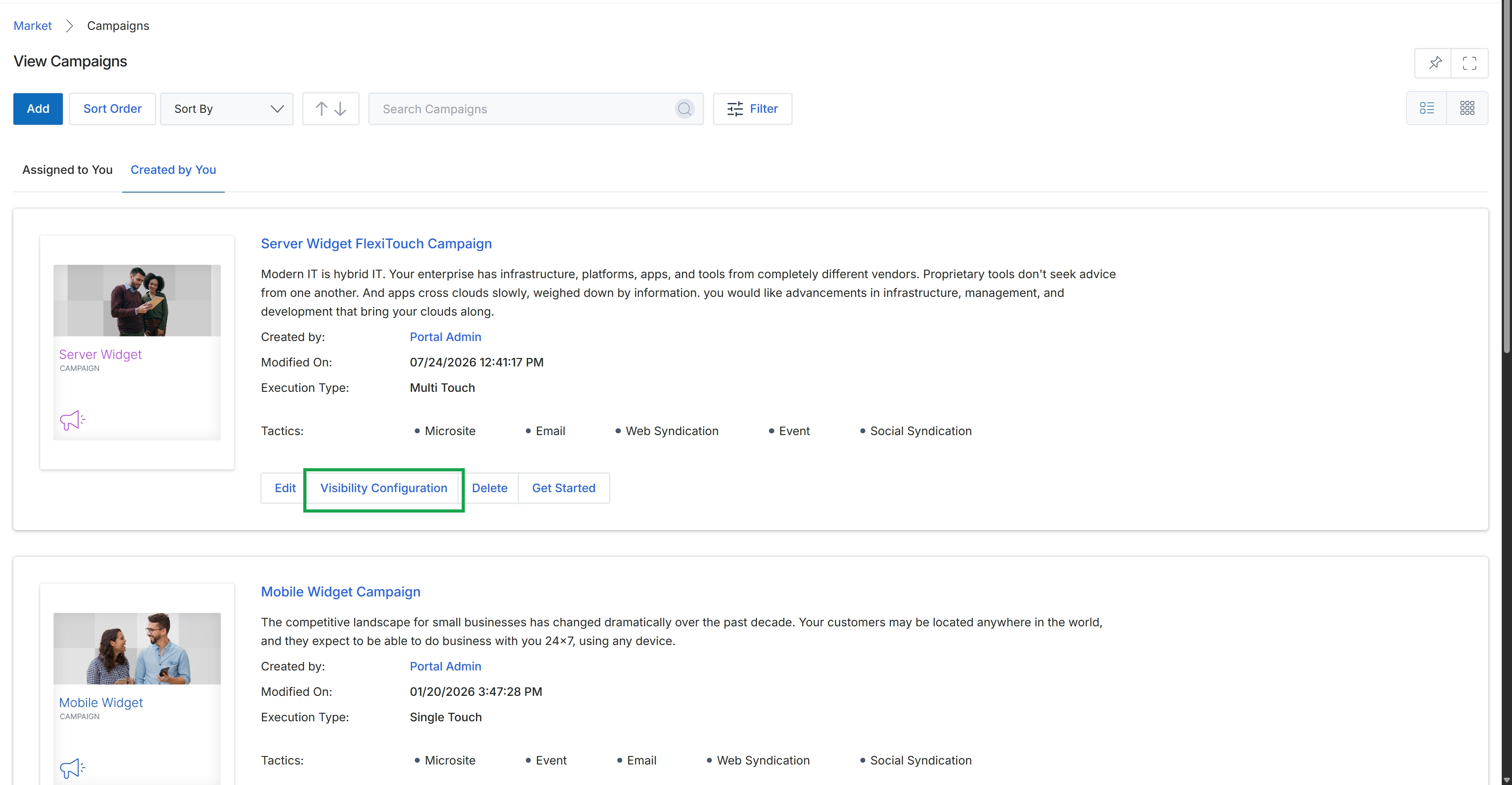
Click the Visibility Configuration button for the "Server Widget FlexiTouch Campaign" to configure its visibility.
Configuring Geographic and Language Visibility
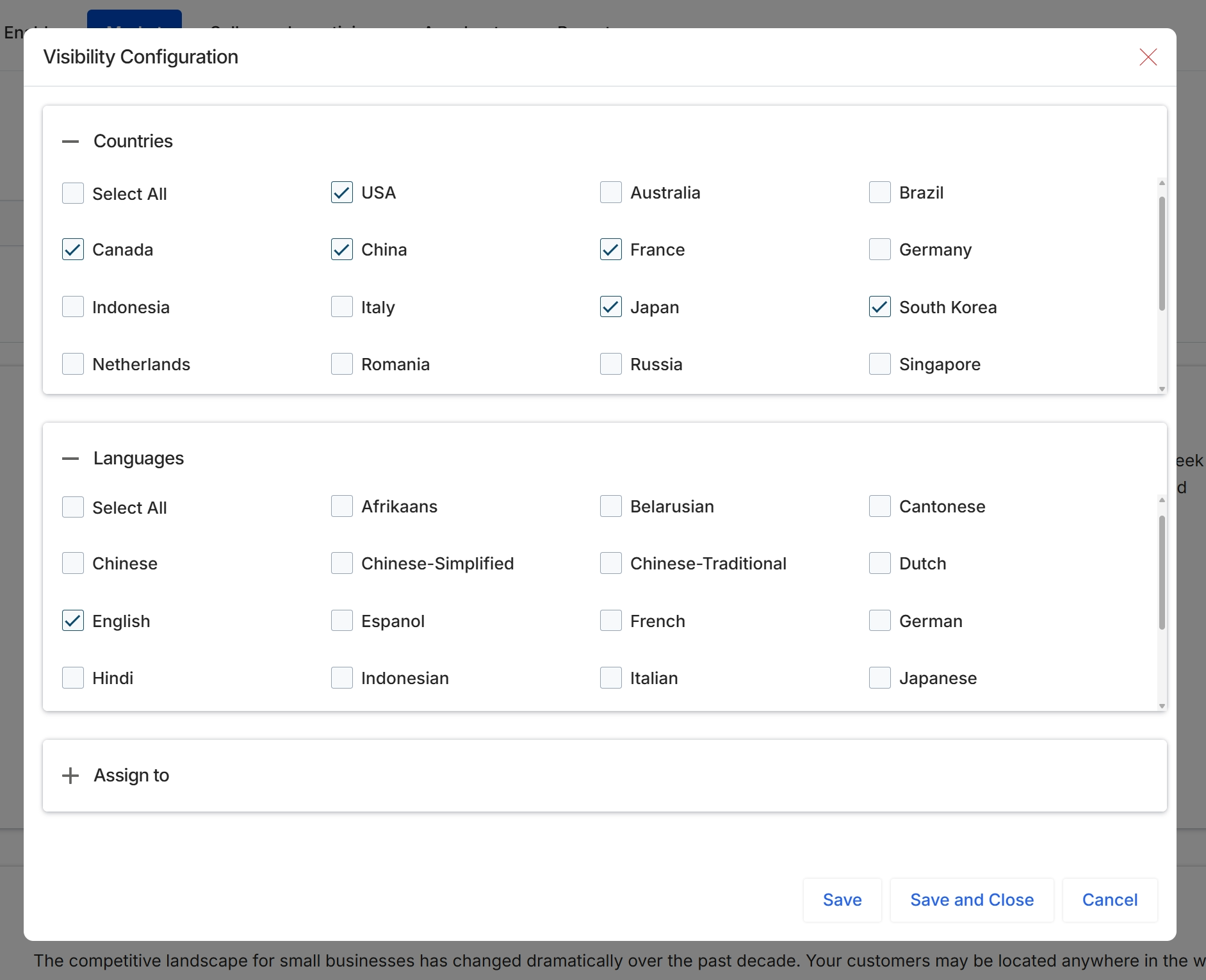
This screen displays the visibility configuration settings for a multi-touch campaign, allowing administrators to define the geographic and linguistic availability of the campaign. It presents two main sections, 'Countries' and 'Languages', where specific options can be selected or deselected. This configuration ensures that campaigns are targeted appropriately to partners and end-customers in relevant regions and with suitable language support, aligning with the campaign's intended reach and localization requirements.
Assigning Campaigns to Users and Groups
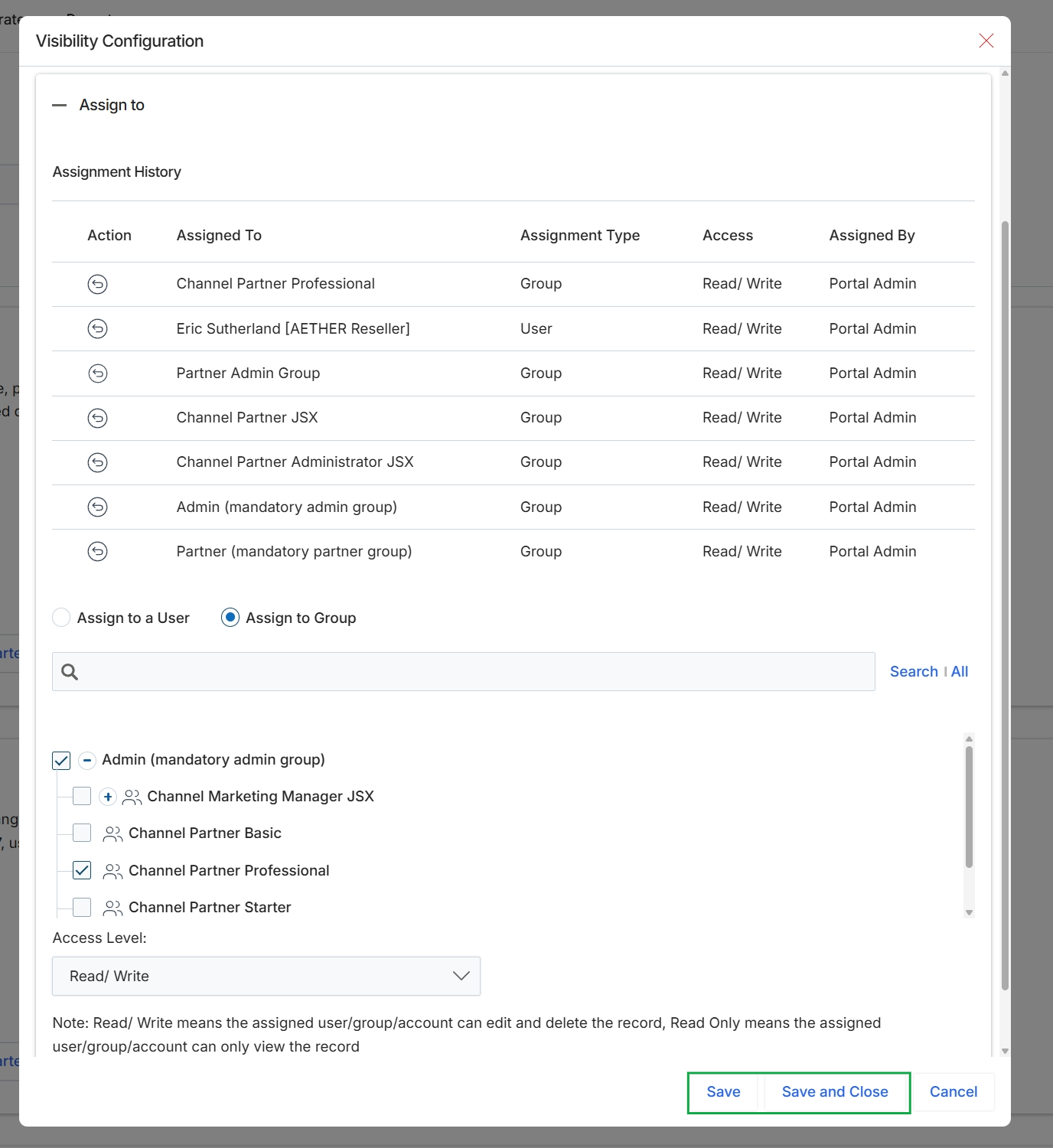
The Visibility Configuration screen allows administrators to control access to specific campaigns or content within the Market module by assigning them to users or groups with defined access levels. This ensures that only relevant partners or internal users can view and interact with particular marketing initiatives. The screen displays an 'Assignment History' section, providing an audit trail of who has been granted access, the type of assignment (user or group), their access level (read/write or read-only), and who made the assignment. Below the history, administrators can make new assignments by selecting users or groups and setting their permissions, ensuring granular control over content visibility.
Select the 'Assign to Group' radio button, choose the desired groups from the hierarchical list, set their 'Access Level', and click 'Save and Close' to apply the configuration.
Buttons
| Button | Description |
|---|---|
| Search | Click to initiate the search based on the entered keywords. |
| All | Click to display all available users or groups. |
| Save | Click to save the current visibility configuration. |
| Save and Close | Click to save the current visibility configuration and close the dialog. |
| Cancel | Click to discard any changes and close the dialog. |
Fields
| Field | Description |
|---|---|
| Assign to a User | Select this radio button to assign visibility to individual users. |
| Assign to Group | Select this radio button to assign visibility to predefined user groups. |
| Search input | Enter keywords to search for specific users or groups within the assignment list. |
| Admin (mandatory admin group) | Checkbox to select or deselect the 'Admin (mandatory admin group)' for assignment. |
| Channel Marketing Manager JSX | Checkbox to select or deselect the 'Channel Marketing Manager JSX' group for assignment. |
| Channel Partner Basic | Checkbox to select or deselect the 'Channel Partner Basic' group for assignment. |
| Channel Partner Professional | Checkbox to select or deselect the 'Channel Partner Professional' group for assignment. |
| Channel Partner Starter | Checkbox to select or deselect the 'Channel Partner Starter' group for assignment. |
| Access Level | Dropdown to define the permission level for the selected users or groups, either 'Read/Write' or 'Read Only'. |
Assignment History
| Column | Description |
|---|---|
| Action | Column indicating actions that can be performed on the assignment, such as removing it. |
| Assigned To | Column displaying the name of the user or group to whom the campaign is assigned. |
| Assignment Type | Column indicating whether the assignment is to a 'Group' or a 'User'. |
| Access | Column showing the access level granted to the assigned entity, either 'Read/ Write' or 'Read Only'. |
| Assigned By | Column displaying the administrator who made the assignment. |