

Overview
Effective partner management relies on accurate and accessible contact information. The platform's contact management capabilities allow administrators to maintain a comprehensive database of all individuals associated with their partner organizations. This includes not only primary contacts but also sales representatives, marketing managers, and technical personnel, each with their specific roles and access levels.
By centralizing this data, administrators can ensure that communications are directed to the correct individuals, manage portal access, and track interactions related to each contact. The ability to assign contacts to specific users or groups within the vendor organization, along with defining their access levels, streamlines internal workflows and enhances collaboration with partners.
Viewing Partner Contacts
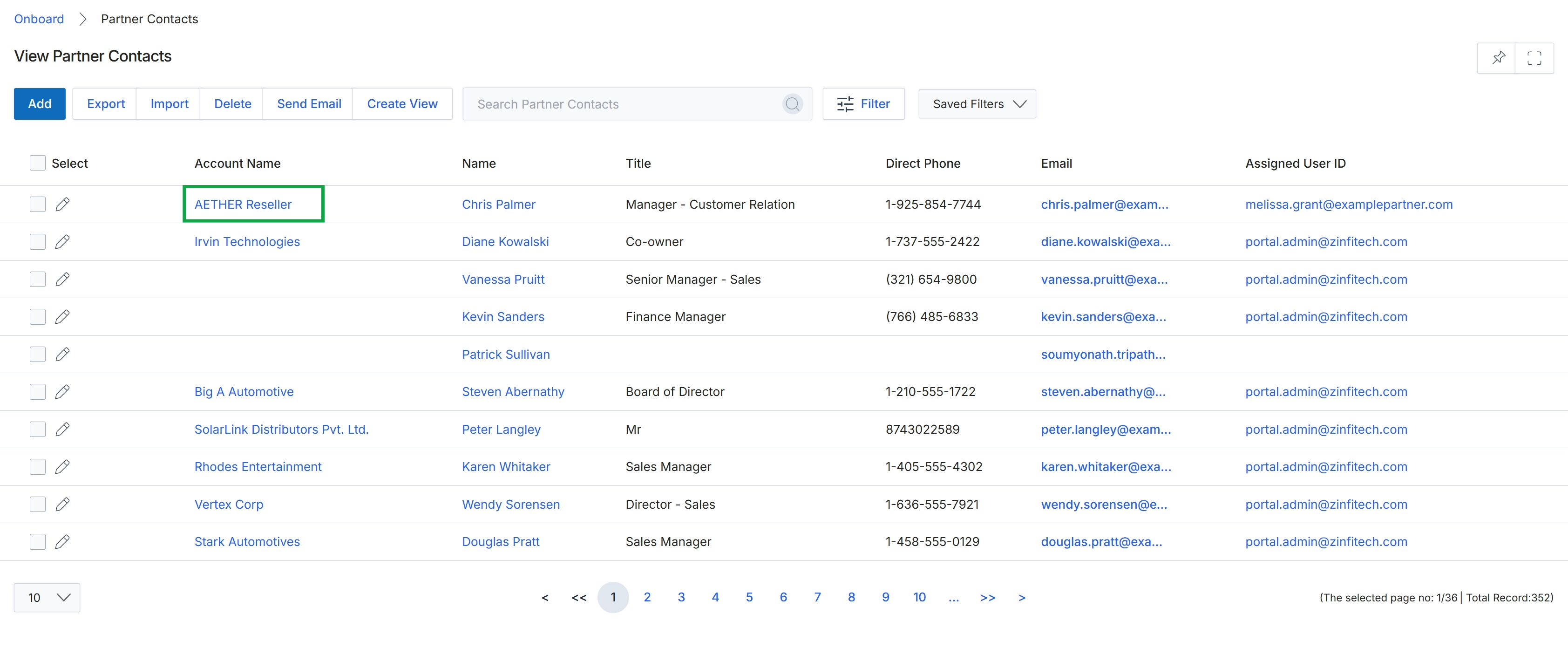
Click the AETHER Reseller link in the Account Name column.
Reviewing Contact Details
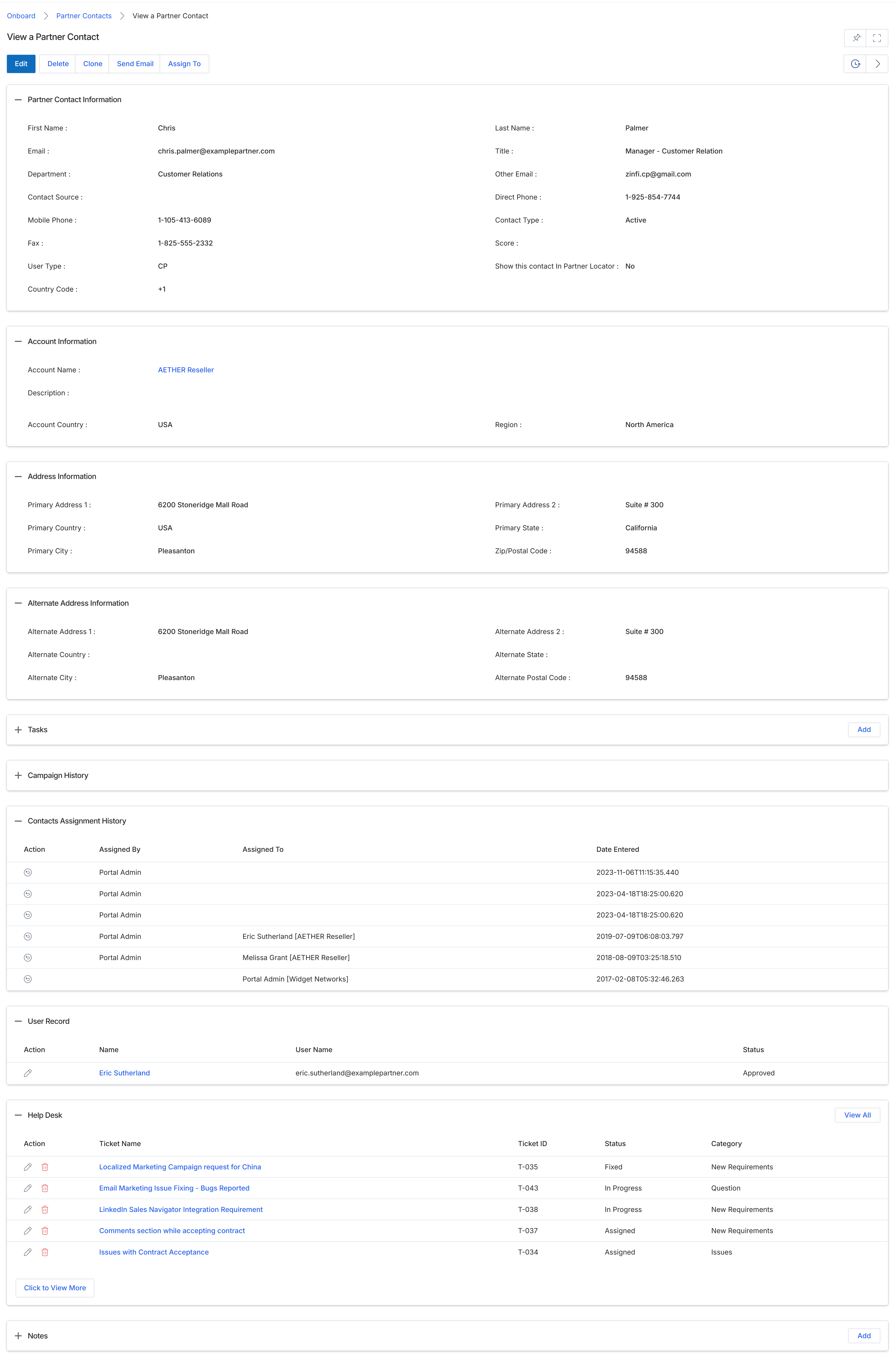
This screen displays the detailed profile of a specific partner contact within the UPM, providing a comprehensive view of their information, associated account details, and activity history. It serves as a central hub for administrators to review contact-specific data, including personal and professional information, address details, and records of past assignments. The various sections on this page consolidate information from different parts of the platform, offering a holistic understanding of the contact's engagement and roles within the partner ecosystem. This view is crucial for managing individual partner relationships, understanding their historical interactions, and ensuring accurate contact data for communication and operational purposes.
Review the details of the selected partner contact, including their personal information, account association, and historical records.
Buttons
| Button | Description |
|---|---|
| Edit | Allows editing of the partner contact's details. |
| Delete | Deletes the partner contact record. |
| Clone | Creates a duplicate of the current partner contact record. |
| Send Email | Initiates an email to the partner contact. |
| Assign To | Assigns the partner contact to a different entity or user. |
| Add | Adds a new task. |
| View All | Displays all help desk tickets associated with this contact. |
| Add | Adds a new note. |
Partner Contact Information
| Field | Description |
|---|---|
| First Name | The first name of the partner contact. |
| The primary email address of the partner contact. | |
| Department | The department within the partner company where the contact works. |
| Contact Source | The source from which the contact was acquired. |
| Mobile Phone | The mobile phone number of the partner contact. |
| Fax | The fax number of the partner contact. |
| User Type | The type of user the contact is classified as. |
| Country Code | The country code associated with the contact's phone numbers. |
| Last Name | The last name of the partner contact. |
| Title | The job title of the partner contact. |
| Other Email | An alternative email address for the partner contact. |
| Direct Phone | The direct phone number of the partner contact. |
| Contact Type | The classification of the contact (e.g., Active). |
| Score | The score associated with the partner contact, indicating their engagement or performance. |
| Show this contact In Partner Locator | Indicates whether this contact is visible in the partner locator. |
Account Information
| Field | Description |
|---|---|
| Account Name | The name of the partner account this contact is associated with. |
| Account Country | The country where the partner account is located. |
| Region | The geographical region of the partner account. |
Address Information
| Field | Description |
|---|---|
| Primary Address 1 | The first line of the primary address for the partner account. |
| Primary Country | The country of the primary address. |
| Primary City | The city of the primary address. |
| Primary Address 2 | The second line of the primary address for the partner account. |
| Primary State | The state of the primary address. |
| Zip/Postal Code | The zip or postal code of the primary address. |
Alternate Address Information
| Field | Description |
|---|---|
| Alternate Address 1 | The first line of the alternate address for the partner account. |
| Alternate Country | The country of the alternate address. |
| Alternate City | The city of the alternate address. |
| Alternate Address 2 | The second line of the alternate address for the partner account. |
| Alternate Postal Code | The zip or postal code of the alternate address. |
Contacts Assignment History
| Column | Description |
|---|---|
| Assigned By | The entity or user who assigned the contact. |
| Assigned To | The entity or user to whom the contact was assigned. |
| Date Entered | The date and time the assignment record was entered. |
User Record
| Column | Description |
|---|---|
| Action | Allows editing of the user record. |
| Name | The name associated with the user record. |
| User Name | The username for the contact's portal access. |
| Status | The status of the user record. |
Help Desk
| Column | Description |
|---|---|
| Action | Provides actions for managing help desk tickets, such as editing or deleting. |
| Ticket Name | The name or subject of the help desk ticket. |
| Ticket ID | The unique identifier for the help desk ticket. |
| Status | The current status of the help desk ticket. |
| Category | The category to which the help desk ticket belongs. |
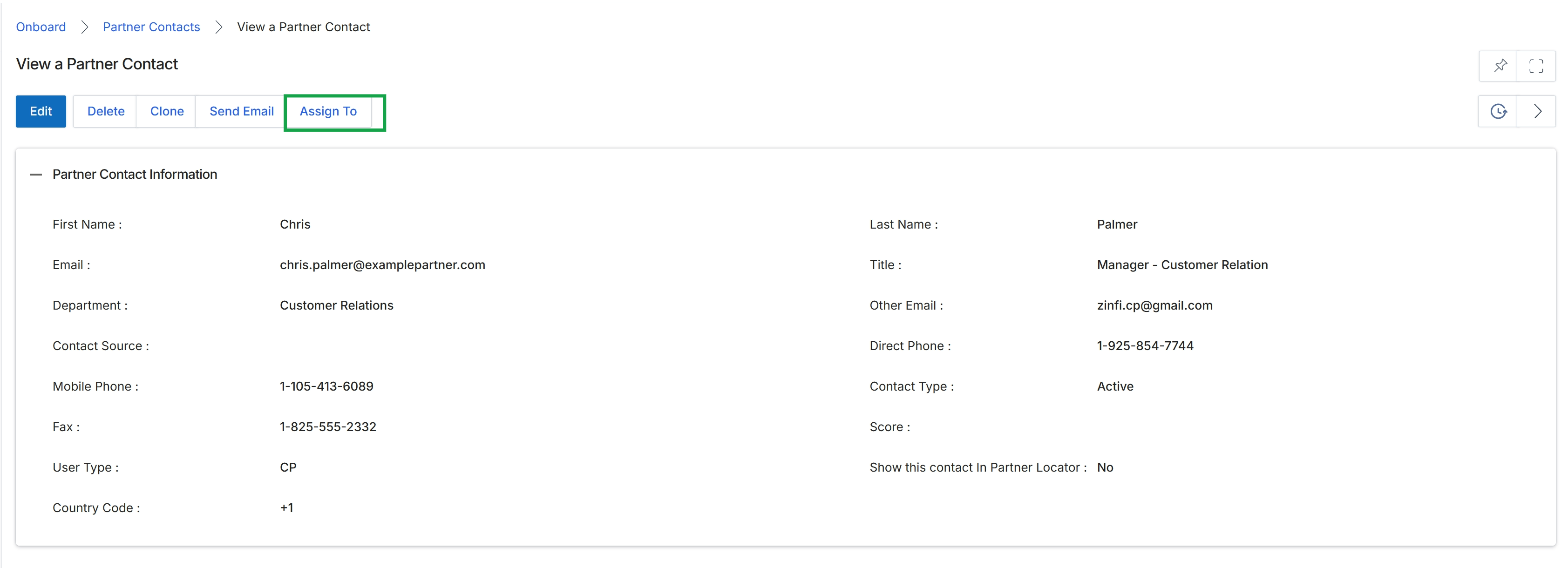
Click the Assign To button.
Assigning Contacts to Users or Groups
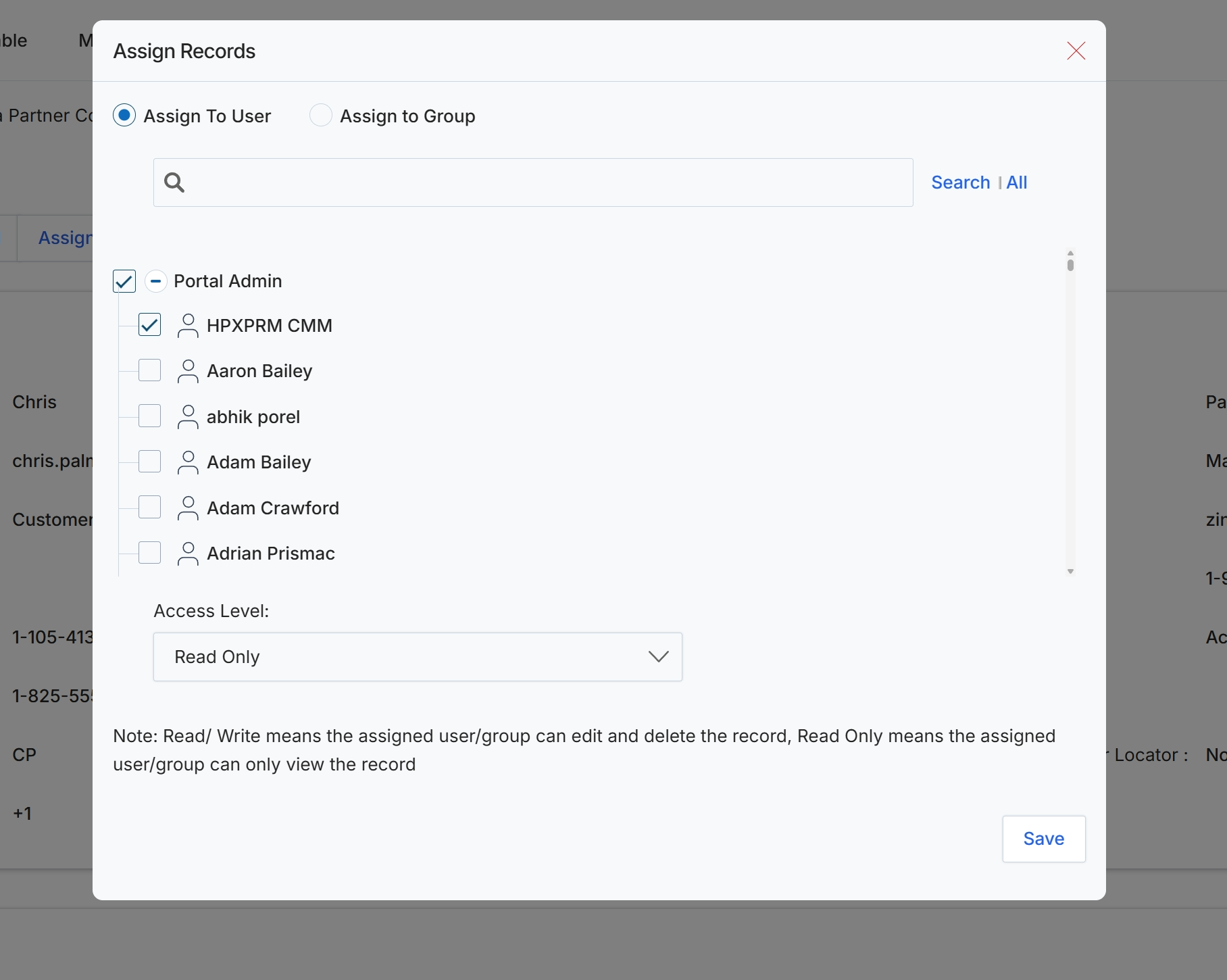
This modal dialog, 'Assign Records', allows UPM administrators to control access to specific records by assigning them to individual users or user groups within the platform. This functionality is crucial for managing data visibility and ensuring that only authorized personnel can view or modify sensitive partner-related information. Administrators can define whether the assigned user or group has 'Read/Write' access, allowing them to edit and delete records, or 'Read Only' access, which restricts them to viewing the record. This granular control supports role-based access policies and helps maintain data integrity and security across the partner ecosystem.
Select the users or groups to whom the record should be assigned and define their access level.
Buttons
| Button | Description |
|---|---|
| Search | Initiates the search based on the entered keywords. |
| All | Displays all available users or groups. |
| Save | Saves the assignment changes and closes the modal. |
Fields
| Field | Description |
|---|---|
| Assign To User | Select this option to assign the record to specific individual users. |
| Assign to Group | Select this option to assign the record to a predefined user group. |
| Search | Enter keywords to search for specific users or groups in the list. |
| Portal Admin | A checkbox to select or deselect the 'Portal Admin' group for assignment. |
| HPXPRM CMM | A checkbox to select or deselect the 'HPXPRM CMM' user for assignment. |
| Aaron Bailey | A checkbox to select or deselect the user 'Aaron Bailey' for assignment. |
| abhik porel | A checkbox to select or deselect the user 'abhik porel' for assignment. |
| Adam Bailey | A checkbox to select or deselect the user 'Adam Bailey' for assignment. |
| Adam Crawford | A checkbox to select or deselect the user 'Adam Crawford' for assignment. |
| Adrian Prismac | A checkbox to select or deselect the user 'Adrian Prismac' for assignment. |
| Access Level | A dropdown menu to select the access level (Read/Write or Read Only) for the assigned users or groups. |
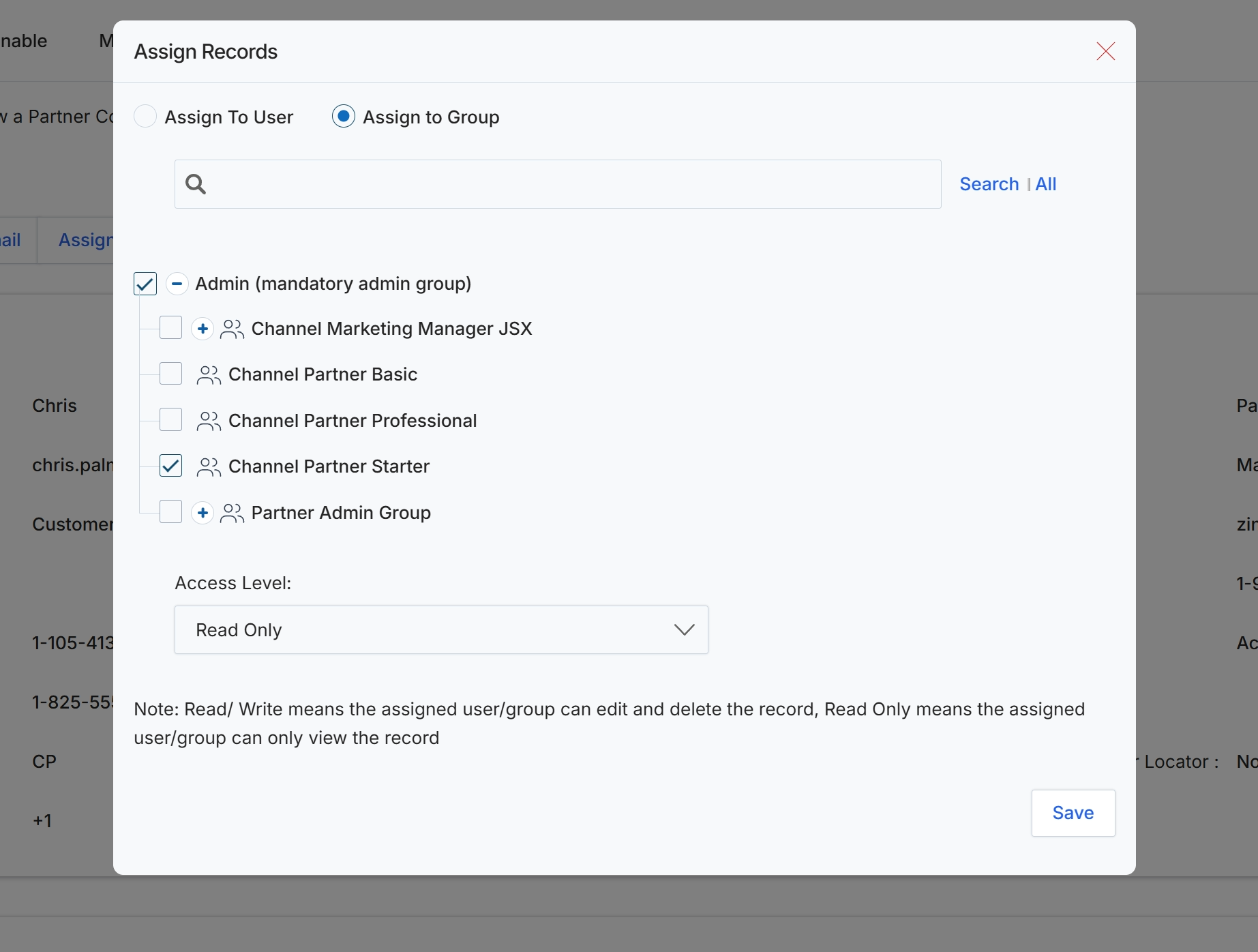
This modal window, titled 'Assign Records', allows administrators to manage access permissions for specific records within the platform. It provides options to assign records either to individual users or to predefined user groups, ensuring that only authorized personnel or teams can view or modify sensitive data. The interface displays a hierarchical list of available user groups, enabling granular control over who can interact with the record. Administrators can select one or more groups and then define their access level, which dictates whether they can only view the record or also have permissions to edit and delete it. This functionality is crucial for maintaining data security and adhering to organizational access policies.
Select the relevant user groups and set their access level for the record.
Buttons
| Button | Description |
|---|---|
| Save | A button to save the assigned record access settings. |
Fields
| Field | Description |
|---|---|
| Assign To User | A radio button to assign the record to a specific user. |
| Assign to Group | A radio button to assign the record to one or more user groups. |
| Search | A search bar to find specific users or groups. |
| Admin (mandatory admin group) | A checkbox to select or deselect the mandatory admin group for record access. |
| Channel Marketing Manager JSX | A checkbox to select or deselect the 'Channel Marketing Manager JSX' group for record access. |
| Channel Partner Basic | A checkbox to select or deselect the 'Channel Partner Basic' group for record access. |
| Channel Partner Professional | A checkbox to select or deselect the 'Channel Partner Professional' group for record access. |
| Channel Partner Starter | A checkbox to select or deselect the 'Channel Partner Starter' group for record access. |
| Partner Admin Group | A checkbox to select or deselect the 'Partner Admin Group' for record access. |
| Access Level | A dropdown menu to define the permission level (Read Only or Read/Write) for the selected users or groups. |