

Overview
Effective partner management requires robust tools to organize and access information about your partner companies. The Partner Companies module within the UPM platform is critical for administrators to maintain an organized and accessible database of all partner organizations. This module facilitates essential tasks such as identifying specific partners for targeted communications, segmenting them for various program initiatives, or preparing for periodic performance reviews and business planning sessions.
Administrators can leverage powerful search and filtering capabilities to quickly locate partner companies based on various criteria, including company name, website, or other custom fields. The ability to customize the displayed columns and save frequently used filter configurations streamlines administrative workflows, ensuring that relevant partner data is always readily accessible for operational efficiency and strategic decision-making.
Accessing Partner Companies
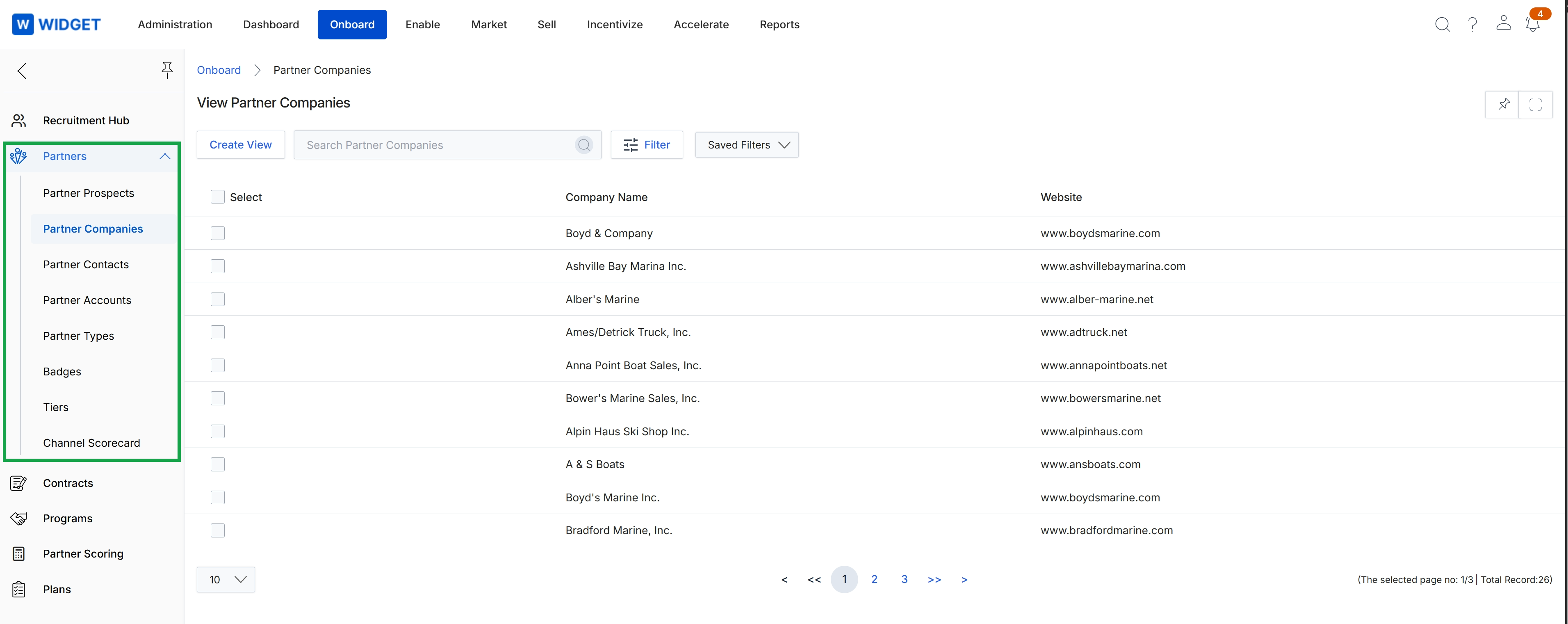
Click Onboard in the top navigation bar, then click Partners in the left navigation menu, and then click Partner Companies.
Creating Custom Views
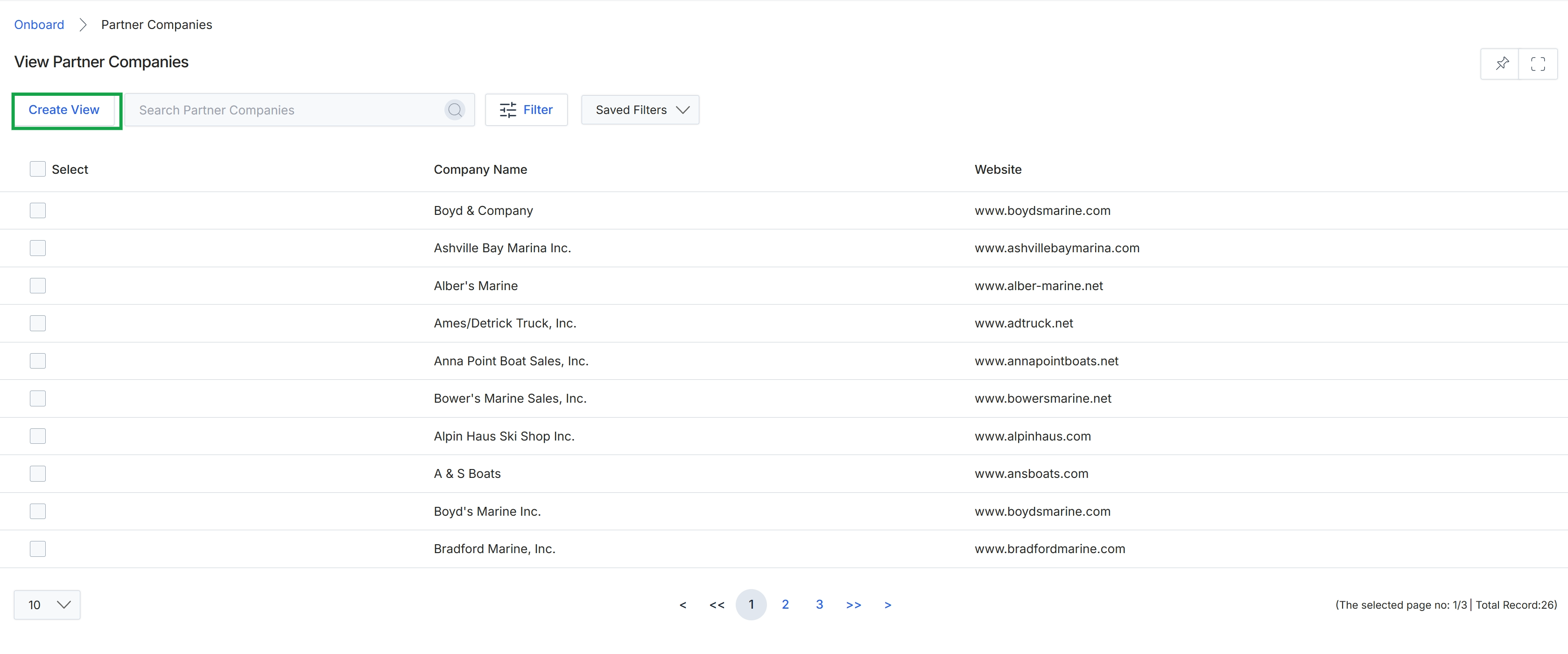
Click Create View.
Applying Basic Filters
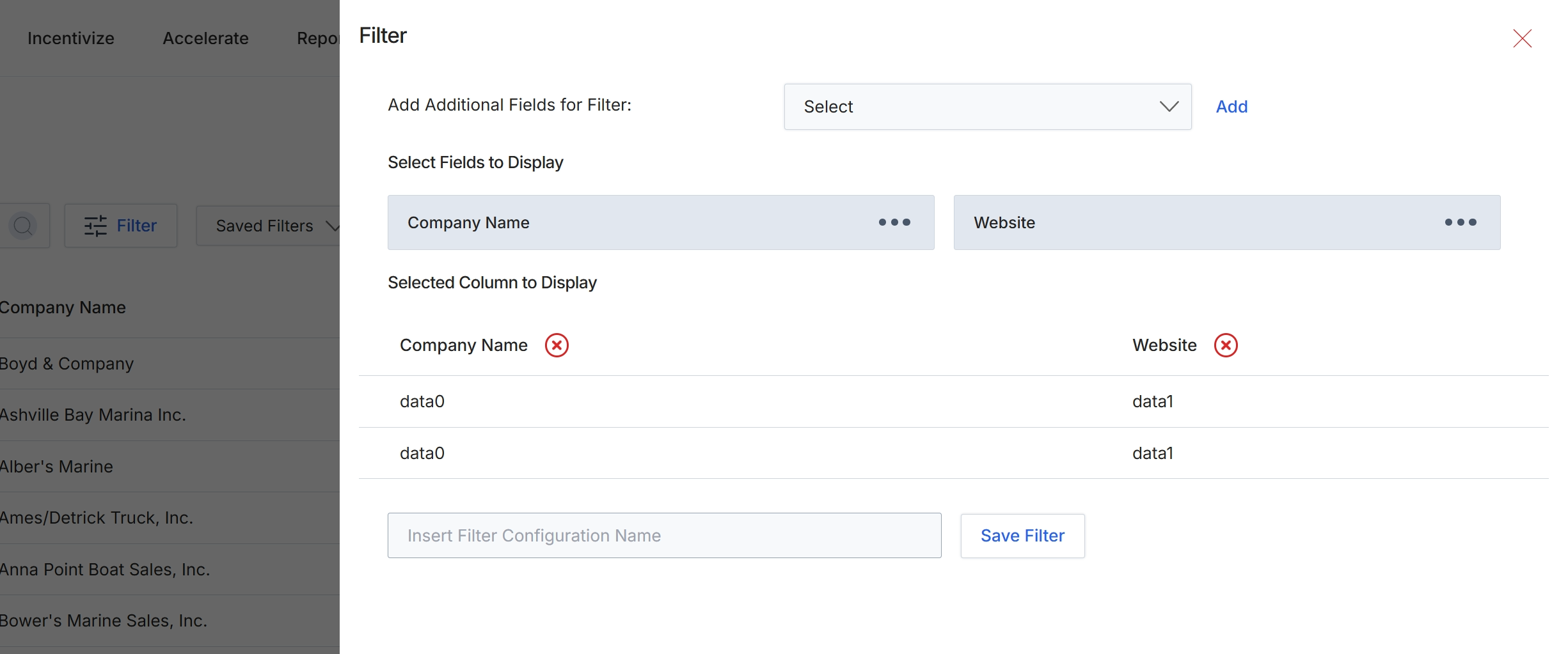
This filter configuration panel allows UPM administrators to customize the display of the Partner Companies list view. It provides options to select additional fields to display as columns in the list, enabling administrators to tailor the data presented to focus on specific partner attributes such as company name, website, or other profile details. The panel also allows for the management of currently selected columns and offers the flexibility to save custom filter configurations for future use, streamlining repetitive data analysis tasks and enhancing the visualization of partner data.
The filter configuration panel is displayed, allowing you to customize the columns shown in the Partner Companies list view.
Buttons
| Button | Description |
|---|---|
| Add | Adds the selected field from the dropdown to the filter criteria. |
| Save Filter | Saves the current filter configuration with the provided name. |
Add Additional Fields for Filter
| Field | Description |
|---|---|
| Select | A dropdown menu to choose additional fields to add to the filter criteria. |
Fields
| Field | Description |
|---|---|
| Insert Filter Configuration Name | An input field to enter a name for the current filter configuration to save it for future use. |
Selected Column to Display
| Column | Description |
|---|---|
| Company Name | The 'Company Name' column currently displayed in the list view. Clicking the 'X' icon will remove it. |
| Website | The 'Website' column currently displayed in the list view. Clicking the 'X' icon will remove it. |
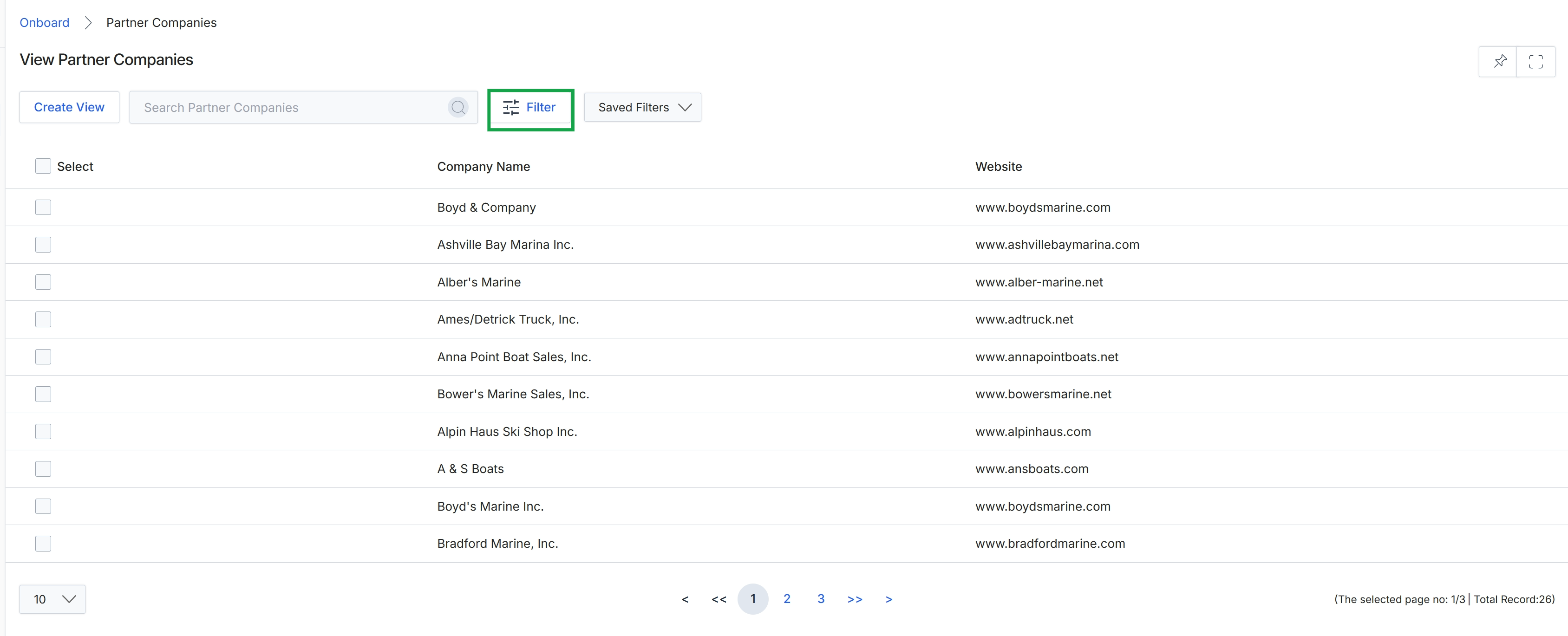
Click the Filter button.
Using Advanced Filters
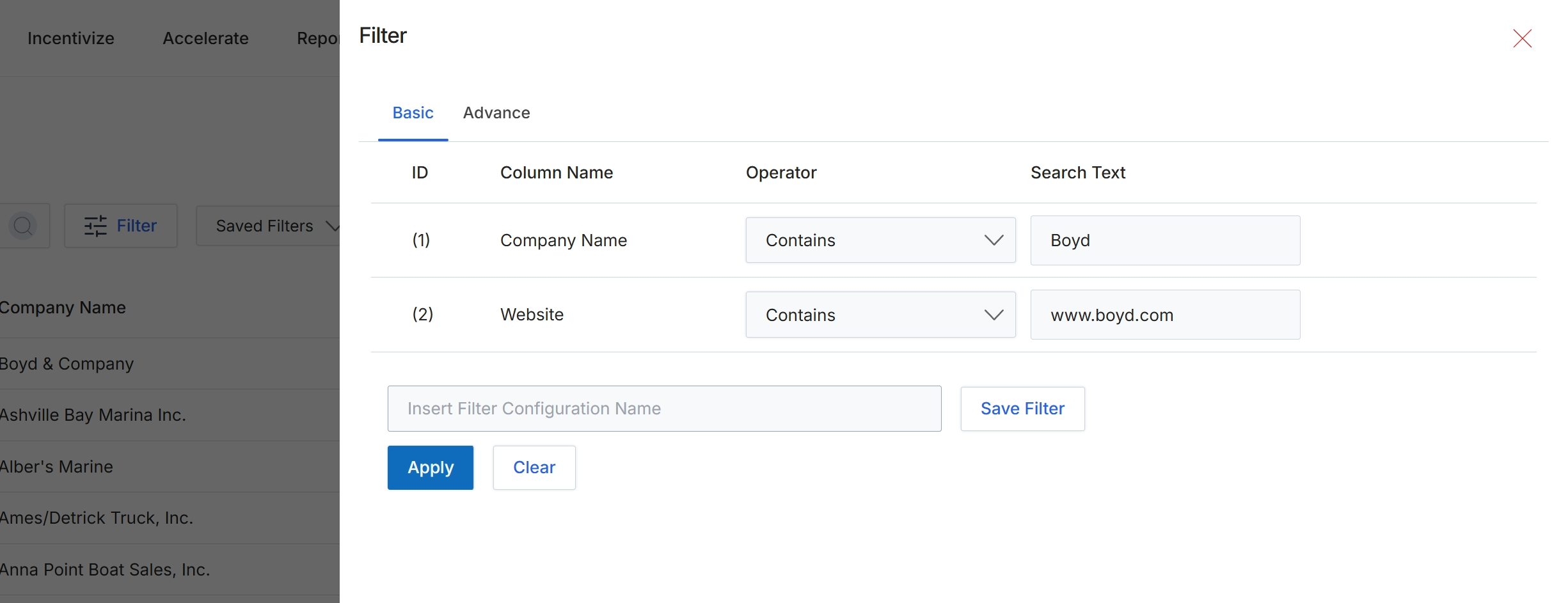
This filter panel provides options to refine the list of partner companies displayed in the main view. Users can define specific criteria based on various attributes of partner companies, such as their name or website, to narrow down the displayed results. This functionality is essential for efficiently managing large datasets of partner companies, allowing administrators to quickly locate specific partners or groups of partners. The panel supports both basic and advanced filtering modes, and also allows users to save frequently used filter configurations for future use, enhancing productivity in partner profile management.
Configure the filter rules by specifying the column name, operator, and search text for each criterion.
Buttons
| Button | Description |
|---|---|
| Basic | Tab to configure basic filter rules using column names, operators, and search text. |
| Advance | Tab to configure advanced filter rules, typically allowing for more complex logical conditions. |
| Save Filter | Button to save the current filter configuration under the name provided in the 'Insert Filter Configuration Name' field. |
| Apply | Button to apply the configured filters to the partner company list, updating the displayed results. |
| Clear | Button to clear all applied filter criteria, resetting the filter panel to its default state. |
Fields
| Field | Description |
|---|---|
| Company Name | The column representing the partner company's name, used as a filter criterion. |
| Contains | The operator selected for the 'Company Name' filter, indicating that the company name should contain the specified text. |
| Boyd | The search text entered for the 'Company Name' filter, to find companies with 'Boyd' in their name. |
| Website | The column representing the partner company's website, used as a filter criterion. |
| Contains | The operator selected for the 'Website' filter, indicating that the website should contain the specified text. |
| www.boyd.com | The search text entered for the 'Website' filter, to find companies with 'www.boyd.com' in their website URL. |
| Insert Filter Configuration Name | Input field to enter a name for the current filter configuration, allowing it to be saved for future use. |
Column Headings
| Column | Description |
|---|---|
| ID | An identifier for each filter rule, automatically assigned by the system. |
| Column Name | The name of the partner company attribute to which the filter is applied, such as 'Company Name' or 'Website'. |
| Operator | The comparison operator used for the filter rule, such as 'Contains' or 'Equals'. |
| Search Text | The value to search for within the specified column, used in conjunction with the selected operator. |
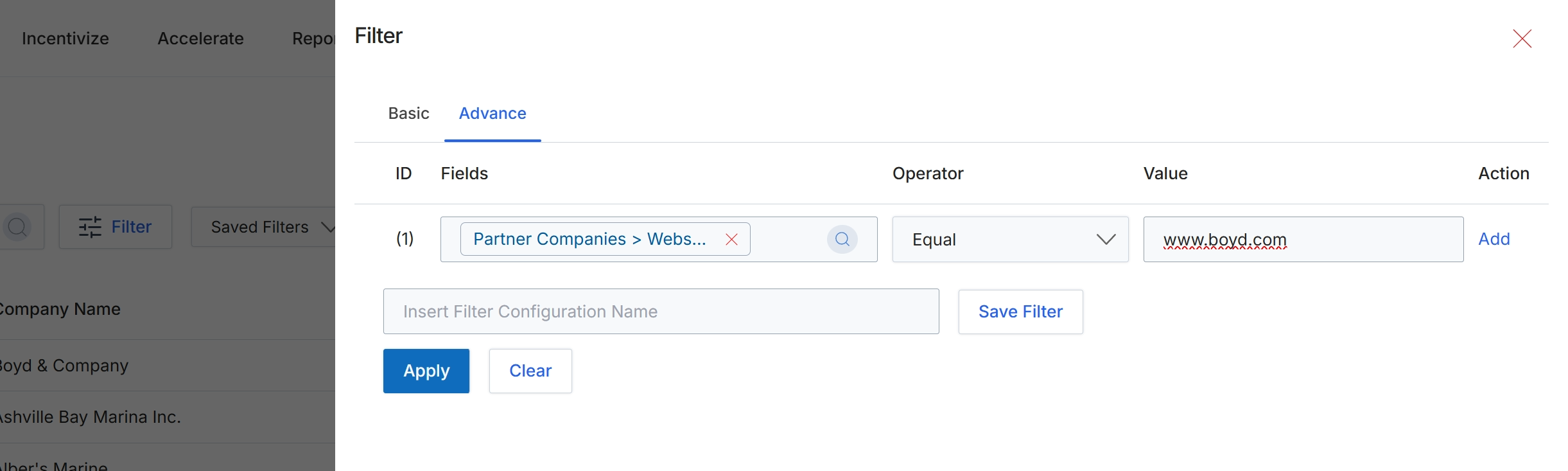
This screen displays the advanced filter configuration panel, which allows UPM administrators to define complex filtering rules for lists of partner companies. This feature is crucial for segmenting partners based on specific criteria, enabling targeted management, reporting, and communication. Users can combine multiple conditions using fields, operators, and values to precisely narrow down the displayed partner list. The ability to save filter configurations streamlines repetitive tasks and ensures consistency in data analysis and partner segmentation across the platform. This advanced filtering mechanism supports the dynamic segmentation capabilities described in the Onboard module, allowing for rule-based grouping of partners for various purposes such as targeted campaigns or incentive eligibility.
Click the 'Apply' button to apply the configured filter to the partner company list.
Buttons
| Button | Description |
|---|---|
| Basic | Switches to the basic filter configuration interface. |
| Advance | Switches to the advanced filter configuration interface, allowing for more complex rule creation. |
| Add | Adds a new filter rule row to the configuration. |
| Save Filter | Saves the current filter configuration for future use. |
| Apply | Applies the configured filter rules to the partner company list. |
| Clear | Clears all configured filter rules. |
Fields
| Field | Description |
|---|---|
| Partner Companies > Webs... | The selected field for the filter rule, indicating that the filter will be applied to the website of partner companies. |
| Equal | The selected operator for the filter rule, indicating an exact match condition. |
| www.boyd.com | The value entered for the filter rule, specifying the website to match. |
| Insert Filter Configuration Name | Text input field to enter a name for saving the current filter configuration. |
Column Headings
| Column | Description |
|---|---|
| ID | Column header for the filter rule identifier. |
| Fields | Column header for the field selected for filtering, such as 'Partner Companies > Website'. |
| Operator | Column header for the comparison operator used in the filter rule. |
| Value | Column header for the value used in the filter rule comparison. |
| Action | Column header for actions related to the filter rule, such as adding a new rule. |