

Overview
Effective partner profile management is crucial for the success of any partner program, as it underpins all subsequent partner interactions and processes within the platform. The 'View Partner Accounts' feature serves as the central hub for administrators to oversee and manage the foundational data of their partner network. From here, administrators can perform essential tasks such as adding new partners, updating existing information, and ensuring data quality through import and export functionalities. This centralized management ensures that all partner-related activities, from onboarding and training to sales and incentives, are based on accurate and consistent information.
This module also empowers administrators with robust filtering and customization options, allowing them to tailor their view of partner accounts to specific needs. Whether segmenting partners by type, tier, or other custom criteria, these tools facilitate targeted communication, program adjustments, and performance analysis. The ability to create and save custom views further streamlines administrative workflows, making it easier to monitor key partner groups and respond proactively to changes in the partner ecosystem.
Accessing and Viewing Partner Accounts
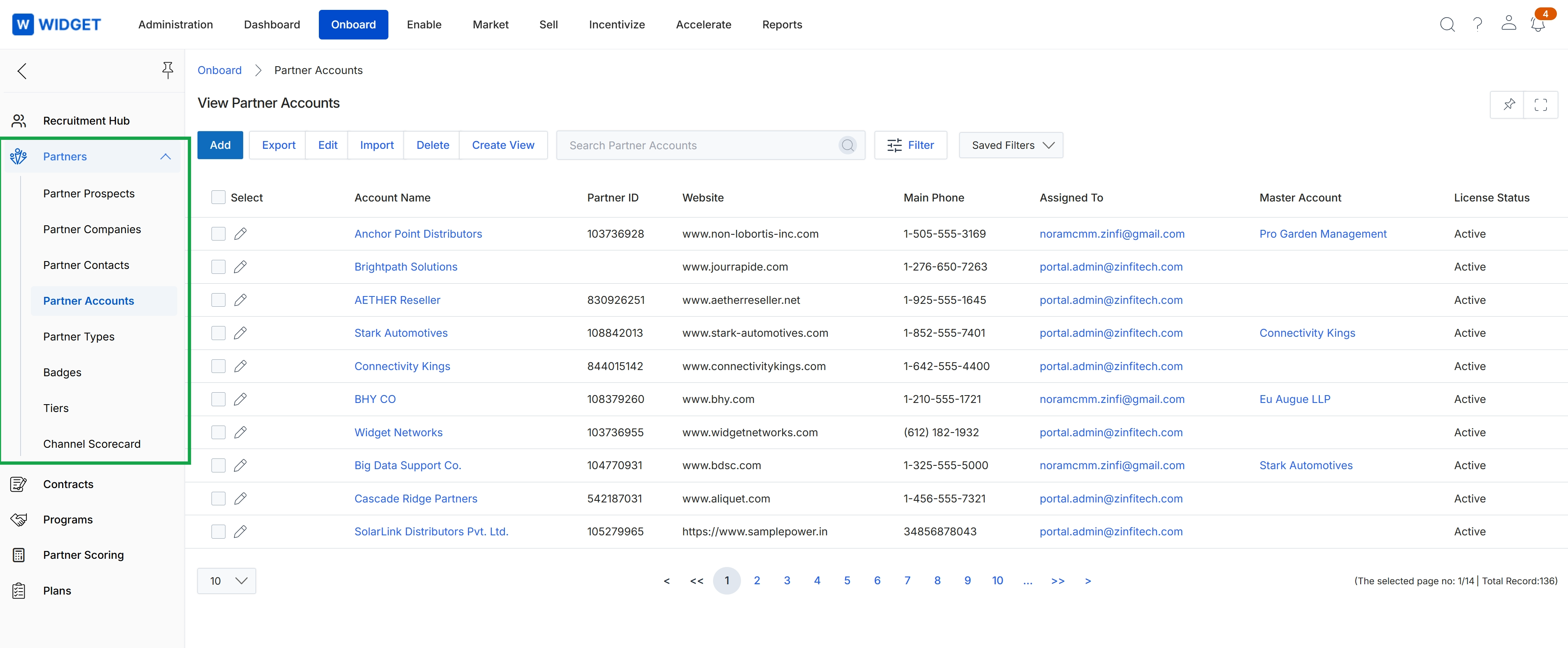
Click Onboard → Partners → Partner Accounts.
Exporting Partner Account Data
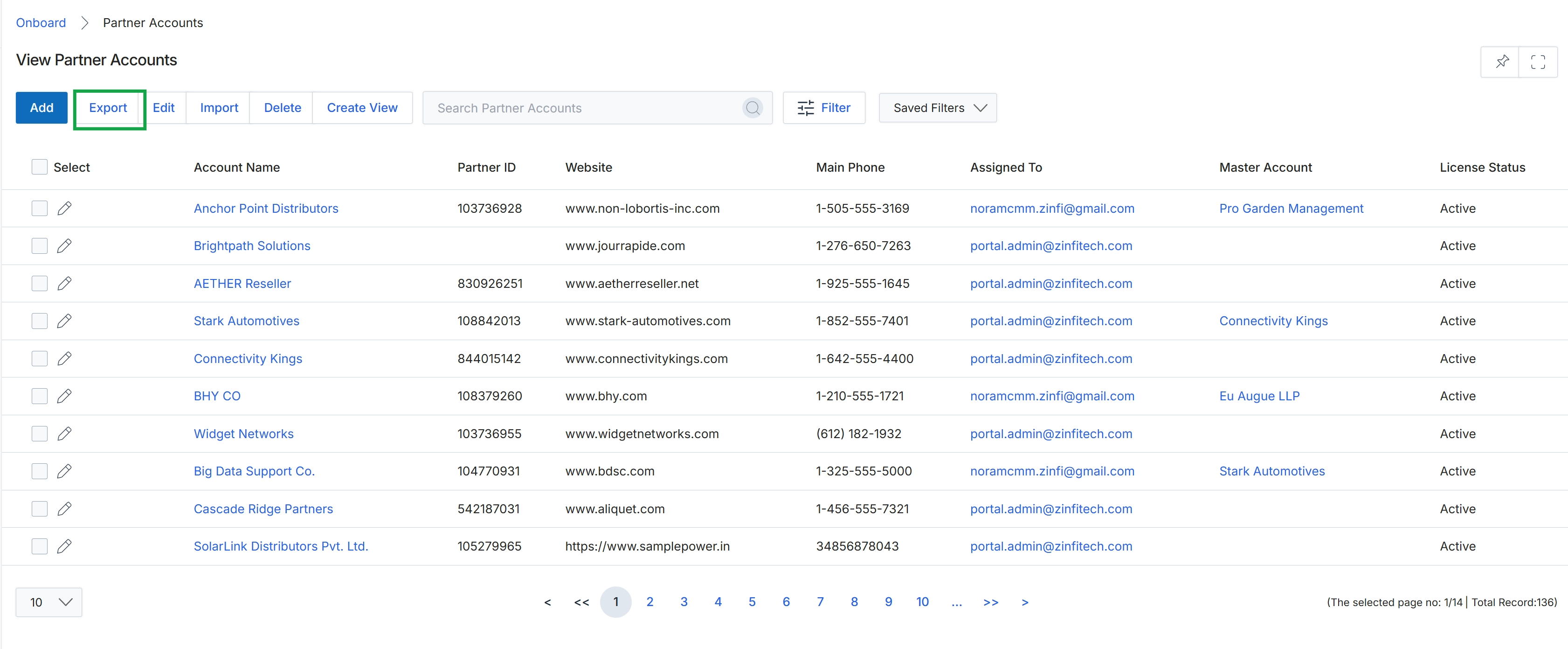
Click Add.
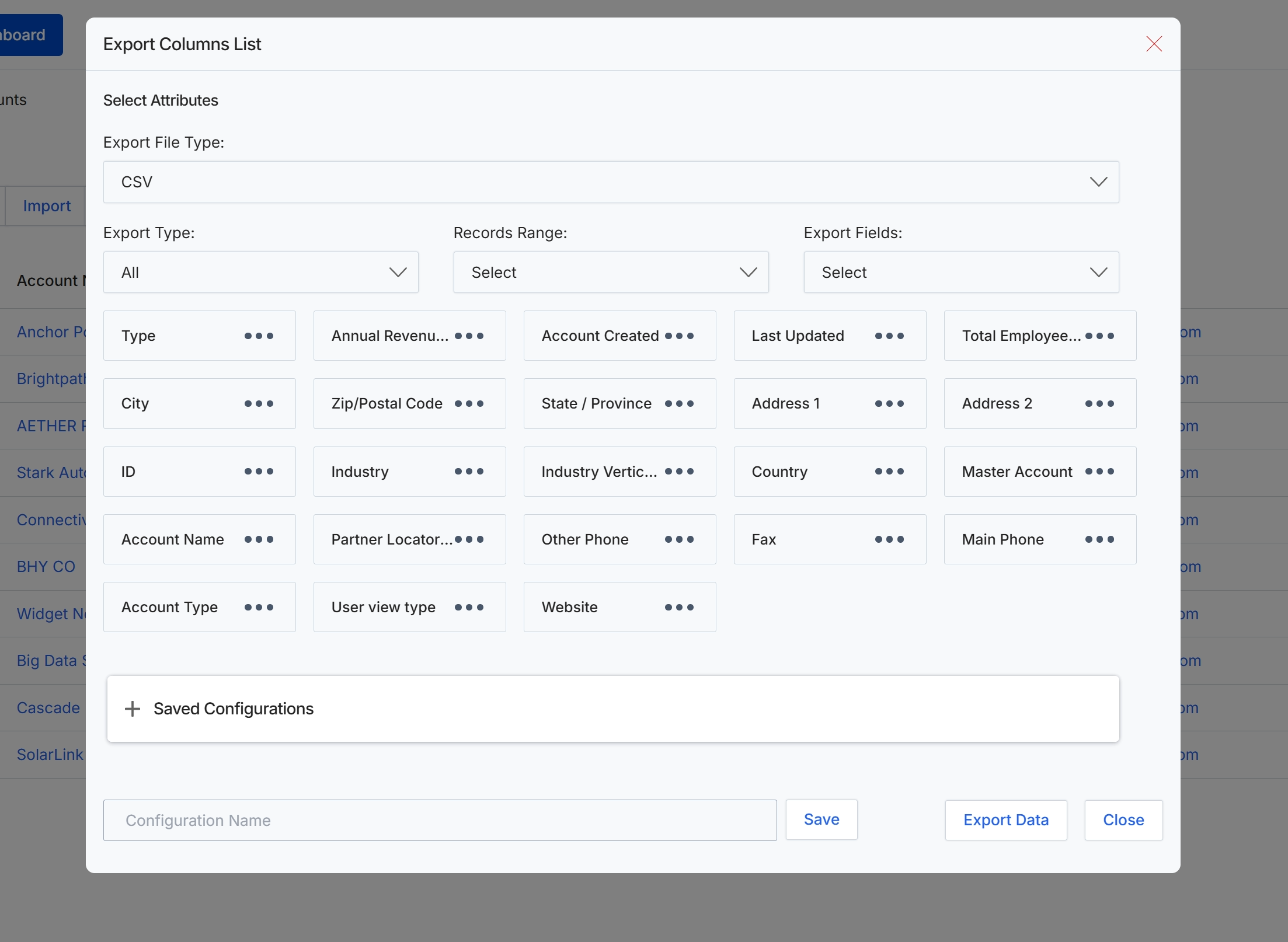
This modal window allows administrators to configure and export partner account data from the platform. It provides options to select the desired export file type, define the scope of the data to be exported (export type, record range, and specific fields), and choose which attributes (columns) to include in the output. This functionality is crucial for data analysis, reporting, and integration with external systems, enabling administrators to extract specific partner information for various business needs. The interface also supports saving frequently used export configurations for efficiency and consistency, although that specific functionality is not fully visible in this view.
Select the desired attributes to include in the export file by clicking on them.
Buttons
| Button | Description |
|---|---|
| Save | A button to save the current export configuration. |
| Export Data | A button to initiate the data export based on the selected configurations. |
| Close | A button to close the export columns list modal. |
Fields
| Field | Description |
|---|---|
| Export File Type | A dropdown to select the format for the exported data, such as CSV. |
| Export Type | A dropdown to specify the type of export, such as 'All' records. |
| Records Range | A dropdown to define the range of records to be included in the export. |
| Export Fields | A dropdown to select specific fields for export. |
| Saved Configurations | A section to manage and apply previously saved export configurations. |
| Configuration Name | A text input field to enter a name for saving the current export configuration. |
Importing Partner Account Data
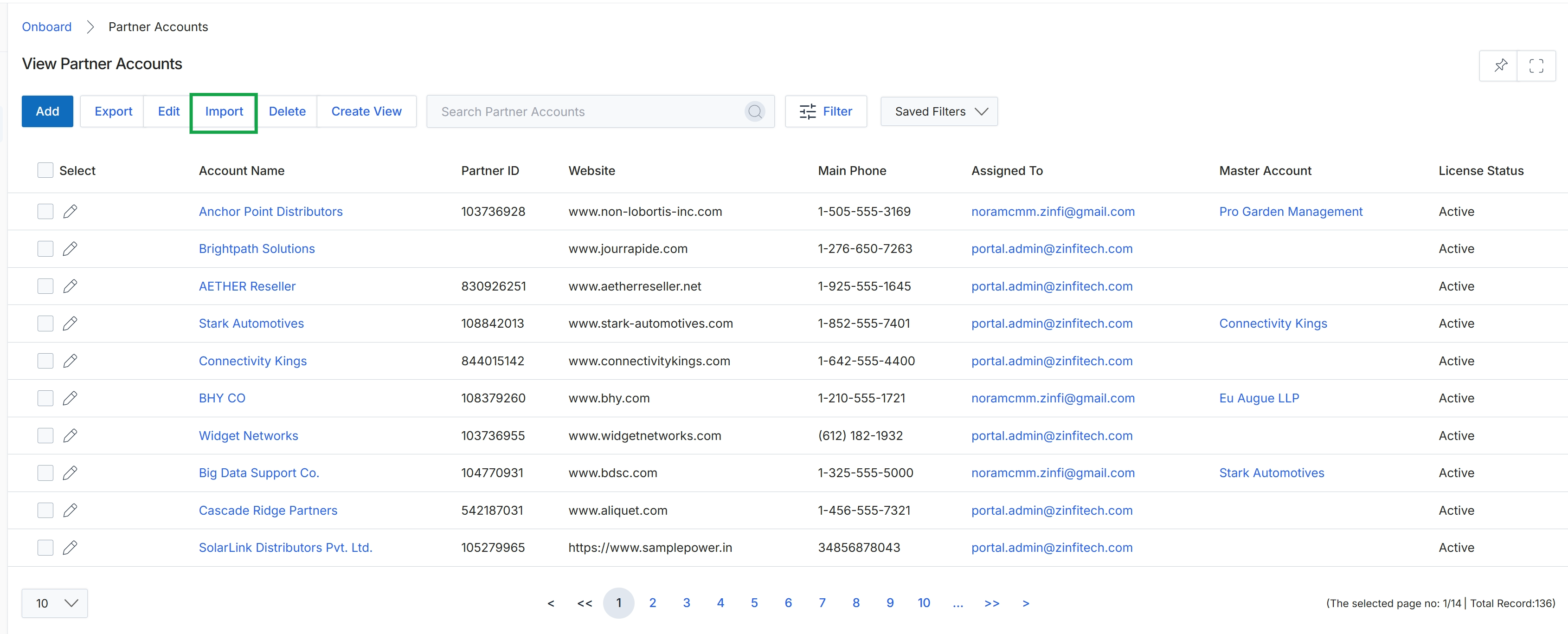
Click Import.
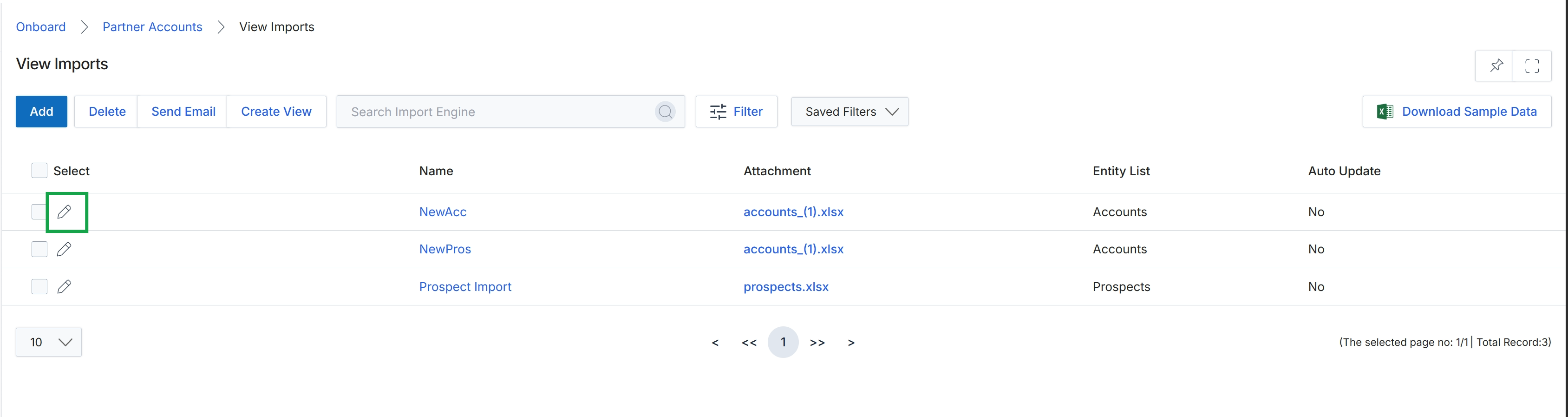
The View Imports screen displays a list of all configured data import jobs within the Onboard module. This screen allows administrators to manage existing import configurations, which are crucial for populating the platform with partner accounts, prospects, and other foundational data, either manually or via CRM synchronization. Each entry provides details about the import, including its name, the attached file, the entity type it targets, and whether it's set for automatic updates. Administrators use this view to monitor import statuses, modify settings for scheduled imports, or initiate new import processes.
Click the pencil icon next to the 'NewAcc' import to modify its configuration.
Buttons
| Button | Description |
|---|---|
| Add | Initiates the process to create a new data import configuration. |
| Delete | Deletes selected data import configurations. |
| Send Email | Sends an email related to the selected import, likely for notifications or status updates. |
| Create View | Allows the creation of a custom view for the import list, enabling users to save specific filter and column arrangements. |
| Filter | Opens a panel to apply filters to the list of import configurations. |
| Saved Filters | A dropdown to select and apply previously saved filter configurations. |
| Download Sample Data | Downloads a sample data file, likely an Excel template, to guide users on the required format for imports. |
| pencil icon | An icon to edit the details of a specific import configuration. |
Fields
| Field | Description |
|---|---|
| Search Import Engine | A search bar to find specific import configurations by keyword. |
Column Headings
| Column | Description |
|---|---|
| Select | A checkbox to select individual import configurations for bulk actions. |
| Name | The name assigned to the data import configuration. |
| Attachment | The name of the file attached to the import configuration, typically an Excel spreadsheet. |
| Entity List | The type of entity (e.g., Accounts, Prospects) that the import targets. |
| Auto Update | Indicates whether the import is configured to run automatically on a schedule. |
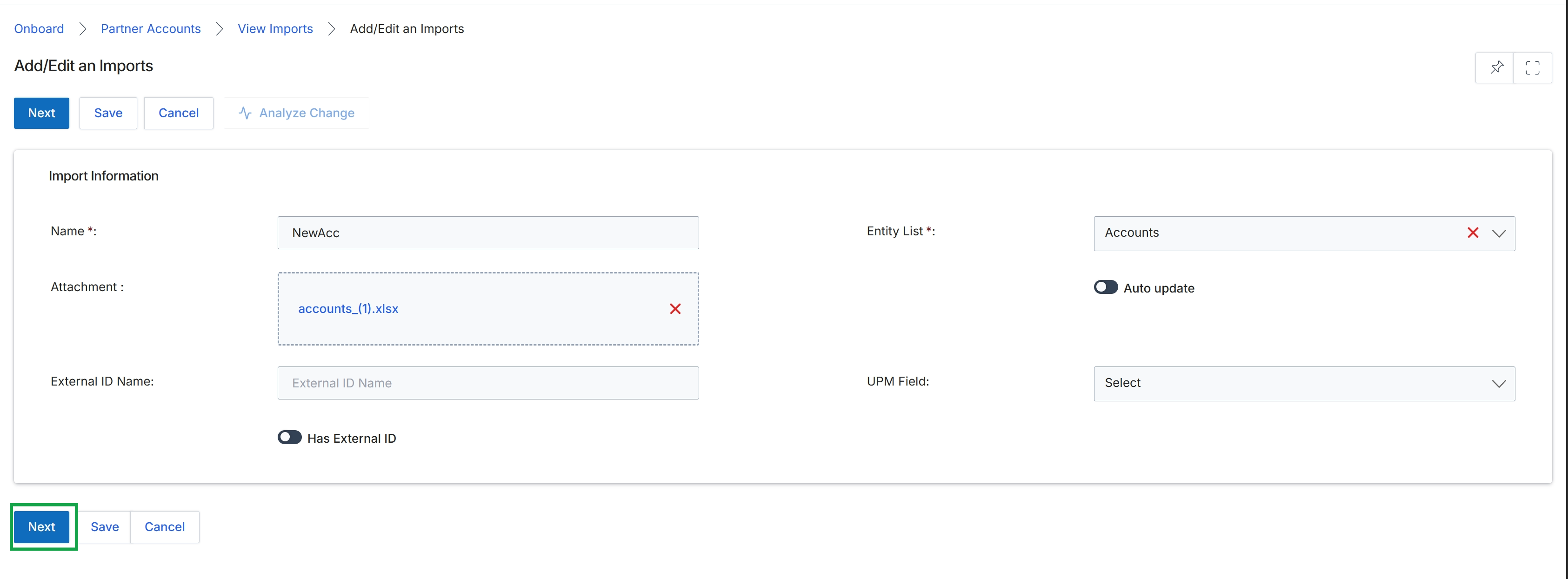
This screen, titled 'Add/Edit an Imports', is part of the Partner Profile Management workflow within the Onboard module, enabling administrators to configure and manage data import tasks. It allows for the bulk creation or update of partner accounts and related entities, which is crucial for efficiently populating the platform with partner data, especially during initial setup or when integrating with external systems like CRMs. The form captures essential details about the import job, such as its name, the specific entity type being imported, and the source file. It also provides options for handling external IDs and automating updates, ensuring data consistency and reducing manual effort in maintaining partner records.
Click Next to proceed with the import configuration after providing the necessary details.
Buttons
| Button | Description |
|---|---|
| Next | Proceeds to the next step in the import configuration process. |
| Save | Saves the current import configuration without proceeding to the next step. |
| Cancel | Discards any changes and returns to the previous screen. |
| Analyze Change | Analyzes the potential impact of the import before execution. |
Import Information
| Field | Description |
|---|---|
| Name * | The name for this import job, which is a required field. |
| Attachment | The uploaded file (e.g., .xlsx) containing the data to be imported. |
| External ID Name | The name of the external ID field if 'Has External ID' is enabled. |
| Has External ID | A toggle to indicate whether the import data includes an external identifier. |
| Entity List * | The type of entity being imported, such as 'Accounts' (Partner Accounts). This is a required field. |
| Auto update | A toggle to enable automatic updates for existing records during the import. |
| UPM Field | A dropdown to select the corresponding platform field for mapping purposes. |
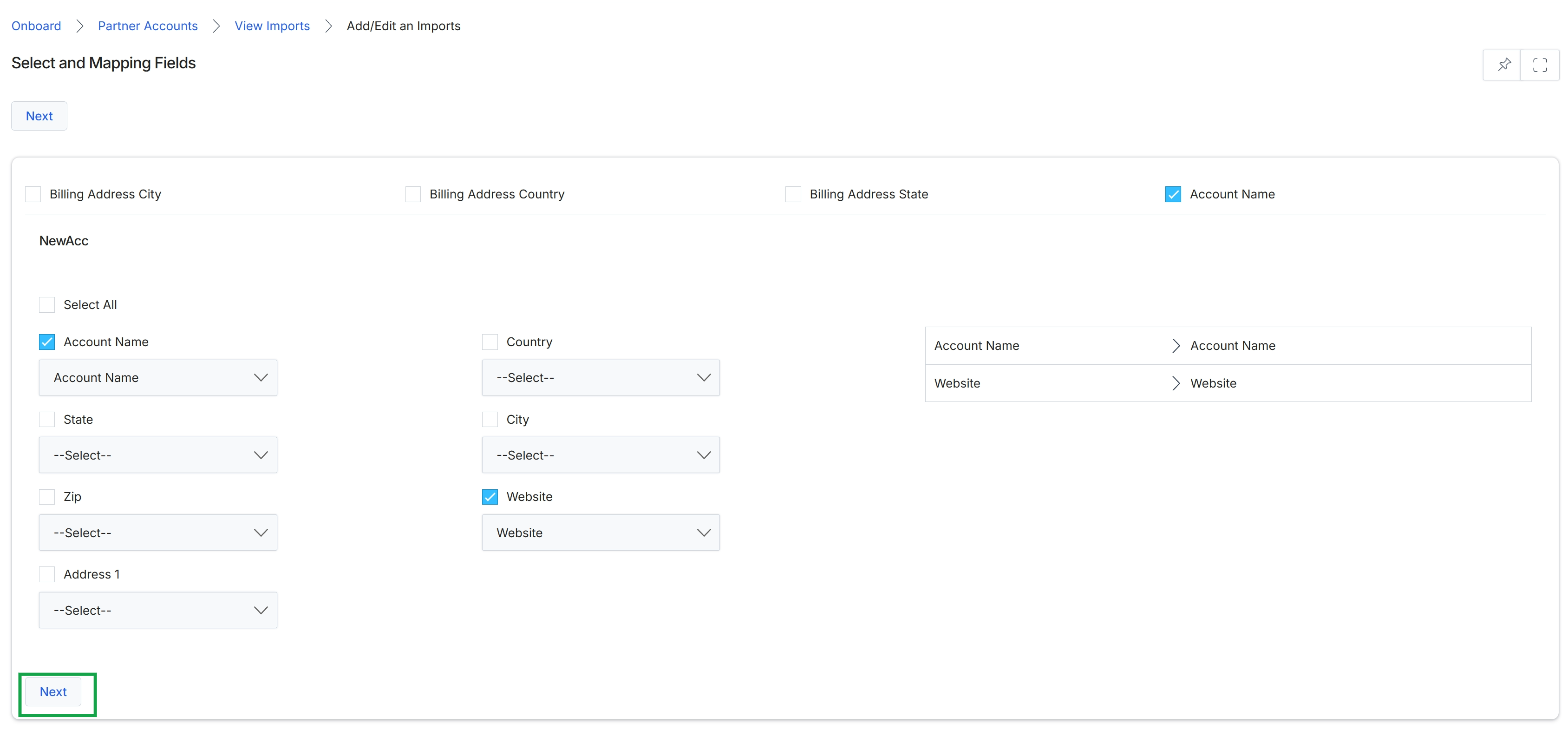
This screen is part of the import process for partner accounts, specifically designed for mapping fields from an uploaded data source to the platform's internal fields. It allows administrators to review the columns from their import file and associate them with the corresponding data fields within the UPM. This mapping ensures that when the import is executed, the data is correctly categorized and stored in the partner account records, which are foundational for all subsequent partner management activities across the Onboard module and other modules. The screen displays a preview of the available fields for mapping, enabling administrators to select which data points to import and how they align with the platform's data model.
Click the "Next" button to proceed with the import process after selecting and mapping the desired fields.
Buttons
| Button | Description |
|---|---|
| Next | Proceeds to the next step of the import process. |
Fields
| Field | Description |
|---|---|
| Billing Address City | A checkbox to select the 'Billing Address City' field for mapping. |
| Billing Address Country | A checkbox to select the 'Billing Address Country' field for mapping. |
| Billing Address State | A checkbox to select the 'Billing Address State' field for mapping. |
| Account Name | A checkbox to select the 'Account Name' field for mapping. |
| Account Name | A display field showing the mapped 'Account Name'. |
| Website | A display field showing the mapped 'Website'. |
NewAcc
| Field | Description |
|---|---|
| Account Name | A dropdown menu to map an imported column to the 'Account Name' field. |
| State | A dropdown menu to map an imported column to the 'State' field. |
| Zip | A dropdown menu to map an imported column to the 'Zip' field. |
| Address 1 | A dropdown menu to map an imported column to the 'Address 1' field. |
| Country | A dropdown menu to map an imported column to the 'Country' field. |
| City | A dropdown menu to map an imported column to the 'City' field. |
| Website | A checkbox to select the 'Website' field for mapping. |
| Website | A dropdown menu to map an imported column to the 'Website' field. |
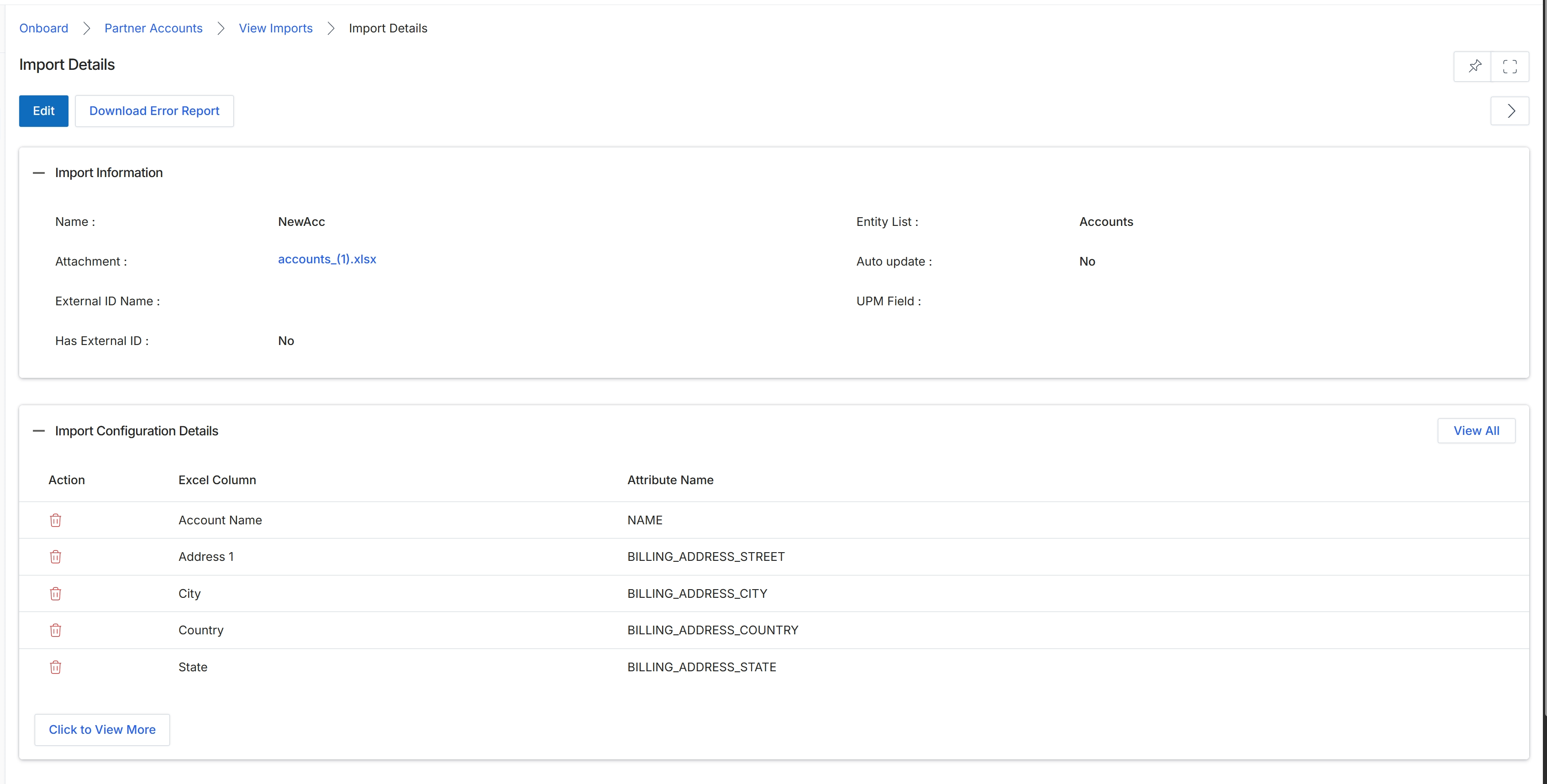
The Import Details screen provides a comprehensive overview of a specific data import operation within the Onboard module. This screen displays key information about the import, such as its name, the source file, and whether it involves external IDs. It also details the configuration of the import, showing how columns from the imported Excel file are mapped to specific attributes within the platform. This allows administrators to verify the mapping settings, understand the scope of the import, and troubleshoot any issues by reviewing the error report. This screen is crucial for ensuring data integrity and successful bulk creation or update of partner records, contacts, or other entities in the system.
Review the details of the data import, including the import information and configuration details.
Buttons
| Button | Description |
|---|---|
| Edit | Allows modification of the import details and configuration. |
| Download Error Report | Downloads a report detailing any errors encountered during the import process. |
| View All | Displays all import configuration details. |
| Click to View More | Expands the list to show additional import configuration mappings. |
Import Information
| Field | Description |
|---|---|
| Name | The name assigned to this import job. |
| Attachment | The name of the Excel file used for the import. |
| External ID Name | The name of the external ID field, if applicable. |
| Has External ID | Indicates whether the import uses an external ID for record identification. |
| Entity List | The type of entity being imported (e.g., Accounts, Contacts). |
| Auto update | Indicates whether the import is configured to automatically update existing records. |
| UPM Field | This field is not populated in the current view. |
Import Configuration Details
| Column | Description |
|---|---|
| Action | Actions related to the mapping, such as deleting a specific mapping. |
| Excel Column | The name of the column from the imported Excel file. |
| Attribute Name | The corresponding attribute name in the platform to which the Excel column is mapped. |
Click the Onboard breadcrumb to return to the Onboard module's main page.
Managing Partner Accounts
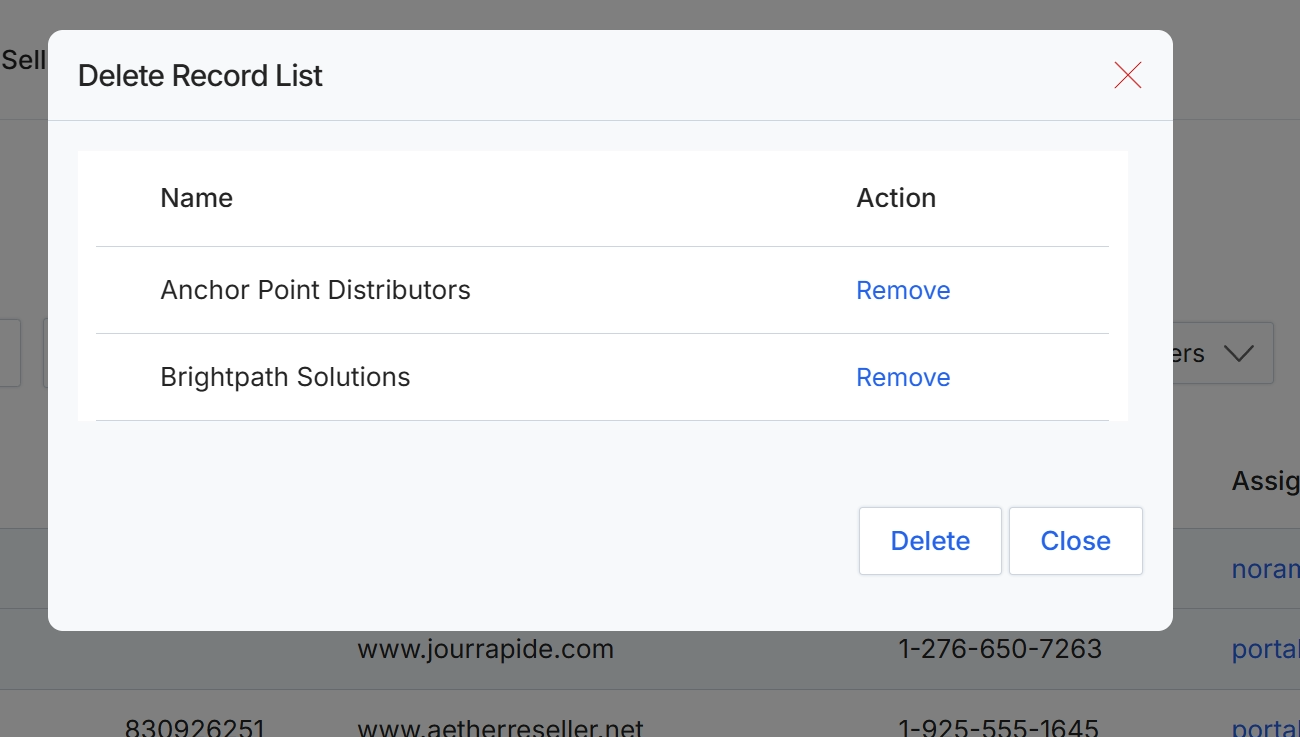
This dialog box, titled 'Delete Record List', is displayed when a user initiates a bulk deletion action for multiple partner accounts. It provides a summary of the records selected for deletion, allowing the user to review the list before confirming the permanent removal of these partner accounts from the system. Each entry in the list includes the partner's name and an option to remove that specific partner from the deletion queue, providing a final opportunity to deselect records that should not be deleted. This step serves as a critical safeguard to prevent accidental or erroneous mass deletions, ensuring data integrity within the platform.
Review the list of partner accounts selected for deletion and click "Delete" to confirm their removal.
Buttons
| Button | Description |
|---|---|
| Remove | Removes the corresponding partner account from the list of records to be deleted. |
| Delete | Confirms the deletion of all partner accounts currently listed in the dialog. |
| Close | Closes the dialog without performing any deletion, canceling the bulk delete operation. |
Column Headings
| Column | Description |
|---|---|
| Name | The name of the partner account selected for deletion. |
| Action | Provides an option to remove a specific partner account from the current deletion list before proceeding with the bulk delete. |
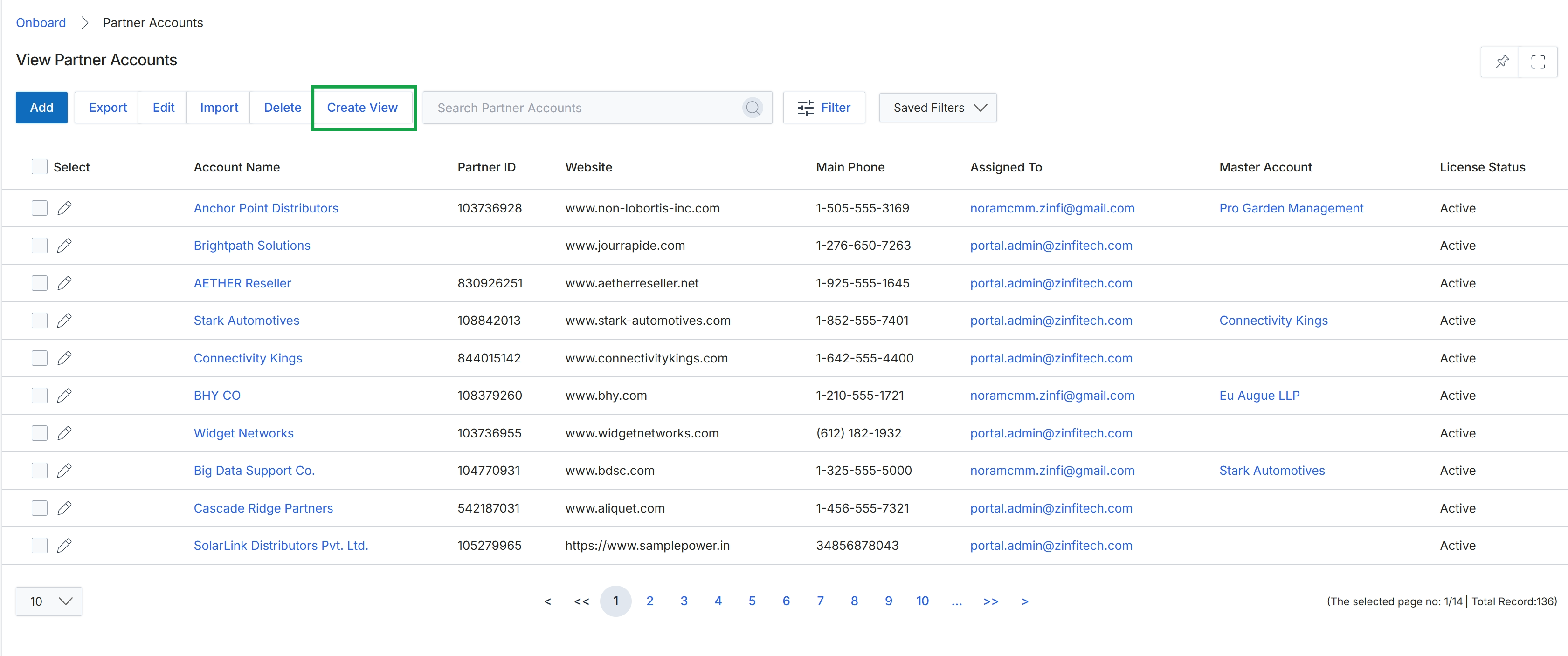
Click Create View.
Customizing and Filtering Partner Account Views
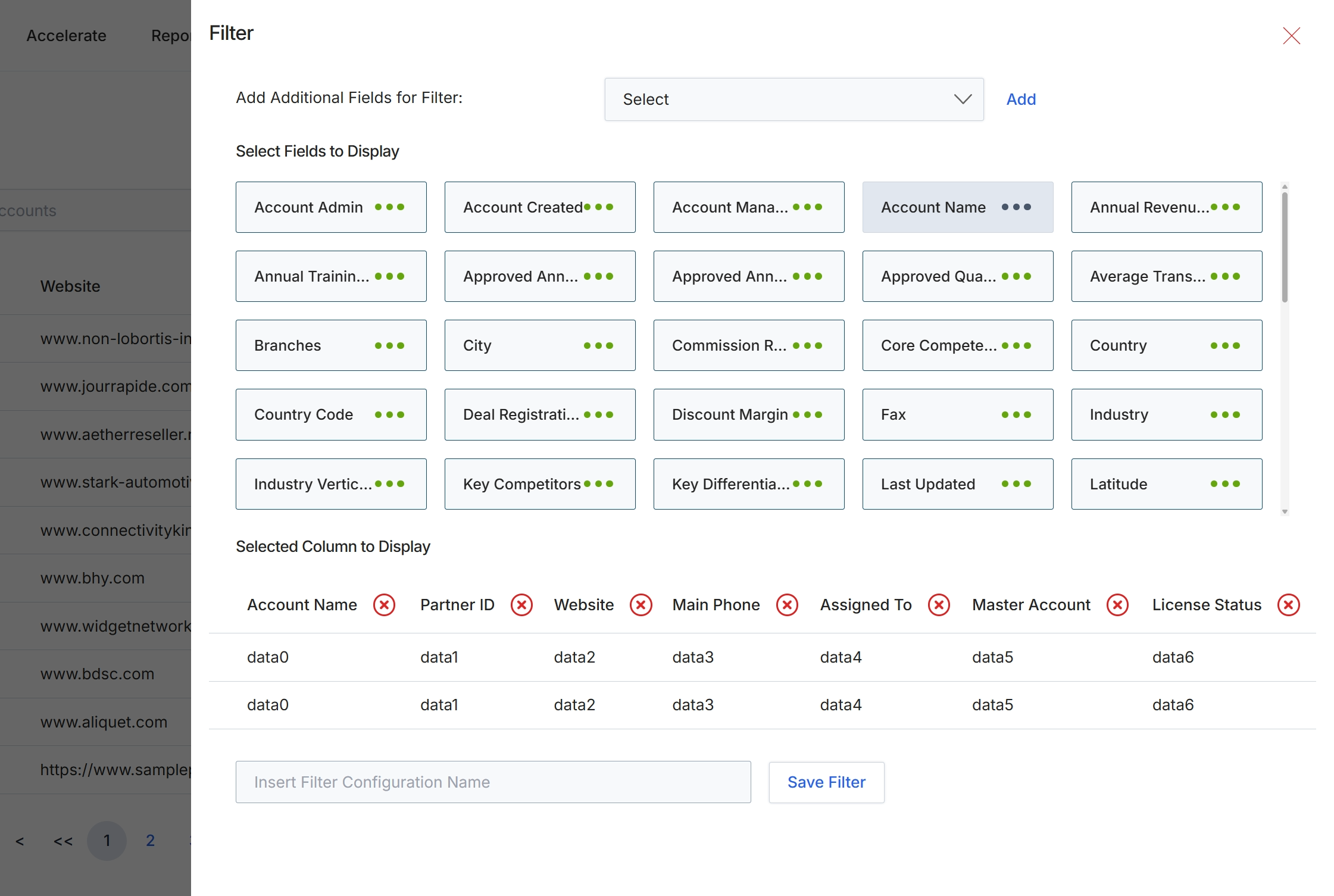
This filter configuration dialog allows administrators to customize the display and filtering options for partner account lists. It provides a flexible way to manage which data fields are visible as columns in the main list view and which fields can be used to filter the displayed records. By selecting specific fields to display, users can tailor the list view to show the most relevant information for their current task, improving data accessibility and operational efficiency. The ability to save filter configurations enables quick access to frequently used views, streamlining workflows for managing partner accounts.
Select 'Account Name' from the 'Select Fields to Display' section to add it to the 'Selected Column to Display' list.
Buttons
| Button | Description |
|---|---|
| Add | Adds the selected field from the dropdown to the filter criteria. |
| Save Filter | A button to save the current filter configuration, including the selected display columns and any applied filters. |
Fields
| Field | Description |
|---|---|
| Select | A dropdown menu to select additional fields that can be used for filtering the partner list. |
| Insert Filter Configuration Name | A text input field to enter a name for the current filter configuration, allowing it to be saved for future use. |
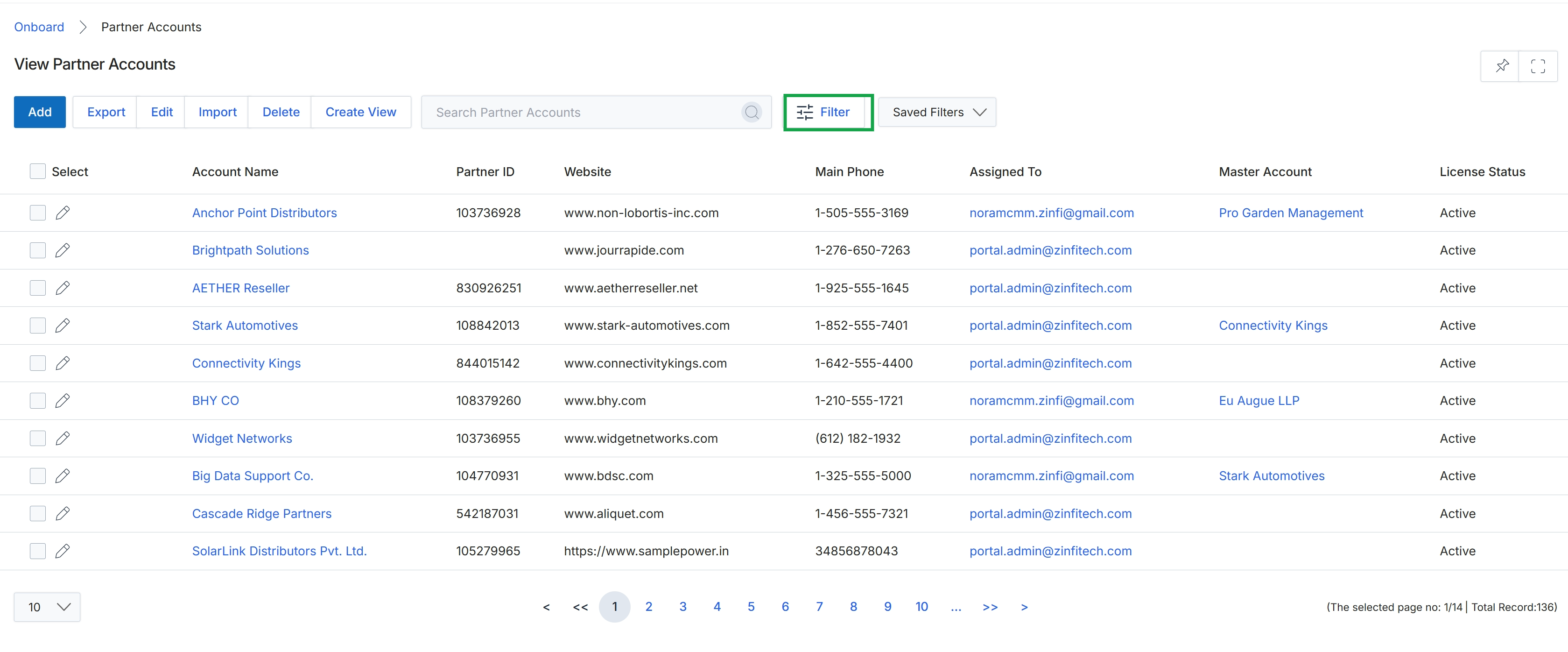
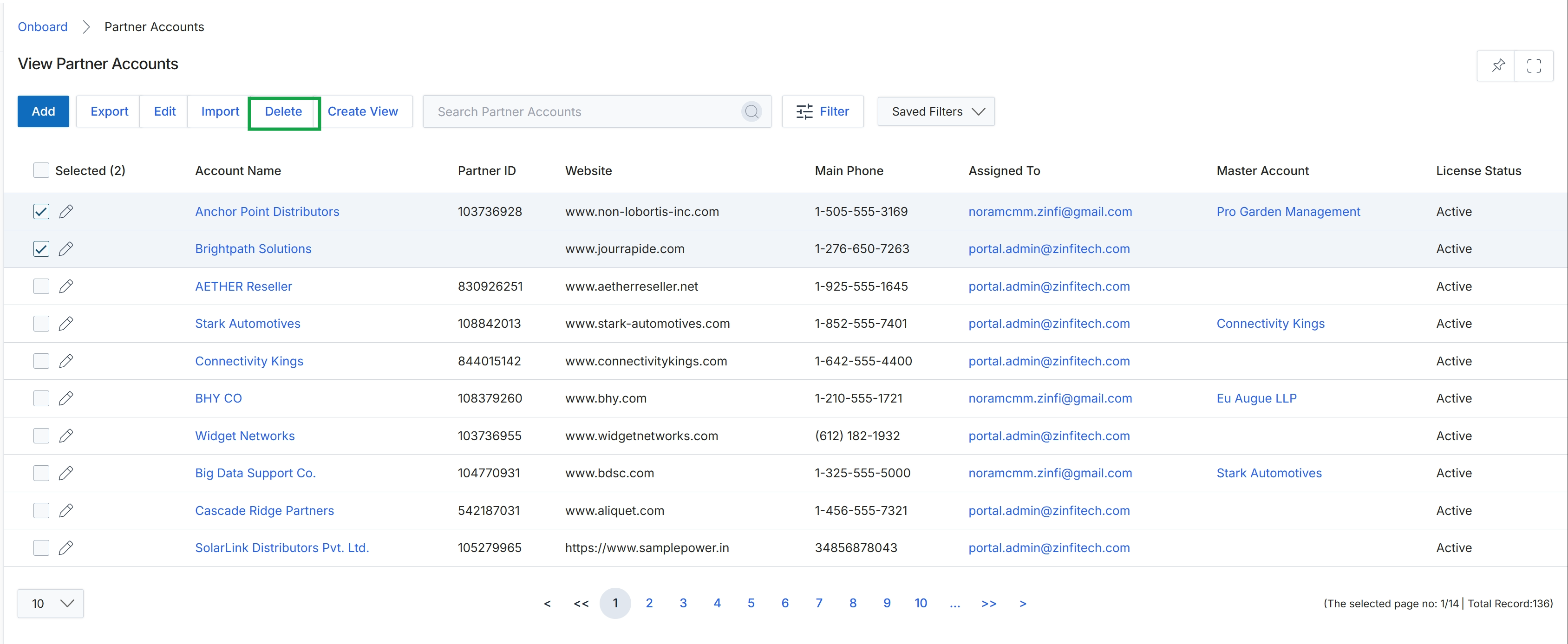
The View Partner Accounts screen displays a comprehensive list of all partner organizations registered within the platform. This list serves as the central hub for UPM administrators to manage their partner ecosystem, providing an overview of each partner's key details and status. From this screen, administrators can perform various actions such as adding new partners, editing existing records, importing bulk data, or exporting the list for external analysis. The table view allows for quick scanning of essential partner information, facilitating efficient partner management and enabling administrators to identify specific partners for further action or review.
Click the Filter button to refine the displayed list of partner accounts based on specific criteria.
Buttons
| Button | Description |
|---|---|
| Add | Adds a new partner account to the system. |
| Export | Exports the current list of partner accounts to a file. |
| Edit | Edits the details of a selected partner account. |
| Import | Imports partner account data from an external source. |
| Delete | Deletes selected partner accounts from the system. |
| Create View | Creates a custom view for the partner accounts list. |
| Filter | Opens a panel to apply filters to the partner accounts list. |
| Saved Filters | A dropdown to select and apply previously saved filter configurations. |
Fields
| Field | Description |
|---|---|
| Search Partner Accounts | A search bar to find specific partner accounts by keywords. |
Column Headings
| Column | Description |
|---|---|
| Select | A checkbox column to select individual partner accounts for bulk actions. |
| Account Name | The name of the partner company. |
| Partner ID | The unique identifier assigned to each partner account. |
| Website | The official website of the partner company. |
| Main Phone | The primary contact phone number for the partner. |
| Assigned To | The UPM administrator or program manager assigned to the partner account. |
| Master Account | Indicates if the partner is part of a larger master account structure. |
| License Status | The current licensing status of the partner. |
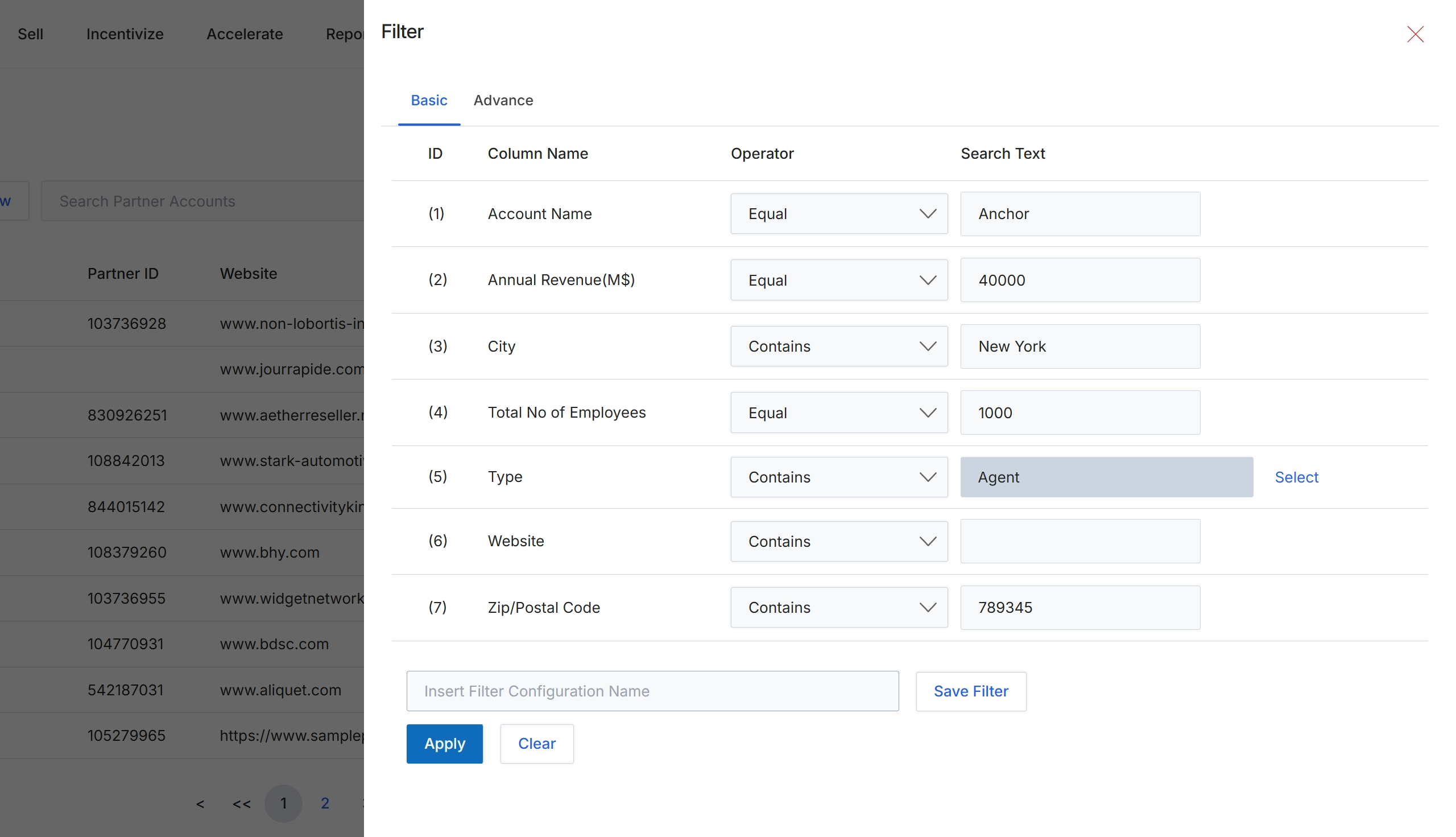
This screen displays the filter configuration panel, which allows users to define specific criteria for narrowing down the list of partner accounts. Users can apply filters based on various partner attributes such as account name, annual revenue, location, employee count, partner type, website, and zip code. This functionality is crucial for segmenting partners, identifying specific groups for targeted actions, or simply finding particular records efficiently within the Partner Accounts list view. The panel supports both basic and advanced filtering options, enabling precise data retrieval for administrative tasks or reporting purposes.
Configure the filter criteria by selecting column names, operators, and search text values, then click "Apply" to filter the partner accounts list.
Buttons
| Button | Description |
|---|---|
| Basic | Selects the basic filter configuration view. |
| Advance | Selects the advanced filter configuration view, which may offer more complex rule-building capabilities. |
| Select | Allows selection of a specific partner type from a predefined list. |
| Save Filter | Saves the currently defined filter configuration under the specified name. |
| Apply | Applies the configured filters to the partner accounts list. |
| Clear | Clears all filter criteria entered in the panel. |
Fields
| Field | Description |
|---|---|
| Account Name | Filters partner accounts by their registered company name. |
| Equal | The operator for the 'Account Name' filter, set to match exactly. |
| Anchor | The search text for the 'Account Name' filter. |
| Annual Revenue(M$) | Filters partner accounts by their reported annual revenue in millions of dollars. |
| Equal | The operator for the 'Annual Revenue(M$)' filter, set to match exactly. |
| 40000 | The search text for the 'Annual Revenue(M$)' filter. |
| City | Filters partner accounts by the city where they are located. |
| Contains | The operator for the 'City' filter, set to find partial matches. |
| New York | The search text for the 'City' filter. |
| Total No of Employees | Filters partner accounts by their total number of employees. |
| Equal | The operator for the 'Total No of Employees' filter, set to match exactly. |
| 1000 | The search text for the 'Total No of Employees' filter. |
| Type | Filters partner accounts by their designated partner type (e.g., Reseller, Agent). |
| Contains | The operator for the 'Type' filter, set to find partial matches. |
| Agent | The search text for the 'Type' filter, indicating a partner type of 'Agent'. |
| Website | Filters partner accounts by their official website URL. |
| Contains | The operator for the 'Website' filter, set to find partial matches. |
| Zip/Postal Code | Filters partner accounts by their zip or postal code. |
| Contains | The operator for the 'Zip/Postal Code' filter, set to find partial matches. |
| 789345 | The search text for the 'Zip/Postal Code' filter. |
| Insert Filter Configuration Name | A text field to enter a name for saving the current filter configuration for future use. |
Column Headings
| Column | Description |
|---|---|
| ID | The identifier for each filter row. |
| Column Name | The name of the partner account attribute to filter by. |
| Operator | The comparison operator to use for the filter (e.g., Equal, Contains). |
| Search Text | The value to search for within the selected column. |
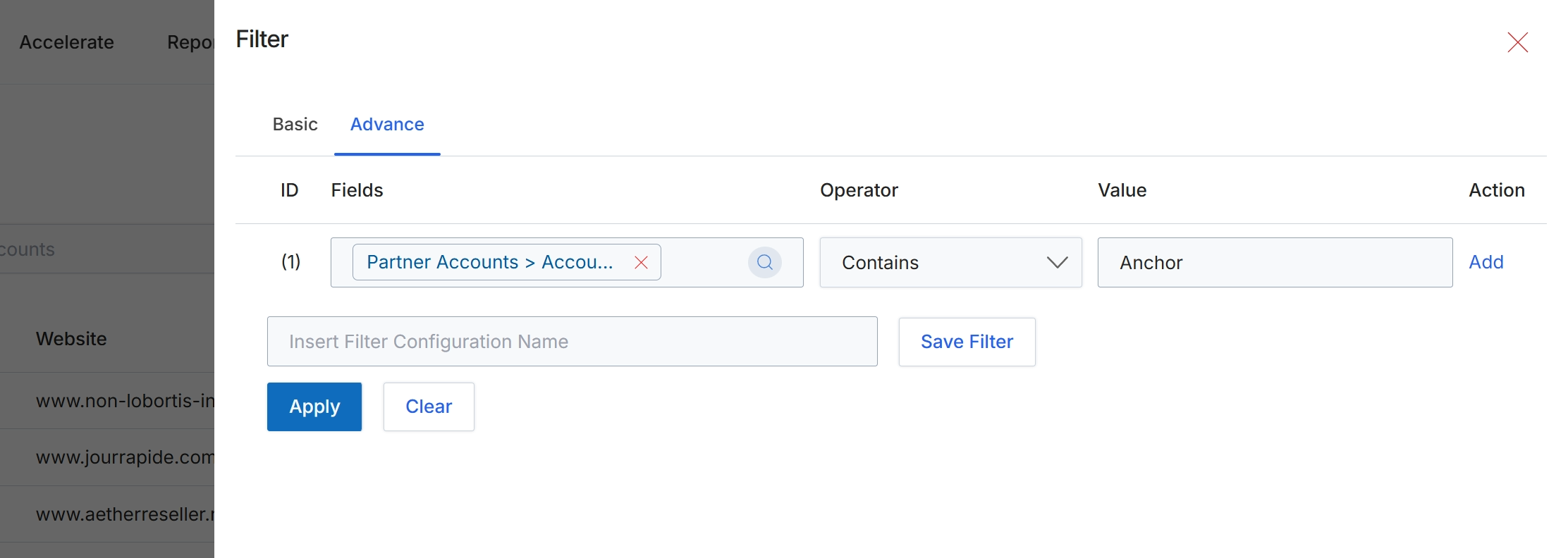
This filter configuration screen allows administrators to define and apply advanced filtering criteria to lists of partner accounts. It provides a structured way to build complex queries using multiple conditions, operators, and values, enabling precise data segmentation for reporting, management, or targeted actions. The ability to save filter configurations streamlines repetitive analysis tasks and ensures consistency across different user sessions or team members. This advanced filtering capability is crucial for managing large partner ecosystems, allowing administrators to quickly identify specific groups of partners based on various attributes such as account details, performance metrics, or engagement levels.
Configure the advanced filter by selecting fields, operators, and values, then click "Apply" to filter the partner accounts.
Buttons
| Button | Description |
|---|---|
| Basic | A tab to switch to basic filter options. |
| Advance | A tab to switch to advanced filter options, allowing for more complex query building. |
| Add | A button to add another filter condition row. |
| Save Filter | A button to save the current filter configuration under the specified name. |
| Apply | A button to apply the configured filter conditions to the partner accounts list. |
| Clear | A button to clear all configured filter conditions. |
Fields
| Field | Description |
|---|---|
| Partner Accounts > Accou... | A dropdown selector to choose the specific field from partner accounts to apply the filter condition. |
| Contains | A dropdown selector to choose the operator for the filter condition, such as 'contains', 'equals', 'starts with', etc. |
| Anchor | A text input field to enter the value for the filter condition. |
| Insert Filter Configuration Name | A text input field to enter a name for the current filter configuration to save it for future use. |
Column Headings
| Column | Description |
|---|---|
| ID | Column header for the filter condition identifier. |
| Fields | Column header for the field to be filtered. |
| Operator | Column header for the comparison operator to be used in the filter condition. |
| Value | Column header for the value to compare against the selected field. |
| Action | Column header for actions related to the filter condition. |