

Overview
The Co-Sell Hub is a critical component within the Sell module, designed to manage collaborative sales engagements between the vendor and its partners. This feature supports the WF-04 Co-sell workflow, where either a partner or a vendor representative can initiate a joint selling engagement. Once a co-sell request is accepted, a shared workspace is established, allowing both parties to collaborate on account and contact data, track activities, share documents, and define next steps.
Administrators use the Co-Sell Hub to gain comprehensive visibility into these joint deals. They can monitor the status of co-sell requests, track deal values, and observe progress through various sales stages. This oversight is crucial for ensuring effective partner engagement, identifying areas for support, and ultimately driving revenue through co-selling initiatives. The data from the Co-Sell Hub also contributes to co-sell analytics, helping to identify which partners are most effective in driving co-sell pipeline.
Accessing the Co-Sell Hub
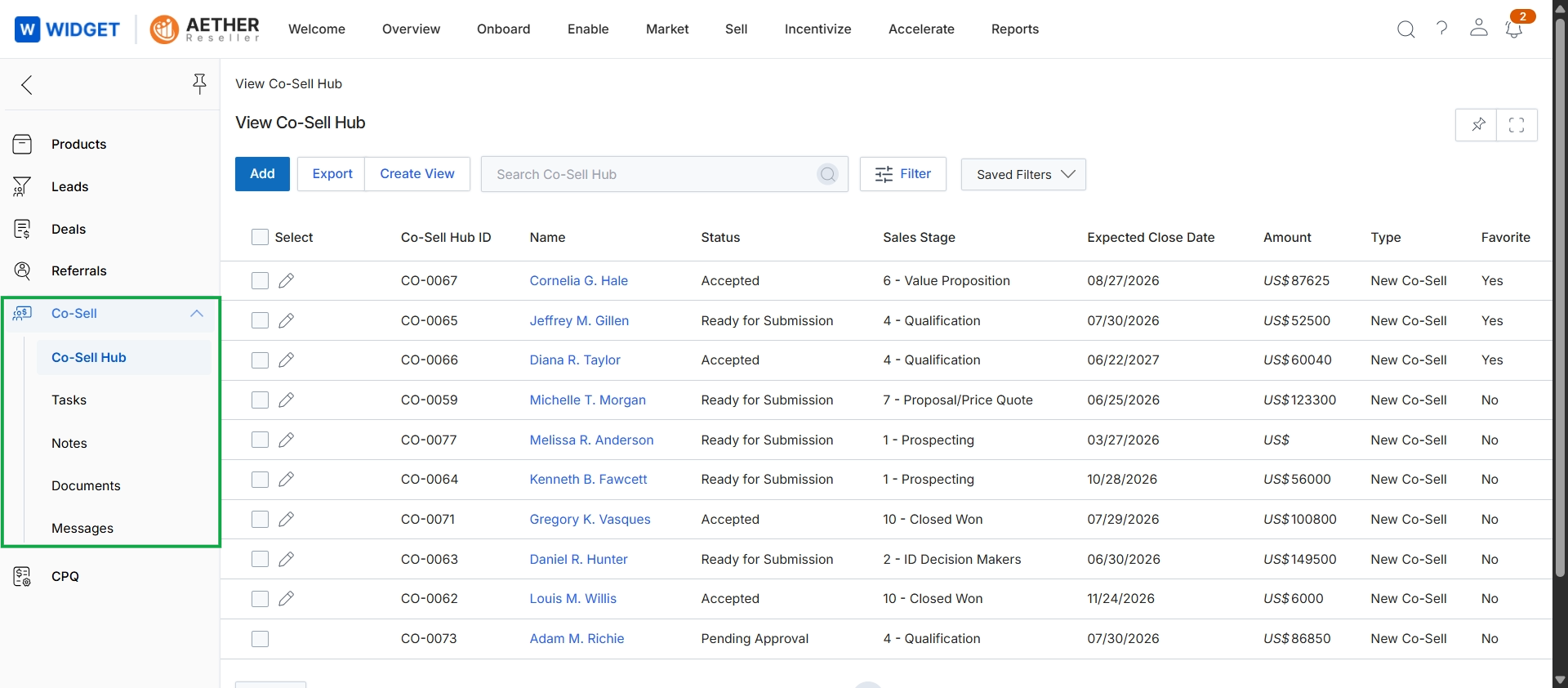
Click Co-Sell → Co-Sell Hub.
Exporting Co-Sell Data
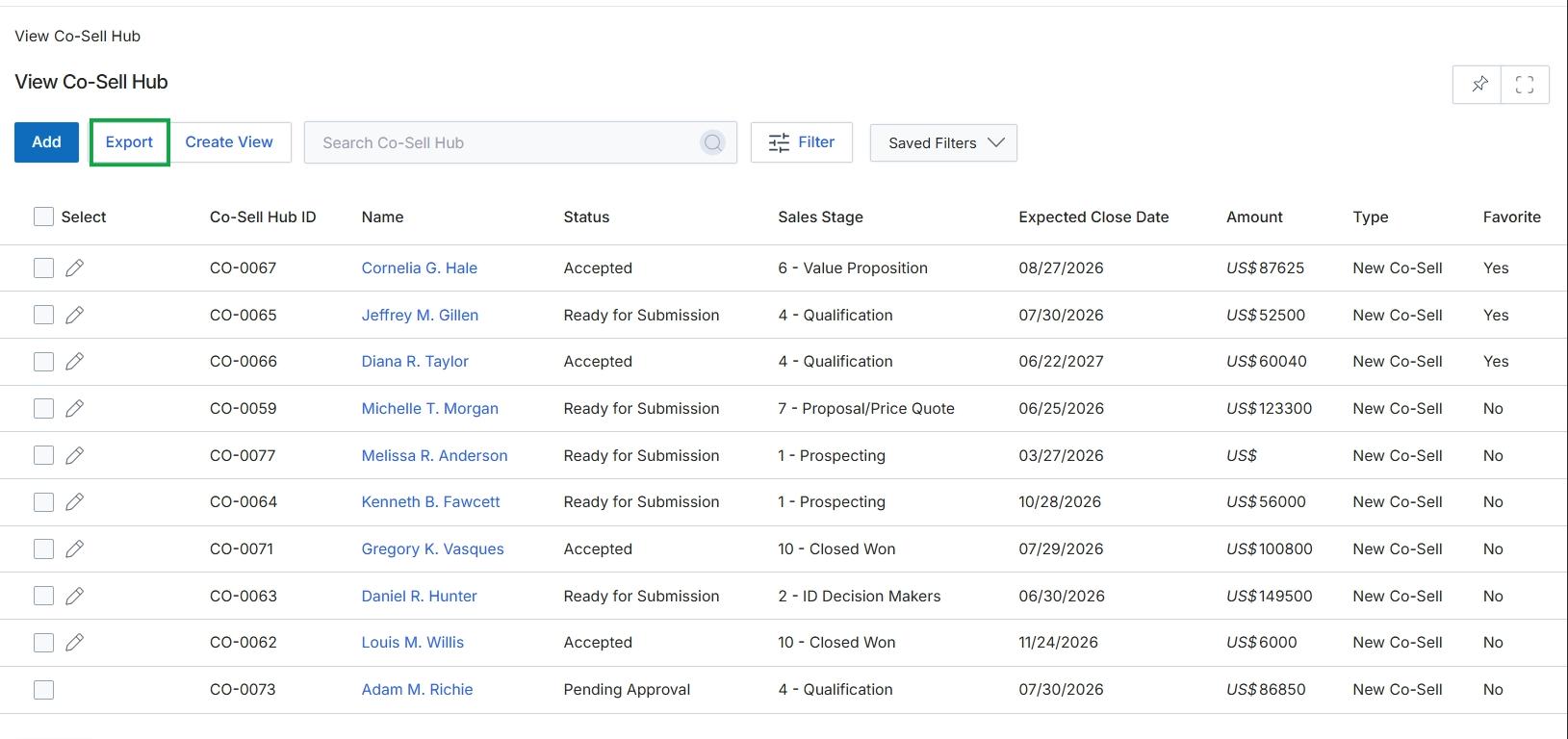
Click Co-Sell Hub in the left navigation menu.
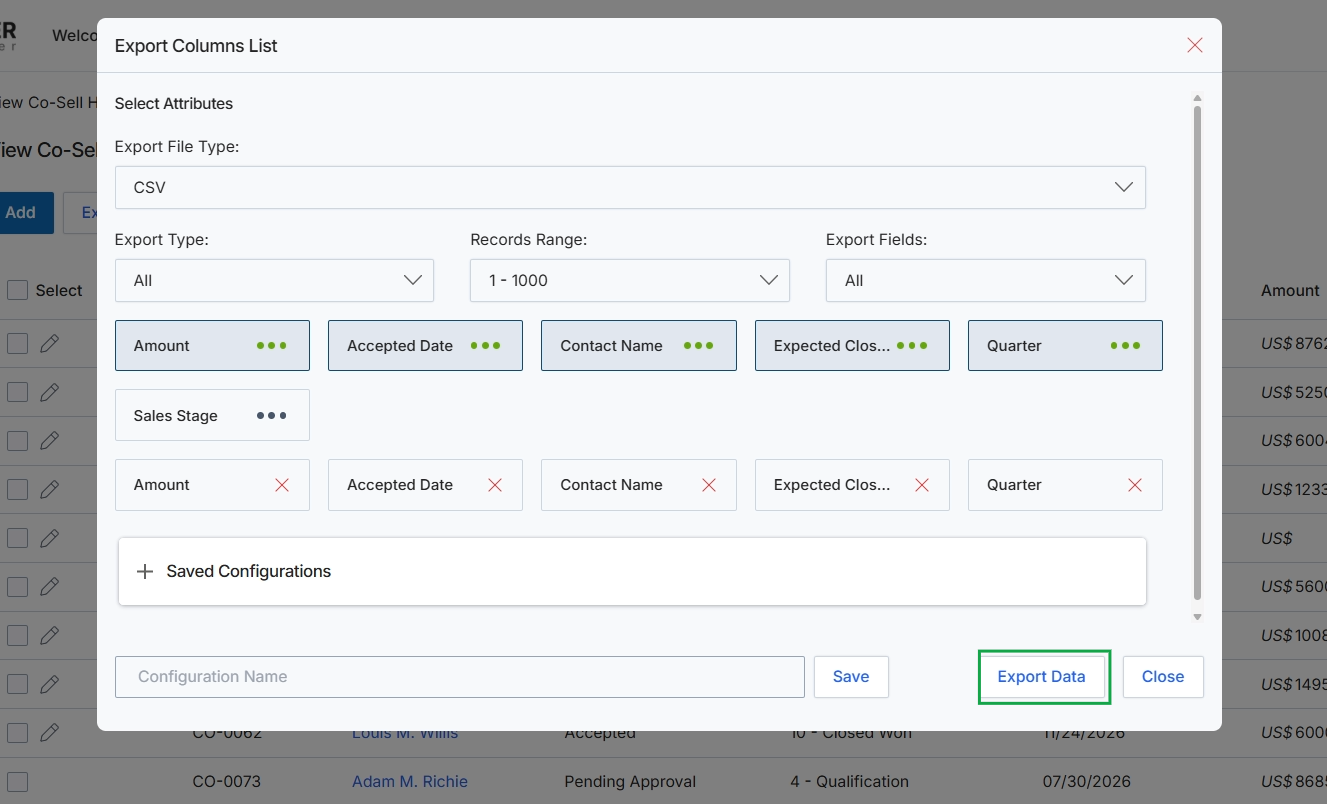
This dialog box facilitates the export of data from the current list view, allowing users to customize the output. It enables the selection of specific attributes (columns) to be included in the exported file, ensuring that only relevant information is extracted. Users can also define the file format, specify the range of records to export, and apply filters based on export type. This functionality is crucial for reporting, data analysis, and integrating data with external systems, providing flexibility in how data is consumed outside the platform.
Configure the export settings by selecting the desired attributes and file type, then click 'Export Data' to download the file.
Buttons
| Button | Description |
|---|---|
| Save | Saves the current export configuration under the specified name. |
| Export Data | Initiates the data export based on the selected attributes and filters. |
| Close | Closes the export columns list dialog without exporting data. |
Select Attributes
| Field | Description |
|---|---|
| Export File Type | Select the desired file format for the export. CSV (Comma Separated Values) is currently selected. |
| Export Type | Filter the data to be exported based on its type. 'All' is currently selected, indicating all available data will be considered. |
| Records Range | Specify the range of records to include in the export. '1 - 1000' is currently selected. |
| Export Fields | Filter the available fields for export. 'All' is currently selected. |
Fields
| Field | Description |
|---|---|
| Configuration Name | Enter a name to save the current export configuration for future use. |
Creating Custom Views
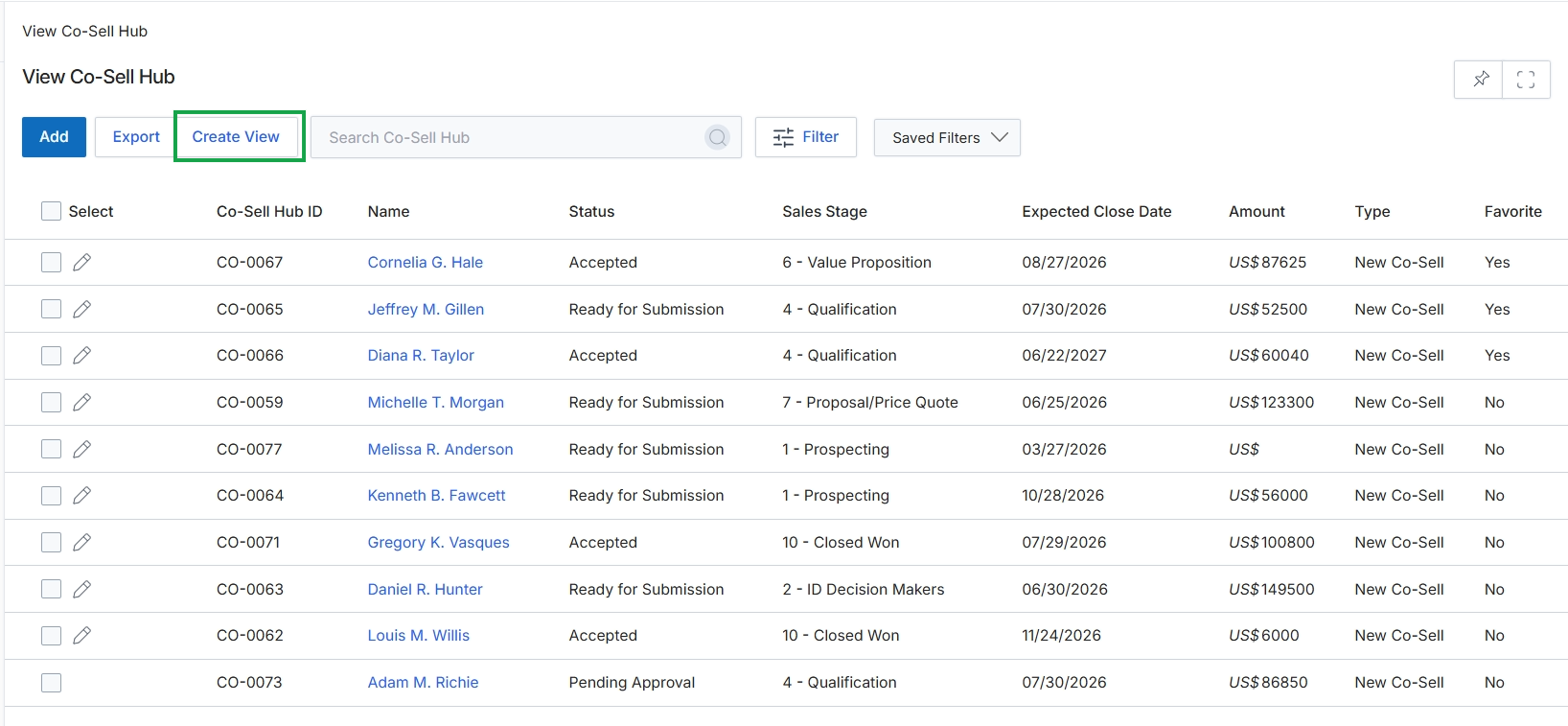
Click Export Data.
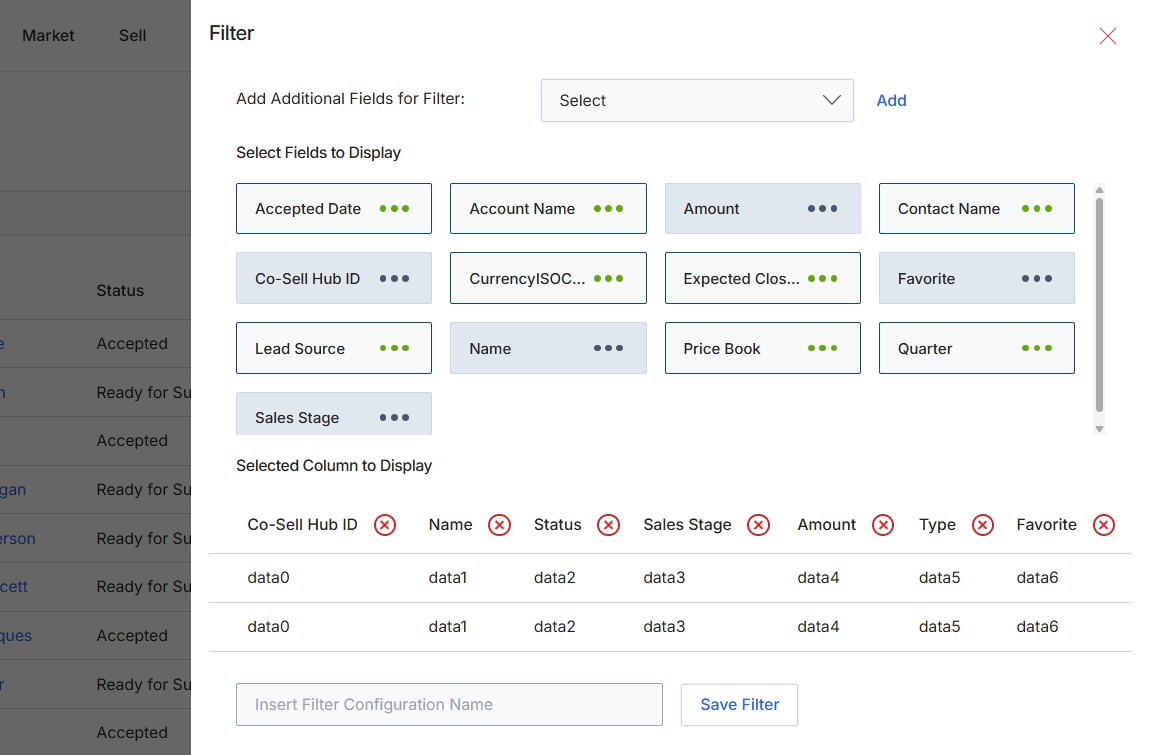
This filter configuration dialog allows users to customize the data displayed in list views by selecting specific fields to include in the filter criteria and defining which columns appear in the table. This functionality is crucial for tailoring the Co-Sell Hub view to individual needs, enabling users to focus on relevant data points such as deal value, sales stage, or contact information. By saving custom filter configurations, users can quickly switch between different perspectives of their co-selling pipeline, enhancing efficiency in managing joint sales opportunities with partners. The ability to add and remove fields and columns ensures that the displayed information is always pertinent to the user's current analysis or task.
Configure the filter by adding additional fields, selecting fields to display, and choosing columns for the table, then enter a name for the configuration.
Buttons
| Button | Description |
|---|---|
| Add | Adds the selected field from the dropdown to the 'Select Fields to Display' section. |
| Save Filter | Saves the current filter configuration under the specified name. |
Fields
| Field | Description |
|---|---|
| Select | A dropdown menu to add additional fields that can be used for filtering the data. |
| Insert Filter Configuration Name | An input field to enter a name for the custom filter configuration, allowing it to be saved and reused. |
Filtering Co-Sell Records
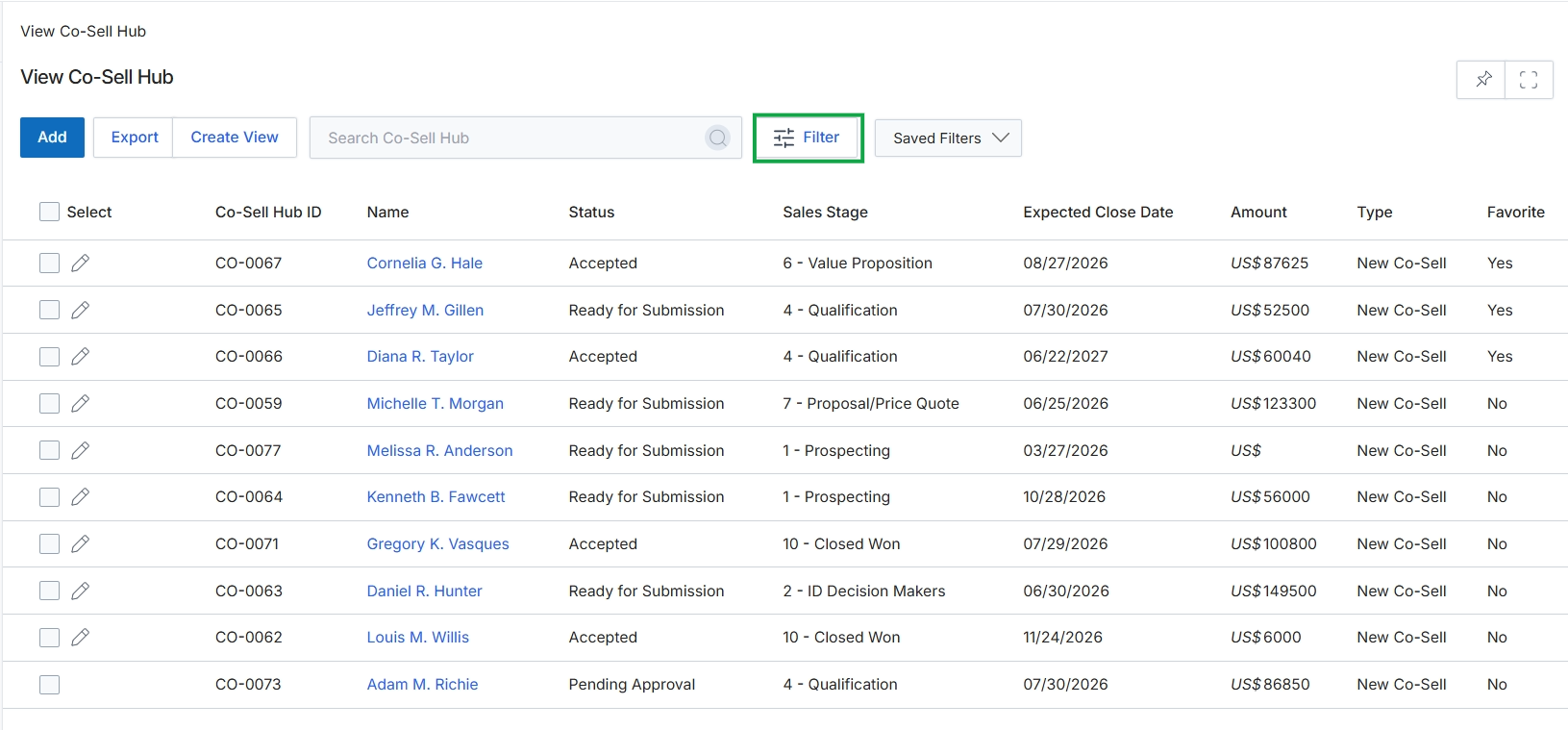
Click the Filter button.
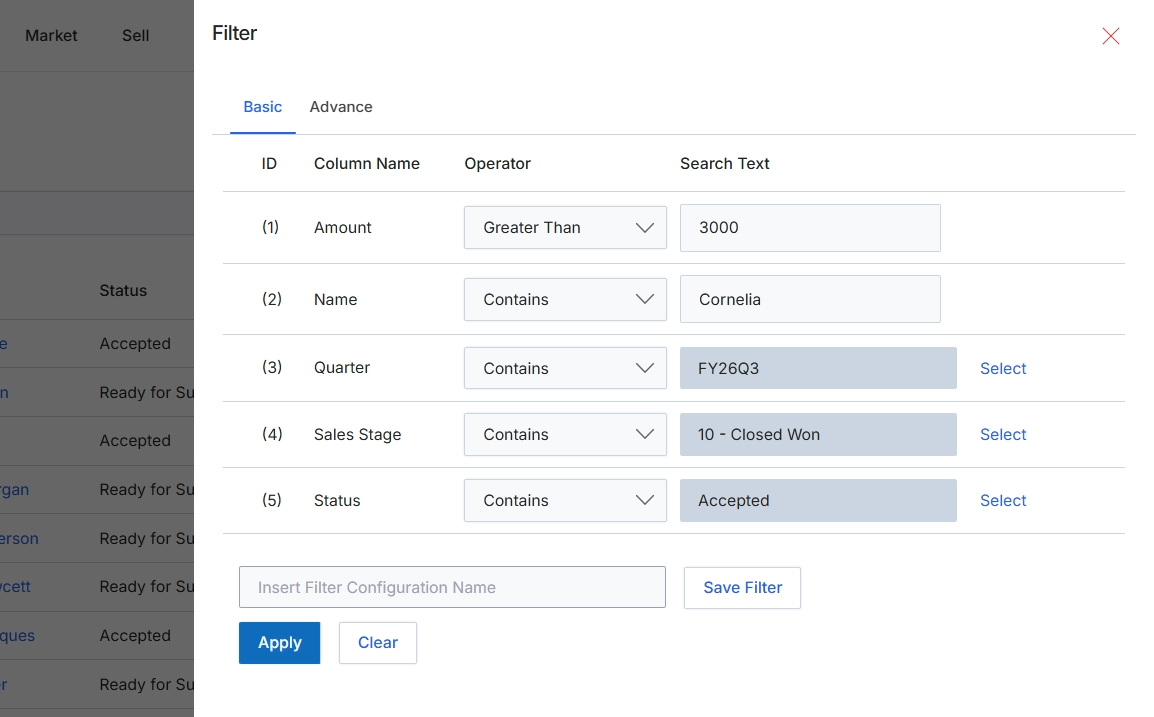
This filter dialog allows users to refine the data displayed in a list view by applying specific criteria to various columns. It supports both basic and advanced filtering options, enabling users to construct simple or complex queries. The dialog facilitates data exploration and analysis by narrowing down large datasets to focus on relevant records. Users can define multiple filter conditions, combining column names, operators, and search text values. Additionally, the platform provides functionality to save frequently used filter configurations, streamlining future data retrieval tasks and ensuring consistency in reporting or analysis across different sessions.
Configure the filter conditions by selecting column names, operators, and entering search text, then click 'Apply' to filter the list.
Buttons
| Button | Description |
|---|---|
| Basic | Switches to the basic filter configuration interface, allowing for straightforward condition setup. |
| Advance | Switches to the advanced filter configuration interface, typically offering more complex logical operators and grouping options. |
| Select (Quarter) | A button to open a selection dialog or dropdown for choosing a predefined 'Quarter' value. |
| Select (Sales Stage) | A button to open a selection dialog or dropdown for choosing a predefined 'Sales Stage' value. |
| Select (Status) | A button to open a selection dialog or dropdown for choosing a predefined 'Status' value. |
| Save Filter | Saves the currently defined filter conditions under the specified configuration name. |
| Apply | Applies the configured filter conditions to the data and updates the displayed list. |
| Clear | Resets all filter conditions to their default state, removing any applied filters. |
Fields
| Field | Description |
|---|---|
| Operator (Amount) | The selected operator for the 'Amount' column, defining the comparison logic for the numerical value. |
| Search Text (Amount) | The numerical value to filter the 'Amount' column by, in this case, '3000'. |
| Operator (Name) | The selected operator for the 'Name' column, defining the comparison logic for the text value. |
| Search Text (Name) | The text string to filter the 'Name' column by, in this case, 'Cornelia'. |
| Operator (Quarter) | The selected operator for the 'Quarter' column, defining the comparison logic for the text value. |
| Search Text (Quarter) | A text input field for the value to filter the 'Quarter' column by, in this case, 'FY26Q3'. |
| Operator (Sales Stage) | The selected operator for the 'Sales Stage' column, defining the comparison logic for the text value. |
| Search Text (Sales Stage) | A text input field for the value to filter the 'Sales Stage' column by, in this case, '10 - Closed Won'. |
| Operator (Status) | The selected operator for the 'Status' column, defining the comparison logic for the text value. |
| Search Text (Status) | A text input field for the value to filter the 'Status' column by, in this case, 'Accepted'. |
| Insert Filter Configuration Name | A text input field to enter a name for the current filter configuration, allowing it to be saved for future use. |
Column Headings
| Column | Description |
|---|---|
| ID | A numerical identifier for each filter condition row. |
| Column Name | The name of the data column to which the filter condition will be applied. |
| Operator | The logical operator (e.g., 'Greater Than', 'Contains') that defines how the 'Search Text' relates to the 'Column Name' value. |
| Search Text | The value or text string used in conjunction with the operator to filter the data. |
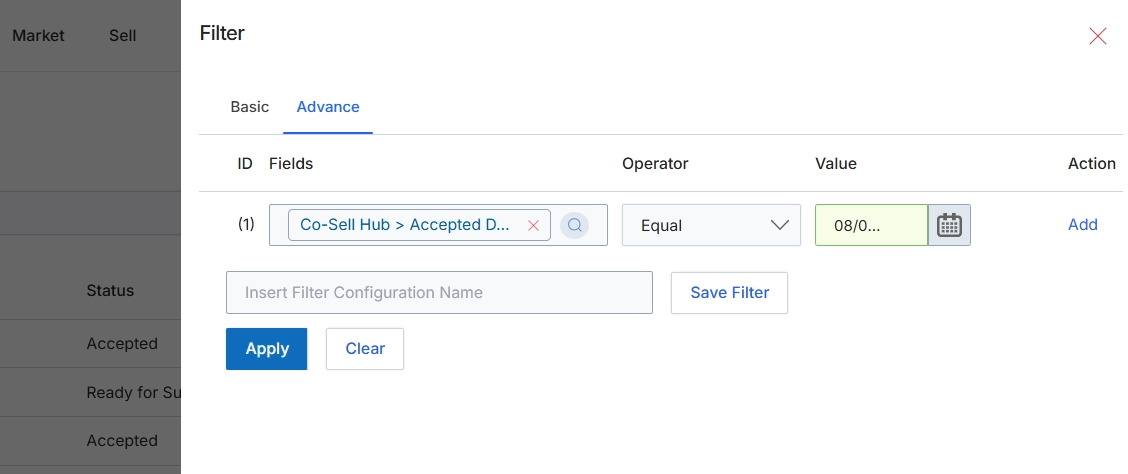
This screen displays the advanced filter configuration for a list view, allowing users to define complex data filtering rules. It provides granular control over which records are displayed by enabling the combination of multiple criteria using specific fields, operators, and values. This advanced filtering capability is crucial for administrators and partners to efficiently locate specific co-sell requests, deals, or other records within large datasets, supporting targeted analysis or action on particular subsets of data. Users can also save frequently used filter configurations for quick access and reuse, streamlining their workflow.
Configure the advanced filter rules by specifying the fields, operators, and values for each criterion, then apply the filter to the data.
Buttons
| Button | Description |
|---|---|
| Basic | Switches to the basic filter configuration options. |
| Advance | Switches to the advanced filter configuration options, allowing for more complex rule definitions. |
| Add | Adds a new filter rule row to the advanced filter configuration. |
| Save Filter | Saves the current advanced filter configuration under the specified name. |
| Apply | Applies the configured filter rules to the data set, updating the displayed records. |
| Clear | Clears all currently configured filter rules. |
Fields
| Field | Description |
|---|---|
| Co-Sell Hub > Accepted D... | The currently selected field for the filter rule, indicating a filter applied to 'Accepted Deals' within the 'Co-Sell Hub'. |
| Equal | The selected operator for the filter rule, specifying that the field's value must be equal to the provided value. |
| 08/0... | The value being used for the filter comparison, likely a date, with a calendar icon to assist with selection. |
| Insert Filter Configuration Name | Allows the user to enter a name for the current filter configuration to save it for future use. |
Column Headings
| Column | Description |
|---|---|
| ID | A numerical identifier for each filter rule. |
| Fields | The data field to which the filter rule applies. In this example, it's set to 'Co-Sell Hub > Accepted D...' indicating a filter on accepted co-sell deals. |
| Operator | The logical operator (e.g., Equal, Contains, Greater Than) used to compare the field's value with the specified filter value. |
| Value | The specific value or date to compare against the selected field using the chosen operator. A calendar icon is available for date selection. |
| Action | Provides actions for each filter rule, such as 'Add' to include another rule. |