

Overview
Effective co-selling requires close collaboration and coordination between vendor and partner teams. The Tasks feature within the Co-Sell module is designed to facilitate this by providing a shared workspace for managing all action items related to a joint deal. Whether it's following up on a proposal, scheduling a call, or preparing documents, this module ensures that both parties have visibility into who is doing what, by when, and the current status of each activity. This transparency is crucial for maintaining deal momentum and achieving successful outcomes in co-sell engagements.
Accessing the Co-Sell Tasks List
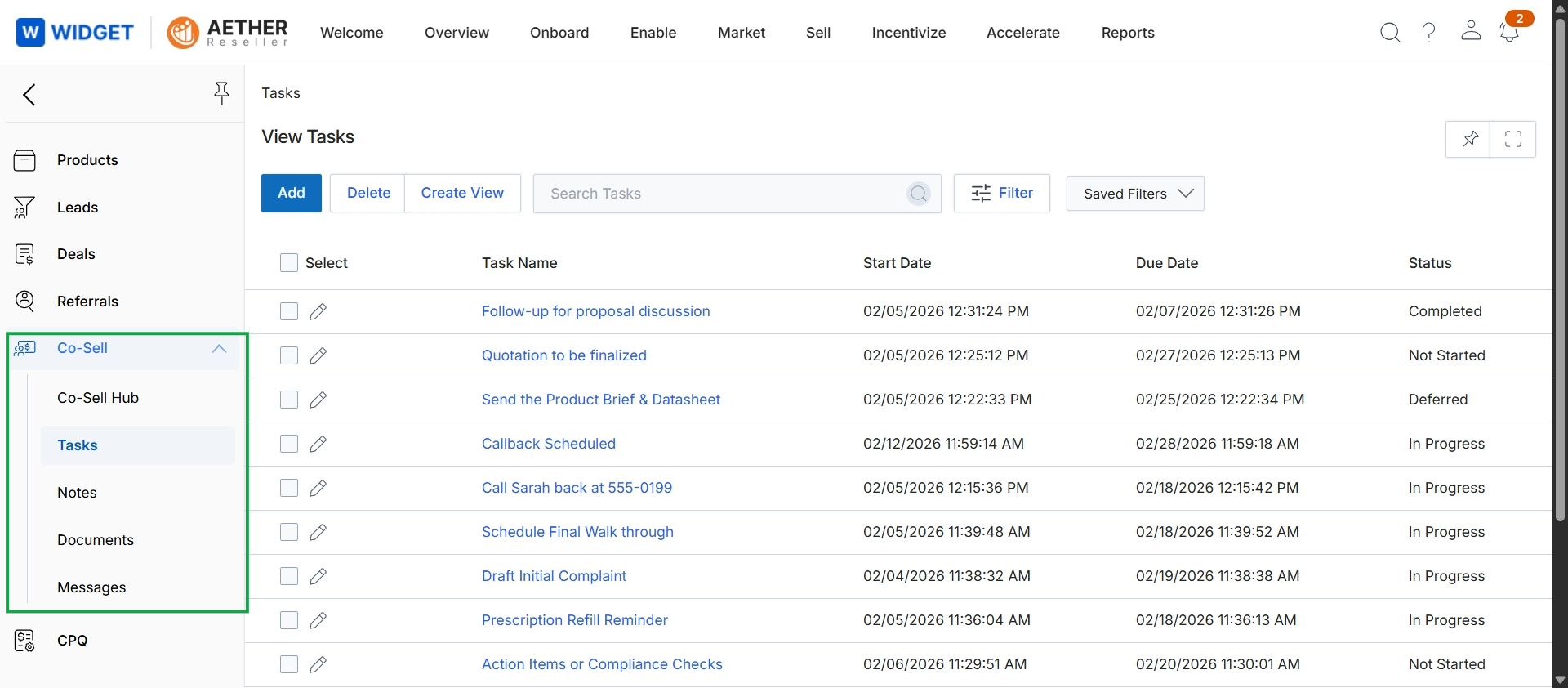
This screen displays a comprehensive list of tasks associated with co-selling activities, providing a centralized view for managing collaborative sales efforts between vendors and partners. It is part of the Co-sell module, which facilitates joint selling engagements as described in the platform's workflow. Users can review task details such as name, start date, due date, and current status, enabling them to track progress and ensure timely completion of shared responsibilities within co-sell deals. This list view supports efficient task management, allowing for the creation, deletion, and filtering of tasks to maintain an organized co-selling pipeline.
Review the list of co-sell tasks, which provides an overview of ongoing and completed activities related to joint sales engagements.
Buttons
| Button | Description |
|---|---|
| Add | Initiates the process to create a new task. |
| Delete | Removes selected tasks from the list. |
| Create View | Allows users to define and save custom views for the task list. |
| Filter | Opens a panel to apply various filters to the task list. |
| Saved Filters | A dropdown to select and apply previously saved filter configurations. |
Fields
| Field | Description |
|---|---|
| Search Tasks | A search bar to find specific tasks by keyword. |
Column Headings
| Column | Description |
|---|---|
| Select | A checkbox to select all visible tasks for bulk actions. |
| Task Name | The name or description of the task. |
| Start Date | The date and time when the task was initiated. |
| Due Date | The deadline for completing the task. |
| Status | The current state of the task, such as 'Completed', 'Not Started', 'Deferred', or 'In Progress'. |
Managing Tasks and Views
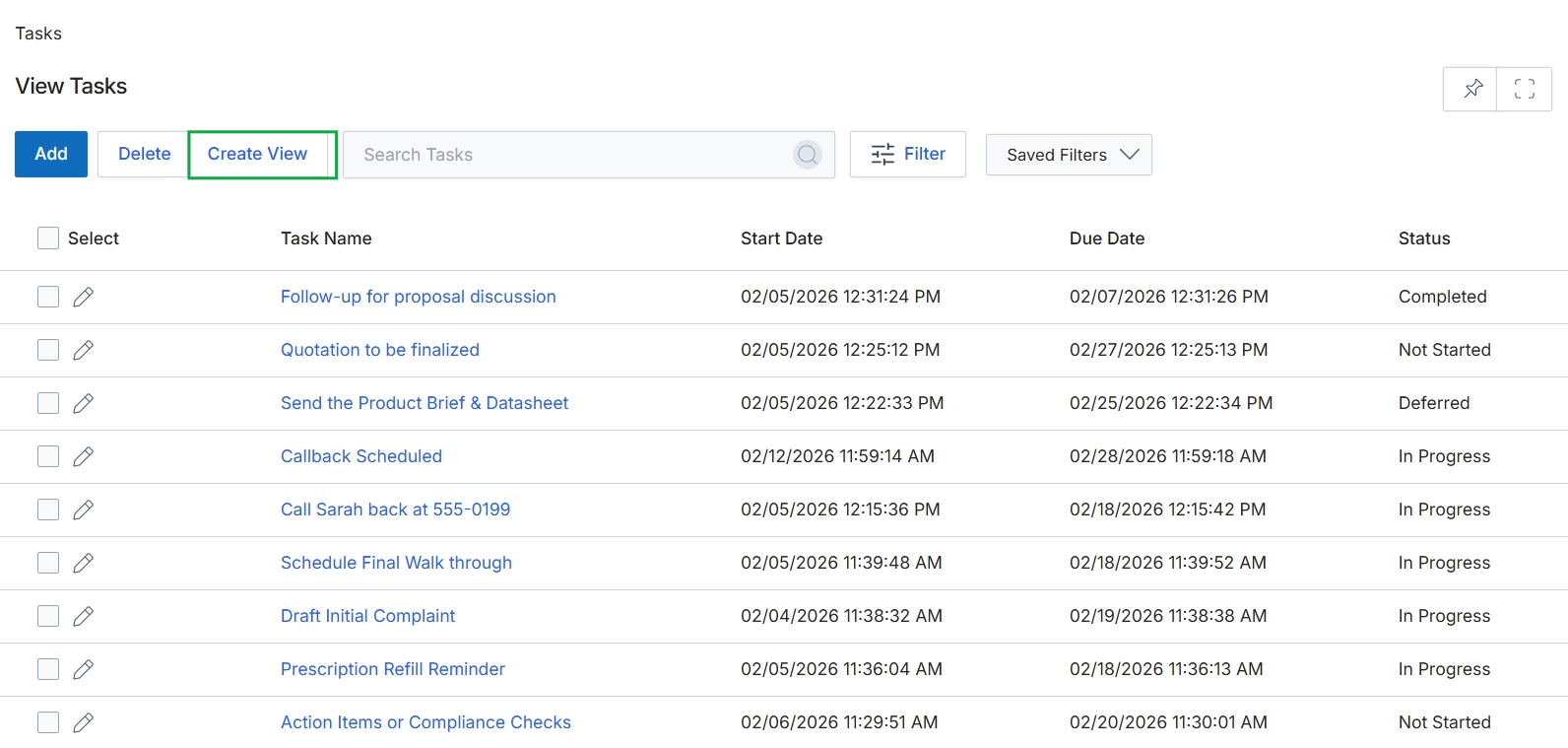
Click the Create View button.
Filtering and Customizing Task Display
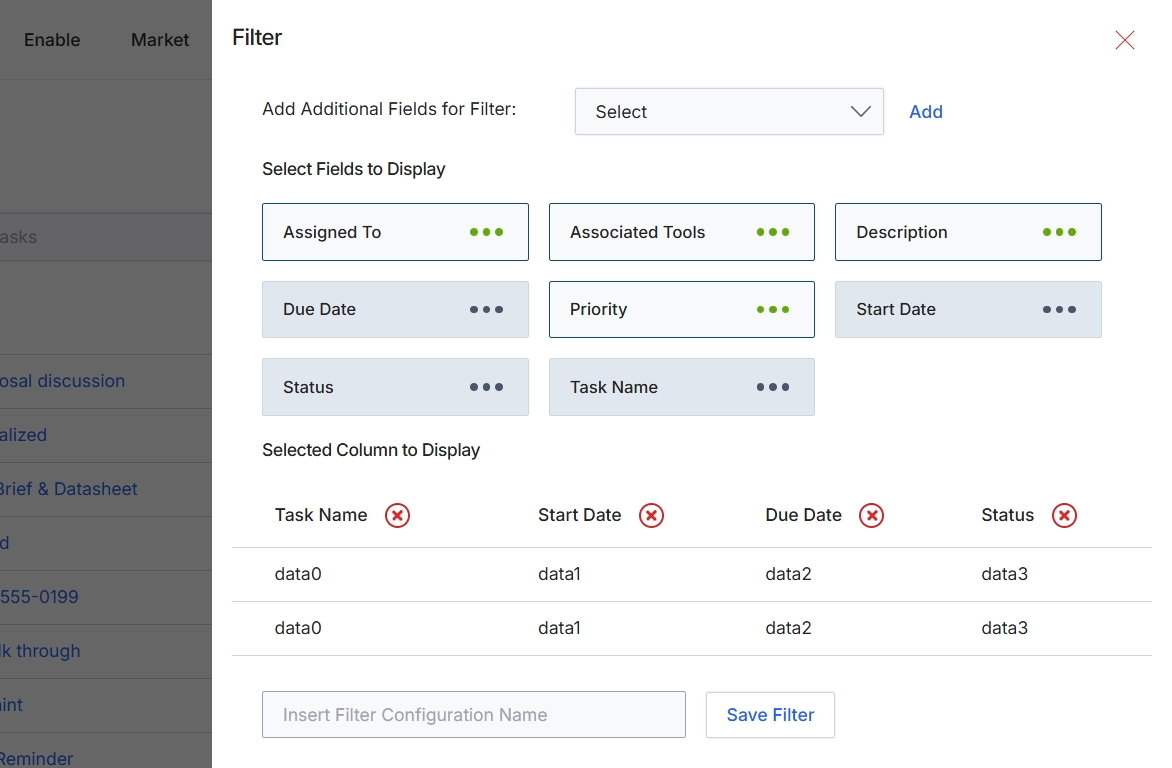
This screen provides a mechanism for users to customize the display and filtering of data within a list view, specifically for tasks in the Partner Co-Selling Management module. It allows users to select which fields are visible as columns in the main table and to define and save custom filter configurations. By adding fields to the filter criteria and selecting which data points to display, users can tailor their task list view to focus on relevant information, improving efficiency in managing co-sell activities. The ability to save filter configurations enables quick access to frequently used views, streamlining workflow for channel managers and partners collaborating on deals.
Enter a name for the filter configuration in the provided text field, then click 'Save Filter' to apply and store your custom display and filter settings.
Buttons
| Button | Description |
|---|---|
| Add | A button to add the currently selected field from the 'Add Additional Fields for Filter' dropdown to the filter configuration. |
| Save Filter | A button to save the current filter and display settings under the specified configuration name. |
Fields
| Field | Description |
|---|---|
| Add Additional Fields for Filter | A dropdown menu to select additional fields that can be used to filter the task list. Once a field is selected, it can be added to the filter criteria. |
| Select | The dropdown control for choosing fields to add to the filter criteria. |
| Insert Filter Configuration Name | A text input field where the user can enter a name for the custom filter configuration being created or modified. |