

Overview
The platform is designed to integrate with a wide array of external systems, enabling partners and vendors to leverage their existing technology stack. Connectors Management is the central hub where these integrations are established and maintained. By integrating with CRMs like Salesforce or HubSpot, for instance, lead and deal data can flow bi-directionally, ensuring that sales teams on both the vendor and partner side have access to the most current information. Similarly, integrations with marketing platforms facilitate co-marketing efforts, and payment system integrations streamline reward disbursements.
Effective connector management is crucial for automating workflows, reducing manual data entry, and providing a unified experience for all users. Administrators can configure various connector types, specify authentication methods (like OAuth), and define how data fields in the platform correspond to fields in the external system. This level of customization ensures that the platform aligns perfectly with the vendor's operational processes and their partners' preferred tools.
Viewing Existing Connections
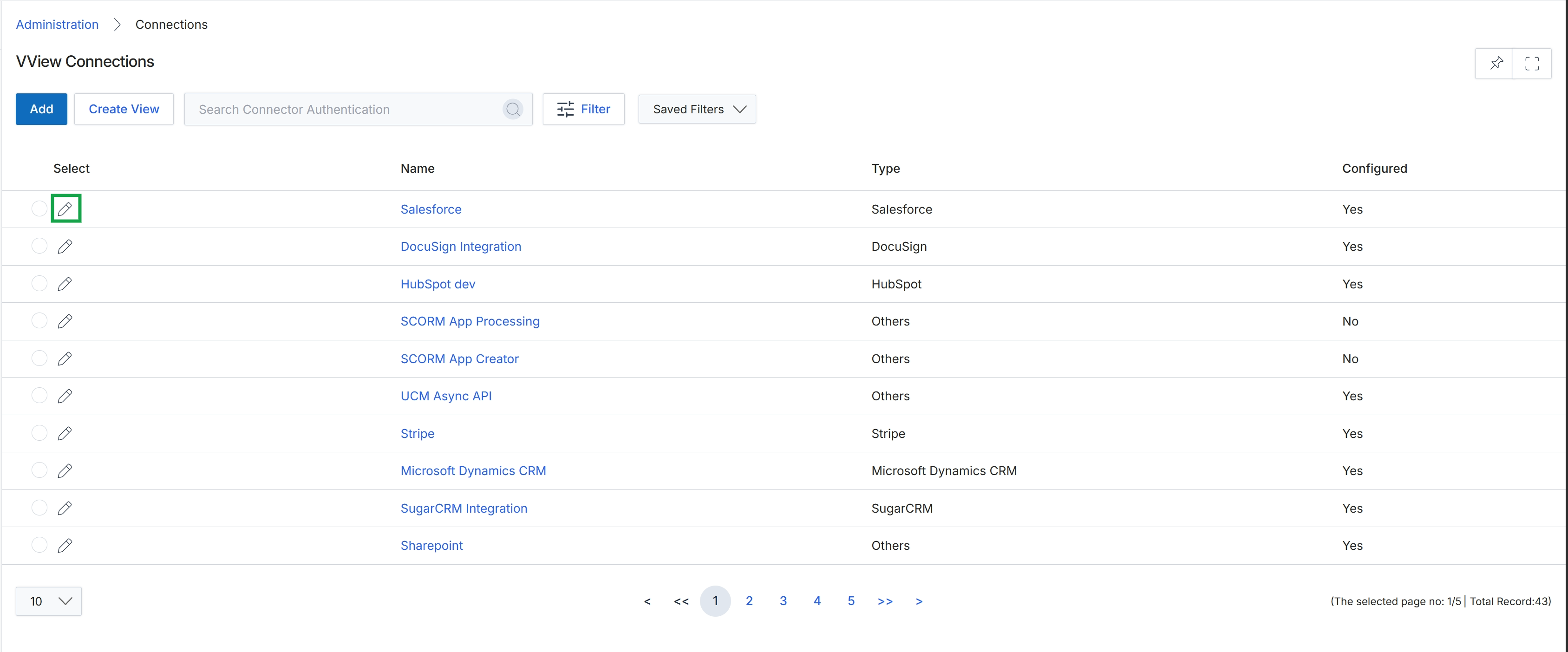
Click the pencil icon next to the "Salesforce" connection to edit it.
Adding or Editing a Connector
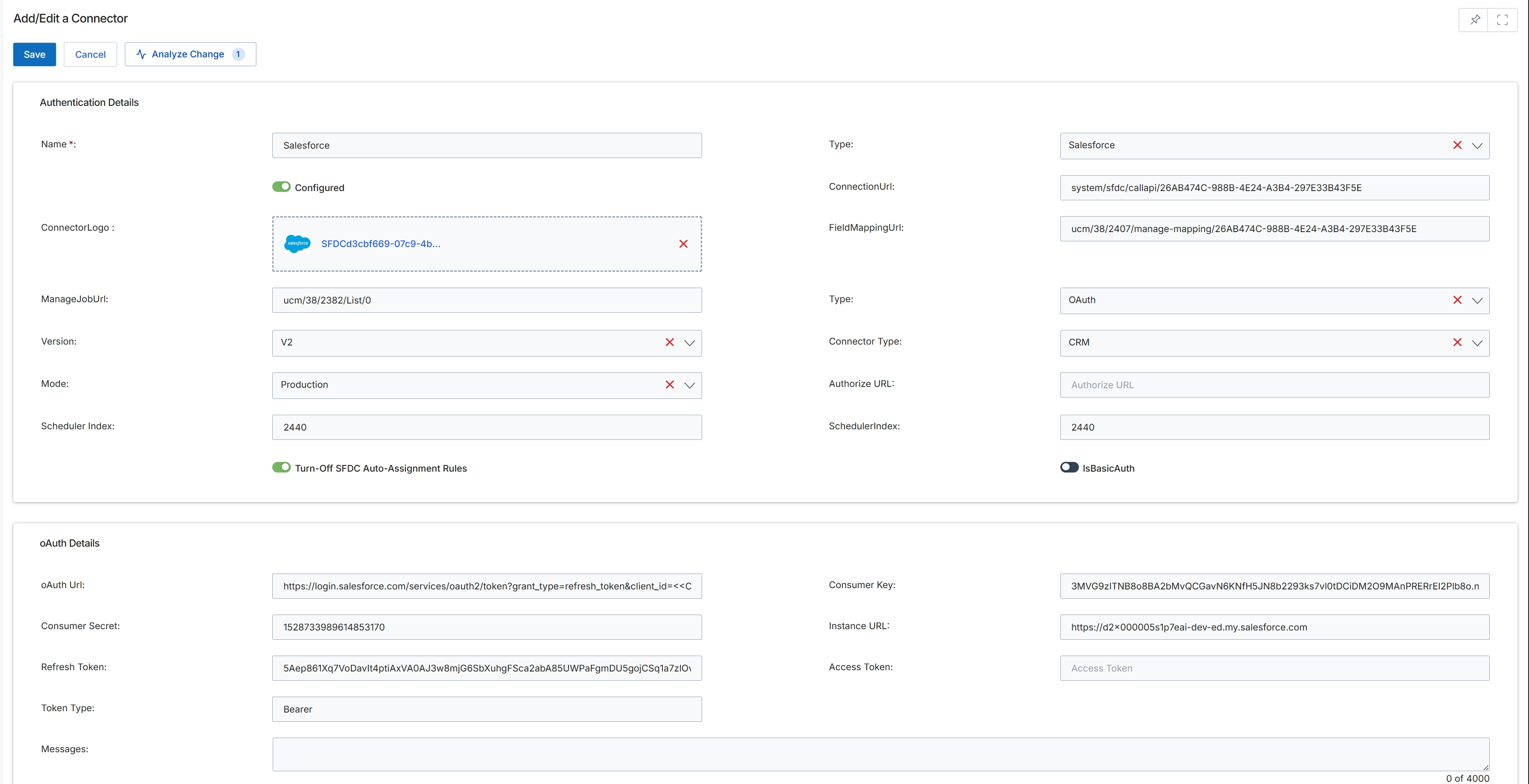
The 'Add/Edit a Connector' form is a critical component within the Administration module, enabling administrators to establish and manage integrations between the platform and various external systems. These connectors facilitate seamless data exchange, which is essential for automating workflows such as lead synchronization with CRM platforms, updating deal registrations, and processing reward disbursements. The form allows for the configuration of authentication details, connection parameters, and field mapping URLs, ensuring that data flows accurately and securely between the platform and third-party applications. Proper setup of these connectors is vital for maintaining the integrity and efficiency of cross-system operations, supporting a wide range of external services from CRM and marketing automation to payment gateways.
Edit the details for the selected connector on the 'Add/Edit a Connector' form.
Buttons
| Button | Description |
|---|---|
| Save | Saves the changes made to the connector configuration. |
| Cancel | Discards any changes and returns to the previous screen. |
| Analyze Change | Initiates an analysis of the impact of the proposed configuration changes. |
Authentication Details
| Field | Description |
|---|---|
| Name * | The name of the connector, which is a required field for identification. |
| Configured | A toggle indicating whether the connector has been configured and is active. |
| ConnectorLogo | The logo associated with the connector, displayed as a file upload or existing image. |
| ManageJobUrl | The URL for managing jobs related to this connector. |
| Version | The version identifier for the connector. |
| Mode | The operational mode of the connector, such as 'Production'. |
| Scheduler Index | The index used by the platform's scheduler for this connector's tasks. |
| Turn-Off SFDC Auto-Assignment Rules | A toggle to enable or disable Salesforce auto-assignment rules for this connector. |
| Type | The type of external system the connector integrates with, such as 'Salesforce'. |
| ConnectionUrl | The URL used to establish a connection with the external system. |
| FieldMappingUrl | The URL for configuring field mappings between the platform and the external system. |
| Type | The authentication type used by the connector, such as 'OAuth'. |
| Connector Type | The category of the connector, such as 'CRM'. |
| Authorize URL | The URL used for authorizing the connector with the external system. |
| SchedulerIndex | The scheduler index for the connector. |
| IsBasicAuth | A toggle indicating whether basic authentication is used for the connector. |
oAuth Details
| Field | Description |
|---|---|
| oAuth Url | The OAuth URL used for authentication with the external system. |
| Consumer Secret | The consumer secret key for OAuth authentication. |
| Refresh Token | The refresh token used to obtain new access tokens without re-authentication. |
| Token Type | The type of token being used for OAuth authentication, such as 'Bearer'. |
| Messages | Displays any messages or status updates related to the OAuth configuration. |
| Consumer Key | The consumer key for OAuth authentication. |
| Instance URL | The URL of the external system instance to which the connector is configured. |
| Access Token | The access token used for authentication with the external system. |
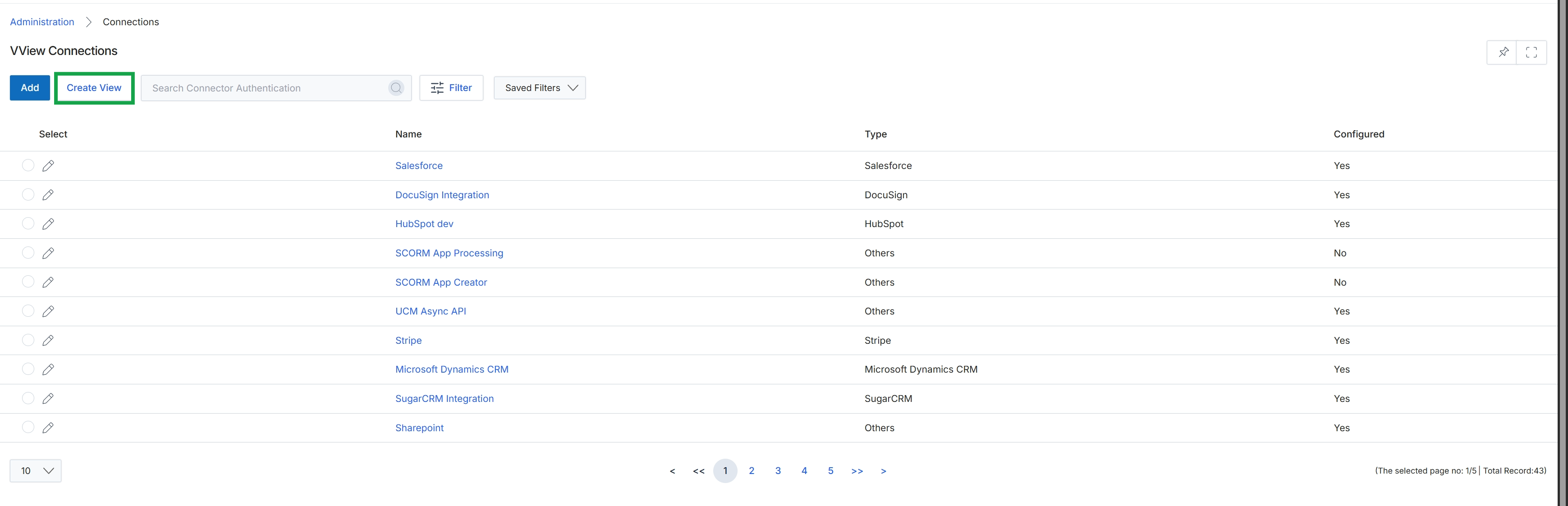
Click the Create View button.
Filtering Connections
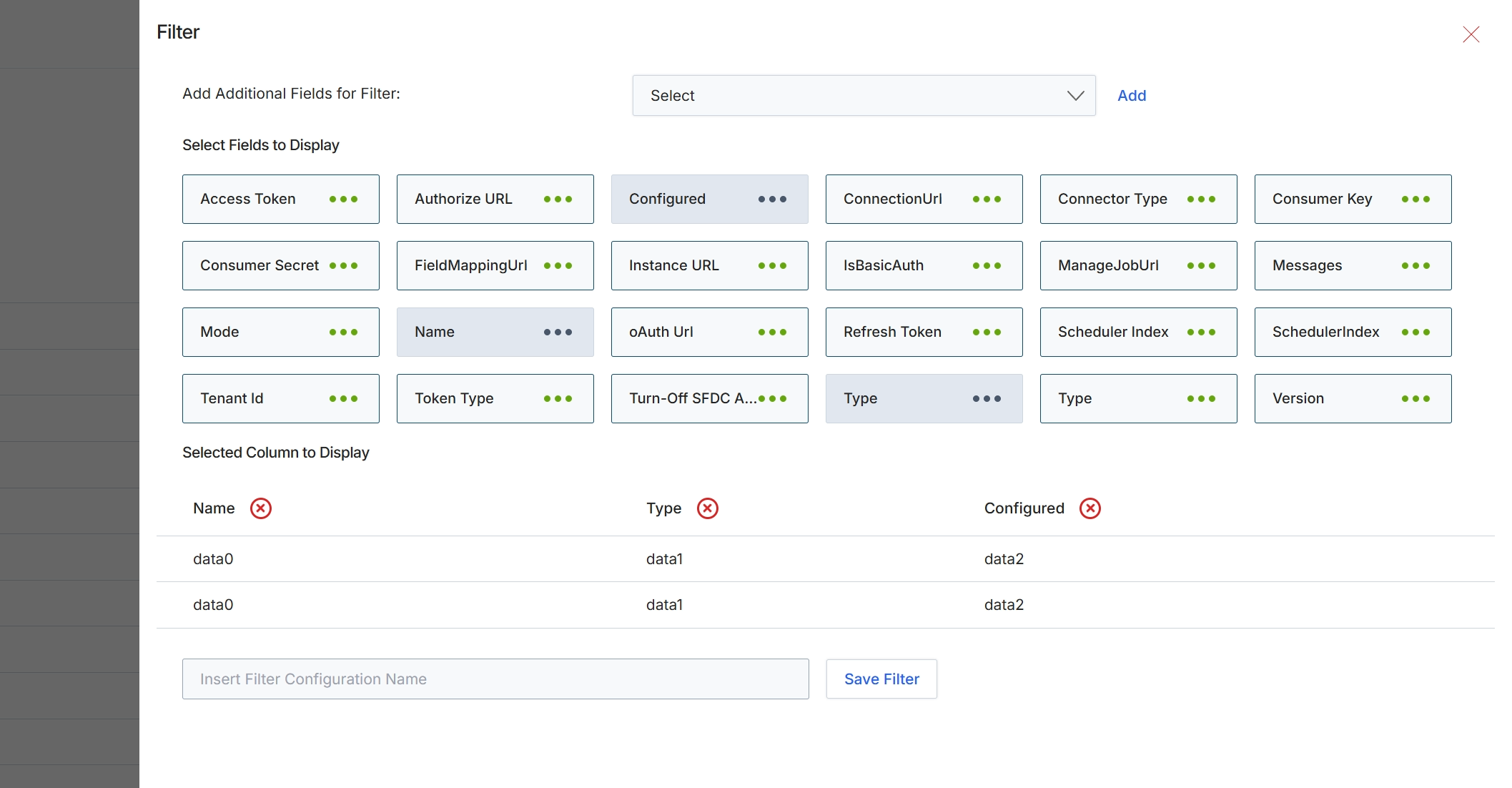
This Filter modal allows administrators to customize the display of data within a list view by selecting which fields to include as filterable options and which columns to show in the main data table. This functionality is crucial for tailoring the user interface to specific analytical needs or reporting requirements, enabling users to quickly find and analyze relevant information without being overwhelmed by unnecessary data. By defining custom filter configurations, administrators can create specialized views for different roles or tasks, enhancing efficiency and data accessibility across the platform. The selected fields and columns directly impact how data is presented and interacted with in the corresponding list view.
Configure the filter by selecting additional fields to display and specifying the columns for the data table.
Buttons
| Button | Description |
|---|---|
| Add | Adds the selected field from the dropdown to the list of available filter fields. |
| Save Filter | Saves the current filter configuration. |
Add Additional Fields for Filter
| Field | Description |
|---|---|
| Select | A dropdown menu to select additional fields that can be used for filtering the data. |
Select Fields to Display
Fields
| Field | Description |
|---|---|
| Insert Filter Configuration Name | A text input field to enter a name for the custom filter configuration. |
Selected Column to Display
| Column | Description |
|---|---|
| Name | The column header for the connector's name, currently selected for display. |
| Type | The column header for the connector's type, currently selected for display. |
| Configured | The column header indicating if the connector is configured, currently selected for display. |
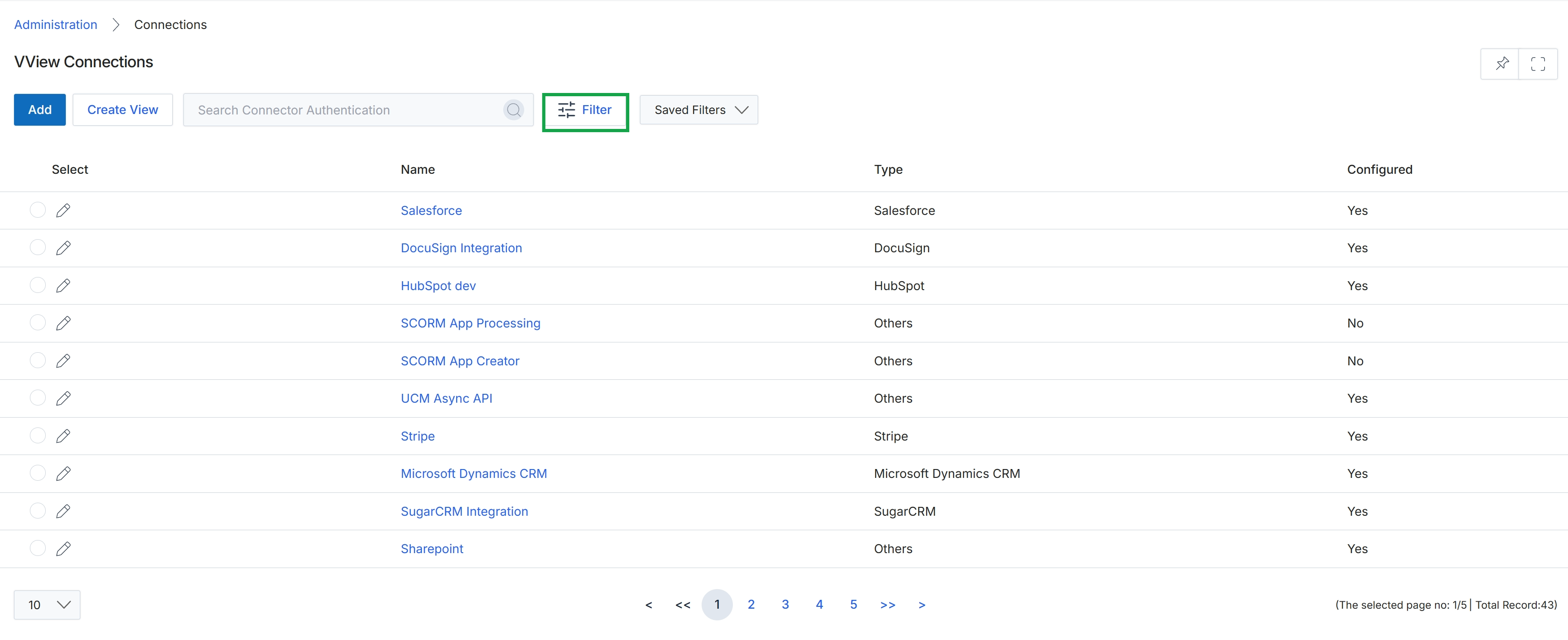
Click the Filter button.
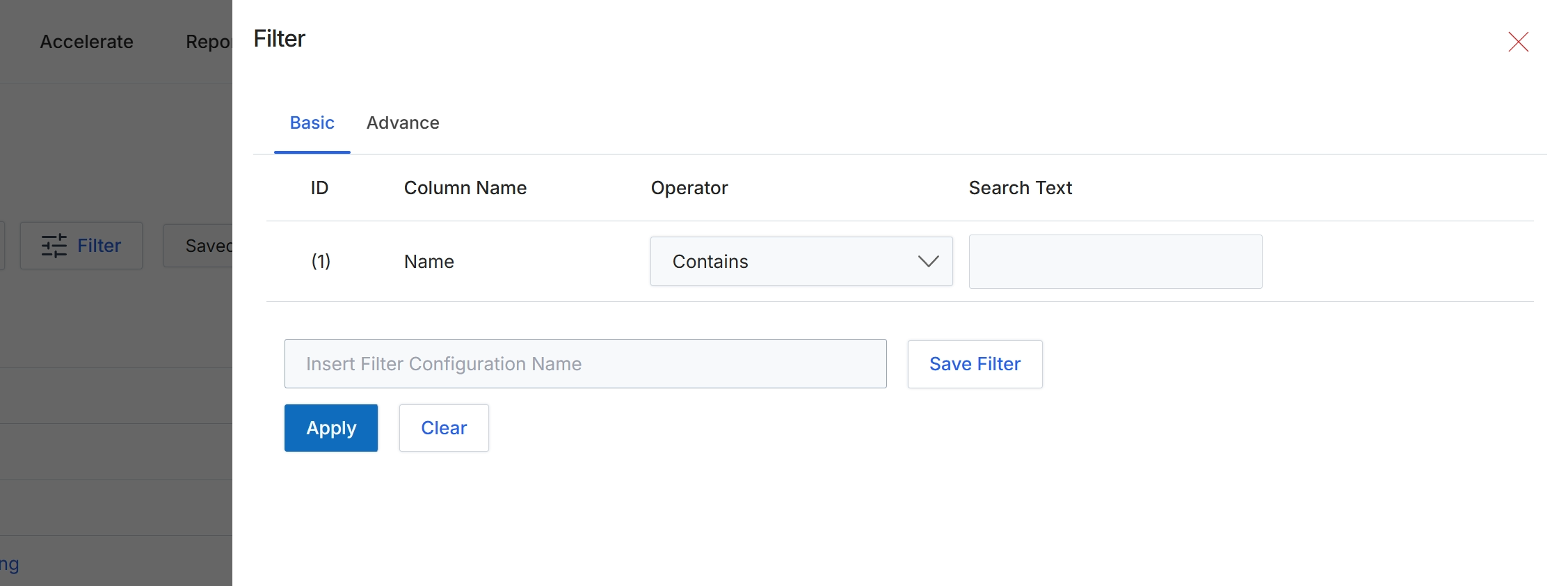
This filter dialog allows administrators to refine the displayed list of connectors by applying specific criteria. Users can define basic or advanced filter conditions based on various connector attributes such as ID, name, or other relevant fields. This functionality helps in quickly locating specific connectors within a potentially large list, enabling more efficient management and configuration of integration points. Filters can also be saved for future use, streamlining repetitive search tasks.
Apply a filter to the connector list by entering a search term for the 'Name' column.
Buttons
| Button | Description |
|---|---|
| Basic | Tab to configure simple filter conditions. |
| Advance | Tab to configure more complex or multiple filter conditions. |
| Save Filter | Button to save the current filter configuration for future use. |
| Apply | Button to apply the configured filter to the connector list. |
| Clear | Button to clear all filter conditions. |
Fields
| Field | Description |
|---|---|
| Name | The name of the connector column being filtered. |
| Contains | Dropdown to select the filter operator for the 'Name' column. |
| Search Text | Input field to enter the search term for the 'Name' column. |
| Insert Filter Configuration Name | Input field to provide a name for saving the current filter configuration. |
Column Headings
| Column | Description |
|---|---|
| ID | The identifier for the filter row. |
| Column Name | The name of the column to which the filter is applied. |
| Operator | The comparison operator for the filter condition, such as 'Contains', 'Equals', 'Starts With', etc. |
| Search Text | The value to search for within the specified column. |
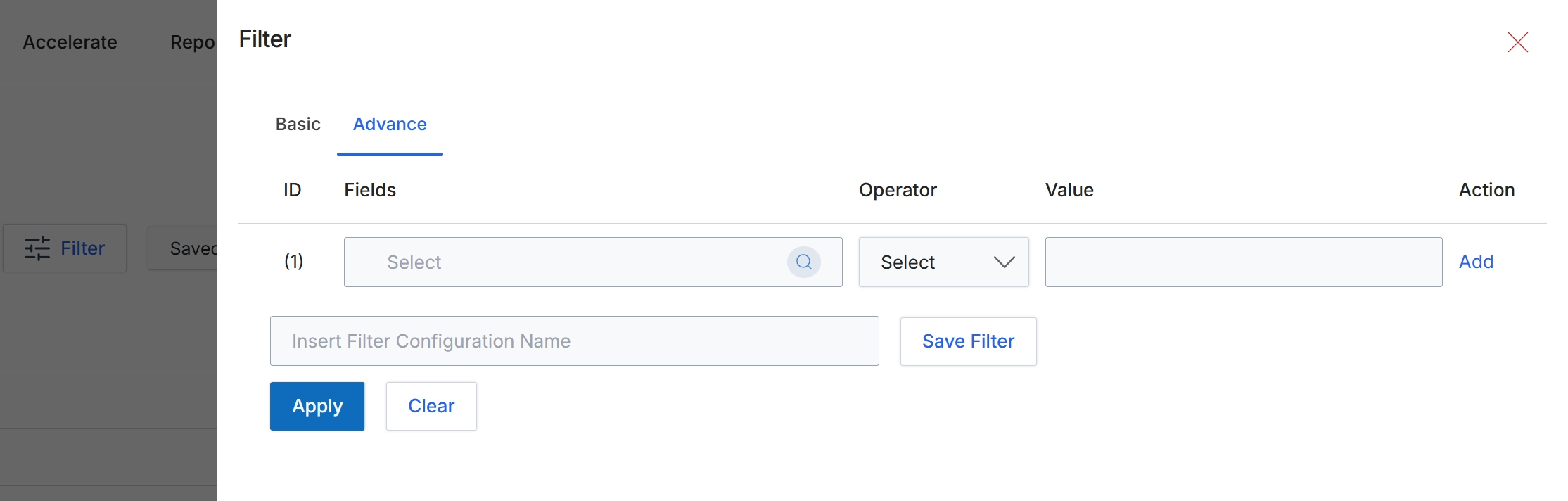
The Filter dialog, specifically the Advance tab, provides granular control over data filtering by allowing users to construct complex query conditions. This feature is crucial for administrators who need to segment data based on multiple criteria, such as filtering connector logs by specific fields, operators, and values. It enables precise data retrieval for analysis, troubleshooting, or targeted actions within the module. Users can define one or more filter conditions, combine them, and save the entire configuration for future use, streamlining repetitive filtering tasks.
Select a field and an operator, then enter a value to define an advanced filter condition.
Buttons
| Button | Description |
|---|---|
| Basic | Tab to switch to basic filtering options. |
| Advance | Tab to access advanced filtering options, allowing for complex condition building. |
| Add | Button to add the current filter condition to the list. |
| Save Filter | Button to save the current filter configuration for future use. |
| Apply | Button to apply the configured filters to the data. |
| Clear | Button to clear all applied filter conditions. |
Fields
| Field | Description |
|---|---|
| Select | Dropdown to choose the specific field for the filter condition. |
| Select | Dropdown to choose the operator (e.g., equals, contains, starts with) for the filter condition. |
| Value | Input field to enter the value for the filter condition. |
| Insert Filter Configuration Name | Input field to provide a name for the saved filter configuration. |
Column Headings
| Column | Description |
|---|---|
| ID | Column header for the identifier of each filter condition. |
| Fields | Column header for the data field to be filtered. |
| Operator | Column header for the comparison operator used in the filter condition. |
| Value | Column header for the value to compare against the selected field. |
| Action | Column header for actions related to the filter condition. |