

Overview
Webhooks are a fundamental component of modern integration strategies, allowing the platform to notify external applications about events in real-time. For instance, when a new deal is registered or a partner's tier changes, a webhook can automatically trigger an action in a CRM, marketing automation system, or a custom application. This eliminates the need for constant polling and ensures that all connected systems are immediately updated with the latest information.
Effective management of webhooks is crucial for maintaining data consistency and automating workflows across the entire partner management lifecycle. Administrators leverage this module to configure and monitor these critical communication channels, ensuring that the platform can seamlessly interact with other business-critical systems, thereby enhancing operational efficiency and data accuracy.
Accessing Web Hooks
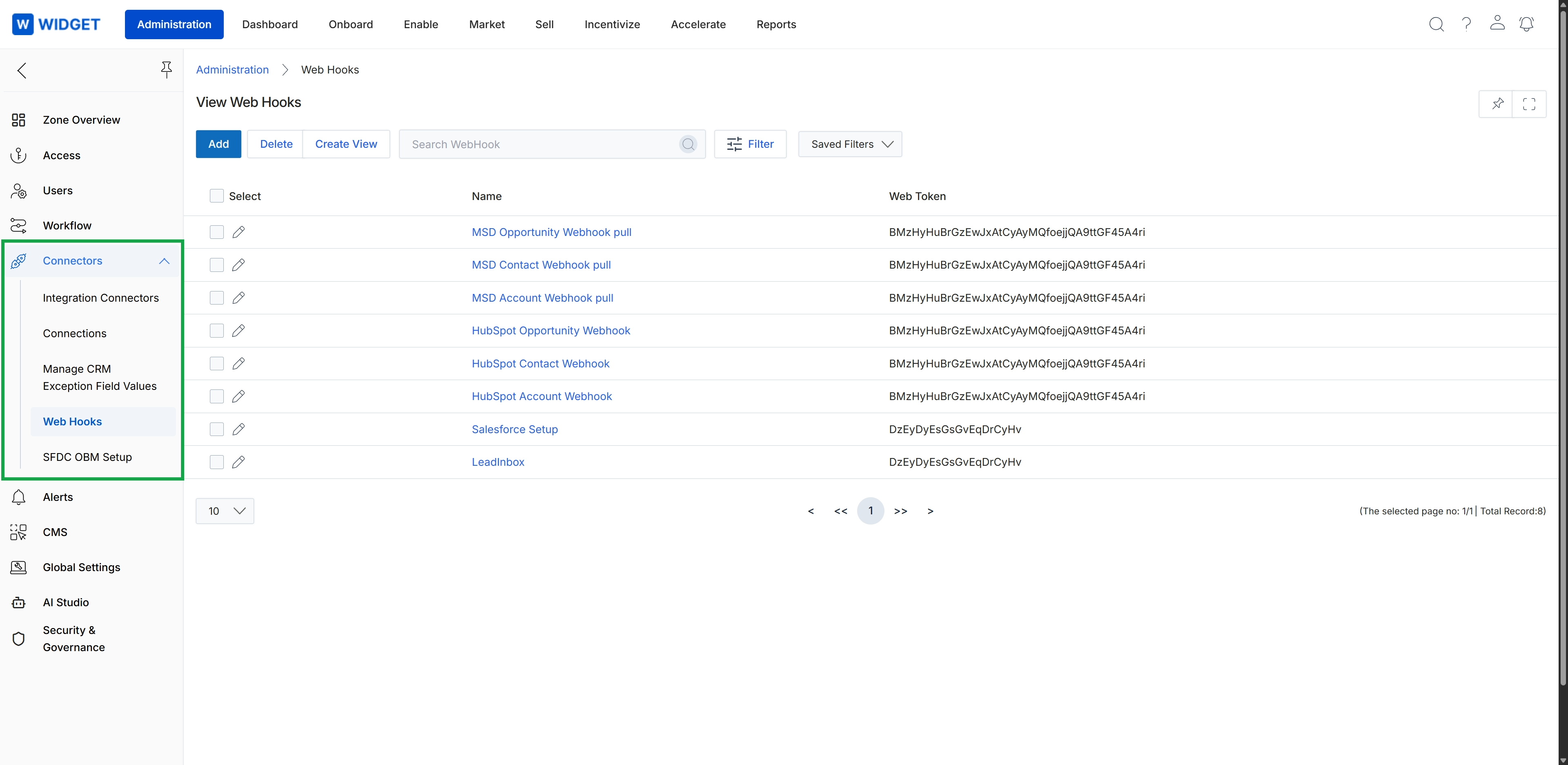
Click Connectors in the left navigation panel, then click Web Hooks.
Managing Web Hooks
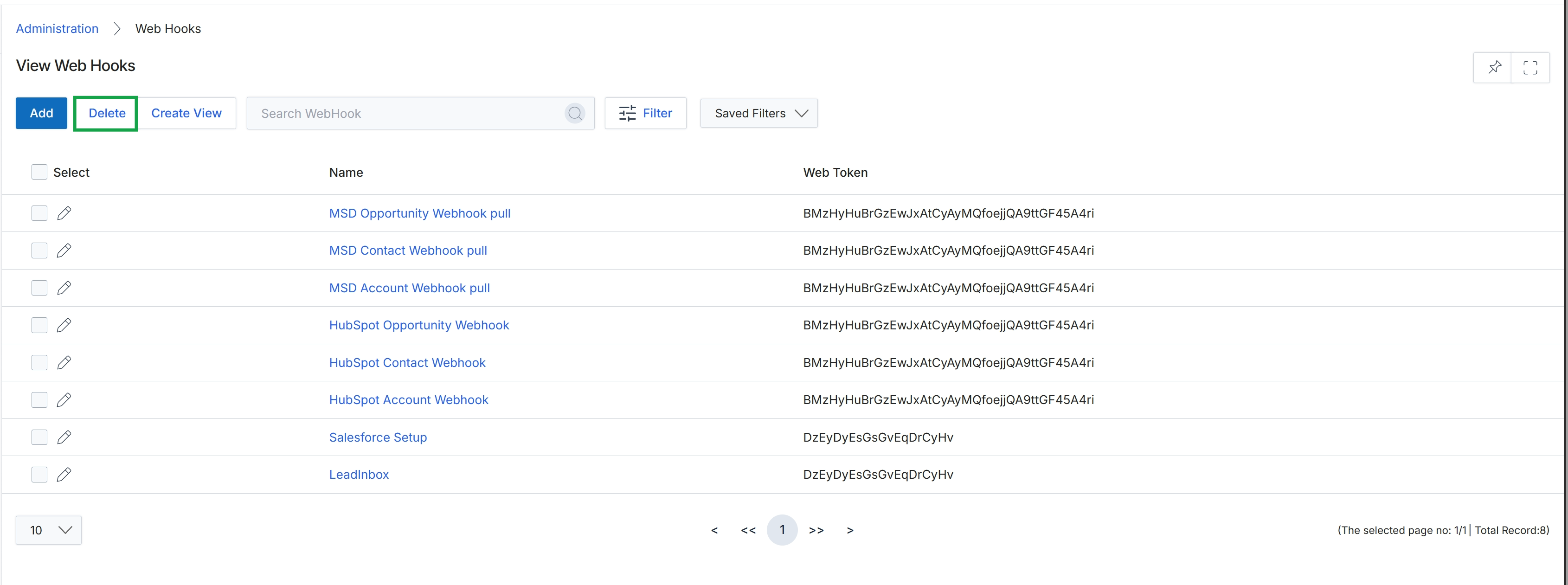
Click Web Hooks in the left navigation menu.
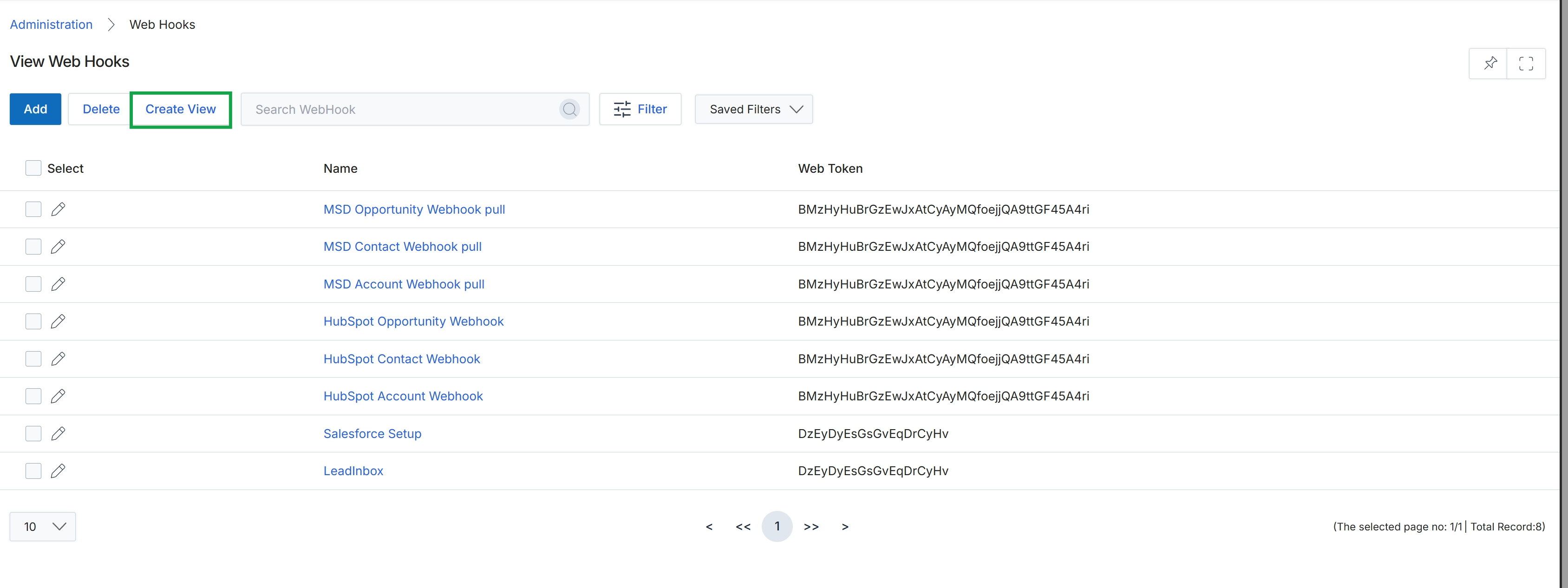
Click the Create View button.
Filtering and Customizing Views
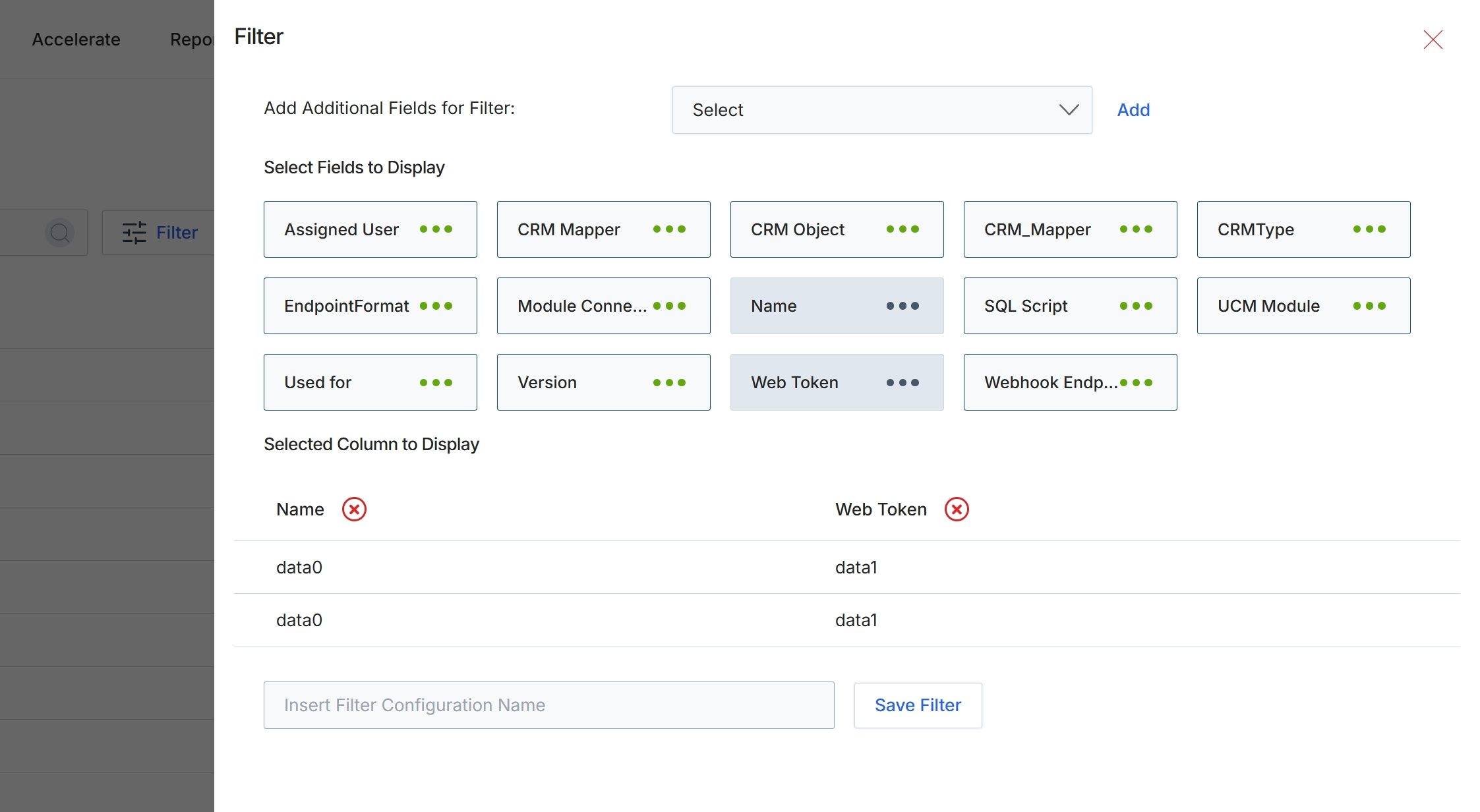
This modal window allows administrators to customize the display and filtering options for the Web Hooks list view. It provides a flexible way to select which data fields are visible as columns in the main table and to define filter configurations for easier data retrieval. By selecting relevant fields, administrators can tailor the list view to show the most pertinent information for managing web hooks, improving efficiency in monitoring and troubleshooting integrations. The ability to save filter configurations streamlines repetitive analysis tasks, ensuring that specific data subsets can be quickly accessed without re-applying criteria each time.
Select additional fields to display as columns in the Web Hooks list view.
Buttons
| Button | Description |
|---|---|
| Add | Adds the selected field from the 'Add Additional Fields for Filter' dropdown to the filter configuration. |
| Save Filter | Saves the current filter and column display configuration under the specified name. |
Fields
| Field | Description |
|---|---|
| Add Additional Fields for Filter | A dropdown to select additional fields that can be used for filtering the Web Hooks list. |
| Insert Filter Configuration Name | A text input field to enter a name for the current filter configuration, allowing it to be saved for future use. |
Selected Column to Display
| Column | Description |
|---|---|
| Name | A column header indicating the 'Name' field is selected to be displayed in the list view. |
| Web Token | A column header indicating the 'Web Token' field is selected to be displayed in the list view. |
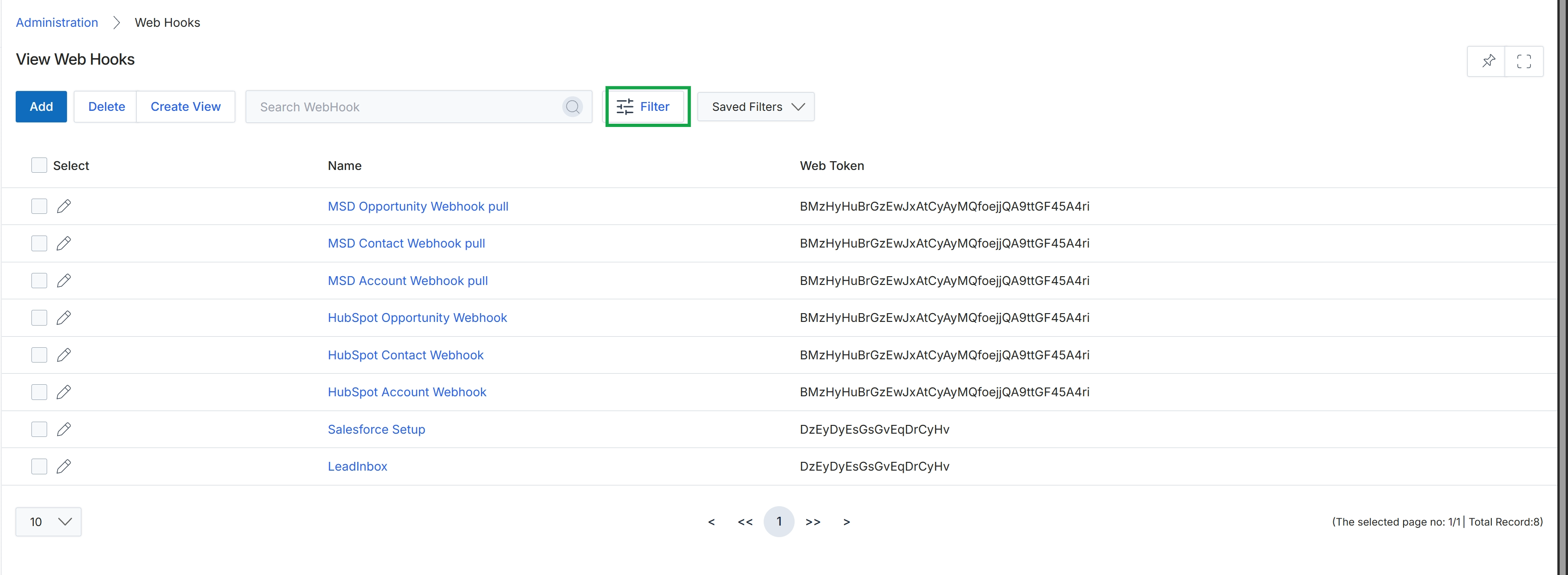
Click the Filter button.
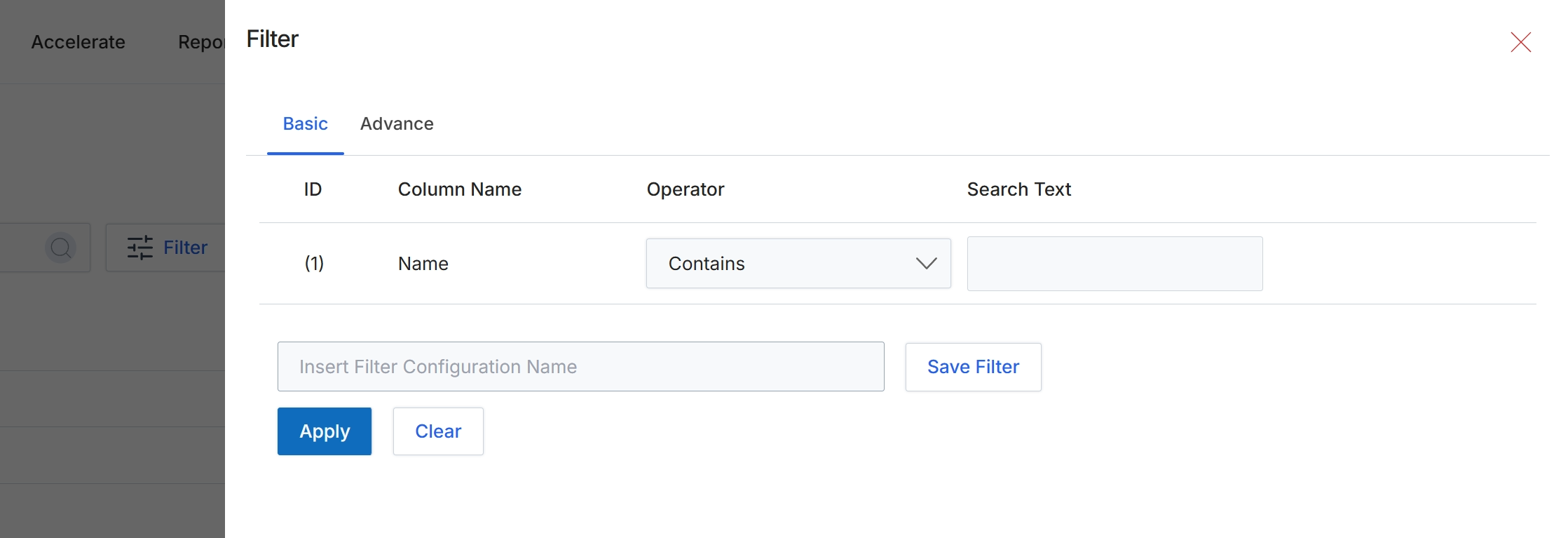
This filter dialog allows administrators to refine the list of webhooks displayed by applying specific criteria. Users can define basic filters based on column names, operators, and search text, or switch to an advanced mode for more complex filtering logic. This functionality helps in quickly locating specific webhooks within a potentially large list, which is crucial for managing integrations and troubleshooting issues. Filters can also be saved for future use, streamlining repetitive search tasks.
Enter the desired search text into the 'Search Text' field to filter the webhook list by name.
Buttons
| Button | Description |
|---|---|
| Basic | Tab to switch to basic filter configuration. |
| Advance | Tab to switch to advanced filter configuration. |
| Save Filter | Button to save the current filter configuration with the specified name. |
| Apply | Button to apply the configured filter to the webhook list. |
| Clear | Button to clear all filter criteria. |
Fields
| Field | Description |
|---|---|
| Name | The selected column name for filtering, currently set to 'Name'. |
| Contains | The selected operator for the filter, indicating that the column should contain the search text. |
| Search Text | Input field to enter the text to filter the webhook names by. |
| Insert Filter Configuration Name | Input field to provide a name for the current filter configuration to save it for future use. |
Column Headings
| Column | Description |
|---|---|
| ID | Column header for the filter rule identifier. |
| Column Name | Column header for the name of the column to filter by. |
| Operator | Column header for the comparison operator to use in the filter. |
| Search Text | Column header for the text value to search for. |
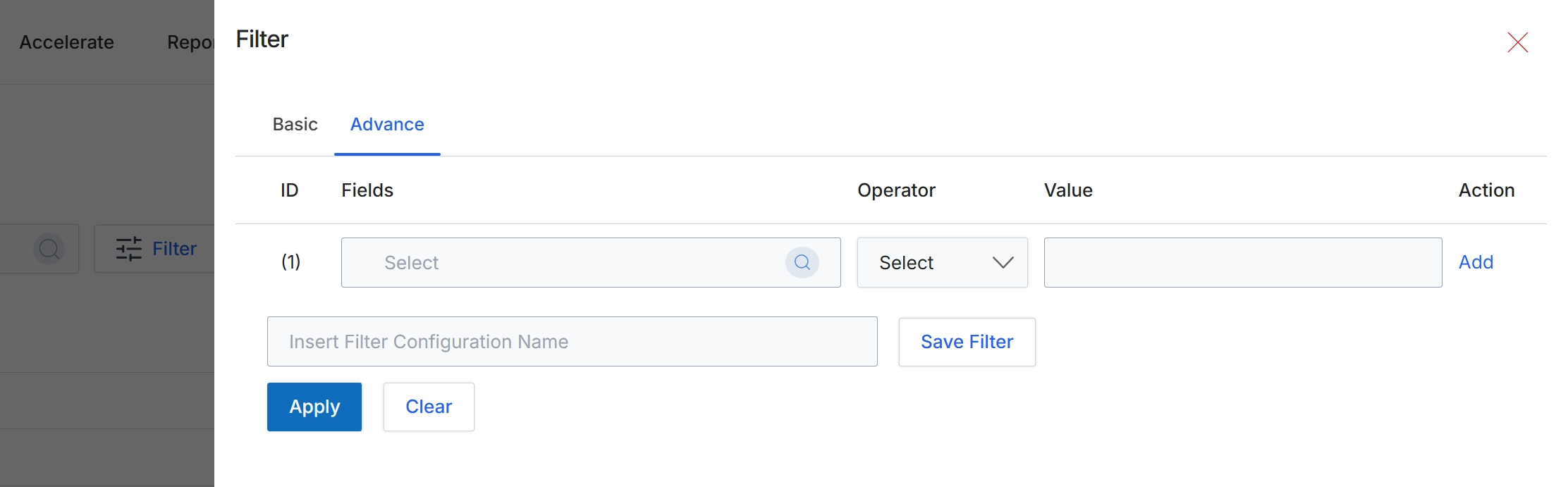
This screen displays the advanced filtering options available for lists within the platform, allowing users to construct complex queries to refine their data views. Unlike basic filters that might offer simple keyword searches or predefined dropdowns, the advanced filter provides granular control over data selection by enabling users to specify conditions based on multiple fields, operators, and values. This functionality is crucial for administrators and other users who need to analyze specific subsets of data, troubleshoot issues, or manage large volumes of records by isolating relevant entries. The ability to save filter configurations further enhances efficiency by allowing frequently used complex queries to be reused without re-entering all criteria.
Click the "Advance" tab to configure detailed filter conditions.
Buttons
| Button | Description |
|---|---|
| Basic | Switches to the basic filtering interface, typically offering simpler search options. |
| Advance | Switches to the advanced filtering interface, allowing for complex, multi-conditional filter rules. |
| Add | Adds a new row to define an additional filter condition. |
| Save Filter | Saves the current filter configuration under the specified name. |
| Apply | Applies the configured filter conditions to the data set. |
| Clear | Clears all currently defined filter conditions. |
Fields
| Field | Description |
|---|---|
| Select | Dropdown to choose a field for the filter condition. |
| Select | Dropdown to choose an operator for the filter condition. |
| Insert Filter Configuration Name | Input field to provide a name for the current filter configuration, allowing it to be saved for future use. |
Column Headings
| Column | Description |
|---|---|
| ID | A numerical identifier for each filter row, indicating the order of conditions. |
| Fields | A dropdown to select the data field on which the filter condition will be applied. |
| Operator | A dropdown to select the logical operator (e.g., equals, contains, starts with, greater than) for the filter condition. |
| Value | An input field to specify the value against which the selected field will be compared using the chosen operator. |
| Action | Provides options to add or remove filter rows. |