

Overview
The platform's Integration Connectors provide the essential bridge between the UPM and a vendor's existing technology stack. By integrating with critical systems like CRM, ERP, and marketing platforms, the UPM ensures that partner data, deal registrations, lead submissions, and other vital information are synchronized and consistent across all applications. This eliminates manual data entry, reduces errors, and provides a unified view of partner activities and performance. Administrators can configure these integrations to define which data fields are mapped between systems, the direction of synchronization, and how conflicts are resolved. The module also offers robust monitoring and reporting capabilities, allowing administrators to track the health of their integrations, identify and troubleshoot sync issues, and gain insights into data flow, which is crucial for maintaining operational efficiency and data integrity within the partner program.
Accessing and Connecting Integrations
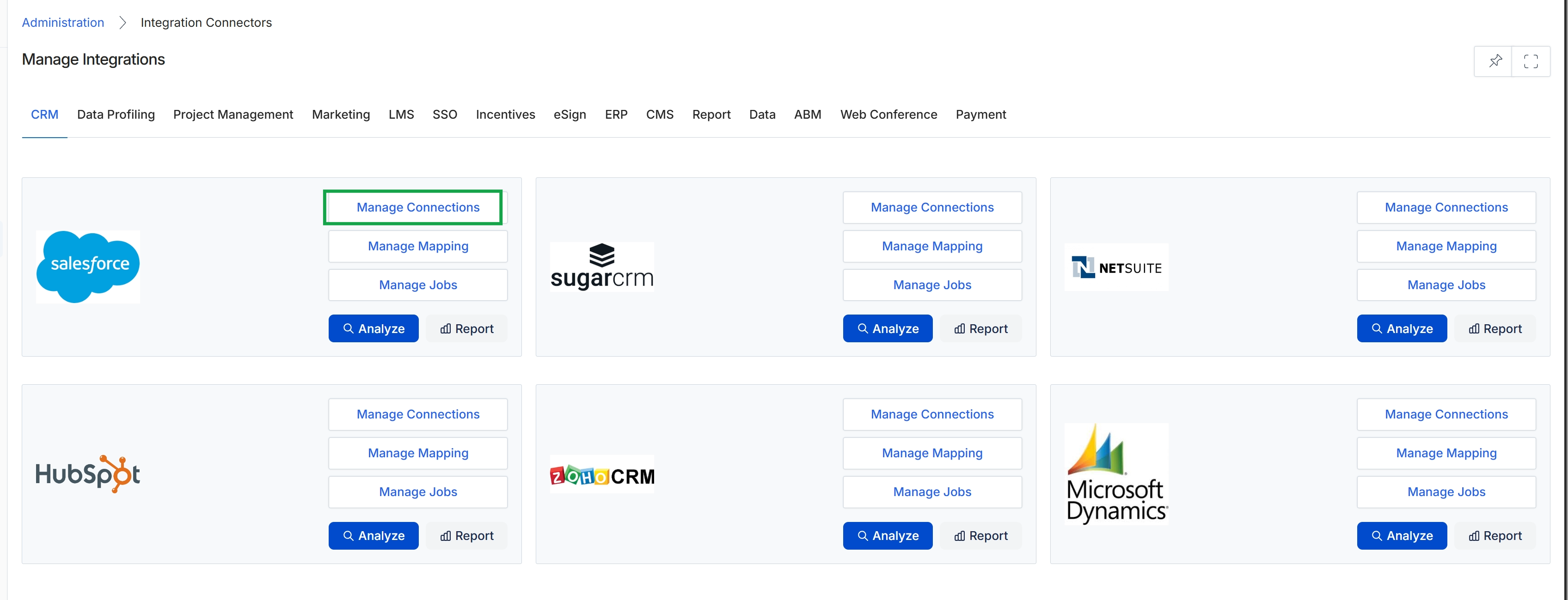
Click Manage Connections for the Salesforce integration.
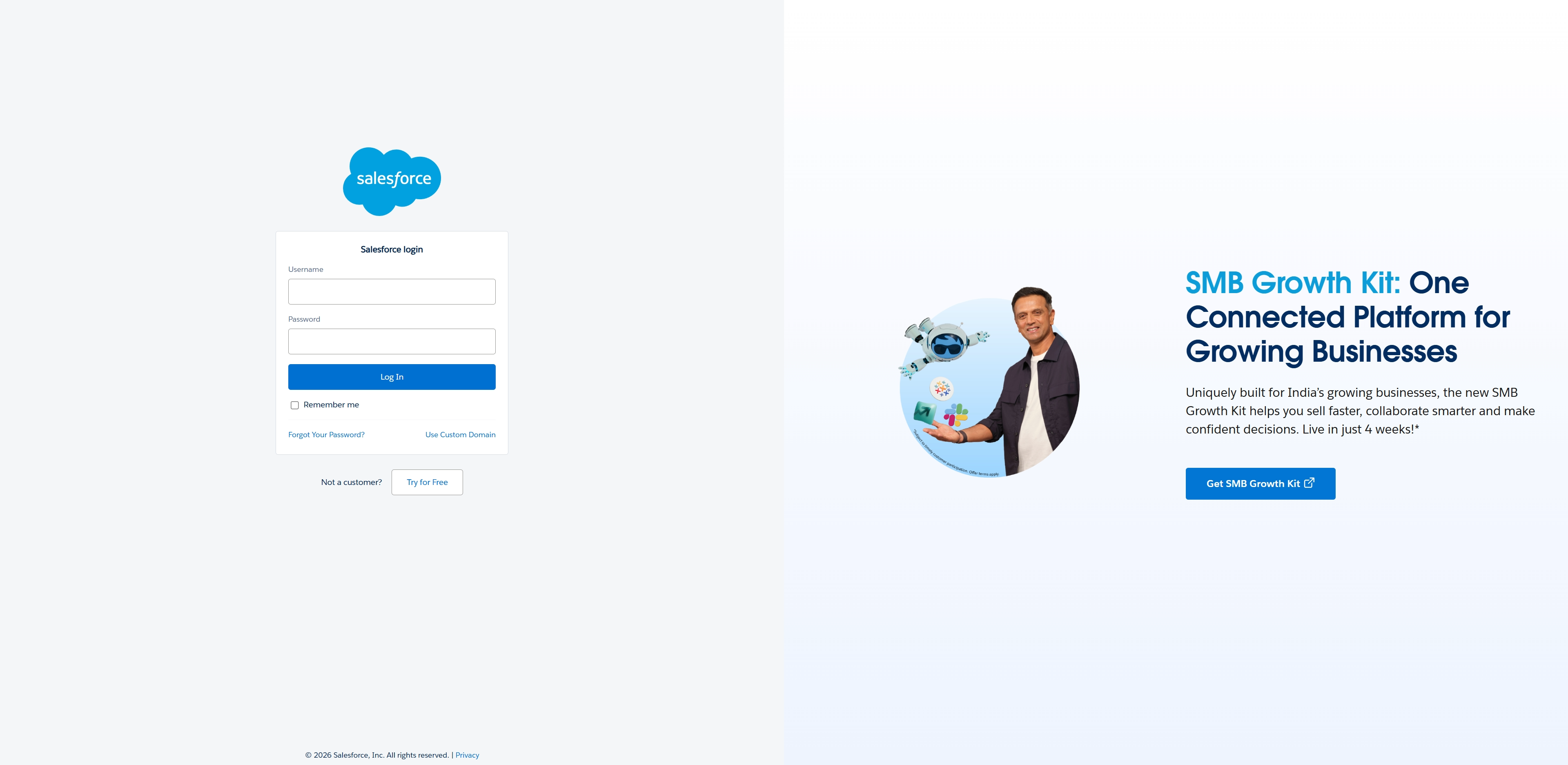
This screen displays the login interface for Salesforce, an external CRM system. It is presented when an administrator configures an integration connector for Salesforce within the platform's Administration module. The screen prompts for Salesforce credentials (username and password) to authenticate the connection between the platform and the Salesforce instance, enabling data synchronization and other integration functionalities as defined in the integration connector settings.
Configuring Data Mapping
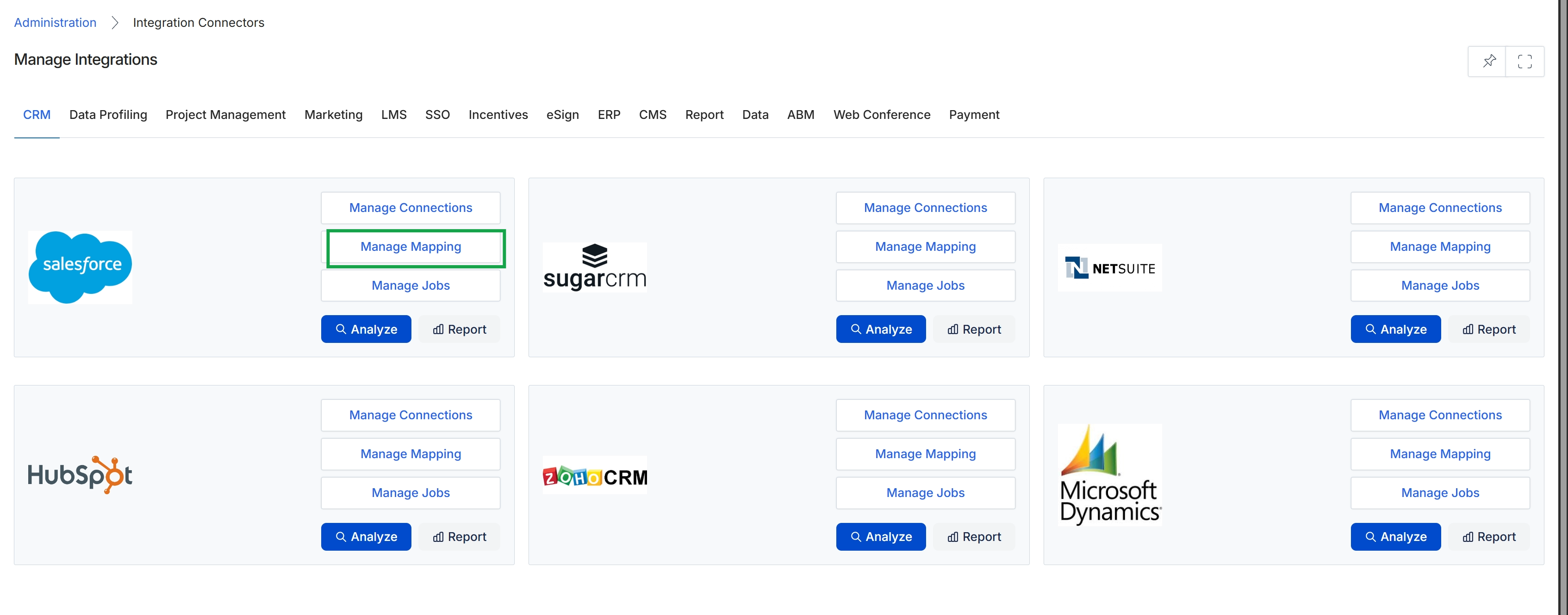
Click Manage Mapping under the Salesforce connector.
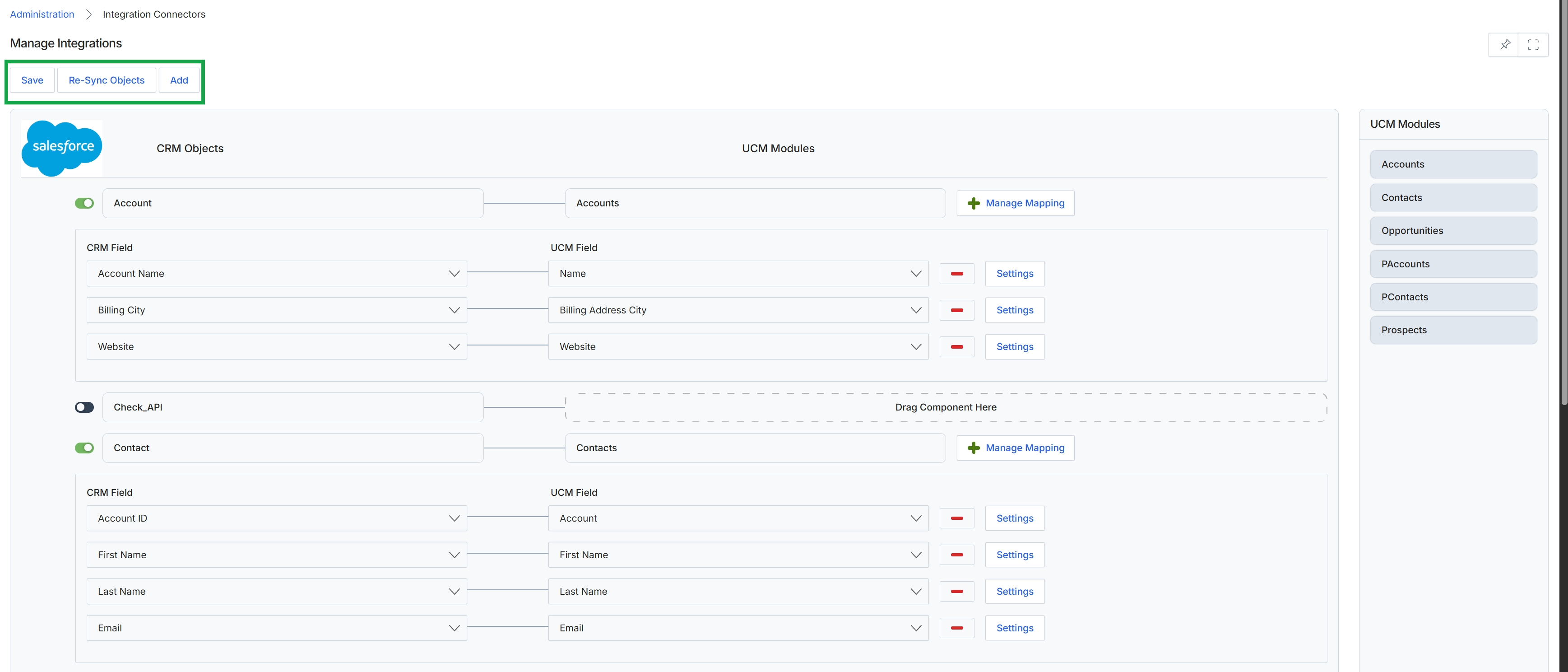
This screen, part of the Integration Connectors module, allows administrators to configure the field mapping between the platform and an external CRM system, in this case, Salesforce. It displays the CRM objects (like Account and Contact) and their corresponding UPM modules, enabling the definition of which CRM fields map to which UPM fields. This configuration is critical for ensuring data consistency and enabling bi-directional synchronization between the platform and the CRM, supporting workflows such as lead and deal management. Administrators use this interface to define sync directions, frequencies, and conflict resolution rules, which are essential for maintaining accurate partner and prospect data across systems.
Drag and drop the desired UPM Modules from the right panel to map them to the corresponding CRM Objects on the left.
Buttons
| Button | Description |
|---|---|
| Save | Saves the current integration mapping configurations. |
| Re-Sync Objects | Initiates a re-synchronization of objects between the platform and the connected CRM. |
| Add | Adds a new CRM object mapping section to the configuration. |
| Manage Mapping | Opens a dialog to manage detailed field mappings for the associated object. |
| Settings | Opens settings for the specific field mapping, potentially including sync direction and conflict resolution. |
| Accounts | A UPM module representing accounts, available for mapping to CRM objects. |
| Contacts | A UPM module representing contacts, available for mapping to CRM objects. |
| Opportunities | A UPM module representing opportunities, available for mapping to CRM objects. |
| PAccounts | A UPM module representing partner accounts, available for mapping to CRM objects. |
| PContacts | A UPM module representing partner contacts, available for mapping to CRM objects. |
| Prospects | A UPM module representing prospects, available for mapping to CRM objects. |
CRM Objects
| Field | Description |
|---|---|
| Account | A toggle switch to enable or disable the mapping for the Account CRM object. |
| CRM Field | A dropdown list to select the specific CRM field for mapping. |
| Account Name | The CRM field representing the account name. |
| Billing City | The CRM field representing the billing city of the account. |
| Website | The CRM field representing the account's website. |
| Check_API | A toggle switch for an API check related to the integration. |
| Contact | A toggle switch to enable or disable the mapping for the Contact CRM object. |
| Account ID | The CRM field representing the contact's associated account ID. |
| First Name | The CRM field representing the contact's first name. |
| Last Name | The CRM field representing the contact's last name. |
| The CRM field representing the contact's email address. |
UCM Modules
| Field | Description |
|---|---|
| Name | The UPM field representing the name, mapped from the CRM Account Name. |
| Billing Address City | The UPM field representing the billing address city, mapped from the CRM Billing City. |
| Website | The UPM field representing the website, mapped from the CRM Website. |
| Account | The UPM field representing the account, mapped from the CRM Account ID. |
| First Name | The UPM field representing the first name, mapped from the CRM First Name. |
| Last Name | The UPM field representing the last name, mapped from the CRM Last Name. |
| The UPM field representing the email, mapped from the CRM Email. |
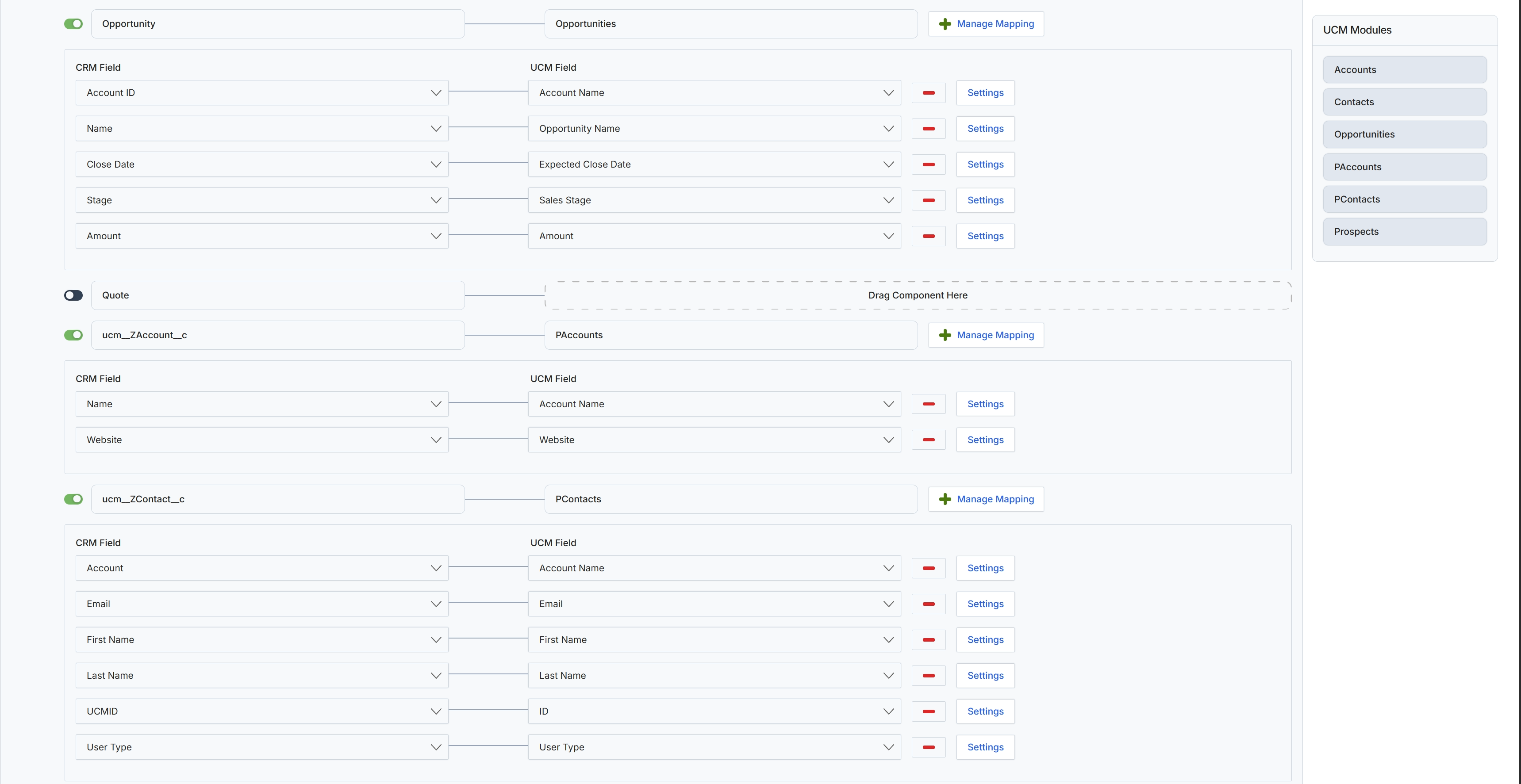
This screen, part of the Connectors Management module, allows administrators to configure the field mapping between the platform and an external CRM system for various data entities. It displays the current synchronization settings for different UPM modules, such as Opportunities, PAccounts, and PContacts. For each module, administrators can define which CRM fields correspond to specific UPM fields, ensuring accurate data exchange and consistency across integrated systems. This detailed mapping is crucial for maintaining data integrity and enabling seamless bi-directional synchronization, as outlined in the integration connectors workflow. The interface supports granular control over individual field mappings, allowing for precise alignment of data structures.
Review the existing field mappings for the UPM modules displayed on the screen.
Buttons
| Button | Description |
|---|---|
| Manage Mapping | Opens a dialog to manage the field mappings for the Opportunity module. |
| Settings | Opens settings for the Account ID field mapping. |
| Settings | Opens settings for the Name field mapping. |
| Settings | Opens settings for the Close Date field mapping. |
| Settings | Opens settings for the Stage field mapping. |
| Settings | Opens settings for the Amount field mapping. |
| Manage Mapping | Opens a dialog to manage the field mappings for the PAccounts module. |
| Settings | Opens settings for the Name field mapping. |
| Settings | Opens settings for the Website field mapping. |
| Manage Mapping | Opens a dialog to manage the field mappings for the PContacts module. |
| Settings | Opens settings for the Account field mapping. |
| Settings | Opens settings for the Email field mapping. |
| Settings | Opens settings for the First Name field mapping. |
| Settings | Opens settings for the Last Name field mapping. |
| Settings | Opens settings for the UCMID field mapping. |
| Settings | Opens settings for the User Type field mapping. |
| Accounts | A button representing the Accounts module, which can be dragged into the mapping area. |
| Contacts | A button representing the Contacts module, which can be dragged into the mapping area. |
| Opportunities | A button representing the Opportunities module, which can be dragged into the mapping area. |
| PAccounts | A button representing the PAccounts module, which can be dragged into the mapping area. |
| PContacts | A button representing the PContacts module, which can be dragged into the mapping area. |
| Prospects | A button representing the Prospects module, which can be dragged into the mapping area. |
Fields
| Field | Description |
|---|---|
| Opportunity | A toggle switch to enable or disable the mapping for the Opportunity module. |
| Opportunities | The UPM module name for which field mappings are being configured. |
| Quote | A toggle switch to enable or disable the mapping for the Quote module. |
| ucm_ZAccount_c | A toggle switch to enable or disable the mapping for the PAccounts module. |
| PAccounts | The UPM module name for which field mappings are being configured. |
| ucm_ZContact_c | A toggle switch to enable or disable the mapping for the PContacts module. |
| PContacts | The UPM module name for which field mappings are being configured. |
Opportunities
| Field | Description |
|---|---|
| Account ID | A dropdown to select the CRM field that maps to the UPM Account Name. |
| Account Name | The UPM field for the account name. |
| Name | A dropdown to select the CRM field that maps to the UPM Opportunity Name. |
| Opportunity Name | The UPM field for the opportunity name. |
| Close Date | A dropdown to select the CRM field that maps to the UPM Expected Close Date. |
| Expected Close Date | The UPM field for the expected close date of the opportunity. |
| Stage | A dropdown to select the CRM field that maps to the UPM Sales Stage. |
| Sales Stage | The UPM field for the sales stage of the opportunity. |
| Amount | A dropdown to select the CRM field that maps to the UPM Amount. |
| Amount | The UPM field for the opportunity amount. |
PAccounts
| Field | Description |
|---|---|
| Name | A dropdown to select the CRM field that maps to the UPM Account Name. |
| Account Name | The UPM field for the account name. |
| Website | A dropdown to select the CRM field that maps to the UPM Website. |
| Website | The UPM field for the website. |
PContacts
| Field | Description |
|---|---|
| Account | A dropdown to select the CRM field that maps to the UPM Account Name. |
| Account Name | The UPM field for the account name. |
| A dropdown to select the CRM field that maps to the UPM Email. | |
| The UPM field for the email address. | |
| First Name | A dropdown to select the CRM field that maps to the UPM First Name. |
| First Name | The UPM field for the first name. |
| Last Name | A dropdown to select the CRM field that maps to the UPM Last Name. |
| Last Name | The UPM field for the last name. |
| UCMID | A dropdown to select the CRM field that maps to the UPM ID. |
| ID | The UPM field for the contact ID. |
| User Type | A dropdown to select the CRM field that maps to the UPM User Type. |
| User Type | The UPM field for the user type. |
Opportunities
| Column | Description |
|---|---|
| CRM Field | The header for the column listing fields from the external CRM system. |
| UCM Field | The header for the column listing fields within the UPM. |
PAccounts
| Column | Description |
|---|---|
| CRM Field | The header for the column listing fields from the external CRM system. |
| UCM Field | The header for the column listing fields within the UPM. |
PContacts
| Column | Description |
|---|---|
| CRM Field | The header for the column listing fields from the external CRM system. |
| UCM Field | The header for the column listing fields within the UPM. |
Column Headings
| Column | Description |
|---|---|
| UCM Modules | A panel listing available UPM modules that can be configured for integration. |
Managing and Monitoring Sync Jobs
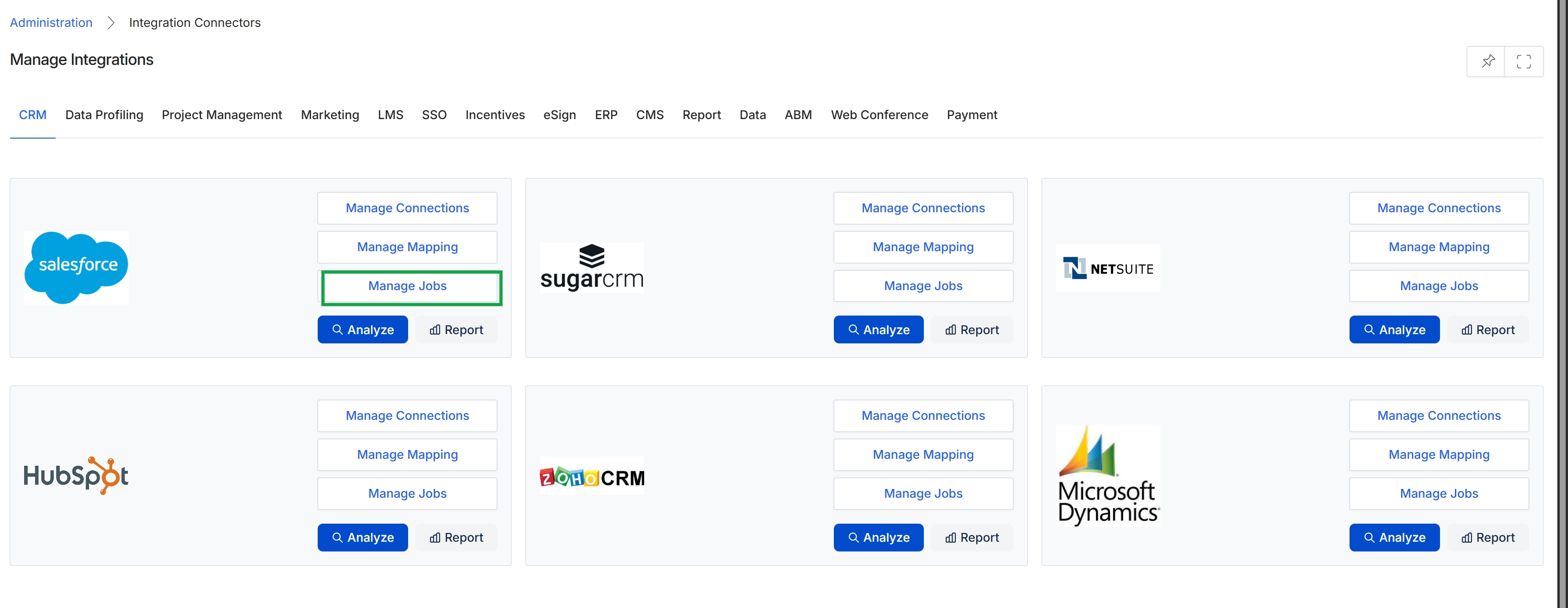
Click Manage Jobs under the Salesforce connector.
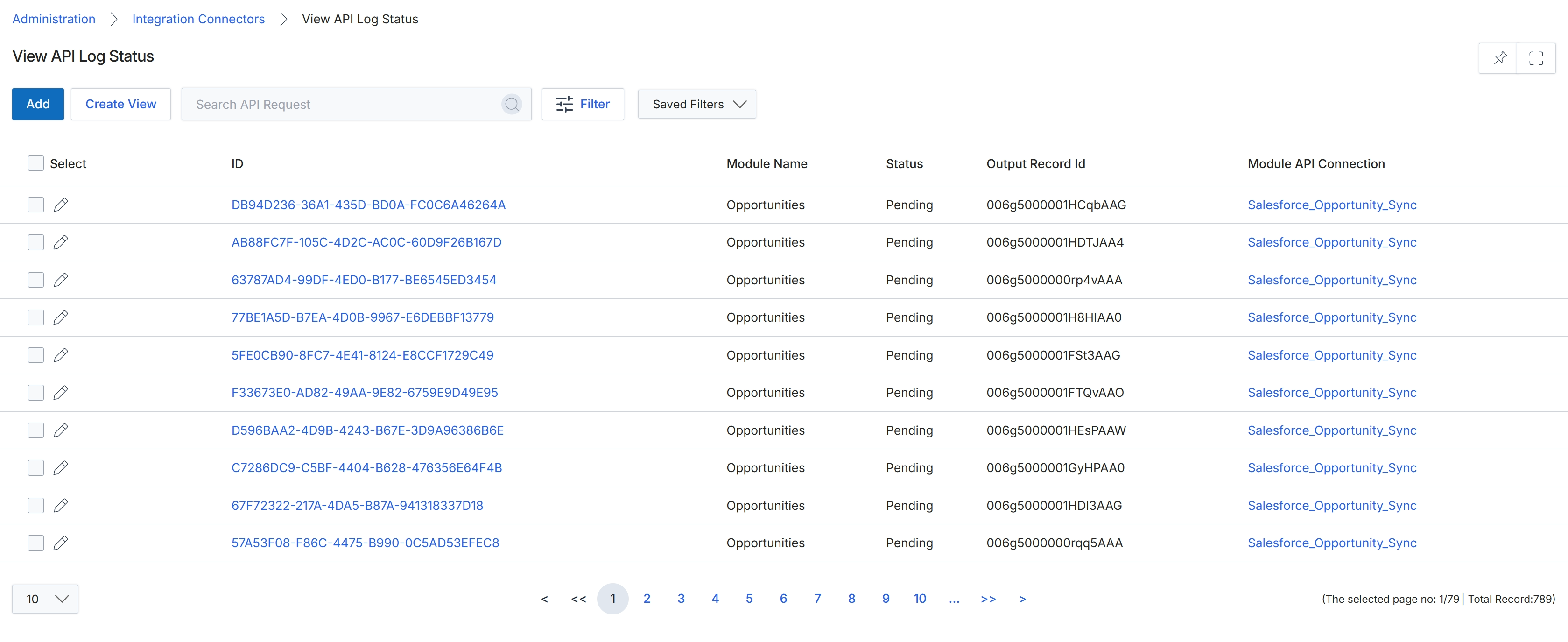
This screen displays the API Log Status, providing a detailed record of integration activities within the platform. It lists individual API requests, showing their unique IDs, the module involved (e.g., Opportunities), their current status (e.g., Pending), the ID of the output record, and the specific API connection used for each request. This log is crucial for administrators to monitor the health and progress of data synchronization between the platform and external systems, helping to identify and troubleshoot any integration issues.
Analyzing Connector Health and Reports
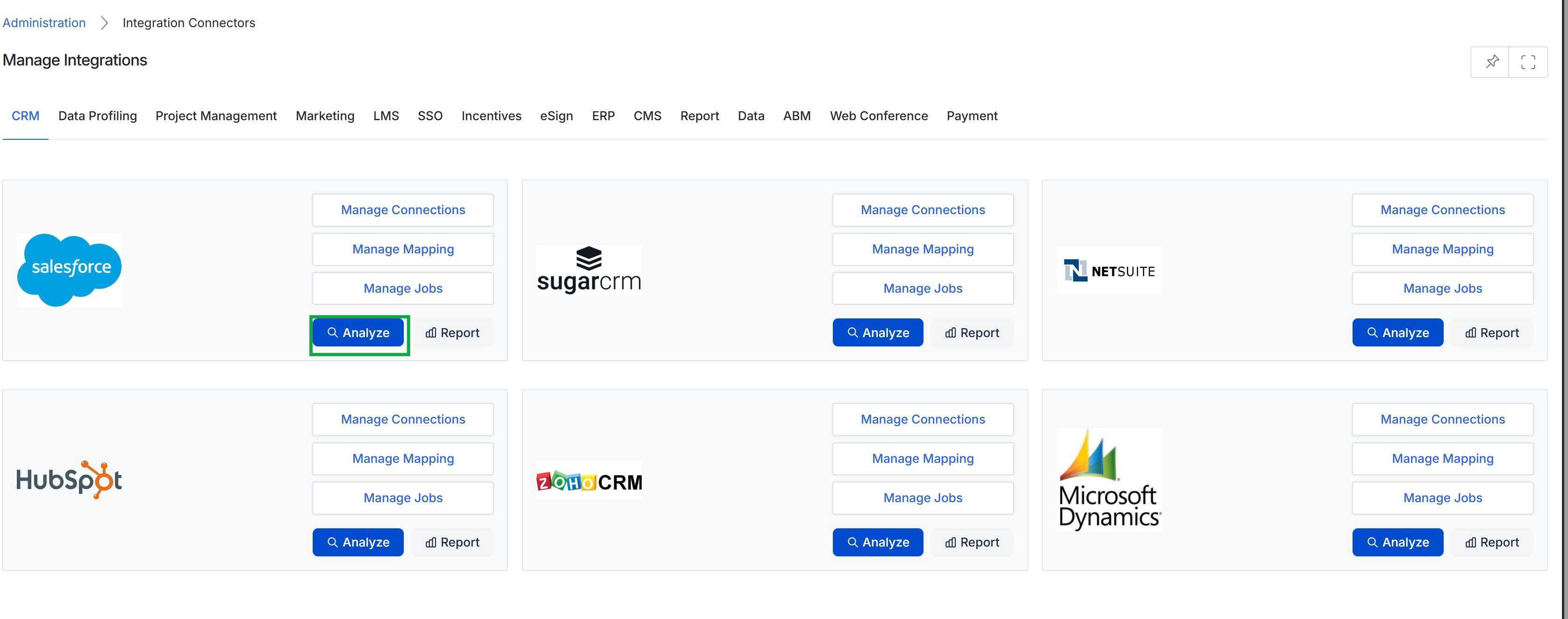
Click the Analyze button under the Salesforce connector.
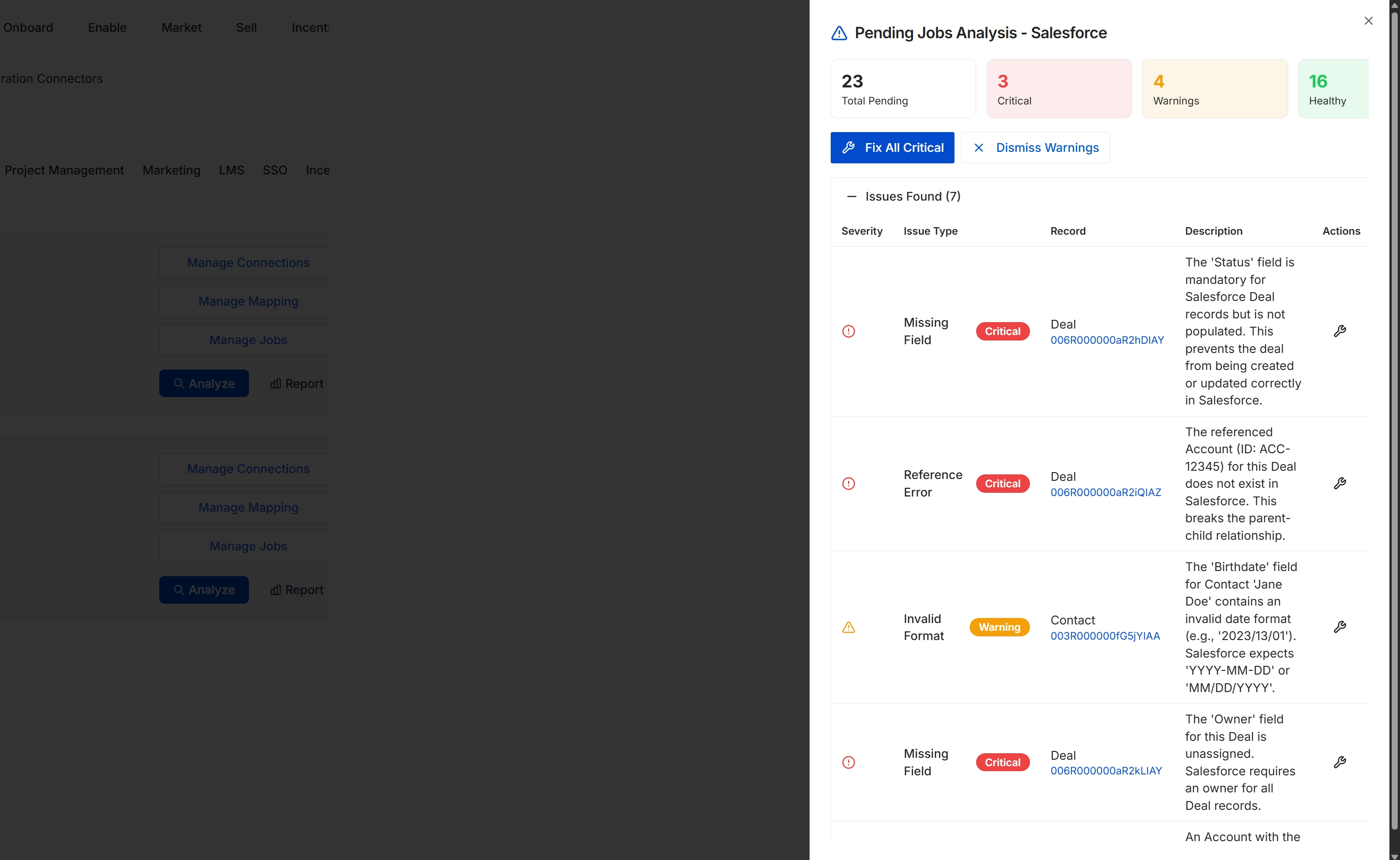
This screen displays a detailed analysis of pending integration jobs, specifically for the Salesforce connector. It provides a summary of the total pending items, categorized by their severity as critical, warnings, or healthy. Below the summary, a table lists individual issues found, detailing the severity, issue type, affected record, and a description of the problem, which helps administrators understand and resolve data synchronization errors between the platform and Salesforce.
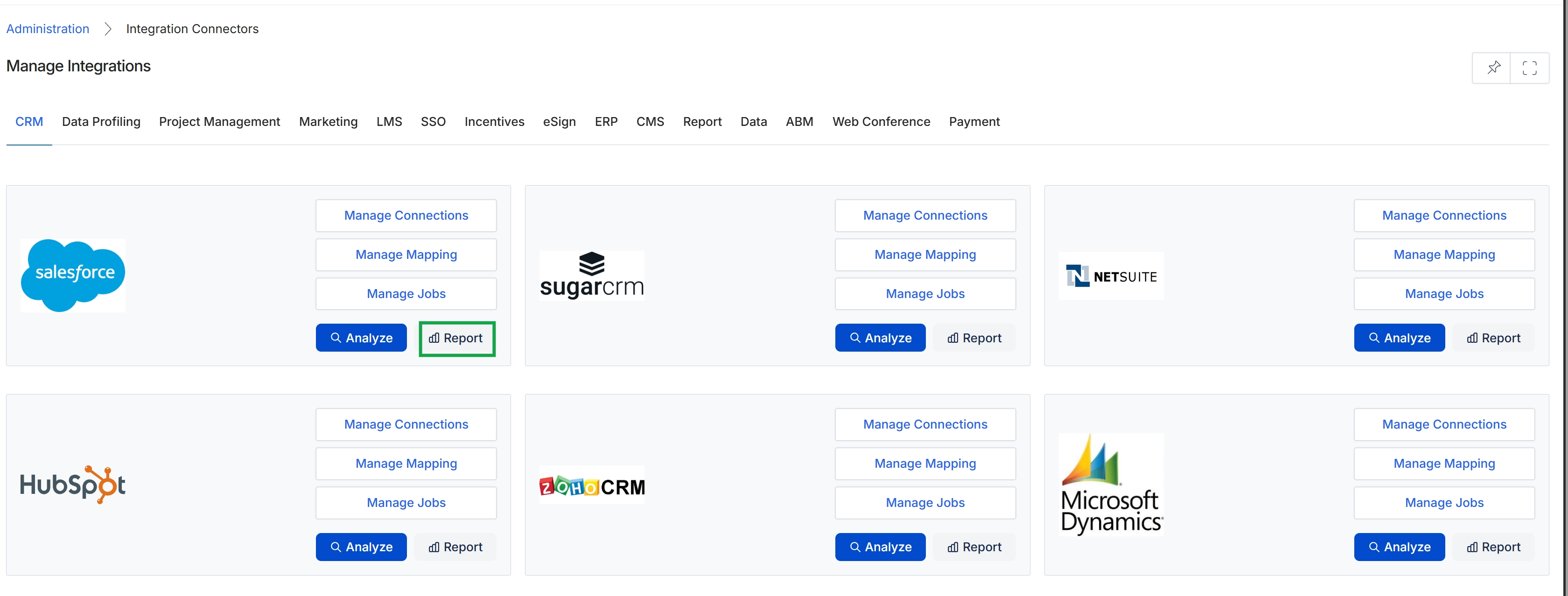
Click Report for the Salesforce connector.
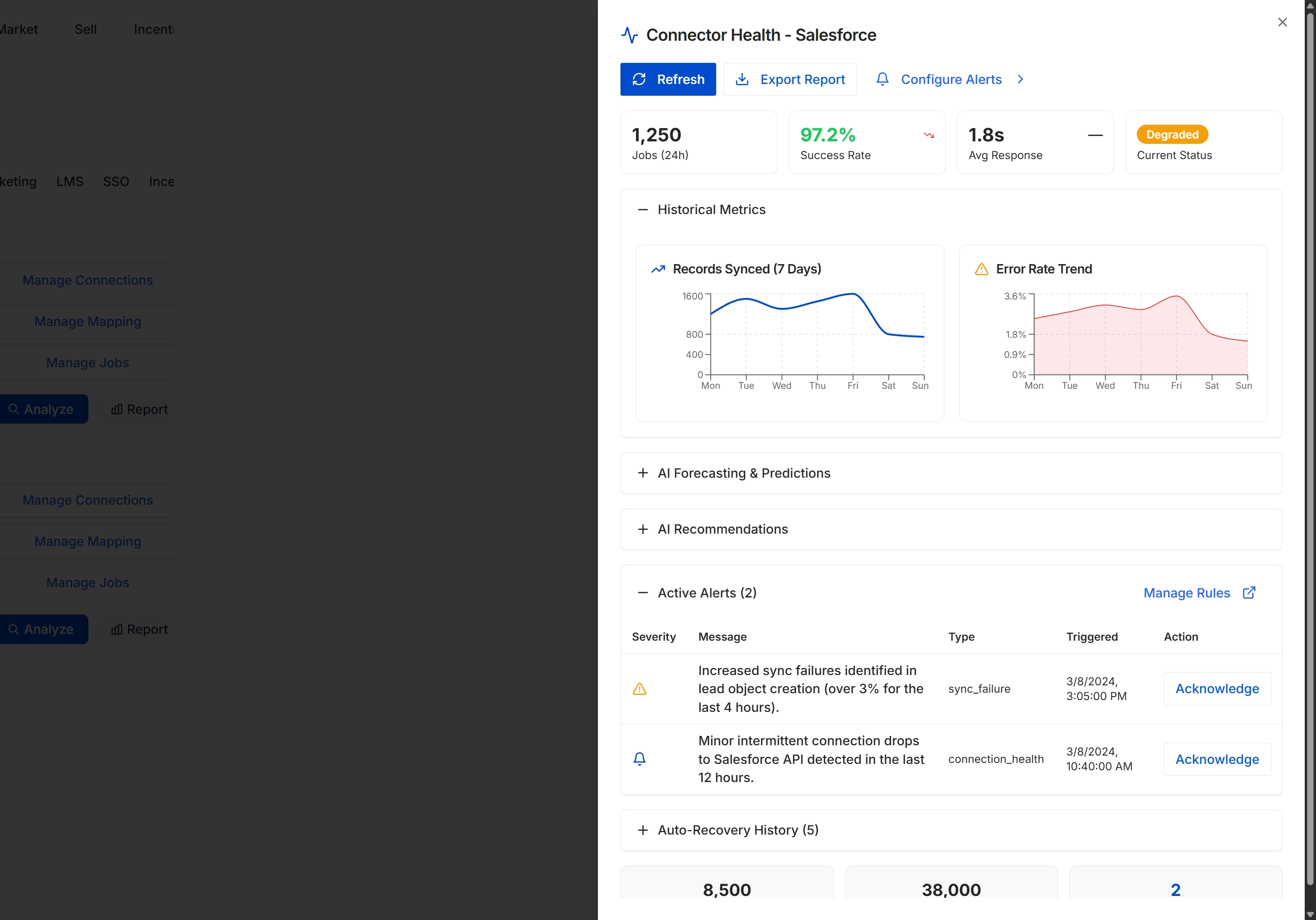
This screen provides a detailed overview of the health and performance of a specific integration connector, in this case, Salesforce. It displays key metrics such as the number of jobs processed, success rate, and average response time, along with the current status of the integration. Historical data is visualized through graphs showing records synced over the past seven days and the error rate trend, allowing administrators to monitor the connector's stability and identify potential issues. The screen also lists active alerts, providing immediate notification of any detected problems with the integration.