

Overview
The platform integrates with various external systems, including Salesforce CRM, to ensure seamless data flow and process automation. The Salesforce Object Business Model (OBM) Setup is a critical component of this integration, allowing administrators to define how specific Salesforce objects (such as Opportunities, Contacts, and Accounts) are synchronized with the platform. This setup ensures that relevant data is consistently updated across both systems, supporting co-selling efforts, lead management, and partner performance tracking.
By configuring OBM syncs, administrators can specify which data fields are mapped, the direction of synchronization, and the frequency of updates. This capability is essential for maintaining data integrity and providing partners with accurate, up-to-date information, while also enabling vendors to track partner activities within their familiar CRM environment. The interface provides tools to manage these configurations efficiently, allowing for the creation of new syncs, modification of existing ones, and filtering of the displayed list for easier navigation and monitoring.
Accessing Salesforce OBM Setup
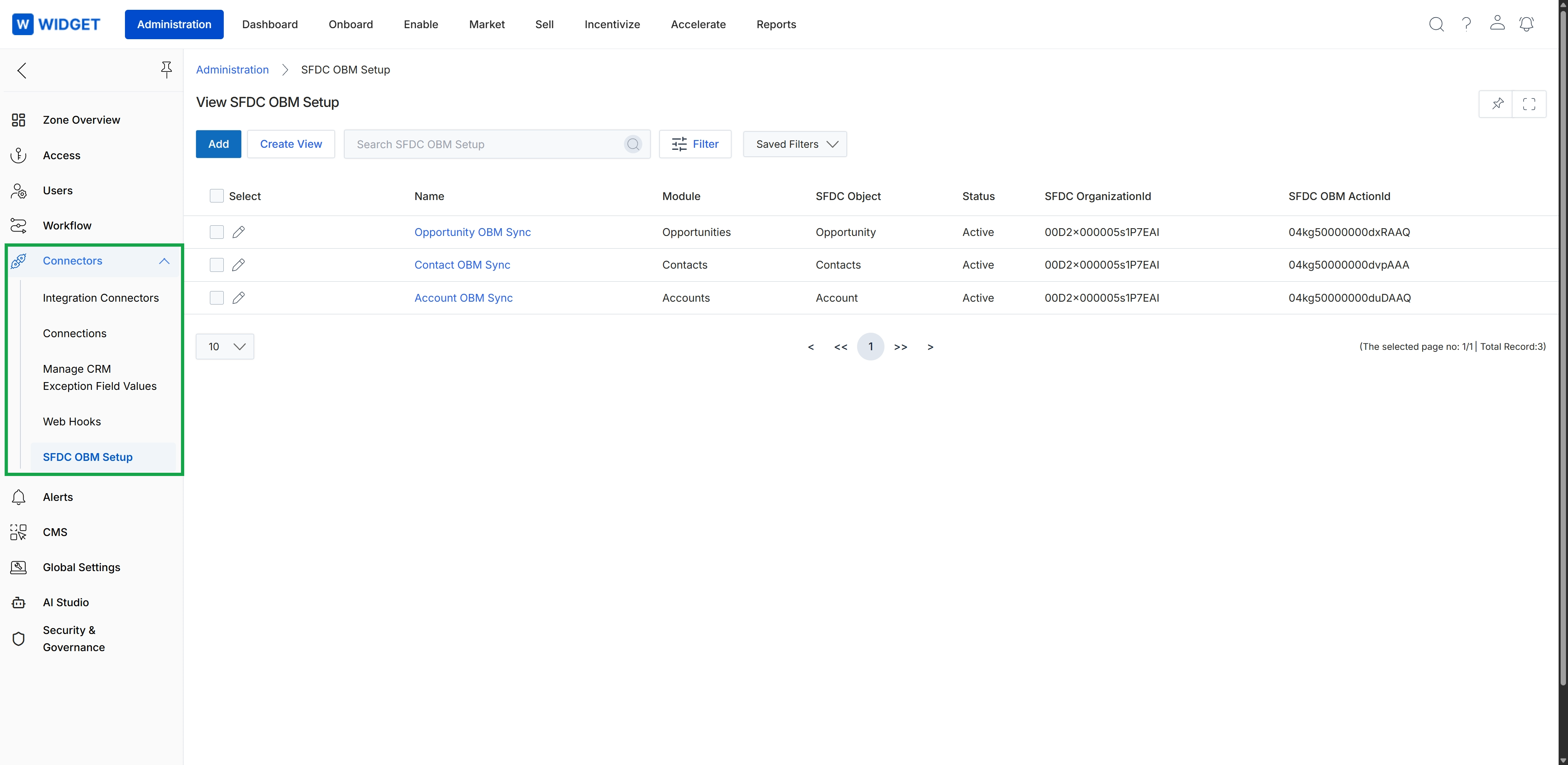
Click SFDC OBM Setup in the left navigation menu.
Managing Sync Configurations
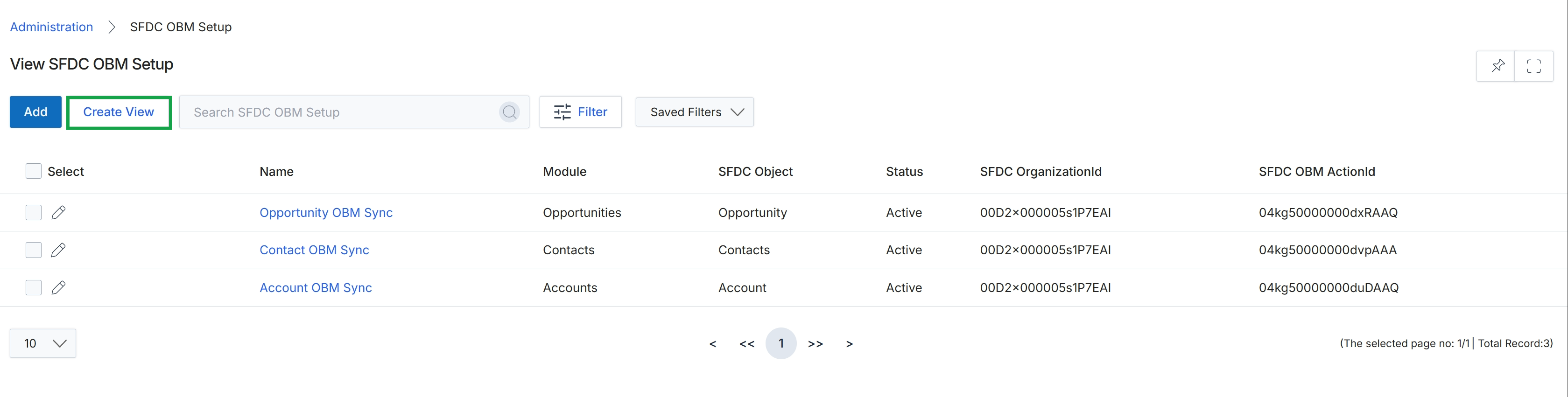
Click the Create View button.
Creating Custom Views
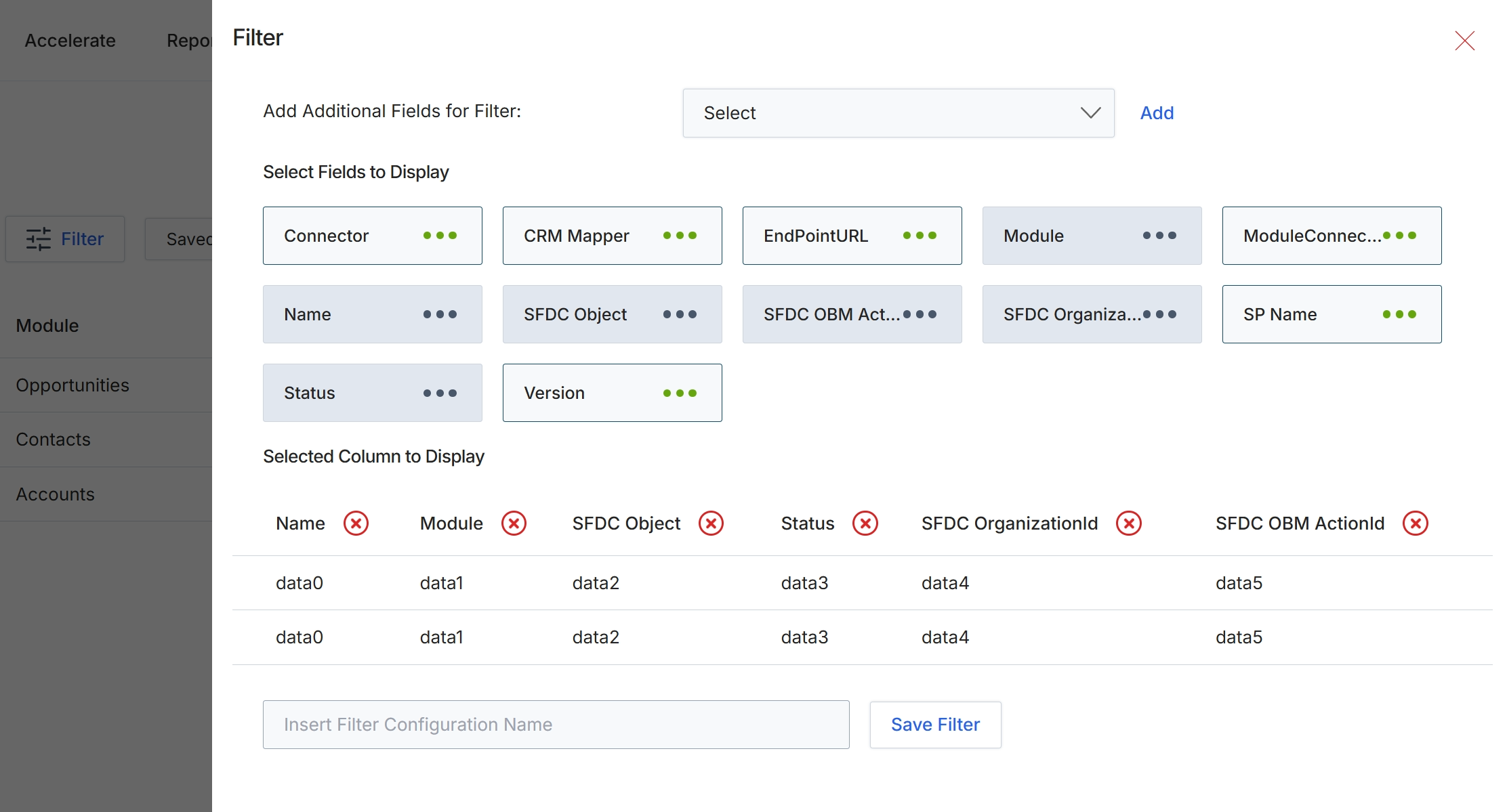
This filter configuration dialog allows administrators to customize the displayed columns and apply filters to the SFDC OBM (Salesforce CRM Object Business Model) setup list view. By selecting specific fields to display, users can tailor the information presented in the main list, focusing on relevant data points such as connector details, module names, SFDC objects, and action IDs. This customization helps in efficiently managing and monitoring the integration between the platform and Salesforce, ensuring that critical information is readily accessible for troubleshooting or review. The ability to save filter configurations streamlines future analysis and reporting tasks for various integration scenarios.
Configure the filter settings by selecting fields to display and defining the columns for the SFDC OBM setup.
Buttons
| Button | Description |
|---|---|
| Add | Button to add the selected field to the filter criteria. |
| Save Filter | Button to save the current filter configuration. |
Fields
| Field | Description |
|---|---|
| Add Additional Fields for Filter | A dropdown to select additional fields that can be used to filter the displayed data. |
| Select | The dropdown menu for selecting additional fields to add to the filter. |
| Insert Filter Configuration Name | Text input field to enter a name for the current filter configuration. |
Select Fields to Display
Selected Column to Display
| Column | Description |
|---|---|
| Name | Column header for the name of the SFDC OBM setup. |
| Module | Column header for the module associated with the SFDC OBM setup. |
| SFDC Object | Column header for the Salesforce object. |
| Status | Column header for the status of the SFDC OBM setup. |
| SFDC OrganizationId | Column header for the Salesforce Organization ID. |
| SFDC OBM ActionId | Column header for the Salesforce OBM Action ID. |
Filtering Sync Data
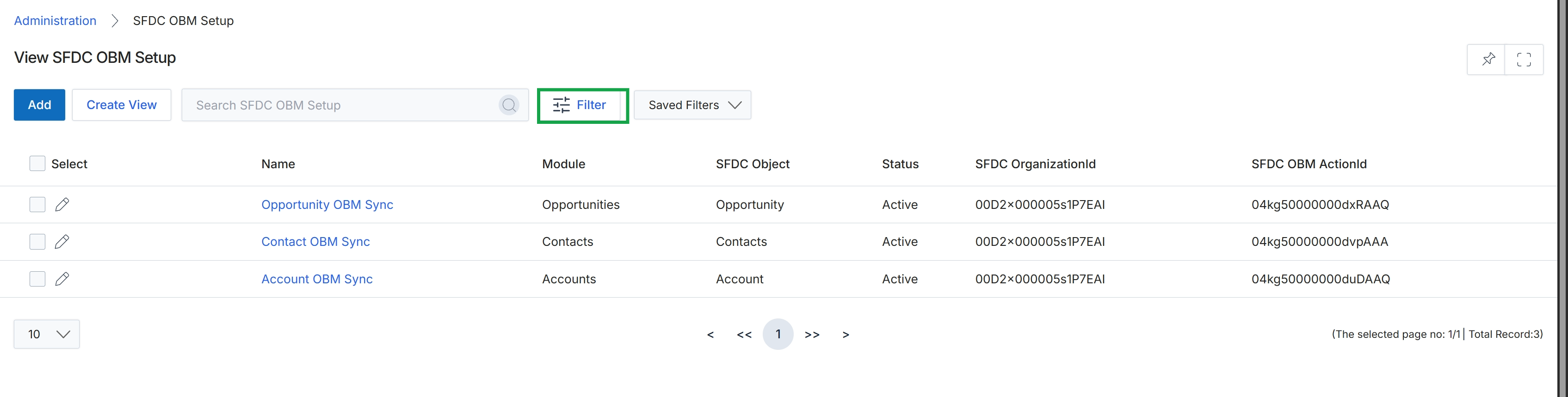
Click the Filter button.
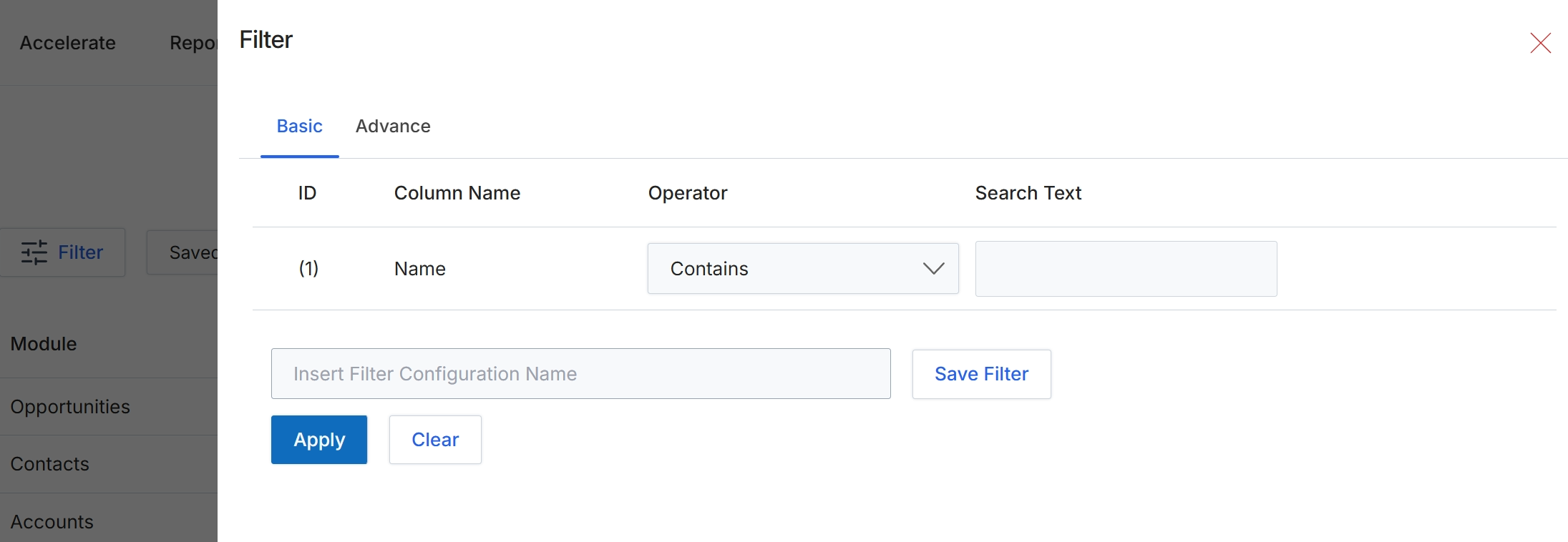
This filter dialog allows users to refine the data displayed in a list view by applying specific criteria. It supports both basic and advanced filtering options, enabling users to search for records based on various column values and operators. Filters can be applied temporarily or saved for future use, which helps in quickly accessing frequently used data subsets within the platform. This functionality is crucial for administrators and other users to efficiently navigate and analyze large datasets, such as lists of connectors, users, or other entities managed within the Administration module.
Enter the desired search text in the 'Search Text' field to filter the records.
Buttons
| Button | Description |
|---|---|
| Basic | Selects the basic filter configuration options. |
| Advance | Selects the advanced filter configuration options. |
| Save Filter | Saves the current filter configuration for future use. |
| Apply | Applies the configured filter to the data. |
| Clear | Clears all filter criteria. |
Fields
| Field | Description |
|---|---|
| Name | The specific column selected for filtering, in this case, 'Name'. |
| Contains | The selected operator for the filter, indicating that the column should contain the specified search text. |
| Search Text | Input field for the text to be used in the filter. |
| Insert Filter Configuration Name | Field to enter a name for saving the current filter configuration. |
Column Headings
| Column | Description |
|---|---|
| ID | The identifier for the filter row. |
| Column Name | The name of the column to apply the filter to. |
| Operator | The comparison operator to use for filtering (e.g., 'Contains', 'Equals', 'Starts With'). |
| Search Text | The text value to search for within the selected column. |
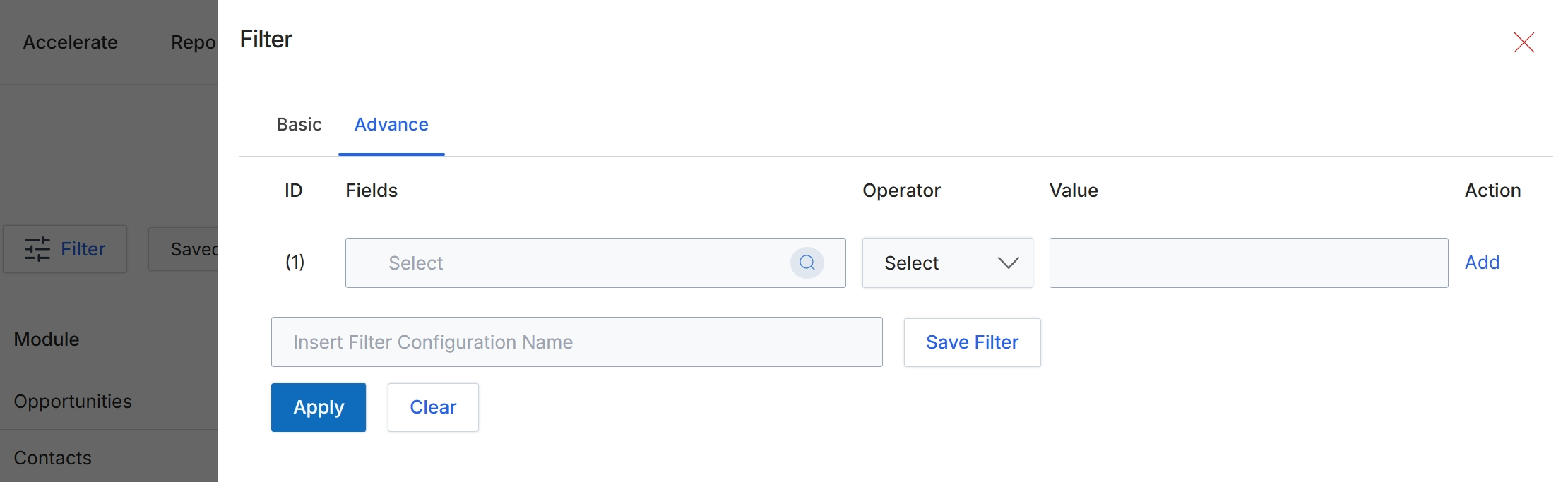
This filter configuration dialog allows administrators to define advanced filtering rules for data displayed in various list views within the platform. Users can specify criteria based on different fields, operators, and values to narrow down results, such as filtering opportunities by specific modules or contacts. The ability to save filter configurations enables quick application of frequently used search parameters, enhancing efficiency in data analysis and management. This advanced filtering mechanism is crucial for managing large datasets and focusing on relevant information within the UPM.
Click the "Advance" tab to configure advanced filter rules.
Buttons
| Button | Description |
|---|---|
| Basic | Switches to the basic filter configuration interface. |
| Advance | Switches to the advanced filter configuration interface, allowing for more complex rule-based filtering. |
| Add | Adds a new row for an additional filter rule. |
| Save Filter | Saves the current filter configuration under the specified name. |
| Apply | Applies the configured filter rules to the data. |
| Clear | Clears all applied filter rules and resets the filter configuration. |
Fields
| Field | Description |
|---|---|
| Select | Dropdown to choose a field for the filter rule. |
| Select | Dropdown to choose an operator for the filter rule. |
| Value | Input field for the filter value. |
| Insert Filter Configuration Name | Input field to provide a name for the current filter configuration to save it for future use. |
Column Headings
| Column | Description |
|---|---|
| ID | A numerical identifier for each filter rule row. |
| Fields | A dropdown to select the data field to apply the filter to. |
| Operator | A dropdown to select the comparison operator (e.g., equals, contains, greater than) for the filter rule. |
| Value | An input field to enter the value to compare against the selected field. |
| Action | Provides options to add or remove filter rules. |