

Overview
When integrating the UPM with various CRM systems like Salesforce or HubSpot, it's often necessary to synchronize data fields that may have different names or value sets in each system. This 'Manage CRM Exception Field Values' feature provides the granular control needed to define these specific mappings. For example, a 'Sales Stage' in one CRM might be 'Deal Status' in another, or the values for 'Closed Won' might differ. This tool allows administrators to precisely configure how these discrepancies are resolved, ensuring that data flows accurately and consistently between the UPM and connected CRM platforms.
By managing these exception field values, administrators can prevent data integrity issues, streamline reporting, and ensure that automated workflows triggered by CRM data (e.g., deal stage changes) function correctly within the UPM. This is particularly crucial for modules like Sell, where lead and deal data are frequently exchanged with CRM systems, impacting partner incentives and pipeline management.
Accessing the CRM Exception Field Values
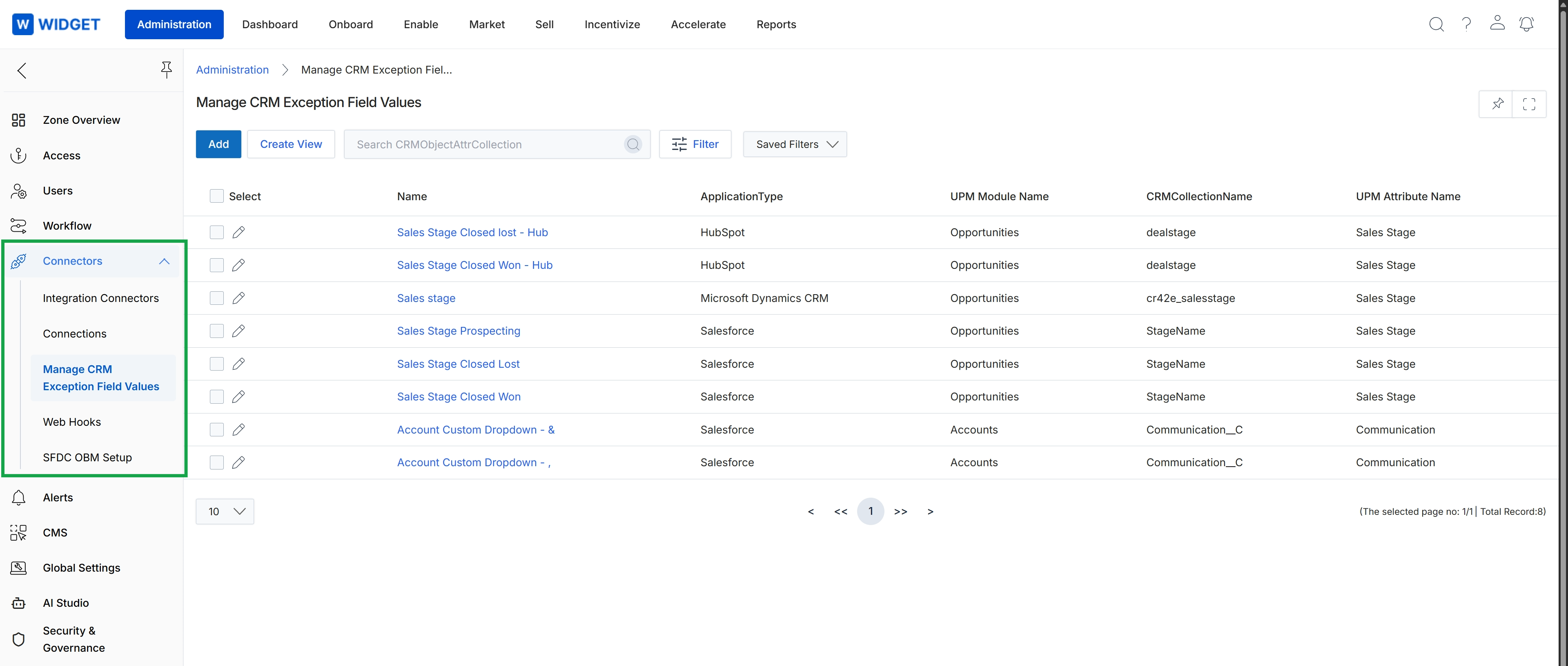
The Manage CRM Exception Field Values screen allows administrators to define and manage specific field value mappings between the platform and integrated CRM systems. This is crucial for ensuring data consistency and accurate synchronization, especially when CRM systems use different terminology or value sets for fields that correspond to platform attributes. By configuring these exception values, administrators can prevent data discrepancies that might arise during bi-directional synchronization or when data is pulled from the CRM into the platform, ensuring that business logic and reporting are based on harmonized data.
Select "Manage CRM Exception Field Values" from the "Connectors" section of the left navigation menu to view the list of configured CRM exception field values.
Buttons
| Button | Description |
|---|---|
| Add | Initiates the process to add a new CRM exception field value mapping. |
| Create View | Allows the creation of a custom filtered view of the exception field values list. |
| Filter | Opens a panel to apply filters to the list of CRM exception field values. |
| Saved Filters | A dropdown to select and apply previously saved filter configurations. |
Fields
| Field | Description |
|---|---|
| Search CRMObjectAttrCollection | A search bar to find specific CRM object attribute collections within the displayed list. |
Column Headings
| Column | Description |
|---|---|
| Select | A checkbox to select individual rows for bulk actions. |
| Name | The name or description of the CRM exception field value. |
| ApplicationType | Indicates the type of CRM application (e.g., HubSpot, Salesforce, Microsoft Dynamics CRM) to which the exception applies. |
| UPM Module Name | The name of the platform module (e.g., Opportunities, Accounts) that contains the attribute being mapped. |
| CRMCollectionName | The name of the collection or object in the CRM system that corresponds to the platform module. |
| UPM Attribute Name | The name of the attribute or field within the platform module that is being mapped. |
Creating and Managing Views
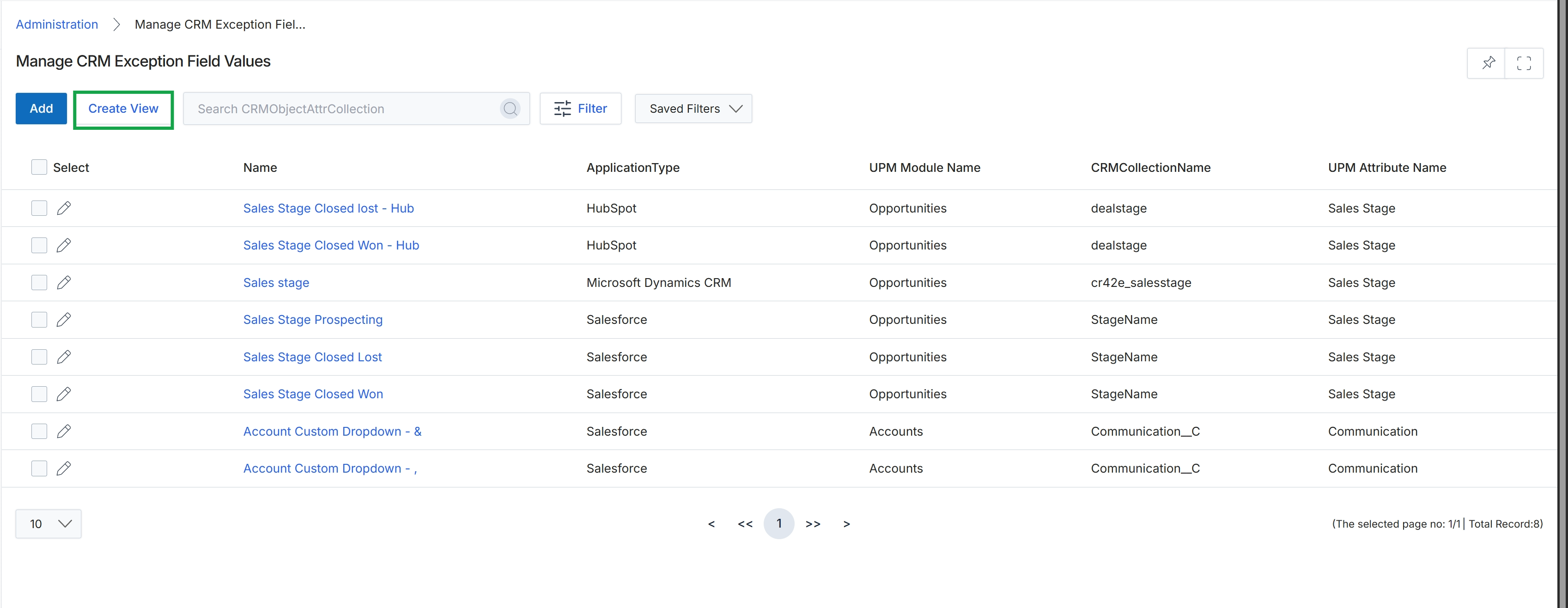
Click Create View.
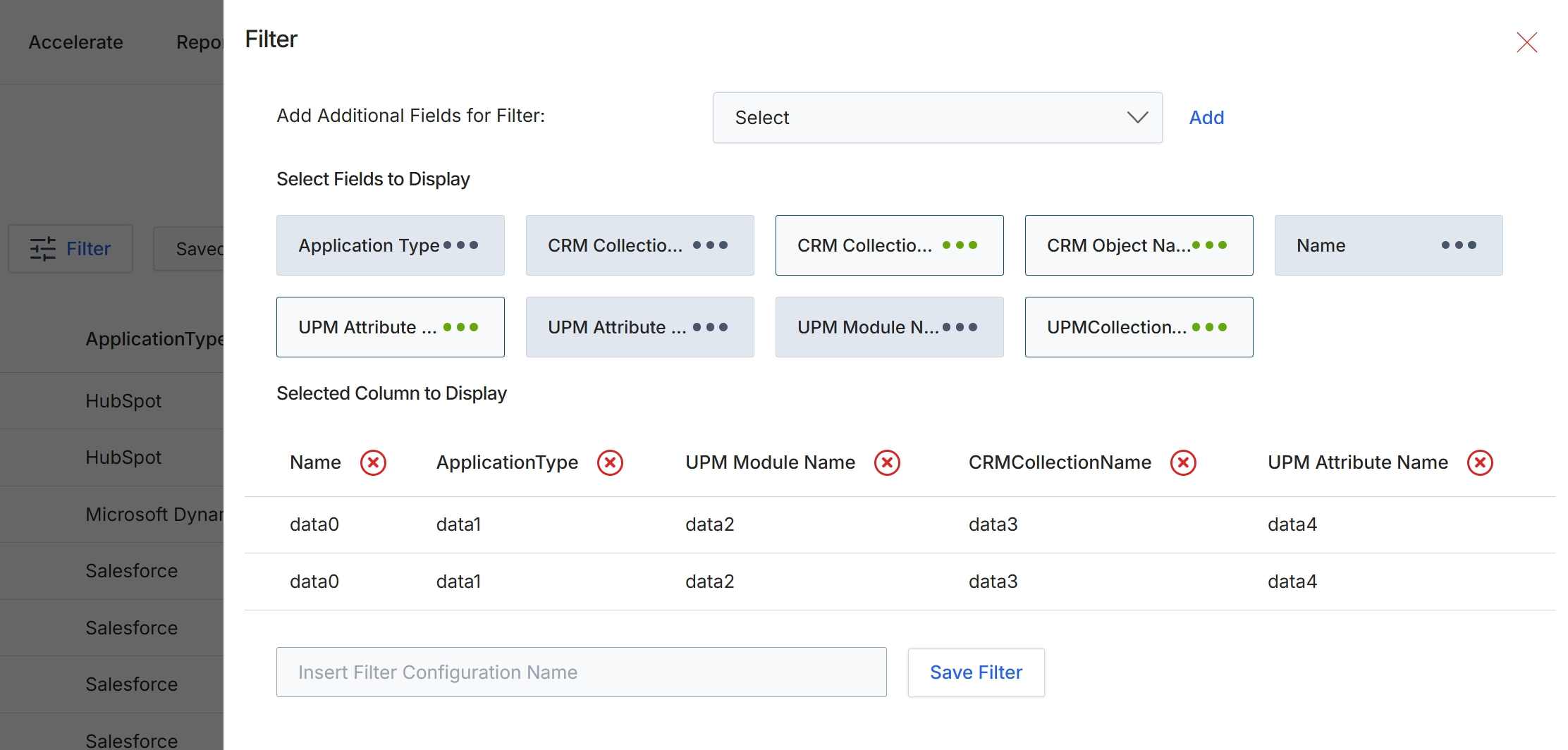
This Filter dialog allows administrators to customize the data displayed in the CRM Exception Field Values list view by selecting specific fields to include as columns. This functionality is crucial for tailoring the view to focus on relevant data points, enabling more efficient analysis and management of CRM integration exceptions. Administrators can add fields for filtering purposes, choose which fields appear as columns in the main table, and then save this configuration for future use, streamlining their workflow when dealing with recurring data analysis tasks related to CRM connector issues.
Enter a name for the filter configuration to save it for future use.
Buttons
| Button | Description |
|---|---|
| Save Filter | A button to save the current filter configuration with the provided name. |
Fields
| Field | Description |
|---|---|
| Add Additional Fields for Filter | A dropdown to select additional fields that can be used to filter the data. |
| Select Fields to Display | A section displaying selected fields that will appear as columns in the list view. |
| Insert Filter Configuration Name | An input field to enter a name for the current filter configuration. |
Select Fields to Display
| Field | Description |
|---|---|
| Name | The column header for the 'Name' field in the preview table. |
| ApplicationType | The column header for the 'ApplicationType' field in the preview table. |
| UPM Module Name | The column header for the 'UPM Module Name' field in the preview table. |
| CRMCollectionName | The column header for the 'CRMCollectionName' field in the preview table. |
| UPM Attribute Name | The column header for the 'UPM Attribute Name' field in the preview table. |
Applying Filters to Data
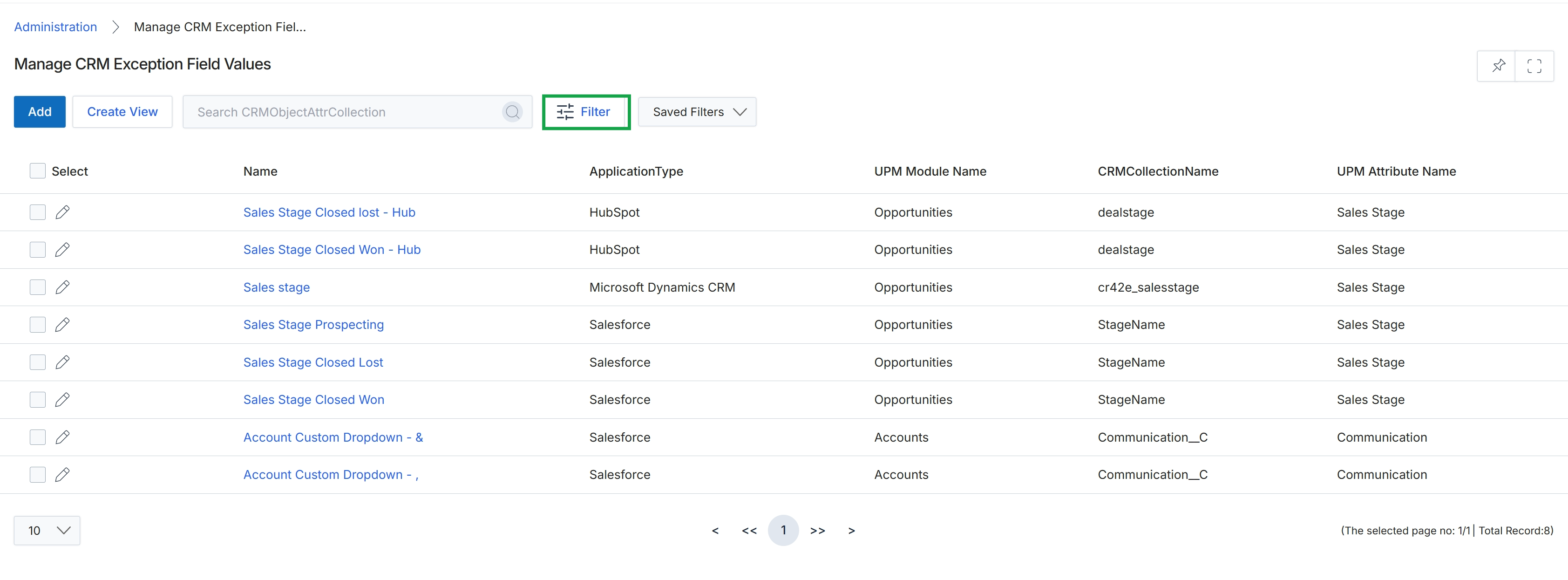
Click the Filter button.
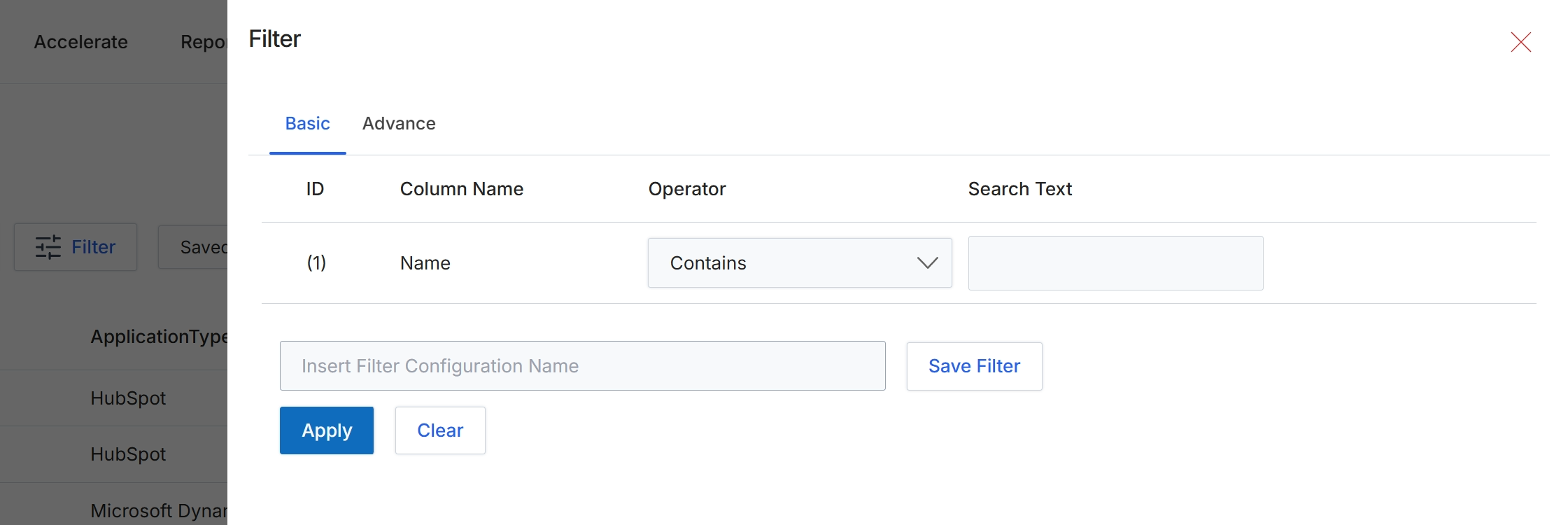
This filter dialog allows administrators to refine the displayed list of CRM exception field values by applying specific criteria. It supports both basic and advanced filtering options to help users quickly locate particular entries. By defining conditions based on column names, operators, and search text, users can narrow down the data set to focus on relevant exceptions, which is crucial for troubleshooting integration issues or managing data synchronization discrepancies. The ability to save filter configurations streamlines repetitive analysis tasks and enhances efficiency in managing connector data.
Enter a search term into the 'Search Text' field to filter the list of CRM exception field values.
Buttons
| Button | Description |
|---|---|
| Basic | Tab to configure basic filter conditions. |
| Advance | Tab to configure advanced filter conditions. |
| Save Filter | Button to save the current filter configuration under the specified name. |
| Apply | Button to apply the configured filter conditions to the list. |
| Clear | Button to clear all applied filter conditions and reset the filter dialog. |
Fields
| Field | Description |
|---|---|
| Name | The name of the column being filtered. |
| Contains | Dropdown to select the operator for the filter condition, such as 'Contains', 'Equals', 'Starts With', etc. |
| Search Text | Input field to enter the text value to search for within the selected column. |
| Insert Filter Configuration Name | Field to enter a name for the current filter configuration, allowing it to be saved for future use. |
Column Headings
| Column | Description |
|---|---|
| ID | Column header for the filter condition's identifier. |
| Column Name | Column header for the name of the field to be filtered. |
| Operator | Column header for the comparison operator used in the filter condition. |
| Search Text | Column header for the text value used in the filter condition. |
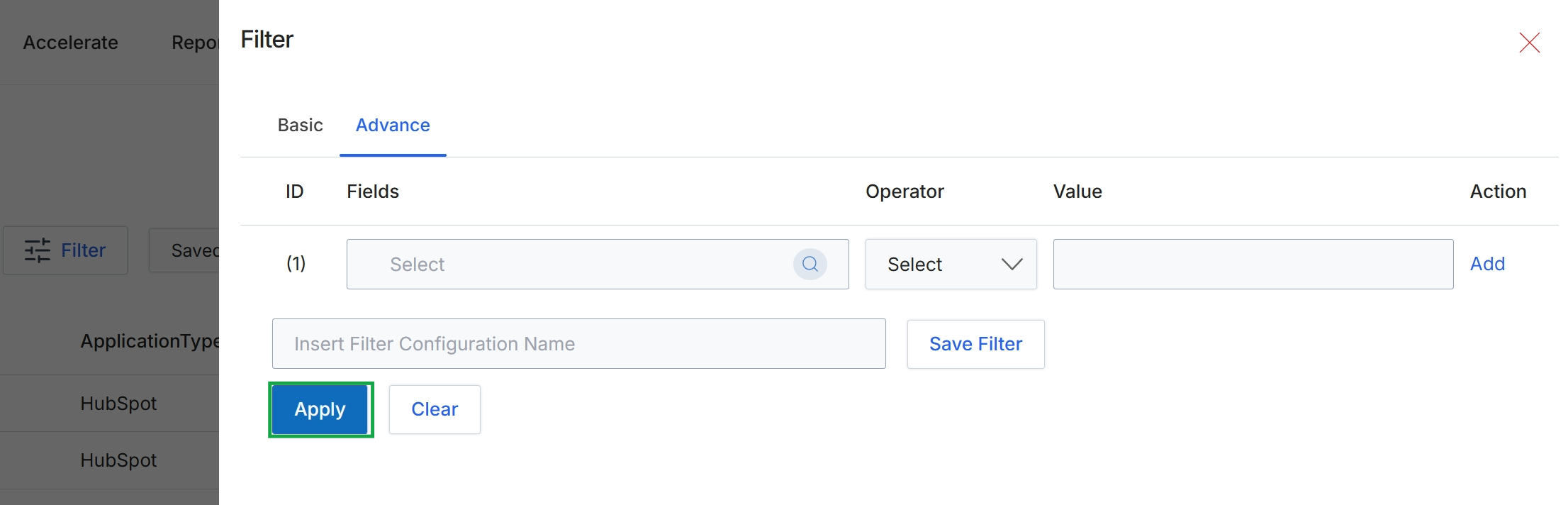
This screen displays the advanced filter configuration panel, which allows administrators to define complex filtering conditions for data displayed in lists or reports. Users can specify multiple criteria using fields, operators, and values, and combine these conditions to refine data views. This advanced filtering capability is crucial for targeted analysis, managing large datasets, and ensuring that users can quickly find specific information within the platform. The ability to save filter configurations streamlines future data retrieval and reporting tasks, enhancing operational efficiency.
Click the "Apply" button to apply the configured filter conditions.
Buttons
| Button | Description |
|---|---|
| Basic | A tab to switch to basic filter options. |
| Advance | A tab to switch to advanced filter options, currently active. |
| Add | A button to add a new filter condition row. |
| Save Filter | A button to save the current filter configuration under the specified name. |
| Clear | A button to clear all applied filter conditions. |
Fields
| Field | Description |
|---|---|
| Select | A dropdown to choose a field for the filter condition. |
| Select | A dropdown to choose an operator for the filter condition. |
| Insert Filter Configuration Name | A text input field to enter a name for the filter configuration to save it for future use. |
Column Headings
| Column | Description |
|---|---|
| ID | The column header for the identifier of each filter condition row. |
| Fields | The column header for selecting the data field to apply the filter condition to. |
| Operator | The column header for selecting the logical operator for the filter condition. |
| Value | The column header for entering the specific value for the filter condition. |
| Action | The column header for actions related to filter conditions, such as adding or removing rows. |