

Overview
The Event Marketing Management module enables vendors to create and distribute event-related content and campaigns to their partners. This is crucial for co-marketing efforts, allowing partners to promote vendor-sponsored events or host their own events using vendor-provided templates and assets. By centralizing event creation, vendors ensure brand consistency and provide partners with ready-to-use marketing materials, streamlining the process of event promotion and lead generation within the partner ecosystem. Administrators can define all aspects of an event, from its basic information and associated marketing campaign to the visual elements and textual content that partners will utilize. This ensures that all event marketing materials align with the vendor's strategy while offering partners the flexibility to customize certain elements for their specific audience.
Accessing and Editing an Event
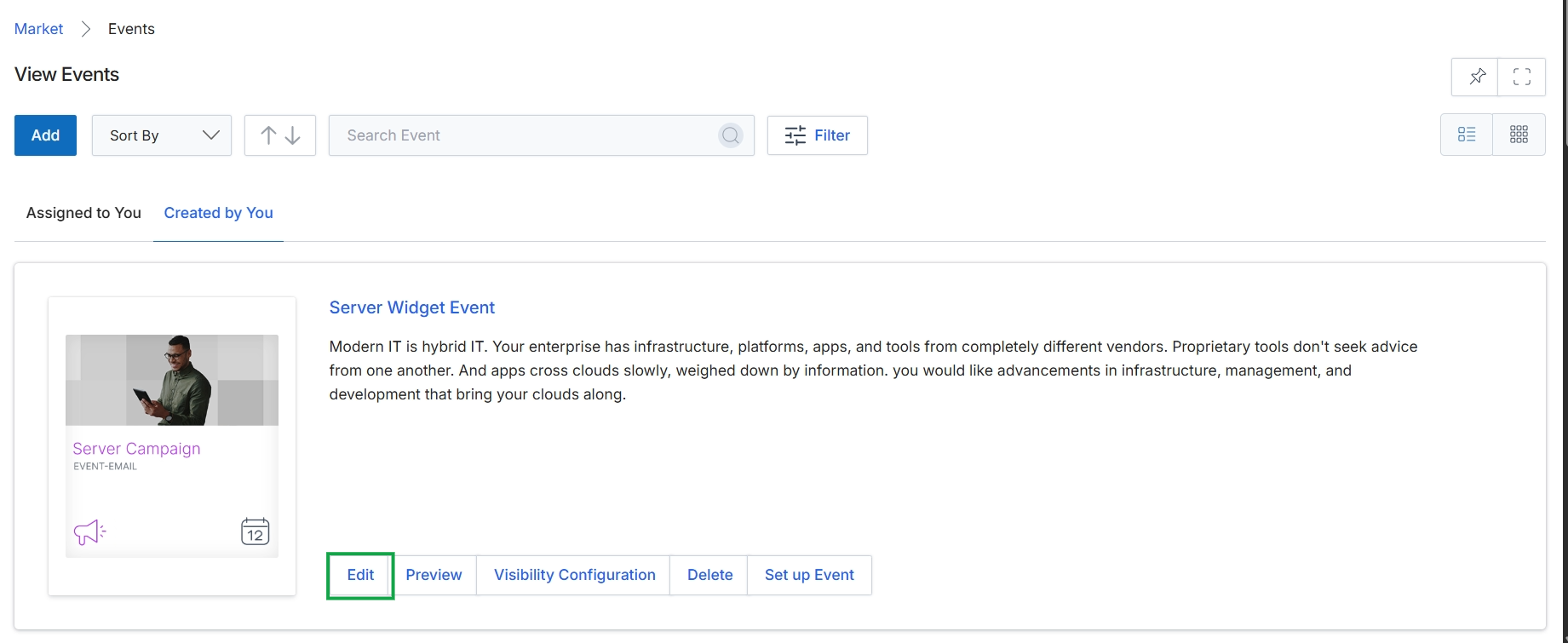
The View Events screen displays a list of all marketing events configured within the platform, allowing administrators to manage and monitor them. Each event is presented as a card, providing a summary of its details and quick access to various management actions. This screen serves as a central hub for event marketing, enabling users to create new events, review existing ones, and perform actions such as editing, previewing, and configuring visibility. The ability to search and filter events helps administrators efficiently locate specific campaigns or activities within a potentially large list, supporting the overall co-marketing efforts of the organization.
Click the "Edit" button to modify the details of the selected event.
Buttons
| Button | Description |
|---|---|
| Add | Button to create a new event. |
| Sort By | Dropdown to sort the list of events by various criteria. |
| Filter | Button to apply filters to the event list, narrowing down the displayed events based on criteria such as type, status, or date. |
| Assigned to You | Tab to view events specifically assigned to the current user. |
| Created by You | Tab to view events created by the current user. |
| Edit | Button to open the edit form for the selected event. |
| Preview | Button to view a preview of the event as it would appear to partners or end-users. |
| Visibility Configuration | Button to configure the visibility settings for the event, controlling which partners or segments can see it. |
| Delete | Button to remove the event from the system. |
| Set up Event | Button to access the setup wizard or configuration steps for the event. |
Fields
| Field | Description |
|---|---|
| Search Event | Input field to search for specific events by name or keyword. |
Configuring Event Information
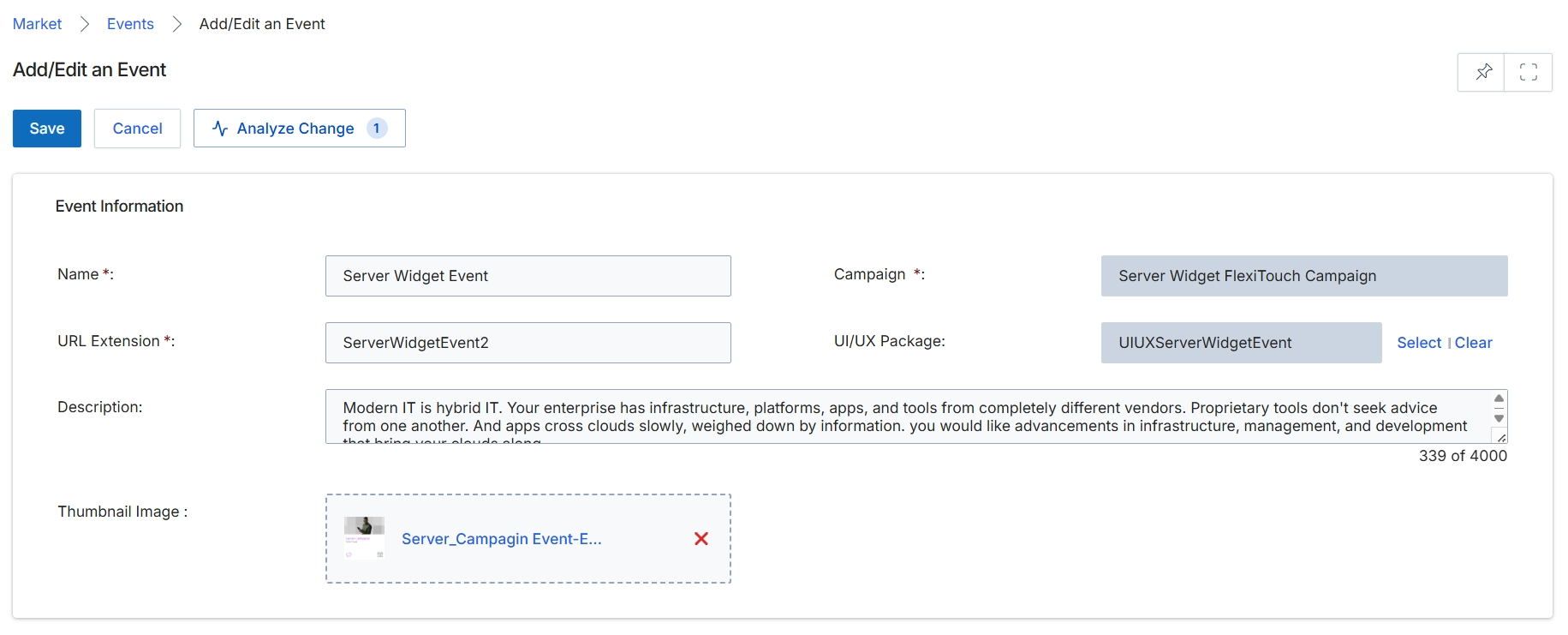
This screen, titled 'Add/Edit an Event', is part of the Market module and allows administrators to define or modify the details of a marketing event. Events are a key tactic within campaigns, enabling partners to participate in co-marketing activities such as webinars, seminars, or product launches. The form captures essential information about the event, including its name, how it will be accessed via a URL, its associated marketing campaign, and a detailed description. This information is crucial for partners to understand the event's purpose and for the platform to properly track and attribute event-related activities and leads.
Edit the event information fields as needed.
Buttons
| Button | Description |
|---|---|
| Save | Saves the changes made to the event information. |
| Cancel | Discards any changes and returns to the previous screen. |
| Analyze Change | Analyzes the impact of the changes made to the event. |
| Select | Allows selection of a UI/UX Package. |
| Clear | Clears the selected UI/UX Package. |
Event Information
| Field | Description |
|---|---|
| Name | The name of the event, which is a required field. |
| Campaign | The marketing campaign to which this event belongs, which is a required field. |
| URL Extension | The unique part of the URL for accessing this event, which is a required field. |
| UI/UX Package | Specifies the user interface and user experience package associated with the event. |
| Description | A detailed description of the event, with a character limit of 4000. |
| Thumbnail Image | Allows uploading or displaying a thumbnail image for the event. |
Customizing Event Content
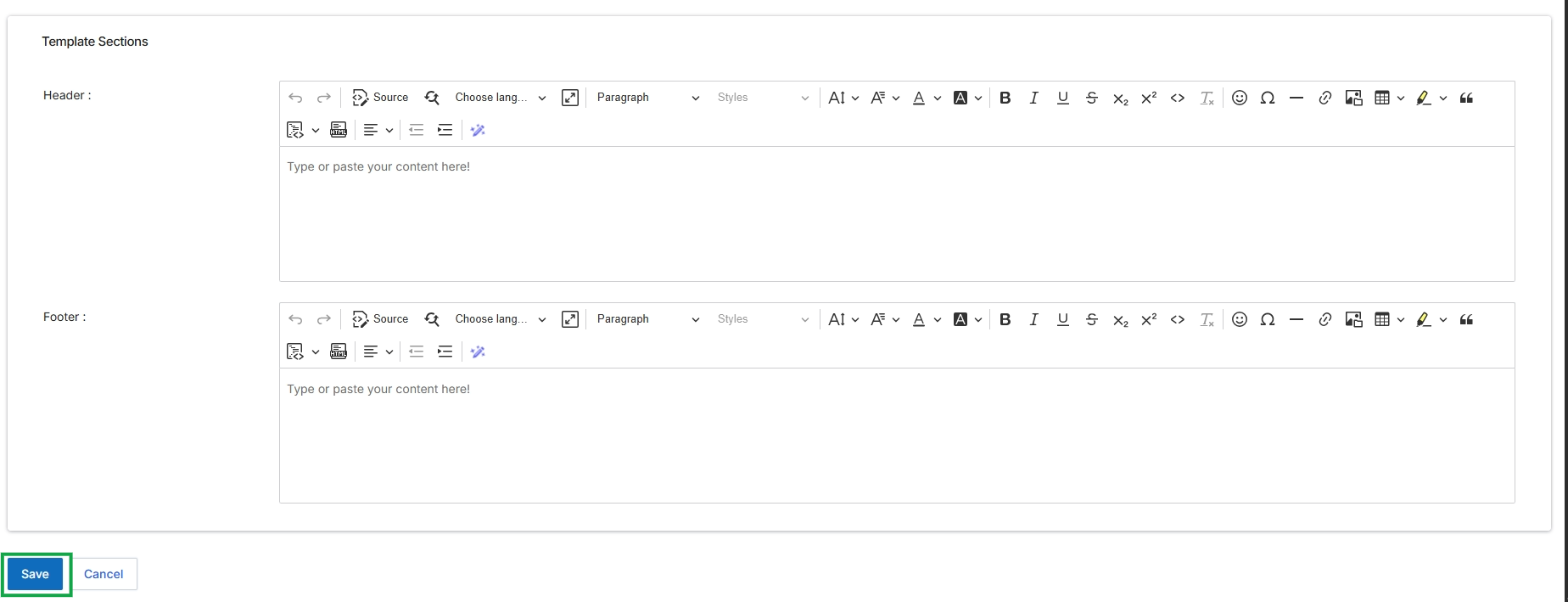
This screen allows administrators to define the header and footer content for event-related templates. These sections typically contain standard branding, legal disclaimers, contact information, or other recurring elements that should appear consistently across various event communications. The rich text editors provide comprehensive formatting options, enabling the creation of visually appealing and informative header and footer content. This ensures brand consistency and provides essential information to event attendees or participants.
Edit the content for the Header and Footer sections using the provided rich text editors.
Buttons
| Button | Description |
|---|---|
| Save | Saves the changes made to the template sections. |
| Cancel | Discards any changes and returns to the previous screen. |
Template Sections
| Field | Description |
|---|---|
| Header | A rich text editor for defining the content that will appear in the header section of event templates. |
| Footer | A rich text editor for defining the content that will appear in the footer section of event templates. |