

Overview
The Event Marketing Management module provides tools for vendors to create and manage marketing events that partners can leverage. This includes defining all aspects of an event, from its type and name to its schedule, capacity, and associated marketing campaigns. By centralizing event setup, the platform ensures consistent information is available to all relevant partners, facilitating their participation in co-marketing efforts. This streamlines the process of organizing and promoting events, ultimately driving partner engagement and lead generation.
Accessing Event Setup
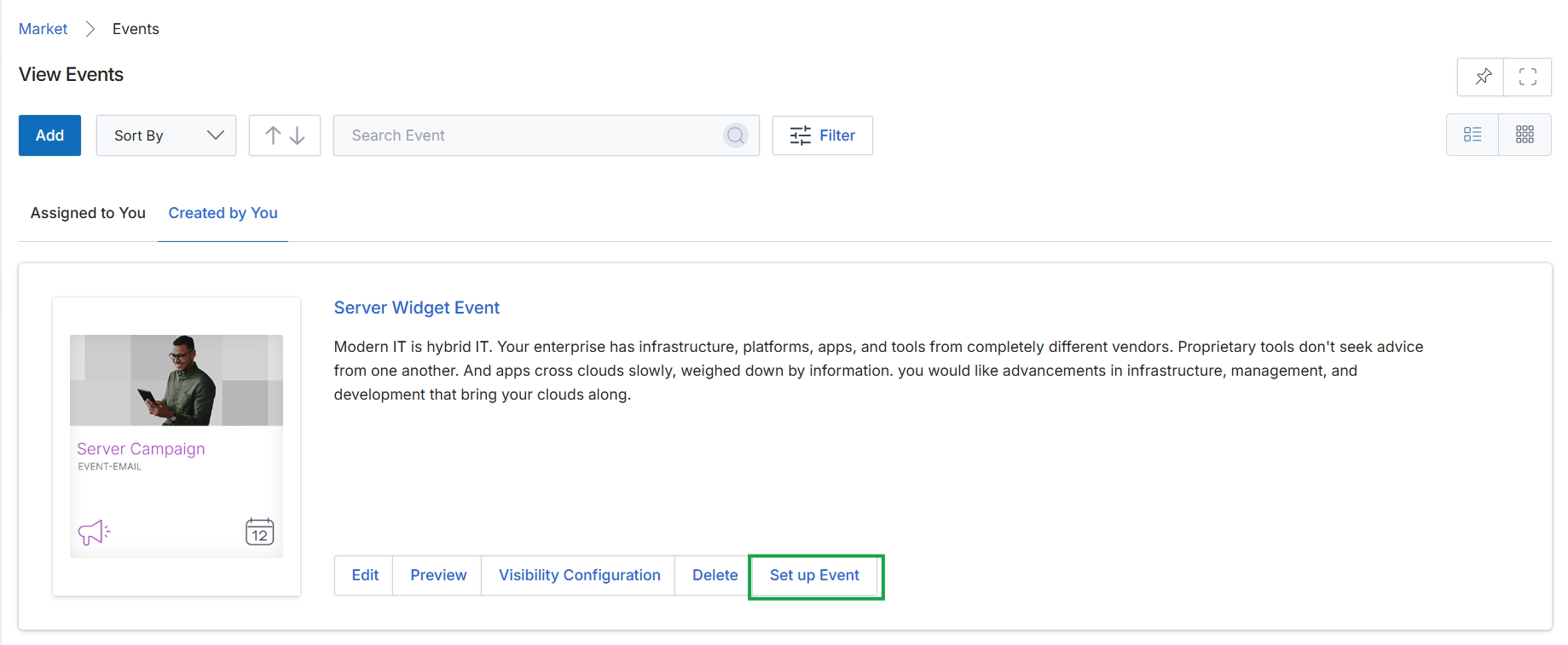
Click the Set up Event button.
Viewing Event Details
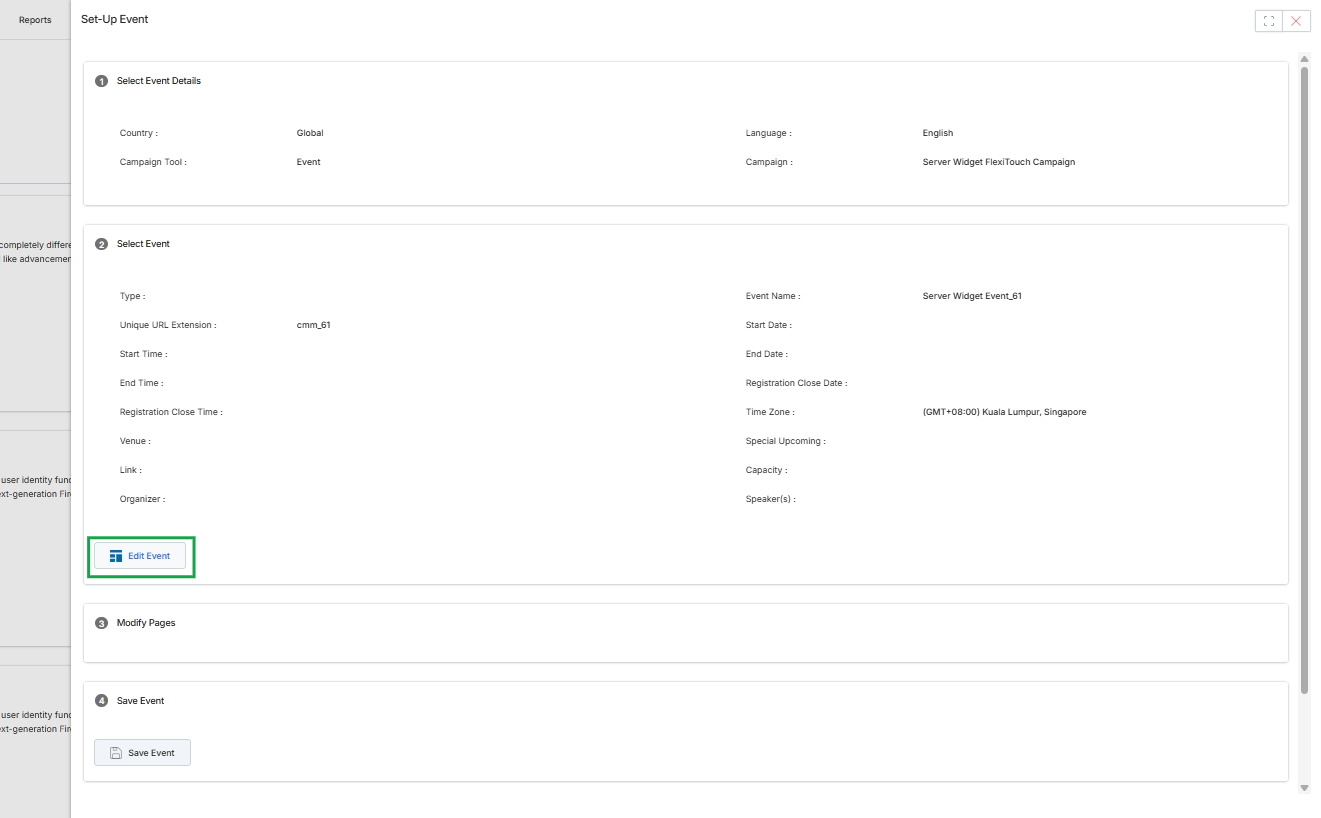
This screen displays the details of a newly set-up event within the Market module, providing an overview of its configuration. It is part of the event marketing management workflow, allowing administrators to review the event's core properties, such as country, language, associated campaign, and specific event parameters like name, type, and unique URL extension. This view serves as a confirmation step after initial event creation, ensuring all details are correctly captured before proceeding to further modifications or saving the event. It also provides an option to edit the event details, enabling adjustments to be made as needed.
Click the "Edit Event" button to modify the details of the selected event.
Buttons
| Button | Description |
|---|---|
| Edit Event | Button to enter edit mode and modify the event details. |
| Save Event | Button to save the current event configuration. |
Select Event Details
| Field | Description |
|---|---|
| Country | The geographical region for which the event is configured, displayed as 'Global' in this instance. |
| Language | The primary language for the event's content and communications. |
| Campaign Tool | Indicates that the event is managed as an 'Event' type within the campaign tools. |
| Campaign | The specific campaign this event is associated with, here shown as 'Server Widget FlexiTouch Campaign'. |
Select Event
| Field | Description |
|---|---|
| Type | The classification or category of the event. |
| Unique URL Extension | A unique identifier that forms part of the event's web address, displayed as 'cmm_61'. |
| Event Name | The name given to the event, shown as 'Server Widget Event_61'. |
| Start Date | The scheduled start date of the event. |
| Start Time | The scheduled start time of the event. |
| End Date | The scheduled end date of the event. |
| End Time | The scheduled end time of the event. |
| Registration Close Date | The date when event registration will no longer be accepted. |
| Registration Close Time | The time when event registration will no longer be accepted. |
| Time Zone | The time zone in which the event is scheduled, displayed as '(GMT+08:00) Kuala Lumpur, Singapore'. |
| Venue | The physical or virtual location where the event will take place. |
| Special Upcoming | Additional notes or details about special aspects of the upcoming event. |
| Link | A URL providing more information or access to the event. |
| Capacity | The maximum number of attendees or participants the event can accommodate. |
| Organizer | The individual or entity responsible for organizing the event. |
| Speaker(s) | The names of the speakers or presenters at the event. |
Configuring Event Information
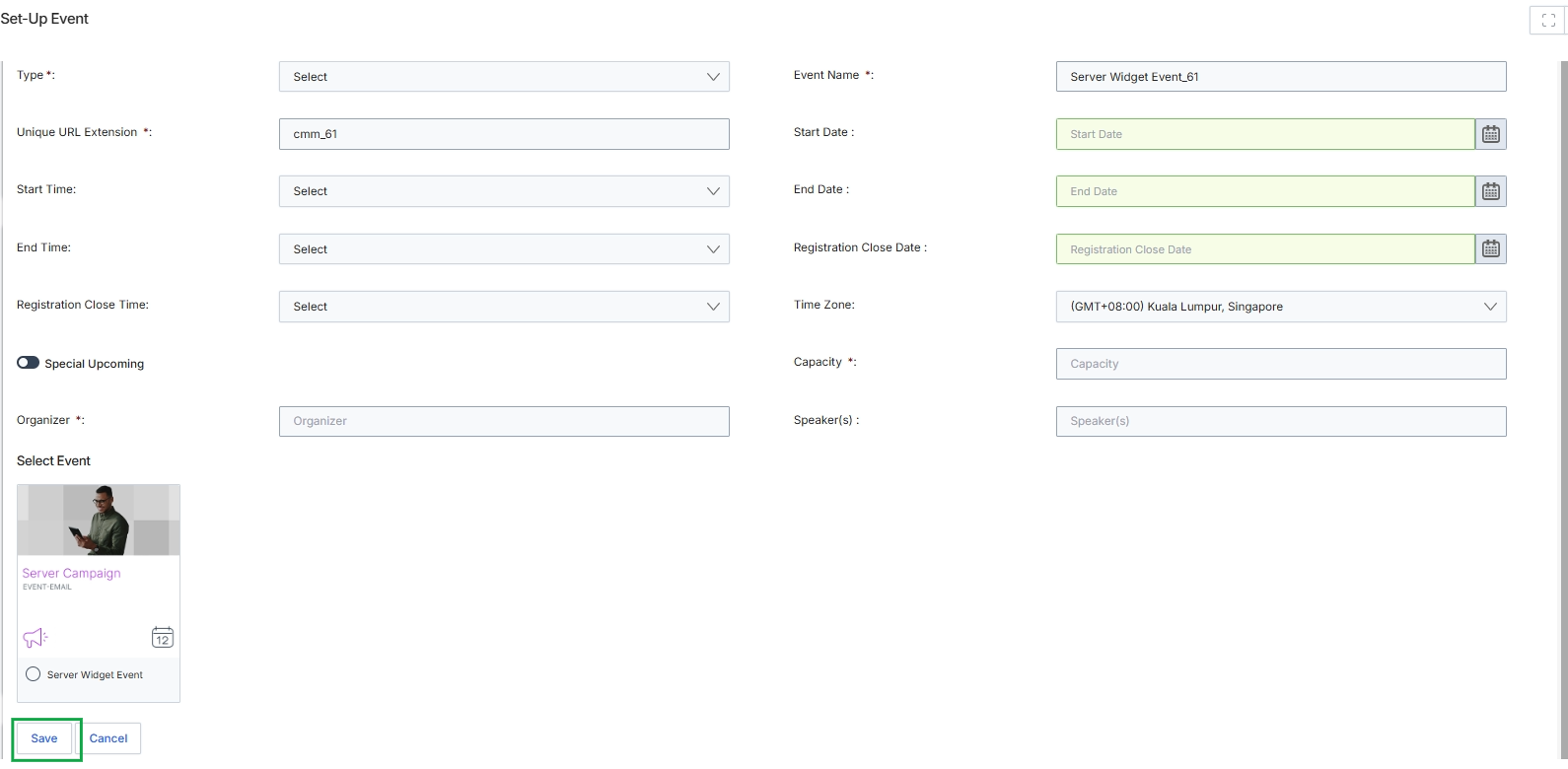
This screen, titled 'Set-Up Event', is where UPM administrators define the details for a new event within the Market module. Events are a key component of co-marketing efforts, allowing vendors and partners to organize and promote activities such as webinars, conferences, or local meetups. This form captures all essential information for an event, including its type, scheduling, capacity, and associated organizers and speakers. Administrators can also select an event template, which pre-configures certain aspects of the event's registration and promotional materials, ensuring consistency and efficiency in event setup. The 'Special Upcoming' toggle allows for highlighting events that require particular attention or promotion. Once configured, these events can be published and made visible to eligible partners for participation and promotion.
After filling out the event details and selecting a template, click "Save" to finalize the event setup.
Buttons
| Button | Description |
|---|---|
| Save | Saves the event details and creates the event. |
| Cancel | Discards any changes and returns to the previous screen. |
Fields
| Field | Description |
|---|---|
| Type * | A dropdown to select the type of event being created. |
| Event Name * | The name of the event. |
| Unique URL Extension * | A unique identifier that forms part of the event's URL. |
| Start Date | The start date of the event, selected using a calendar picker. |
| Start Time | A dropdown to select the start time of the event. |
| End Date | The end date of the event, selected using a calendar picker. |
| End Time | A dropdown to select the end time of the event. |
| Registration Close Date | The date when event registration closes, selected using a calendar picker. |
| Registration Close Time | A dropdown to select the time when event registration closes. |
| Time Zone | A dropdown to select the time zone for the event. |
| Special Upcoming | A toggle to mark the event as 'Special Upcoming', potentially for highlighted promotion. |
| Capacity * | The maximum number of attendees the event can accommodate. |
| Organizer * | The name of the event organizer. |
| Speaker(s) | The names of the speakers for the event. |
Select Event
| Field | Description |
|---|---|
| Server Campaign | A card representing an event template named 'Server Campaign' with an associated image and icons for marketing and calendar. |
| Server Widget Event | A radio button to select the 'Server Widget Event' template. |