

Overview
Event marketing is a critical component of many partner programs, enabling vendors and partners to co-host webinars, workshops, or physical events to generate leads and build brand awareness. The platform's Event Marketing Management module provides the tools to set up, promote, and track these events. A key aspect of this is the ability to create and customize event-specific web pages, which serve as the primary interface for attendees to learn about the event, register, and access relevant content. These pages are integral to the overall event experience and lead generation efforts.
Viewing Event Pages
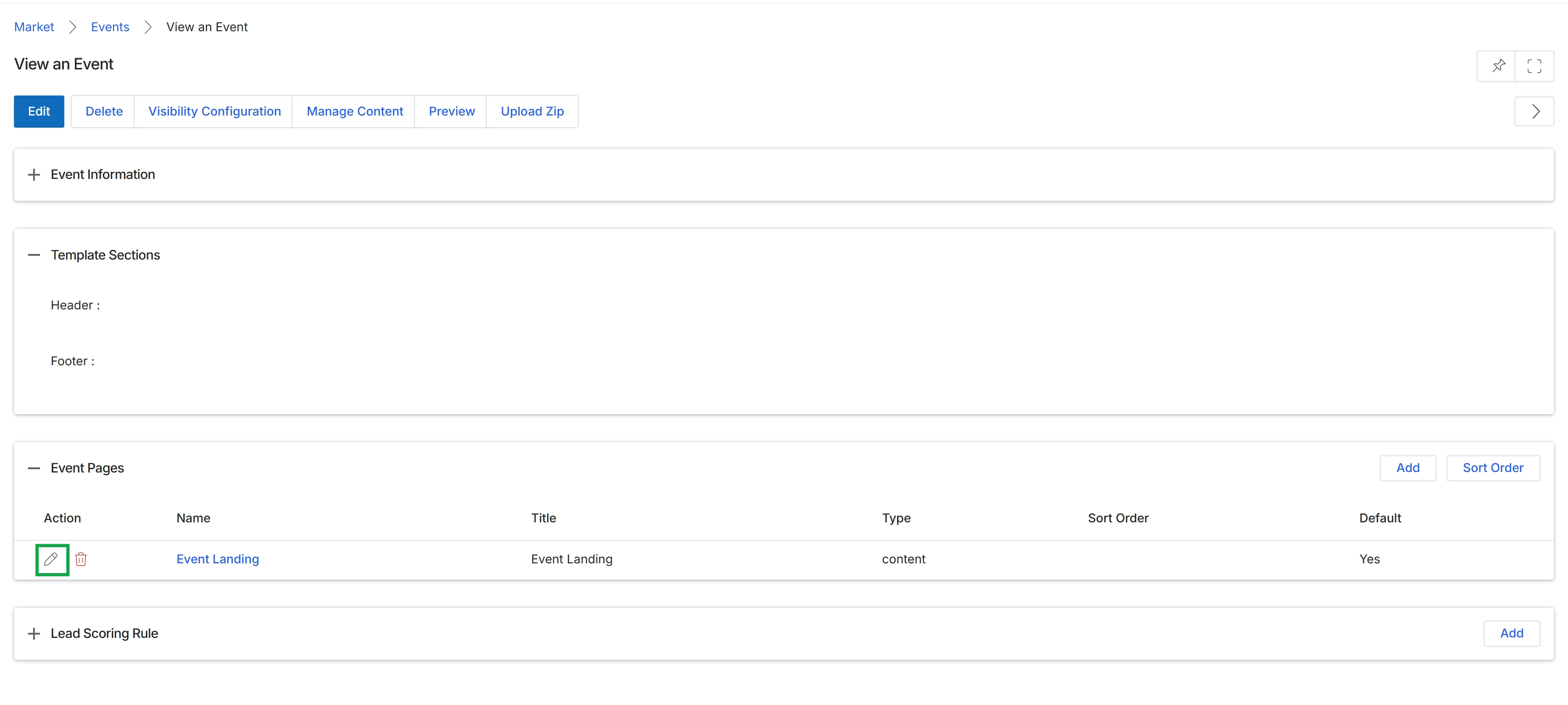
This screen displays the details of a specific event, including its general information, template sections for header and footer content, and a list of associated event pages. The 'Event Pages' section allows administrators to manage the individual landing pages linked to this event, which partners can use for registration or promotion. Each event page has properties such as its name, title, type, and whether it is set as the default. This view enables administrators to edit existing event pages, add new ones, or reorder them to control the partner experience and information flow for the event.
Click the Edit icon to modify the 'Event Landing' page.
Buttons
| Button | Description |
|---|---|
| Edit | Allows editing of the overall event details. |
| Delete | Deletes the current event. |
| Visibility Configuration | Configures who can view this event. |
| Manage Content | Manages content associated with the event. |
| Preview | Previews the event page as it would appear to users. |
| Upload Zip | Uploads a ZIP file, likely containing event assets or templates. |
| Add | Adds a new event page to the list. |
| Sort Order | Arranges the order in which event pages are displayed. |
| Edit icon | Allows editing of the specific event page in the row. |
| Delete icon | Deletes the specific event page in the row. |
| Add | Adds a new lead scoring rule. |
Event Pages
| Column | Description |
|---|---|
| Action | Column header for actions that can be performed on each event page. |
| Name | Column header for the internal name of the event page. |
| Title | Column header for the display title of the event page. |
| Type | Column header for the type of content or page. |
| Sort Order | Column header indicating the display order of the event page. |
| Default | Column header indicating if the event page is set as the default. |
Adding or Editing an Event Page
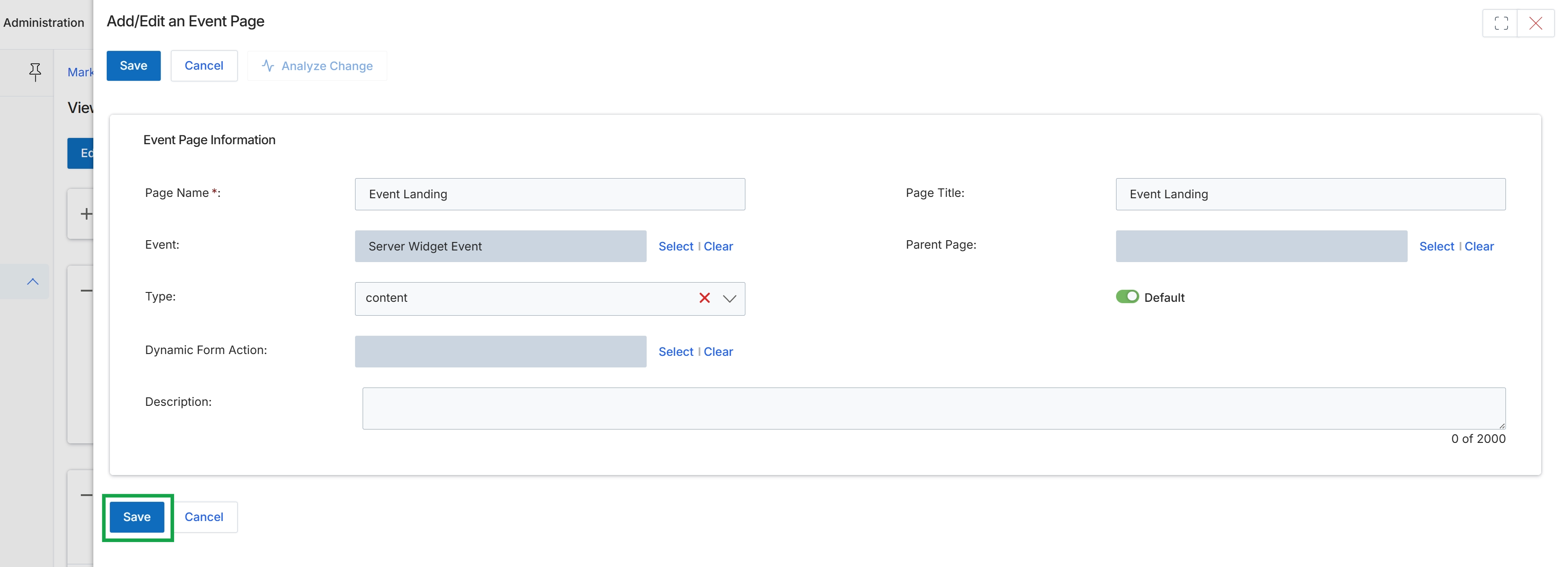
This screen displays the Add/Edit an Event Page form, which is used by UPM administrators to define the properties and content for event landing pages. These pages are crucial for event marketing within the Market module, allowing partners to promote events and capture registrations. The form captures essential information such as the page's name, title, associated event, and type, along with options for dynamic form actions and a detailed description. The 'Default' toggle indicates whether this page serves as the primary landing page for its associated event. Once configured, these event pages can be syndicated to partners for their co-marketing efforts, enabling them to drive attendance and engagement for various events.
Click "Save" to save the details of the event landing page.
Buttons
| Button | Description |
|---|---|
| Save | Saves the current configuration of the event page. |
| Cancel | Discards any changes made and closes the form. |
| Analyze Change | Compares the current changes to the previously saved version of the event page. |
Event Page Information
| Field | Description |
|---|---|
| Page Name * | The internal name for the event page, which is a mandatory field. |
| Page Title | The title displayed on the event landing page, typically visible to end-users. |
| Event | The specific event that this landing page is associated with. Users can select an existing event or clear the selection. |
| Parent Page | Allows linking this event page as a sub-page to another existing page. |
| Type | Defines the content type of the event page, such as 'content'. |
| Default | A toggle indicating if this event page is the default landing page for the associated event. |
| Dynamic Form Action | Specifies any dynamic actions associated with forms on this event page, such as lead capture or registration. |
| Description | A detailed description of the event page, with a character limit of 2000. |
Reviewing Event Page Details
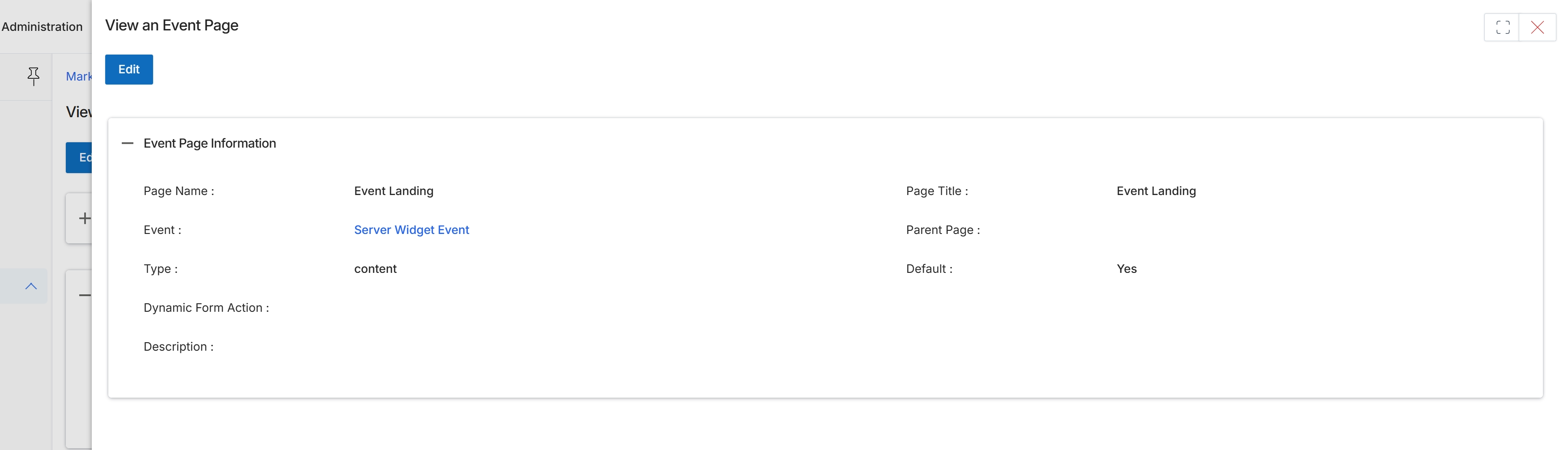
This screen displays the detailed information for a specific event page within the platform. It presents key attributes of the event page, such as its name, associated event, type, and whether it is set as a default page. This view allows administrators to review the configuration of an event page after it has been created or updated, ensuring that all settings are correct and consistent with the intended marketing campaign.
Managing Event Content
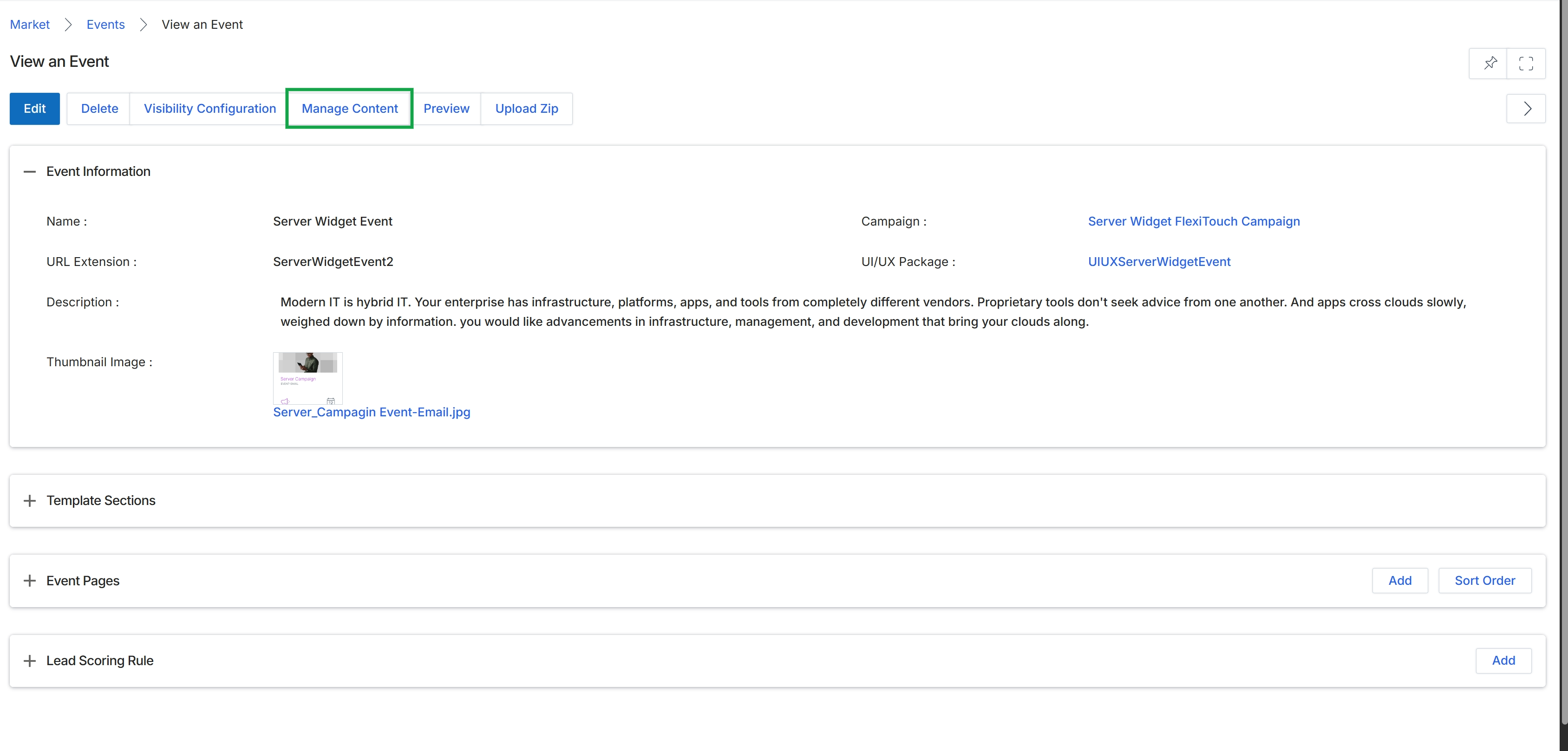
Click the Manage Content button.
Designing Page Content
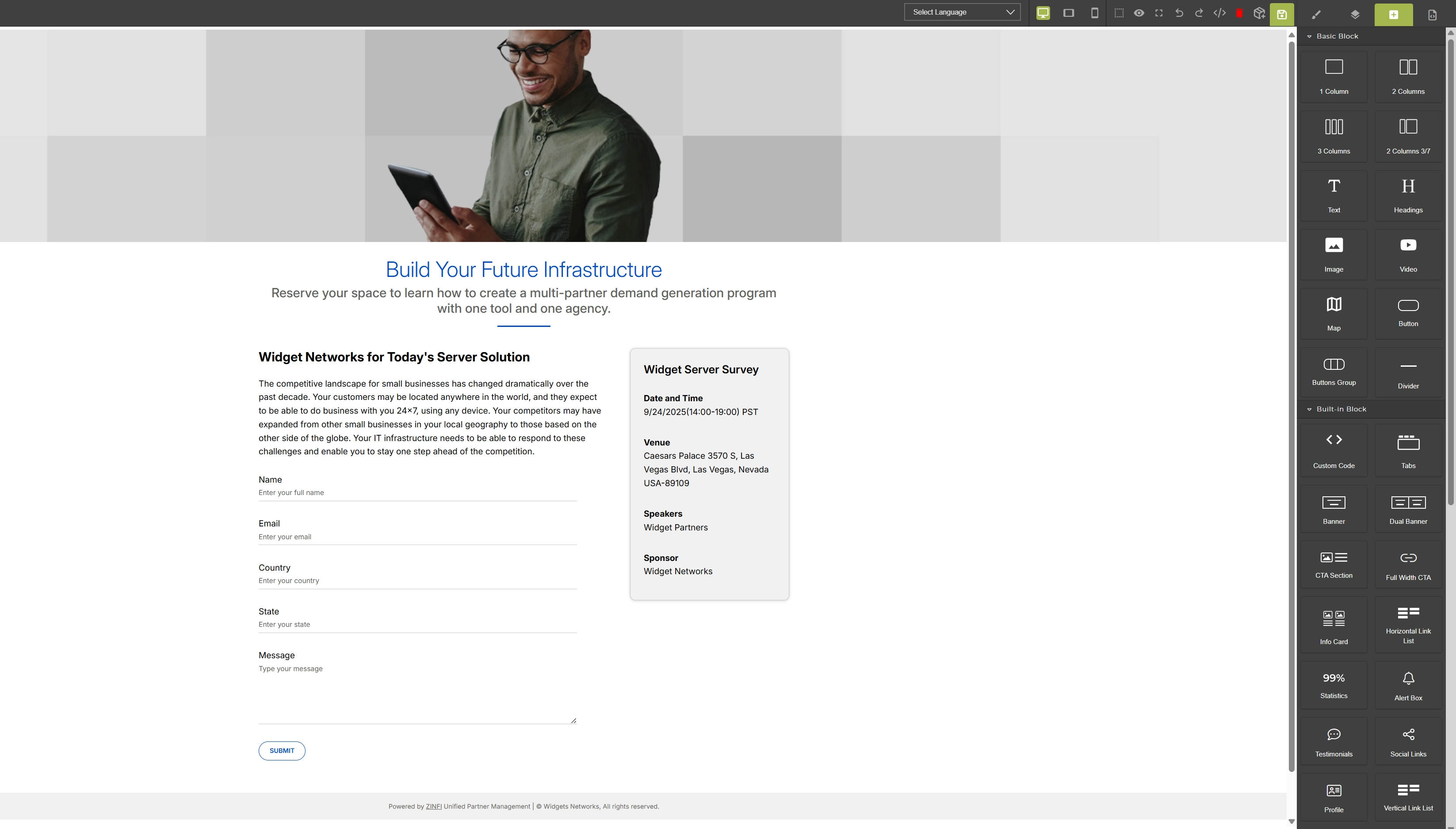
This screen displays a visual editor for creating or modifying event pages, allowing administrators to design the layout and content of event registration pages. It shows a preview of the event page with various content blocks, including a header image, descriptive text, an event details section, and a registration form. On the right, a panel presents a selection of basic and built-in content blocks that can be dragged and dropped onto the page to customize its structure and elements.