

Overview
Effective event marketing relies on delivering the right information to the right audience. The platform's Visibility Configuration for events provides administrators with precise control over who can view and access event details. This is crucial for managing localized events, ensuring compliance with regional regulations, and tailoring event promotion to specific partner segments or roles.
By configuring visibility, administrators can prevent information overload for partners and ensure that marketing efforts are highly targeted. For instance, a global event might be visible to all, while a regional partner enablement webinar can be restricted to partners in specific countries or those belonging to a particular partner group.
Accessing Visibility Configuration
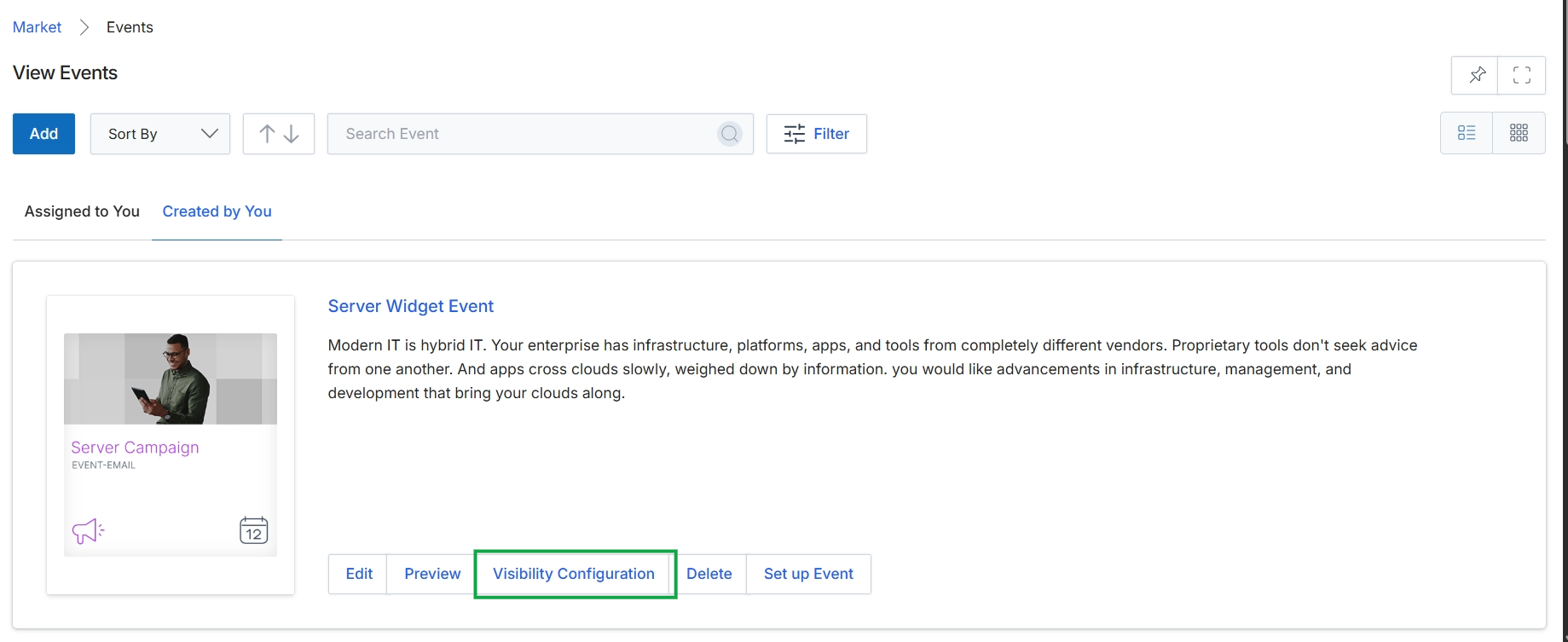
Click the Visibility Configuration button to configure the event.
Configuring Geographic and Language Visibility
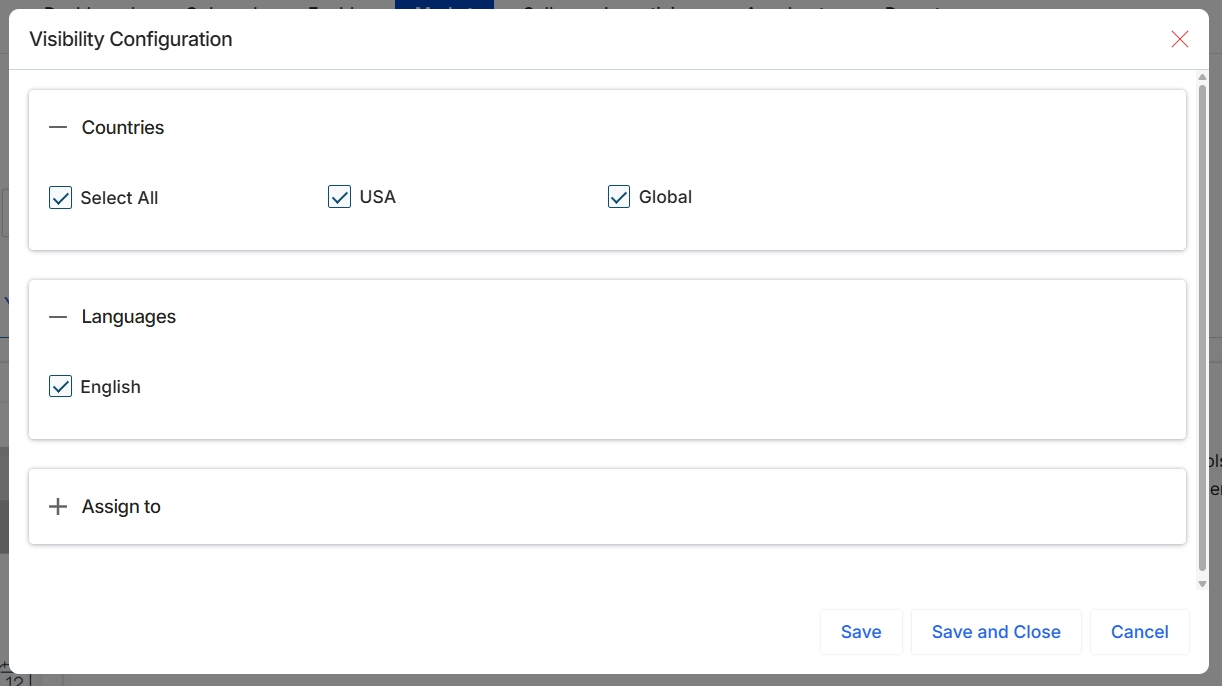
The Visibility Configuration dialog allows administrators to define the geographical and linguistic availability of an event, as well as assign it to specific partners or groups. This ensures that events are targeted to the appropriate audience based on their location, preferred language, and partner segmentation. By controlling visibility, administrators can manage event relevance and optimize partner engagement, preventing irrelevant events from cluttering partner portals. This configuration directly impacts which partners see and can register for specific events within the module.
Configure the visibility settings for the event by selecting the desired countries and languages, and optionally assigning it to specific partners.
Buttons
| Button | Description |
|---|---|
| Save | Saves the current visibility configuration. |
| Save and Close | Saves the current visibility configuration and closes the dialog. |
| Cancel | Discards any changes and closes the dialog. |
Countries
| Field | Description |
|---|---|
| Select All | Checkbox to select all available countries for event visibility. |
| USA | Checkbox to make the event visible in the United States. |
| Global | Checkbox to make the event visible globally. |
Languages
| Field | Description |
|---|---|
| English | Checkbox to make the event available in English. |
Fields
| Field | Description |
|---|---|
| Assign to | Click to assign the event to specific partners or partner groups. |
Assigning Event Access to Users or Groups
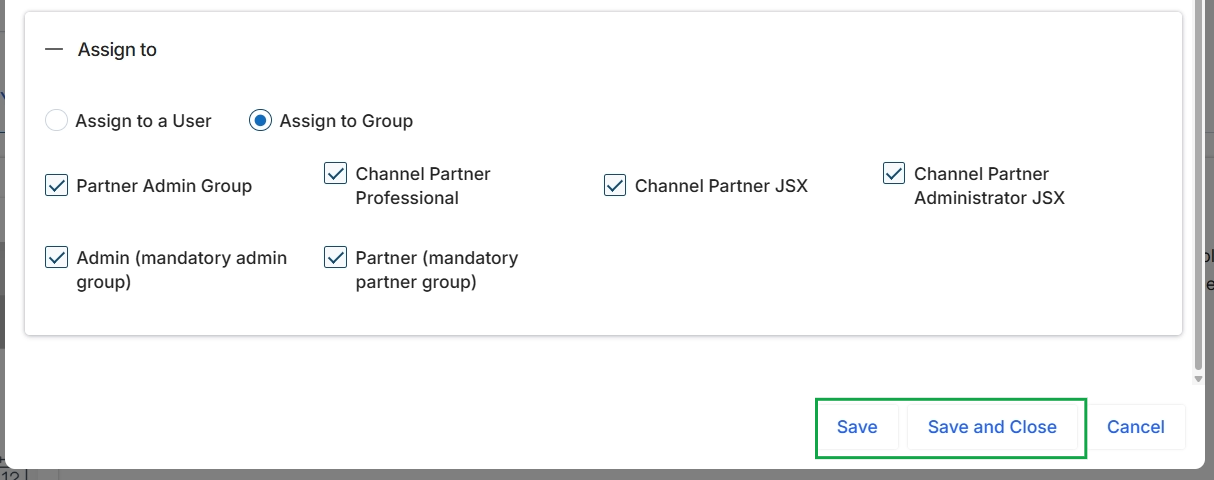
This dialog box allows administrators to configure the visibility settings for an event by assigning it to specific user groups. This ensures that only relevant partners or internal users can view and interact with the event, controlling access based on predefined roles or custom groups. The selection made here determines which users will see the event in their respective portals or dashboards, aligning with the platform's role-based access control mechanisms.
Click "Save and Close" to save the visibility configuration for the event.
Buttons
| Button | Description |
|---|---|
| Save | Saves the current visibility assignments. |
| Save and Close | Saves the current visibility assignments and closes the dialog. |
| Cancel | Discards any changes and closes the dialog. |
Fields
| Field | Description |
|---|---|
| Assign to a User | Radio button to assign the event's visibility to individual users. |
| Assign to Group | Radio button to assign the event's visibility to predefined user groups. |
| Partner Admin Group | Checkbox to assign visibility to the Partner Admin Group. |
| Channel Partner Professional | Checkbox to assign visibility to the Channel Partner Professional group. |
| Channel Partner JSX | Checkbox to assign visibility to the Channel Partner JSX group. |
| Channel Partner Administrator JSX | Checkbox to assign visibility to the Channel Partner Administrator JSX group. |
| Admin (mandatory admin group) | Checkbox to assign visibility to the mandatory Admin group. |
| Partner (mandatory partner group) | Checkbox to assign visibility to the mandatory Partner group. |