

Overview
The Rebates Management module enables vendors to define and manage retrospective revenue-based reward programs for their partners. While individual rebate rules can be created manually, the platform also supports bulk import functionality to efficiently add or update multiple rebate rules and related data. This is particularly useful for organizations with extensive partner programs or when migrating existing rebate structures into the platform.
Administrators can leverage this import capability to quickly onboard complex rebate programs, ensuring that all partners are accurately assigned to the correct rules and that the system is ready to track and calculate rebate accruals. The module also provides tools for reviewing import details and managing communications related to these imported records.
Accessing the Import Functionality
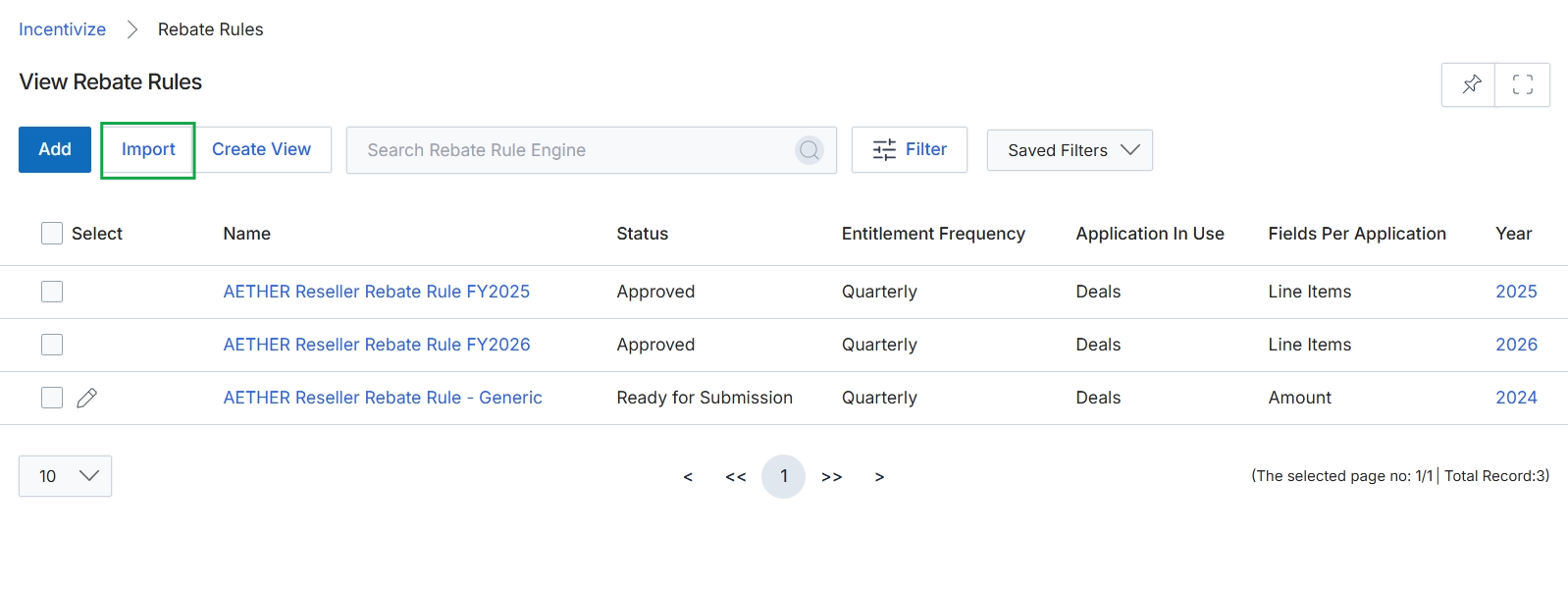
Click the Import button.
Viewing Existing Imports
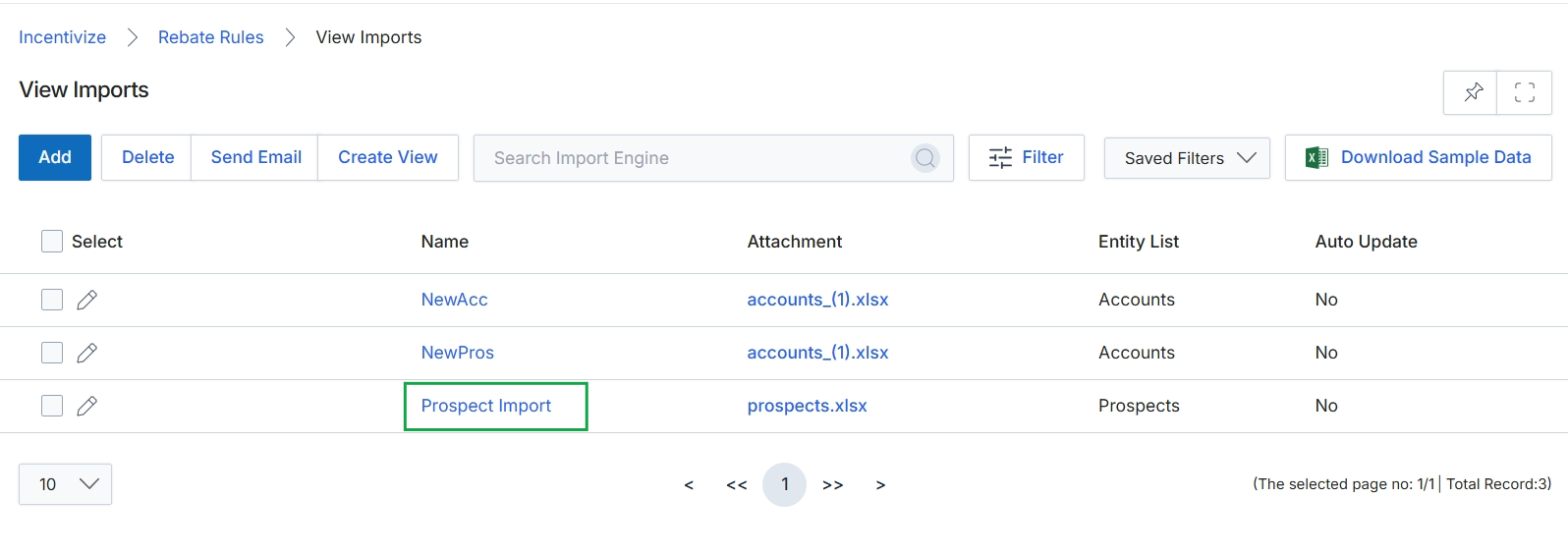
Click Import.
Reviewing Import Details
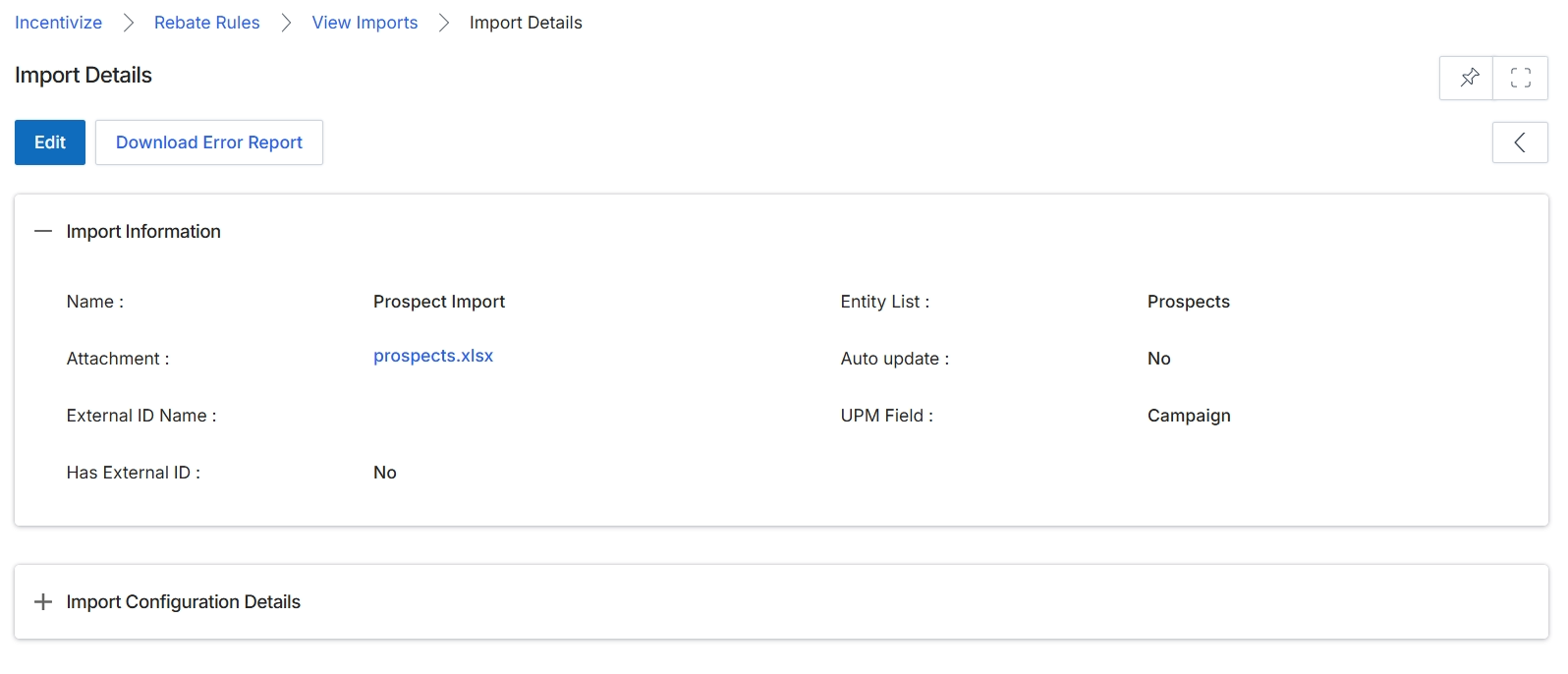
The Import Details screen displays the configuration and status of a specific data import job within the platform. This view provides administrators with an overview of how a particular dataset, such as prospects or rebate rules, was imported, including the source file, the target entity, and whether the import was set for automatic updates. It serves as a record of past import operations and allows for reviewing the parameters used, which is crucial for troubleshooting or verifying data integrity. If errors occurred during the import process, this screen also provides an option to download a report detailing those issues, enabling administrators to identify and rectify problems with the imported data.
Click the "Download Error Report" button to retrieve a report detailing any issues encountered during the import process.
Buttons
| Button | Description |
|---|---|
| Edit | Allows modification of the import job's configuration details. |
| Download Error Report | Downloads a file containing details of any errors that occurred during the data import. |
Import Information
| Field | Description |
|---|---|
| Name | The name assigned to this specific import job. |
| Attachment | The name of the file that was uploaded for this import. |
| External ID Name | Indicates if an external identifier was used for mapping during the import. |
| Has External ID | Specifies whether the imported data included an external ID for record matching. |
| Entity List | The type of entity (e.g., Prospects, Rebate Rules) into which the data was imported. |
| Auto update | Indicates whether the import job is configured to automatically update records. |
| UPM Field | The specific field within the platform that was targeted by the import. |
Sending Email Notifications for Imports
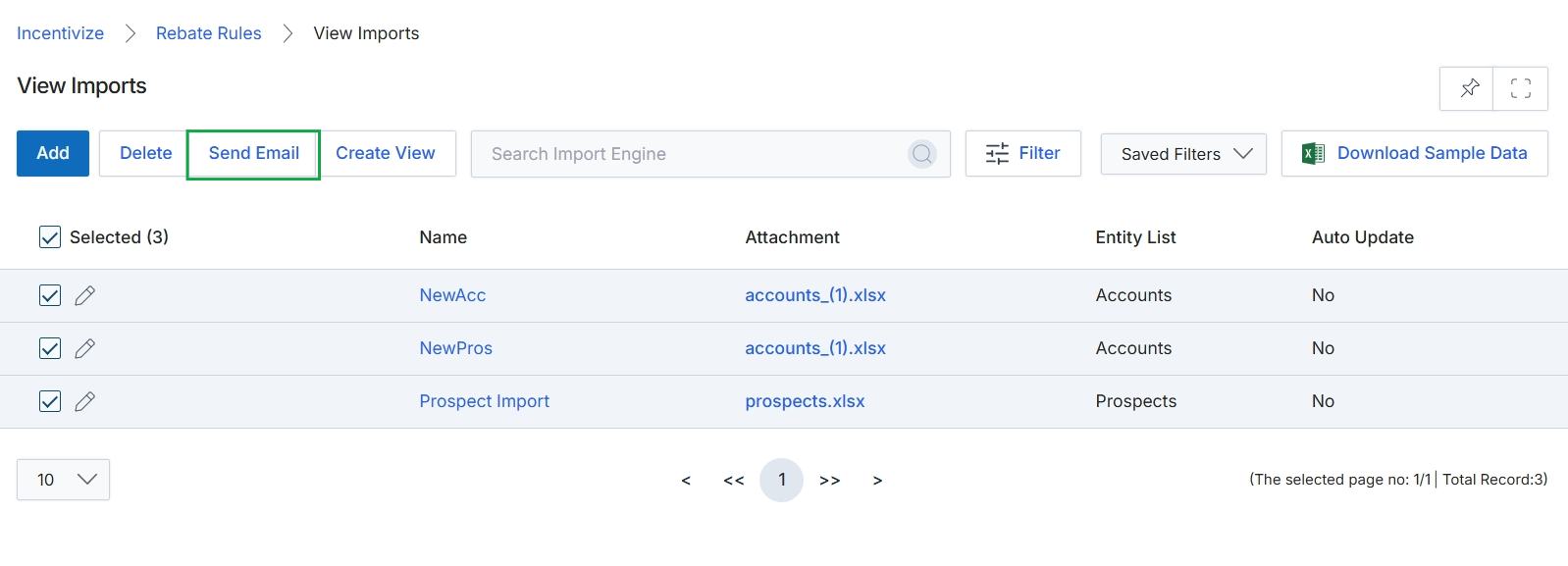
Click View Imports in the breadcrumb navigation.
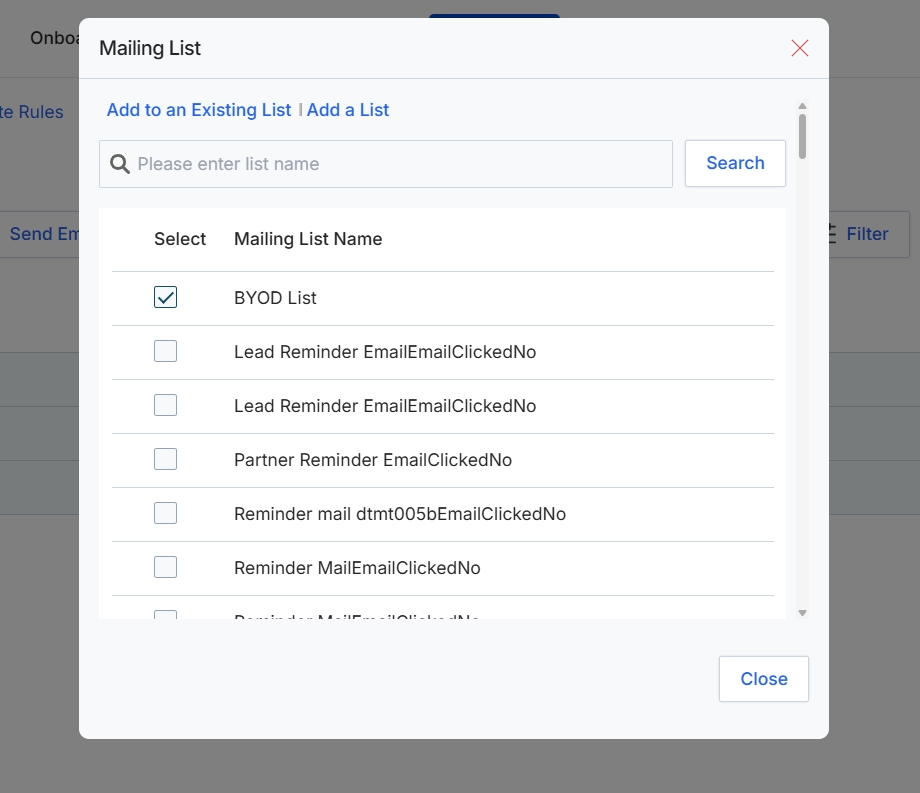
This modal window, titled 'Mailing List', is displayed when a user needs to associate an item or action with one or more existing mailing lists within the platform. It allows users to search for specific lists, select from a displayed roster of available lists, or create a new mailing list on the fly. This functionality is crucial for managing communications, ensuring that relevant updates, notifications, or campaign materials are distributed to the correct groups of partners or prospects. The modal provides a streamlined way to categorize and target audiences for various outreach efforts, integrating directly with the platform's communication tools.
Select one or more mailing lists from the displayed options to associate them with the current action.
Buttons
| Button | Description |
|---|---|
| Add to an Existing List | A link to add the current item to an existing mailing list. |
| Add a List | A link to create a new mailing list. |
| Search | A button to initiate a search for mailing lists based on the entered text. |
| Close | A button to close the Mailing List modal without saving changes. |
Fields
| Field | Description |
|---|---|
| BYOD List | A checkbox to select the 'BYOD List' mailing list. |
| Lead Reminder EmailEmailClickedNo | A checkbox to select the 'Lead Reminder EmailEmailClickedNo' mailing list. |
| Partner Reminder EmailClickedNo | A checkbox to select the 'Partner Reminder EmailClickedNo' mailing list. |
| Reminder mail dtmt005bEmailClickedNo | A checkbox to select the 'Reminder mail dtmt005bEmailClickedNo' mailing list. |
| Reminder MailEmailClickedNo | A checkbox to select the 'Reminder MailEmailClickedNo' mailing list. |
Column Headings
| Column | Description |
|---|---|
| Select | A column header indicating a checkbox for selecting a mailing list. |
| Mailing List Name | A column header displaying the names of available mailing lists. |
Downloading Sample Data Templates
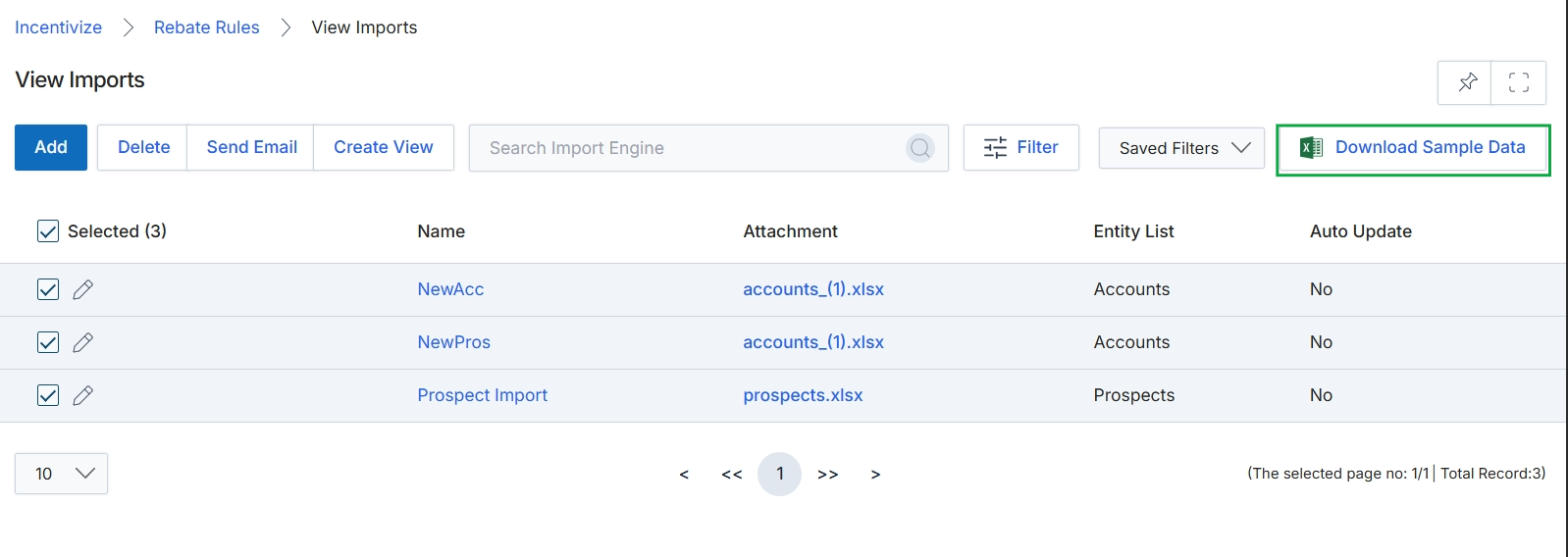
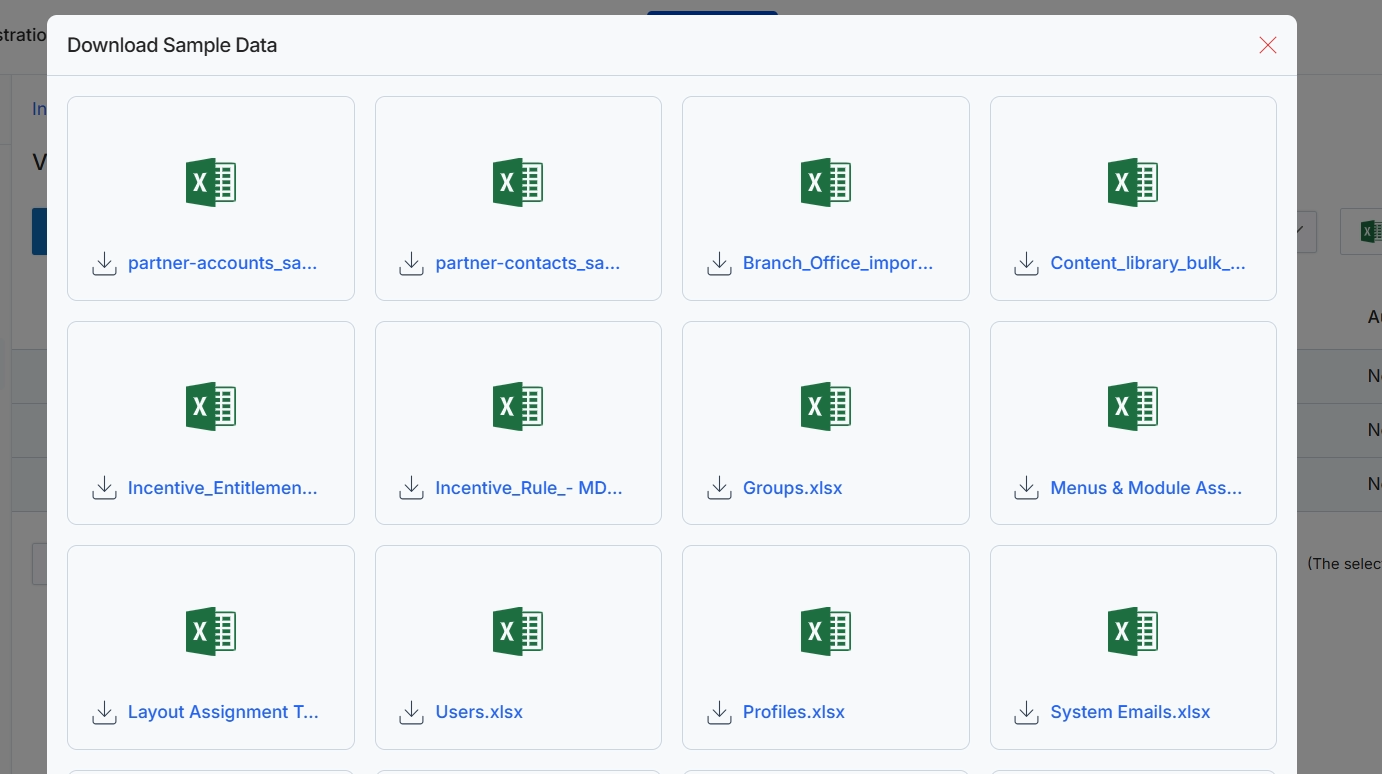
Click Download Sample Data.
This screen displays a modal window titled "Download Sample Data," which presents a collection of downloadable Excel spreadsheet templates. These templates are provided to assist administrators in preparing data for various bulk import operations across different modules of the platform, ensuring data consistency and correct formatting for successful uploads. Each card represents a specific data type, such as partner accounts, contacts, or incentive rules, and includes a download icon and the file name.