

Overview
Rebate programs are a key component of partner incentive strategies, offering retrospective rewards based on revenue attainment over a specific period. Partners submit rebate claims, often with supporting documentation, which then need to be reviewed and approved by the vendor. This module provides the tools necessary for administrators to efficiently manage this process, from initial submission to final approval and payment. By centralizing rebate claims, the platform ensures transparency and accountability in the rebate workflow. Administrators can quickly access claim details, track their status, and apply filters to focus on specific claims, such as those pending review or those belonging to a particular rebate program. This streamlined management helps in maintaining strong partner relationships and ensuring timely disbursement of earned rebates.
Accessing Rebate Claims
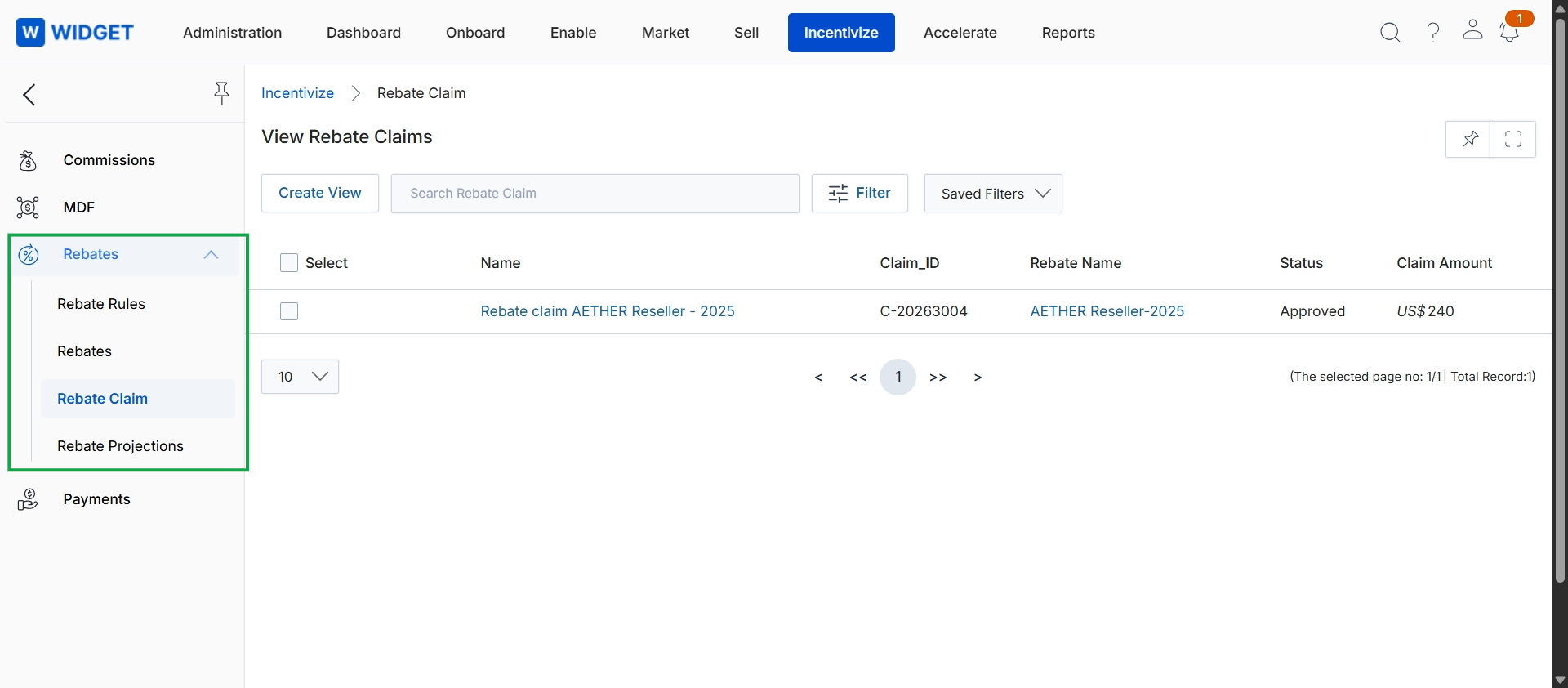
Click Rebate Claim under the Rebates section in the left navigation panel.
Creating and Managing Views
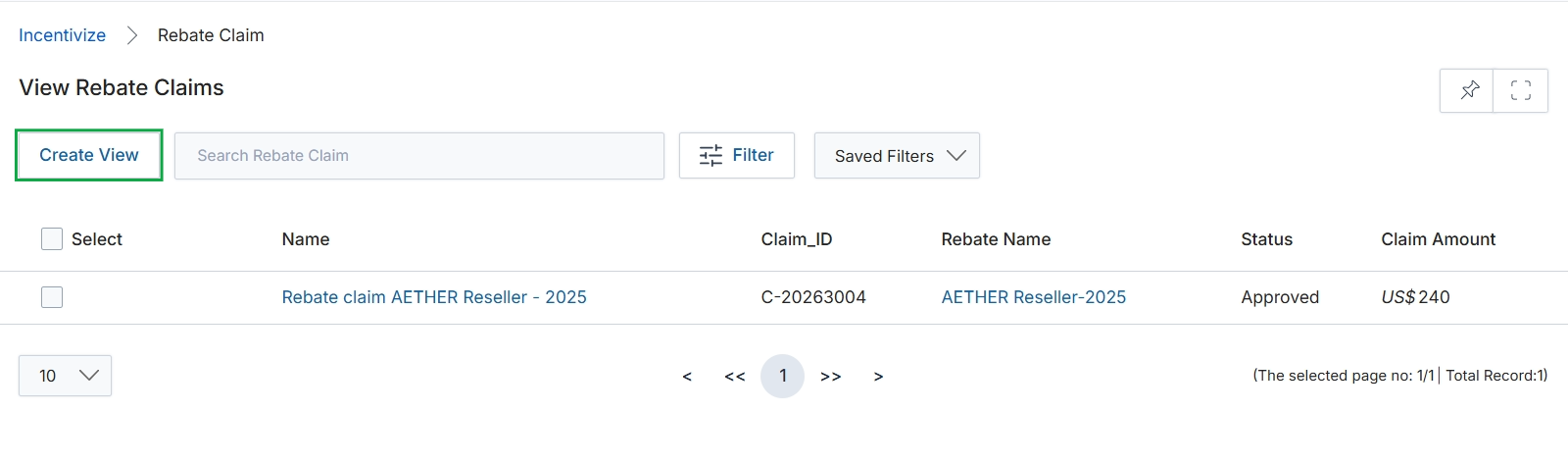
Click Create View.
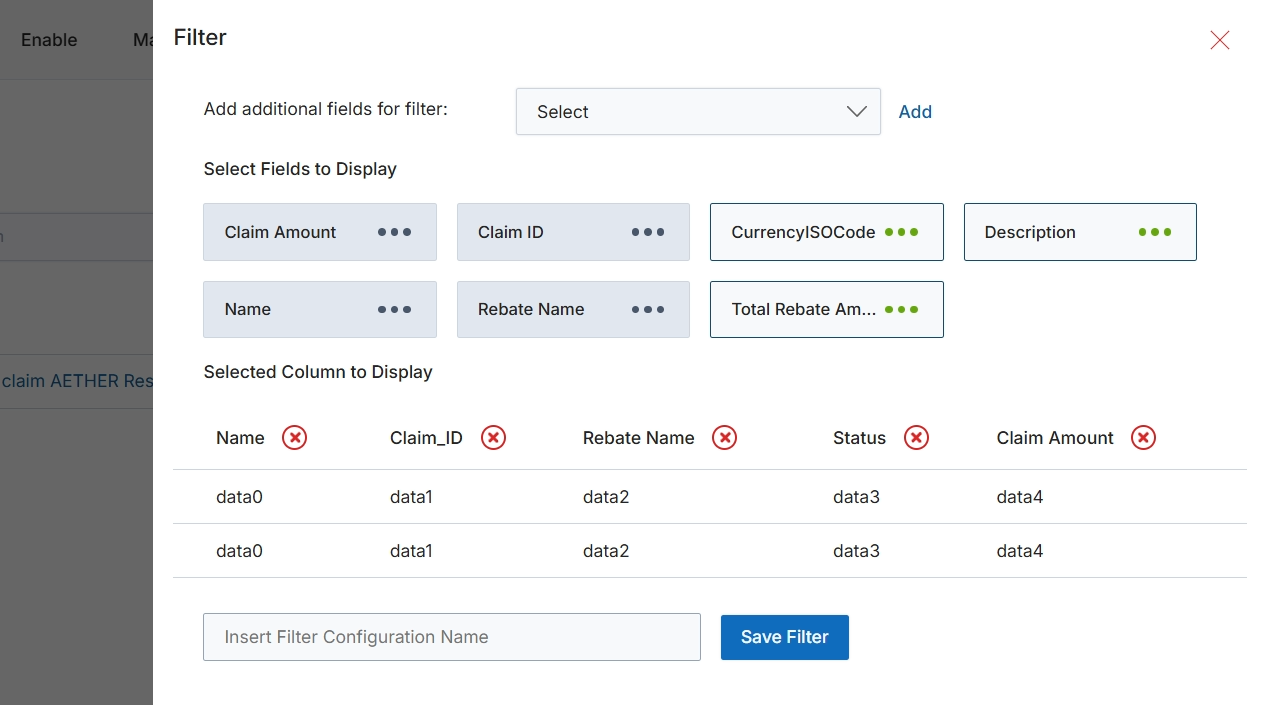
This modal window allows users to customize the display and filtering of data within a list view by selecting which fields appear as columns and applying filter criteria. Users can add new filter fields, choose which existing fields to display as columns in the main list, and save their custom filter configurations for future use. This functionality enhances data analysis and reporting by enabling users to focus on specific data points relevant to their current tasks or investigations, such as reviewing rebate claims with particular statuses or amounts. The ability to save configurations streamlines repetitive analysis tasks and ensures consistency in data presentation.
Enter a name for the filter configuration in the 'Insert Filter Configuration Name' field and click 'Save Filter' to store your customized filter and column selections.
Buttons
| Button | Description |
|---|---|
| Add | A button to add the selected additional field to the filter criteria. |
| Save Filter | A button to save the current filter and column display configuration under the specified name. |
Fields
| Field | Description |
|---|---|
| Add additional fields for filter | A dropdown menu to select and add more fields that can be used for filtering the data. |
| Insert Filter Configuration Name | A text input field where the user can enter a name to save the current filter and column configuration for future use. |
Filtering Rebate Claims
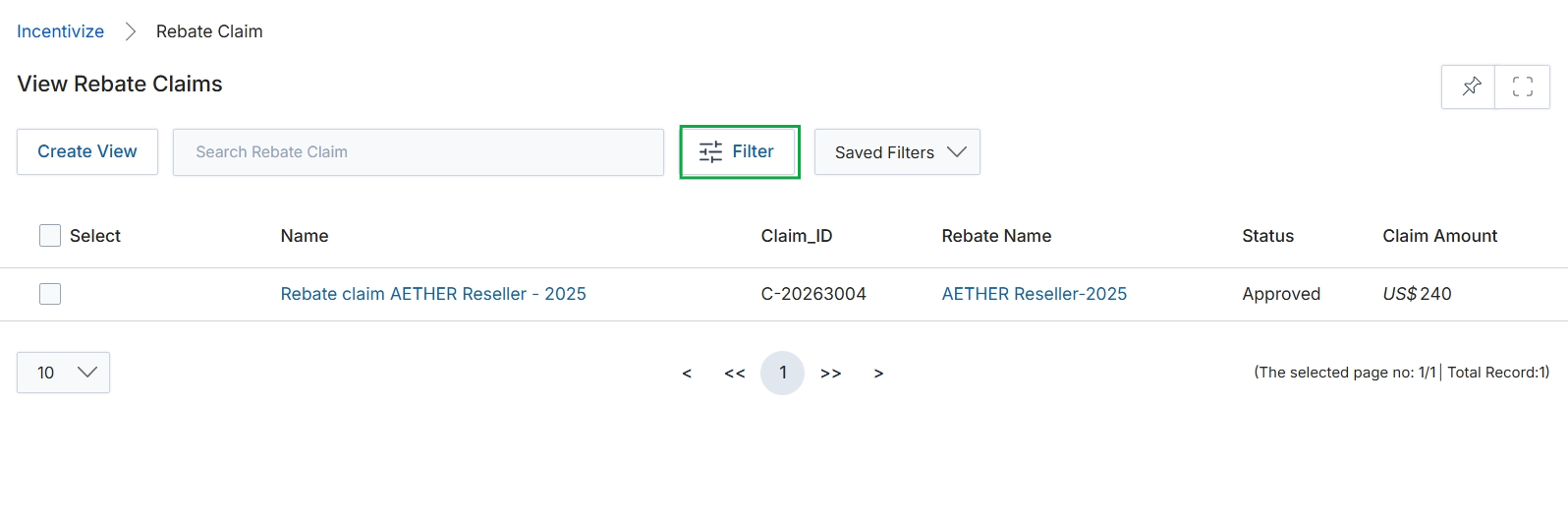
Click the Filter button.
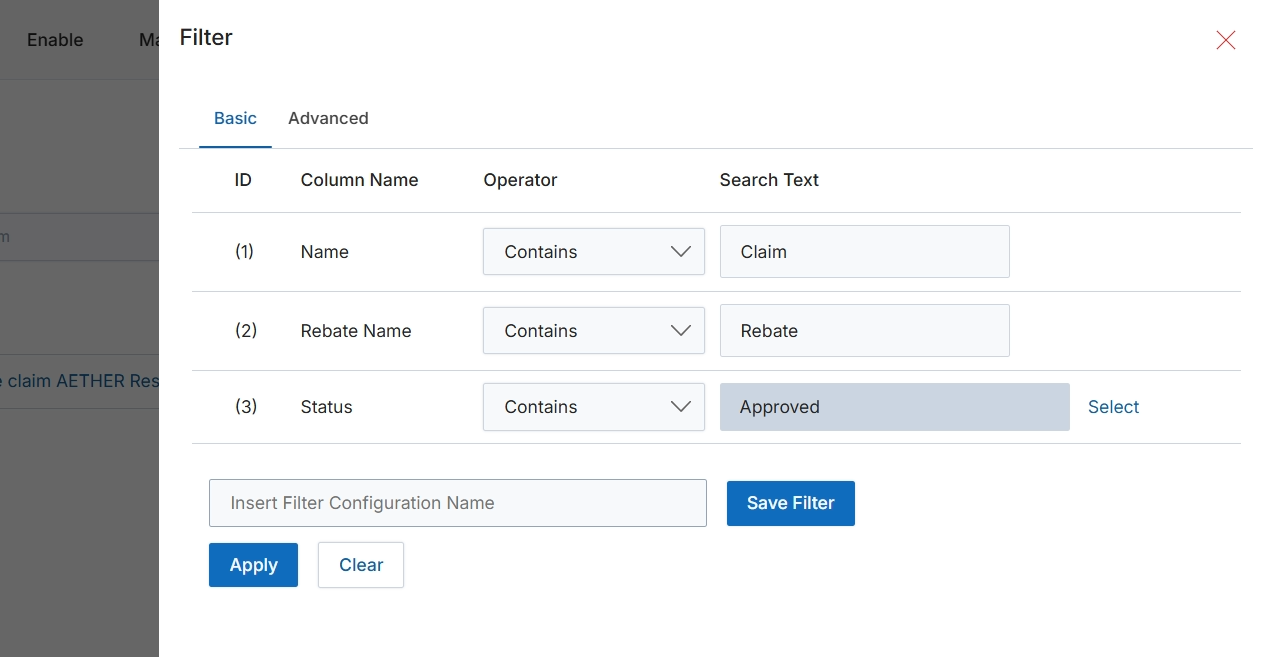
This filter configuration dialog allows users to define and apply specific criteria to narrow down the list of rebate claims displayed in the main view. By setting conditions on various columns such as 'Name', 'Rebate Name', and 'Status', users can quickly locate specific claims or groups of claims that match their requirements. This functionality is crucial for managing large volumes of rebate claims, enabling administrators to efficiently review, approve, or track claims based on their current status or other identifying information. The ability to save filter configurations streamlines repetitive search tasks, enhancing operational efficiency within the Incentivize module.
Configure the filter settings by specifying criteria for 'Name', 'Rebate Name', and 'Status', then click "Apply" to filter the rebate claims list.
Buttons
| Button | Description |
|---|---|
| Basic | This tab allows users to define filters using a simple row-based interface for common search criteria. |
| Advanced | This tab provides more complex filtering options, potentially including boolean logic or custom expressions. |
| Select | A button to open a selection dialog for the 'Status' field, allowing users to choose from predefined status options. |
| Save Filter | A button to save the current filter configuration with the specified name. |
| Apply | A button to apply the configured filters to the rebate claims list. |
| Clear | A button to clear all applied filter criteria. |
Fields
| Field | Description |
|---|---|
| Name | The name of the rebate claim. |
| Contains | A dropdown to select the operator for the 'Name' filter, currently set to 'Contains'. |
| Claim | A text input field to enter the search term for the 'Name' column, currently set to 'Claim'. |
| Rebate Name | The name of the rebate program associated with the claim. |
| Contains | A dropdown to select the operator for the 'Rebate Name' filter, currently set to 'Contains'. |
| Rebate | A text input field to enter the search term for the 'Rebate Name' column, currently set to 'Rebate'. |
| Status | The current status of the rebate claim (e.g., Approved, Pending, Rejected). |
| Contains | A dropdown to select the operator for the 'Status' filter, currently set to 'Contains'. |
| Approved | A text input field to enter the search term for the 'Status' column, currently set to 'Approved'. |
| Insert Filter Configuration Name | A text input field to enter a name for the current filter configuration, allowing it to be saved for future use. |
Column Headings
| Column | Description |
|---|---|
| ID | The column header for the filter row identifier. |
| Column Name | The column header indicating the field to which the filter condition applies. |
| Operator | The column header for the comparison operator used in the filter condition (e.g., Contains, Equals, Starts With). |
| Search Text | The column header for the value to search for within the specified column. |
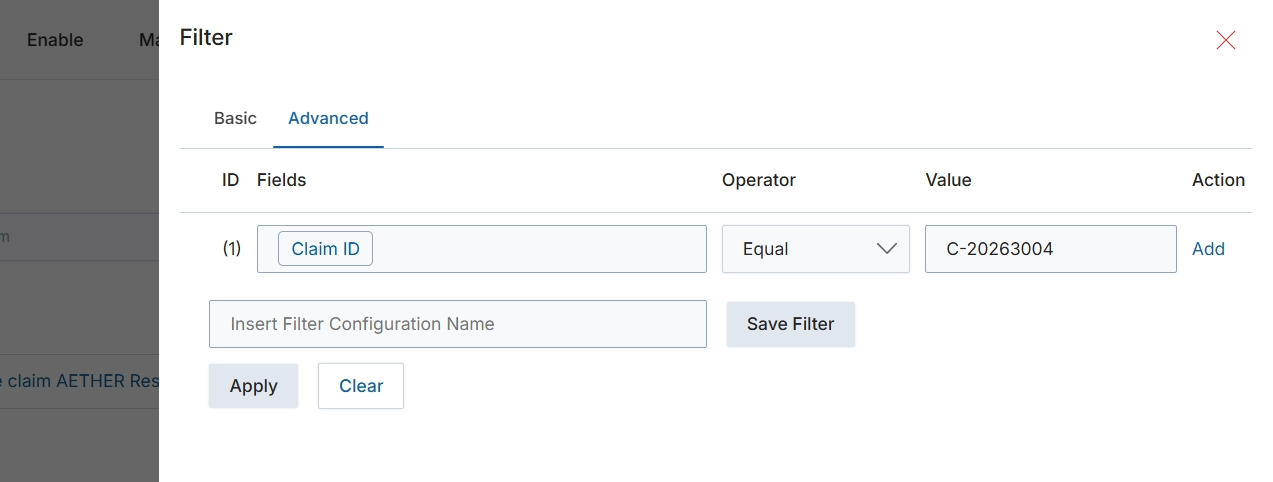
The Filter dialog provides advanced filtering capabilities for lists and tables within the platform, allowing users to define complex search criteria using multiple conditions. This feature is crucial for efficiently navigating large datasets, such as rebate claims, by narrowing down results based on specific field values, operators, and logical relationships. Users can apply these filters temporarily or save them for future use, streamlining repetitive search tasks and improving data analysis workflows. The Advanced tab, shown here, enables the construction of multi-clause filter rules, offering greater precision than basic search functions.
Click the "Apply" button to apply the configured advanced filter to the current list view.
Buttons
| Button | Description |
|---|---|
| Basic | Tab to switch to basic filtering options. |
| Advanced | Tab to access advanced filtering options, allowing for complex rule creation. |
| Add | Button to add another filter rule to the advanced filter configuration. |
| Save Filter | Button to save the current filter configuration for future use. |
| Apply | Button to apply the configured filter to the current list view. |
| Clear | Button to clear all applied filter criteria. |
Fields
| Field | Description |
|---|---|
| Claim ID | Dropdown field to select the data field to filter by, currently set to 'Claim ID'. |
| Equal | Dropdown field to select the comparison operator, currently set to 'Equal'. |
| C-20263004 | Input field for the value to compare against the selected field, currently set to 'C-20263004'. |
| Insert Filter Configuration Name | Input field to enter a name for saving the current filter configuration. |
Column Headings
| Column | Description |
|---|---|
| ID | Column header for the filter rule identifier. |
| Fields | Column header for the field to be filtered. |
| Operator | Column header for the comparison operator (e.g., Equal, Contains, Greater Than). |
| Value | Column header for the value to compare against the selected field. |
| Action | Column header for actions related to the filter rule, such as adding or removing a rule. |