

Overview
Rebates are a critical component of incentivizing partners, offering retrospective rewards based on their revenue attainment within a defined period. Unlike commissions, which are often deal-specific and forward-looking, rebates reward overall performance and growth. This module provides the tools to set up various rebate types, such as revenue band, growth, or attainment rebates, ensuring that partners are motivated to achieve higher sales volumes and meet strategic objectives.
Administrators use this section to create, modify, and monitor all active and historical rebate rules. Proper configuration of these rules is essential for transparent and effective partner incentive programs, allowing partners to understand their potential earnings and driving predictable revenue growth for the vendor.
Accessing Rebate Rules
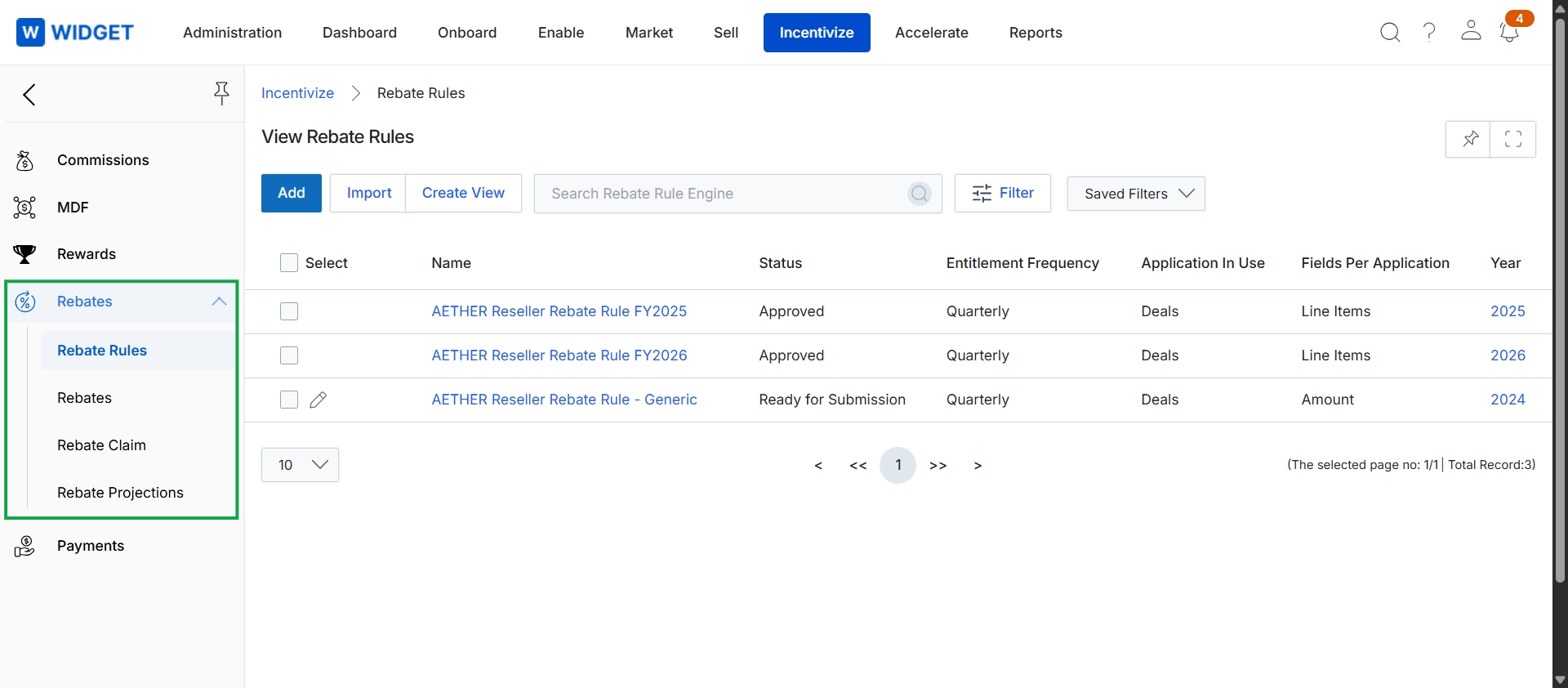
Click Rebates → Rebate Rules in the left navigation pane.
Creating Custom Views
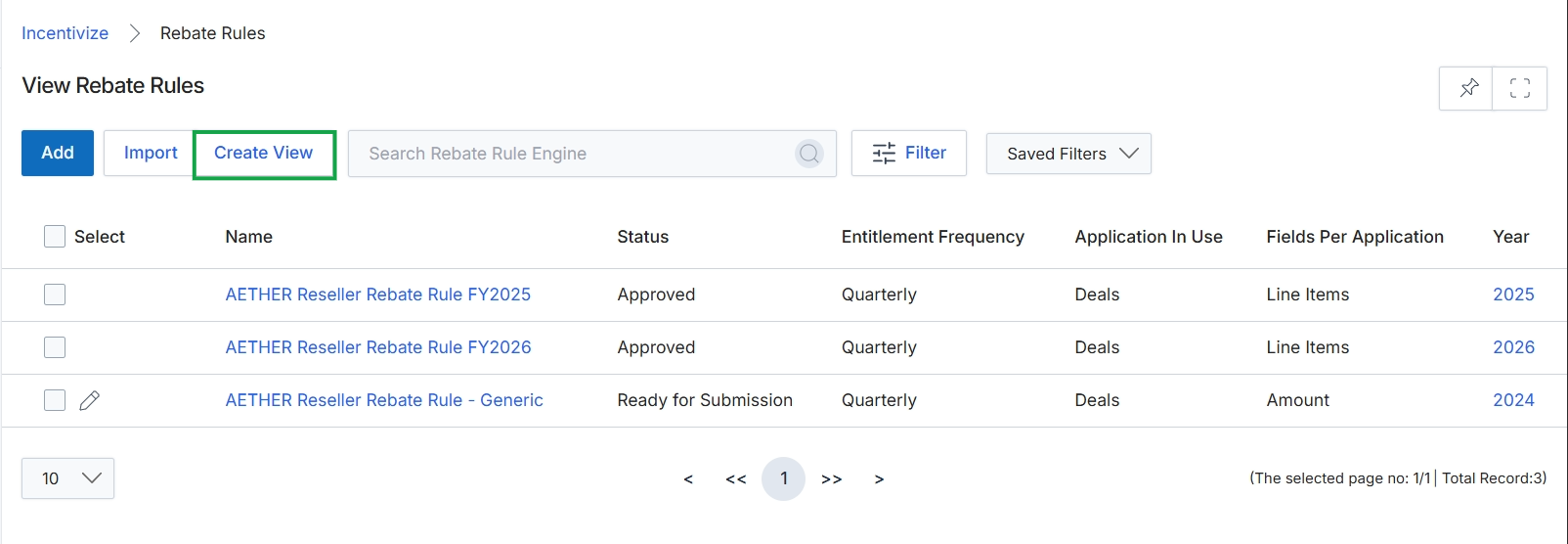
Click Create View.
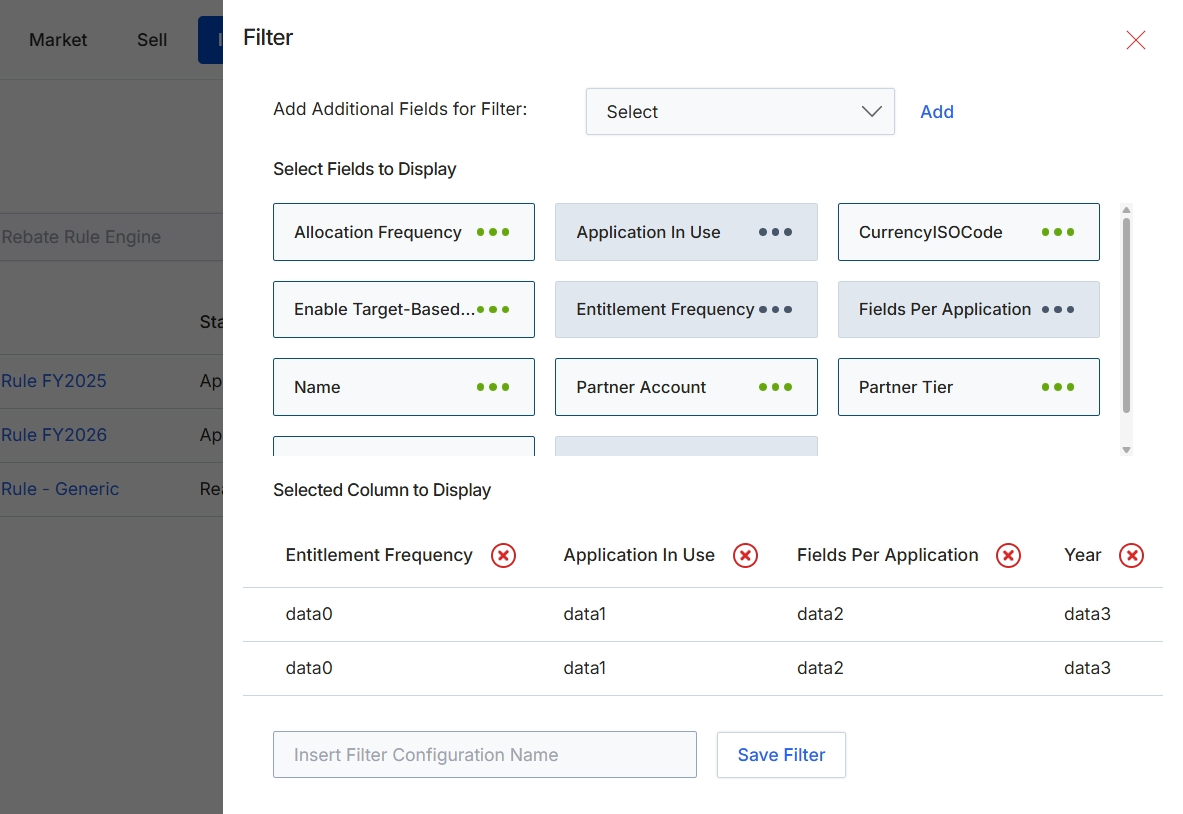
This Filter dialog allows administrators to customize the display of data in a list view by selecting which fields to show as columns and applying filters to narrow down the displayed records. This functionality is crucial for managing large datasets, such as Rebate Rules, by enabling users to focus on relevant information and create personalized views. Users can add new filter criteria, choose specific fields to appear as columns in the main table, and save these configurations for future use, streamlining their workflow and improving data analysis efficiency within the module.
Enter a name for the filter configuration in the provided text field and click "Save Filter" to save the custom view.
Buttons
| Button | Description |
|---|---|
| Add | A button to add the selected field from the dropdown to the filter criteria. |
| Save Filter | A button to save the current filter configuration with the specified name. |
Fields
| Field | Description |
|---|---|
| Select | A dropdown menu to select additional fields to use for filtering the data. |
| Insert Filter Configuration Name | A text input field to enter a name for the current filter configuration. |
Applying Filters to Rebate Rules
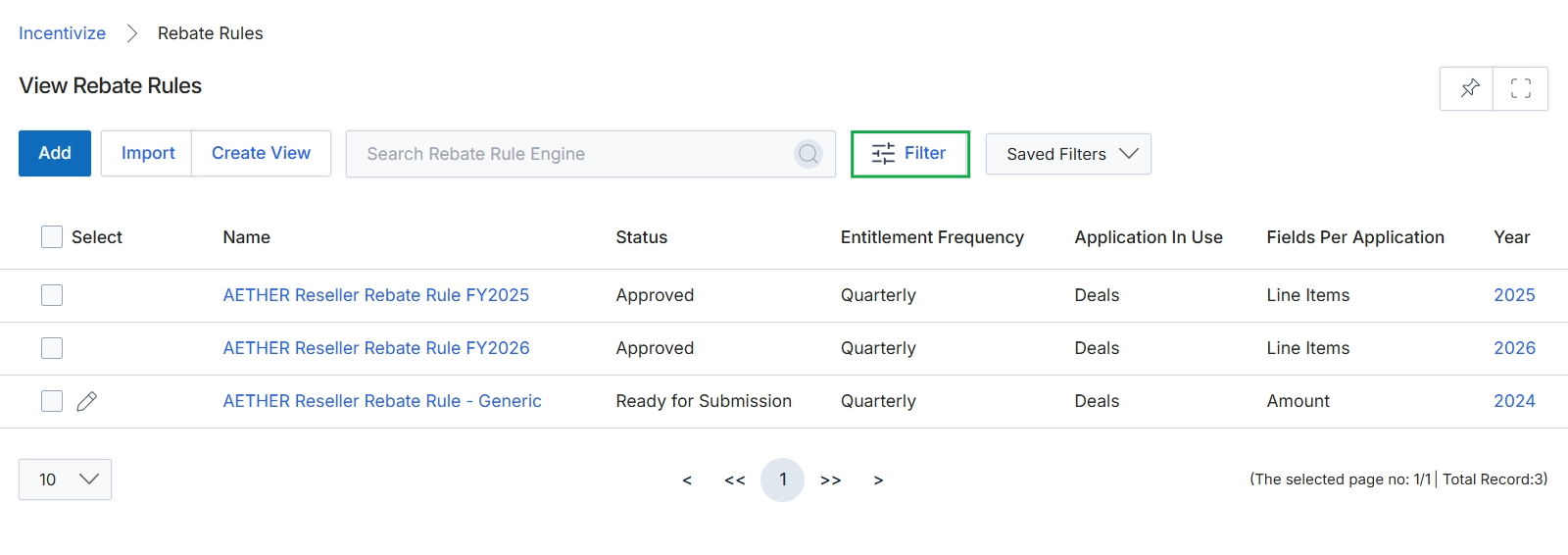
Click the Filter button.
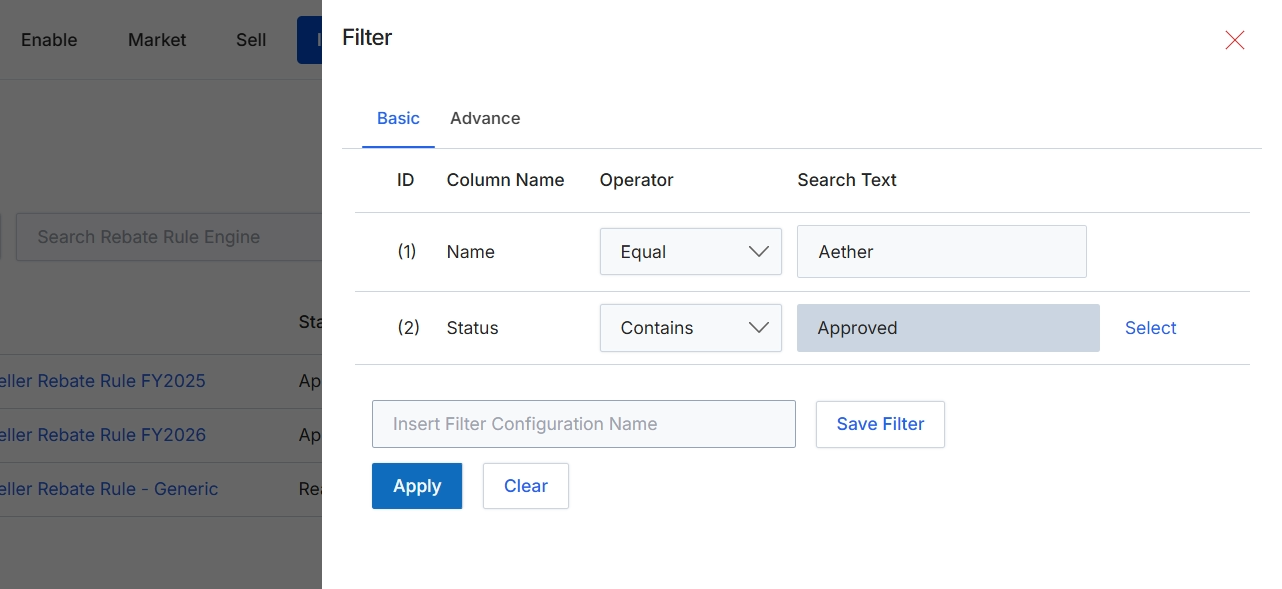
This filter dialog allows administrators to refine the list of rebate rules displayed in the main view by applying specific criteria. It supports both basic and advanced filtering options, enabling users to search for rules based on various attributes such as name, status, or other column values. This functionality is crucial for efficiently managing a potentially large number of rebate rules, helping administrators quickly locate specific rules for review, modification, or status updates. Filters can also be saved for future use, streamlining repetitive search tasks and ensuring consistent data retrieval.
Click the Apply button to apply the configured filters to the rebate rules list.
Buttons
| Button | Description |
|---|---|
| Basic | Selects the basic filter configuration options. |
| Advance | Selects the advanced filter configuration options. |
| Select | Allows selection of predefined status values. |
| Save Filter | Saves the current filter configuration for future use. |
| Apply | Applies the configured filters to the rebate rules list. |
| Clear | Clears all applied filter criteria. |
Fields
| Field | Description |
|---|---|
| Name | The name of the rebate rule, used as a filter criterion. |
| Equal | The operator for matching the exact name of the rebate rule. |
| Aether | The search text for filtering rebate rules by name. |
| Status | The status of the rebate rule, used as a filter criterion. |
| Contains | The operator for matching rebate rules whose status contains the specified text. |
| Approved | The search text for filtering rebate rules by status. |
| Insert Filter Configuration Name | Input field to enter a name for saving the current filter configuration. |
Column Headings
| Column | Description |
|---|---|
| ID | Column header for the filter rule identifier. |
| Column Name | Column header for the name of the column being filtered. |
| Operator | Column header for the comparison operator used in the filter. |
| Search Text | Column header for the text value used in the filter search. |
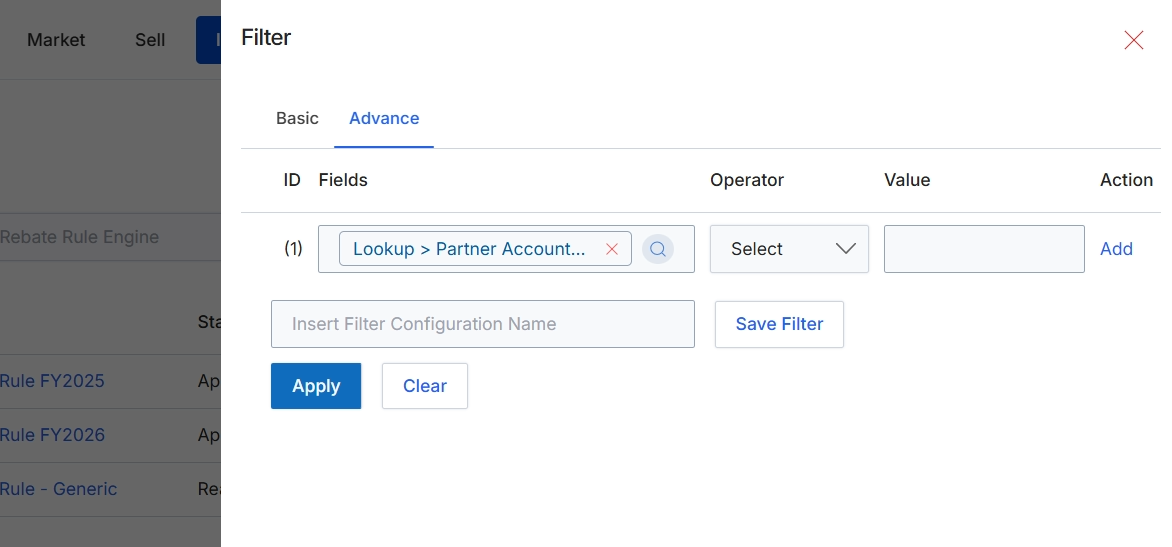
The advanced filter panel allows users to construct complex queries to refine the displayed list of rebate rules. This functionality is crucial for administrators managing a large number of rules, enabling them to quickly locate specific rules based on various criteria such as partner account, status, or other rule attributes. Users can define multiple filter conditions using logical operators and save frequently used filter configurations for future use, streamlining the process of managing rebate programs within the Incentivize module.
Select the desired operator and value for the 'Partner Account' field to define an advanced filter criterion.
Buttons
| Button | Description |
|---|---|
| Basic | Tab to switch to basic filtering options. |
| Advance | Tab to switch to advanced filtering options, allowing for more complex query construction. |
| Add | Link to add another filter condition to the advanced filter. |
| Save Filter | Button to save the current filter configuration with the specified name. |
| Apply | Button to apply the configured filters to the list of rebate rules. |
| Clear | Button to clear all applied filter conditions. |
Fields
| Field | Description |
|---|---|
| Lookup > Partner Account... | A lookup field currently set to 'Partner Account', allowing selection of a specific partner account to filter by. |
| Select | Dropdown to choose the operator for the filter condition (e.g., equals, contains, starts with). |
| Value | Input field to enter the value for the selected filter criterion. |
| Insert Filter Configuration Name | Input field to enter a name for the current filter configuration to save it for future use. |