

Overview
Rebate programs are a critical component of incentivizing partner performance by offering retrospective revenue-based rewards. While Rebate Rules define the eligibility and calculation methods, Rebate Projections offer a forward-looking view of what partners are expected to earn. This allows administrators to proactively manage financial commitments and monitor the effectiveness of their rebate programs. By understanding projected payouts, the finance team can better forecast expenses and ensure funds are allocated appropriately.
This module provides a comprehensive list of all projected rebates, detailing the partner account, the timeframe, and the estimated rebate amount. Administrators can easily search, filter, and customize the display to focus on specific partners, time periods, or other relevant criteria, ensuring they have the necessary insights to manage their rebate programs effectively.
Accessing Rebate Projections
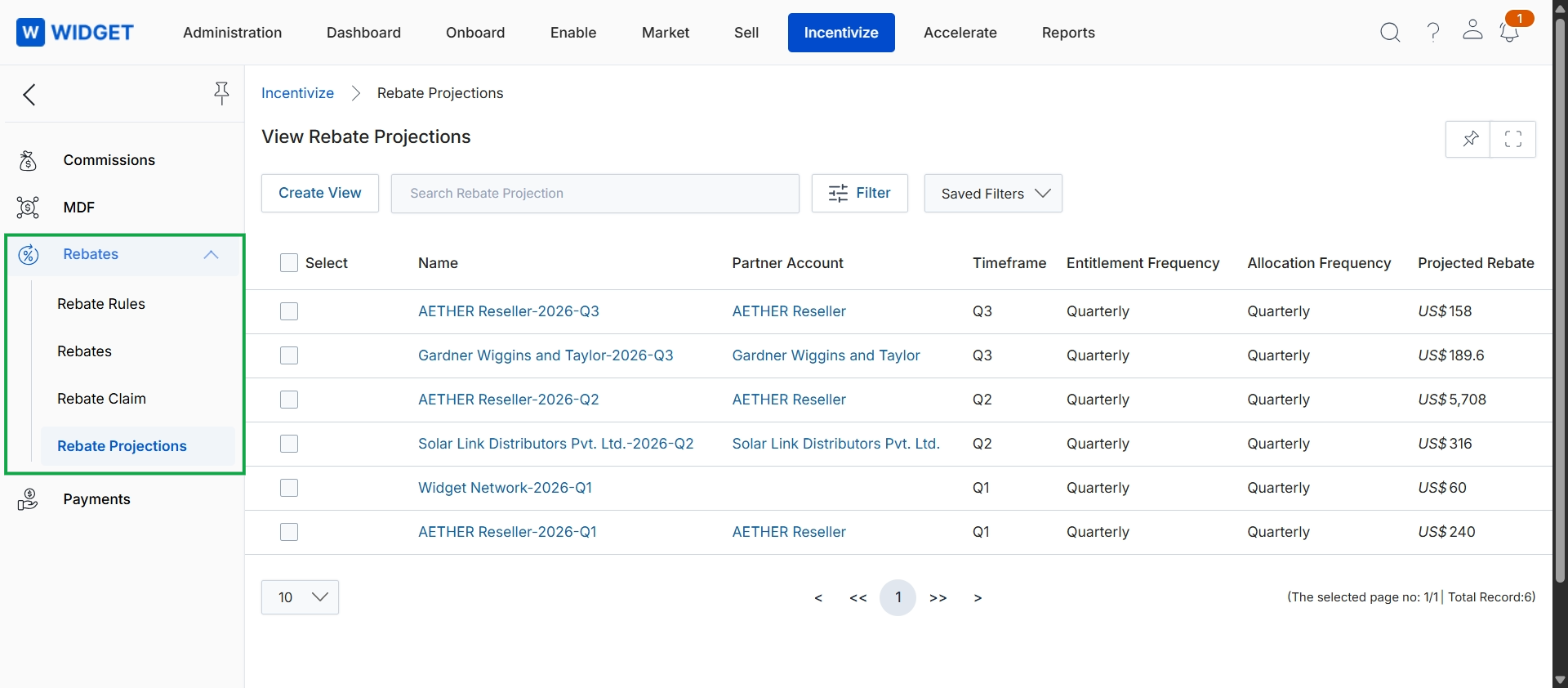
Click Rebates to expand the menu, then click Rebate Projections.
Creating and Managing Views
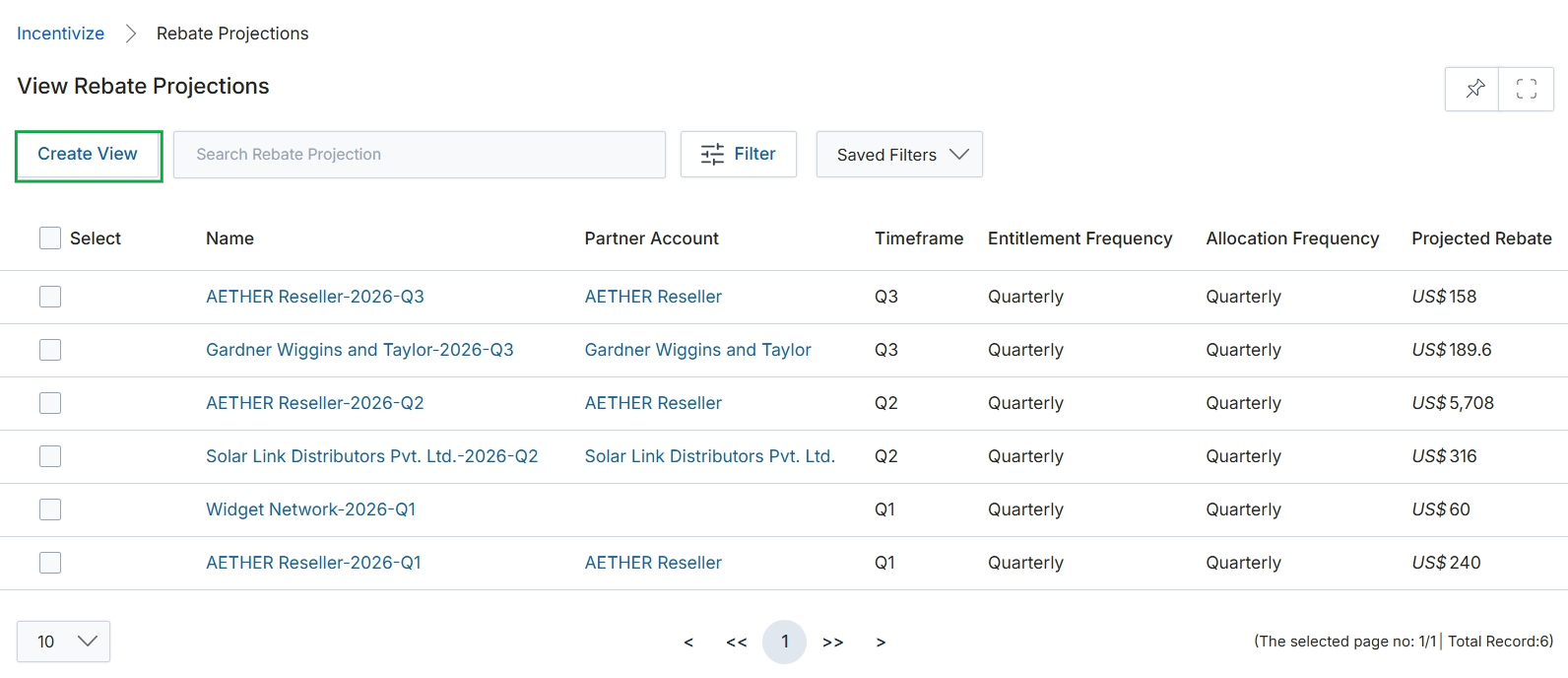
Click Create View.
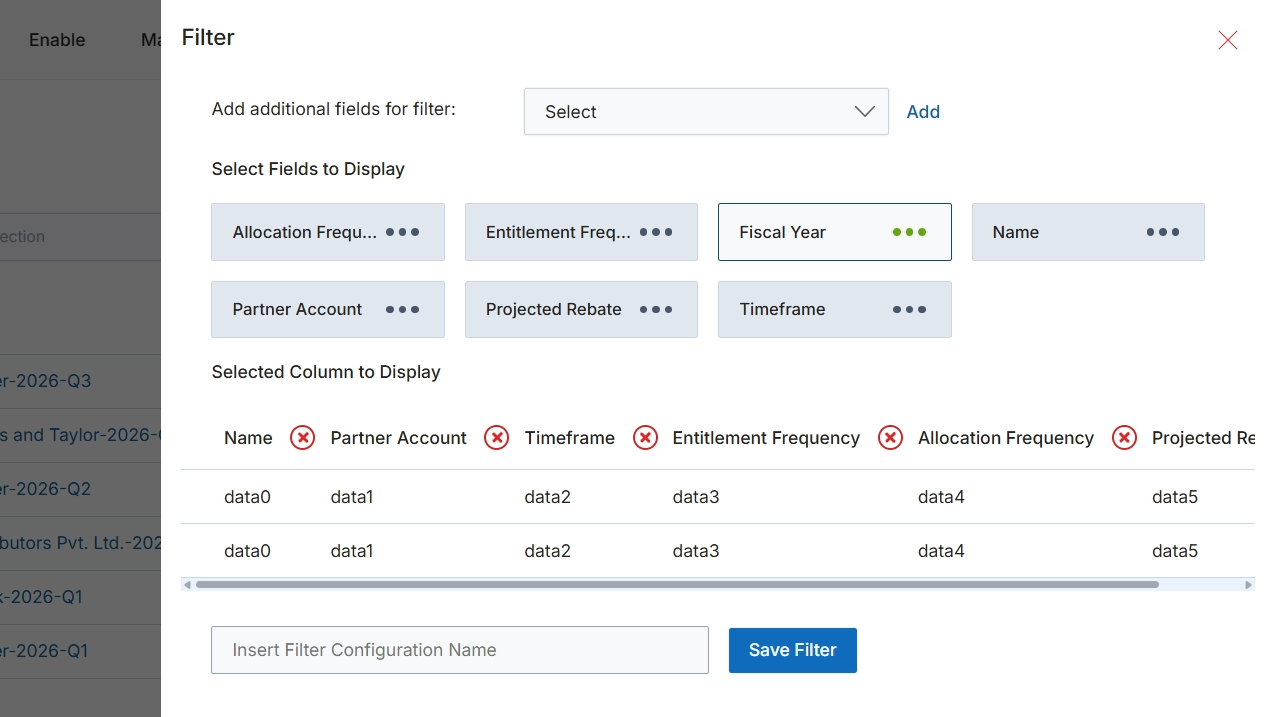
This filter configuration dialog allows users to customize the display and filtering options for the Rebate Projections list view. Users can select which fields to include as columns in the main table and define additional filter criteria to narrow down the displayed rebate projections. This functionality is crucial for administrators and partners to efficiently analyze and manage their projected rebate earnings, enabling them to focus on specific periods, partners, or rebate types. The ability to save filter configurations streamlines recurring analysis tasks and ensures consistent reporting.
Select 'Fiscal Year' to add it as a filter criterion.
Buttons
| Button | Description |
|---|---|
| Add | Adds the selected field from the dropdown as a filter criterion. |
| Save Filter | Saves the current filter configuration with the specified name. |
Fields
| Field | Description |
|---|---|
| Select | A dropdown to select additional fields that can be used for filtering the rebate projections. |
| Insert Filter Configuration Name | A text input field to enter a name for the current filter configuration to save it for future use. |
Filtering Rebate Projections
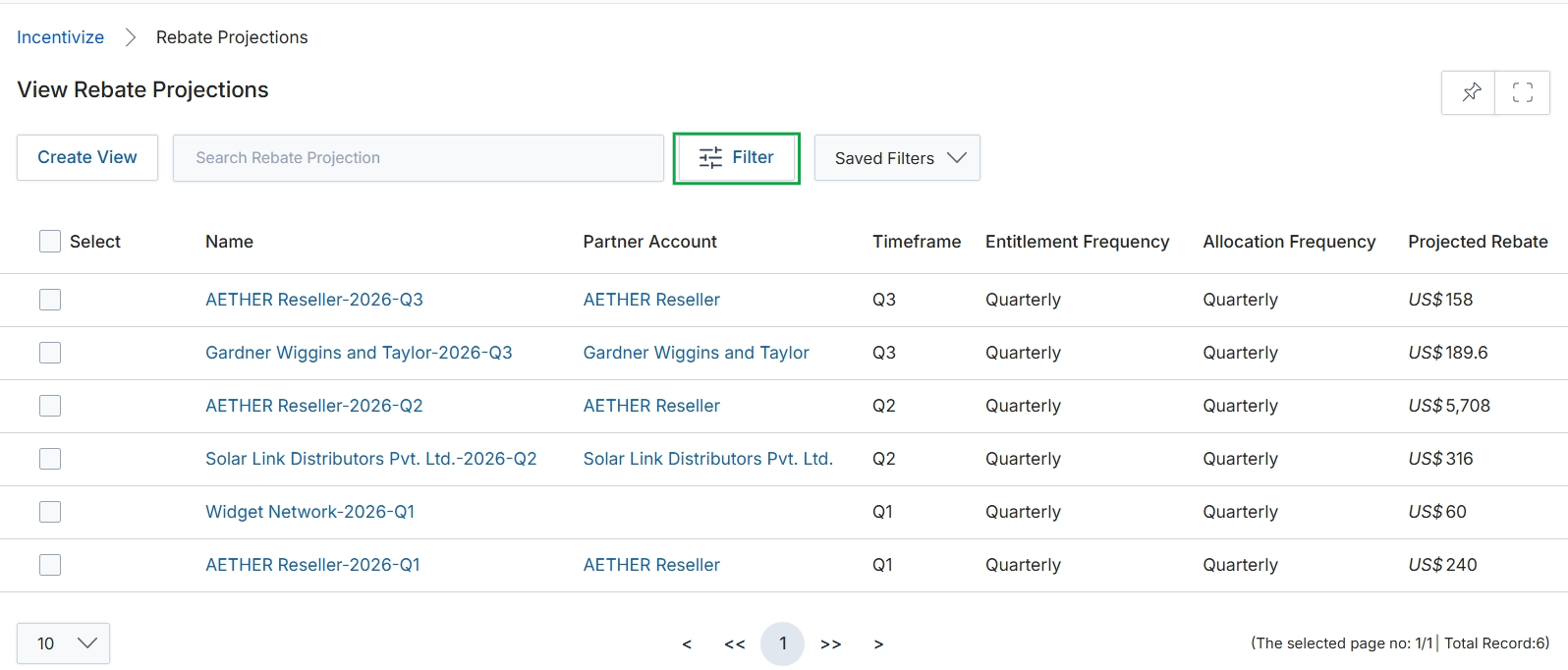
Click the Filter button.
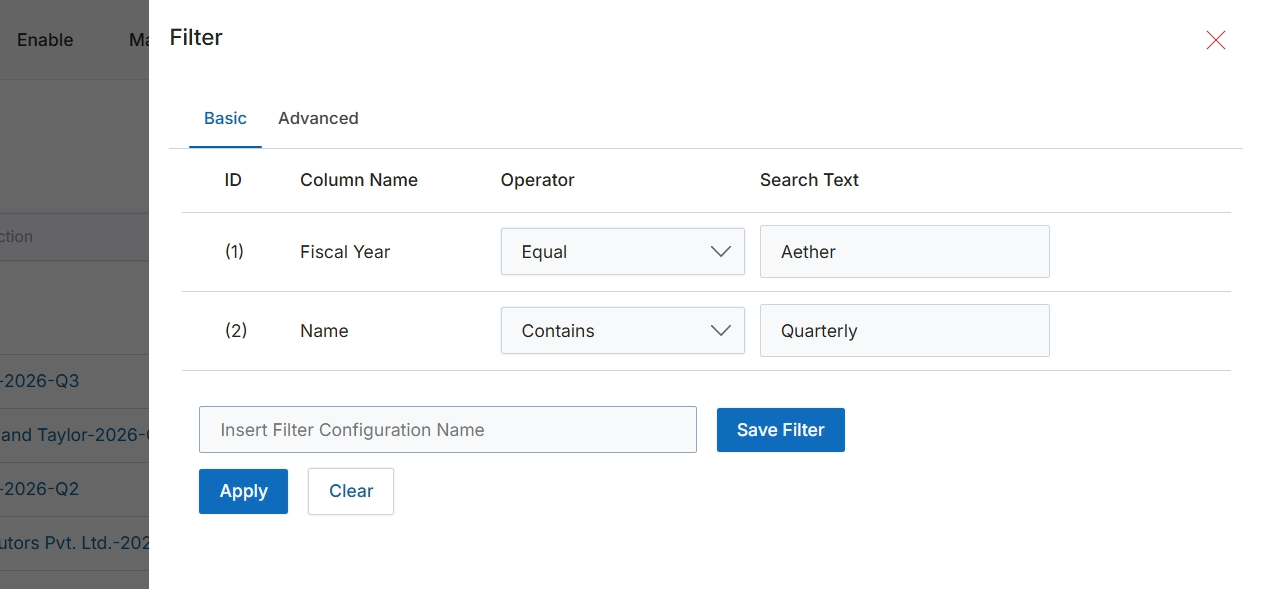
This dialog box allows users to apply filters to a list view, enabling them to narrow down the displayed records based on specific criteria. Users can define multiple filter conditions by selecting a column, an operator, and a search value. This filtering capability is crucial for efficiently managing and analyzing large datasets within the module, allowing administrators to quickly locate specific records or groups of records that meet certain business requirements. The dialog supports both basic and advanced filtering options, providing flexibility in how data is queried and presented.
Click the "Apply" button to apply the configured filters to the current list view.
Buttons
| Button | Description |
|---|---|
| Basic | Tab to configure basic filter conditions. |
| Advanced | Tab to configure advanced filter conditions, typically involving more complex logic. |
| Save Filter | Button to save the current filter configuration with the specified name. |
| Apply | Button to apply the configured filters to the list view. |
| Clear | Button to clear all applied filter conditions. |
Fields
| Field | Description |
|---|---|
| Fiscal Year | The name of the column being filtered in the first condition. |
| Equal | Dropdown to select the operator for the 'Fiscal Year' filter, currently set to 'Equal'. |
| Aether | Text input field for the search value for the 'Fiscal Year' filter. |
| Name | The name of the column being filtered in the second condition. |
| Contains | Dropdown to select the operator for the 'Name' filter, currently set to 'Contains'. |
| Quarterly | Text input field for the search value for the 'Name' filter. |
| Insert Filter Configuration Name | Text input field to enter a name for the current filter configuration to save it for future use. |
Column Headings
| Column | Description |
|---|---|
| ID | Column header for the filter condition's identifier. |
| Column Name | Column header for the name of the data field to be filtered. |
| Operator | Column header for the comparison operator used in the filter condition (e.g., Equal, Contains). |
| Search Text | Column header for the value to search for within the selected column. |
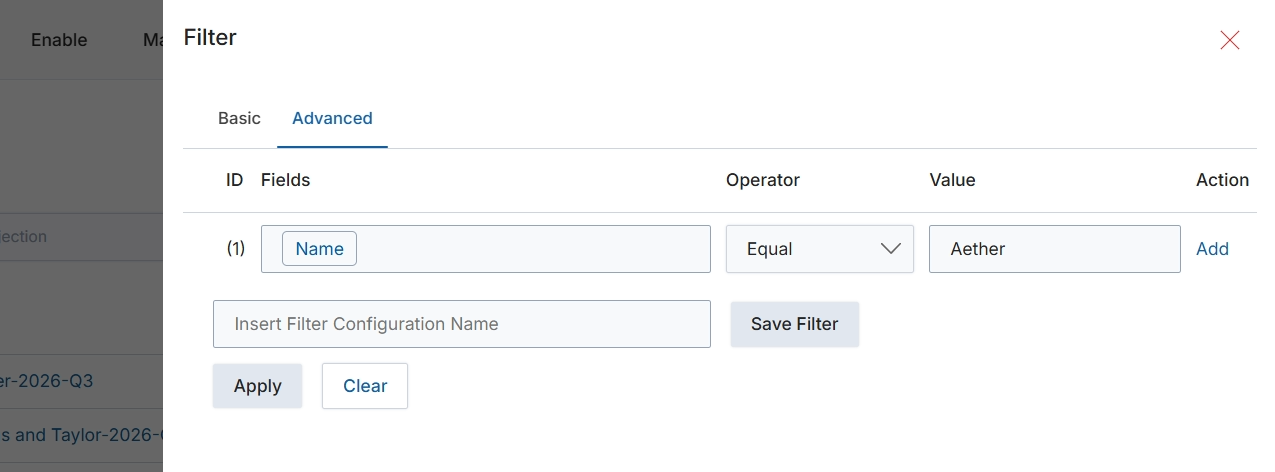
This screen displays the advanced filter configuration for lists within the Incentivize module, allowing users to define complex search criteria. It enables administrators to create highly specific views of data, such as reward accruals or rebate claims, by combining multiple conditions using logical operators. This advanced filtering capability is crucial for managing large datasets, identifying specific records for review or action, and generating targeted reports. Users can save frequently used filter configurations for quick access, streamlining their workflow and ensuring consistent data analysis.
Configure advanced filter conditions by selecting fields, operators, and values, then click "Add" to include the condition.
Buttons
| Button | Description |
|---|---|
| Basic | Tab to switch to basic filter options. |
| Advanced | Tab to switch to advanced filter options, allowing for complex condition building. |
| Add | Button to add the configured filter condition to the list. |
| Save Filter | Button to save the current advanced filter configuration with the specified name. |
| Apply | Button to apply the configured filters to the current list view. |
| Clear | Button to clear all applied filter conditions. |
Fields
| Field | Description |
|---|---|
| Name | Dropdown to select the data field for the filter condition. |
| Equal | Dropdown to select the comparison operator for the filter condition. |
| Aether | Input field to enter the value for the filter condition. |
| Insert Filter Configuration Name | Input field to enter a name for the current filter configuration to save it for future use. |
Column Headings
| Column | Description |
|---|---|
| ID | Column header for the identifier of each filter condition. |
| Fields | Column header for the data field to be filtered. |
| Operator | Column header for the comparison operator (e.g., Equal, Contains, Greater Than). |
| Value | Column header for the value to compare against the selected field. |
| Action | Column header for actions related to the filter condition, such as adding or removing. |