

Overview
Rebates are a crucial component of partner incentive programs, offering retrospective rewards based on revenue attainment over a specific period. Unlike commissions, which are often tied to individual deals, rebates encourage partners to achieve higher sales volumes or growth targets. This module provides administrators with a comprehensive view of all accrued rebates, allowing them to monitor partner performance against rebate criteria and ensure accurate calculation and eventual disbursement. The ability to filter and customize the view helps administrators efficiently manage large volumes of rebate data.
Accessing the Rebates List
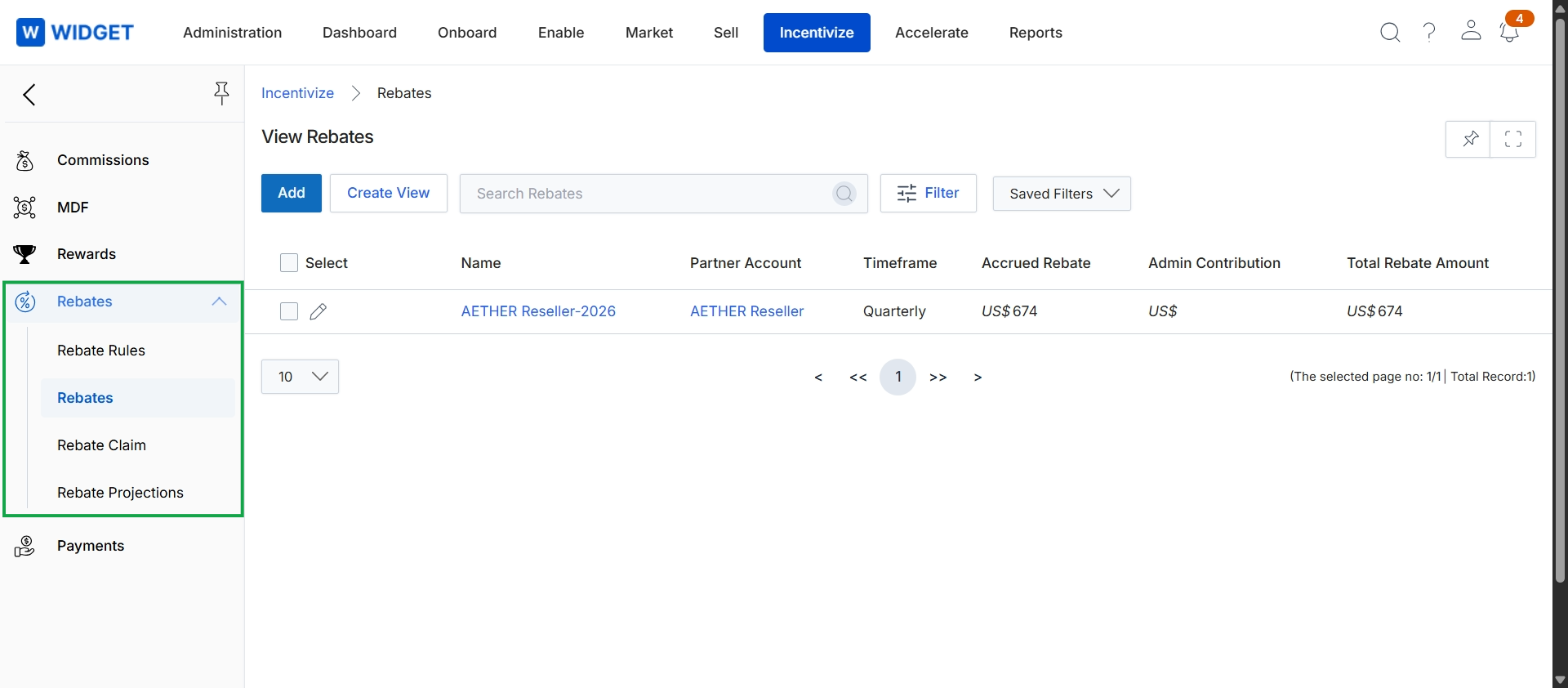
Click Rebates in the left navigation menu to view the list of rebates.
Customizing the Rebates View
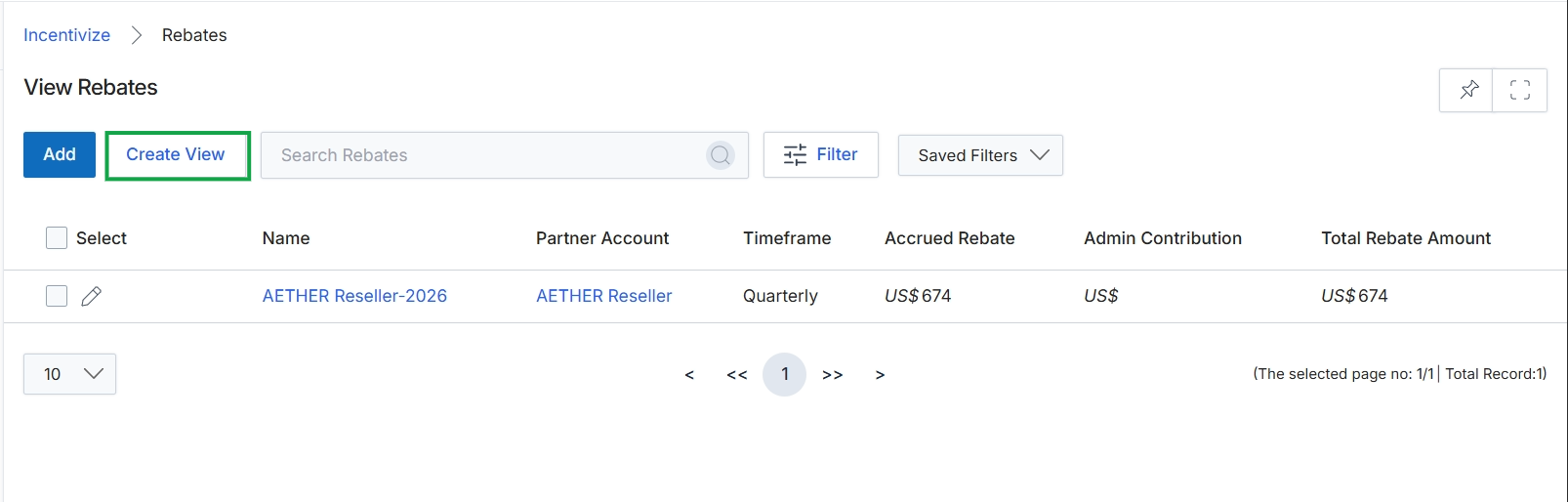
Click the Create View button.
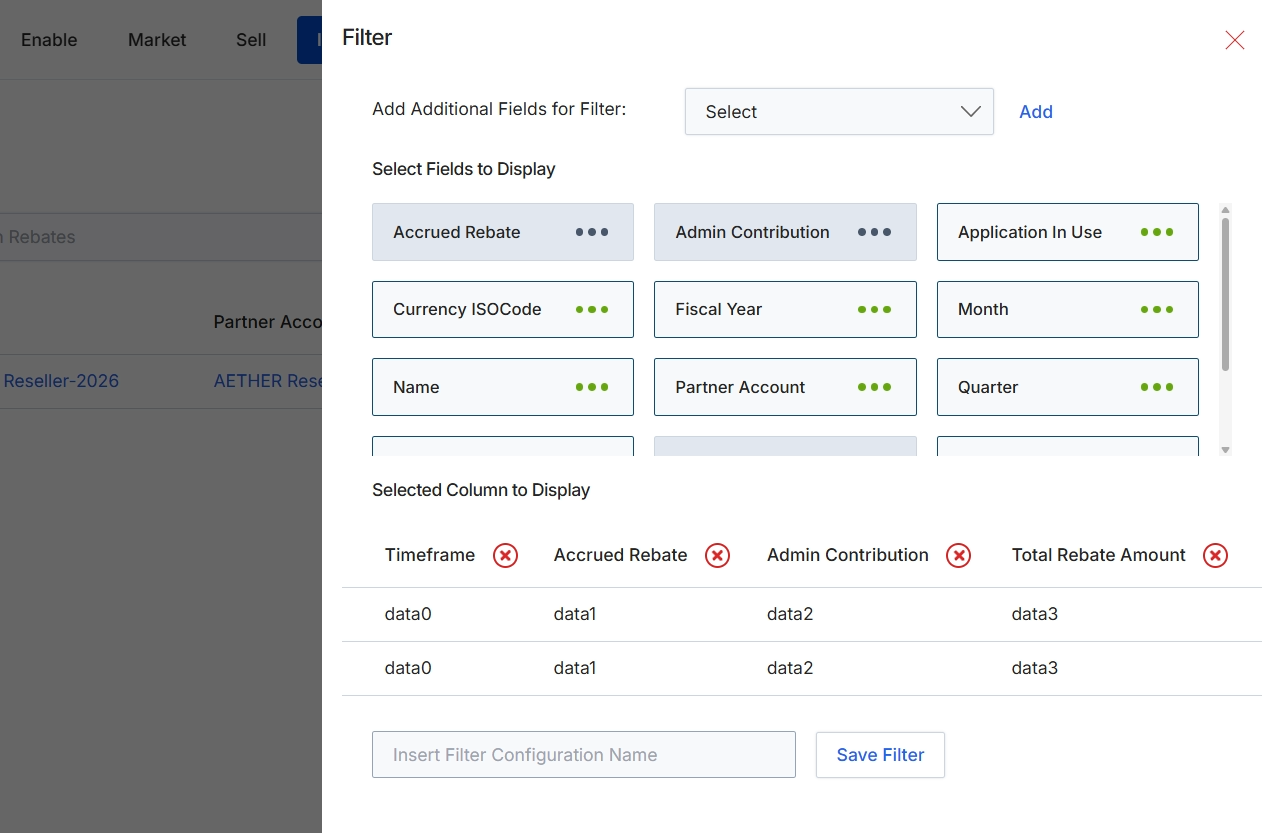
This filter panel allows users to customize the display of rebate data in the list view by adding or removing columns and defining filter criteria. It provides flexibility for users to focus on specific data points relevant to their analysis of rebate accruals and payments. Users can select from a predefined set of fields to include as columns in the main rebate table, and also add fields to create more granular filtering conditions. This customization helps administrators and finance teams efficiently review, manage, and report on partner rebates within the Incentivize module.
Select 'Accrued Rebate' to add it as a column to the rebate list view.
Buttons
| Button | Description |
|---|---|
| Add | A button to add the selected field from the dropdown to the filter criteria. |
| Accrued Rebate | A selectable field representing the total rebate amount accrued by a partner. |
| Admin Contribution | A selectable field representing the portion of the rebate contributed by the administrator. |
| Application In Use | A selectable field indicating the application or program associated with the rebate. |
| Save Filter | A button to save the current filter and column display configuration. |
Fields
| Field | Description |
|---|---|
| Add Additional Fields for Filter | A dropdown to select additional fields to use for filtering the rebate list. |
| Select | The placeholder text for the dropdown menu to add additional filter fields. |
| Insert Filter Configuration Name | A text input field to enter a name for the current filter configuration. |
Filtering Rebate Records
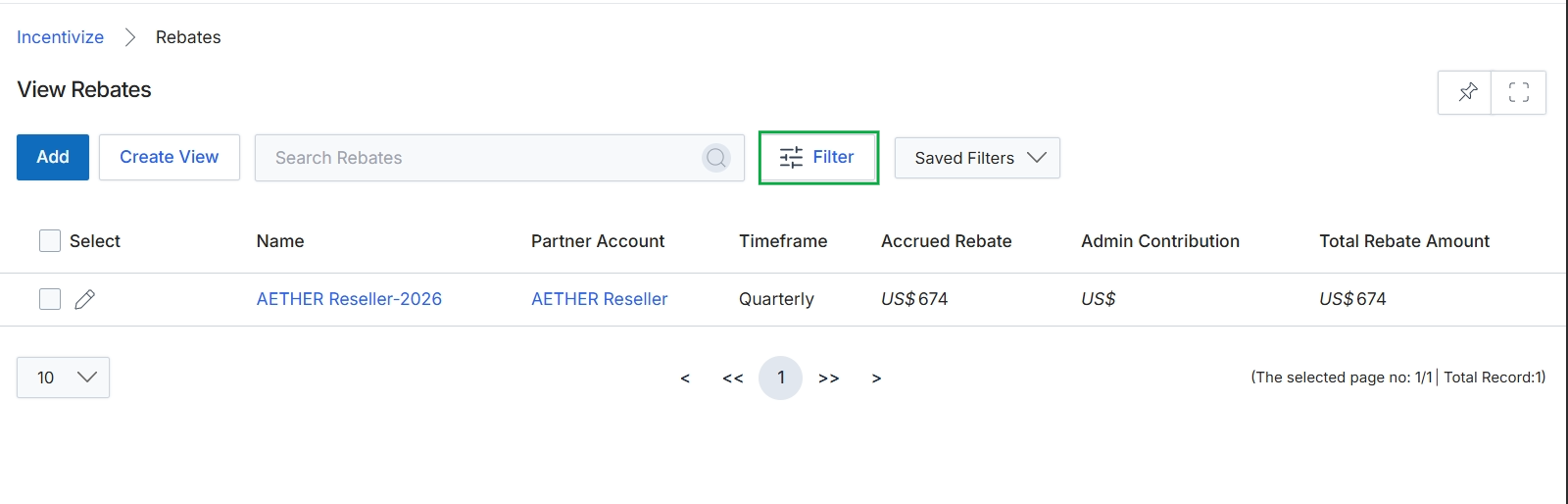
Click Filter.
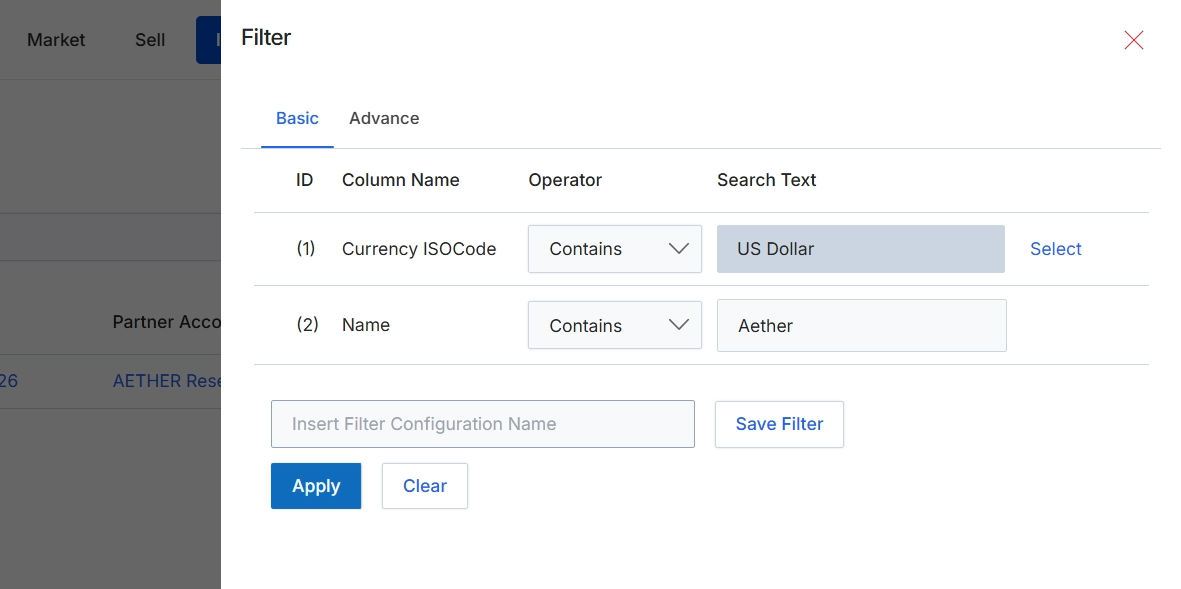
This filter dialog allows users to refine the list of rebate rules displayed in the Rebate Rules list view. Users can apply basic or advanced filters based on various criteria such as Currency ISOCode and Name. The dialog supports defining multiple filter conditions, each with a specified column, operator, and search text. This functionality helps administrators quickly locate specific rebate rules, especially when managing a large number of programs, by narrowing down the displayed results to only those that match the defined criteria.
Click the "Apply" button to apply the configured filters to the rebate rules list.
Buttons
| Button | Description |
|---|---|
| Basic | Tab to select basic filter options. |
| Advance | Tab to select advanced filter options. |
| Select | Button to select a value for the 'Currency ISOCode' filter. |
| Save Filter | Button to save the current filter configuration with a specified name. |
| Apply | Button to apply the defined filter criteria to the rebate rules list. |
| Clear | Button to clear all applied filter criteria. |
Fields
| Field | Description |
|---|---|
| Currency ISOCode | The field name for filtering by the ISO code of the currency. |
| Contains | Dropdown to select the operator for the 'Currency ISOCode' filter, currently set to 'Contains'. |
| US Dollar | The search text entered for the 'Currency ISOCode' filter. |
| Name | The field name for filtering by the name of the rebate rule. |
| Contains | Dropdown to select the operator for the 'Name' filter, currently set to 'Contains'. |
| Aether | The search text entered for the 'Name' filter. |
| Insert Filter Configuration Name | Input field to provide a name for the current filter configuration to save it for future use. |
Column Headings
| Column | Description |
|---|---|
| Column Name | Header for the column displaying the names of the fields available for filtering. |
| Operator | Header for the column displaying the comparison operators for each filter condition. |
| Search Text | Header for the column where users input the values to filter by. |
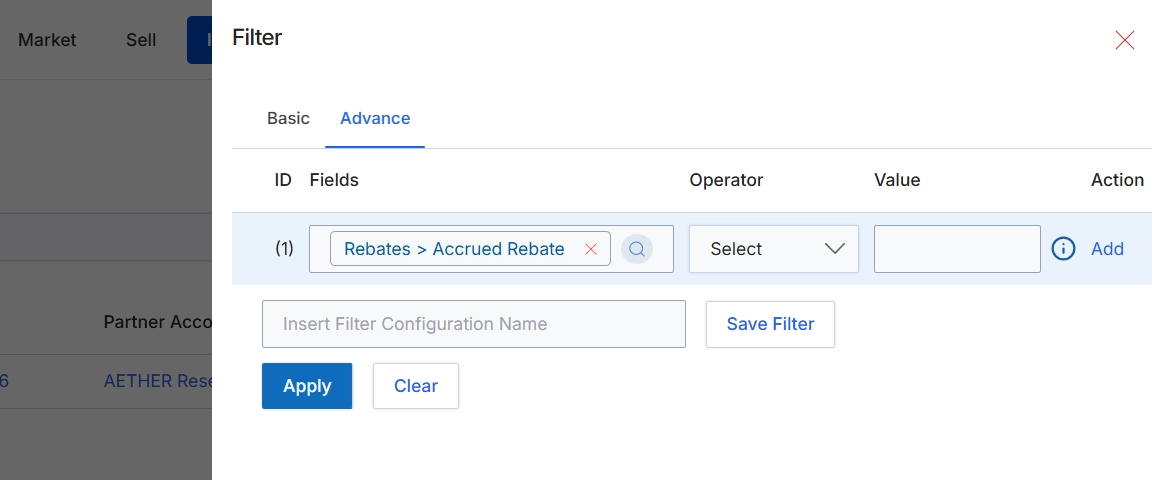
This screen displays the advanced filter configuration for rebate data, allowing users to define specific criteria for segmenting and analyzing rebate information. It provides a granular way to query the rebate records by specifying fields, operators, and values, which is particularly useful for administrators managing complex rebate programs or performing detailed financial analysis. The advanced filter supports building multi-condition queries to pinpoint specific rebate accruals, claims, or payments based on various attributes such as partner, amount, status, or period. This capability enhances reporting accuracy and operational efficiency by enabling precise data retrieval.
Click the "Select" dropdown to choose an operator for the filter condition.
Buttons
| Button | Description |
|---|---|
| Basic | Switches to the basic filter configuration interface. |
| Advance | Activates the advanced filter configuration interface, allowing for more complex query building. |
| Add | Adds a new filter condition row to the advanced filter configuration. |
| Save Filter | Saves the current filter configuration with the specified name. |
| Apply | Applies the defined filter conditions to the rebate data. |
| Clear | Clears all defined filter conditions. |
Fields
| Field | Description |
|---|---|
| Rebates > Accrued Rebate | A dropdown field that allows selecting the specific data field (e.g., 'Accrued Rebate' from the 'Rebates' entity) to apply the filter condition against. |
| Select | A dropdown field to choose the logical operator (e.g., equals, greater than, contains) for the selected field. |
| Insert Filter Configuration Name | An input field to enter a name for the current filter configuration, allowing it to be saved for future use. |
Column Headings
| Column | Description |
|---|---|
| ID | Displays the sequential identifier for each filter condition row. |
| Fields | Represents the column header for the field selection dropdown in each filter condition. |
| Operator | Represents the column header for the operator selection dropdown in each filter condition. |
| Value | Represents the column header for the input field where the filter value is entered. |
| Action | Represents the column header for actions related to each filter condition, such as adding or removing a row. |