

Overview
Effective email communication is critical for engaging partners and executing co-marketing campaigns. The Email Marketing Management module within Market provides the necessary tools for vendors to control and streamline their email outreach. A core component of this is managing sender email addresses, which ensures brand consistency and deliverability.
Administrators use this feature to maintain a curated list of email addresses that partners can use when sending campaigns through the platform. This helps prevent unapproved or unverified email addresses from being used, safeguarding brand reputation and improving email deliverability rates. By managing these senders, the platform supports compliant and professional communication with end customers and partners.
Accessing Sender Management
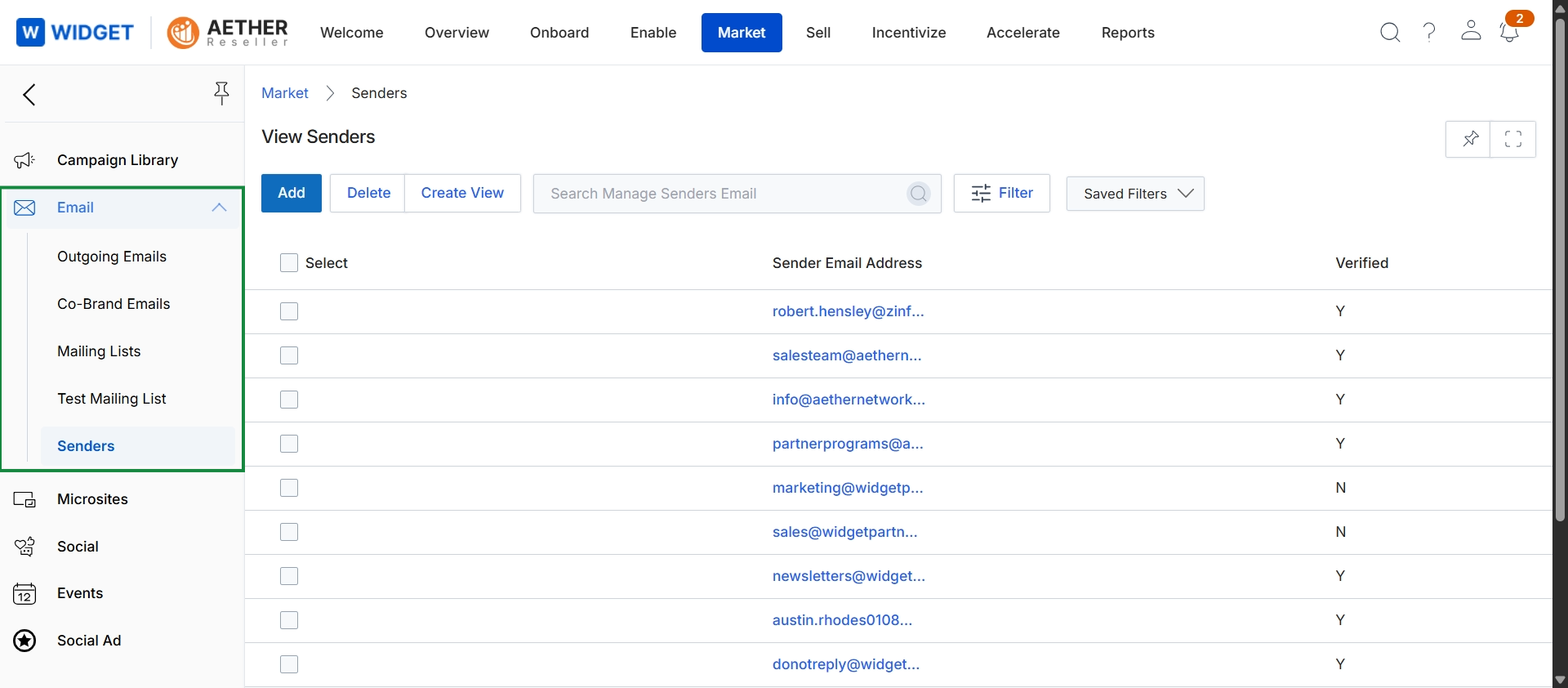
Click Email → Senders.
Deleting Sender Email Addresses
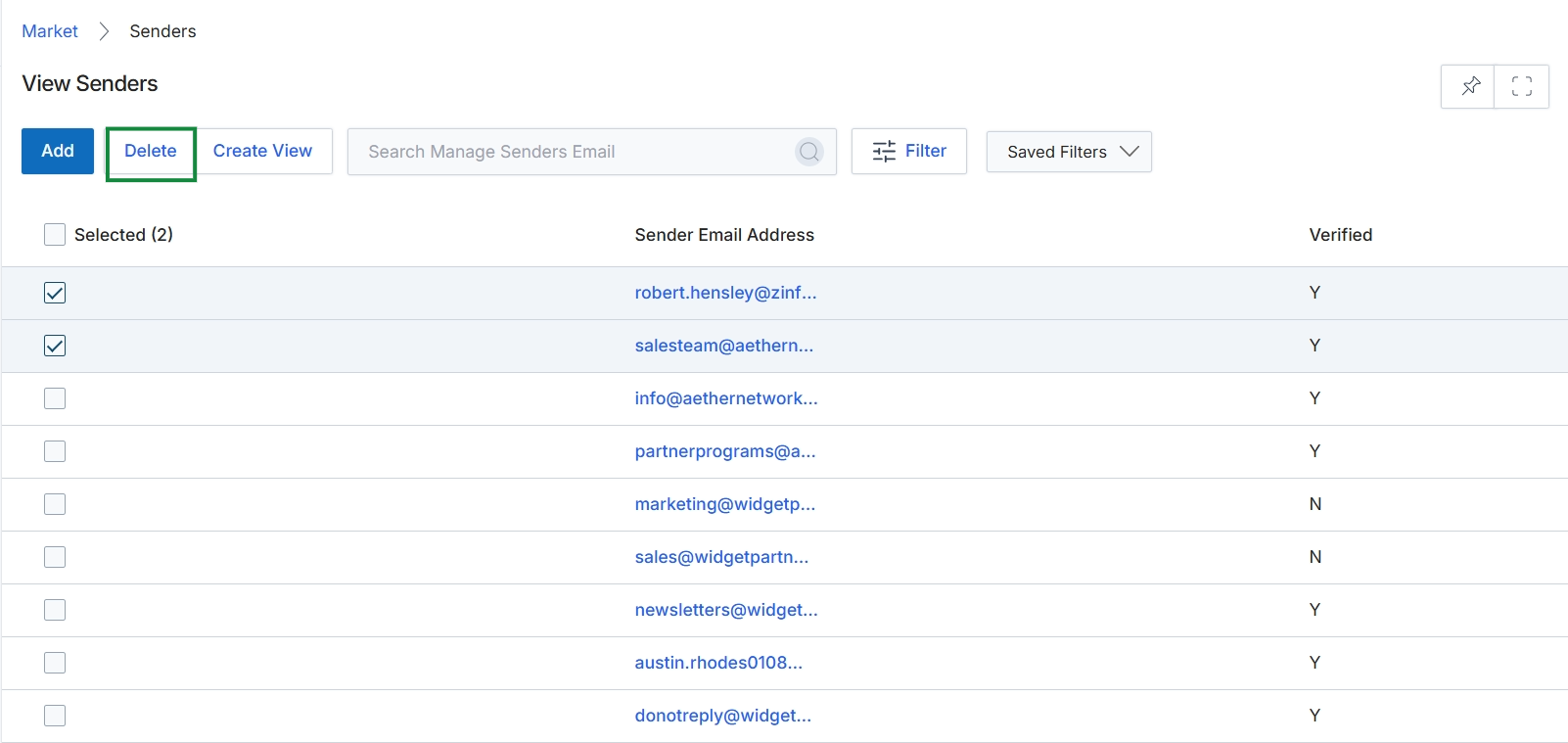
Click the Delete button.
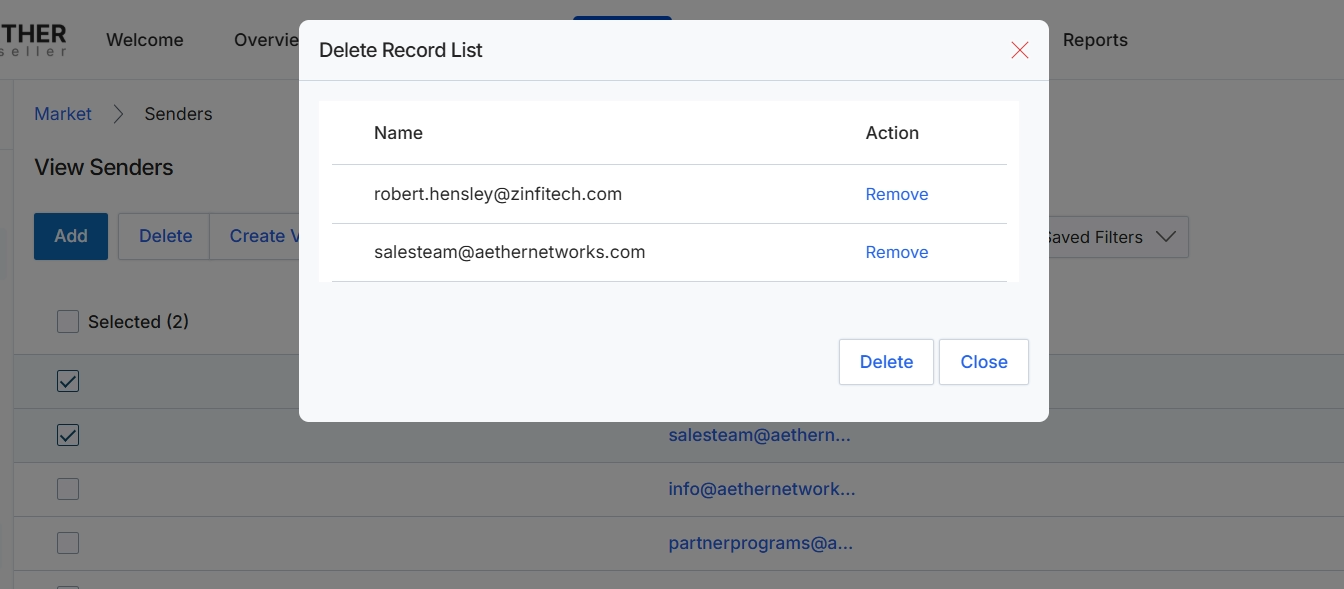
This screen displays a confirmation dialog for deleting selected sender email addresses within the Email Marketing Management module. It presents a list of the email addresses chosen for removal from the system, allowing for a final review before the deletion action is executed. This dialog ensures that administrators can verify the specific sender records they intend to delete, preventing accidental removal of important email identities used for campaigns.
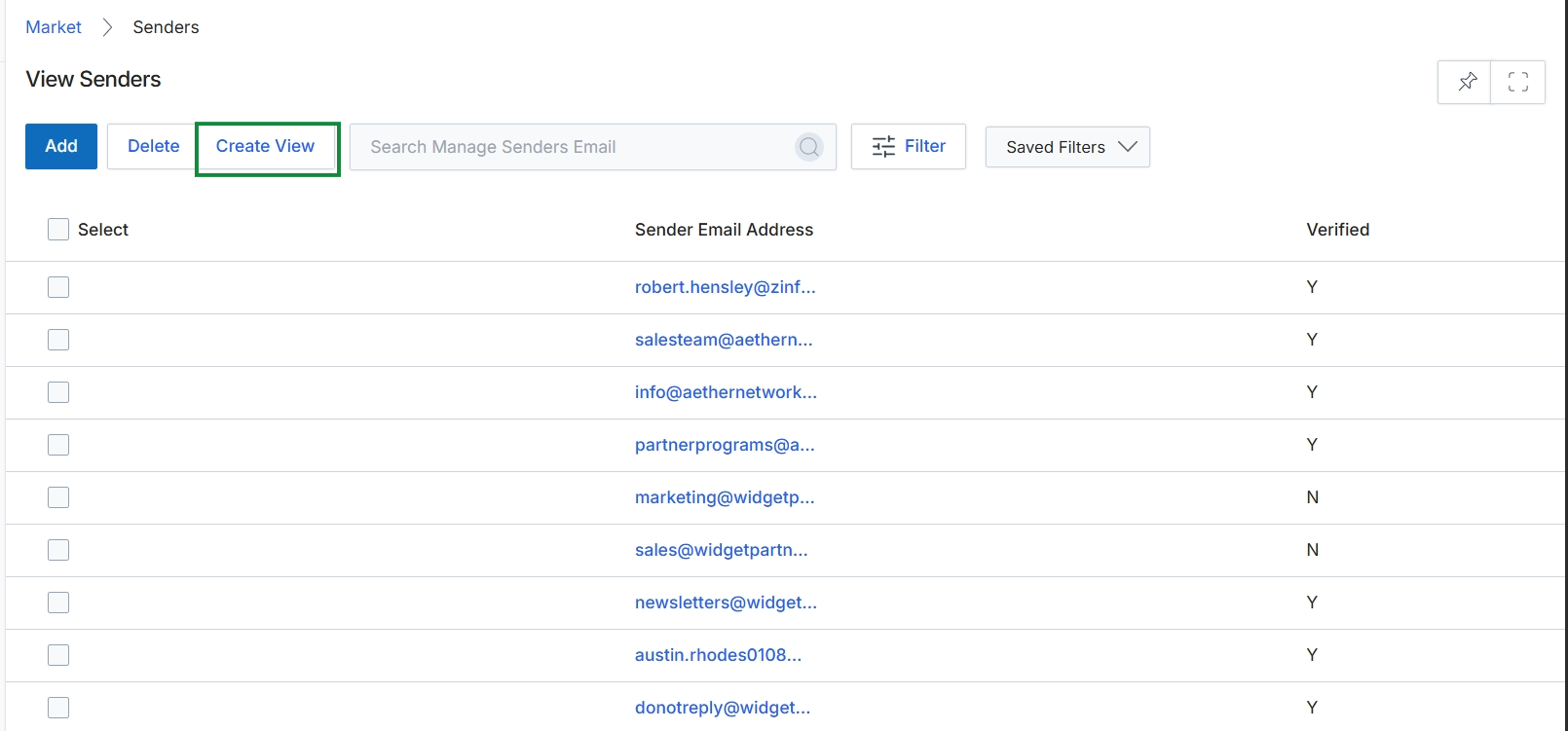
Creating Custom Views
Click the Delete button to confirm the deletion of the selected sender email addresses.
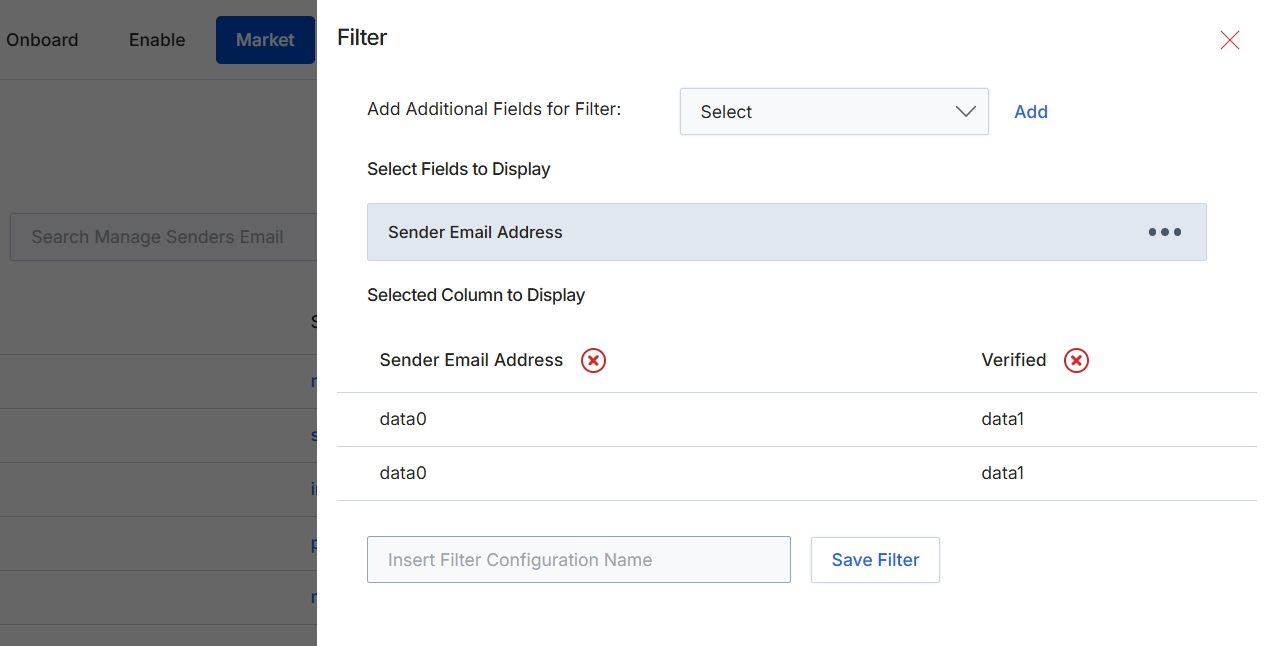
This modal window provides filtering and display column configuration options for a list view, likely related to email senders within the Email Marketing Management module. Users can define custom filters by adding specific fields and then selecting which of those fields, or other relevant data points, should be displayed as columns in the main data grid. This customization allows users to tailor the view to their specific analytical or operational needs, and the ability to save configurations streamlines future access to frequently used data perspectives. This screen helps users manage and organize the information presented in complex data tables by controlling both the criteria for filtering records and the visual layout of the results.
Configure the filter and display columns for the email senders list.
Buttons
| Button | Description |
|---|---|
| Add | A button to add the currently selected field from the 'Add Additional Fields for Filter' dropdown to the filter configuration. |
| Save Filter | A button to save the current filter and display column configuration under the specified name. |
Fields
| Field | Description |
|---|---|
| Add Additional Fields for Filter | A dropdown menu to select additional fields that can be used to filter the data in the associated list view. Once a field is selected, it can be added using the 'Add' button. |
| Select | The dropdown control for selecting fields to add to the filter configuration. |
| Insert Filter Configuration Name | A text input field where a user can enter a name for the custom filter configuration, allowing it to be saved and reused. |
Filtering Sender Email Addresses
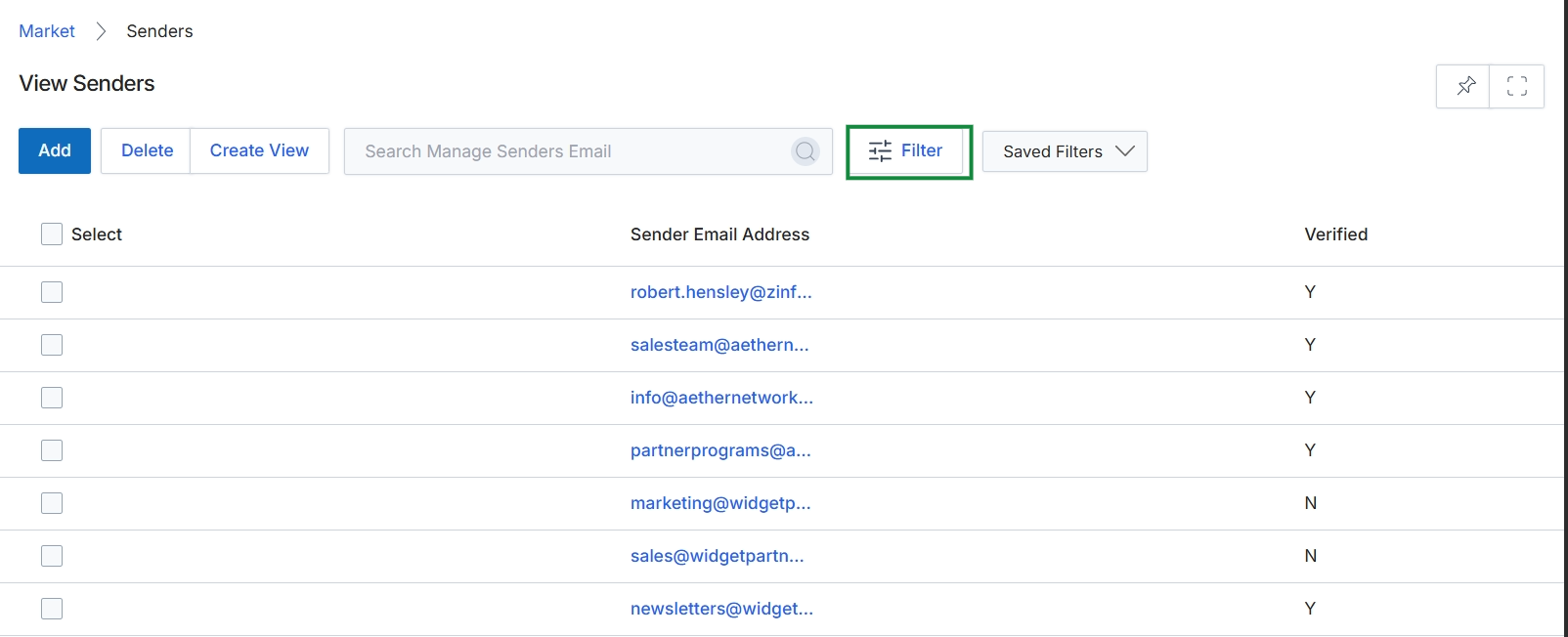
Click the Filter button.
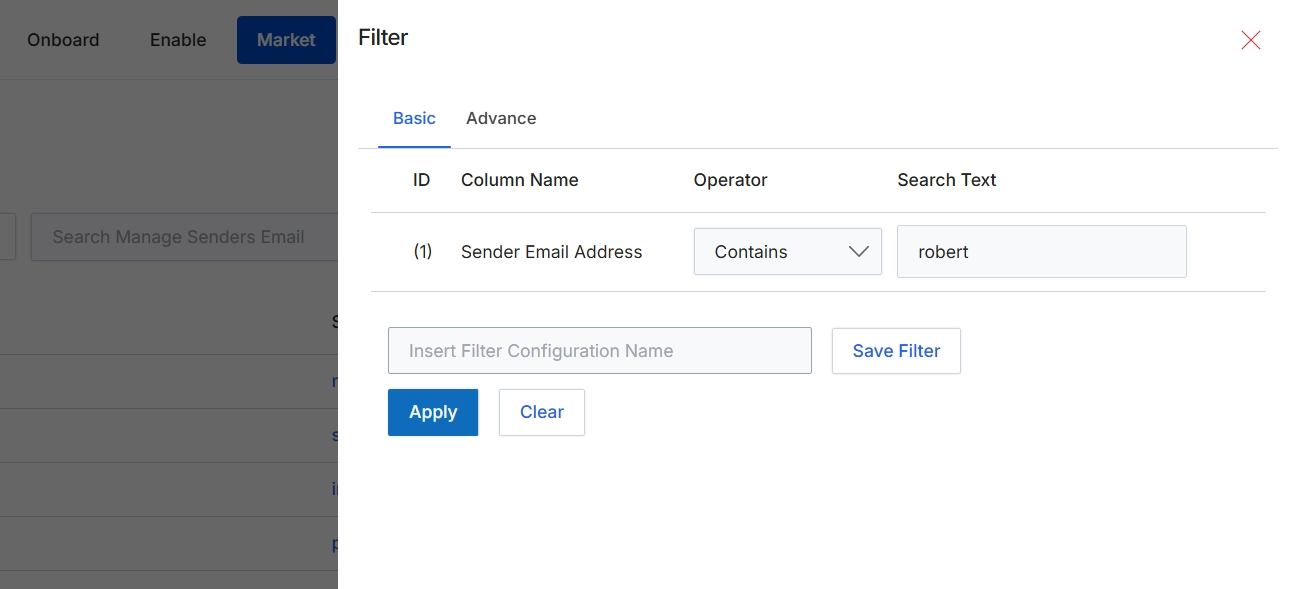
This Filter dialog allows administrators to refine the list of sender email addresses displayed in the Email Marketing Management module. Users can apply basic or advanced filtering criteria to quickly locate specific sender configurations, which is crucial for managing email campaigns and ensuring proper sender authentication. The dialog supports filtering by various attributes of the sender records, enabling efficient management of email sending identities within the platform. This helps maintain email deliverability and brand consistency by allowing quick access to specific sender details for editing or review.
Review the configured filter criteria for 'Sender Email Address' and click 'Apply' to filter the list.
Buttons
| Button | Description |
|---|---|
| Basic | Selects the basic filter configuration view, allowing simple rule creation. |
| Advance | Selects the advanced filter configuration view, typically for more complex rule sets. |
| Save Filter | Saves the current filter configuration with the specified name for later reuse. |
| Apply | Applies the configured filter criteria to the list of sender email addresses. |
| Clear | Clears all currently configured filter criteria. |
Fields
| Field | Description |
|---|---|
| Sender Email Address | The column selected for filtering, indicating that the filter will apply to the sender's email address. |
| Contains | The selected operator, indicating that the 'Sender Email Address' must contain the specified 'Search Text'. |
| robert | The text value entered to filter sender email addresses that contain 'robert'. |
| Insert Filter Configuration Name | An input field to provide a name for the current filter configuration, allowing it to be saved for future use. |
Column Headings
| Column | Description |
|---|---|
| ID | Identifies the row number for the filter criterion. |
| Column Name | Specifies the data field in the list that the filter will be applied to. |
| Operator | Defines the comparison logic (e.g., 'Contains', 'Equals', 'Starts With') for the filter. |
| Search Text | The value or keyword to search for within the selected column. |
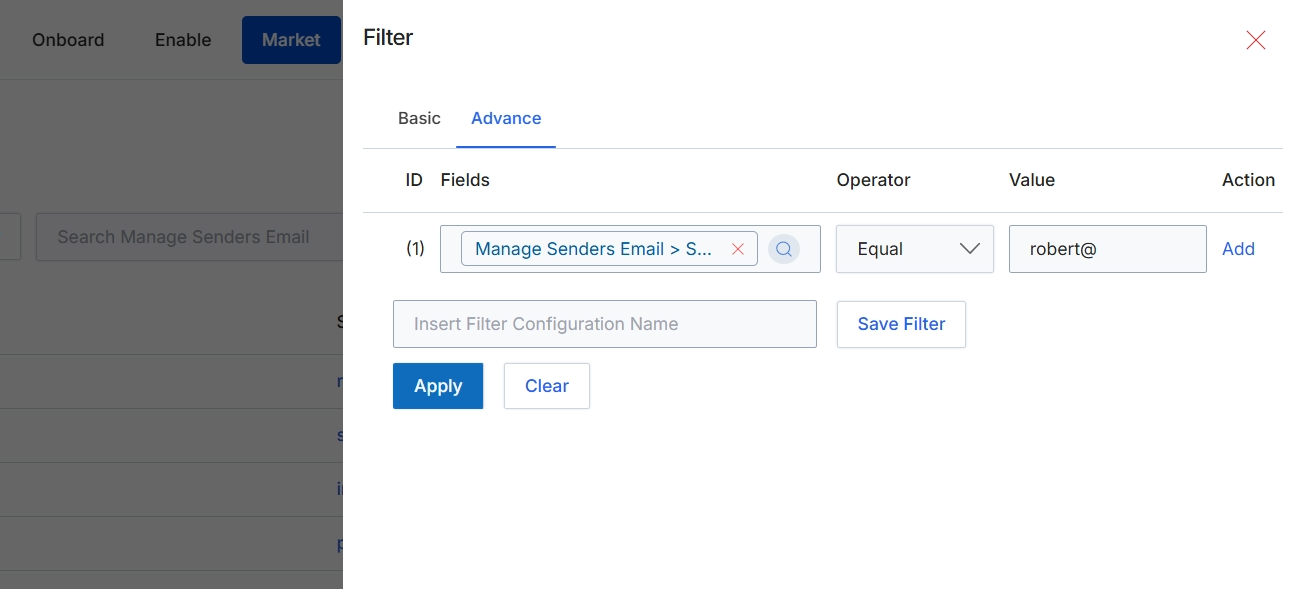
This filter panel provides advanced options for refining the list of email senders displayed in the Email Marketing Management module. Users can define specific criteria based on various fields, apply logical operators, and input values to precisely target the desired sender records. The panel supports saving frequently used filter configurations for quick access and reuse, streamlining the process of managing email sender lists. This functionality is crucial for administrators to efficiently locate, review, and manage specific sender profiles within the platform.
Configure the advanced filter by specifying the field, operator, and value for your search criteria.
Buttons
| Button | Description |
|---|---|
| Basic | Switches to the basic filter configuration options. |
| Advance | Switches to the advanced filter configuration options, allowing for more complex criteria. |
| Add | Adds a new row to define an additional filter condition. |
| Save Filter | Saves the current filter configuration under the specified name. |
| Apply | Applies the configured filter conditions to the list of email senders. |
| Clear | Clears all currently defined filter conditions. |
Fields
| Field | Description |
|---|---|
| Manage Senders Email > S... | The selected field for the filter condition, representing the sender's email address. |
| Equal | The selected operator for the filter condition, indicating an exact match is required. |
| robert@ | The value entered for the filter condition, used to match against the sender email address. |
| Insert Filter Configuration Name | Input field to provide a name for the current filter configuration to save it for future use. |
Column Headings
| Column | Description |
|---|---|
| ID | Identifies the row number for each filter condition. |
| Fields | Allows selection of the specific field to apply the filter condition against, currently set to 'Manage Senders Email > Sender Email Address'. |
| Operator | Allows selection of the logical operator for the filter condition, currently set to 'Equal'. |
| Value | Allows input of the value to match against the selected field, currently set to 'robert@'. |
| Action | Provides actions related to the filter condition, such as adding more conditions. |