

Overview
Contract templates are crucial for standardizing legal agreements with partners, ensuring consistency and compliance across the partner ecosystem. This module provides administrators with critical insights into the deployment and status of contracts derived from a particular template. By centralizing this information, administrators can efficiently monitor the progress of partner onboarding, verify that all partners are operating under the correct and current terms, and address any discrepancies.
This capability supports the overall agreement management workflow by allowing administrators to quickly assess the reach of a specific agreement, identify partners who have signed or are pending signature, and manage individual contract records. The ability to assign access to specific contract records further enhances control and ensures that relevant team members or partner groups have appropriate visibility, streamlining legal and operational processes within the partner program.
Viewing Partner Contracts Associated with a Template
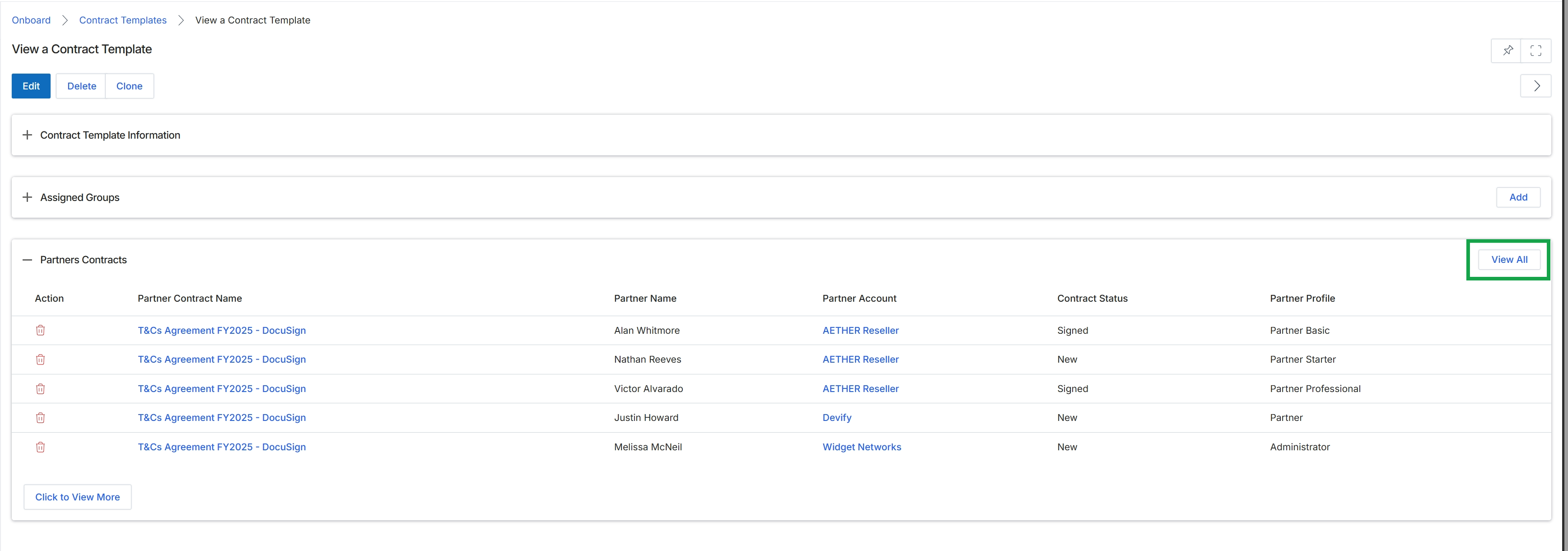
Click the View All button in the "Partners Contracts" section.
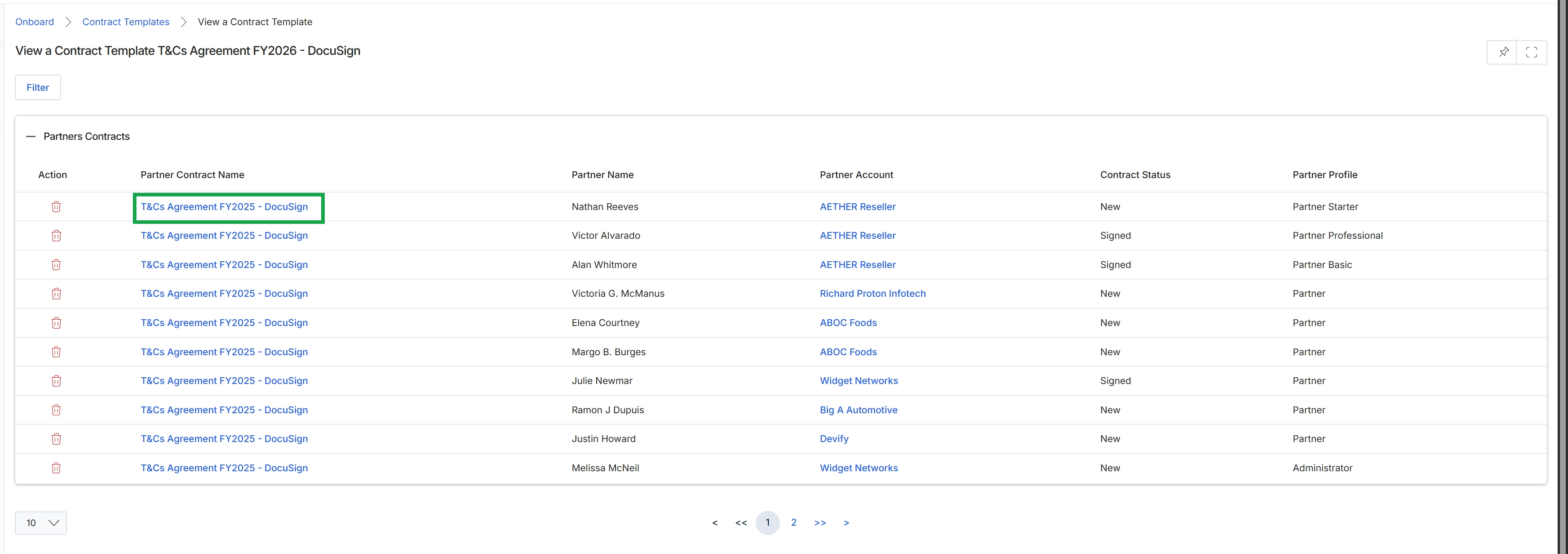
This screen displays a list of individual partner contracts that have been generated from a specific contract template, identified as "T&Cs Agreement FY2026 - DocuSign" in the header. The table provides an overview of each contract, showing the associated partner contact, the partner account, the current status of the contract (e.g., 'New' or 'Signed'), and the partner's profile type. This view allows administrators to monitor the progress of agreement signing across their partner ecosystem, which is a critical step in the onboarding journey within the Onboard module.
Managing Individual Partner Contracts
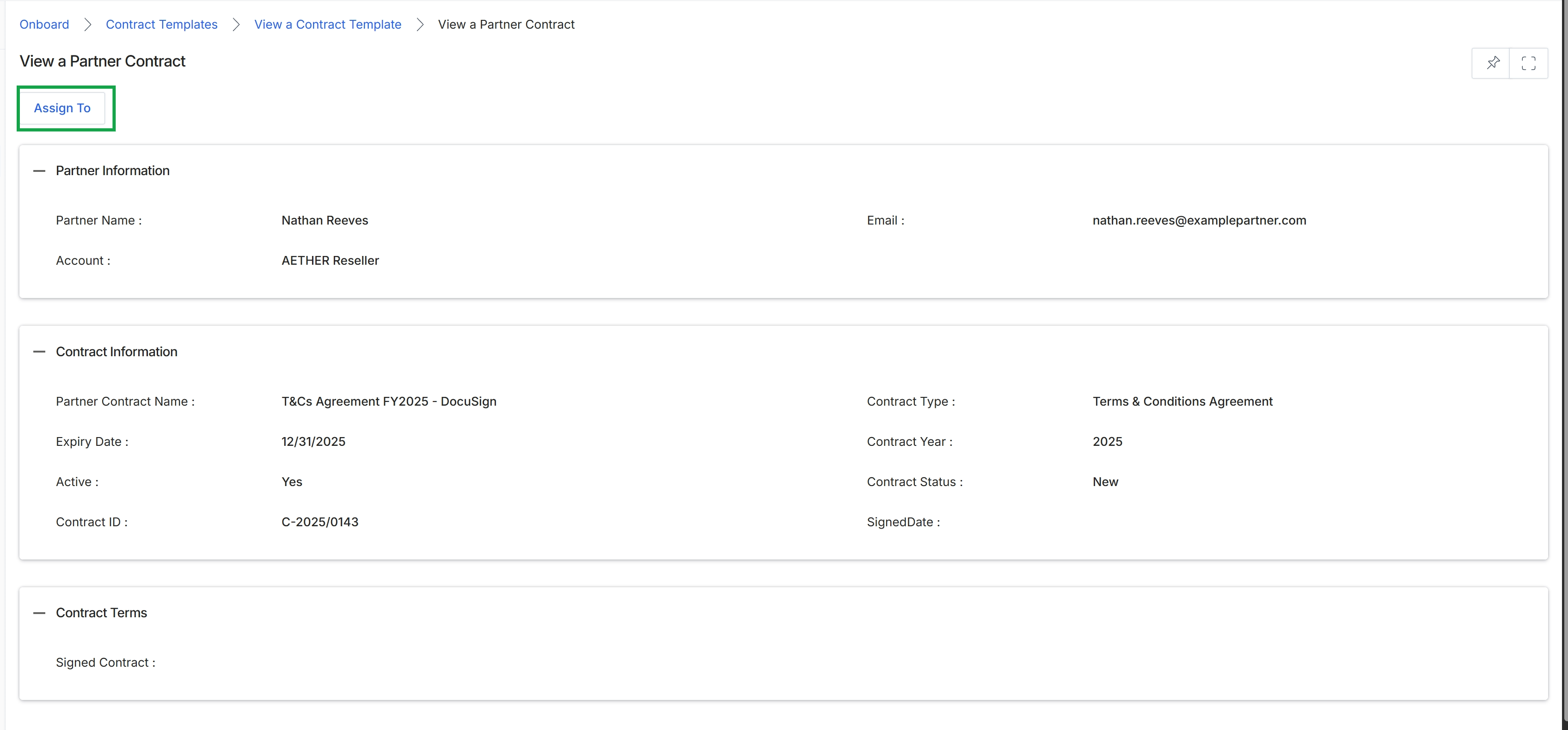
This screen displays the detailed view of a specific partner contract, providing a comprehensive overview of both the associated partner and the contract's terms and status. It serves as a central point for UPM administrators to review critical contract information, such as the partner's name and account, the contract's type, expiry date, and current status. This view is crucial for managing the agreement lifecycle, ensuring partners have valid contracts, and tracking their legal standing within the partner program. The information presented here is derived from the contract templates and the partner's application or profile data, supporting the overall Onboard module's function of managing partner agreements. Administrators can use this screen to verify contract details before assigning it to a partner.
Click the "Assign To" button to initiate the process of assigning this contract to a specific partner.
Buttons
| Button | Description |
|---|---|
| Assign To | Click this button to assign the displayed contract to a partner. |
Partner Information
| Field | Description |
|---|---|
| Partner Name | The name of the individual contact associated with the partner account for this contract. |
| The email address of the partner contact. | |
| Account | The name of the partner company account to which this contract is linked. |
Contract Information
| Field | Description |
|---|---|
| Partner Contract Name | The specific name or title of the contract, often indicating its purpose and version. |
| Contract Type | The category or classification of the contract, such as 'Terms & Conditions Agreement'. |
| Expiry Date | The date on which the contract is set to expire. |
| Contract Year | The calendar year associated with the contract's term. |
| Active | Indicates whether the contract is currently active ('Yes') or inactive. |
| Contract Status | The current status of the contract, such as 'New', 'Pending', or 'Signed'. |
| Contract ID | A unique identifier assigned to the contract. |
| SignedDate | The date when the contract was officially signed. |
Contract Terms
| Field | Description |
|---|---|
| Signed Contract | This field would typically display the signed document or a link to it, if available. |
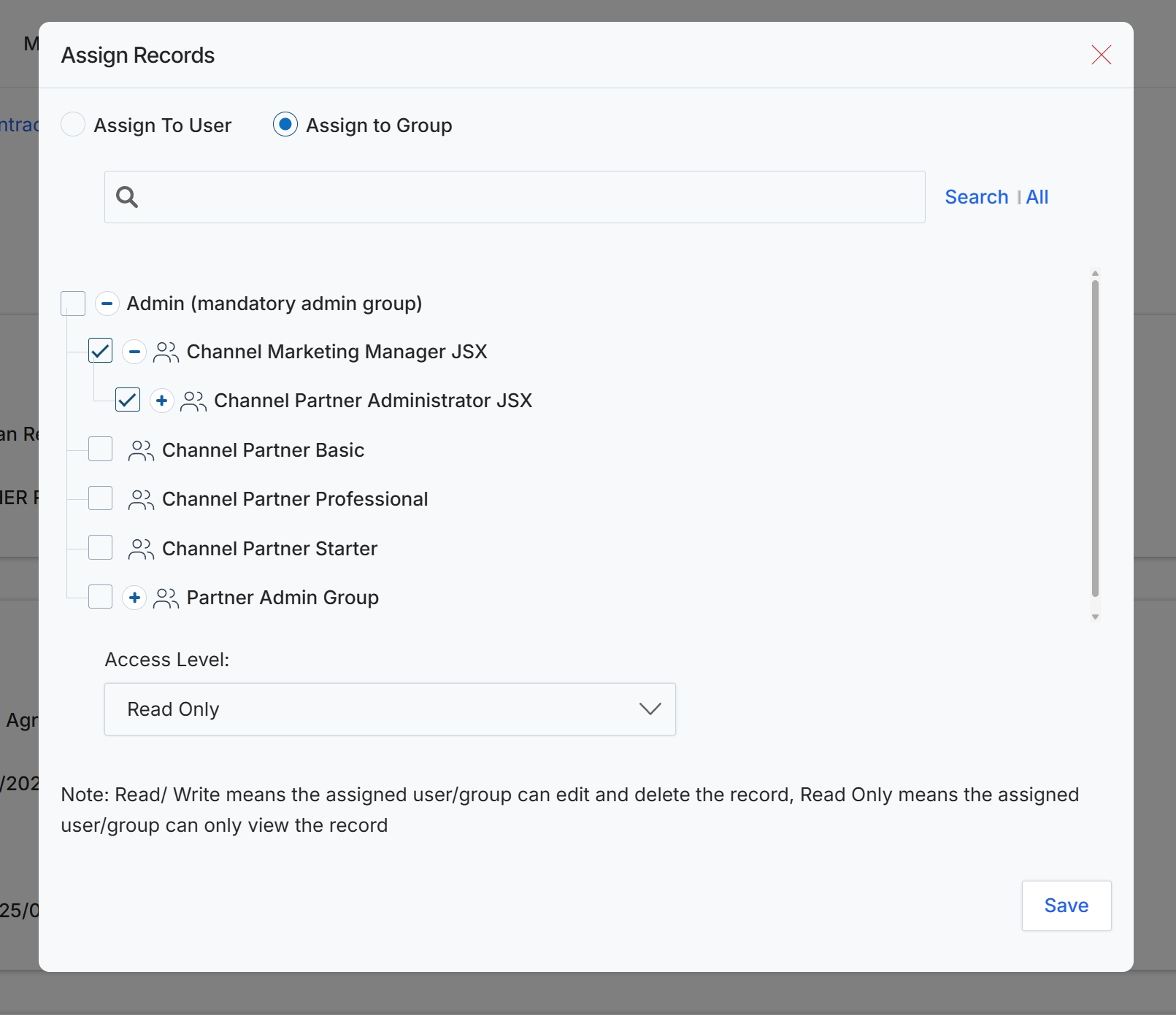
The Assign Records modal is a critical component for managing data access and security within the platform, particularly for sensitive information like contract templates or partner accounts. This modal allows administrators to precisely control which users or groups have permission to view or modify specific records. By enabling assignment to groups, the platform facilitates efficient permission management, especially in complex organizational structures with numerous users and varying access requirements. The modal also provides granular control over the access level, allowing administrators to differentiate between read-only access for viewing information and read/write access for editing and deleting records, thereby ensuring data integrity and compliance with internal policies.
Select the desired user groups and define their access level for the records.
Buttons
| Button | Description |
|---|---|
| Save | A button to save the record assignment and access level settings. |
Fields
| Field | Description |
|---|---|
| Assign To User | A radio button to select the option for assigning records to individual users. |
| Assign to Group | A radio button to select the option for assigning records to user groups. |
| Search | An input field to search for specific user groups. |
| Admin (mandatory admin group) | A checkbox to select the mandatory admin group for record assignment. |
| Channel Marketing Manager JSX | A checkbox to select the 'Channel Marketing Manager JSX' group for record assignment. |
| Channel Partner Administrator JSX | A checkbox to select the 'Channel Partner Administrator JSX' group for record assignment. |
| Channel Partner Basic | A checkbox to select the 'Channel Partner Basic' group for record assignment. |
| Channel Partner Professional | A checkbox to select the 'Channel Partner Professional' group for record assignment. |
| Channel Partner Starter | A checkbox to select the 'Channel Partner Starter' group for record assignment. |
| Partner Admin Group | A checkbox to select the 'Partner Admin Group' for record assignment. |
| Access Level | A dropdown menu to define the level of access (Read Only or Read/Write) for the selected users or groups. |
Previewing Contract Templates
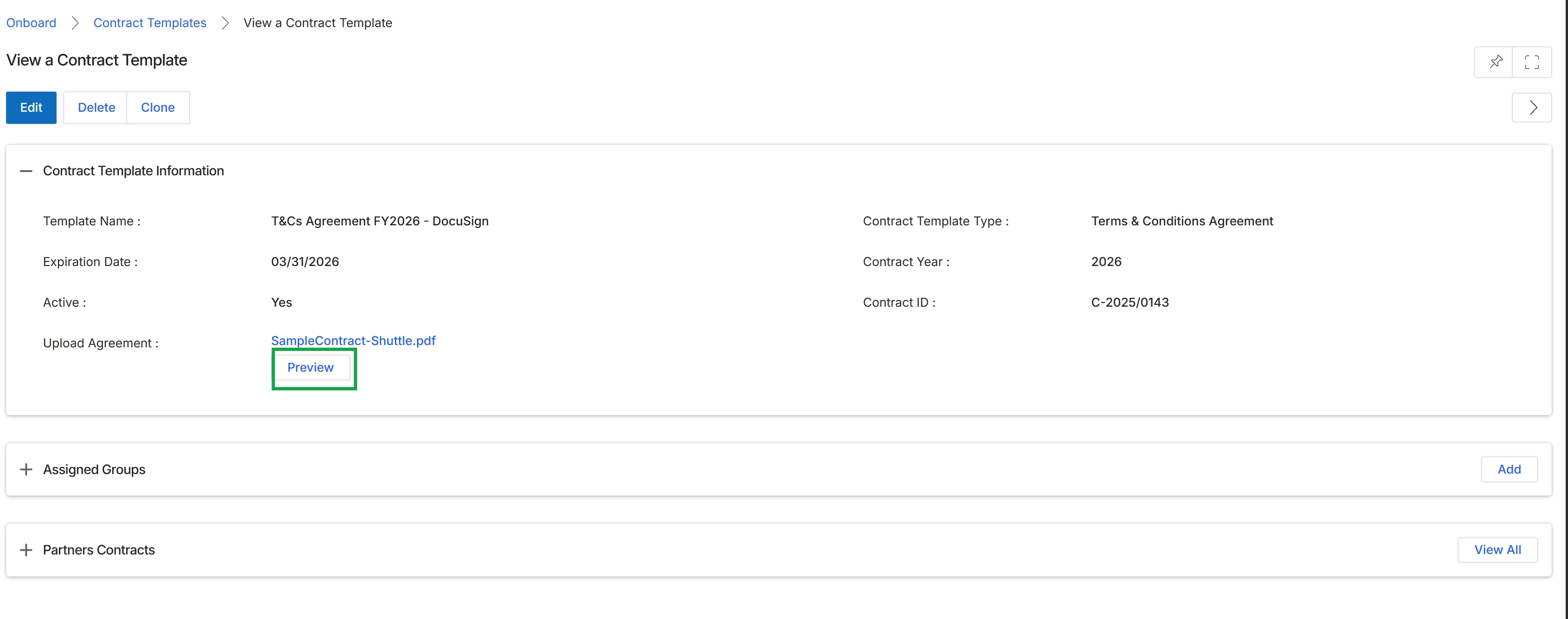
This screen displays the detailed information for a specific contract template within the Onboard module. It provides an overview of the template's properties, such as its name, expiration date, and whether it is currently active. The screen also indicates the type of agreement and its unique identifier, allowing administrators to review the template's configuration and the associated uploaded document before it is assigned to partners. This view is crucial for managing the legal agreements that partners sign during their onboarding journey.
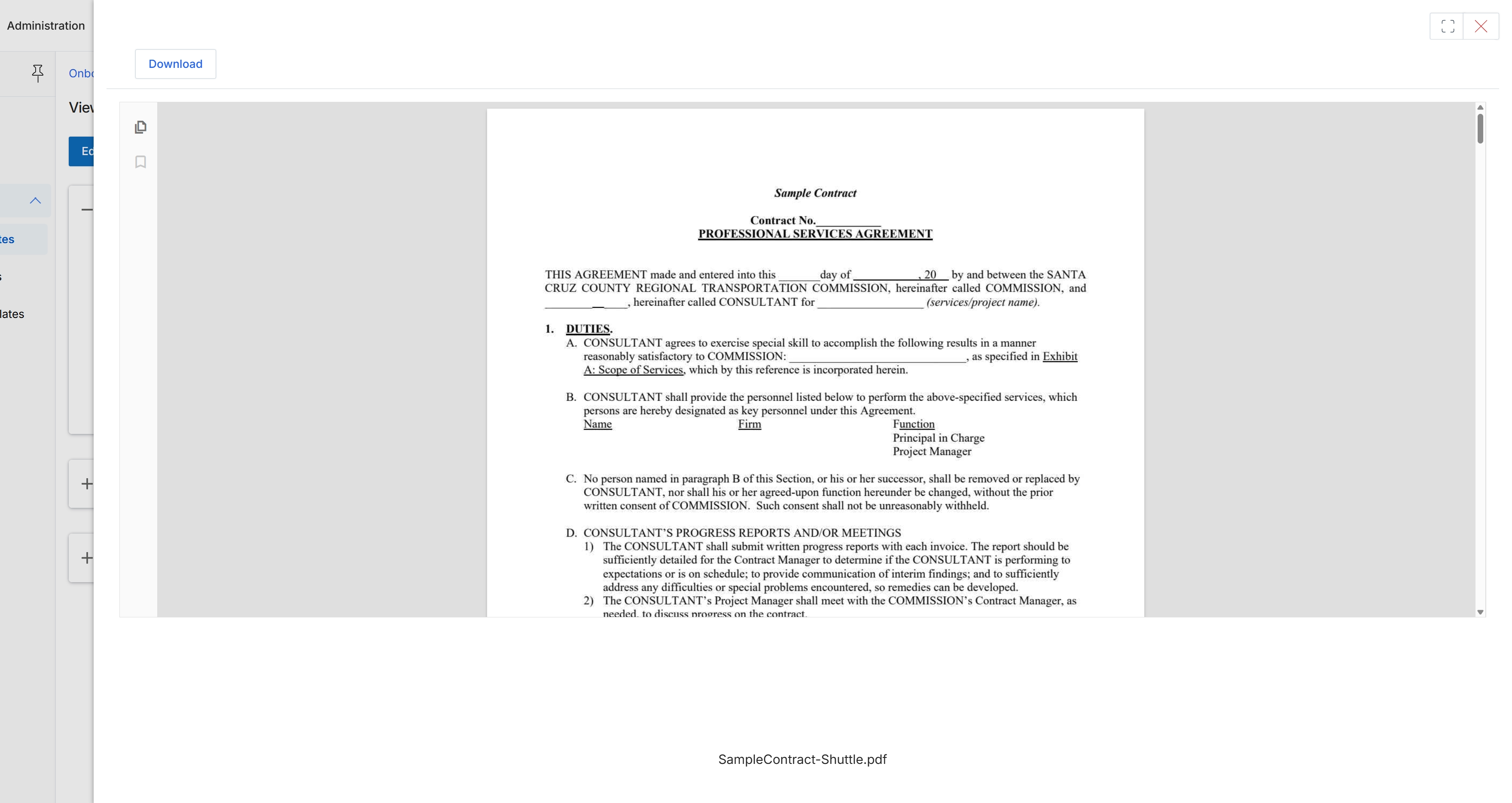
Click the Preview link to view the contract document.