

Overview
Effective management of partner contracts is crucial for maintaining compliance and ensuring smooth operations within a partner program. The platform's contract template repository can grow significantly, making it challenging to find specific agreements quickly. This filtering capability addresses that challenge by providing robust tools for administrators to search and retrieve contract templates based on various parameters.
Administrators can use these filters to, for example, quickly find all 'Terms & Conditions' agreements, identify active or inactive templates, or locate contracts from a specific year. The ability to save frequently used filter configurations further streamlines the process, allowing for rapid access to commonly needed subsets of contract templates without re-entering criteria each time.
Accessing the Filter Options
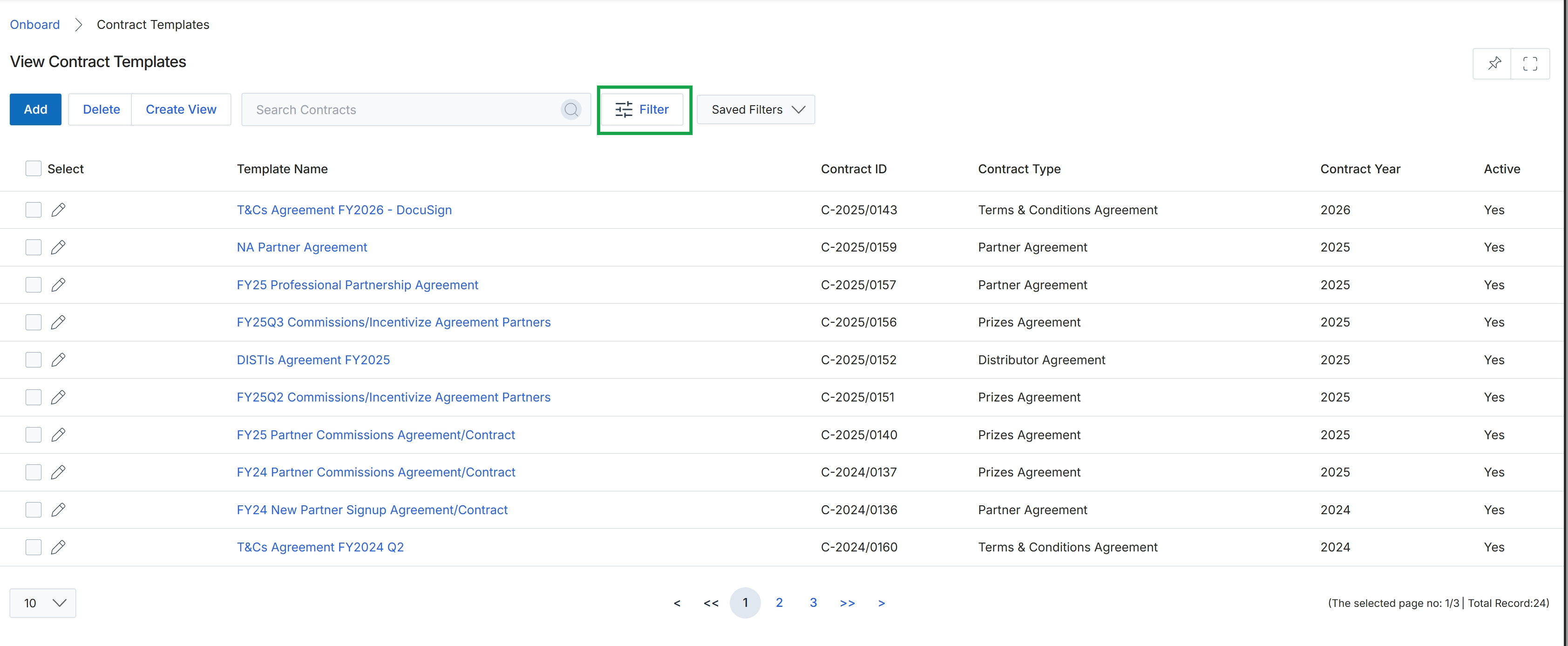
Click the Filter button.
Applying Basic Filters
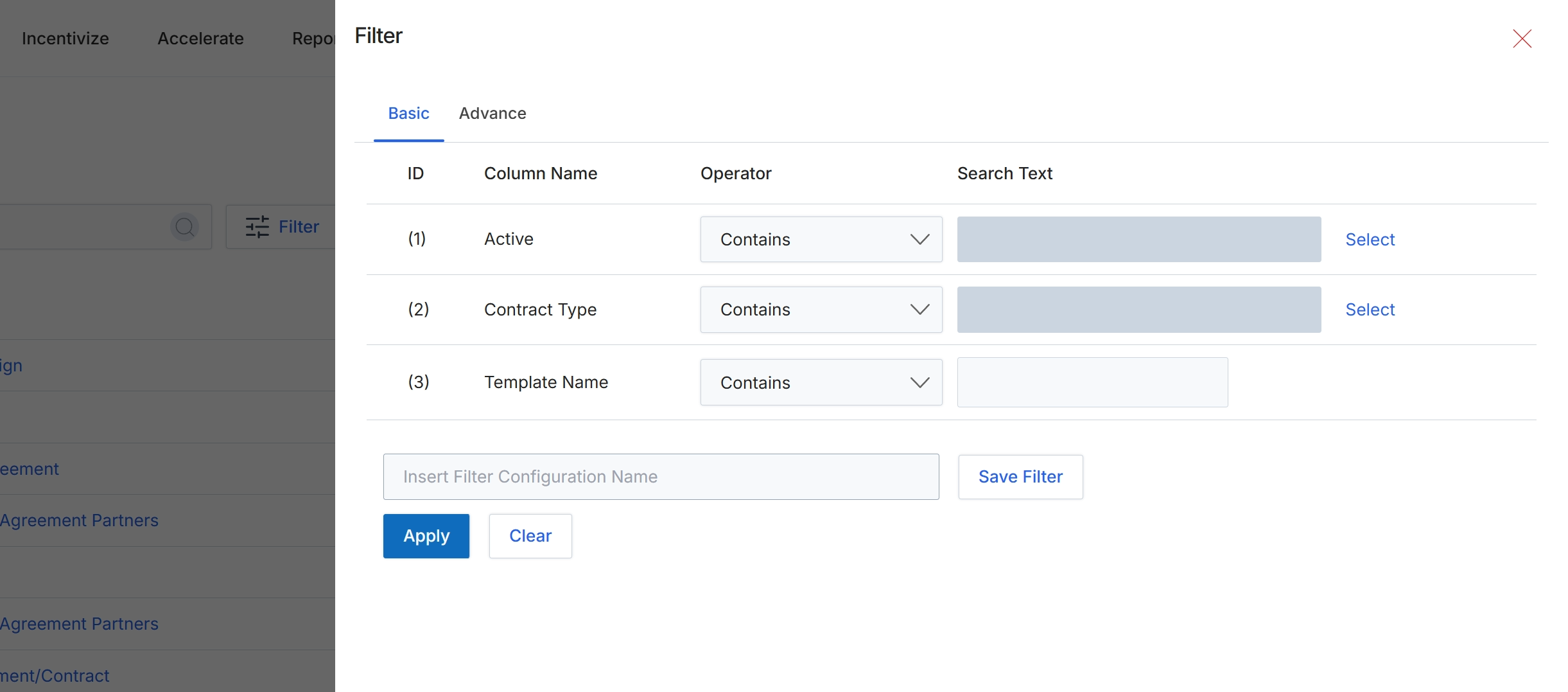
This filter panel, accessible from list views across the platform, allows users to refine the displayed data based on specific criteria. It provides both basic and advanced filtering options to help users quickly locate relevant records. The basic filter mode, shown here, enables filtering by common attributes using predefined operators and search text. Users can apply these filters to narrow down large datasets, making it easier to manage and analyze information such as partner contracts. The ability to save filter configurations streamlines future data analysis by allowing frequently used filter sets to be quickly reapplied.
Enter a name for the filter configuration in the 'Insert Filter Configuration Name' text input.
Buttons
| Button | Description |
|---|---|
| Basic | Tab to switch to the basic filter options. |
| Advance | Tab to switch to the advanced filter options. |
| Select | Button to select a specific value for the 'Active' filter. |
| Select | Button to select a specific value for the 'Contract Type' filter. |
| Save Filter | Button to save the current filter configuration under the specified name. |
| Apply | Button to apply the configured filters to the list view. |
| Clear | Button to clear all applied filter criteria. |
Fields
| Field | Description |
|---|---|
| Active | A filter criterion for the 'Active' status of a contract. |
| Contains | Dropdown to select the operator for the 'Active' filter. |
| Contract Type | A filter criterion for the type of contract. |
| Contains | Dropdown to select the operator for the 'Contract Type' filter. |
| Template Name | A filter criterion for the name of the contract template. |
| Contains | Dropdown to select the operator for the 'Template Name' filter. |
| Insert Filter Configuration Name | Text input field to provide a name for the current filter configuration to save it for future use. |
Column Headings
| Column | Description |
|---|---|
| ID | Column header for the filter row identifier. |
| Column Name | Column header for the name of the attribute being filtered. |
| Operator | Column header for the comparison operator used in the filter (e.g., Contains, Equals). |
| Search Text | Column header for the text value to search for within the specified column. |
Using Advanced Filters
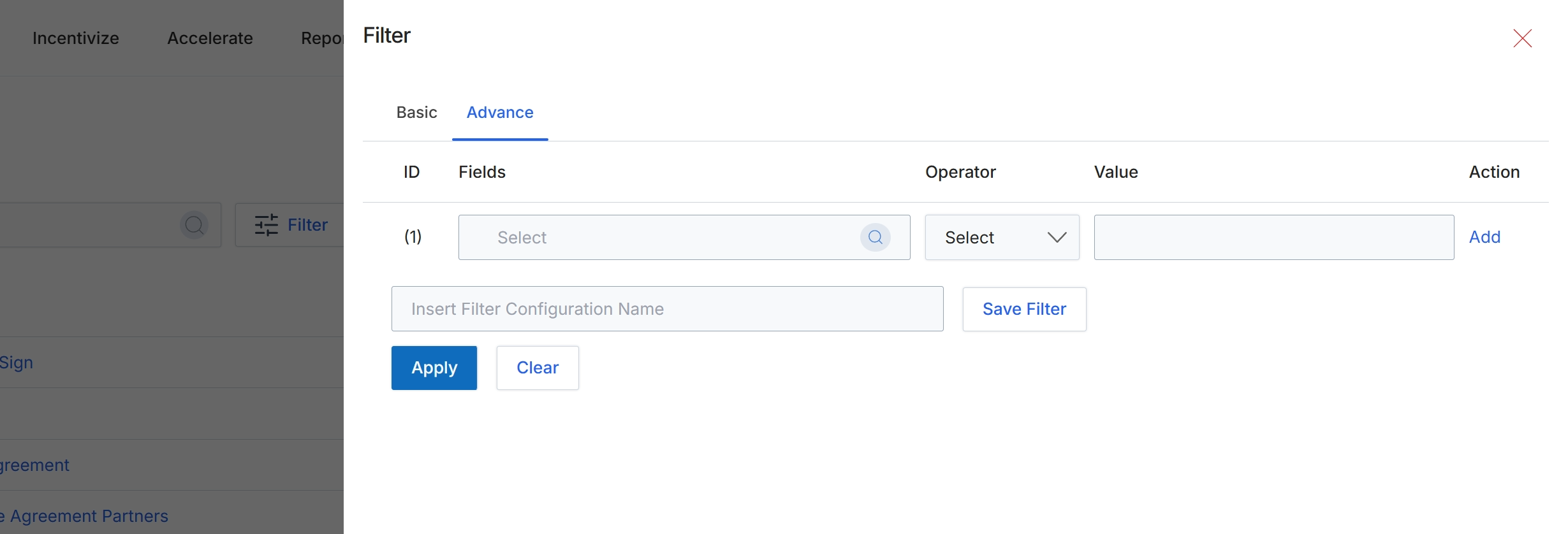
This screen displays the advanced filtering options for lists within the UPM, allowing users to construct complex queries to refine their data views. Unlike basic filters, the advanced filter provides granular control by enabling the selection of specific fields, operators, and values to create highly targeted data subsets. This functionality is crucial for administrators and managers who need to analyze specific partner segments, track performance metrics, or identify records based on multiple criteria, thereby supporting more sophisticated data analysis and operational management across various modules.
Click the "Advance" tab to access advanced filtering options.
Buttons
| Button | Description |
|---|---|
| Basic | Switches to the basic filtering options. |
| Advance | Switches to the advanced filtering options, allowing for complex query construction. |
| Add | Adds another row to define an additional filter condition. |
| Save Filter | Saves the current advanced filter configuration under the specified name. |
| Apply | Applies the configured filters to the data list. |
| Clear | Clears all defined filter conditions. |
Fields
| Field | Description |
|---|---|
| Select | Dropdown to choose the specific field for the filter condition. |
| Select | Dropdown to choose the operator for the filter condition. |
| Insert Filter Configuration Name | Text input field to provide a name for the current filter configuration to save it for future use. |
Column Headings
| Column | Description |
|---|---|
| ID | A sequential identifier for each filter row. |
| Fields | Allows selection of the data field to apply the filter to. |
| Operator | Allows selection of the comparison operator (e.g., equals, contains, greater than). |
| Value | Allows entry of the value to compare against the selected field. |