

Overview
The Co-sell Marketplace is a strategic component of the Accelerate module, designed to facilitate partner-to-partner discovery and collaboration. It enables partners to create comprehensive listings of their solutions, products, or services, which can then be browsed by other partners seeking complementary offerings for joint go-to-market initiatives. This fosters an ecosystem where partners can identify and connect with others to create bundled solutions or expand their reach.
Accessing and Managing Listings
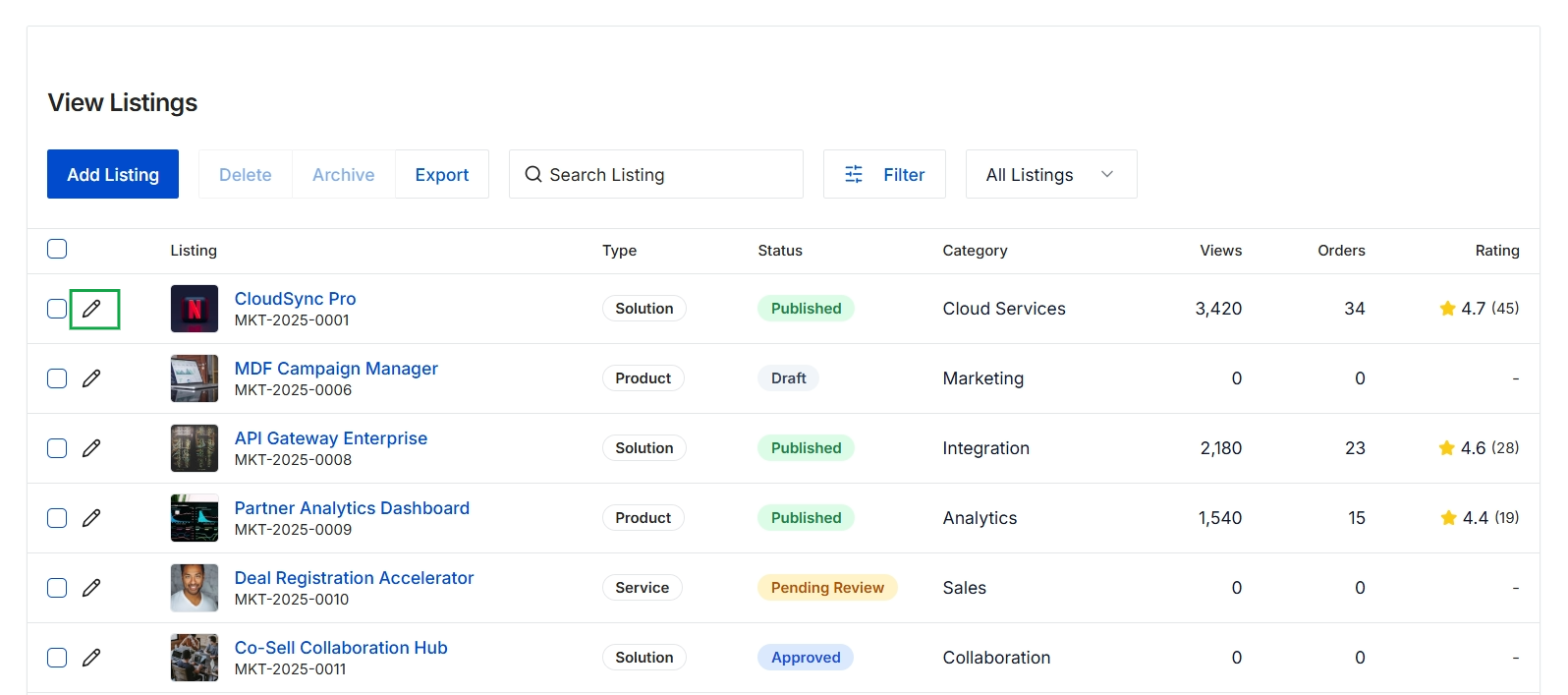
Click the pencil icon next to "CloudSync Pro" to edit the listing.
Defining Basic Listing Information
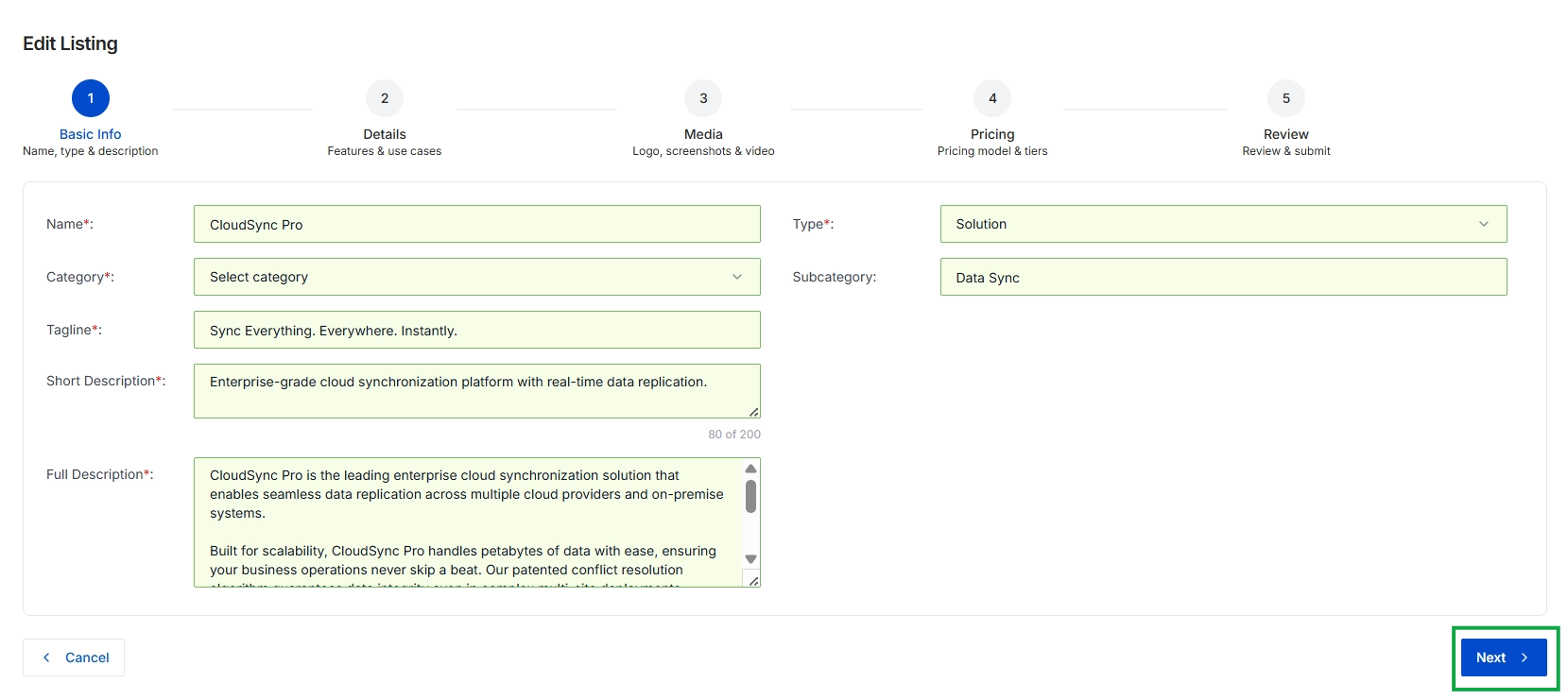
This screen is the initial step in the multi-stage process for creating or editing a Co-sell Marketplace listing within the Accelerate module. Partners utilize this form to define the fundamental information about their solution or service, which will be visible to other partners in the marketplace. The Co-sell Marketplace facilitates partner-to-partner discovery for joint go-to-market initiatives. This 'Basic Info' section captures essential details such as the listing's name, type, category, and descriptive content, laying the groundwork for a comprehensive listing that can be approved by the vendor and published for other partners to browse and connect with.
Complete the 'Basic Info' section of the Edit Listing form by providing the required details for the marketplace entry, then click 'Next' to proceed.
Buttons
| Button | Description |
|---|---|
| Cancel | Discards any changes made and exits the listing editing process. |
| Next | Saves the current basic information and proceeds to the next step in the listing creation/editing workflow. |
Fields
| Field | Description |
|---|---|
| Name* | The name of the solution or service being listed in the Co-sell Marketplace. |
| Category* | The primary category that best describes the listing, chosen from a predefined list. |
| Tagline* | A concise, impactful phrase summarizing the listing's value proposition. |
| Short Description* | A brief overview of the solution or service, limited to 200 characters, providing a quick understanding for other partners. |
| Full Description* | A comprehensive description of the solution or service, detailing its features, benefits, and capabilities for potential co-sell partners. |
| Type* | The classification of the listing, such as 'Solution' or 'Service'. |
| Subcategory | A more specific classification within the chosen category to further define the listing. |
Adding Detailed Features and Use Cases
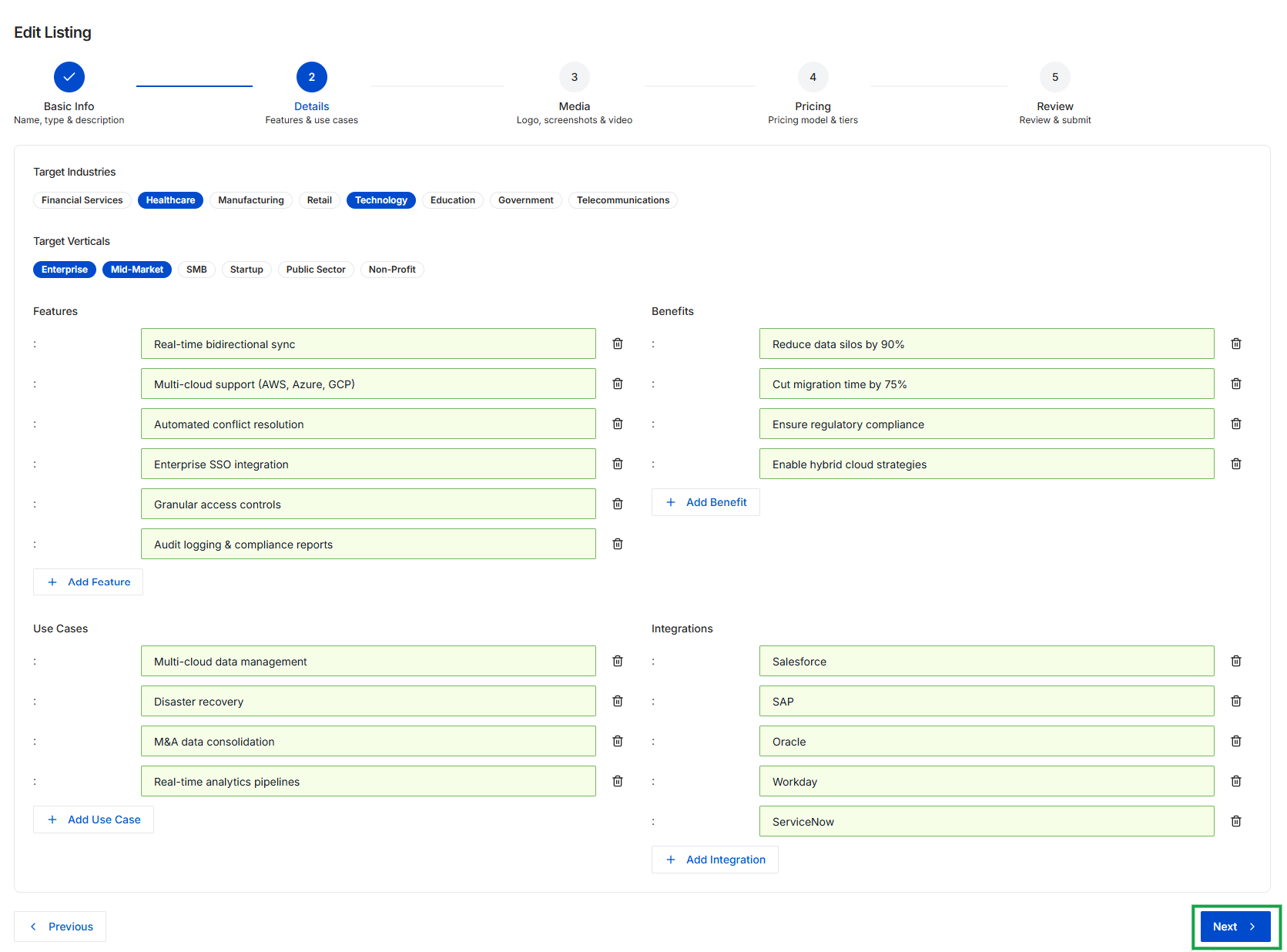
This screen, part of the multi-step process for creating or editing a Co-sell Marketplace listing, allows partners to define the specific features, benefits, use cases, and integrations of their solution. It also enables them to specify the target industries and verticals their offering addresses, helping other partners discover relevant solutions for joint go-to-market efforts. The information provided here is crucial for matching partners with complementary offerings and facilitating the formation of co-sell opportunities, as described in the Accelerate module's Co-sell Marketplace workflow. This detailed information helps ensure that the listing accurately represents the partner's capabilities and target market.
Review and update the details of the co-sell listing, including target industries, verticals, features, benefits, use cases, and integrations, then click Next to proceed.
Buttons
| Button | Description |
|---|---|
| Basic Info | The first step in the listing process, where basic information like name, type, and description are provided. This step is marked as completed. |
| Details | The current step in the listing process, focusing on features and use cases. |
| Media | The third step in the listing process, for uploading logos, screenshots, and videos. |
| Pricing | The fourth step in the listing process, for defining pricing models and tiers. |
| Review & submit | The final step in the listing process, for reviewing the complete listing and submitting it for approval. |
| Add Feature | Adds a new editable field to list an additional feature. |
| Add Benefit | Adds a new editable field to list an additional benefit. |
| Add Use Case | Adds a new editable field to list an additional use case. |
| Add Integration | Adds a new editable field to list an additional integration. |
| Previous | Navigates back to the previous step in the listing creation process. |
| Next | Proceeds to the next step in the listing creation process. |
Target Industries
| Field | Description |
|---|---|
| Financial Services | A selected target industry for the solution. |
| Healthcare | A selected target industry for the solution. |
| Manufacturing | A selected target industry for the solution. |
| Retail | A selected target industry for the solution. |
| Technology | A selected target industry for the solution. |
| Education | A selected target industry for the solution. |
| Government | A selected target industry for the solution. |
| Telecommunications | A selected target industry for the solution. |
Target Verticals
| Field | Description |
|---|---|
| Enterprise | A selected target vertical for the solution. |
| Mid-Market | A selected target vertical for the solution. |
| SMB | An unselected target vertical option for the solution. |
| Startup | An unselected target vertical option for the solution. |
| Public Sector | An unselected target vertical option for the solution. |
| Non-Profit | An unselected target vertical option for the solution. |
Features
| Field | Description |
|---|---|
| Real-time bidirectional sync | A listed feature of the solution, editable. |
| Multi-cloud support (AWS, Azure, GCP) | A listed feature of the solution, editable. |
| Automated conflict resolution | A listed feature of the solution, editable. |
| Enterprise SSO integration | A listed feature of the solution, editable. |
| Granular access controls | A listed feature of the solution, editable. |
| Audit logging & compliance reports | A listed feature of the solution, editable. |
Benefits
| Field | Description |
|---|---|
| Reduce data silos by 90% | A listed benefit of the solution, editable. |
| Cut migration time by 75% | A listed benefit of the solution, editable. |
| Ensure regulatory compliance | A listed benefit of the solution, editable. |
| Enable hybrid cloud strategies | A listed benefit of the solution, editable. |
Use Cases
| Field | Description |
|---|---|
| Multi-cloud data management | A listed use case for the solution, editable. |
| Disaster recovery | A listed use case for the solution, editable. |
| M&A data consolidation | A listed use case for the solution, editable. |
| Real-time analytics pipelines | A listed use case for the solution, editable. |
Integrations
| Field | Description |
|---|---|
| Salesforce | A listed integration for the solution, editable. |
| SAP | A listed integration for the solution, editable. |
| Oracle | A listed integration for the solution, editable. |
| Workday | A listed integration for the solution, editable. |
| ServiceNow | A listed integration for the solution, editable. |
Uploading Media and Technical Requirements
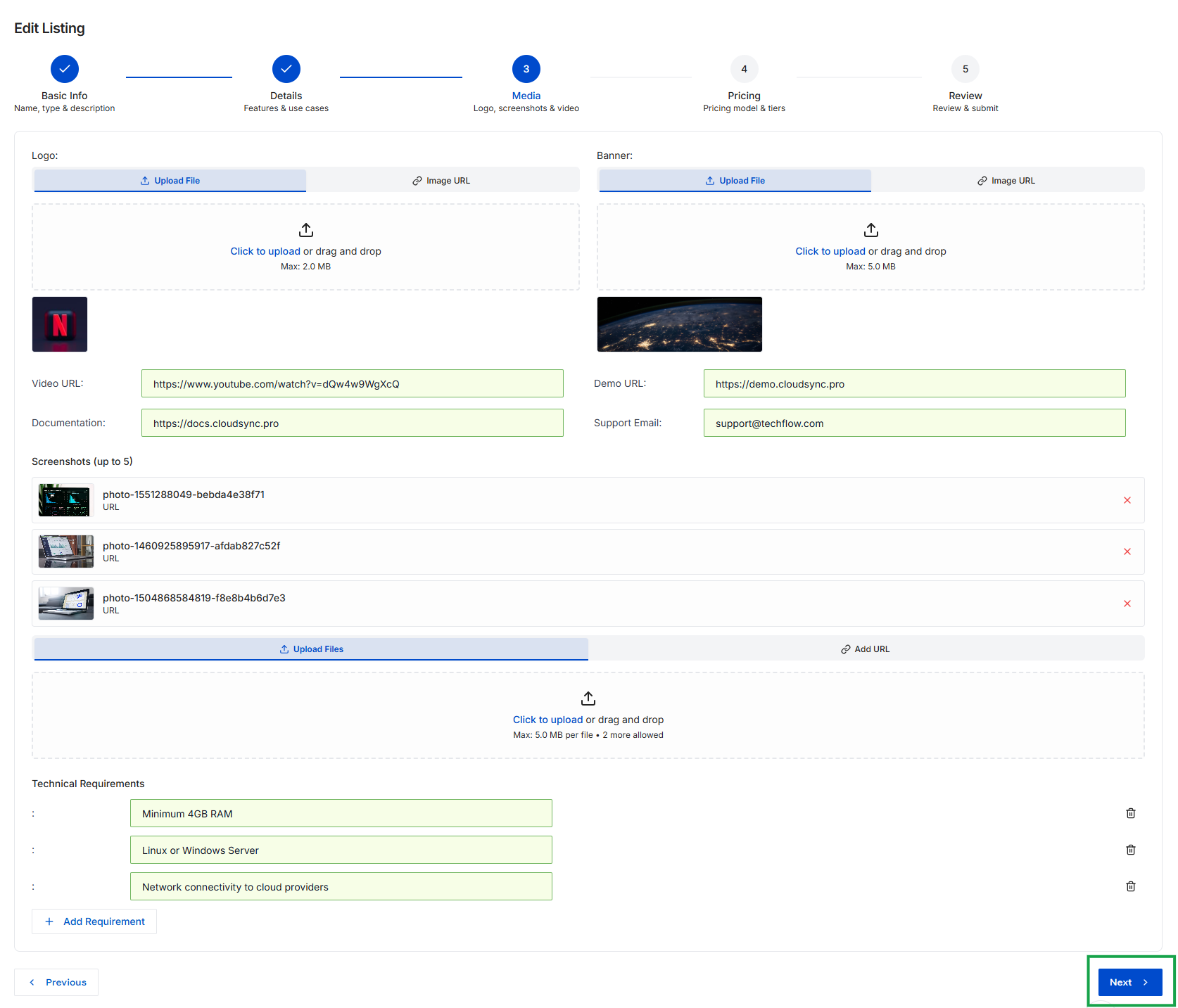
This screen is the 'Media' step (step 3 of 5) in the process of creating or editing a co-sell marketplace listing. It allows partners to enrich their marketplace presence by providing visual and multimedia assets, such as company logos, banner images, video links, documentation, and product screenshots. Additionally, it enables the listing of technical requirements for their solution, ensuring that other partners can quickly assess compatibility. These media assets and technical specifications are crucial for presenting a comprehensive and attractive listing to potential co-sell partners within the marketplace, facilitating partner-to-partner discovery and collaboration as outlined in the Accelerate module's Co-sell Marketplace workflow.
Review the media assets and technical requirements for the co-sell listing, then click Next to proceed to the Pricing step.
Buttons
| Button | Description |
|---|---|
| Upload File | Button to upload a logo file from your local system. The maximum file size allowed is 2.0 MB. |
| Image URL | Tab to switch to providing a URL for the logo image instead of uploading a file. |
| Upload File | Button to upload a banner image file from your local system. The maximum file size allowed is 5.0 MB. |
| Image URL | Tab to switch to providing a URL for the banner image instead of uploading a file. |
| Upload Files | Button to upload multiple screenshot files from your local system. Up to 5 screenshots are allowed, with a maximum of 5.0 MB per file. |
| Add URL | Button to add a screenshot by providing its URL. |
| Add Requirement | Button to add a new technical requirement field. |
| Next | Proceeds to the next step in the listing creation process, which is 'Pricing'. |
| Previous | Returns to the previous step in the listing creation process, which is 'Details'. |
Fields
| Field | Description |
|---|---|
| Video URL | Field to enter a URL for a promotional video related to the listing. |
| Demo URL | Field to enter a URL for a live demonstration or trial of the solution. |
| Documentation | Field to enter a URL pointing to detailed documentation for the solution. |
| Support Email | Field to enter an email address for support inquiries related to the listing. |
Technical Requirements
| Field | Description |
|---|---|
| Minimum 4GB RAM | A listed technical requirement for the solution. |
| Linux or Windows Server | A listed technical requirement for the solution. |
| Network connectivity to cloud providers | A listed technical requirement for the solution. |
Configuring Pricing and Co-sell Options
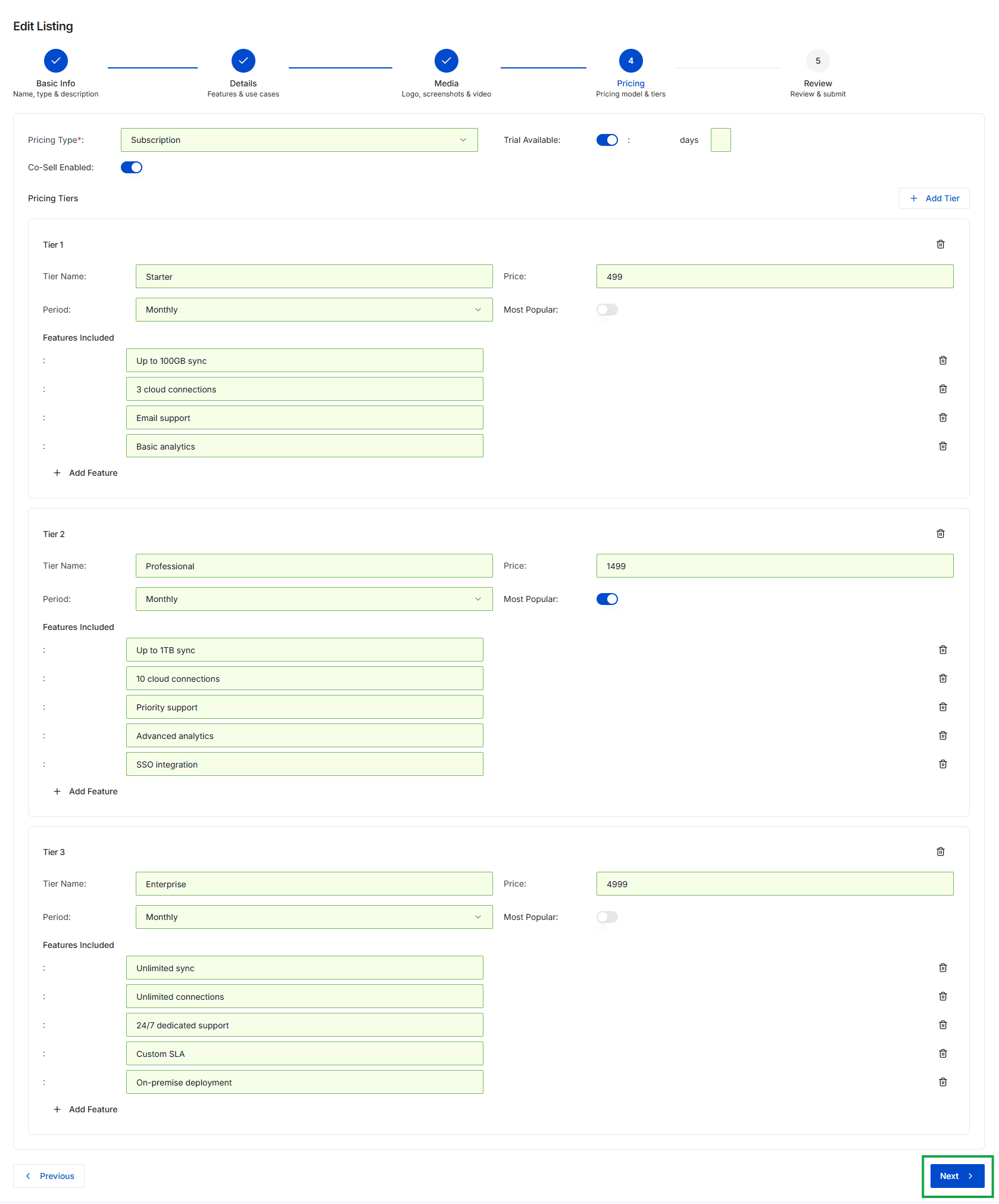
This screen is the 'Pricing' step within the 'Edit Listing' workflow for a Co-sell Marketplace listing. It enables administrators or partners to define the pricing structure and associated features for their solution offerings. Users can specify the pricing type, whether a trial is available, and configure multiple pricing tiers, each with a name, period, price, and a list of included features. This detailed pricing configuration is essential for partners to present their solutions clearly in the Co-sell Marketplace, allowing other partners to understand the value proposition and make informed decisions when seeking collaborations.
Configure the pricing model and tiers for the marketplace listing, including pricing type, trial availability, and details for each service tier.
Buttons
| Button | Description |
|---|---|
| Add Tier | Adds a new pricing tier to the listing. |
| Add Feature | Adds a new feature to the first pricing tier. |
| Add Feature | Adds a new feature to the second pricing tier. |
| Add Feature | Adds a new feature to the third pricing tier. |
| Previous | Navigates back to the previous step in the 'Edit Listing' workflow. |
| Next | Proceeds to the next step in the 'Edit Listing' workflow. |
Fields
| Field | Description |
|---|---|
| Pricing Type | Specifies the billing model for the listing, such as 'Subscription' or one-time purchase. |
| Co-Sell Enabled | A toggle to indicate whether co-selling is enabled for this listing. |
| Trial Available | A toggle to indicate if a trial period is offered for the listing. |
| days | The duration of the trial period in days, if 'Trial Available' is enabled. |
Tier 1
| Field | Description |
|---|---|
| Tier Name | The name of the first pricing tier, e.g., 'Starter'. |
| Period | The billing period for the first tier, such as 'Monthly' or 'Annually'. |
| Price | The price for the first tier. |
| Most Popular | A toggle to designate the first tier as the 'Most Popular' option. |
| Up to 100GB sync | A feature included in the first tier. |
| 3 cloud connections | A feature included in the first tier. |
| Email support | A feature included in the first tier. |
| Basic analytics | A feature included in the first tier. |
Tier 2
| Field | Description |
|---|---|
| Tier Name | The name of the second pricing tier, e.g., 'Professional'. |
| Period | The billing period for the second tier. |
| Price | The price for the second tier. |
| Most Popular | A toggle to designate the second tier as the 'Most Popular' option. |
| Up to 1TB sync | A feature included in the second tier. |
| 10 cloud connections | A feature included in the second tier. |
| Priority support | A feature included in the second tier. |
| Advanced analytics | A feature included in the second tier. |
| SSO integration | A feature included in the second tier. |
Tier 3
| Field | Description |
|---|---|
| Tier Name | The name of the third pricing tier, e.g., 'Enterprise'. |
| Period | The billing period for the third tier. |
| Price | The price for the third tier. |
| Most Popular | A toggle to designate the third tier as the 'Most Popular' option. |
| Unlimited sync | A feature included in the third tier. |
| Unlimited connections | A feature included in the third tier. |
| 24/7 dedicated support | A feature included in the third tier. |
| Custom SLA | A feature included in the third tier. |
| On-premise deployment | A feature included in the third tier. |
Reviewing and Submitting the Listing
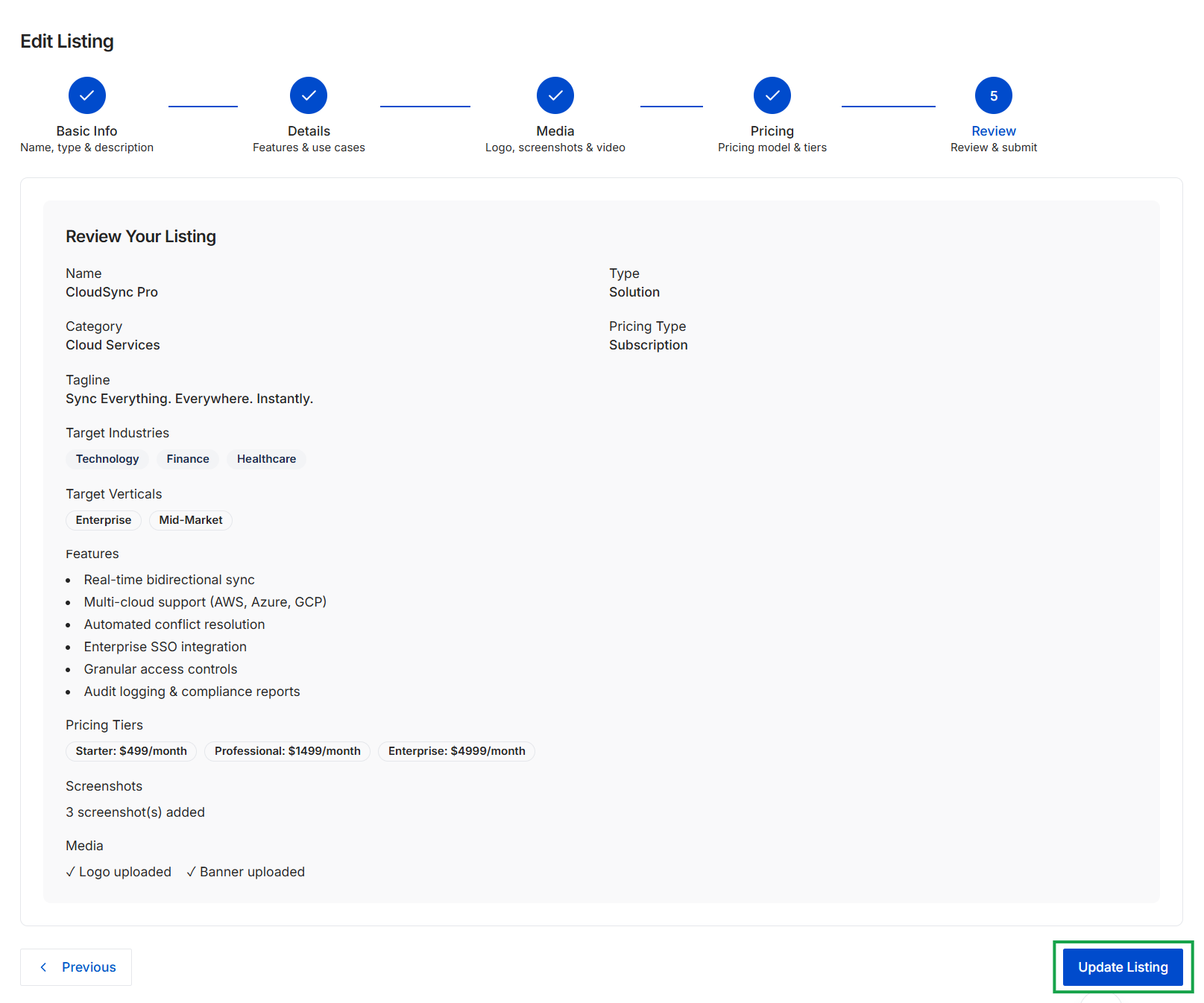
This screen represents the final 'Review & Submit' step (step 5) in the multi-stage process of editing a Co-sell Marketplace listing. It consolidates all the information entered in previous steps, such as basic details, features, media, and pricing, into a single read-only view for verification. Partners use this review stage to ensure all details are accurate before finalizing their listing for the Co-sell Marketplace. The Co-sell Marketplace allows partners to create listings that showcase their solutions, target verticals, and integration capabilities, enabling other partners to discover them for joint go-to-market initiatives. Once updated, the listing may undergo a vendor review and approval process before becoming visible to other partners.
Click 'Update Listing' to save the changes to your Co-sell Marketplace listing.
Buttons
| Button | Description |
|---|---|
| Previous | Navigates back to the previous step in the listing creation process. |
| Update Listing | Finalizes and saves all changes made to the co-sell marketplace listing. |
Review Your Listing
| Field | Description |
|---|---|
| Name | The name of the co-sell solution or offering. |
| Category | The category under which the solution is classified. |
| Tagline | A brief, descriptive phrase summarizing the solution. |
| Target Industries | The industries that the co-sell solution targets. |
| Target Verticals | The specific market segments or verticals the solution is aimed at. |
| Features | A list of key features and capabilities of the co-sell solution. |
| Pricing Tiers | The different pricing levels and their associated costs for the solution. |
| Screenshots | Indicates the number of screenshots uploaded for the listing. |
| Media | Confirms whether a logo and banner image have been uploaded for the listing. |
| Type | The general type of offering, such as 'Solution'. |
| Pricing Type | The model used for pricing the solution, such as 'Subscription'. |