

Overview
Price books are fundamental to the Sell module, enabling vendors to define and manage the pricing of products and services offered through their partner ecosystem. By creating multiple price books, administrators can tailor pricing strategies for different partner types, tiers, or even specific regions, ensuring flexibility and competitiveness. This granular control over pricing directly impacts how partners generate quotes and how commissions are calculated, making it a critical component for accurate financial operations and partner incentivization.
Each price book can be designated as a 'Standard Price Book' and configured with a specific currency, providing a foundational pricing structure. The ability to activate or deactivate price books allows administrators to control their availability to partners, ensuring that only relevant and current pricing is used in sales processes. This setup streamlines the quoting process for partners and ensures consistency in pricing across the entire partner network.
Accessing and Viewing Price Books
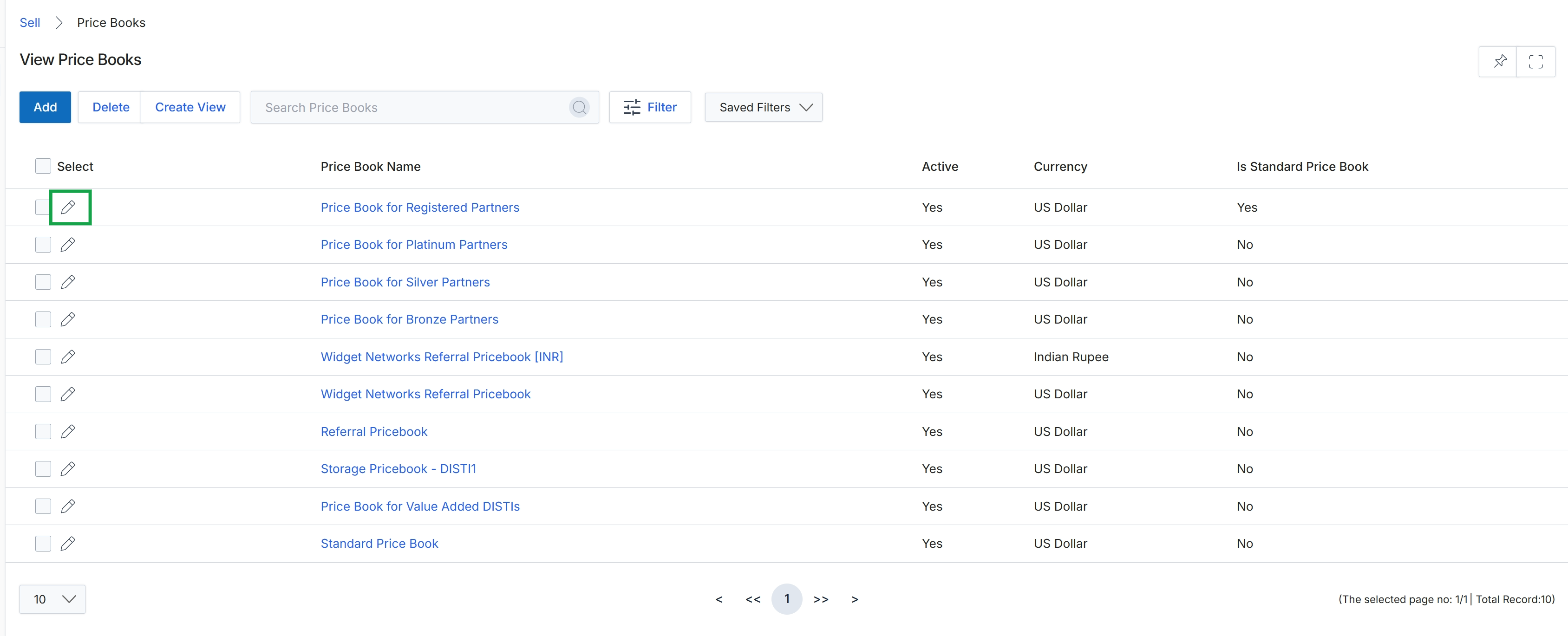
Click the pencil icon next to the desired price book to edit it.
Adding or Editing a Price Book
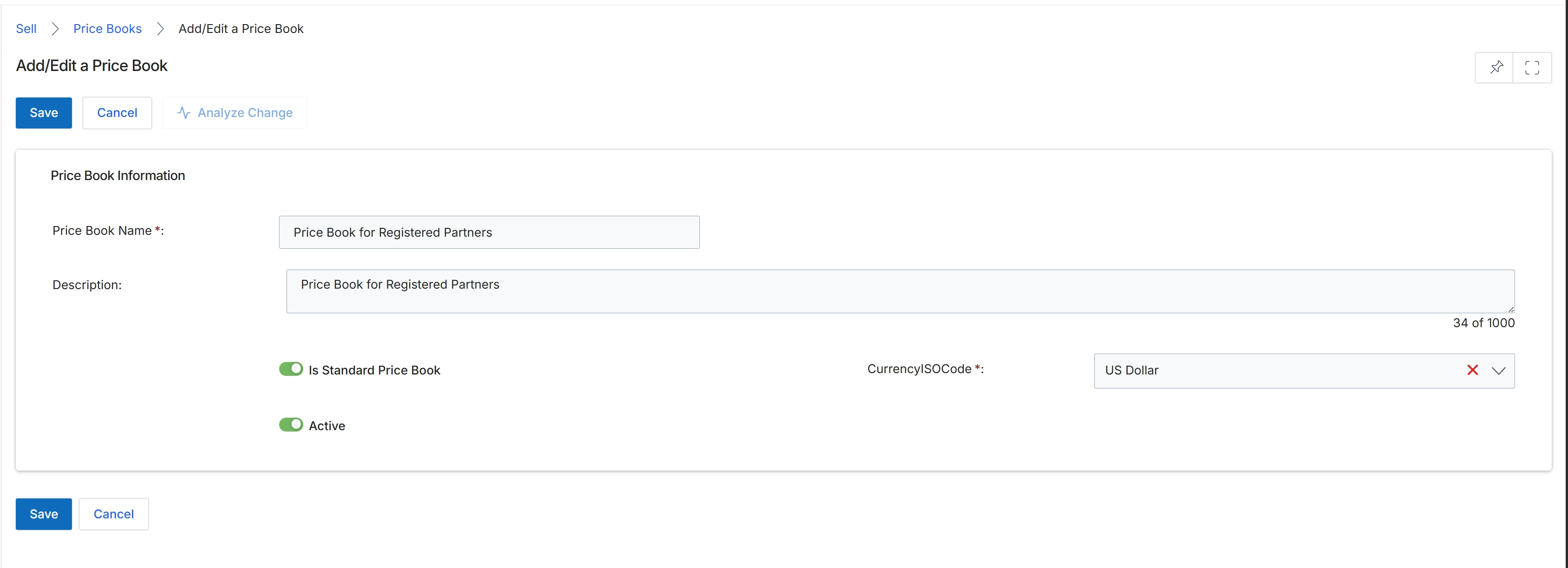
The Add/Edit a Price Book form allows administrators to define and manage price books, which are essential for quoting and order management within the Sell module. Price books contain product listings and their associated pricing, which can vary based on partner tiers. This screen enables the creation of new price books or the modification of existing ones, ensuring that partners have access to the correct pricing for products when generating quotes. The form captures key identifying information for the price book, its currency, and its active status, which determines its availability for use in the platform.
Fill in the required details for the new price book in the 'Price Book Information' section.
Buttons
| Button | Description |
|---|---|
| Save | Saves the current price book information. |
| Cancel | Discards any changes and returns to the previous screen. |
| Analyze Change | Analyzes the impact of changes made to the price book. |
Price Book Information
| Field | Description |
|---|---|
| Price Book Name * | Enter a unique name for the price book. This is a required field. |
| Description | Provide a brief description for the price book. |
| Is Standard Price Book | Toggle to indicate if this is the default or standard price book. |
| Active | Toggle to activate or deactivate the price book, controlling its availability for use. |
| CurrencyISOCode * | Select the ISO currency code for the price book. This is a required field. |