

Overview
The Gross to Net feature within the Products Catalog Management section of the Sell module is crucial for maintaining transparency and accuracy in product pricing and profitability. It allows administrators to meticulously define and track all elements that transform the Manufacturer's Suggested Retail Price (MSRP) into the actual net revenue received by the Original Equipment Manufacturer (OEM). This includes various commission structures for distributors and partners, as well as any customer-specific discounts applied. By providing a clear breakdown of these financial components, the platform ensures that all stakeholders, particularly partners, have a consistent understanding of how their commissions are derived and how product pricing impacts overall profitability. This detailed financial visibility supports strategic pricing decisions, facilitates accurate commission payouts, and helps in managing the financial health of the partner ecosystem.
Accessing and Viewing Gross to Net Data
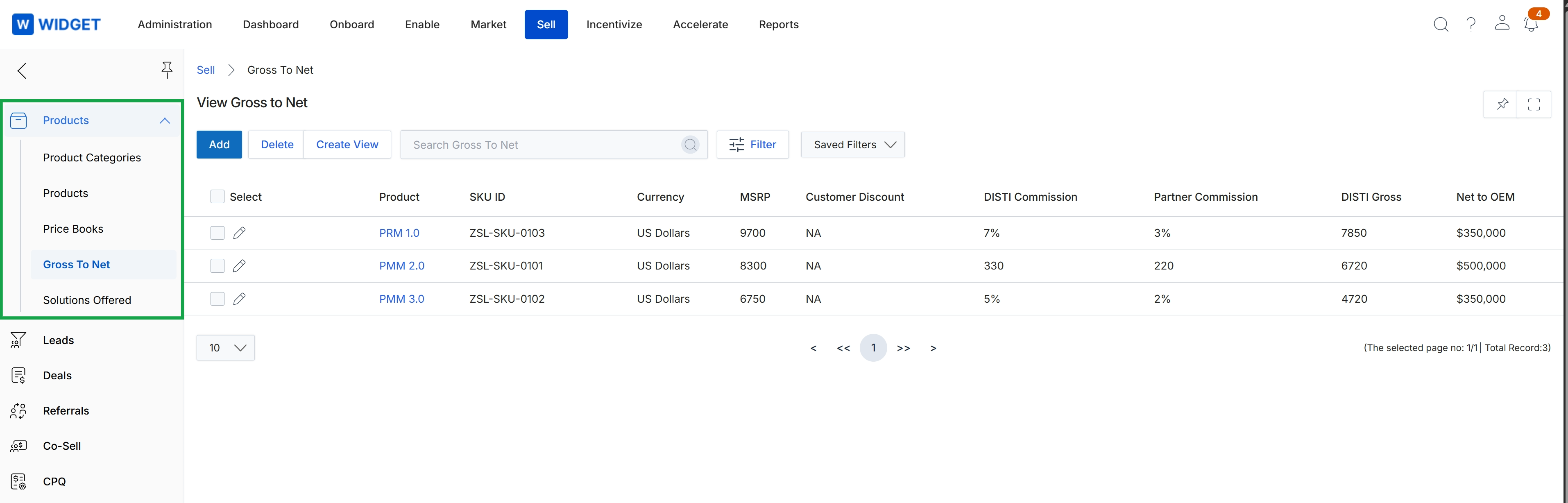
Click Sell in the top navigation bar, then click Gross To Net in the left navigation panel.
Creating Custom Views
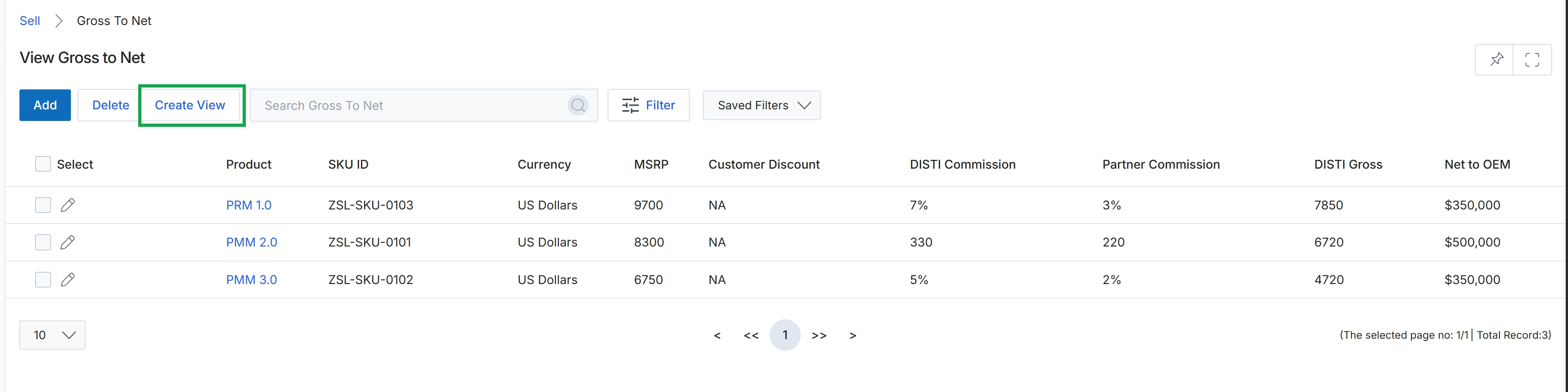
Click Create View.
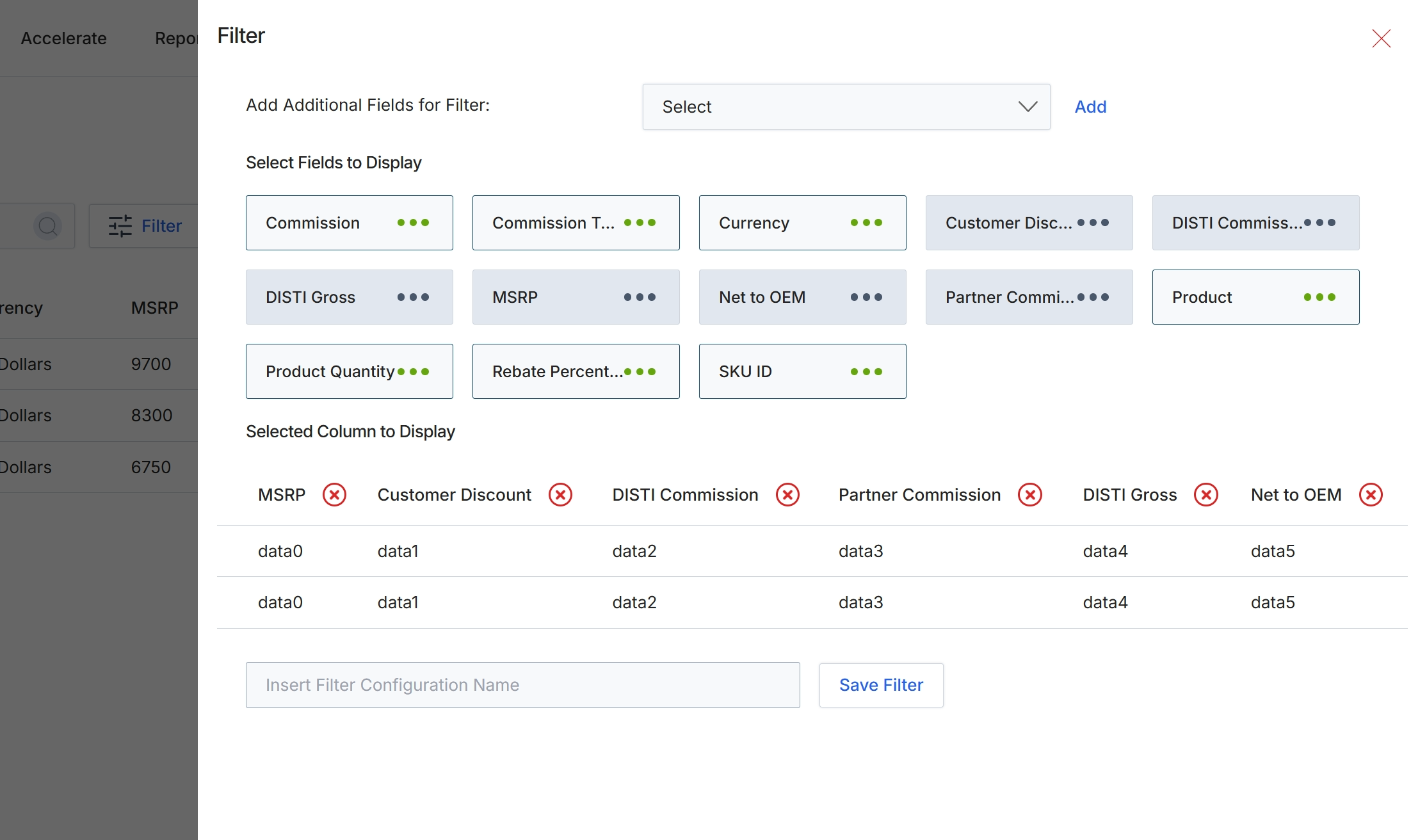
This Filter dialog provides administrators with granular control over the data displayed in a list view, allowing them to customize which fields appear as columns and to apply specific filter criteria. It serves to refine the visible information, enabling users to focus on relevant data points for analysis or reporting within the Products Catalog Management module. Administrators can add new fields to the display, remove existing ones, and save their custom filter configurations for future use, thereby enhancing the flexibility and usability of data presentation. The dialog visually separates fields available for display from those currently selected, and also allows for the creation of named filter presets.
Toggle the buttons in the 'Select Fields to Display' section to include or exclude specific fields as columns in the list view.
Buttons
| Button | Description |
|---|---|
| Add | A button to add the selected field from the 'Select' dropdown to the 'Selected Column to Display' section. |
| Save Filter | A button to save the current filter configuration under the specified name. |
Add Additional Fields for Filter:
| Field | Description |
|---|---|
| Select | A dropdown menu to select additional fields that can be added to the filter options. |
Fields
| Field | Description |
|---|---|
| Insert Filter Configuration Name | A text input field to enter a name for the custom filter configuration. |
Filtering Gross to Net Data
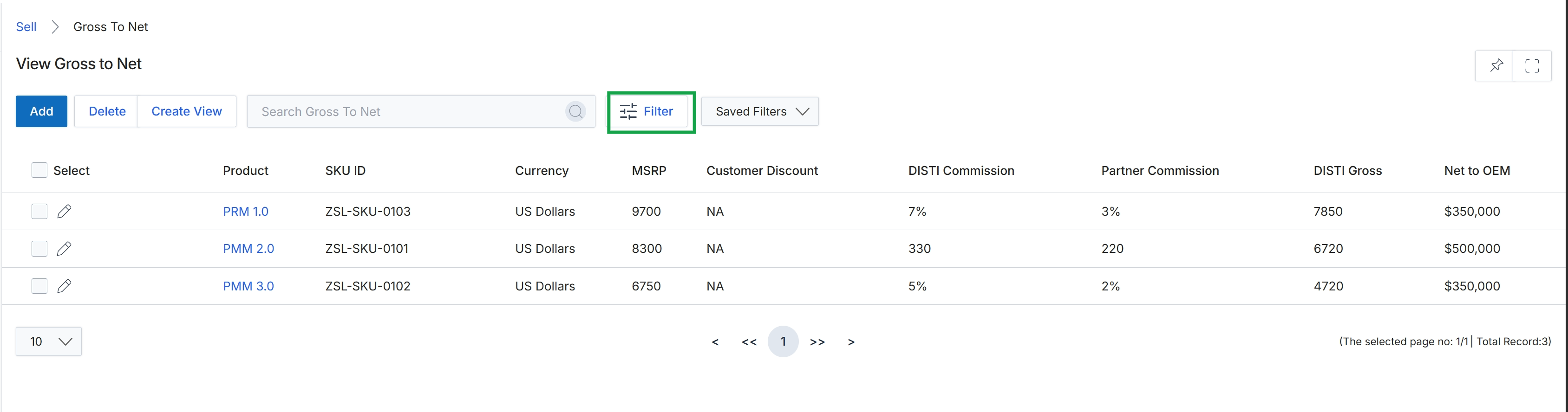
Click the Filter button.
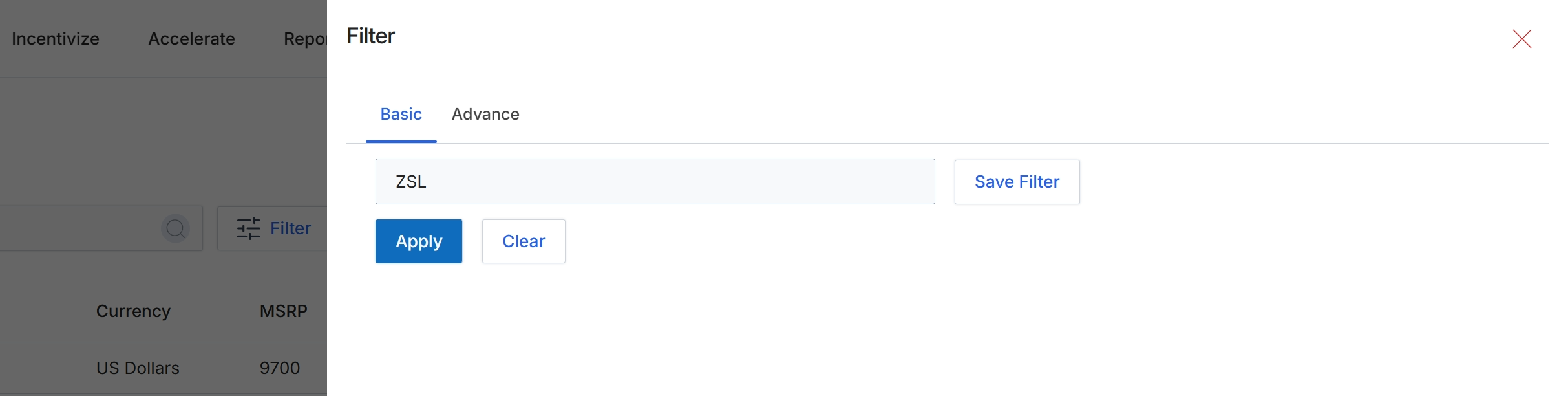
This filter dialog provides users with options to refine the displayed list of items by applying specific criteria. It offers both basic and advanced filtering capabilities, enabling users to quickly locate relevant data within large datasets. By entering values into the filter fields and applying them, users can narrow down the results to focus on specific attributes, which enhances efficiency in data analysis and management. The ability to save filters also allows for quick re-application of frequently used search parameters, streamlining repetitive filtering tasks.
Enter the desired criteria into the ZSL field to filter the list.
Buttons
| Button | Description |
|---|---|
| Basic | Selects the basic filtering options, providing a simplified set of filter fields. |
| Advance | Selects the advanced filtering options, offering more detailed and complex filtering criteria. |
| Save Filter | Saves the current filter settings for future use, allowing quick re-application of frequently used search parameters. |
| Apply | Applies the entered filter criteria to the list, updating the displayed results. |
| Clear | Clears all entered filter criteria, resetting the filter to its default state. |
Fields
| Field | Description |
|---|---|
| ZSL | A text input field where users can enter specific criteria for filtering, such as product codes, names, or other identifiers. |
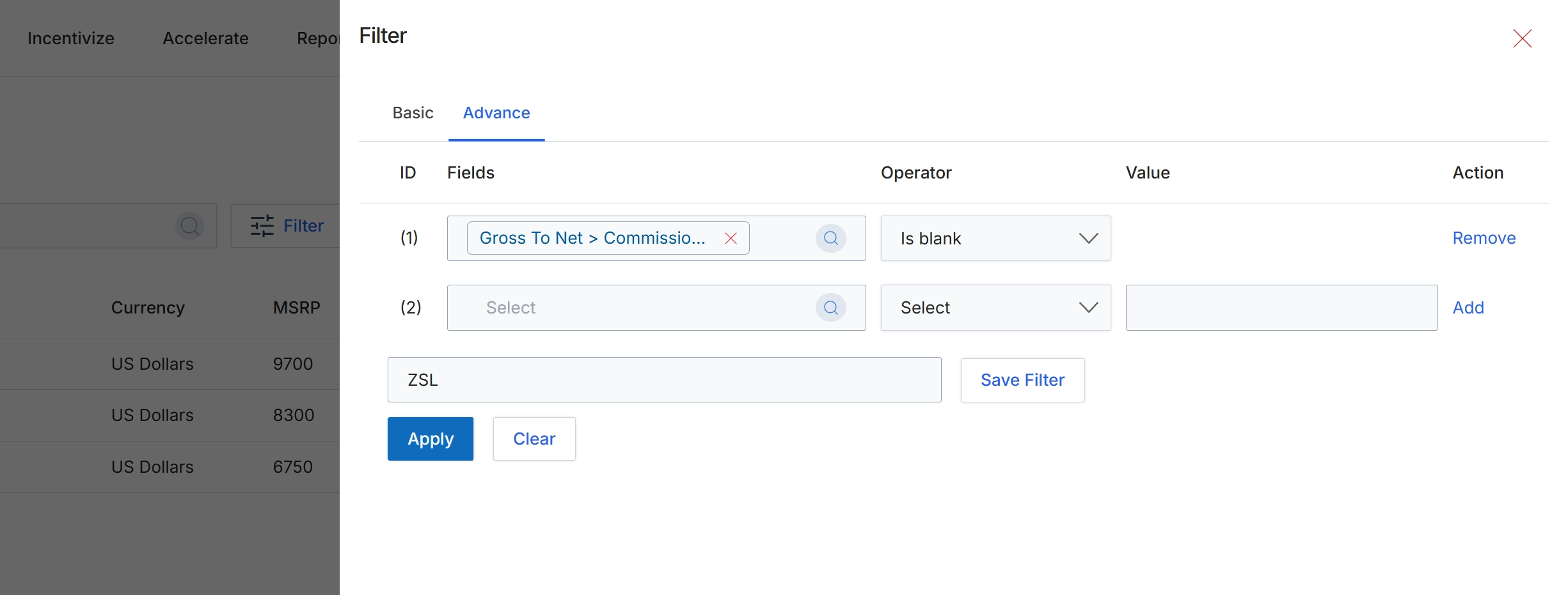
This filter dialog allows users to refine the displayed list of items by applying specific criteria to various fields. It supports both basic and advanced filtering options, enabling precise data segmentation. Users can define multiple filter conditions, specifying the field to filter by, the operator to use (e.g., 'Is blank', 'Equals', 'Contains'), and the corresponding value. This functionality is crucial for managing large datasets, allowing administrators to quickly locate specific records, analyze subsets of data, or prepare targeted reports based on complex criteria. The ability to save filters streamlines repetitive tasks and ensures consistency in data analysis.
Click the 'Apply' button to filter the list of items based on the selected criteria.
Buttons
| Button | Description |
|---|---|
| Basic | Tab to switch to basic filtering options. |
| Advance | Tab to switch to advanced filtering options, allowing multiple conditions. |
| Remove | Link to remove the first filter condition. |
| Add | Link to add a new filter condition. |
| Save Filter | Button to save the currently configured filter for future use. |
| Apply | Button to apply the current filter conditions to the data. |
| Clear | Button to clear all filter conditions. |
Fields
| Field | Description |
|---|---|
| Gross To Net > Commissio... | The selected field for the first filter condition, indicating a commission-related field within the Gross To Net category. |
| Is blank | The selected operator for the first filter condition, used to find records where the selected field has no value. |
| Select | Dropdown to select a field for the second filter condition. |
| Select | Dropdown to select an operator for the second filter condition. |
| ZSL | Input field for the name of the filter to be saved. |
Column Headings
| Column | Description |
|---|---|
| ID | Column header for the filter condition identifier. |
| Fields | Column header for the field selection dropdown. |
| Operator | Column header for the operator selection dropdown. |
| Value | Column header for the value input field. |
| Action | Column header for actions related to each filter condition. |
Editing Gross to Net Information
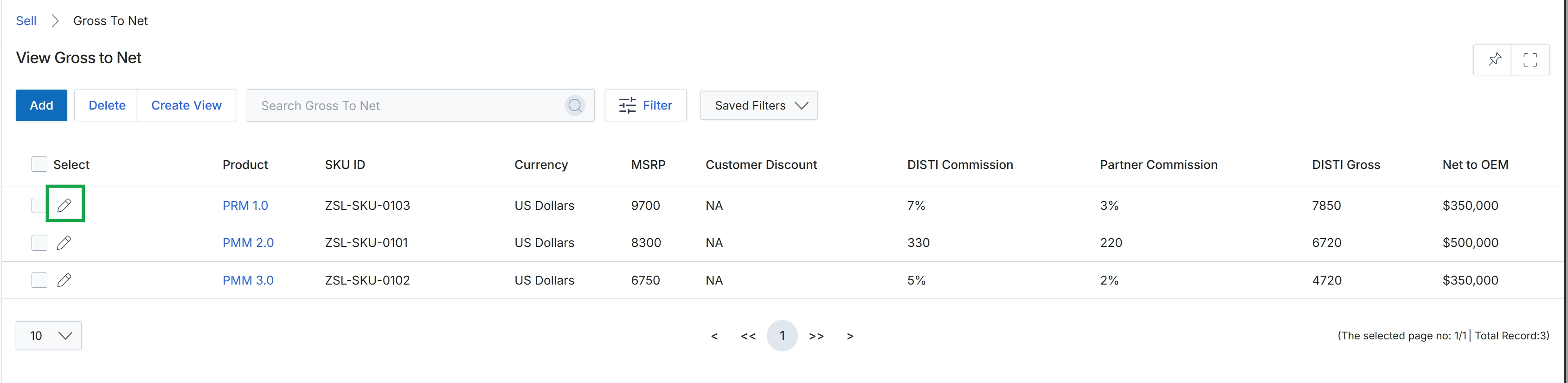
Click the Edit icon next to the desired item to view its details.
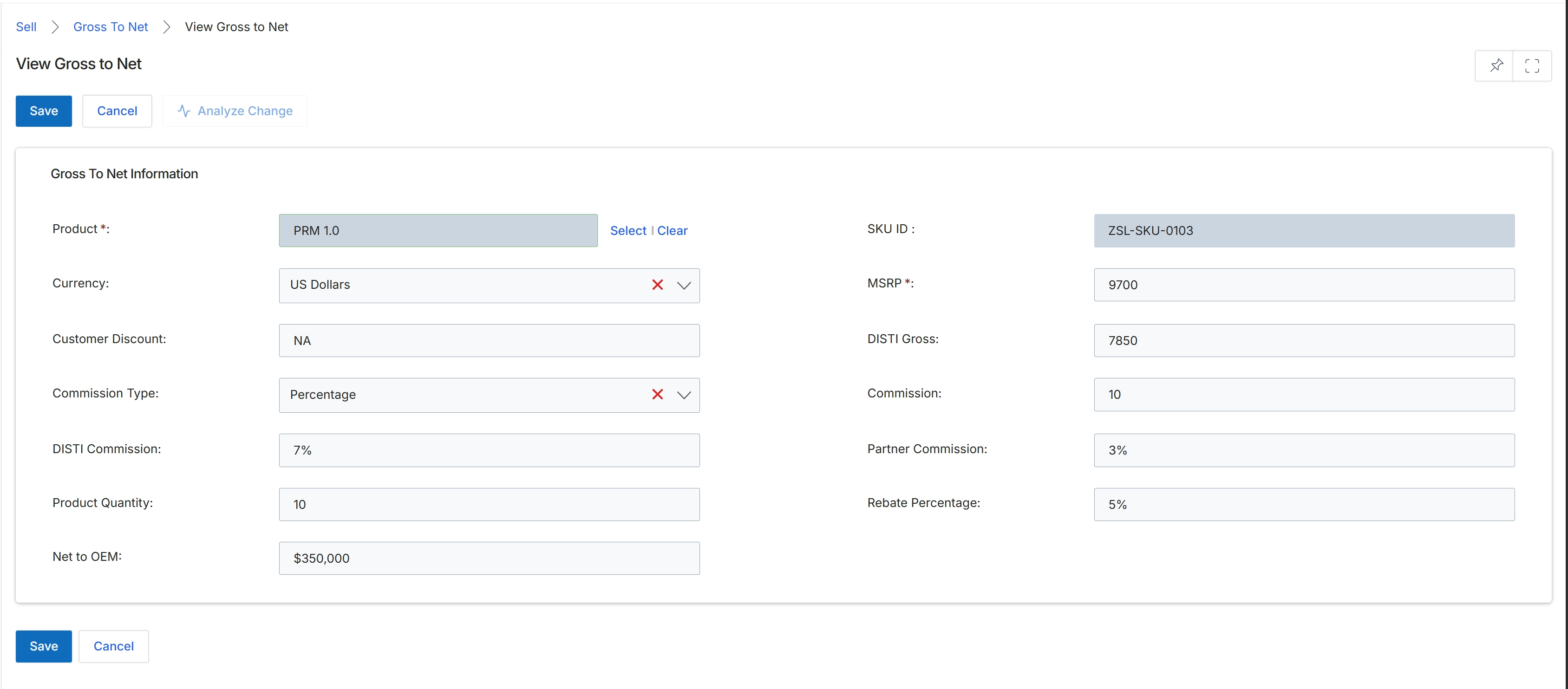
The View Gross to Net screen provides a detailed breakdown of the financial calculations for a specific product, illustrating how the net revenue to the OEM (Original Equipment Manufacturer) is derived after various discounts, commissions, and rebates are applied. This screen is crucial for administrators to understand the profitability and cost structure associated with selling a particular product through the channel. It displays key financial metrics and percentages that influence the final net amount, allowing for transparency and analysis of the product's pricing and incentive structure within the partner program. The data presented here helps in evaluating the effectiveness of pricing strategies and partner compensation models.
Review the Gross to Net information for the selected product.
Buttons
| Button | Description |
|---|---|
| Save | Saves any changes made to the Gross to Net information. |
| Cancel | Discards any changes and returns to the previous screen. |
| Analyze Change | Initiates an analysis of the impact of any changes made to the Gross to Net figures. |
Gross To Net Information
| Field | Description |
|---|---|
| Product | The name of the product for which the Gross to Net details are displayed. |
| SKU ID | The Stock Keeping Unit identifier for the product. |
| Currency | The currency in which the product's financial values are denominated. |
| MSRP | The Manufacturer's Suggested Retail Price for the product. |
| Customer Discount | The discount applied to the customer's purchase. |
| DISTI Gross | The gross amount received by the distributor. |
| Commission Type | The type of commission applied, such as a percentage. |
| Commission | The commission amount or percentage. |
| DISTI Commission | The commission percentage allocated to the distributor. |
| Partner Commission | The commission percentage allocated to the partner. |
| Product Quantity | The quantity of the product being considered for this calculation. |
| Rebate Percentage | The percentage of rebate applied to the product. |
| Net to OEM | The final net revenue received by the Original Equipment Manufacturer after all deductions. |