

Overview
Effective product categorization is crucial for any sales ecosystem, especially in a partner-driven model. This module provides the tools to create and maintain a clear, logical structure for all products and services available to partners. By organizing offerings into categories and sub-categories, administrators can ensure that partners can easily navigate the product catalog, understand the scope of available products, and effectively position them to their customers. This structured approach also streamlines internal management of the product portfolio, facilitating updates, pricing adjustments, and reporting.
Administrators can define custom views and apply filters to quickly locate specific categories or groups of products. This flexibility supports various organizational needs, from managing products by region or language to segmenting by product type or target market. The ability to save filter configurations further enhances efficiency, allowing frequently used views to be accessed with a single click.
Accessing Product Categories
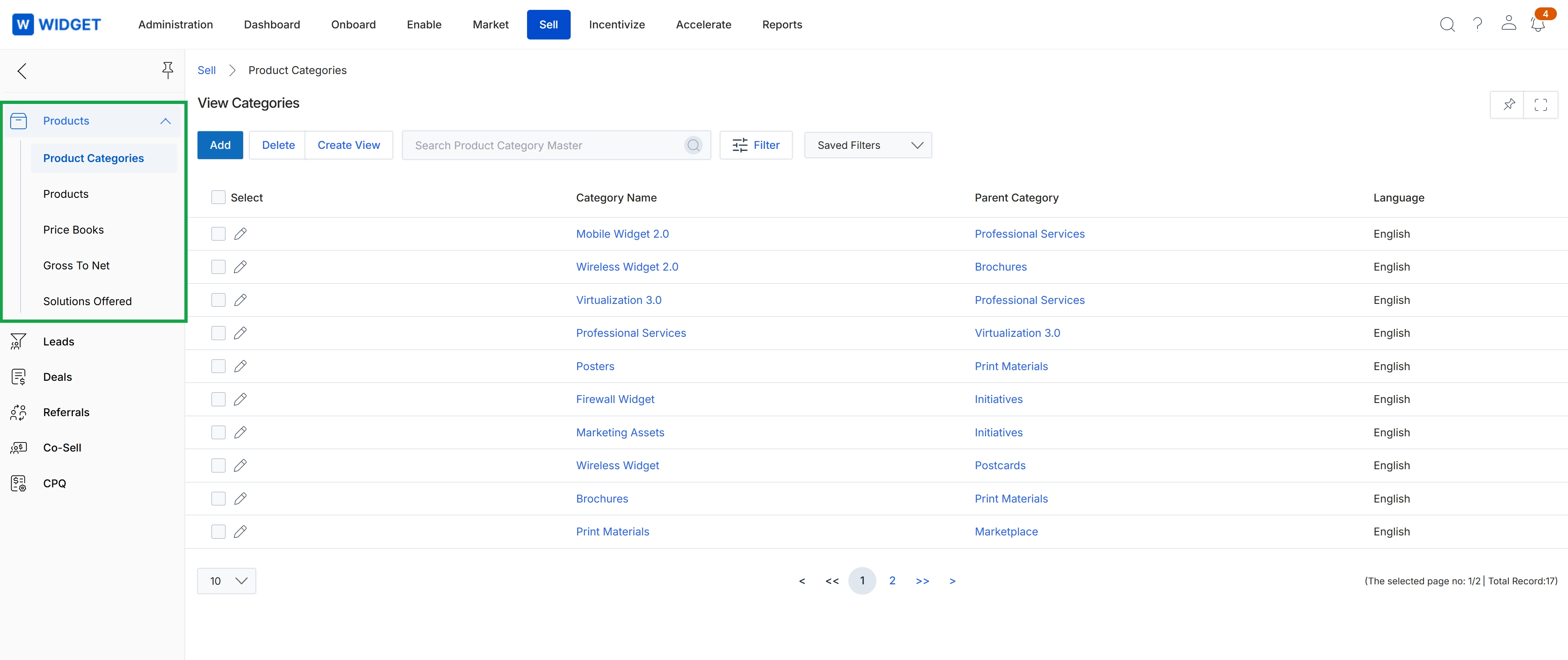
Click Products to expand the menu, then click Product Categories.
Creating Custom Views
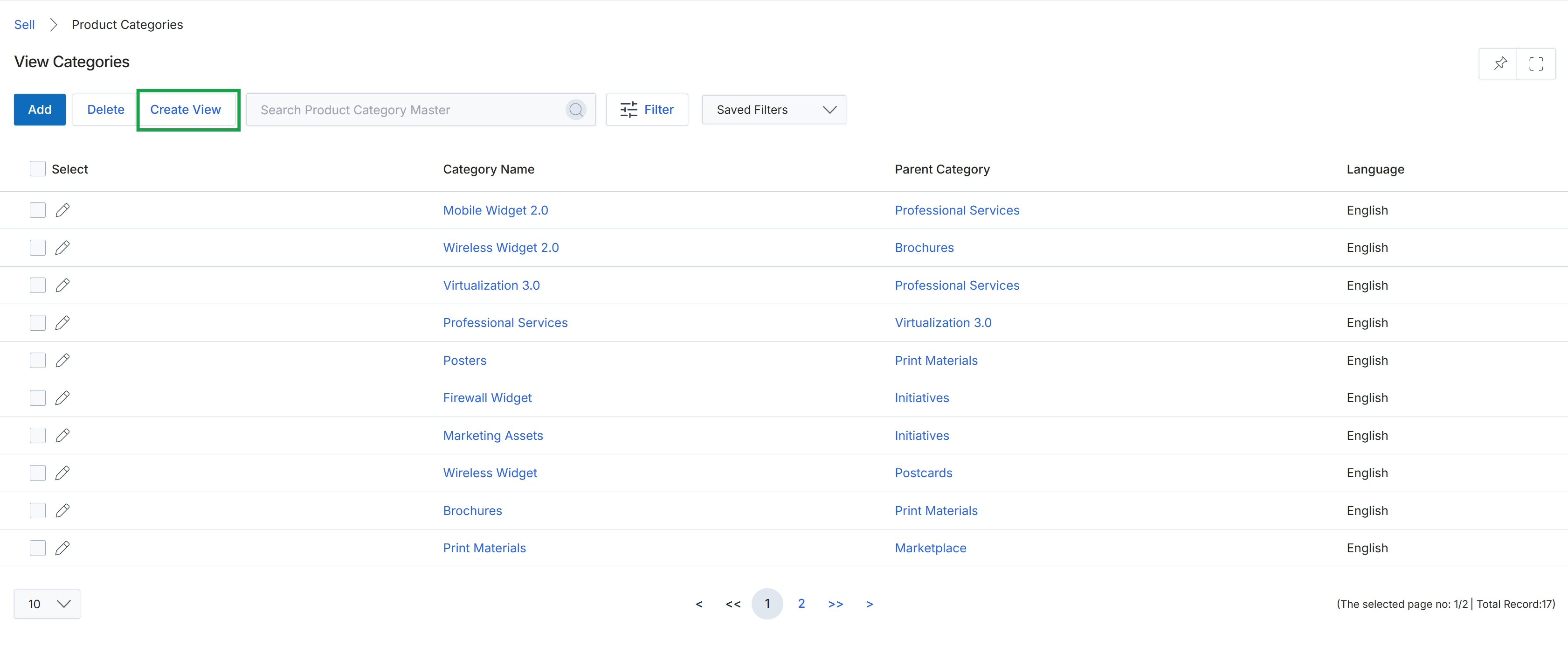
Click Create View.
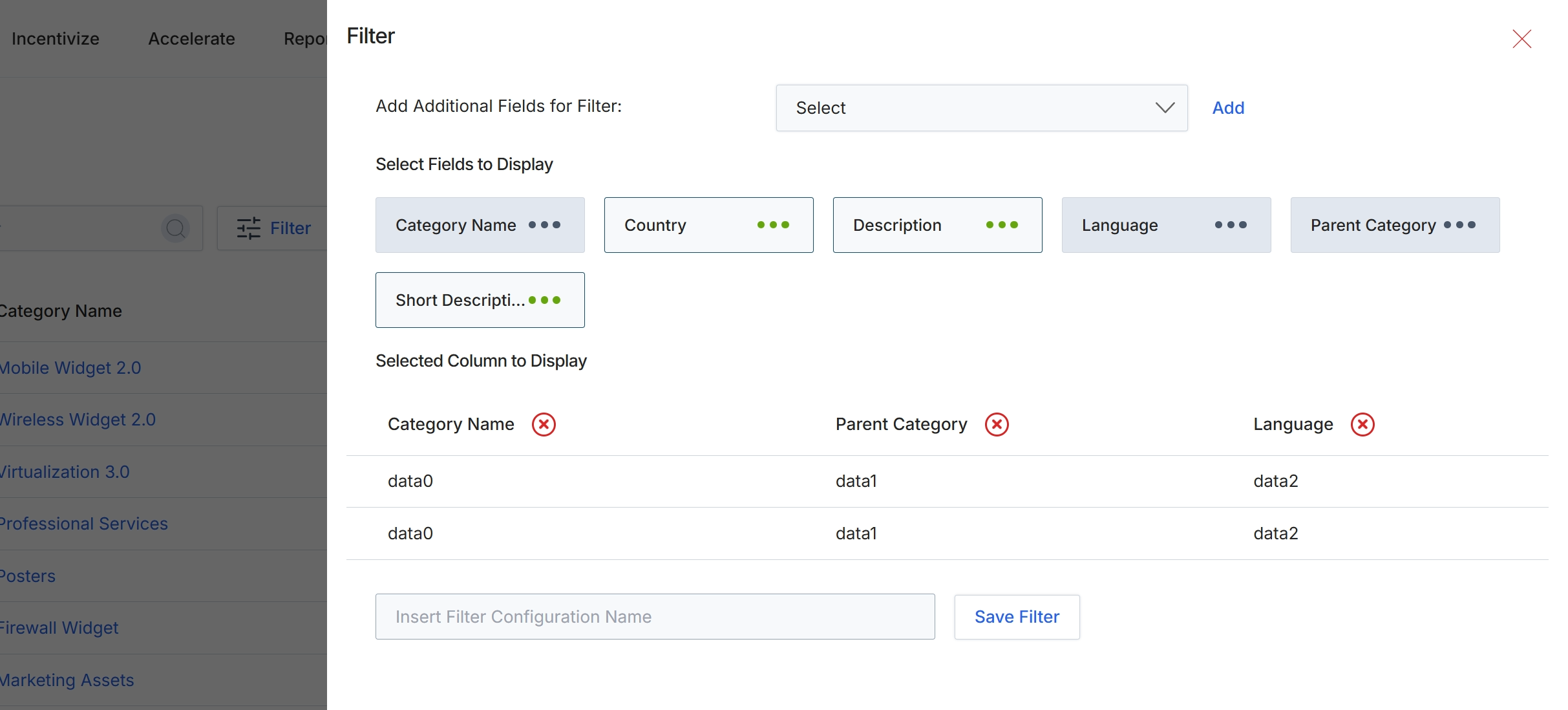
This filter configuration panel allows administrators to customize the display and filtering options for category lists within the Products Catalog Management module. By selecting specific fields to display, users can tailor the columns visible in the category list view, ensuring that only relevant information is presented. Additionally, administrators can define filter criteria using various fields, enabling them to quickly narrow down and locate specific categories based on defined attributes. This functionality enhances data manageability and user efficiency by providing flexible control over how category information is presented and searched.
Select additional fields to display as columns in the category list view and configure any desired filter criteria.
Buttons
| Button | Description |
|---|---|
| Add | Button to add the selected field from the dropdown as a filter criterion. |
| Save Filter | Button to save the current filter configuration with the specified name. |
Fields
| Field | Description |
|---|---|
| Add Additional Fields for Filter | A dropdown to select fields that can be used to filter the category list. |
| Select | The dropdown menu for selecting additional fields to add as filter criteria. |
| Insert Filter Configuration Name | Input field to enter a name for the current filter configuration. |
Filtering Product Categories
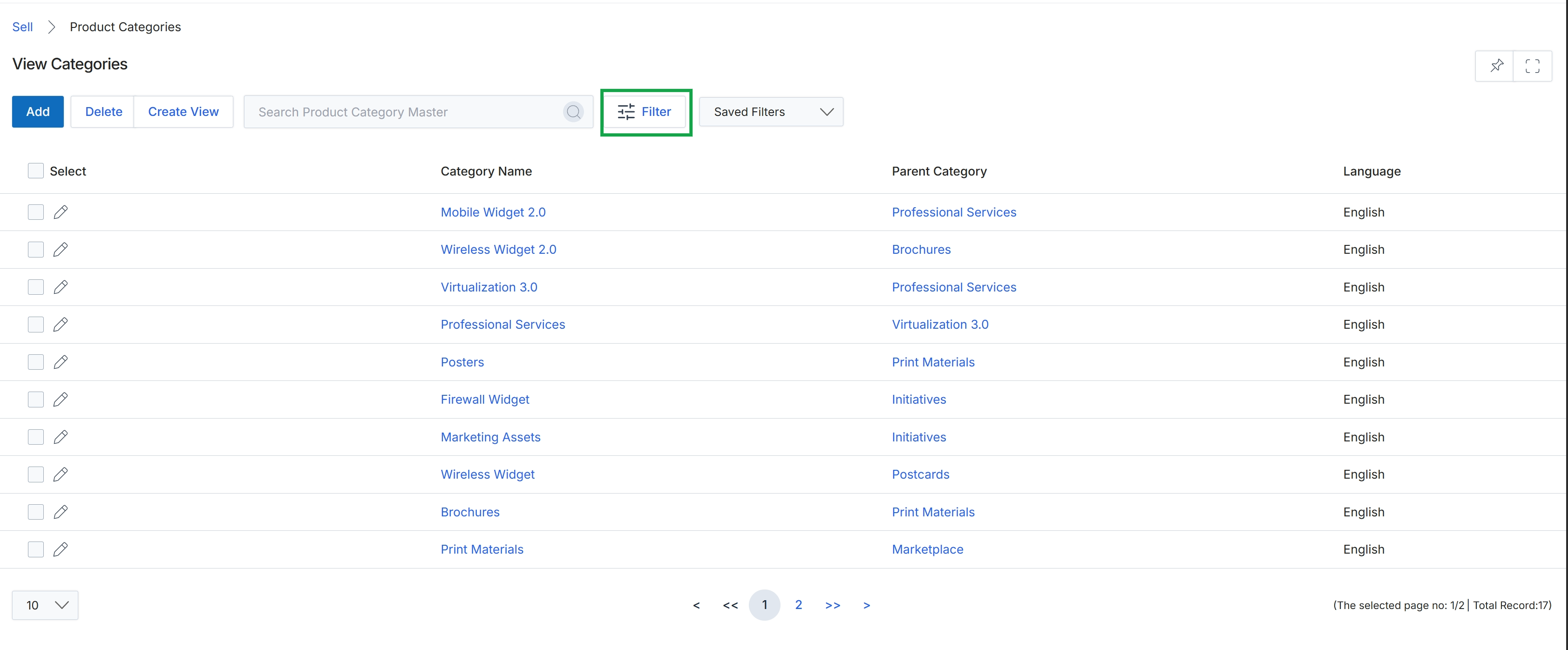
Click the Filter button.
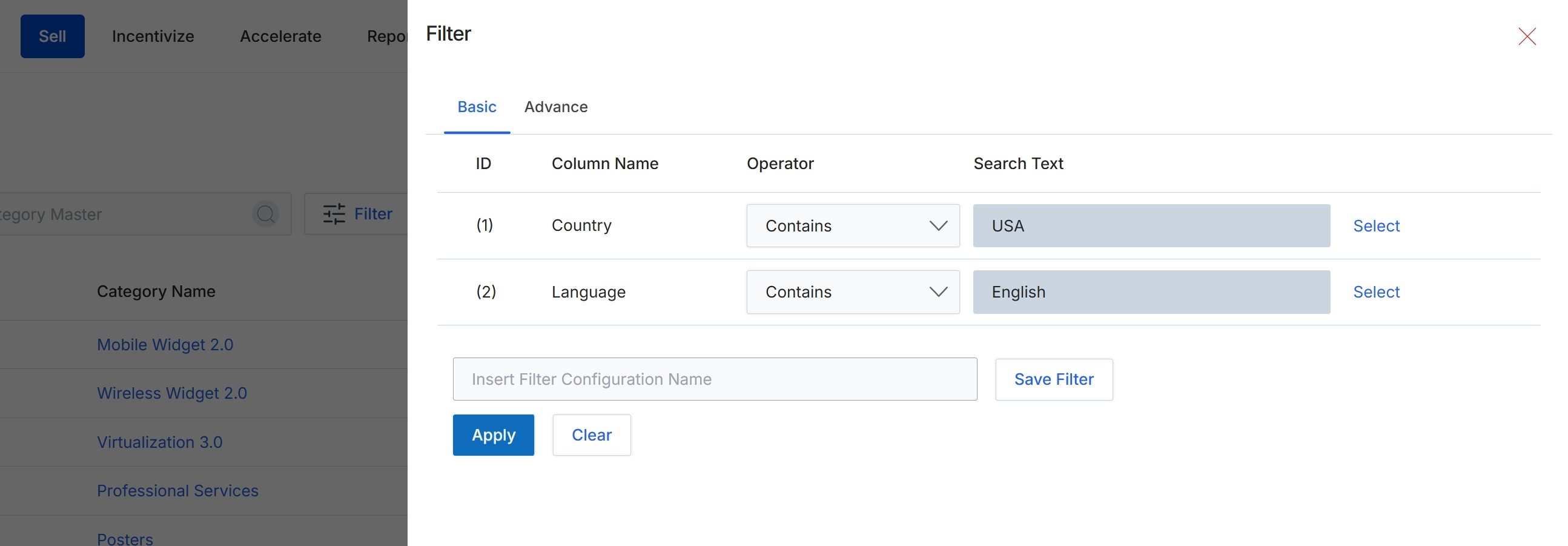
This filter panel allows users to refine the list of categories displayed in the main content area by applying specific criteria. Users can define filters based on various column names, specify the operator (e.g., 'Contains'), and enter the desired search text. This functionality is crucial for efficiently navigating large product catalogs, enabling administrators to quickly locate specific categories based on attributes like country or language. The panel supports both basic and advanced filtering options, and configured filter sets can be saved for future use, streamlining repetitive search tasks.
Click the "Apply" button to apply the configured filters and update the displayed list of categories.
Buttons
| Button | Description |
|---|---|
| Basic | Tab to configure basic filter criteria. |
| Advance | Tab to configure advanced filter criteria. |
| Select | Button to select or modify the search text for the 'Country' filter. |
| Select | Button to select or modify the search text for the 'Language' filter. |
| Save Filter | Button to save the current filter configuration under the specified name. |
| Apply | Button to apply the active filter criteria to the category list. |
| Clear | Button to clear all active filter criteria. |
Fields
| Field | Description |
|---|---|
| Country | The column name selected for the first filter rule, set to 'Country'. |
| Contains | The operator selected for the 'Country' filter, indicating that the column should contain the specified text. |
| USA | The search text entered for the 'Country' filter. |
| Language | The column name selected for the second filter rule, set to 'Language'. |
| Contains | The operator selected for the 'Language' filter, indicating that the column should contain the specified text. |
| English | The search text entered for the 'Language' filter. |
| Insert Filter Configuration Name | Text input field to enter a name for saving the current filter configuration. |
Column Headings
| Column | Description |
|---|---|
| ID | Column header for the filter rule identifier. |
| Column Name | Column header for the name of the column to be filtered. |
| Operator | Column header for the comparison operator used in the filter rule (e.g., Contains, Equals). |
| Search Text | Column header for the value to search for within the specified column. |
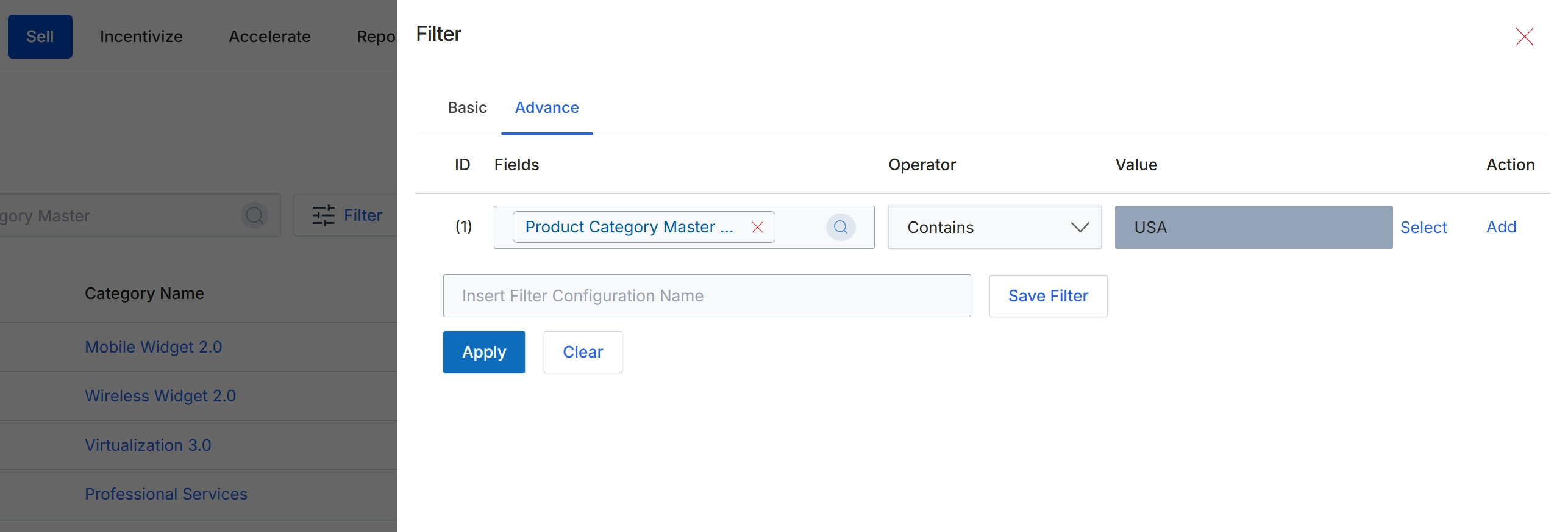
The Filter dialog provides advanced filtering capabilities for lists within the platform, allowing users to define specific criteria to narrow down displayed records. This dialog supports constructing complex filter rules based on various fields, operators, and values. Users can apply a single filter rule or combine multiple rules to create highly specific data views. The ability to save filter configurations enables quick reuse of frequently applied search parameters, enhancing efficiency for administrators managing large datasets. This advanced filtering mechanism is crucial for data analysis, targeted actions on subsets of records, and maintaining organized views of information across different modules.
Click the "Apply" button to apply the configured filter to the list.
Buttons
| Button | Description |
|---|---|
| Basic | Tab to switch to basic filtering options. |
| Advance | Tab to access advanced filtering options, allowing for rule-based filtering. |
| Select | Button to select a value for the filter rule. |
| Add | Button to add a new filter rule. |
| Save Filter | Button to save the current filter configuration for future use. |
| Apply | Button to apply the configured filter rules to the list. |
| Clear | Button to clear all configured filter rules. |
Fields
| Field | Description |
|---|---|
| Product Category Master | The field selected for the current filter rule. |
| Contains | The operator selected for the current filter rule, indicating that the field should contain the specified value. |
| USA | The value entered for the current filter rule. |
| Insert Filter Configuration Name | Text input field to enter a name for saving the current filter configuration. |
Column Headings
| Column | Description |
|---|---|
| ID | Column header for the identifier of each filter rule. |
| Fields | Column header for the field to which the filter rule applies. |
| Operator | Column header for the logical operator used in the filter rule (e.g., Contains, Equals). |
| Value | Column header for the value used in the filter rule. |
| Action | Column header for actions related to the filter rule, such as adding a new rule. |