

Overview
Price Books are fundamental to the Sell module, enabling partners to generate accurate quotes for customers. Each price book defines the pricing for products, potentially varying by partner tier or volume, ensuring that partners can only access and apply the pricing relevant to their specific program and agreements. Administrators use this interface to oversee all existing price books, ensuring pricing accuracy and consistency across the partner ecosystem.
Effective management of price books is crucial for maintaining competitive pricing strategies and streamlining the quoting process for partners. By providing clear, pre-defined pricing structures, the platform reduces errors and accelerates the sales cycle, allowing partners to focus on selling rather than complex price calculations. The ability to filter and create custom views helps administrators efficiently manage a potentially large number of price books tailored to different partner types or regions.
Accessing and Viewing Price Books
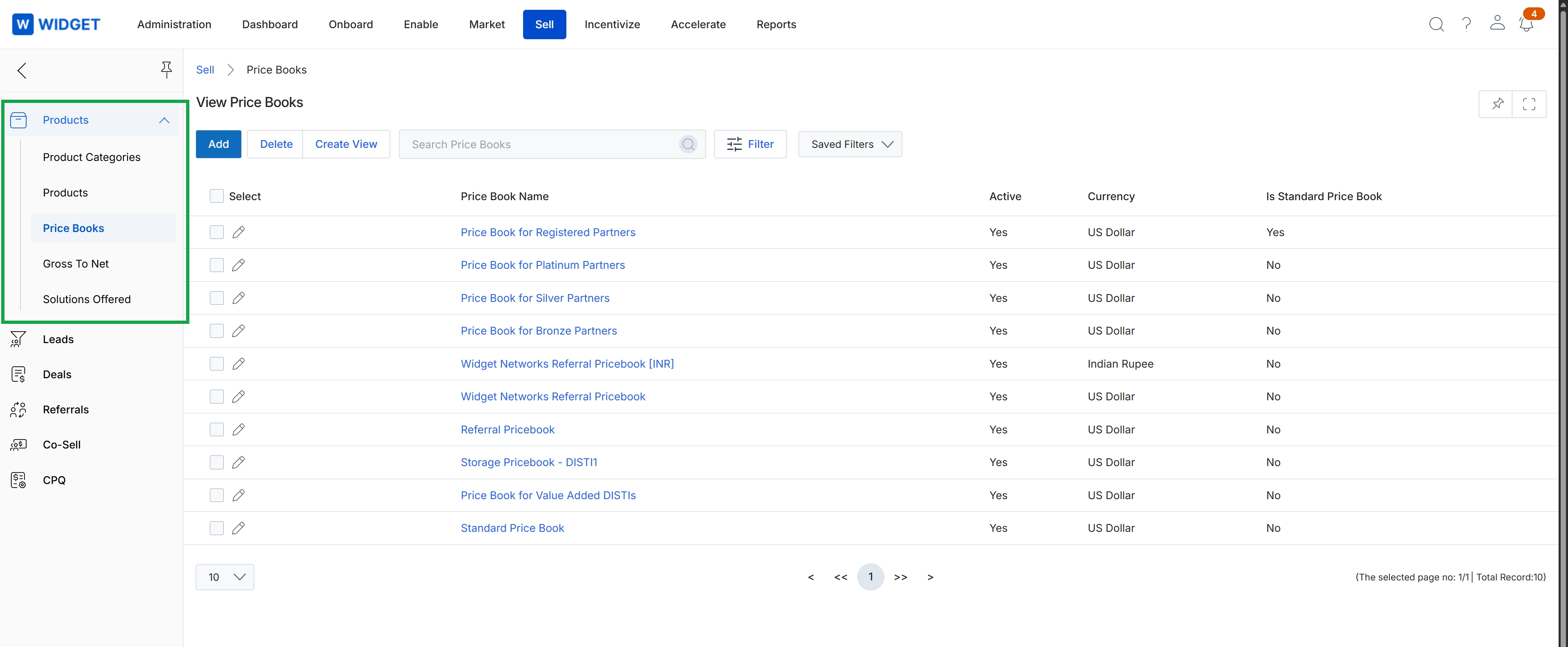
Click Price Books in the left navigation menu.
Creating Custom Views
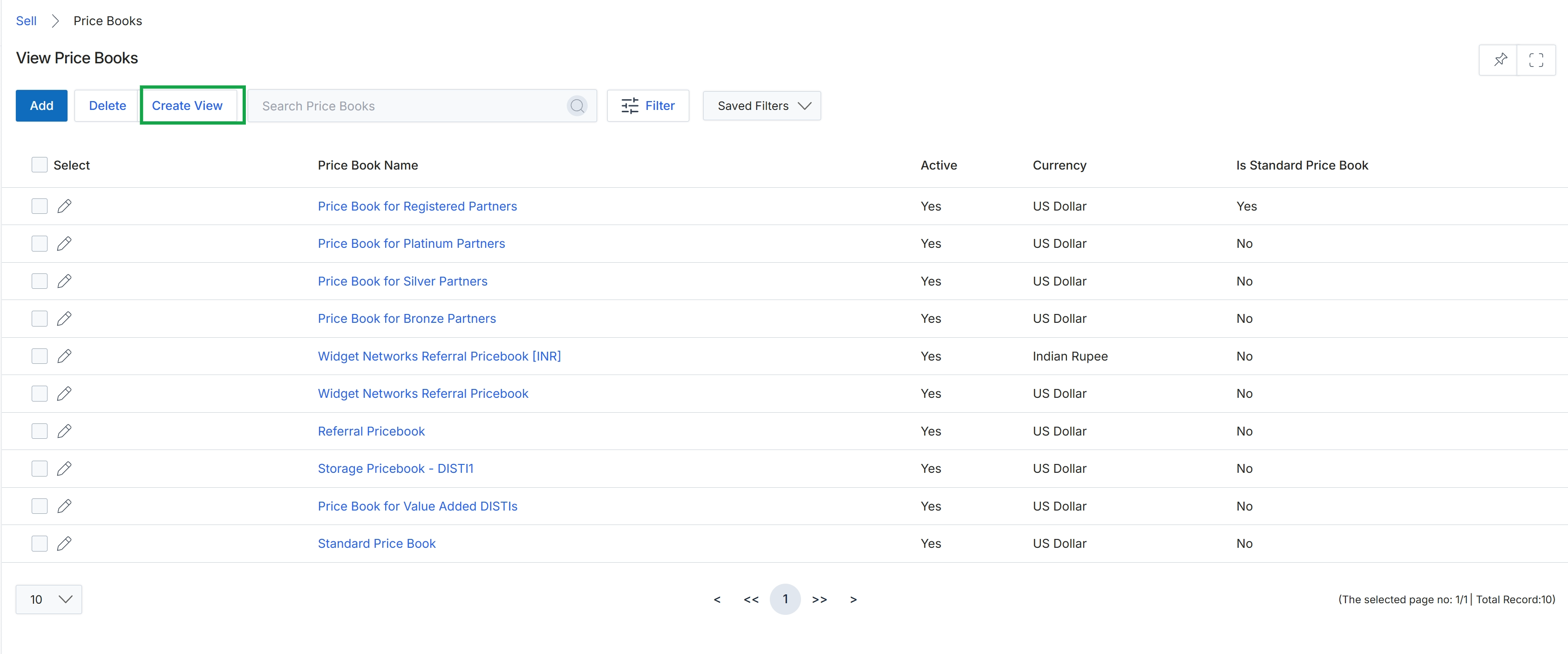
Click Create View.
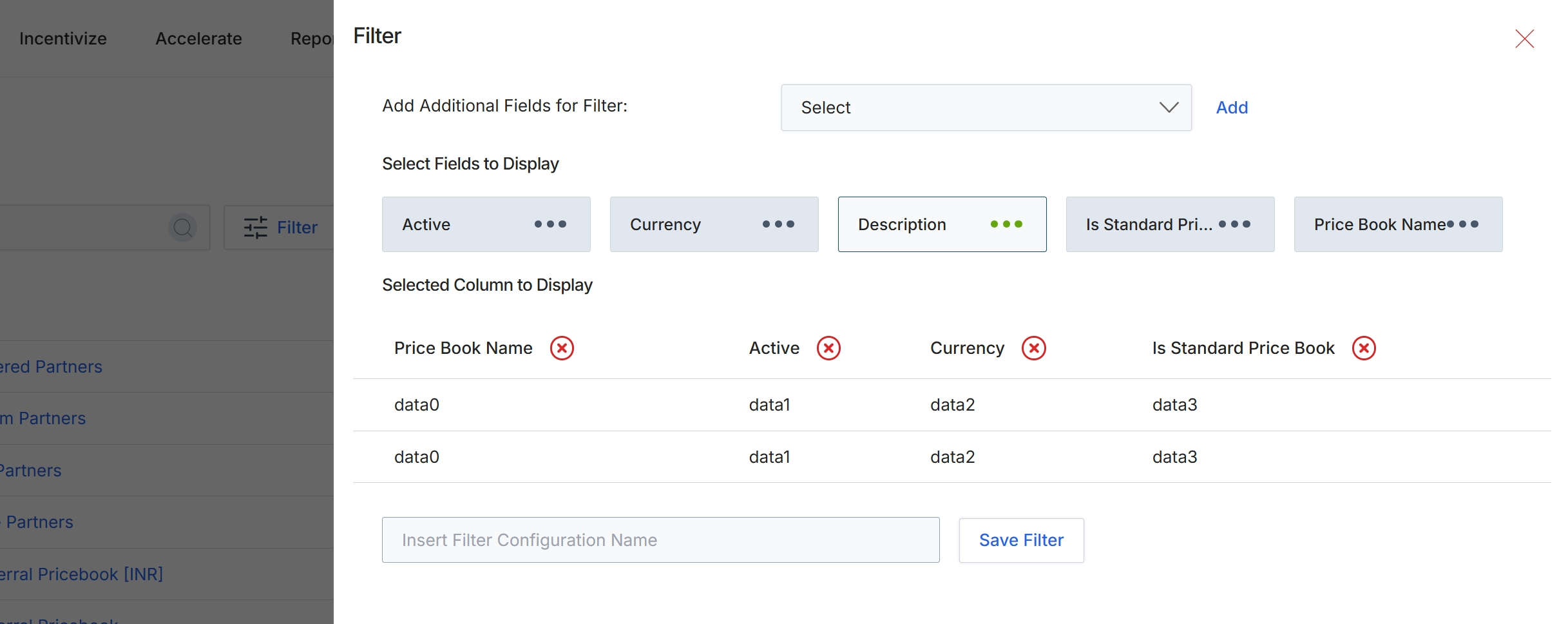
This filter configuration panel allows administrators to customize the columns displayed in the Price Book list view. By selecting or deselecting available fields, users can tailor the information presented to focus on relevant data points such as the price book's active status, currency, description, or whether it is a standard price book. This customization helps streamline data analysis and improves the efficiency of managing multiple price books within the platform. The configured view can be saved for future use, ensuring consistent reporting and data presentation.
Select 'Description' from the available fields to include it in the displayed columns.
Buttons
| Button | Description |
|---|---|
| Add | Button to add the selected field to the filter criteria. |
| Save Filter | Button to save the current filter configuration. |
Fields
| Field | Description |
|---|---|
| Select | Dropdown to add additional fields for filtering the price book list. |
| Insert Filter Configuration Name | Text field to enter a name for the current filter configuration. |
Filtering Price Books
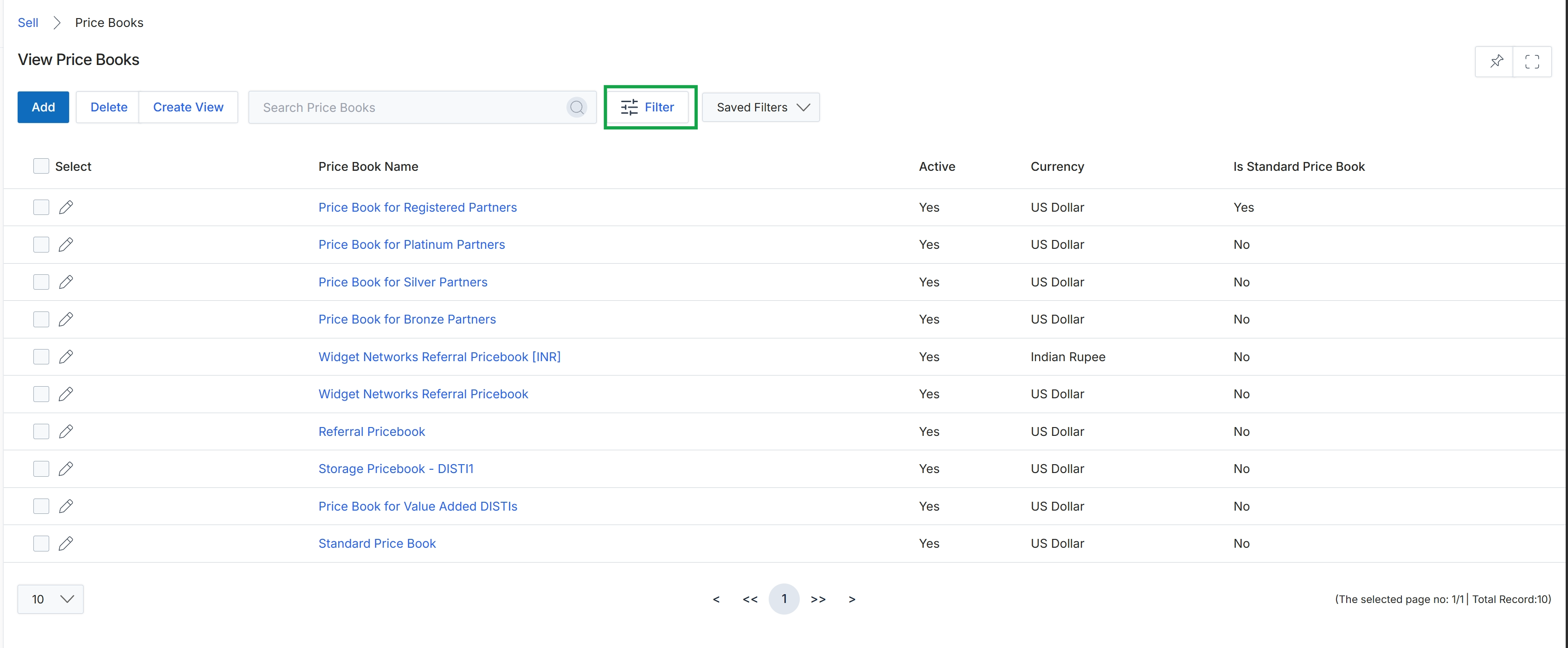
Click the Filter button.
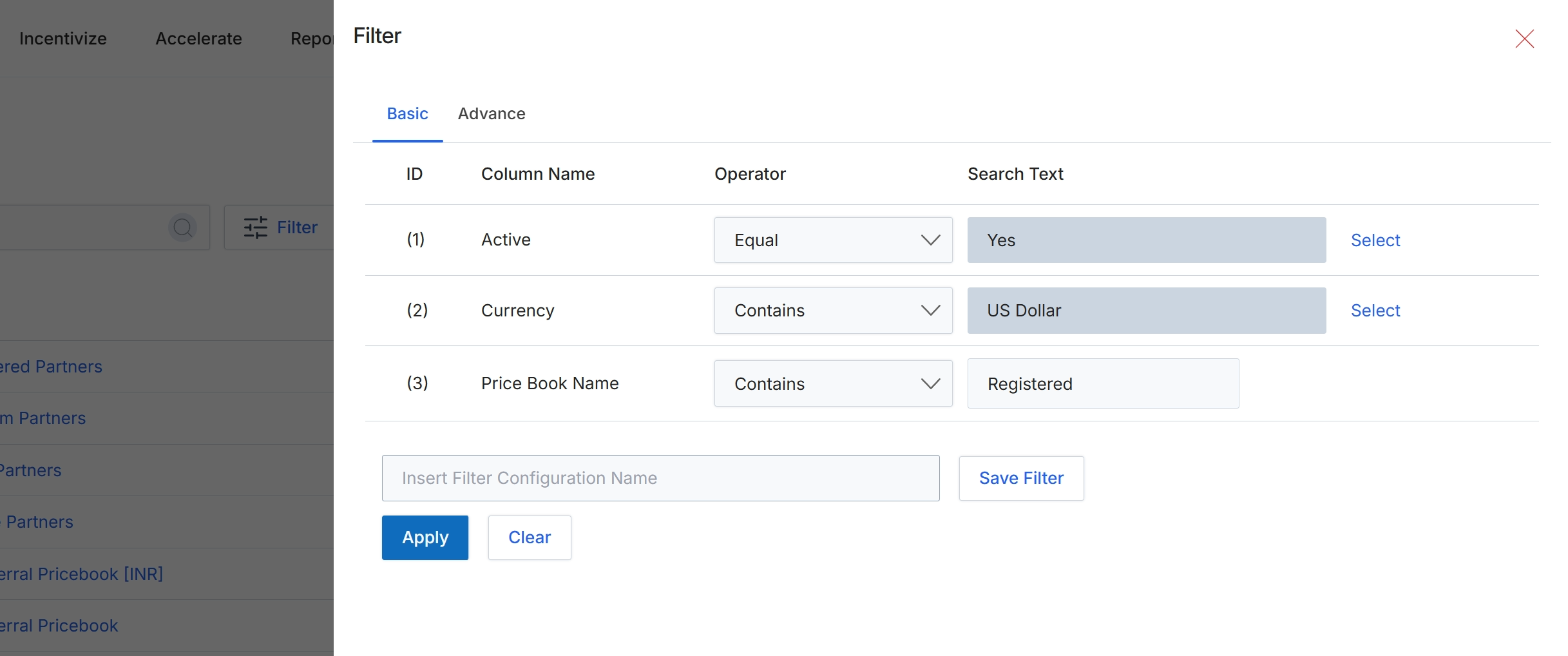
The Filter dialog allows users to refine the list of Price Books displayed by applying specific criteria. This feature is crucial for managing a potentially large catalog of products and their associated pricing, enabling administrators to quickly locate specific price books based on their active status, currency, or name. By filtering, users can focus on relevant price books for editing, review, or analysis, streamlining the management of product pricing across different partner types and regions. The dialog supports both basic and advanced filtering options, providing flexibility in how criteria are applied to the data.
Apply the configured filters to the Price Book list by clicking the "Apply" button.
Buttons
| Button | Description |
|---|---|
| Basic | Tab to switch to basic filter configuration. |
| Advance | Tab to switch to advanced filter configuration. |
| Select | Button to select a value for the 'Active' filter. |
| Select | Button to select a value for the 'Currency' filter. |
| Save Filter | Button to save the current filter configuration for future use. |
| Apply | Button to apply the configured filters to the Price Book list. |
| Clear | Button to clear all applied filter criteria. |
Fields
| Field | Description |
|---|---|
| Active | The name of the column being filtered, indicating whether the price book is active. |
| Equal | Dropdown to select the comparison operator for the 'Active' filter, currently set to 'Equal'. |
| Yes | The selected value for the 'Active' filter, indicating that only active price books will be shown. |
| Currency | The name of the column being filtered, indicating the currency of the price book. |
| Contains | Dropdown to select the comparison operator for the 'Currency' filter, currently set to 'Contains'. |
| US Dollar | The selected value for the 'Currency' filter, indicating that price books containing 'US Dollar' in their currency will be shown. |
| Price Book Name | The name of the column being filtered, indicating the name of the price book. |
| Contains | Dropdown to select the comparison operator for the 'Price Book Name' filter, currently set to 'Contains'. |
| Registered | Input field for the search text for the 'Price Book Name' filter, currently set to 'Registered'. |
| Insert Filter Configuration Name | Input field to enter a name for saving the current filter configuration. |
Column Headings
| Column | Description |
|---|---|
| ID | Column header for the filter row identifier. |
| Column Name | Column header for the name of the column being filtered. |
| Operator | Column header for the comparison operator used in the filter. |
| Search Text | Column header for the value to search for. |
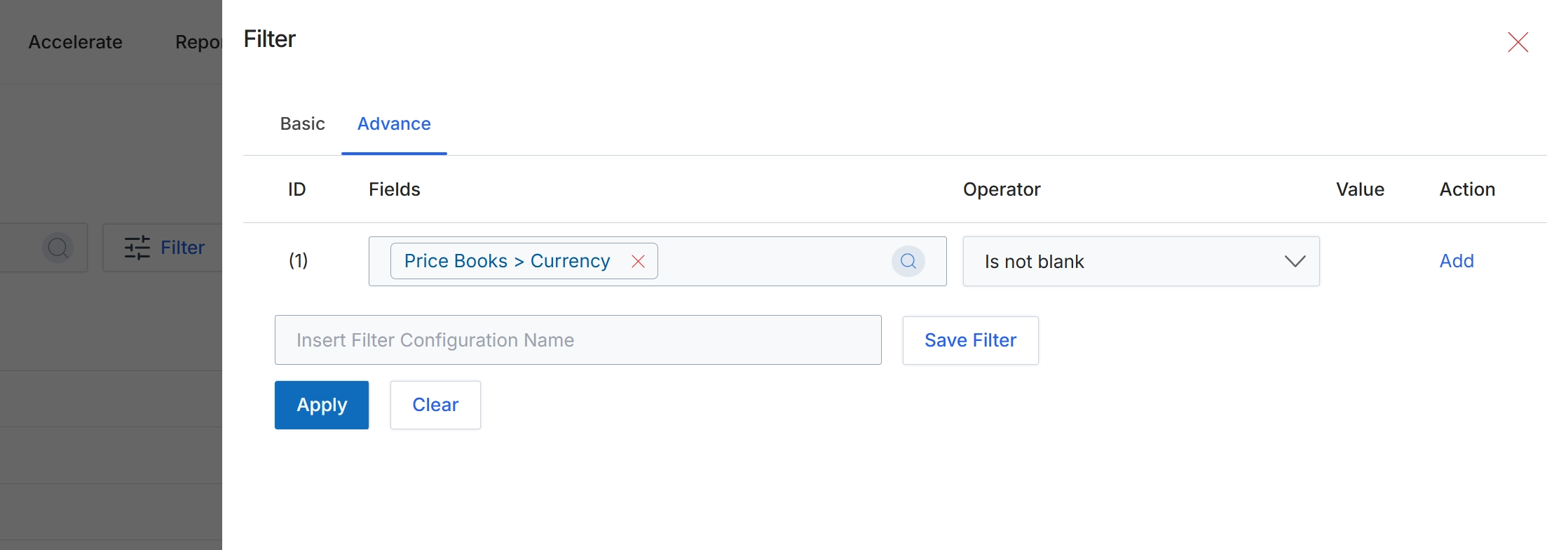
This screen displays the advanced filter configuration for Price Books, allowing administrators to define complex search criteria using multiple conditions. The advanced filter provides granular control over which Price Book records are displayed in the list view, enabling users to focus on specific subsets of data based on various attributes like currency, date ranges, or other custom fields. This functionality is crucial for managing large catalogs of products and prices, ensuring that users can quickly locate and work with relevant Price Books for tasks such as updating pricing, reviewing regional catalogs, or preparing for new product launches. The ability to save filter configurations streamlines repetitive search operations and enhances overall efficiency in product catalog management.
Click the "Apply" button to apply the configured advanced filter to the Price Books list.
Buttons
| Button | Description |
|---|---|
| Basic | Switches to the basic filter configuration interface. |
| Advance | Displays the advanced filter configuration interface, allowing for complex, multi-condition filtering. |
| Add | Adds a new filter condition row. |
| Save Filter | Saves the current filter configuration for future use. |
| Apply | Applies the configured filter conditions to the Price Books list view. |
| Clear | Clears all active filter conditions. |
Fields
| Field | Description |
|---|---|
| Price Books > Currency | The selected field for the filter condition, indicating that the filter is applied to the 'Currency' attribute within 'Price Books'. |
| Is not blank | The selected operator for the filter condition, which checks if the 'Currency' field has a value. |
| Insert Filter Configuration Name | An input field to enter a name for saving the current filter configuration. |
Column Headings
| Column | Description |
|---|---|
| ID | A numerical identifier for each filter condition row. |
| Fields | The field of the Price Book entity being used for filtering, currently set to 'Price Books > Currency'. |
| Operator | The logical operator applied to the selected field, currently set to 'Is not blank'. |
| Value | The value used in conjunction with the operator for the filter condition. This field is not applicable when the operator is 'Is not blank'. |
| Action | Provides options to add or remove filter conditions. |