

Overview
The Products Catalog is a central repository for all sellable items that partners can offer to their customers. Each product entry contains comprehensive details such as SKU, pricing, images, descriptions, and eligibility for MDF or rebates. This catalog is crucial for enabling partners to accurately quote and sell vendor offerings, ensuring consistent product information across the partner network. Administrators use this module to maintain the accuracy and availability of product data, which directly impacts the sales and incentive processes within the platform.
Accessing Product Details
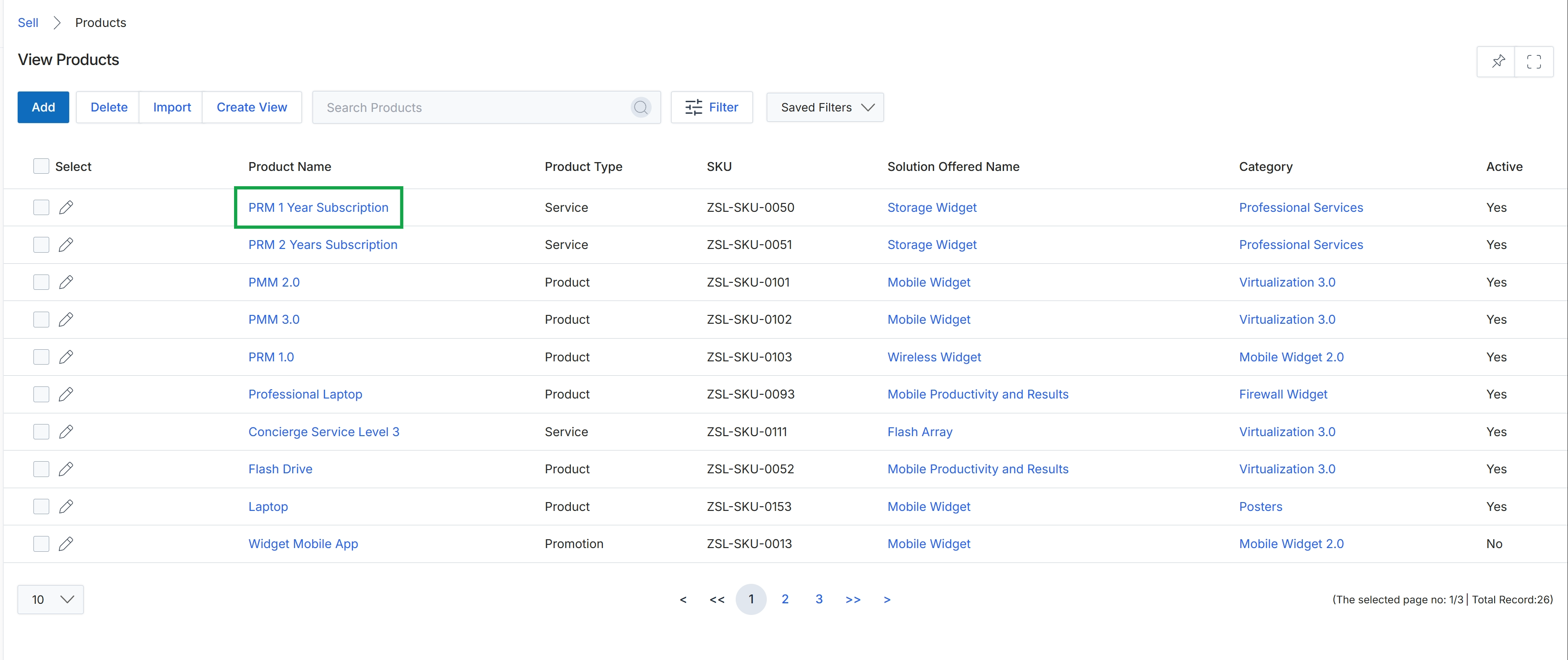
Click the PRM 1 Year Subscription link in the Product Name column.
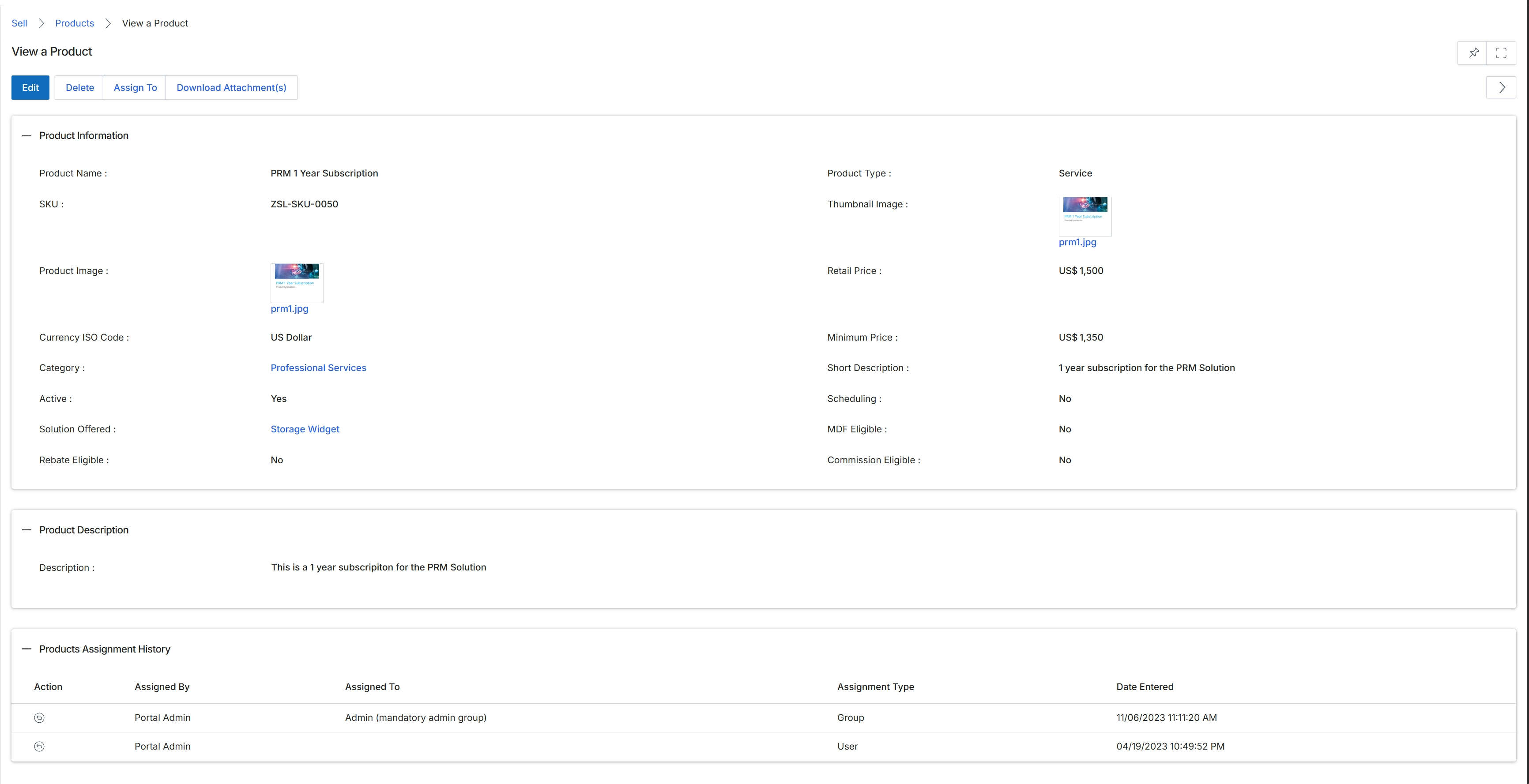
This screen displays the detailed information for a specific product within the product catalog, which is essential for managing what partners can sell and how they are incentivized. Products are fundamental entities in the Sell module, forming the basis for quotes, orders, and commission calculations. This view provides a comprehensive overview of the product's attributes, including pricing, eligibility for various incentive programs like MDF and commissions, and its active status. It also tracks the history of how the product has been assigned, which is crucial for understanding product availability and partner access. Administrators use this screen to review product configurations before they are made available to partners through price books or other sales tools.
Review the detailed information for the selected product, including its attributes, description, and assignment history.
Buttons
| Button | Description |
|---|---|
| Edit | Click to edit the product details. |
| Delete | Click to delete the product. |
| Assign To | Click to assign the product to specific partners or groups. |
| Download Attachment(s) | Click to download any attachments associated with the product. |
Product Information
| Field | Description |
|---|---|
| Product Name | The name of the product. |
| Product Type | The type of product, such as 'Service' or 'Software'. |
| SKU | The Stock Keeping Unit, a unique identifier for the product. |
| Thumbnail Image | A small image representing the product. |
| Product Image | The main image associated with the product. |
| Retail Price | The standard retail price of the product. |
| Currency ISO Code | The ISO currency code for the product's pricing. |
| Minimum Price | The lowest price at which the product can be sold. |
| Category | The category to which the product belongs. |
| Short Description | A brief description of the product. |
| Active | Indicates whether the product is currently active and available. |
| Scheduling | Indicates if the product requires scheduling. |
| Solution Offered | The solution that the product is part of or contributes to. |
| MDF Eligible | Indicates if the product is eligible for Market Development Funds (MDF). |
| Rebate Eligible | Indicates if the product is eligible for rebates. |
| Commission Eligible | Indicates if the product is eligible for commissions. |
Product Description
| Field | Description |
|---|---|
| Description | A detailed description of the product. |
Products Assignment History
| Column | Description |
|---|---|
| Action | The action performed, such as product assignment. |
| Assigned By | The user or entity that assigned the product. |
| Assigned To | The partner or group to whom the product was assigned. |
| Assignment Type | The method of assignment, such as 'Group' or 'User'. |
| Date Entered | The date and time the assignment was recorded. |
Managing Product Assignments
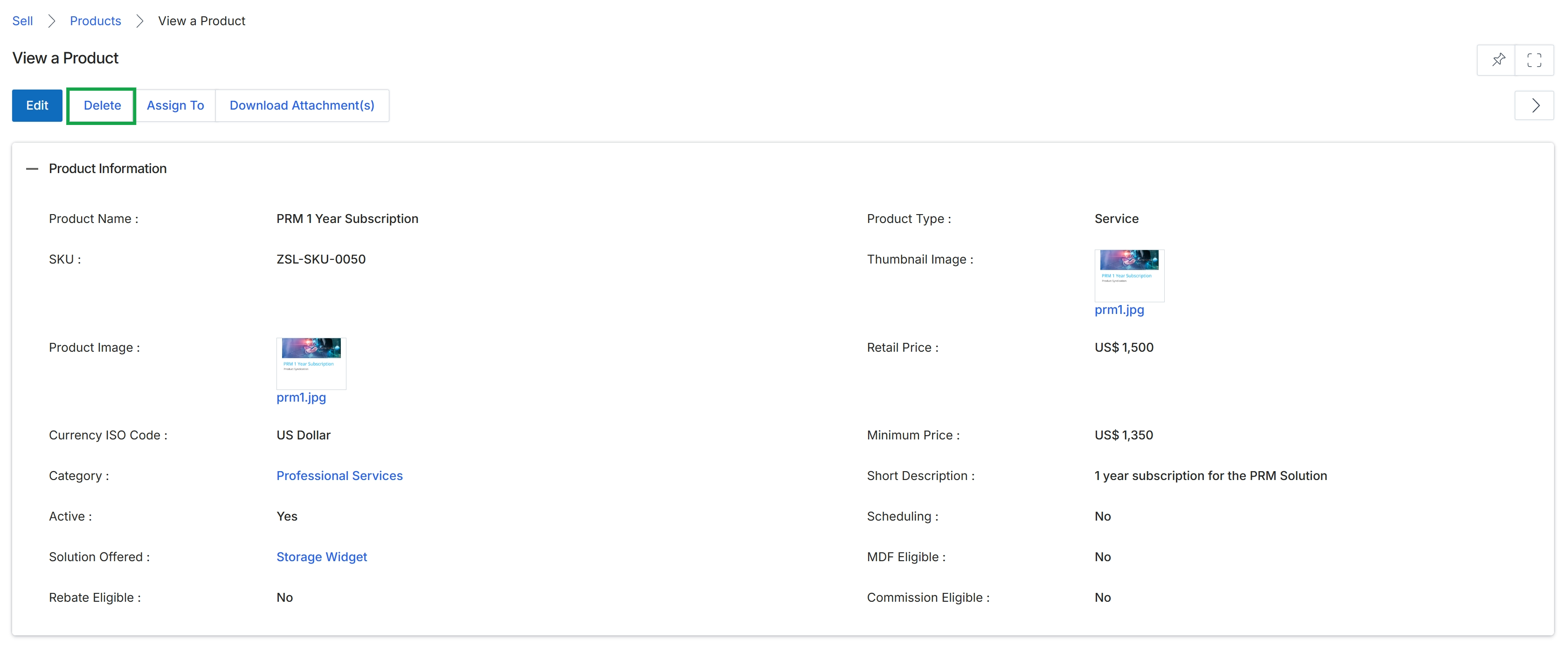
Click the Delete button to remove the product.
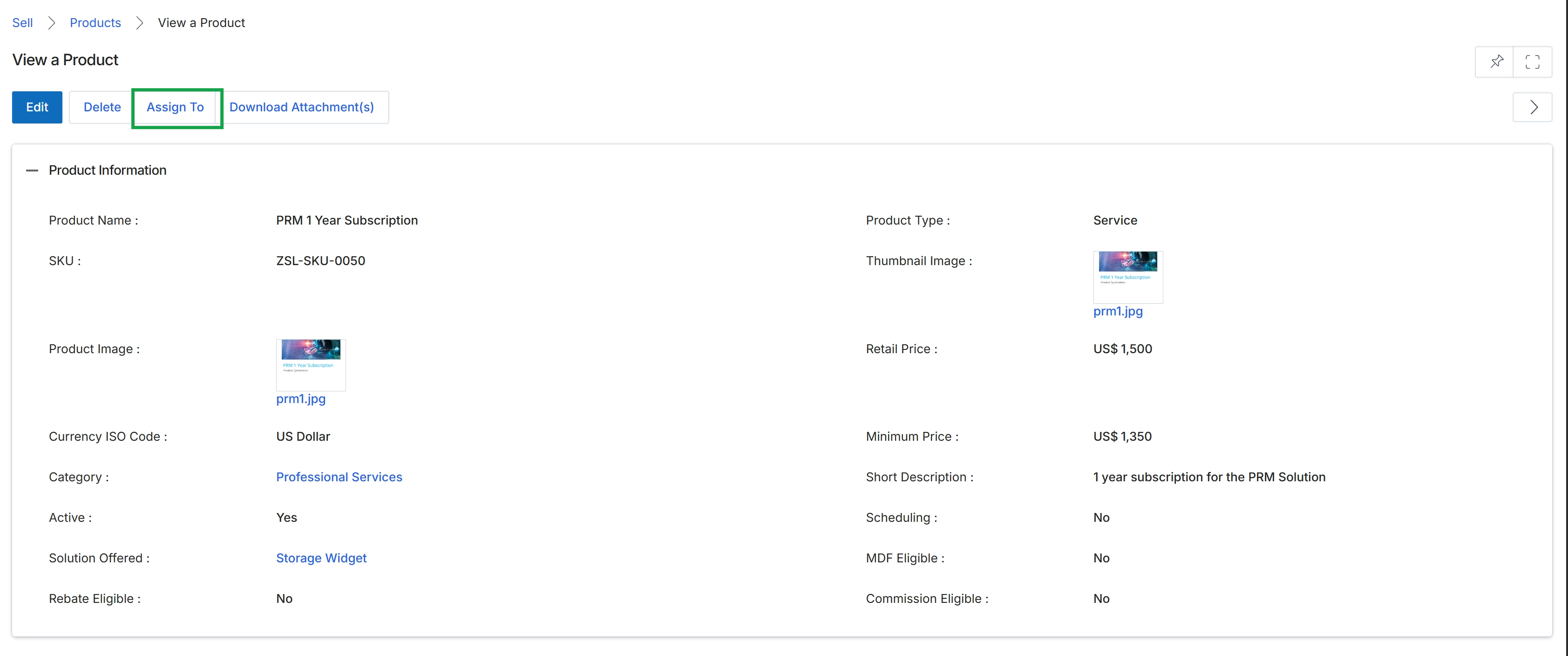
Click the Assign To button.
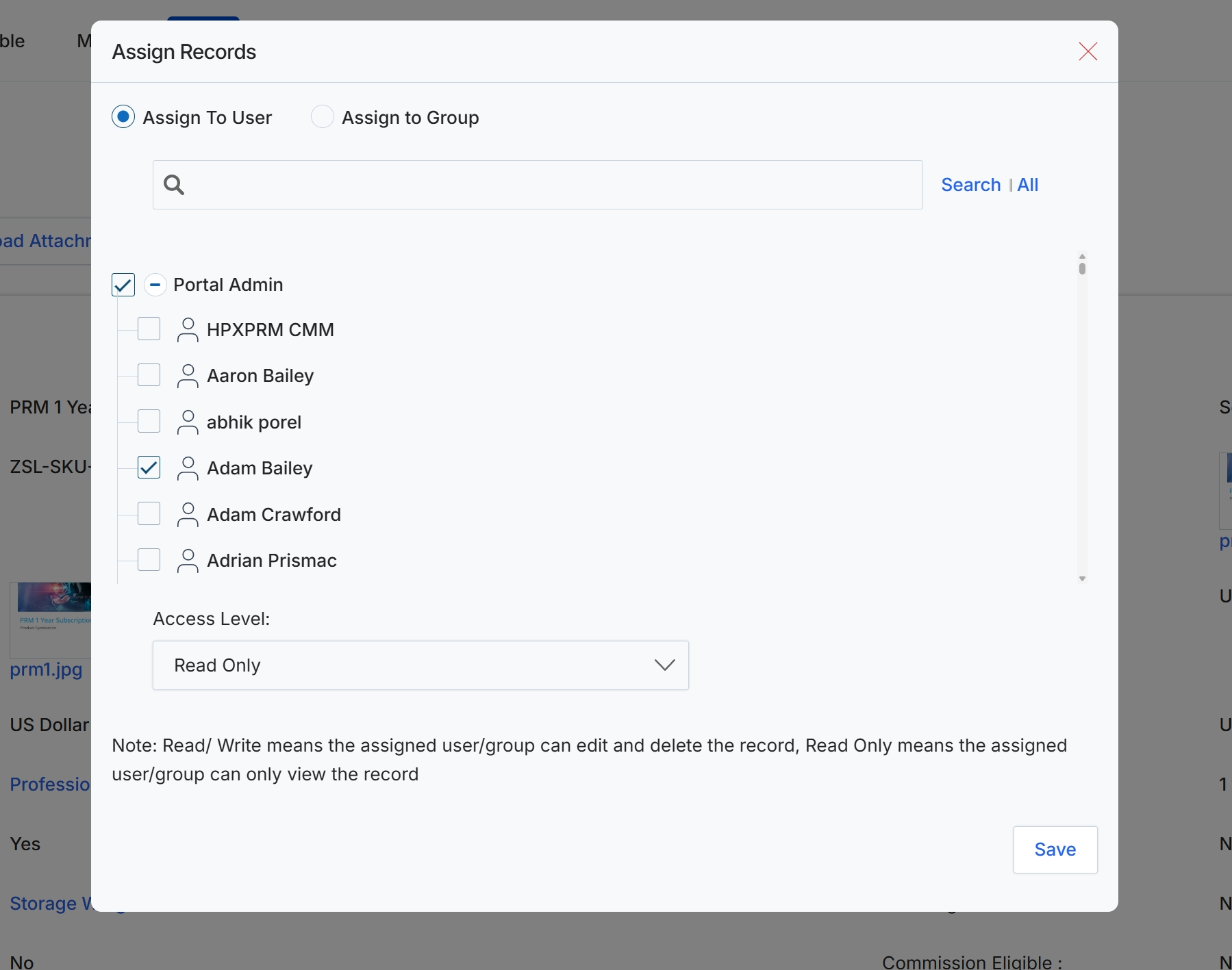
This dialog box allows administrators to assign records to specific users or groups within the platform, controlling their access level to the associated data. This feature is crucial for managing data visibility and permissions, ensuring that only authorized personnel can view or modify particular records. By assigning records, administrators can delegate responsibilities and maintain data security in accordance with the organization's access policies. The dialog supports assigning records to individual users or to predefined user groups, providing flexibility in access management. The selected access level determines whether the assigned user or group can only view the record or also has permissions to edit and delete it.
Select the user "Adam Bailey" from the list to assign the record to them.
Buttons
| Button | Description |
|---|---|
| Save | A button to save the record assignment and close the dialog. |
Fields
| Field | Description |
|---|---|
| Assign To User | A radio button to select whether the record will be assigned to an individual user. |
| Assign to Group | A radio button to select whether the record will be assigned to a user group. |
| Search | A search bar to find specific users or groups by name. |
| Access Level | A dropdown menu to select the access level for the assigned user(s) or group(s). 'Read/Write' allows editing and deleting, while 'Read Only' permits viewing only. |
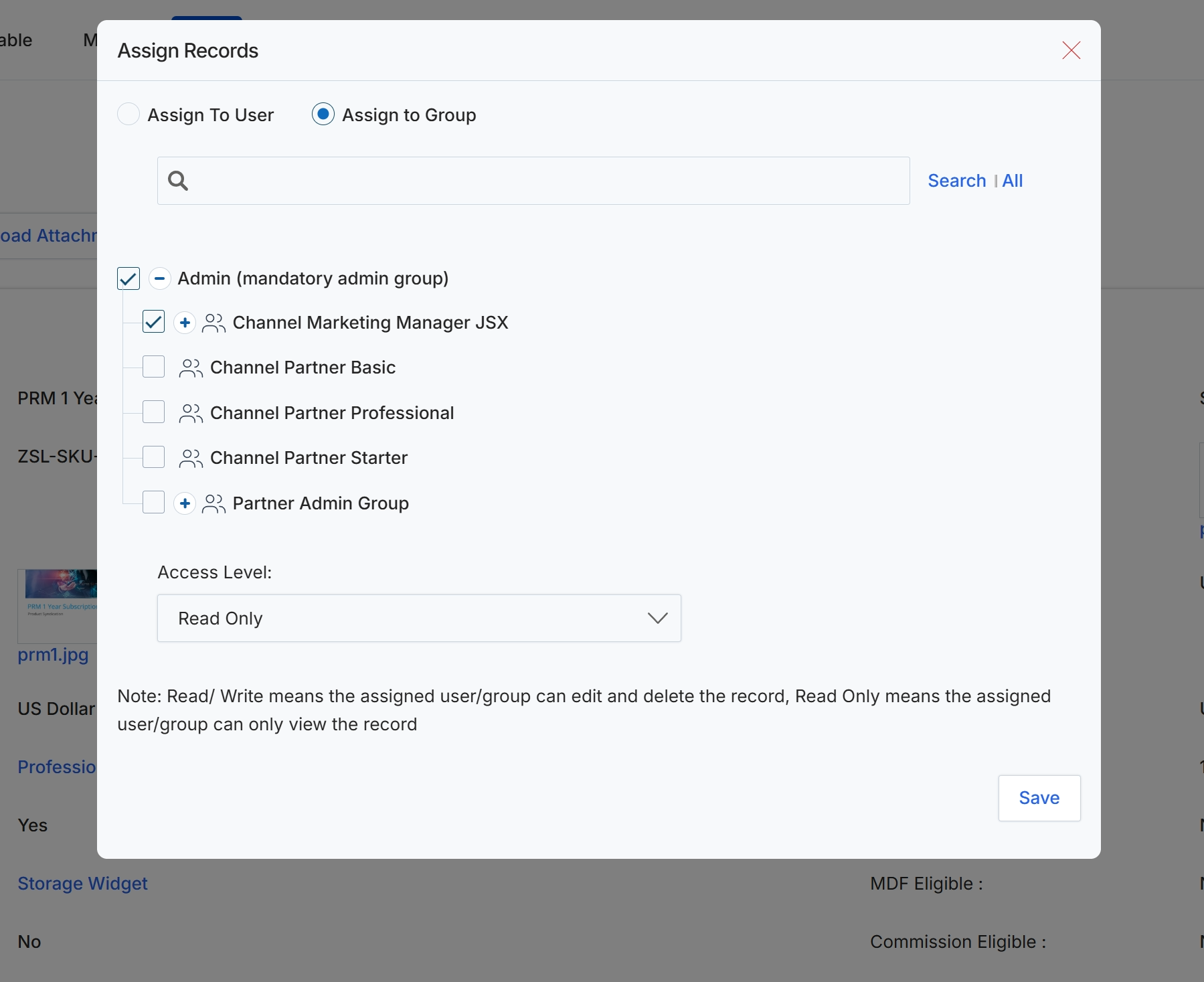
This modal dialog, 'Assign Records', is used to control access to specific records within the platform by assigning them to user groups and defining their access level. This functionality is crucial for managing data visibility and permissions, ensuring that only authorized groups can view or modify particular records. Administrators can choose to assign records to individual users or to predefined groups, with the latter being more efficient for managing permissions across multiple users with similar roles. The access level determines the extent of interaction permitted with the assigned record, ranging from view-only to full edit and delete capabilities, thereby enforcing granular control over data integrity and security.
Select the desired groups and access level for the record.
Buttons
| Button | Description |
|---|---|
| Search | Button to initiate the search for groups. |
| All | Button to display all available groups. |
| Save | Button to save the record assignment and close the modal. |
Fields
| Field | Description |
|---|---|
| Assign To User | Radio button to assign the record to individual users. |
| Assign to Group | Radio button to assign the record to predefined user groups. |
| Search | Text input field to search for specific groups. |
| Access Level | Dropdown to select the access level for the assigned groups. |
Downloading Product Attachments
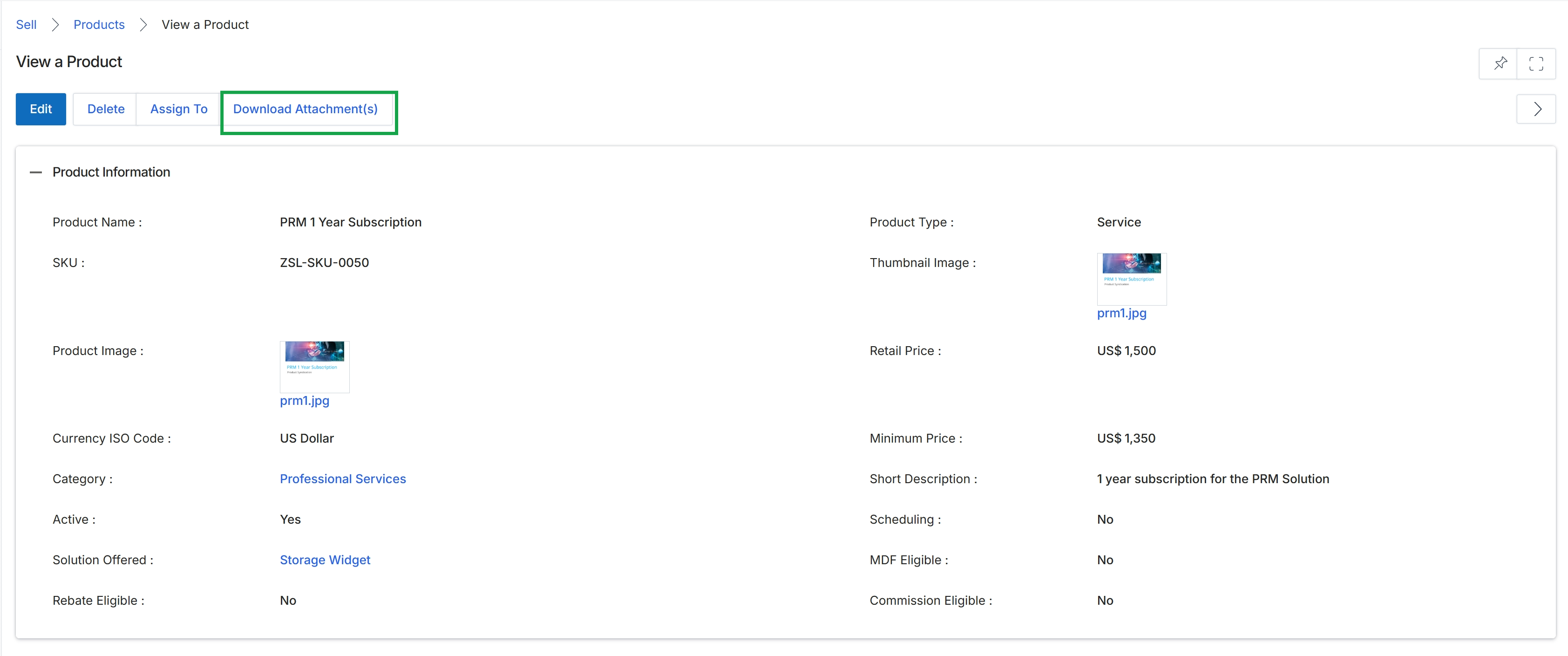
Click the Download Attachment(s) button.