

Overview
The 'Solutions Offered' feature within the Products module is crucial for organizing and presenting the vendor's product and service portfolio to partners. By defining specific solutions, administrators can ensure that partners have clear, structured offerings to take to market, which can include individual products, product bundles, or specialized services. This organization helps partners understand the value proposition and facilitates their sales efforts.
Administrators can create, view, and manage these solutions, applying filters and custom views to efficiently navigate the catalog. This capability supports effective partner enablement by providing a curated list of sellable items, directly impacting the 'Sell' module's effectiveness by ensuring partners are equipped with the right products and solutions to meet customer needs and drive revenue.
Accessing Solutions Offered
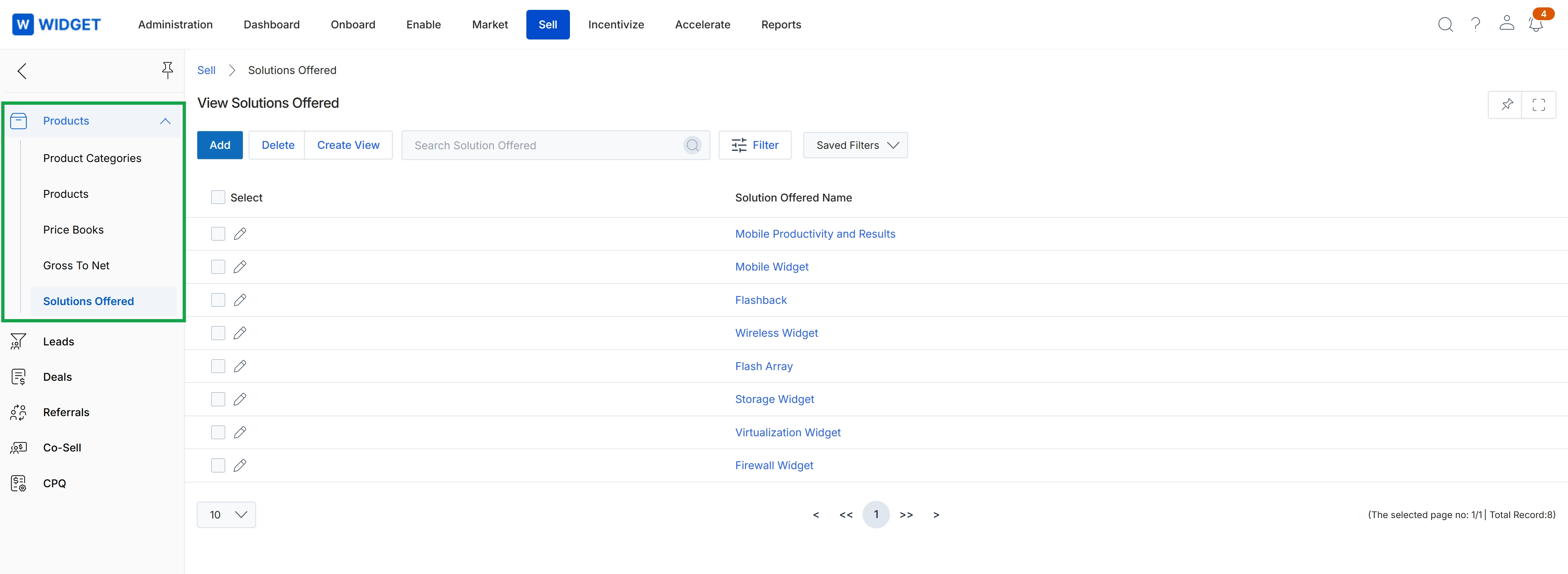
Click Solutions Offered in the left navigation menu.
Creating Custom Views
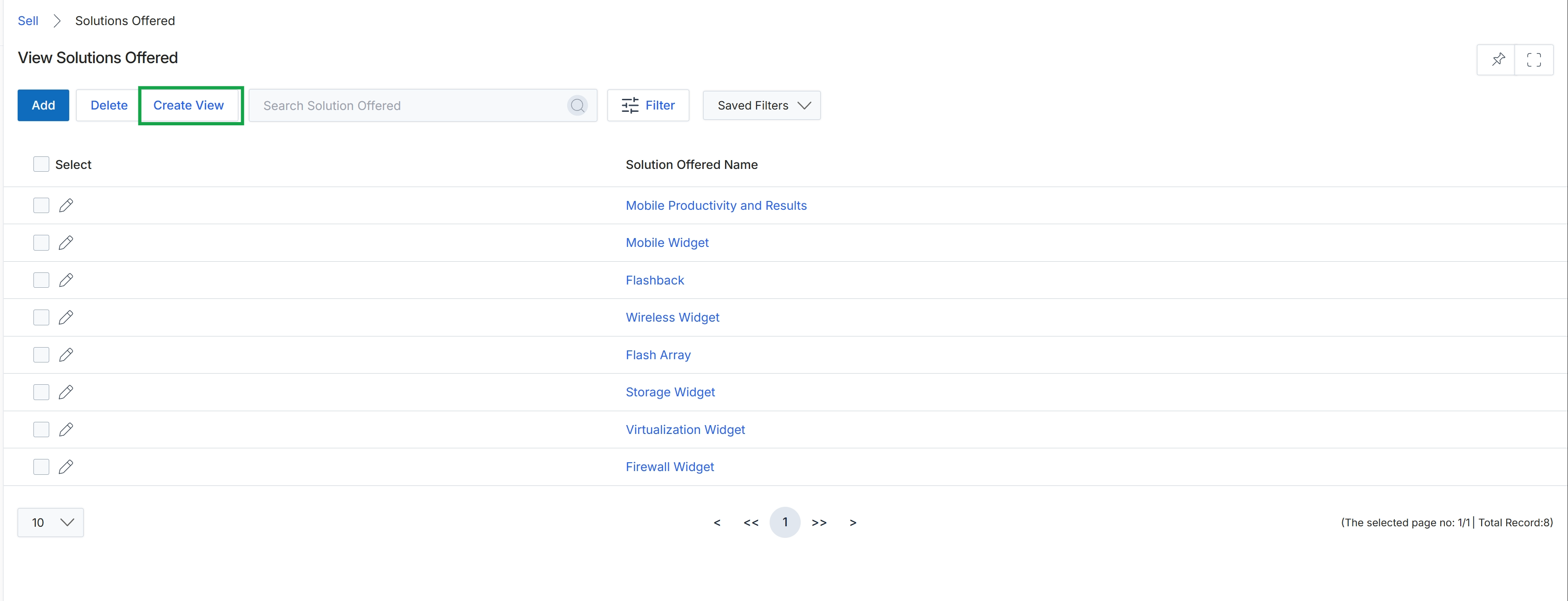
Click Create View.
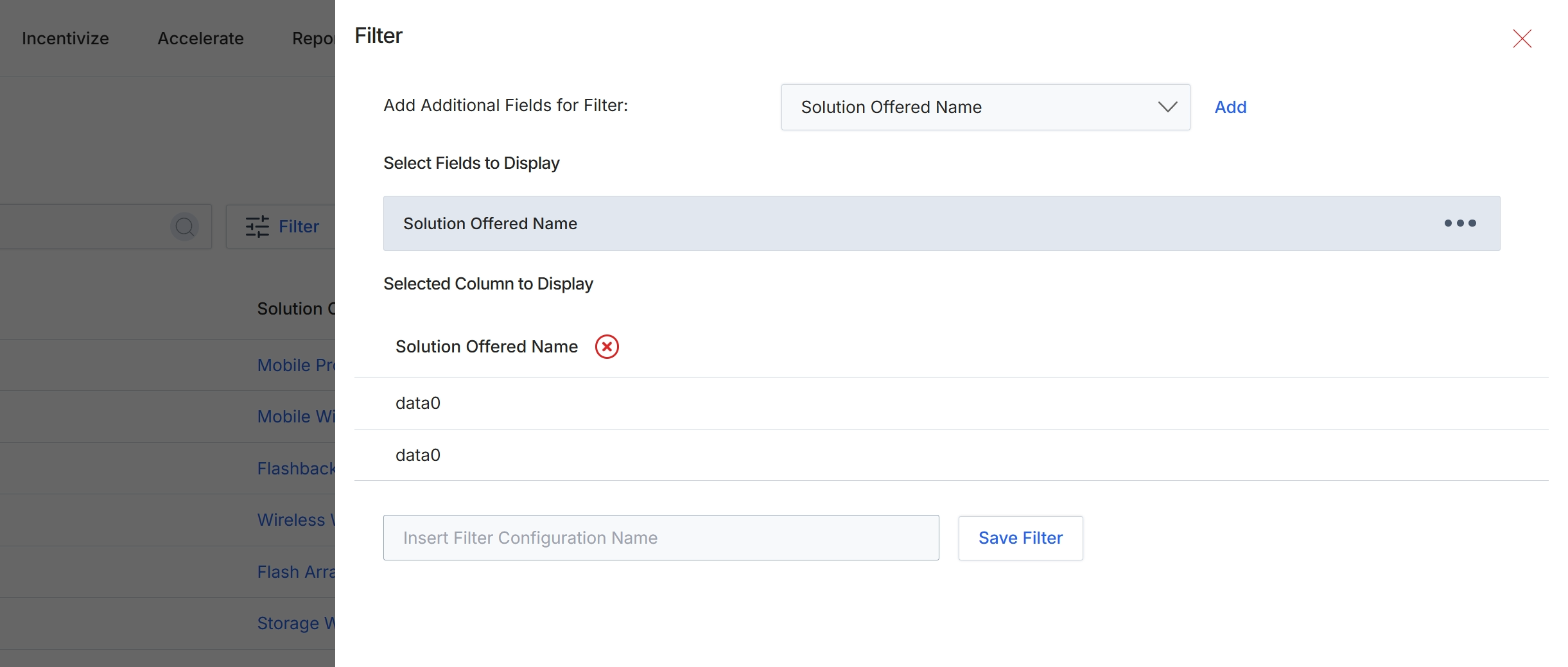
This filter configuration dialog allows administrators to customize the display and filtering options for the 'Solutions Offered' list view. Users can select additional fields to either filter the list or to display as columns in the main table, enhancing the granularity of data presented. This customization helps administrators quickly find specific solutions or analyze different attributes of the offerings without navigating away from the list view. The configuration can be saved for future use, streamlining repetitive data analysis tasks.
Click the dropdown menu next to 'Add Additional Fields for Filter:' to select additional fields to display or filter the list of solutions offered.
Buttons
| Button | Description |
|---|---|
| Add | Adds the selected field from the dropdown to the list of fields to display or filter. |
| Save Filter | Saves the current filter configuration under the specified name. |
Fields
| Field | Description |
|---|---|
| Add Additional Fields for Filter | This dropdown menu allows users to select additional fields that can be used to filter the list of solutions or displayed as columns. |
| Insert Filter Configuration Name | Enter a name for the current filter configuration to save it for future use. |
Filtering Solutions Offered
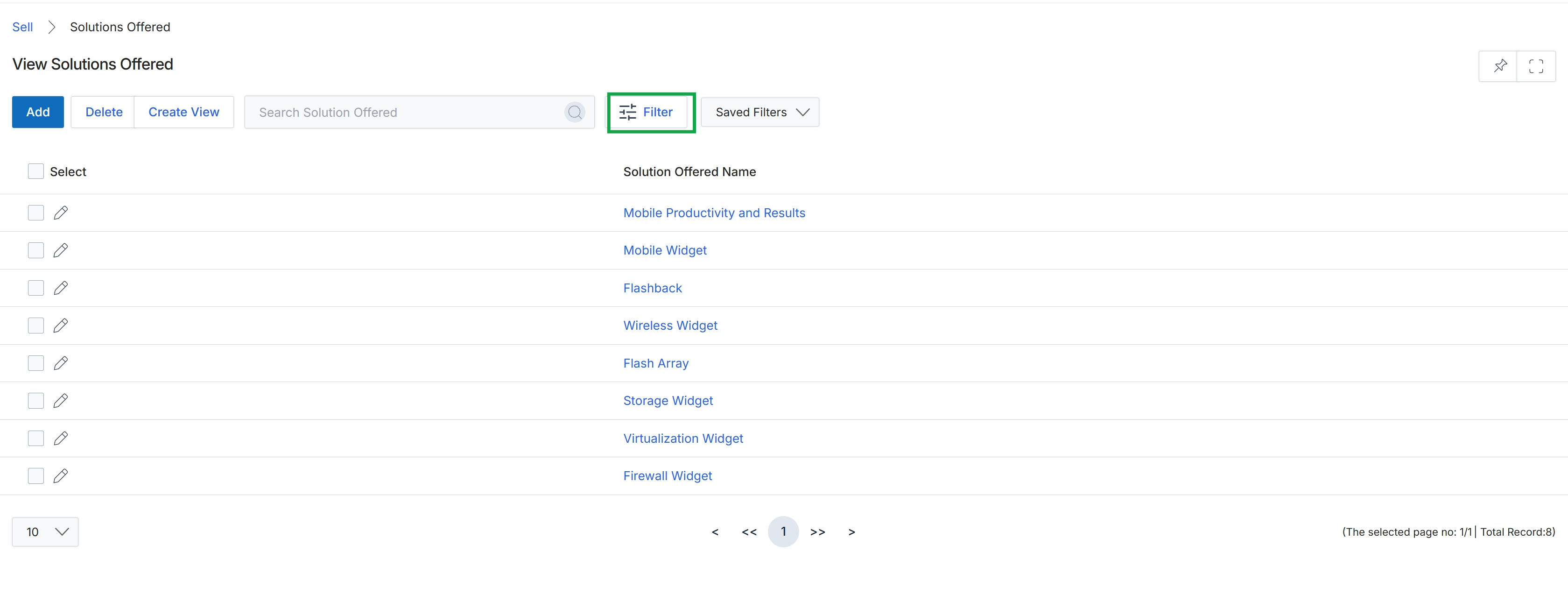
Click the Filter button.
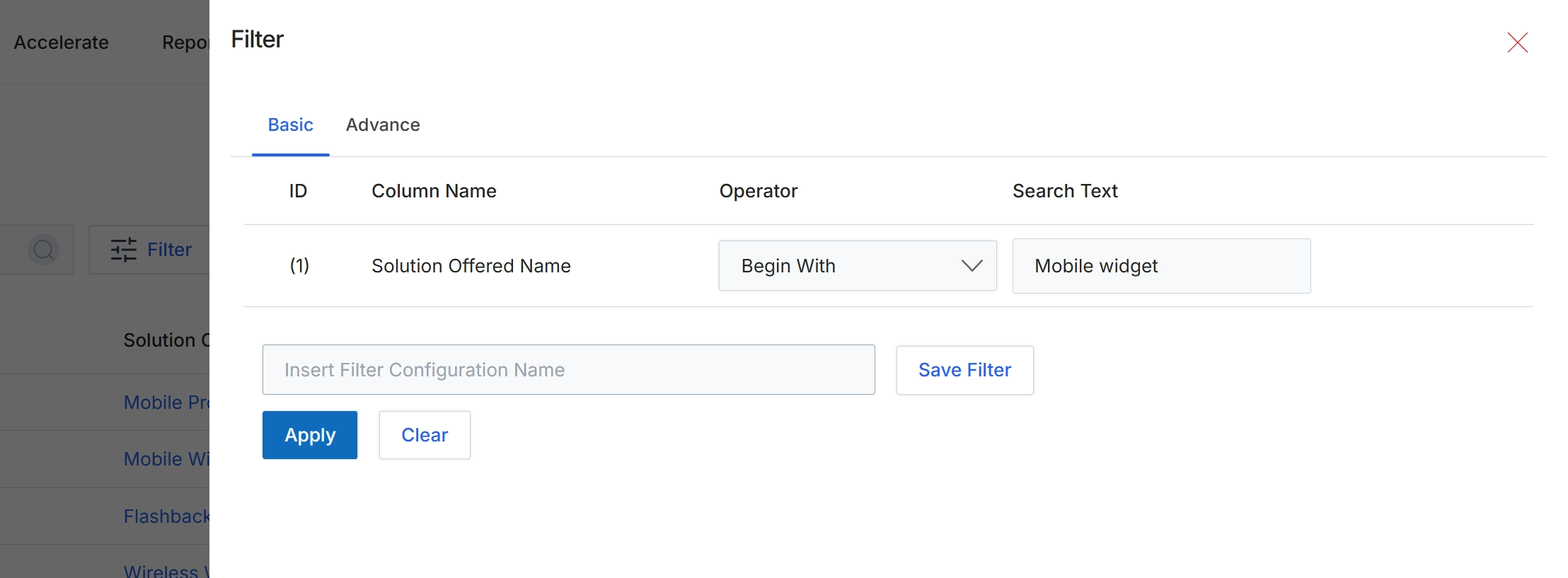
This screen displays the filter configuration dialog, allowing users to refine the list of solutions offered based on specific criteria. Users can define one or more filtering conditions using column names, operators, and search text. The dialog supports both basic and advanced filtering options, enabling precise data retrieval. Filters can also be saved for future use, streamlining repetitive search tasks and improving efficiency in managing product catalog entries. This functionality is crucial for administrators to quickly locate and manage specific solutions within a potentially large catalog.
Click the 'Apply' button to apply the configured filter to the solutions offered list.
Buttons
| Button | Description |
|---|---|
| Basic | This tab allows users to configure basic filtering conditions. |
| Advance | This tab allows users to configure advanced filtering conditions. |
| Save Filter | A button to save the current filter configuration with the specified name. |
| Apply | A button to apply the configured filter conditions to the list of solutions offered. |
| Clear | A button to clear all currently configured filter conditions. |
Fields
| Field | Description |
|---|---|
| Solution Offered Name | The name of the solution offered, used as the column for filtering. |
| Begin With | The operator selected for the filter, indicating that the 'Solution Offered Name' should begin with the specified 'Search Text'. |
| Mobile widget | The search text entered to filter 'Solution Offered Name' entries that begin with 'Mobile widget'. |
| Insert Filter Configuration Name | A text field to enter a name for saving the current filter configuration for future use. |
Column Headings
| Column | Description |
|---|---|
| ID | The column header for the filter condition's identifier. |
| Column Name | The column header for the name of the column to be filtered. |
| Operator | The column header for the comparison operator used in the filter condition. |
| Search Text | The column header for the text value to search for within the specified column. |
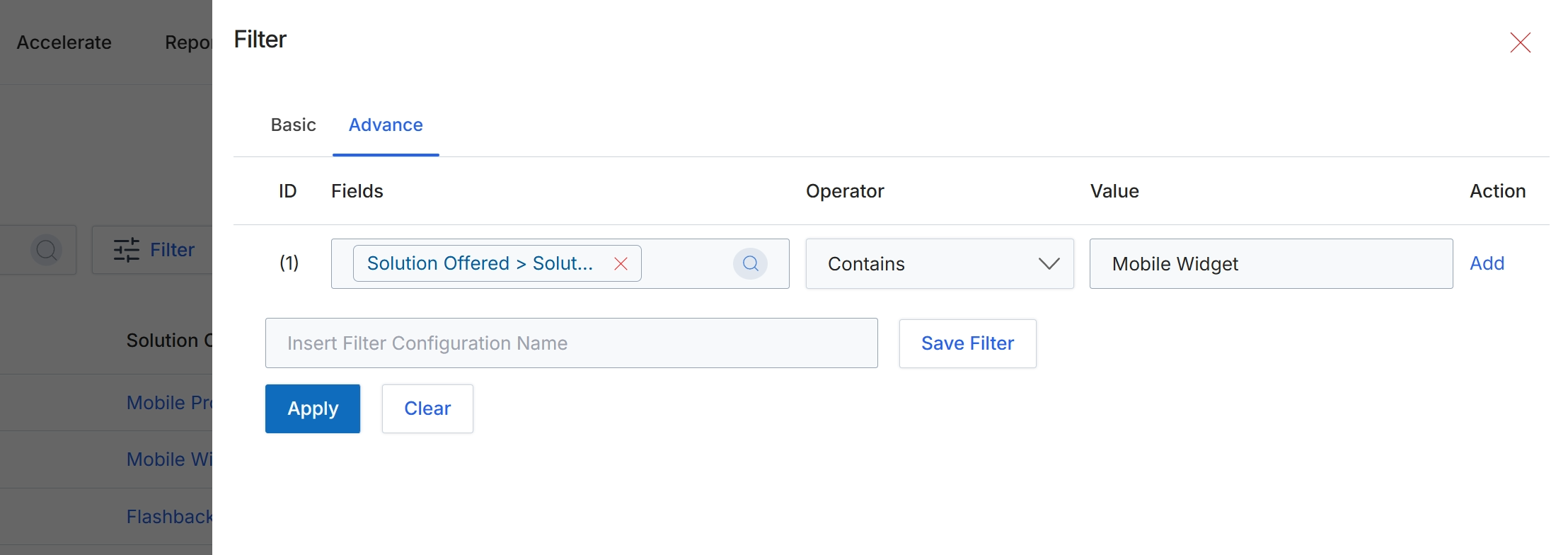
This screen displays the advanced filtering options available for refining the list of solutions offered within the Products Catalog Management module. Administrators use this interface to construct complex filter conditions based on specific fields, operators, and values, allowing for precise data retrieval. The advanced filter provides granular control over which solutions are displayed, supporting targeted management and analysis of product offerings. This capability is crucial for efficiently navigating large catalogs and focusing on relevant subsets of solutions, such as those related to a particular product type or feature. The ability to save filter configurations streamlines repetitive filtering tasks and enhances operational efficiency.
Apply the advanced filter to view solutions offered that contain 'Mobile Widget'.
Buttons
| Button | Description |
|---|---|
| Basic | Switches the filter interface to basic mode, offering simpler filtering options. |
| Advance | Switches the filter interface to advanced mode, allowing for complex filter conditions. |
| Add | Adds a new filter condition row. |
| Save Filter | Saves the current filter configuration with the specified name. |
| Apply | Applies the configured filter conditions to the list of solutions. |
| Clear | Clears all active filter conditions. |
Fields
| Field | Description |
|---|---|
| Solution Offered > Solut... | The selected field for the filter condition, indicating a solution offered. |
| Contains | The selected operator for the filter condition, indicating that the field's value should contain the specified text. |
| Mobile Widget | The value entered for the filter condition, specifying 'Mobile Widget'. |
| Insert Filter Configuration Name | Input field to enter a name for saving the current filter configuration. |
Column Headings
| Column | Description |
|---|---|
| ID | Column header for the filter condition identifier. |
| Fields | Column header for the field selected for the filter condition. |
| Operator | Column header for the operator used in the filter condition (e.g., 'Contains', 'Equals'). |
| Value | Column header for the value used in the filter condition. |
| Action | Column header for actions related to the filter condition, such as adding a new condition. |