

Overview
The Products Catalog Management module is a core component of the Sell module, enabling vendors to define and manage the entire catalog of products and services that partners can sell. This catalog forms the foundation for all sales-related activities, including deal registration, quoting, and commission calculations. Accurate and comprehensive product data is crucial for partners to effectively market and sell the vendor's offerings.
Administrators can define various attributes for each product, such as product type, SKU, category, and whether it's eligible for commissions or rebates. The module also supports bulk operations, allowing for efficient management of large product catalogs through import functionalities. This ensures that the product information available to partners is always current and consistent, facilitating smooth sales processes and accurate financial tracking.
Accessing and Viewing Products
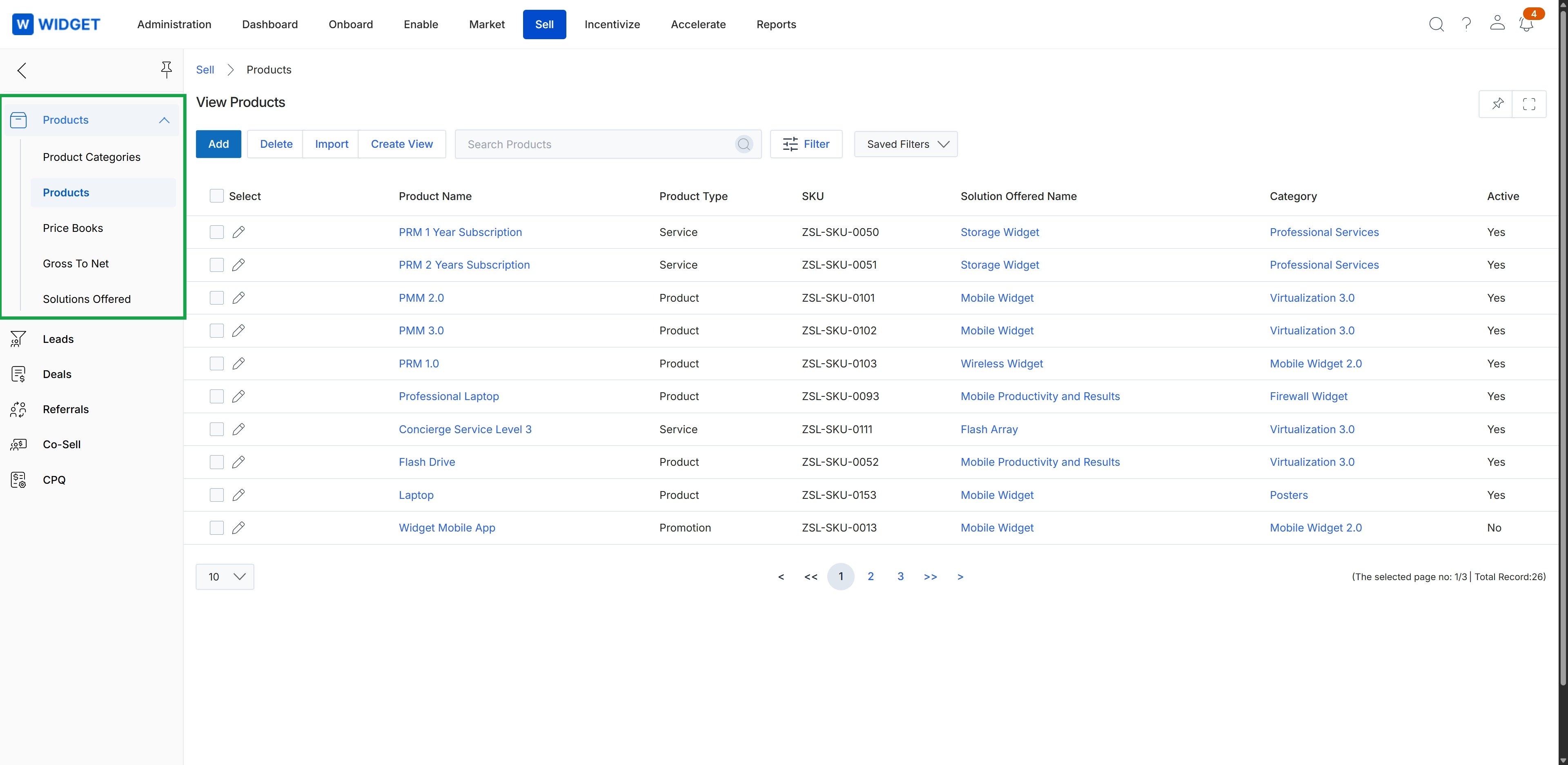
Click Products in the left navigation menu.
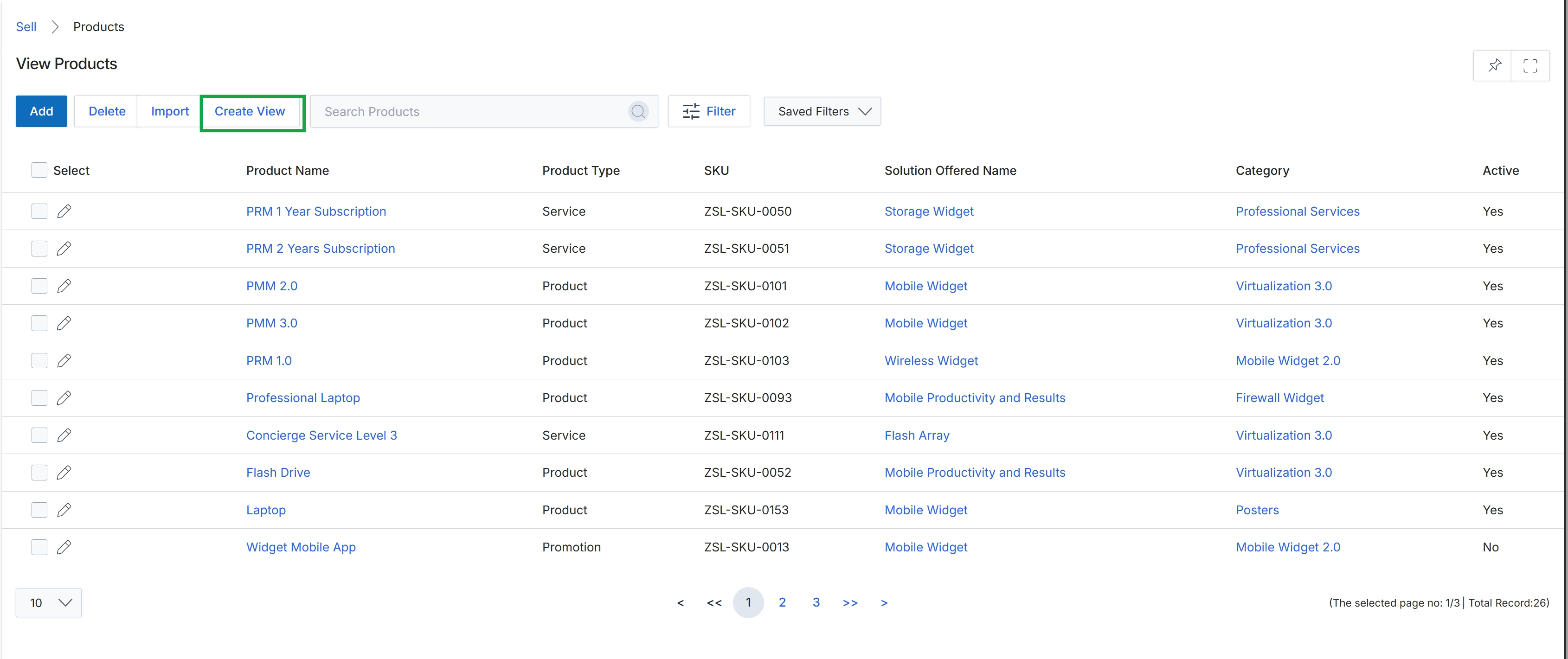
Click the Create View button.
Customizing Product Views and Filters
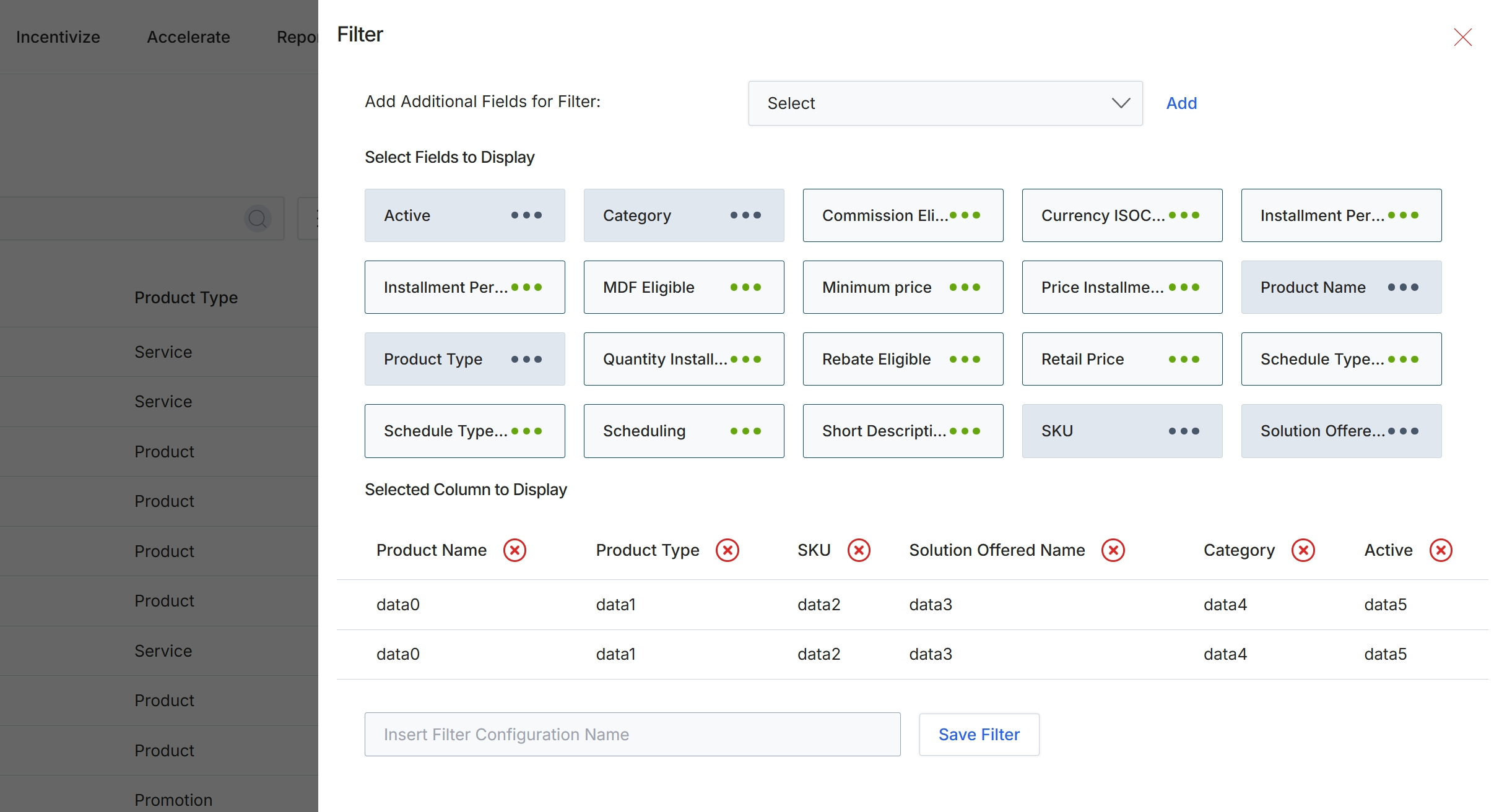
The Filter dialog allows administrators to customize the display and filtering options for product lists within the Products Catalog Management module. This screen provides granular control over which product attributes are visible as columns in the main list view and which attributes can be used to filter the displayed products. By selecting relevant fields, administrators can tailor the product catalog view to specific business needs, such as focusing on pricing, eligibility, or scheduling details. This customization enhances usability and efficiency when managing a large product inventory, ensuring that only pertinent information is presented to the user.
Select the desired fields to display as columns in the product list.
Buttons
| Button | Description |
|---|---|
| Save Filter | A button to save the current filter and display column configuration. |
Fields
| Field | Description |
|---|---|
| Add Additional Fields for Filter | A dropdown to select additional fields that can be used to filter the product list. |
| Select Fields to Display | A section containing various product attributes that can be selected to appear as columns in the product list view. |
| Insert Filter Configuration Name | A text field to enter a name for the current filter configuration. |
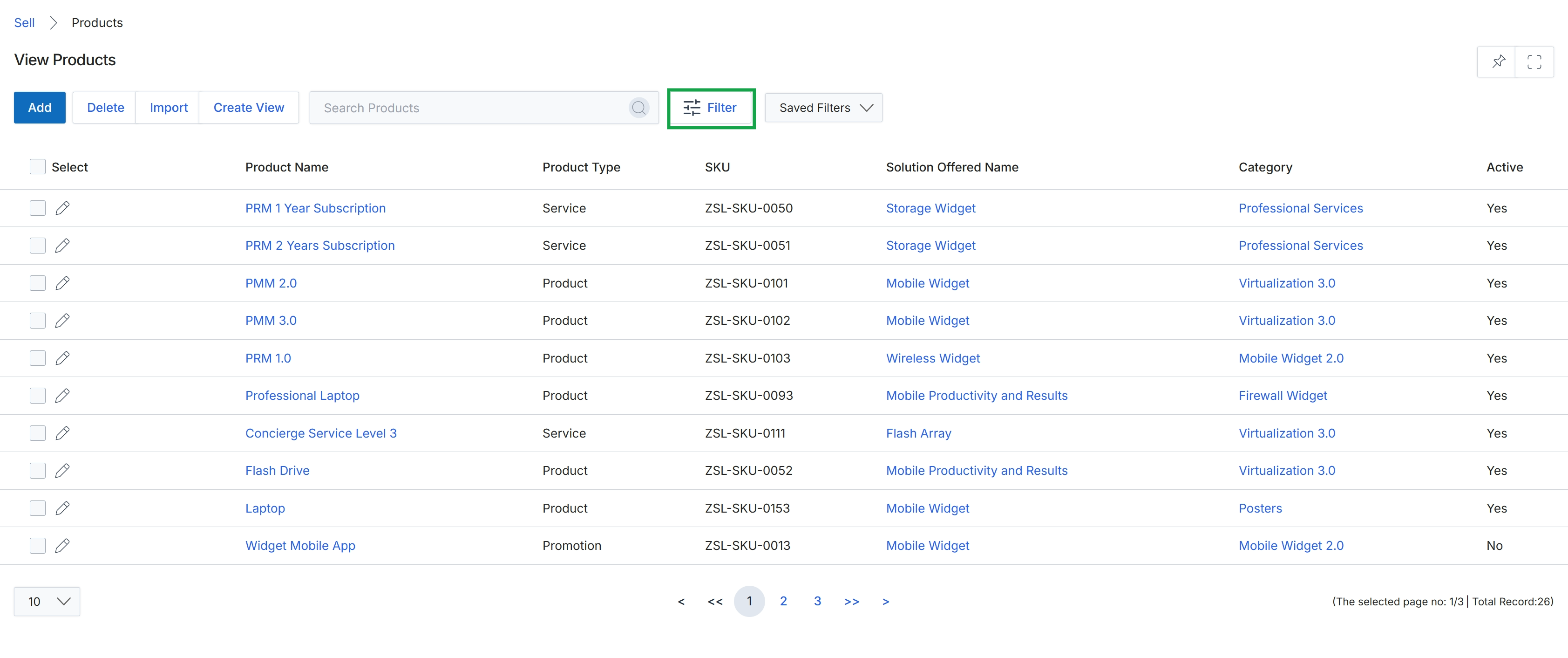
The View Products screen displays a comprehensive list of all products available within the platform's catalog. This catalog serves as the central repository for items that partners can sell, quote, or use in marketing campaigns. Each product entry includes essential details such as its name, type, SKU, associated solution, category, and active status. Administrators use this screen to manage the product lifecycle, including adding new products, editing existing ones, importing product data in bulk, and organizing products into views for easier management. The filtering capabilities allow administrators to quickly locate specific products based on various criteria, which is crucial for maintaining an organized and efficient product catalog.
Click the "Filter" button to open the filter panel and refine the displayed product list.
Buttons
| Button | Description |
|---|---|
| Add | Adds a new product to the catalog. |
| Delete | Deletes selected products from the catalog. |
| Import | Imports product data from an external file. |
| Create View | Creates a custom view of the product list based on specific criteria. |
| Filter | Opens a panel to apply filters to the product list. |
| Saved Filters | Allows selection of previously saved filter configurations. |
Fields
| Field | Description |
|---|---|
| Search Products | Searches for products by keyword across all fields. |
Column Headings
| Column | Description |
|---|---|
| Select | Checkbox to select all visible products in the list. |
| Icon to edit a specific product's details. | |
| Product Name | The name of the product. |
| Product Type | The classification of the product (e.g., Service, Product, Promotion). |
| SKU | The Stock Keeping Unit, a unique identifier for the product. |
| Solution Offered Name | The name of the solution or offering associated with the product. |
| Category | The category to which the product belongs. |
| Active | Indicates whether the product is currently active and available. |
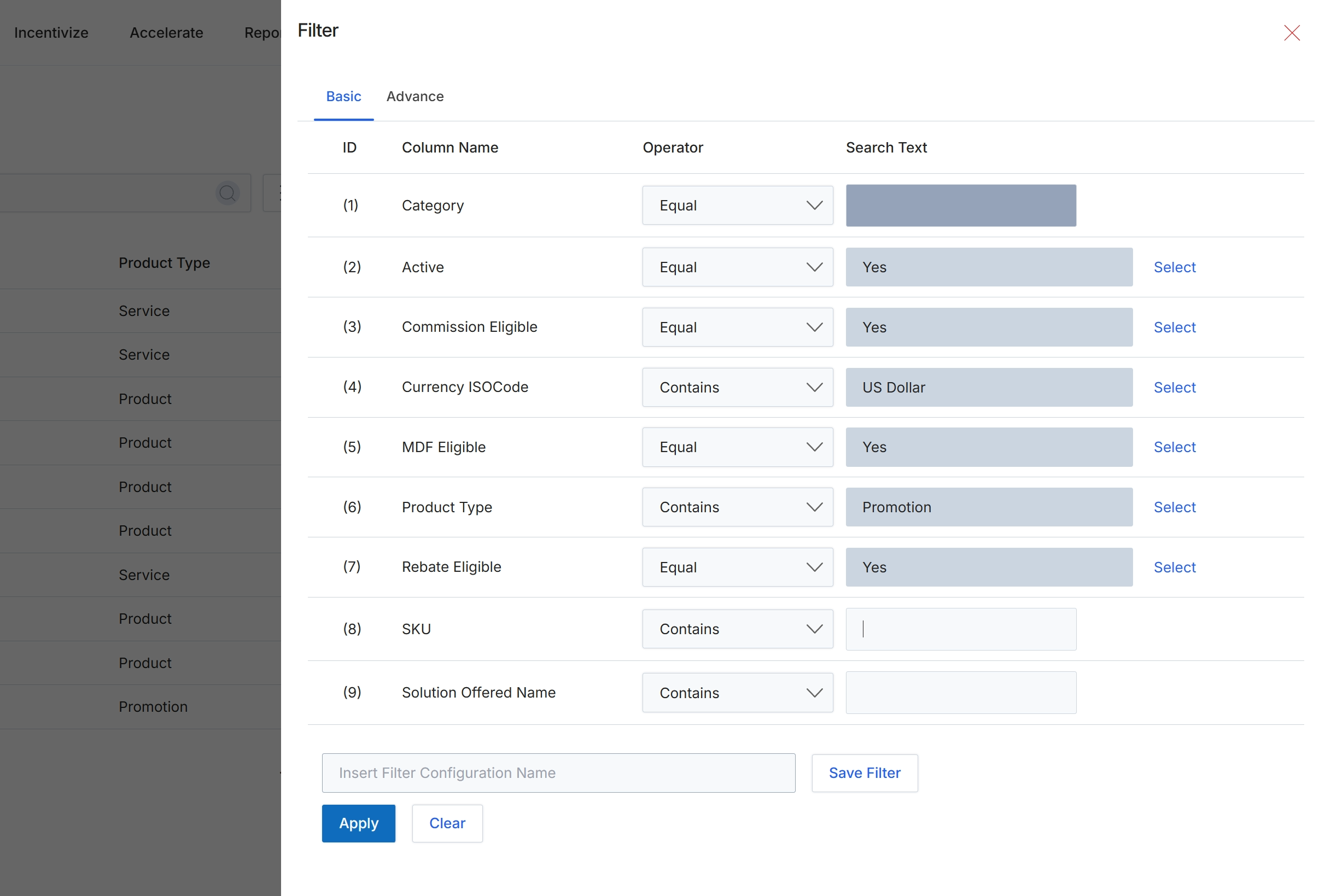
This filter dialog allows users to define and apply specific criteria to narrow down the list of products displayed in the product catalog. Users can set conditions based on various product attributes such as category, activity status, eligibility for commissions or MDF, currency, product type, and SKU. The dialog supports both basic and advanced filtering options, enabling precise data retrieval. Filters can be saved for future use, streamlining the process of analyzing product data according to predefined business rules or reporting needs.
Configure the filter criteria by selecting column names, operators, and search text, then click "Apply" to filter the product list.
Buttons
| Button | Description |
|---|---|
| Basic | This tab allows users to define simple filter conditions using a predefined set of columns. |
| Advance | This tab provides more complex filtering options, potentially allowing for custom expressions or grouped conditions. |
| Save Filter | Saves the currently configured filter settings under the specified name. |
| Apply | Applies the configured filter criteria to the product list. |
| Clear | Clears all currently configured filter criteria. |
Fields
| Field | Description |
|---|---|
| Category | Filter by the product's category. |
| Active | Filter by whether the product is currently active. |
| Commission Eligible | Filter by whether the product is eligible for commissions. |
| Currency ISOCode | Filter by the ISO currency code associated with the product's pricing. |
| MDF Eligible | Filter by whether the product is eligible for Market Development Funds. |
| Product Type | Filter by the type of product, such as 'Promotion' or 'Service'. |
| Rebate Eligible | Filter by whether the product is eligible for rebates. |
| SKU | Filter by the product's Stock Keeping Unit. |
| Solution Offered Name | Filter by the name of the solution offered. |
| Insert Filter Configuration Name | Enter a name to save the current filter configuration for future use. |
Column Headings
| Column | Description |
|---|---|
| ID | A numerical identifier for each filter row. |
| Column Name | The name of the product attribute to filter by, such as Category, Active, or SKU. |
| Operator | The comparison operator to use for the filter, such as 'Equal', 'Contains', or 'Greater Than'. |
| Search Text | The value to compare against the selected column name using the chosen operator. |
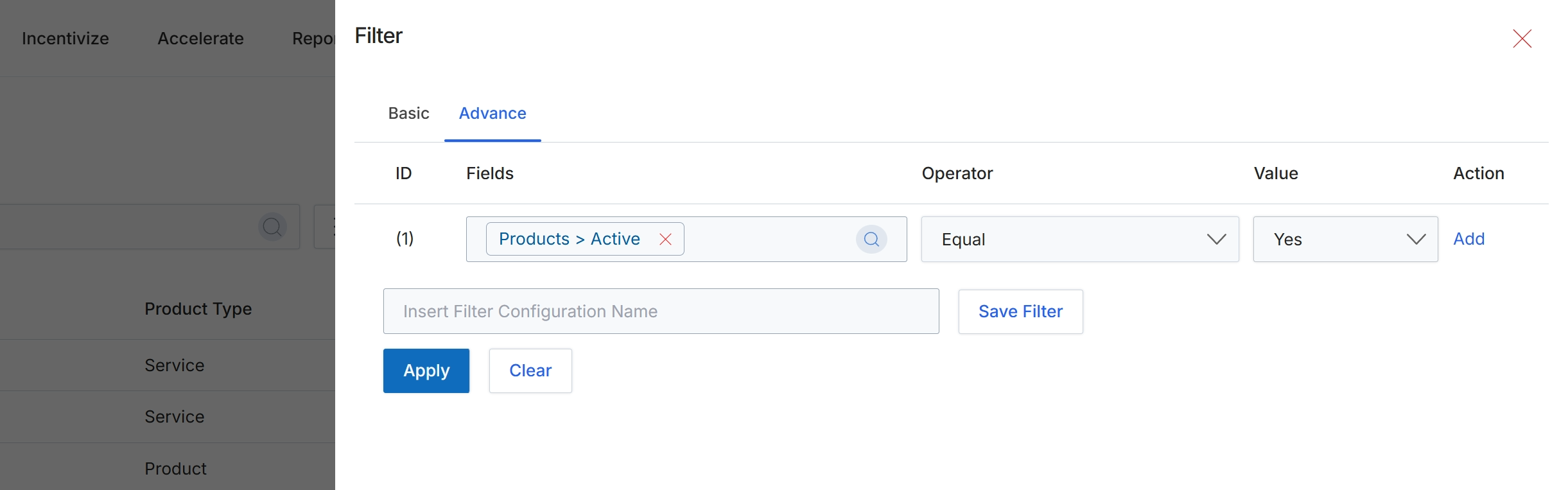
This advanced filter dialog allows users to define complex filtering criteria for product listings. It supports creating one or more rules based on product fields, operators, and values, enabling precise data segmentation. The interface provides a structured way to build queries, which can then be applied to dynamically update the displayed product list. Users can also save frequently used filter configurations for quick access and reuse, streamlining the process of analyzing specific subsets of products, such as active products or products within a certain category. This functionality is crucial for managing large product catalogs and focusing on relevant data for various administrative or reporting tasks.
Click the "Apply" button to apply the configured filter to the product list.
Buttons
| Button | Description |
|---|---|
| Basic | Tab to switch to basic filter options. |
| Advance | Tab to switch to advanced filter options, currently selected. |
| Add | Button to add another filter rule. |
| Save Filter | Button to save the current filter configuration for future use. |
| Apply | Button to apply the configured filter to the product list. |
| Clear | Button to clear all filter rules. |
Fields
| Field | Description |
|---|---|
| Products > Active | The selected field for the filter rule, indicating that the 'Active' status of products is being filtered. |
| Equal | The selected operator for the filter rule, indicating an equality comparison. |
| Yes | The selected value for the filter rule, indicating that only active products (where 'Active' is 'Yes') will be shown. |
| Insert Filter Configuration Name | Text input field to enter a name for saving the current filter configuration. |
Column Headings
| Column | Description |
|---|---|
| ID | Column header for the filter rule identifier. |
| Fields | Column header for selecting the product field to filter by. |
| Operator | Column header for selecting the comparison operator for the filter rule. |
| Value | Column header for entering or selecting the value to filter against. |
| Action | Column header for actions related to the filter rule, such as adding a new rule. |
Importing Products in Bulk
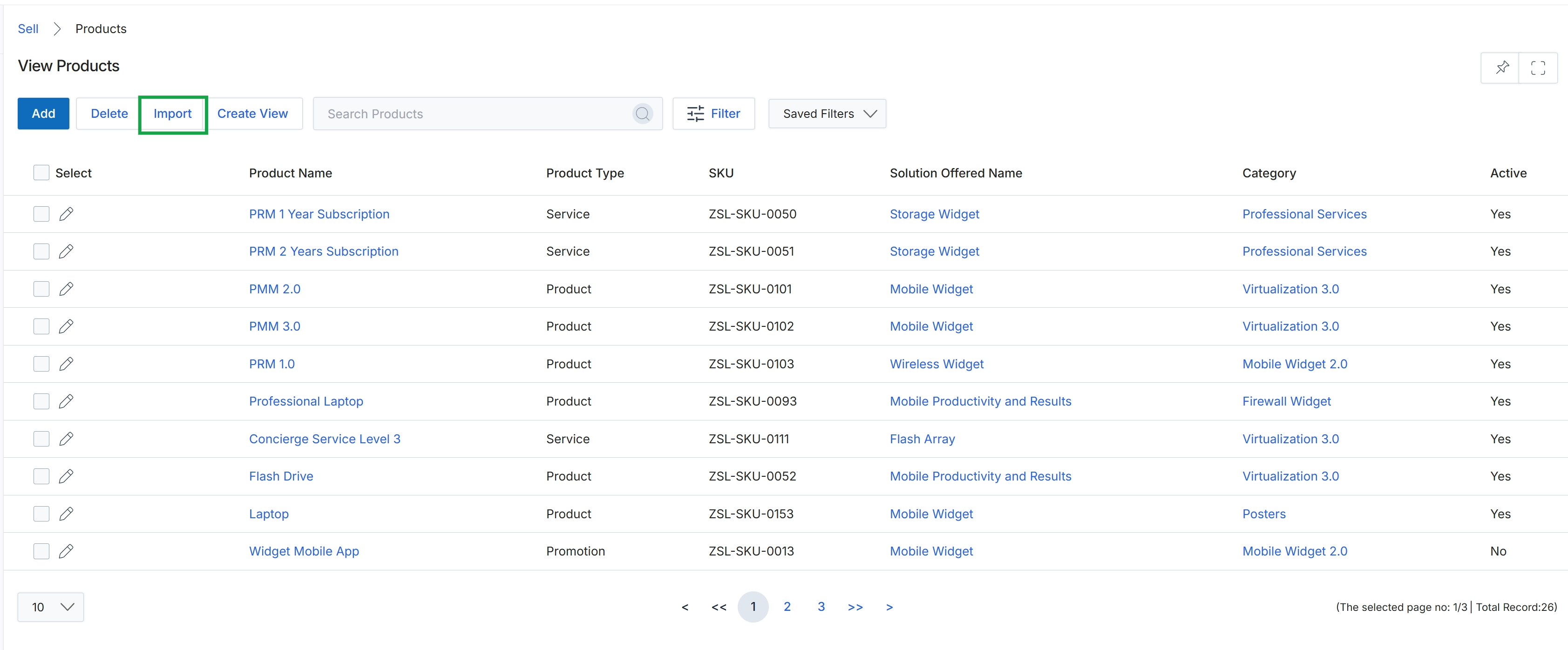
Click the Import button.
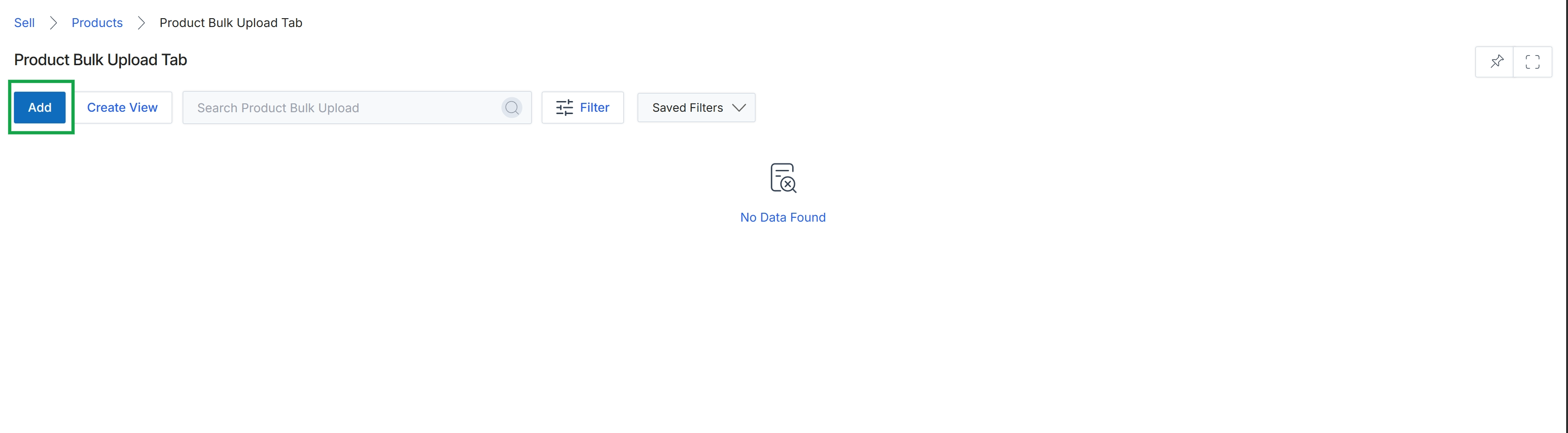
Click the Import button.
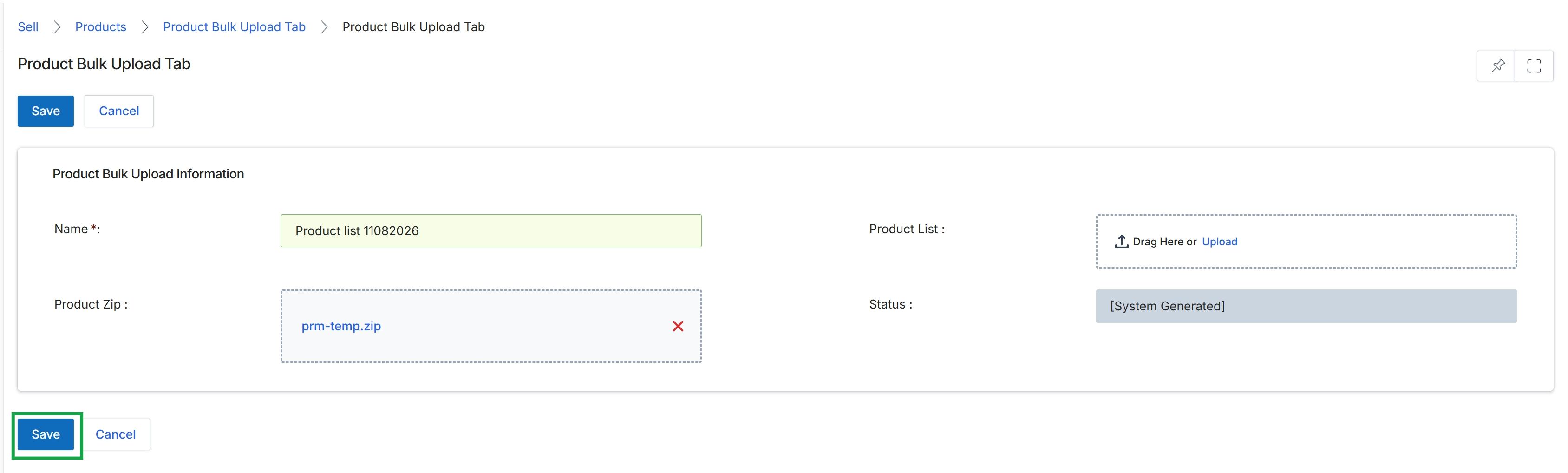
The Product Bulk Upload Tab provides a mechanism for administrators to upload product information in bulk, streamlining the process of populating the product catalog. This feature is particularly useful for initial setup or large-scale updates to product offerings, ensuring that the Price Book and other product-dependent modules have accurate and current data. The screen displays fields for naming the upload batch and attaching the product data file, which is typically a compressed archive containing product details. The system automatically tracks the status of the upload process.
Click the "Save" button to initiate the product bulk upload.
Buttons
| Button | Description |
|---|---|
| Save | Saves the bulk upload configuration and starts the product import process. |
| Cancel | Discards any changes and returns to the previous screen. |
Product Bulk Upload Information
| Field | Description |
|---|---|
| Name | A required field to provide a descriptive name for the product bulk upload batch. |
| Product List | An area to drag and drop or upload the product data file, which is expected to be a zip archive. |
| Product Zip | Displays the name of the uploaded product zip file. |
| Status | Indicates the current status of the bulk upload process, which is system-generated. |
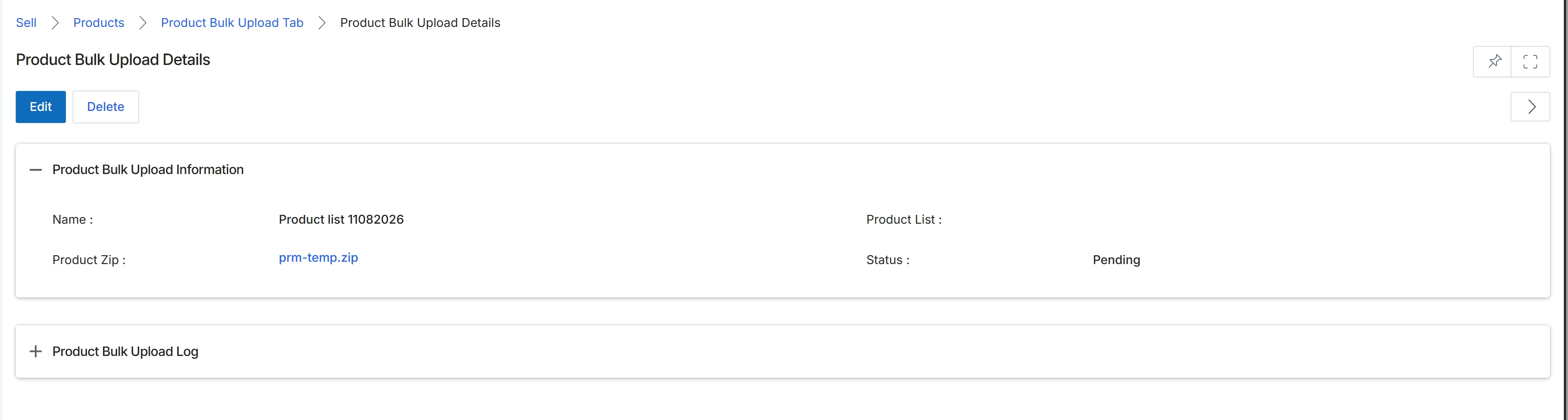
This screen displays the detailed information for a specific product bulk upload record. It provides an overview of the upload, including its assigned name, the associated product zip file, and its current processing status. This view allows administrators to monitor the progress of a bulk product upload and review its key attributes within the Sell module's product catalog management.