

Overview
Price Books are a core component of the Sell module, enabling vendors to define and manage the pricing of products and services offered through their partner ecosystem. Each Price Book can contain a customized list of products with specific pricing tailored to different partner types or tiers. This granular control ensures that partners are presented with accurate and relevant pricing information when generating quotes or engaging in sales activities.
Administrators use this functionality to maintain multiple price books, each potentially linked to specific partner segments, and to manage who has access to view or edit these pricing structures. This is crucial for implementing tiered pricing strategies and ensuring pricing consistency across the partner network.
Accessing and Viewing Price Books
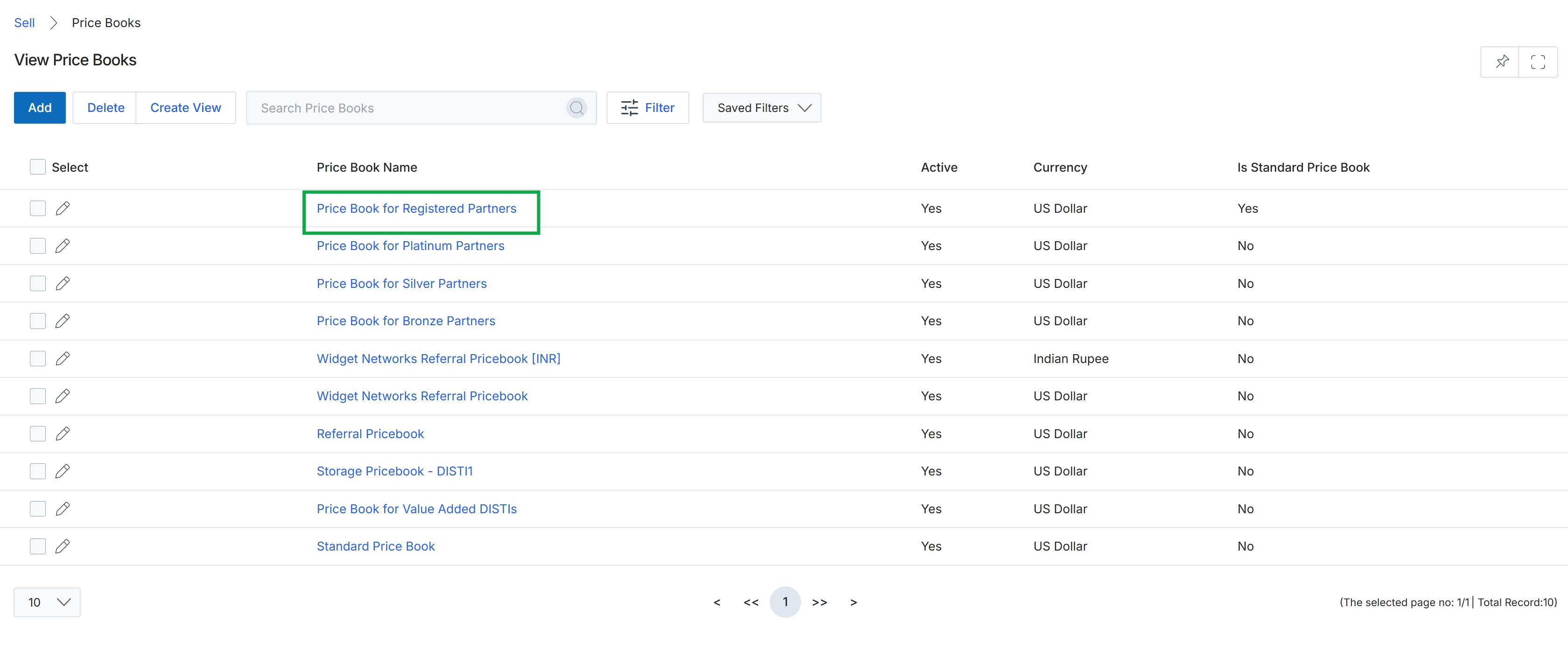
Click the Price Book for Registered Partners link.
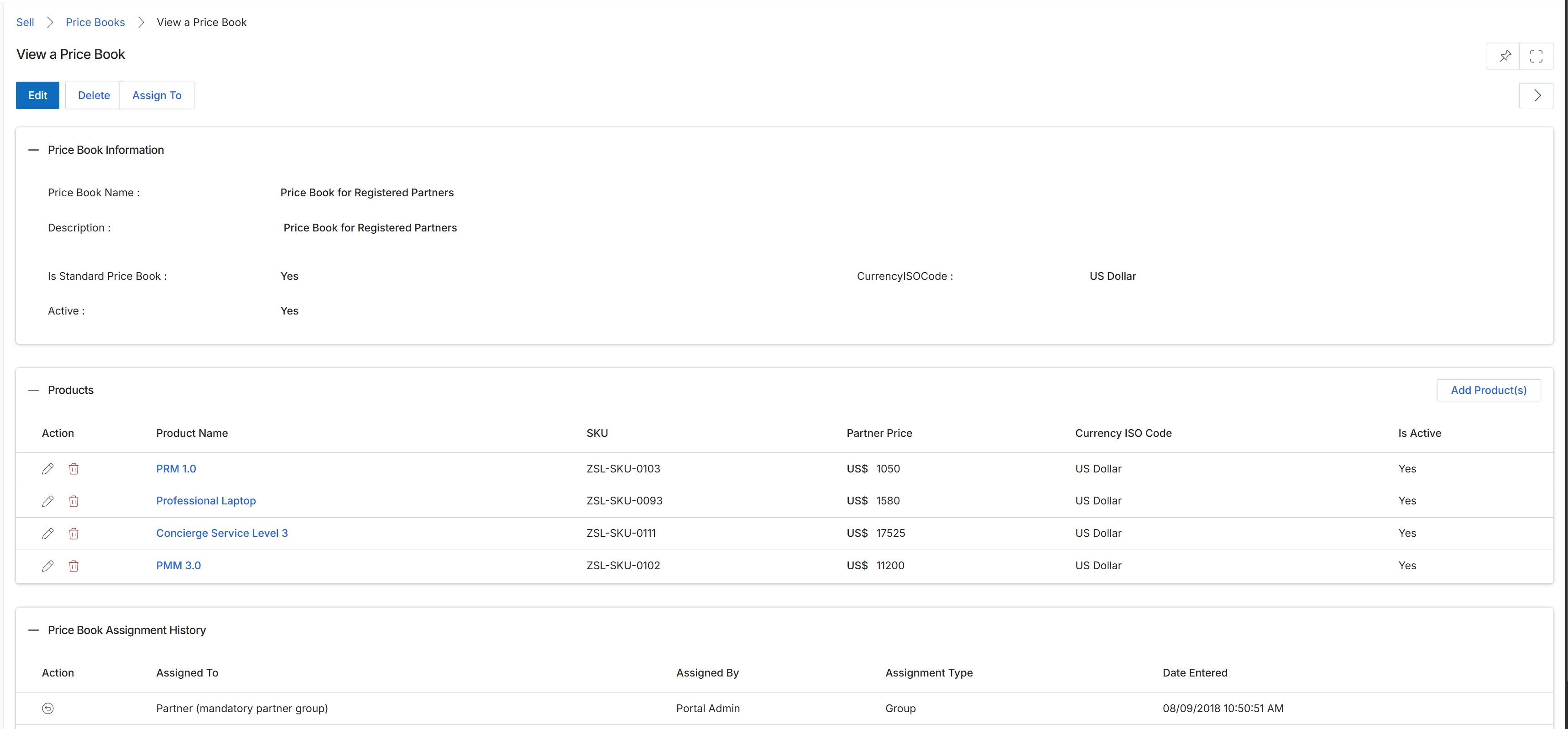
This screen provides a detailed view of a specific Price Book, which serves as a catalog of products and their associated pricing within the platform's Sell module. Price Books are crucial for enabling partners to generate accurate quotes and orders, as they define the products available and their pricing, often customized for different partner tiers or types. The screen is divided into three main sections: 'Price Book Information' displays general attributes like its name, description, currency, and active status; 'Products' lists all items included in this Price Book along with their individual SKUs, partner prices, and active status; and 'Price Book Assignment History' shows how this Price Book has been distributed or assigned to various partner groups or entities over time. Administrators use this comprehensive view to review the configuration of a Price Book, verify product pricing, and understand its current distribution across the partner ecosystem before making any modifications or new assignments.
Review the details of the selected Price Book, including its general information, listed products, and assignment history.
Buttons
| Button | Description |
|---|---|
| Edit | Allows modification of the Price Book's details and associated products. |
| Delete | Removes the Price Book from the system. |
| Assign To | Initiates the process to assign this Price Book to specific partners or partner groups. |
| Add Product(s) | Button to add new products to this Price Book. |
Price Book Information
| Field | Description |
|---|---|
| Price Book Name | The name of the Price Book, identifying its purpose or target audience. |
| Description | A brief explanation of the Price Book's content or usage. |
| Is Standard Price Book | Indicates whether this is a default or standard Price Book. |
| Currency ISOCode | The ISO currency code used for pricing within this Price Book. |
| Active | Shows whether the Price Book is currently active and available for use. |
Products
| Column | Description |
|---|---|
| Action | Column containing actions such as edit or delete for individual products within the Price Book. |
| Product Name | The name of the product included in the Price Book. |
| SKU | The Stock Keeping Unit (SKU) for the product. |
| Partner Price | The price at which partners can purchase or sell the product. |
| Currency ISO Code | The currency code for the partner price. |
| Is Active | Indicates if the product is currently active within this Price Book. |
Price Book Assignment History
| Column | Description |
|---|---|
| Action | Column for actions related to Price Book assignments, such as viewing details. |
| Assigned To | The partner group or entity to which the Price Book has been assigned. |
| Assigned By | The user or system that performed the assignment. |
| Assignment Type | The method or category of assignment (e.g., Group). |
| Date Entered | The date and time when the assignment was recorded. |
Managing Price Book Assignments
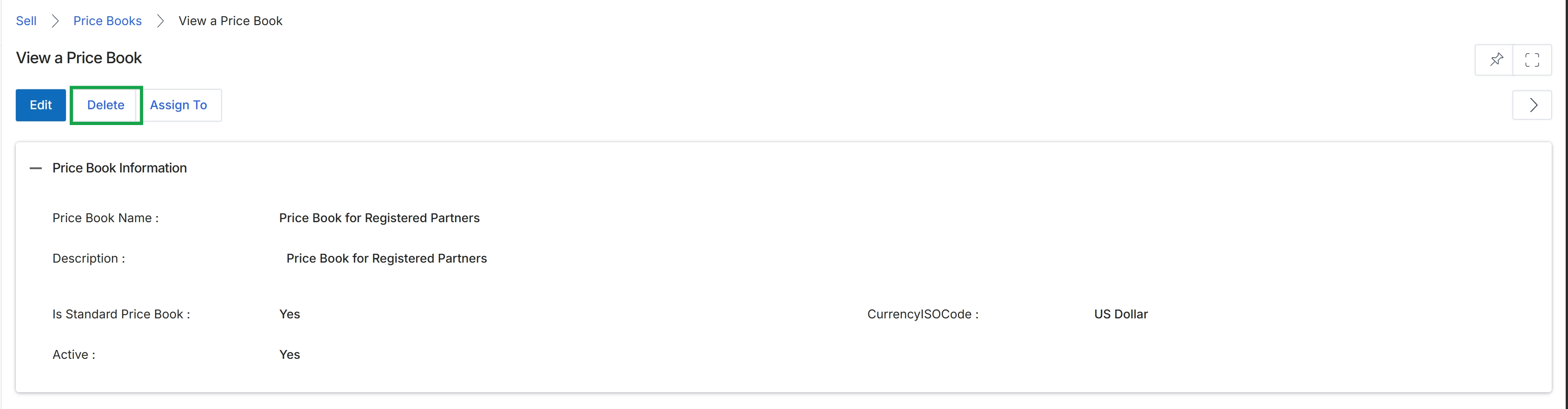
Click the Delete button.
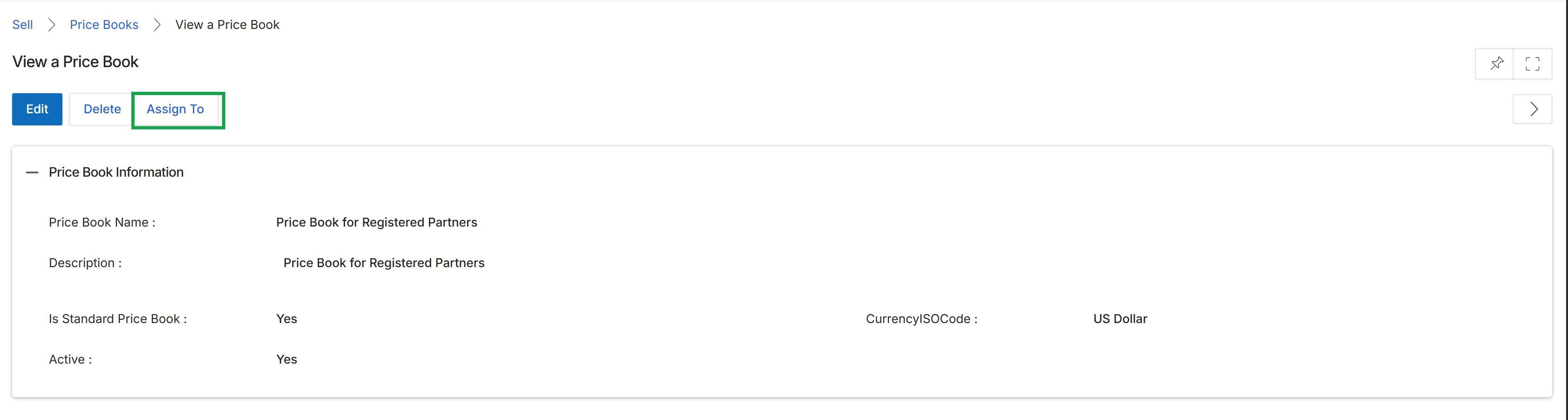
Click the Assign To button.
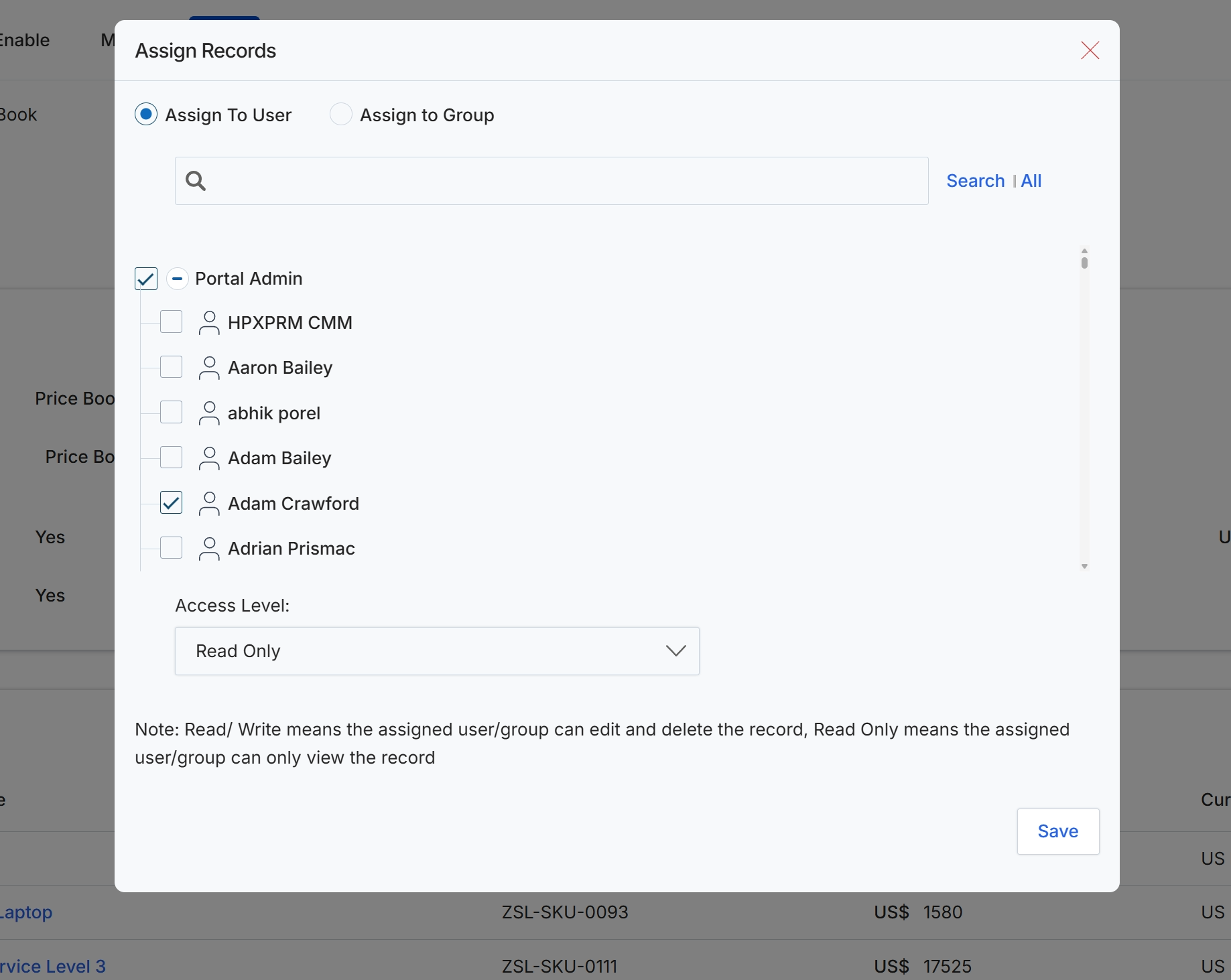
The 'Assign Records' modal dialog provides granular control over record access, allowing administrators to define which individual users or user groups can view or modify specific records within the platform. This functionality is critical for enforcing role-based access control (RBAC) and maintaining data security, ensuring that sensitive information is only accessible to authorized personnel. Administrators can search for users or groups, select them for assignment, and then specify their access level, such as 'Read Only' or 'Read/Write', thereby controlling both visibility and edit permissions for the assigned entities. This mechanism supports operational efficiency by streamlining workflows and preventing unauthorized data manipulation.
Select the users or groups to whom the record should be assigned and choose their access level, then click 'Save'.
Buttons
| Button | Description |
|---|---|
| All | A button to display all available users or groups. |
| Save | A button to save the record assignment and close the modal. |
Fields
| Field | Description |
|---|---|
| Assign To User | A radio button to select assignment to individual users. |
| Assign to Group | A radio button to select assignment to user groups. |
| Search | A search input field to find specific users or groups for assignment. |
| Access Level | A dropdown menu to select the permission level for the assigned users or groups. |
| Read Only | The currently selected access level, meaning assigned users/groups can only view the record. |
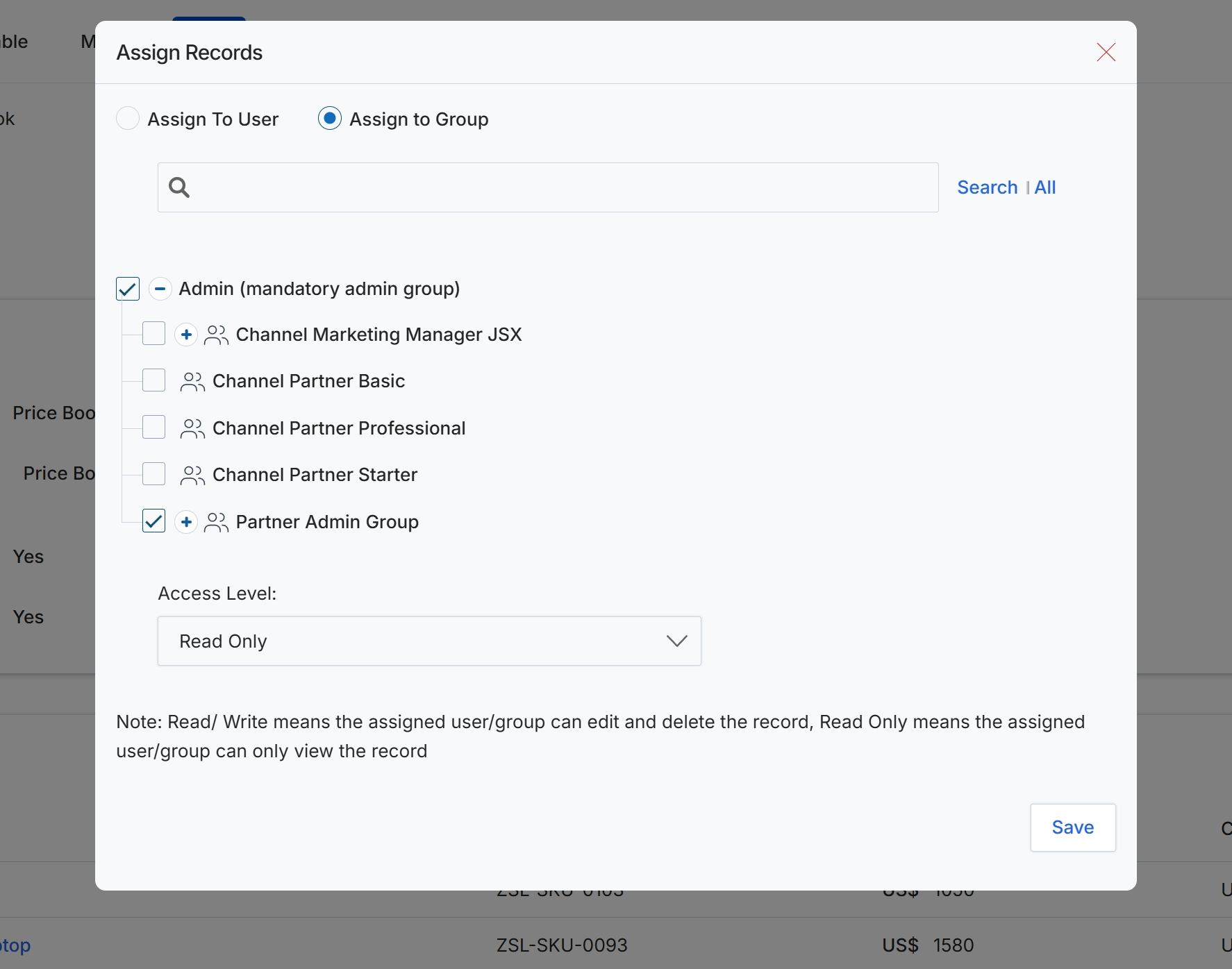
This dialog, titled 'Assign Records', provides UPM administrators with the functionality to control access to specific records by assigning them to user groups. This granular permission management ensures data security and aligns record visibility with organizational roles and responsibilities. Administrators can choose to assign records to individual users or to predefined groups, and then specify the level of access (e.g., 'Read Only' or 'Read/Write') that the assigned users or groups will have to the associated data. This mechanism is crucial for maintaining compliance and preventing unauthorized access to sensitive information within the platform.
Select the 'Assign to Group' radio button to assign records to user groups.
Buttons
| Button | Description |
|---|---|
| Search | A clickable link to initiate the search for users or groups based on the entered keywords. |
| All | A clickable link to display all available users or groups without applying any search filters. |
| Save | A button to save the record assignment configurations and close the dialog. |
Fields
| Field | Description |
|---|---|
| Assign To User | A radio button to select the option of assigning records to individual users. |
| Assign to Group | A radio button to select the option of assigning records to user groups. |
| Search | A text input field to enter keywords for searching specific users or groups. |
| Access Level | A dropdown menu to set the access level for the selected groups, with options such as 'Read Only' or 'Read/Write'. |
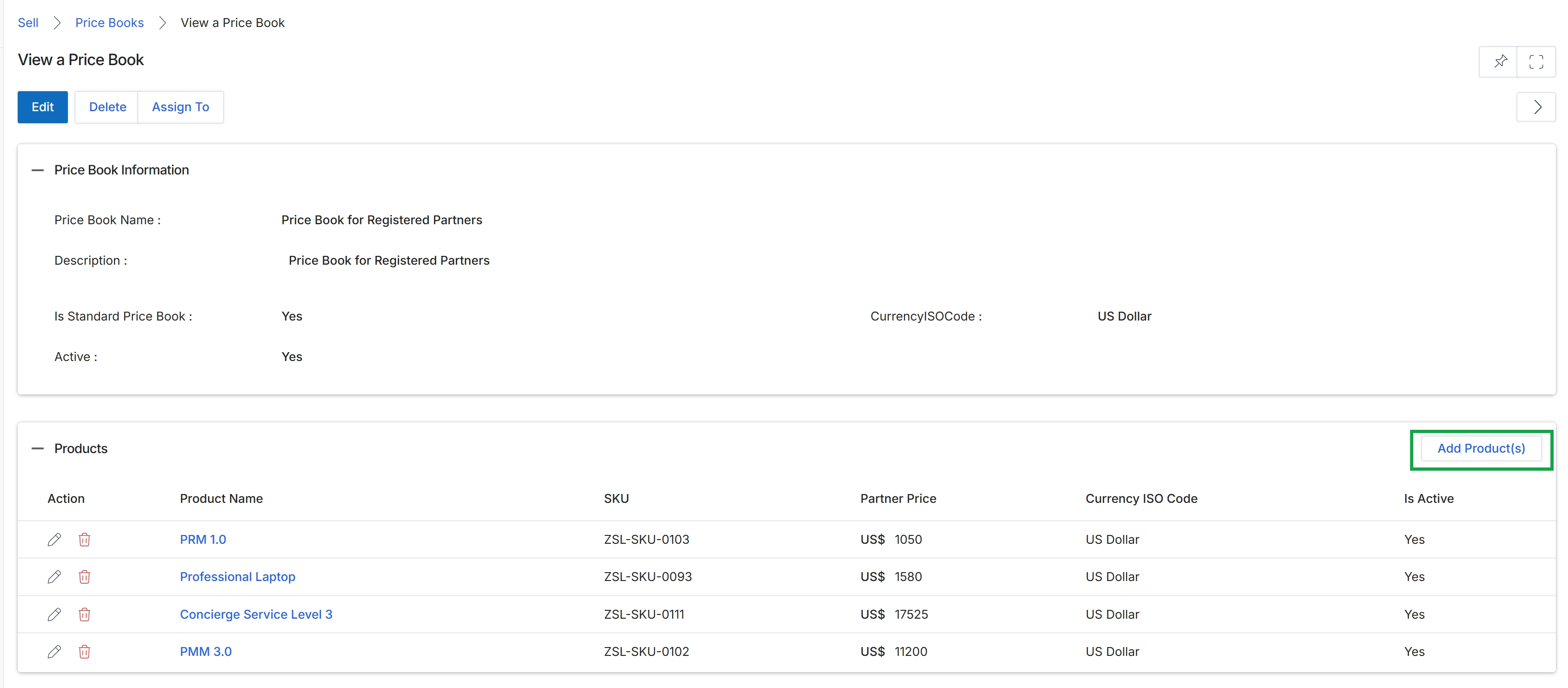
Click Add Product(s).
Adding Products to a Price Book
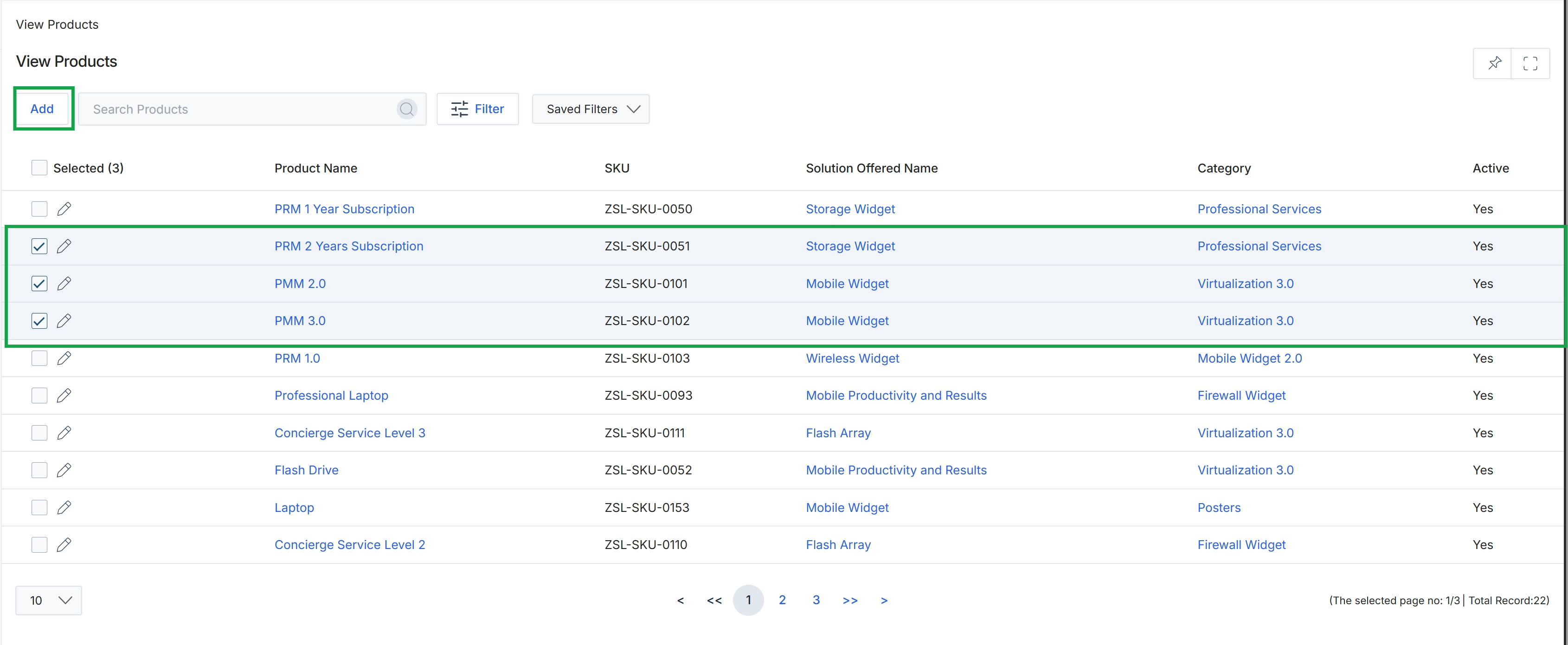
Click the Add Product(s) button.
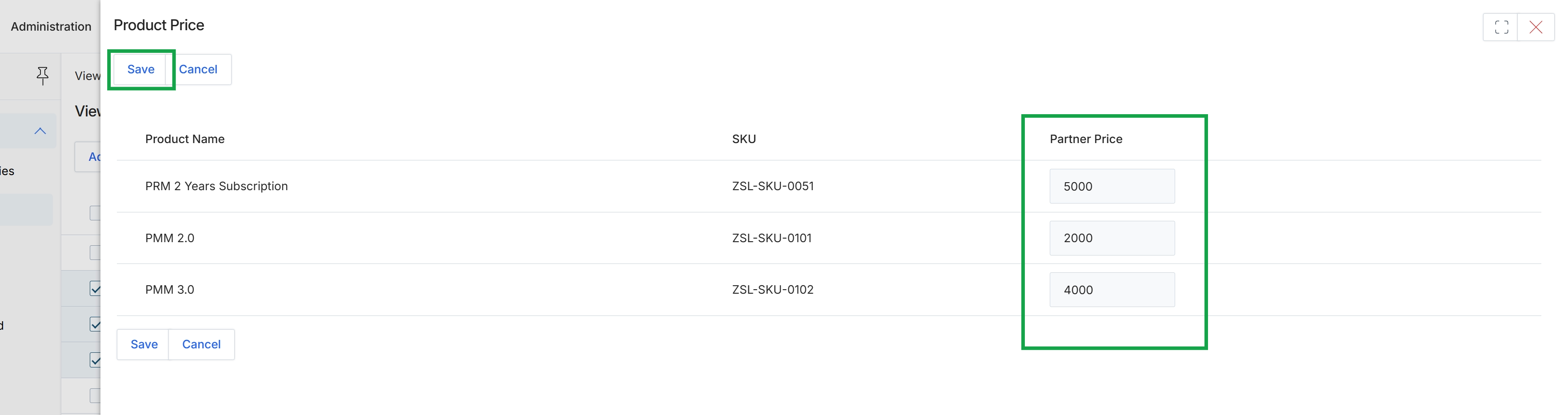
This screen displays the Product Price configuration, allowing administrators to define the 'Partner Price' for individual products. This pricing is distinct from the standard list price and is applied when partners create quotes from the Price Book in the Sell module. The system automatically applies partner-tier pricing based on the configured Price Book, ensuring that partners receive the correct discounted rates. This setup is crucial for managing profitability within the partner ecosystem and streamlining the quoting process for partners.
Enter the desired partner prices for each product and then click "Save" to apply the changes.
Buttons
| Button | Description |
|---|---|
| Save | Click to save the entered partner prices for the products. |
| Cancel | Click to discard any changes and close the Product Price view. |
Column Headings
| Column | Description |
|---|---|
| Product Name | Displays the name of the product. |
| SKU | Displays the Stock Keeping Unit (SKU) for the product. |
| Partner Price | An editable field to set the specific price at which partners can purchase or sell the product. |
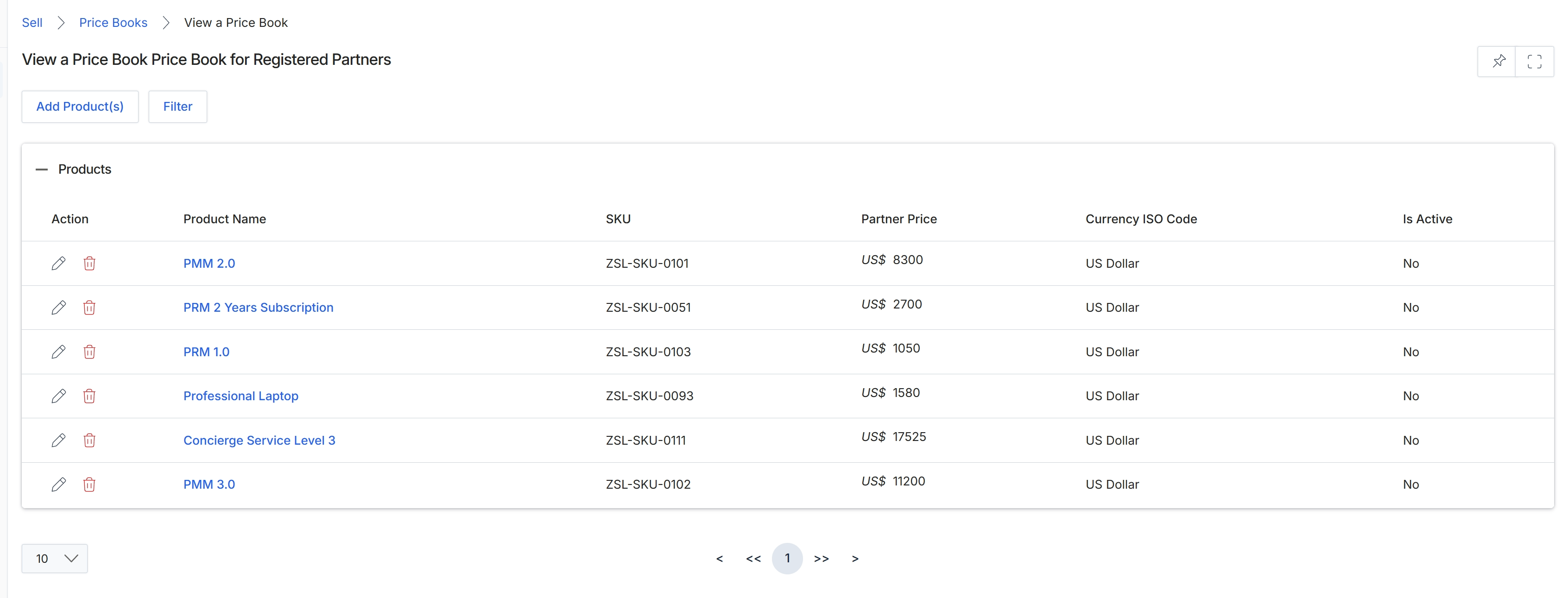
This screen displays the details of a specific Price Book, which is a catalog of products and their associated pricing for partners. It shows a list of products included in this Price Book, along with their SKU, the partner price, the currency, and whether each product is active. This view allows administrators to manage the products available to partners for quoting and selling, ensuring that partners have access to the correct pricing information for their sales activities.