

Overview
The Prospect management feature is a critical component of the Sell module, designed to help administrators nurture and qualify potential sales opportunities before they become formal leads. Prospects represent pre-lead contacts that may originate from various sources, such as marketing campaigns, events, or initial outreach. By providing a dedicated space to track detailed information about these contacts and their associated companies, administrators can systematically evaluate their potential and ensure that valuable opportunities are not missed.
This module facilitates the progression of prospects through various stages, allowing administrators to assign them to specific users or groups, check for duplicates, and ultimately convert them into qualified leads or accounts when they meet predefined criteria. This structured approach helps streamline the sales pipeline, improve lead quality, and optimize the handoff process to partners or internal sales teams, contributing to more efficient revenue generation.
Accessing and Viewing Prospect Details
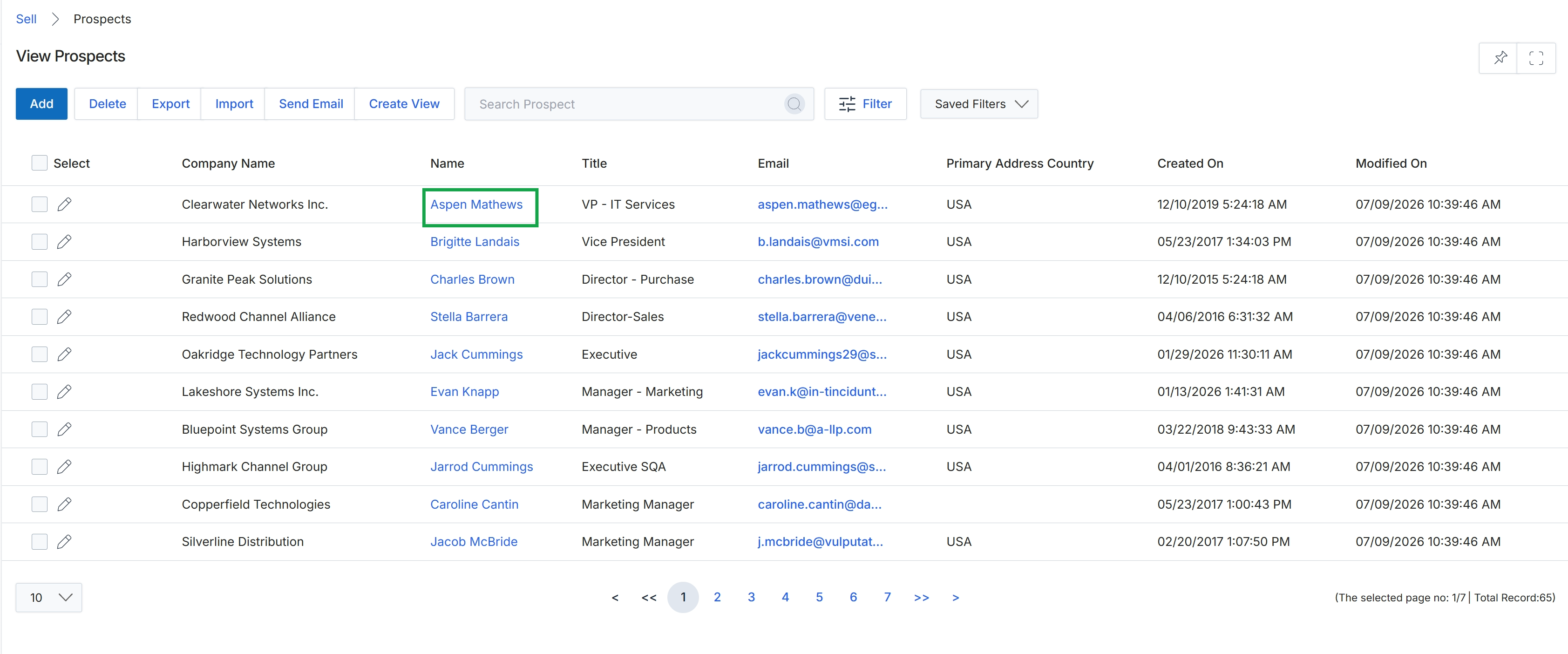
Click the Aspen Mathews link in the Name column to view the prospect's details.
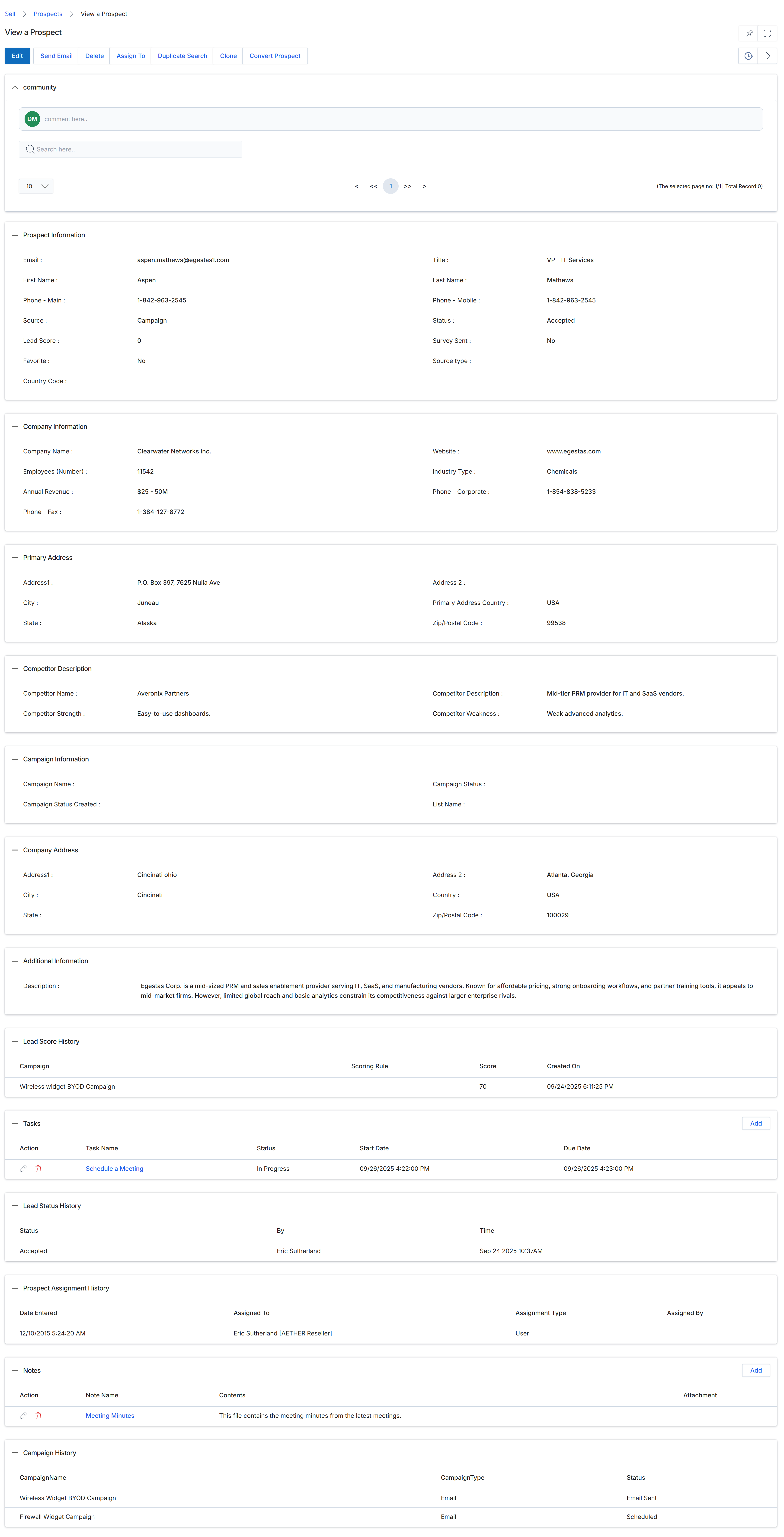
This screen displays the comprehensive details of a specific prospect, providing a centralized view of all relevant information. Prospects represent unqualified sales opportunities that have been submitted by or assigned to a partner, sitting at the initial stage of the channel sales funnel. Administrators and channel managers use this view to assess the prospect's potential, review their engagement history, track associated tasks, and understand their journey through various campaigns. The detailed information presented here, including contact, company, and competitive data, supports decisions on qualifying the prospect into a lead or deal, or assigning them to a partner for further engagement. This view also reflects the prospect's lead scoring and assignment history, offering insights into their progression and ownership within the platform.
Review the detailed information for the selected prospect, including their contact, company, and campaign data, as well as any associated tasks or notes, by scrolling through the various sections.
Buttons
| Button | Description |
|---|---|
| Edit | Allows modification of the prospect's details. |
| Send Email | Initiates sending an email to the prospect. |
| Delete | Removes the prospect record from the system. |
| Assign To | Assigns the prospect to a specific user or partner. |
| Duplicate Search | Scans for potential duplicate prospect records. |
| Clone | Creates a copy of the current prospect record. |
| Convert Prospect | Initiates the process to convert the prospect into a lead or deal. |
| Add | Adds a new task. |
| Add | Adds a new note. |
Prospect Information
| Field | Description |
|---|---|
| The prospect's email address. | |
| Title | The prospect's job title. |
| First Name | The prospect's first name. |
| Last Name | The prospect's last name. |
| Phone - Main | The prospect's primary phone number. |
| Phone - Mobile | The prospect's mobile phone number. |
| Source | The origin of the prospect. |
| Status | The current status of the prospect. |
| Lead Score | The calculated lead score for the prospect. |
| Survey Sent | Indicates if a survey has been sent to the prospect. |
| Favorite | Indicates if the prospect is marked as a favorite. |
| Source type | The type of source for the prospect. |
| Country Code | The country code associated with the prospect. |
Company Information
| Field | Description |
|---|---|
| Company Name | The name of the prospect's company. |
| Website | The company's website. |
| Employees (Number) | The number of employees at the company. |
| Industry Type | The industry sector of the company. |
| Annual Revenue | The estimated annual revenue of the company. |
| Phone - Corporate | The company's corporate phone number. |
| Phone - Fax | The company's fax number. |
Primary Address
| Field | Description |
|---|---|
| Address1 | The first line of the primary address. |
| Address 2 | The second line of the primary address. |
| City | The city of the primary address. |
| Primary Address Country | The country of the primary address. |
| State | The state of the primary address. |
| Zip/Postal Code | The zip or postal code of the primary address. |
Competitor Description
| Field | Description |
|---|---|
| Competitor Name | The name of a competitor. |
| Competitor Description | A description of the competitor. |
| Competitor Strength | A strength of the competitor. |
| Competitor Weakness | A weakness of the competitor. |
Campaign Information
| Field | Description |
|---|---|
| Campaign Name | The name of the campaign associated with the prospect. |
| Campaign Status | The status of the campaign. |
| Campaign Status Created | The date the campaign status was created. |
| List Name | The name of the list the prospect belongs to within the campaign. |
Company Address
| Field | Description |
|---|---|
| Address1 | The first line of the company address. |
| Address 2 | The second line of the company address. |
| City | The city of the company address. |
| Country | The country of the company address. |
| State | The state of the company address. |
| Zip/Postal Code | The zip or postal code of the company address. |
Additional Information
| Field | Description |
|---|---|
| Description | Additional descriptive information about the prospect or company. |
Lead Score History
| Column | Description |
|---|---|
| Campaign | The name of the campaign that influenced the lead score. |
| Scoring Rule | The rule used to calculate the lead score. |
| Score | The lead score value. |
| Created On | The date and time the lead score was created. |
Tasks
| Column | Description |
|---|---|
| Action | Icons to edit or delete the task. |
| Task Name | The name or description of the task. |
| Status | The current status of the task. |
| Start Date | The date the task was started. |
| Due Date | The date the task is due. |
Lead Status History
| Column | Description |
|---|---|
| Status | The status of the lead. |
| By | The user who changed the lead status. |
| Time | The time the lead status was changed. |
Prospect Assignment History
| Column | Description |
|---|---|
| Date Entered | The date the prospect record was created or entered the system. |
| Assigned To | The user or partner to whom the prospect is assigned. |
| Assignment Type | The method or type of assignment. |
| Assigned By | The user who performed the assignment. |
Notes
| Column | Description |
|---|---|
| Action | Icons to edit or delete the note. |
| Note Name | The title or subject of the note. |
| Contents | The detailed content of the note. |
Campaign History
| Column | Description |
|---|---|
| CampaignName | The name of the campaign. |
| CampaignType | The type of campaign. |
| Status | The status of the campaign for this prospect. |
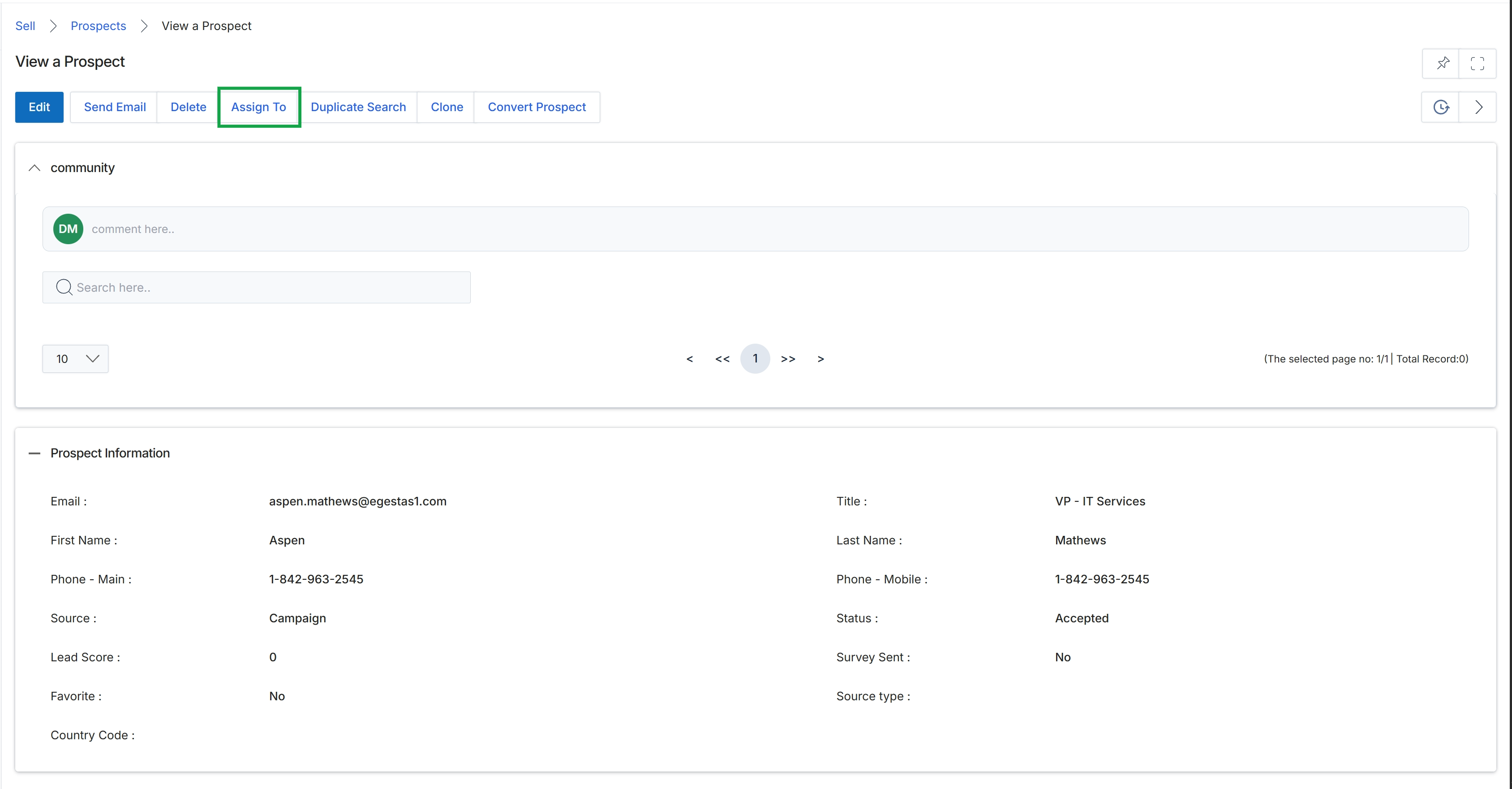
Click Assign To.
Assigning Prospects
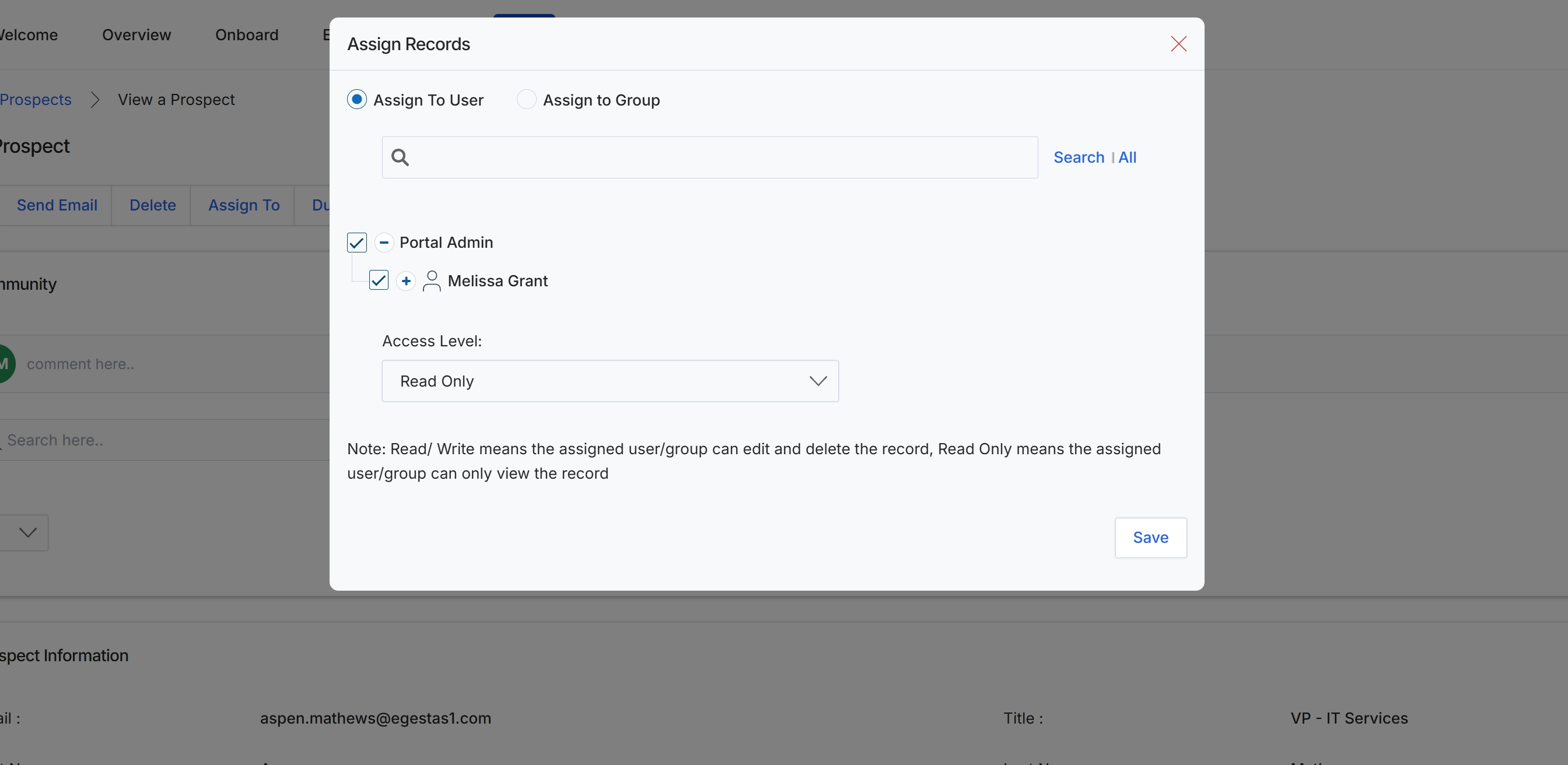
This dialog box facilitates the assignment of a prospect record to specific users or groups within the platform, controlling their access level to that record. This functionality is crucial for managing collaboration and data security, ensuring that only authorized personnel can view or modify prospect information. Administrators use this feature to delegate responsibility for prospects, allowing different team members or departments to engage with the prospect throughout the sales cycle. The assignment process supports both individual user assignments and group assignments, providing flexibility in how prospect records are managed across an organization.
Select the user or group to assign the record to, choose the appropriate access level, and then click Save to apply the assignment.
Buttons
| Button | Description |
|---|---|
| Search | All | Click 'Search' to initiate the search or 'All' to view all available users or groups. |
| Save | Click to save the assignment and close the dialog. |
Fields
| Field | Description |
|---|---|
| Assign To User | Select this option to assign the record to an individual user. |
| Assign to Group | Select this option to assign the record to a predefined group of users. |
| Search | Enter keywords to search for specific users or groups. |
| Access Level | Dropdown menu to define the level of access the assigned user or group will have to the record. 'Read/Write' allows editing and deleting, while 'Read Only' permits viewing only. |
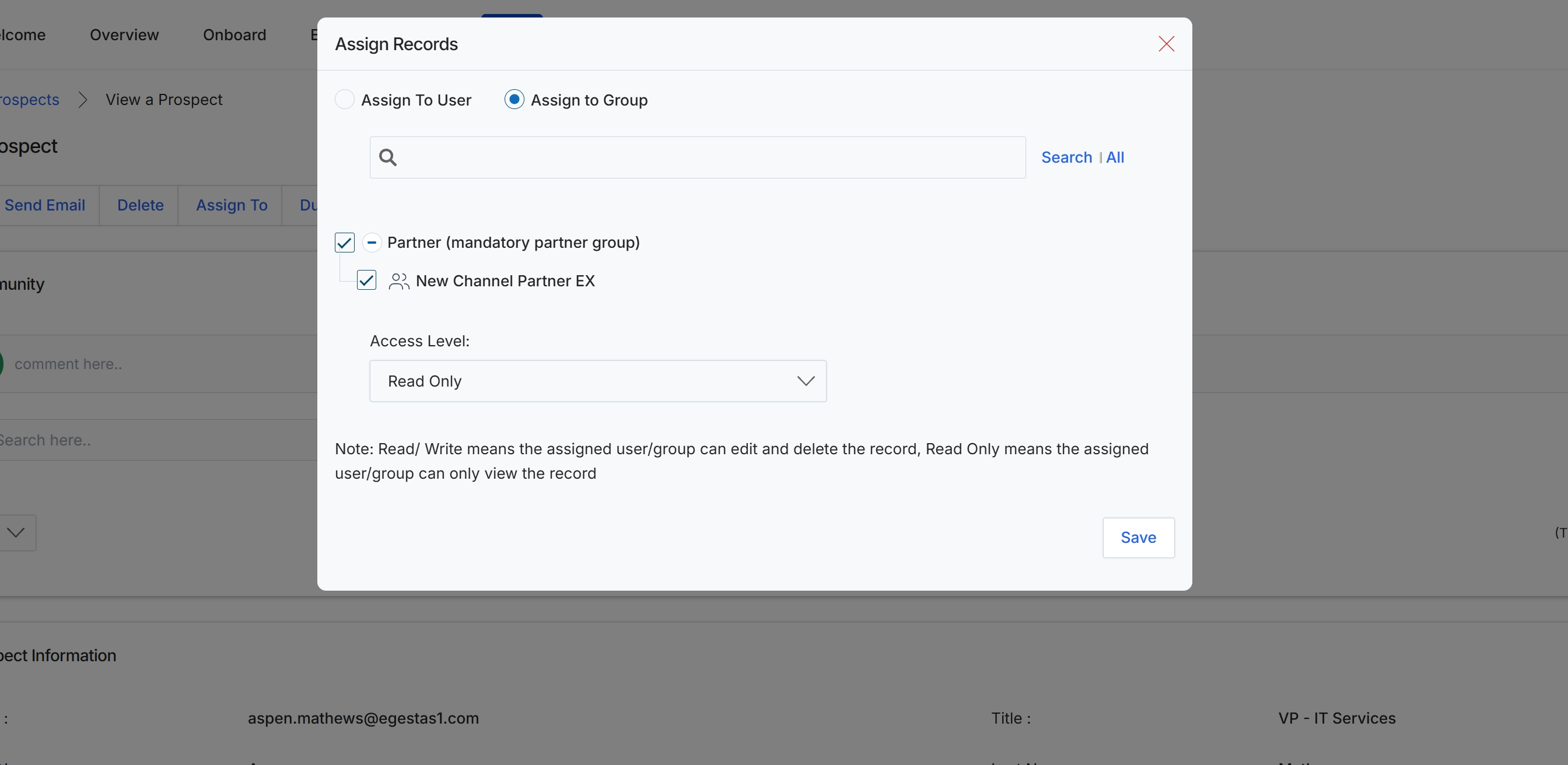
This modal window, 'Assign Records', is used to manage access and ownership of a specific record, such as a Prospect, by assigning it to individual users or groups within the UPM. This functionality is crucial for controlling data visibility and defining who can interact with a record, aligning with role-based access control principles. Administrators can choose to grant either read-only or read/write access, ensuring that sensitive information is protected while enabling collaboration among authorized personnel. The assignment process helps streamline workflows by directing records to the appropriate teams or individuals responsible for managing them, such as channel partners for lead qualification or deal registration.
Select the specific groups to assign the record to and define their access level.
Buttons
| Button | Description |
|---|---|
| Search | Click to initiate a search based on the entered query. |
| All | Click to display all available users or groups without a specific search query. |
| Save | Saves the assignment changes and closes the modal. |
Fields
| Field | Description |
|---|---|
| Assign To User | Radio button to select assignment to individual users. |
| Assign to Group | Radio button to select assignment to user groups. |
| Search | Input field to search for specific users or groups to assign the record to. |
| Access Level | Dropdown to select the level of access (Read Only or Read/Write) granted to the assigned users or groups. |
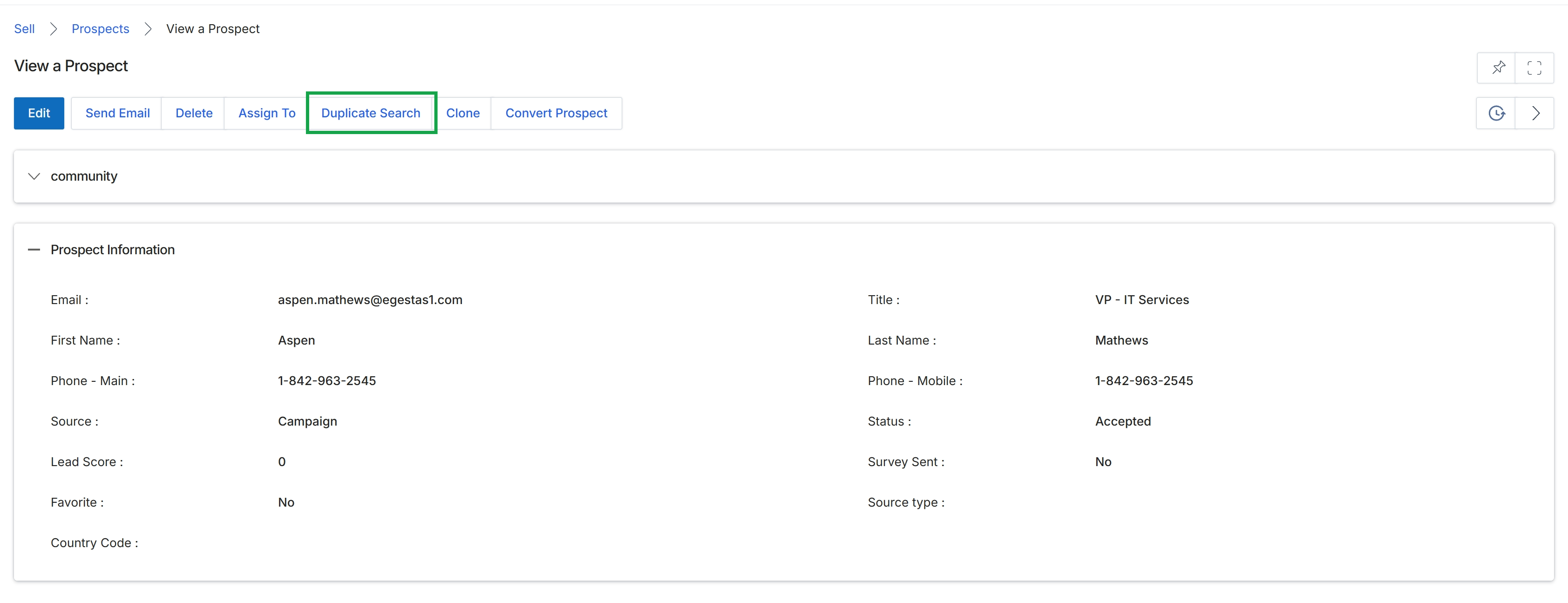
Click the X icon in the top right corner of the modal to close it.
Managing Prospect Duplicates and Cloning

This screen facilitates a duplicate search for prospect records, which is typically initiated from a 'View Prospect' page to identify potential duplicate entries before creating a new prospect or to consolidate existing records. The search form is pre-populated with key information from the previously viewed prospect, such as Company, First Name, and Email, to streamline the process of checking for existing records. This helps maintain data integrity within the UPM by preventing redundant prospect entries and ensuring that all interactions are associated with a single, accurate record. Administrators use this functionality to manage the quality of prospect data and ensure efficient lead management.
Click the Search button to find prospect records matching the pre-filled criteria.
Buttons
| Button | Description |
|---|---|
| Search | Initiates the search for prospect records based on the entered or pre-filled criteria. |
Fields
| Field | Description |
|---|---|
| Company | The company name of the prospect, pre-filled from the previously viewed prospect record. This field is used as a search criterion. |
| The email address of the prospect, pre-filled from the previously viewed prospect record. This field is used as a search criterion. | |
| First Name | The first name of the prospect, pre-filled from the previously viewed prospect record. This field is used as a search criterion. |
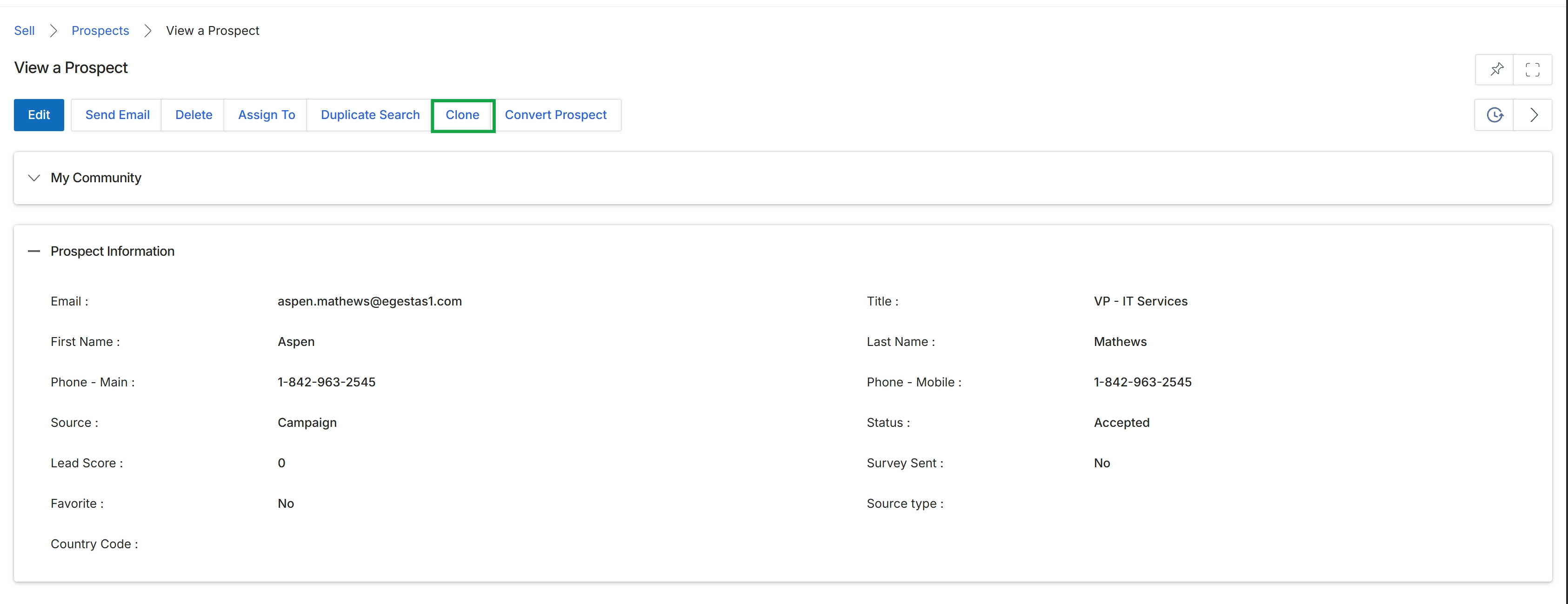
Click the Search button.
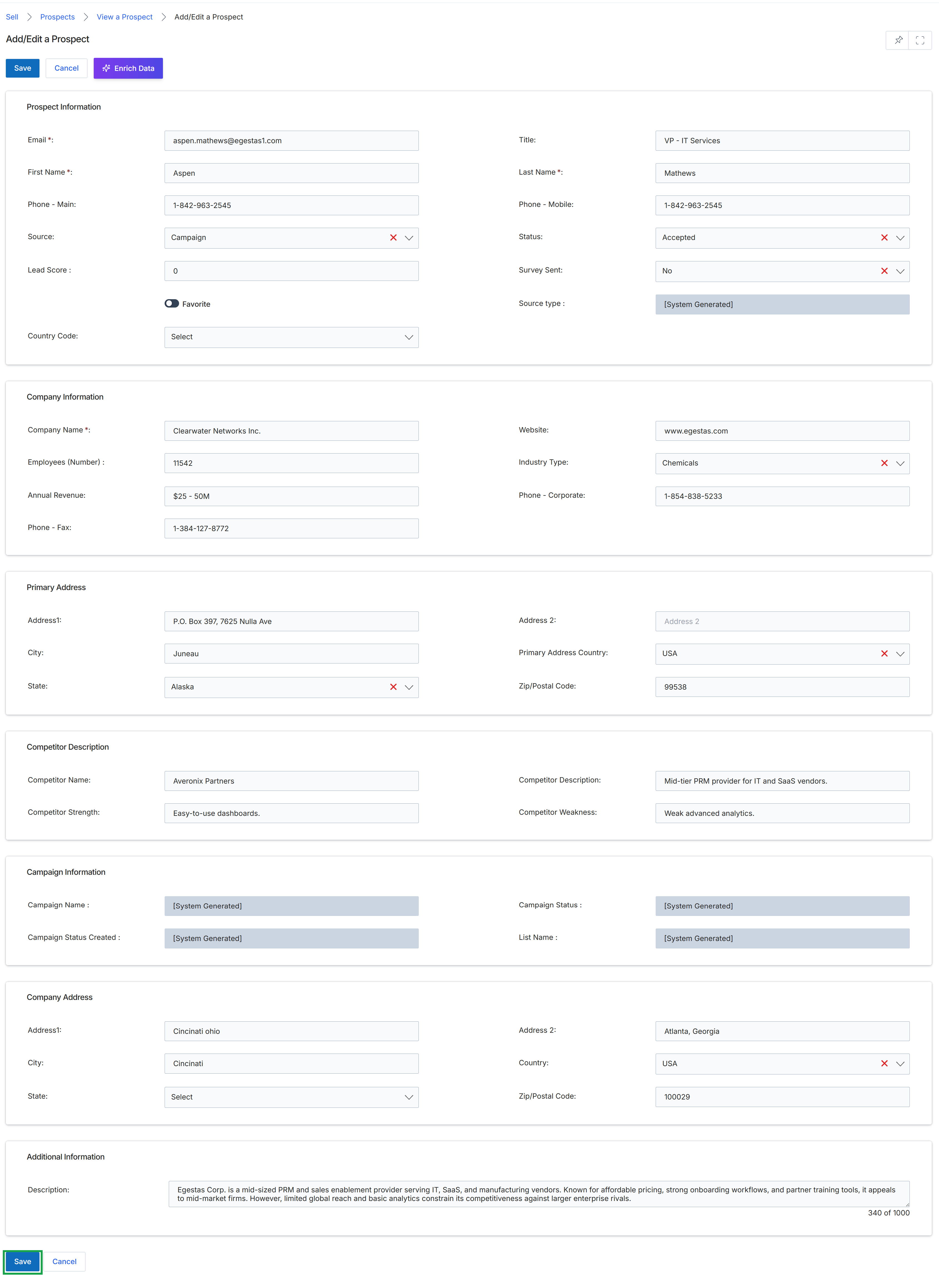
This screen displays the detailed profile of a prospect within the Leads Management section of the Sell module. It allows administrators to view and modify comprehensive information about a potential lead, including personal contact details, company specifics, primary and secondary addresses, competitive context, and campaign-related data. This view is crucial for managing the pre-lead contacts in the recruitment pipeline, enabling the vendor to track and nurture potential partners before they become qualified leads.
Editing Prospect Information
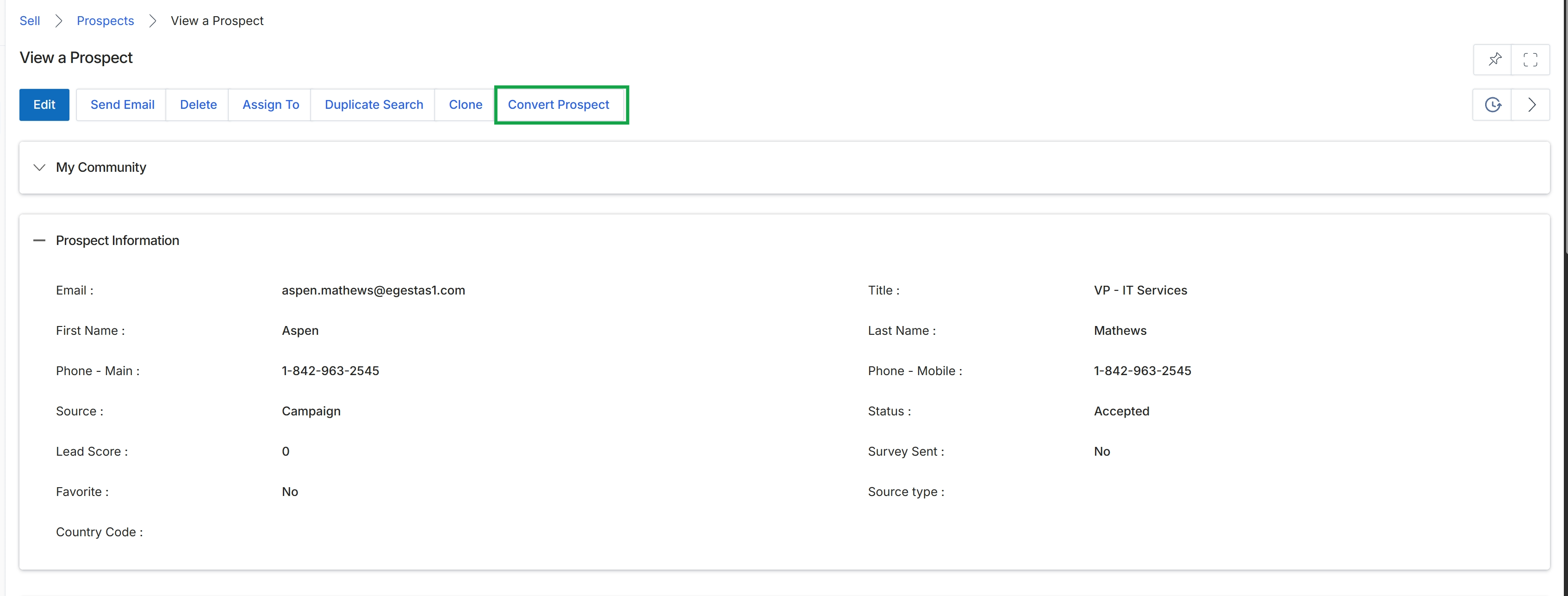
Click the Convert Prospect button.
Converting Prospects to Leads/Accounts
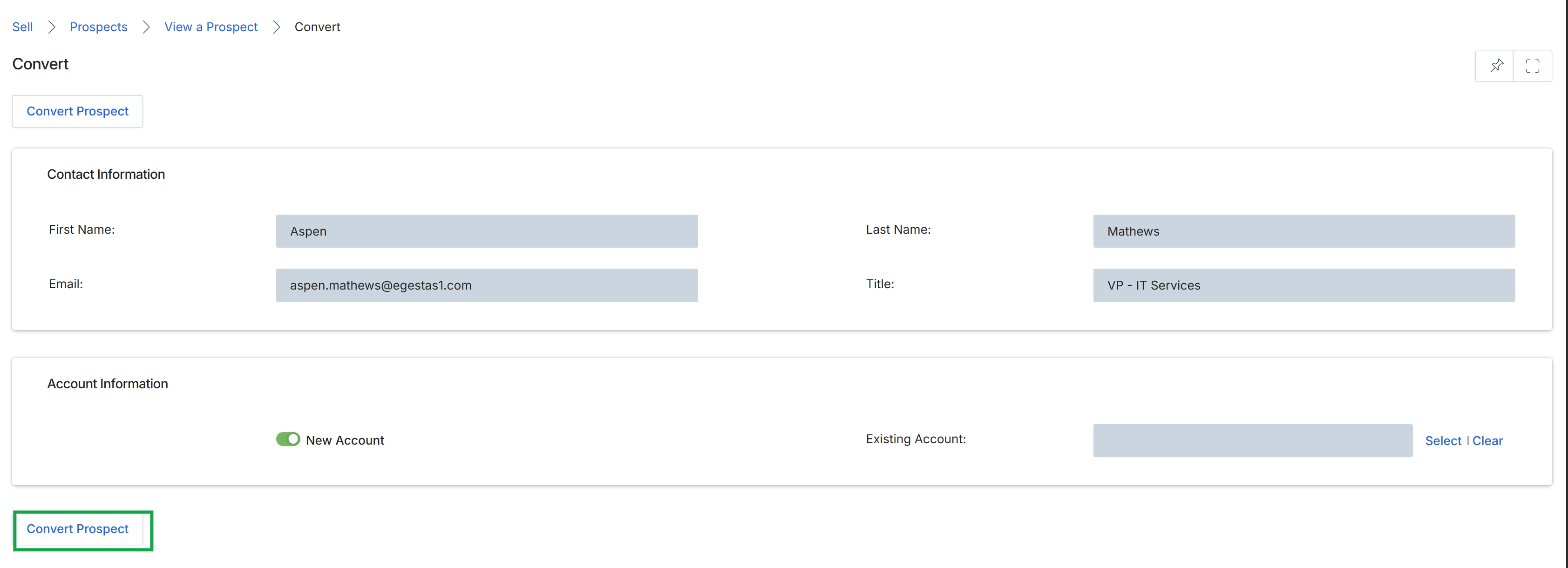
This screen presents the 'Convert Prospect' form, which is part of the workflow for transitioning an unqualified prospect into a more defined sales entity within the UPM platform. Prospects are pre-lead contacts identified during the recruitment phase, and this form facilitates their conversion into either a new account and contact or associating them with an existing account. The form displays the prospect's contact information, which is typically pre-populated from the prospect record, and provides options for managing the associated account details. This conversion is a critical step in moving potential sales opportunities further down the channel sales funnel, enabling partners or vendor sales teams to engage with them as leads or registered deals.
Click the 'Convert Prospect' button to finalize the conversion of the prospect.
Buttons
| Button | Description |
|---|---|
| Convert Prospect | Initiates the conversion of the prospect into an account and contact, or associates them with an existing account. |
| Select | A link to open a search interface for selecting an existing account to associate with the prospect. |
| Clear | A link to clear the currently selected existing account. |
Contact Information
| Field | Description |
|---|---|
| First Name | The prospect's first name, pre-populated from the existing prospect record. |
| Last Name | The prospect's last name, pre-populated from the existing prospect record. |
| The prospect's email address, pre-populated from the existing prospect record. | |
| Title | The prospect's job title, pre-populated from the existing prospect record. |
Account Information
| Field | Description |
|---|---|
| New Account | A toggle switch to indicate whether a new account should be created for this prospect. |
| Existing Account | A disabled text input field that would display the selected existing account. The 'Select' link allows searching for and choosing an existing account, while 'Clear' removes the selection. |