

Overview
The Companies list serves as a foundational data repository within the Sell module, aggregating all company-level information that is either submitted by partners, imported, or synced from connected CRM systems. Maintaining accurate and accessible company data is crucial for effective lead qualification, deal registration, and overall pipeline management. Administrators leverage this view to gain insights into target accounts, identify potential conflicts, and ensure data consistency across the partner ecosystem.
Accessing the Companies List
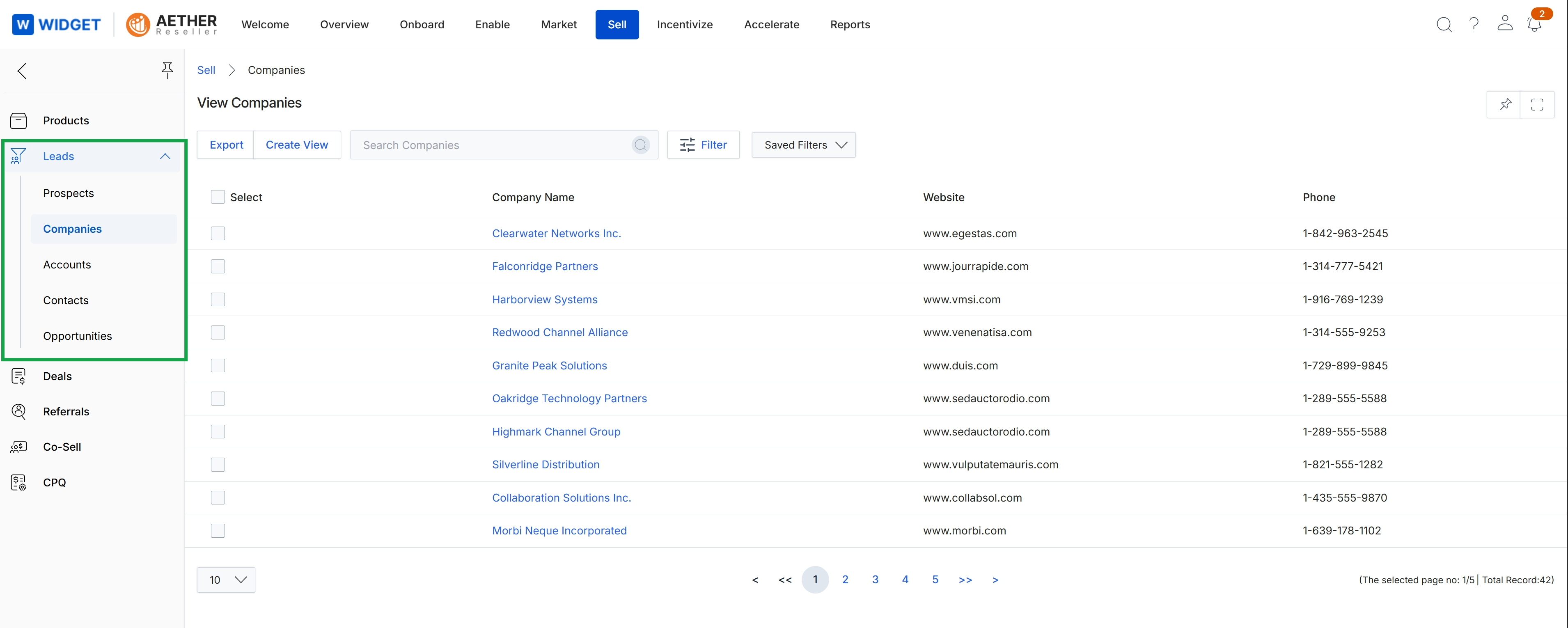
Click Companies under the Leads section in the left navigation panel.
Exporting Company Data
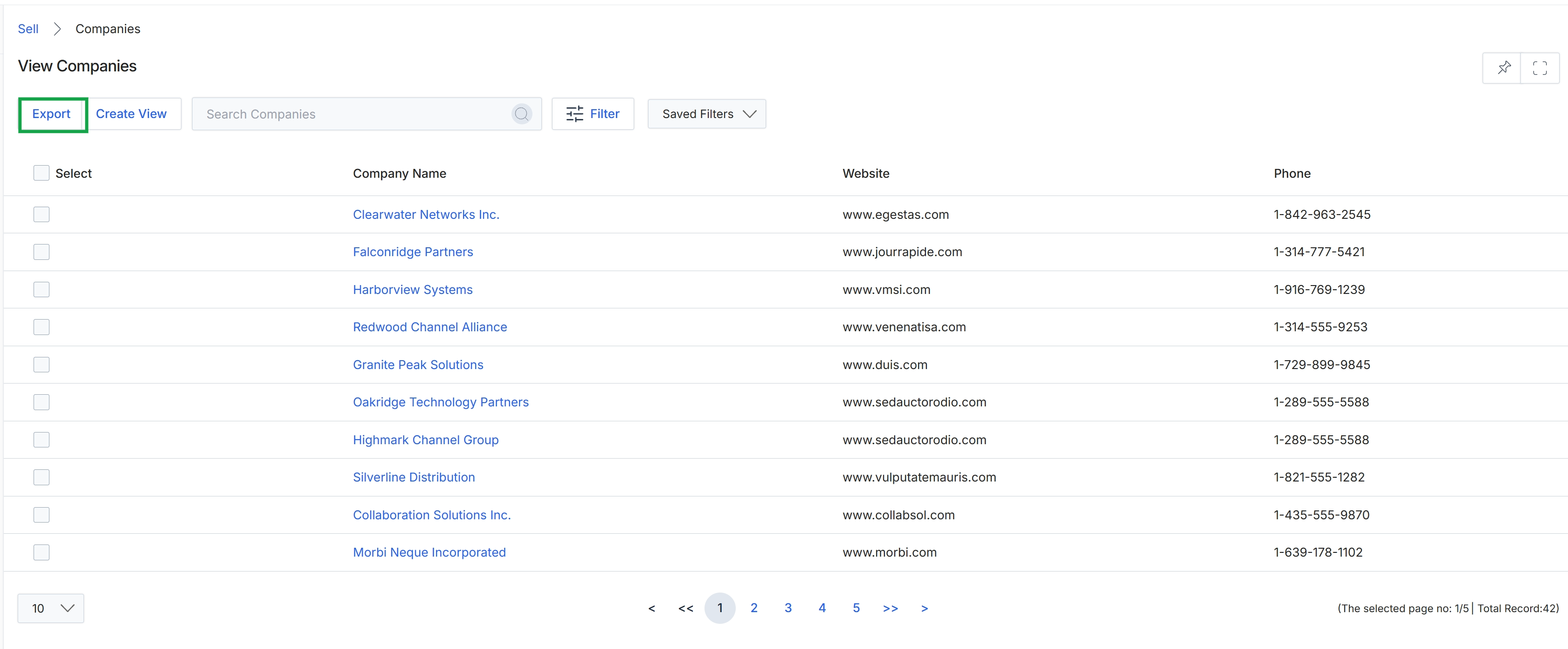
Click the Export button.
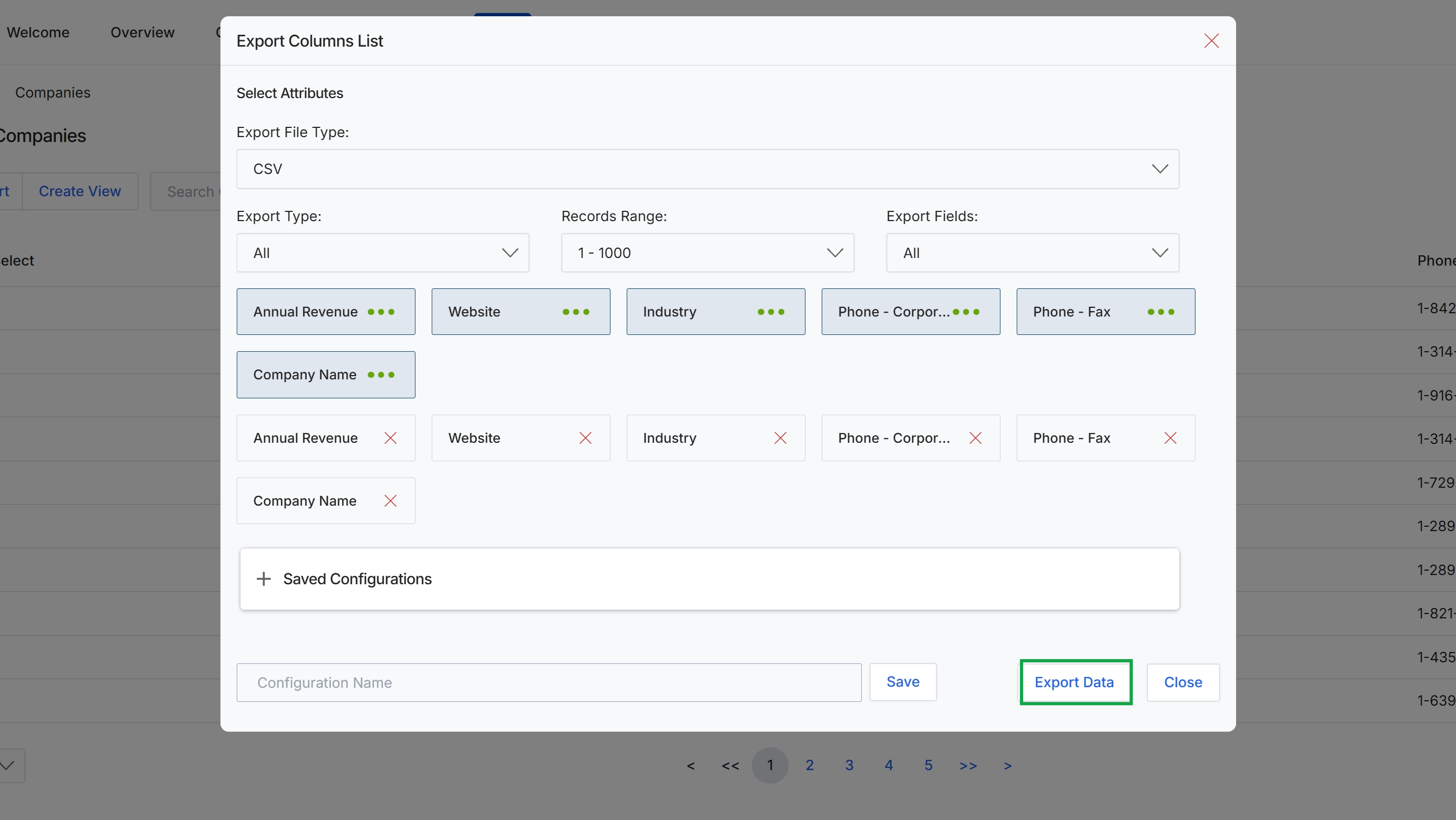
This dialog box provides options for users to customize and export data from the current list view, such as a list of companies. Users can specify the file type, the range of records to include, and select which attributes (columns) should be part of the export. This functionality is crucial for data analysis, reporting, or transferring information to other systems, supporting the broader data management capabilities within the UPM platform. It also allows for saving frequently used export configurations for future convenience.
Click the "Export Data" button to initiate the data export based on the selected attributes and configuration.
Buttons
| Button | Description |
|---|---|
| Save | A button to save the current export configuration for future use. |
| Export Data | A button to initiate the export of data based on the configured settings. |
| Close | A button to close the export columns list dialog without performing an export. |
Fields
| Field | Description |
|---|---|
| Export File Type | A dropdown to select the desired format for the exported file, such as CSV. |
| Export Type | A dropdown to specify which records to export, such as 'All' records. |
| Records Range | A field indicating the range of records that will be exported, for example, '1 - 1000'. |
| Export Fields | A dropdown to select additional fields to include in the export. |
Creating Custom Views
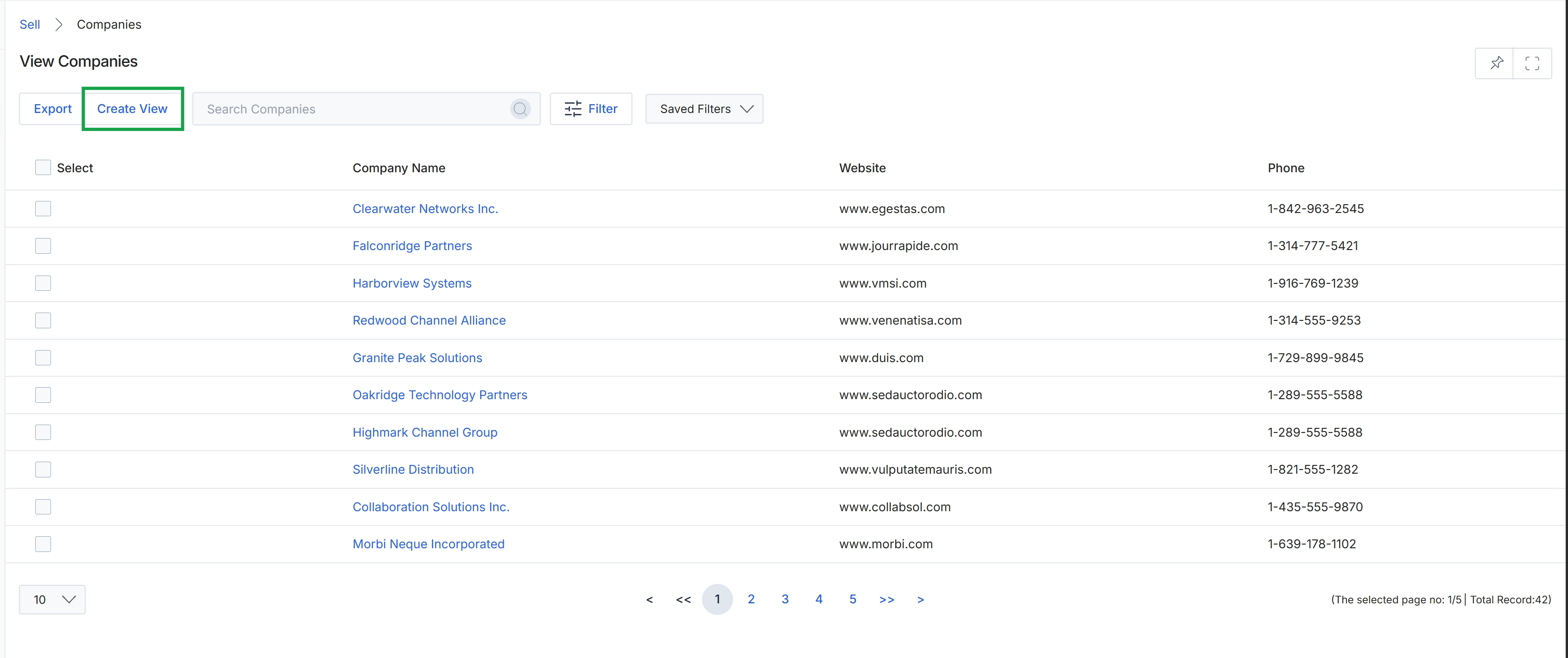
Click the Close button.
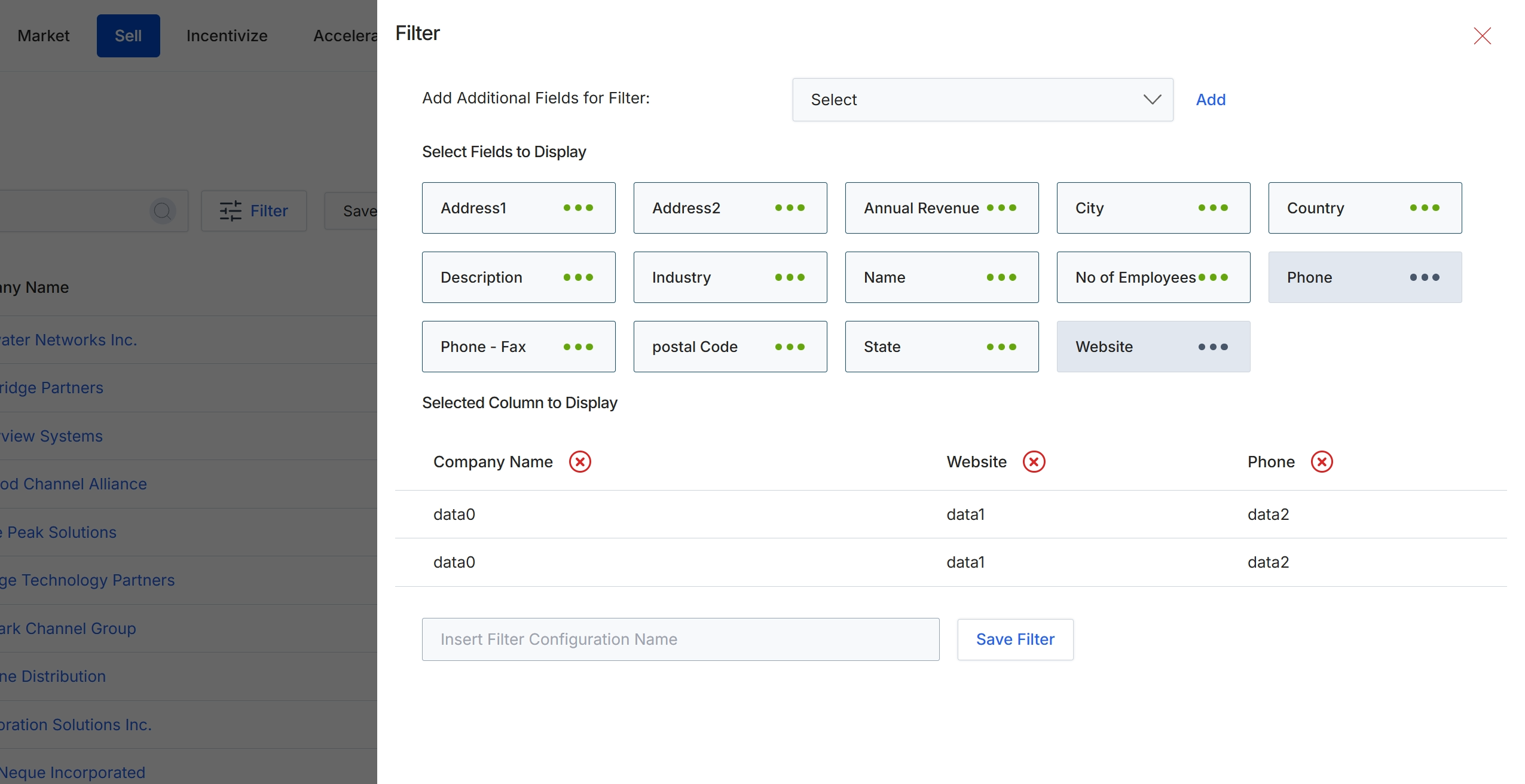
This Filter configuration modal allows users to customize the data displayed in list views by selecting specific fields to show as columns and defining filter criteria. It enhances data visibility and analysis by enabling users to focus on relevant information, such as company details, financial metrics, or contact information, within the main table. Users can add new fields to the display, remove existing ones, and save these configurations for future use, streamlining their workflow when analyzing lists of companies or other entities within the platform.
Configure the filter settings by selecting fields to display and adding filter criteria, then save the filter configuration.
Buttons
| Button | Description |
|---|---|
| Add | Adds the selected field from the dropdown to the filter criteria. |
| Save Filter | Saves the current filter configuration with the specified name. |
Add Additional Fields for Filter:
| Field | Description |
|---|---|
| Select | A dropdown menu to select additional fields to use for filtering the list. |
Filtering Company Records
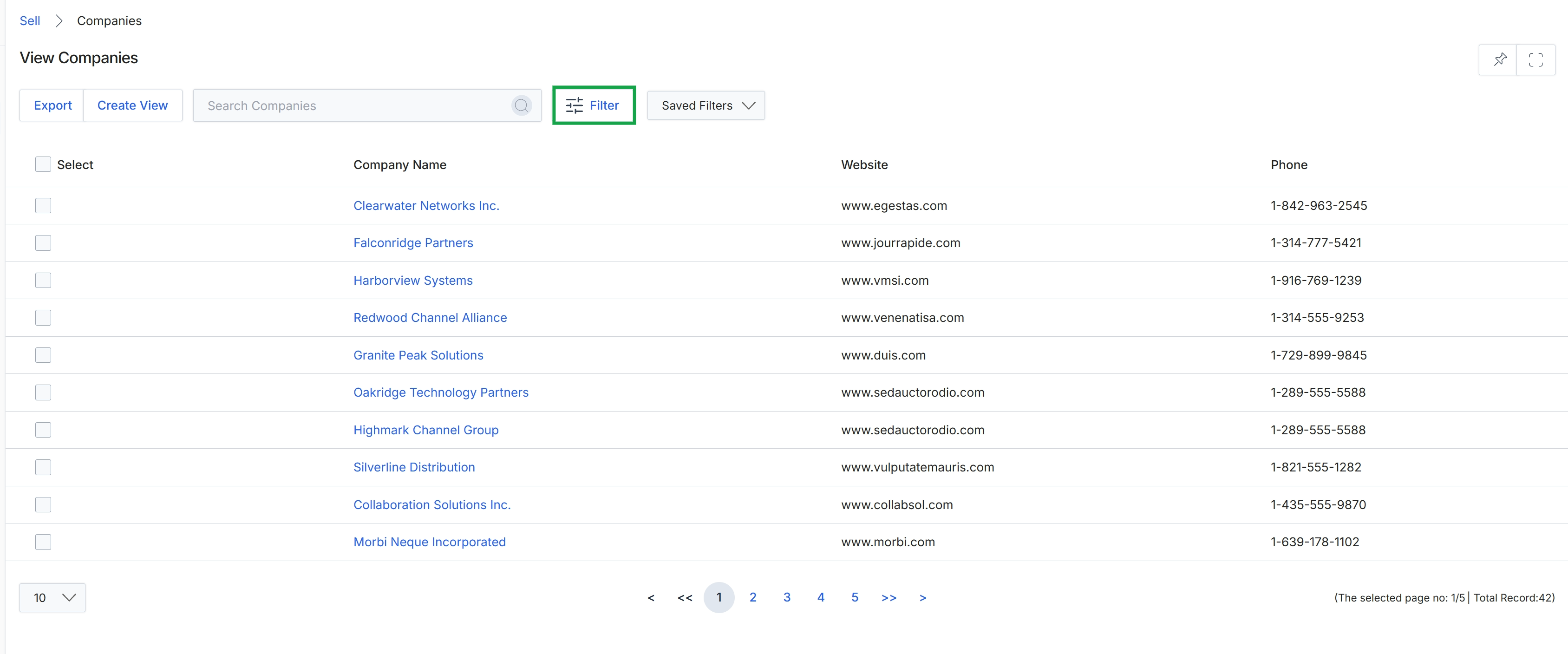
Click the Filter button to close the filter configuration panel.
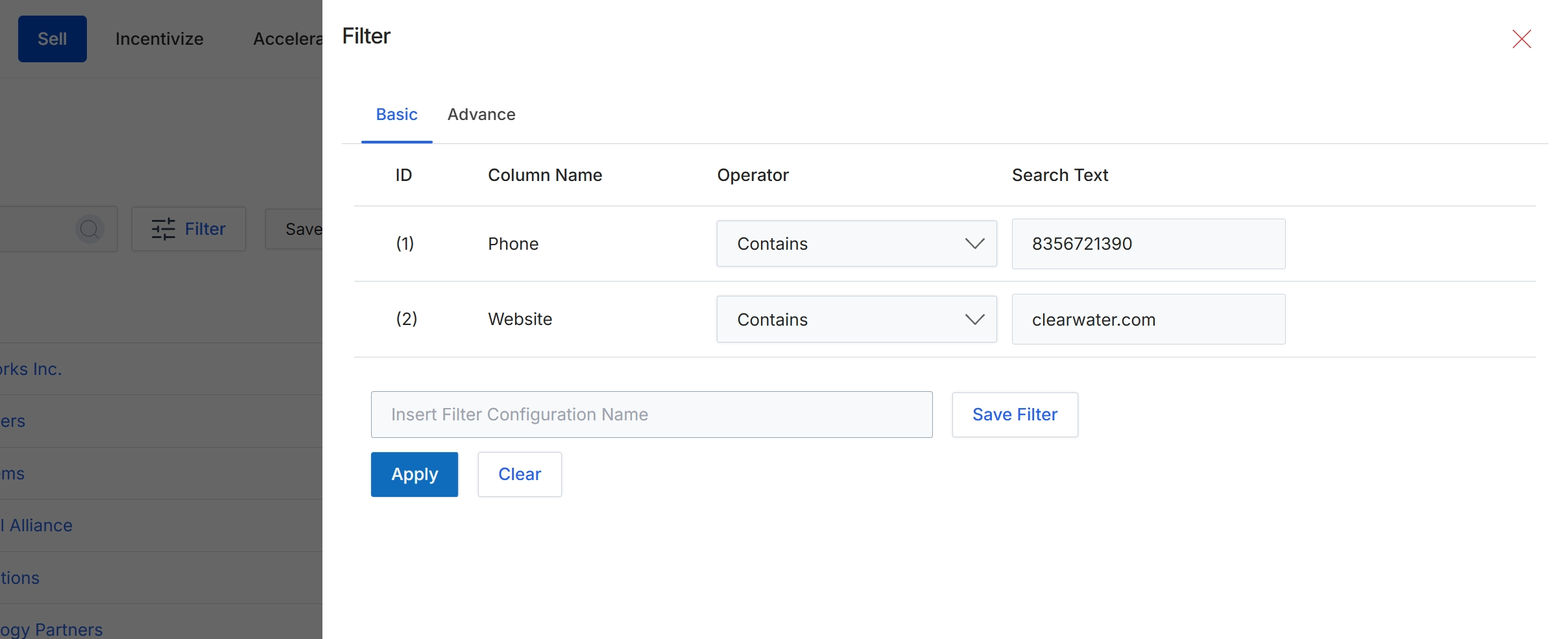
This Filter dialog provides a mechanism for users to refine the data displayed in list views, such as the Companies list, by applying specific criteria. It allows for the creation of complex queries using various column names, operators, and search text values. Users can define multiple filter conditions, combine them, and then apply them to narrow down the records shown. The dialog also supports saving frequently used filter configurations for future reuse, enhancing efficiency in data analysis and management within the Sell module.
Click the 'Apply' button to execute the defined filter conditions on the current list of records.
Buttons
| Button | Description |
|---|---|
| Basic | A tab to configure basic filter conditions. |
| Advance | A tab to configure advanced filter conditions. |
| Save Filter | Saves the current filter configuration under the specified name. |
| Apply | Applies the configured filter conditions to the data table. |
| Clear | Clears all currently defined filter conditions. |
Fields
| Field | Description |
|---|---|
| Insert Filter Configuration Name | A text field to enter a name for the current filter configuration, allowing it to be saved for later use. |
Column Headings
| Column | Description |
|---|---|
| ID | Identifies the numerical order of each filter condition row. |
| Column Name | The name of the data column to which the filter condition applies. This is a dropdown field allowing selection of available columns. |
| Operator | The logical operator (e.g., 'Contains', 'Equals', 'Starts With') to apply for the filter condition. This is a dropdown field. |
| Search Text | The value to search for within the selected column, based on the chosen operator. This is a text input field. |
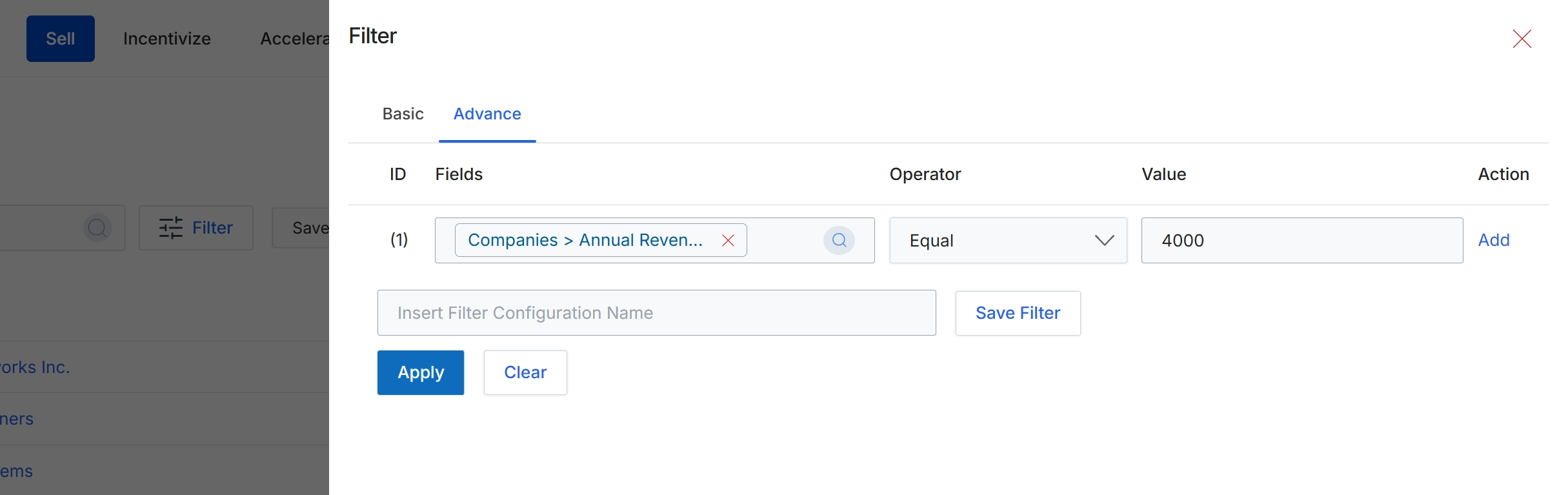
This screen displays the advanced filter configuration panel, which allows users to define complex criteria for segmenting and refining data displayed in list views, such as the Companies list. Unlike basic filters, the advanced option supports multiple conditions, logical operators, and the ability to save frequently used filter sets for future application. This functionality is crucial for administrators and users who need to quickly isolate specific subsets of data based on various attributes, enabling more targeted analysis or action on filtered records. The panel provides fields to select data attributes, specify comparison operators, and input values to construct precise filtering rules.
Apply the configured advanced filter to the current list view.
Buttons
| Button | Description |
|---|---|
| Basic | Switches the filter panel to the basic filtering options. |
| Advance | Switches the filter panel to the advanced filtering options, allowing for more complex rule creation. |
| Add | Adds a new row to define an additional filter condition. |
| Save Filter | Saves the current advanced filter configuration under the specified name. |
| Apply | Applies the defined filter conditions to the current list view, updating the displayed records. |
| Clear | Clears all defined filter conditions, resetting the list view to show all records. |
Fields
| Field | Description |
|---|---|
| Fields | A dropdown field to select the data attribute (e.g., 'Companies > Annual Revenue') on which to apply the filter condition. |
| Operator | A dropdown field to select the comparison operator (e.g., 'Equal') for the chosen field. |
| Value | An input field to specify the value to be used with the selected operator for filtering. |
| Insert Filter Configuration Name | An input field to enter a name for the current filter configuration, allowing it to be saved for later use. |