

Overview
In the context of partner relationship management, Accounts are critical entities representing the companies that partners engage with, whether they are prospects or existing customers. Maintaining an accurate and comprehensive database of accounts is essential for effective lead distribution, deal registration, and co-selling efforts. This module ensures that both vendors and partners have a consistent view of target organizations, facilitating coordinated sales activities and accurate reporting.
Accessing and Viewing Accounts
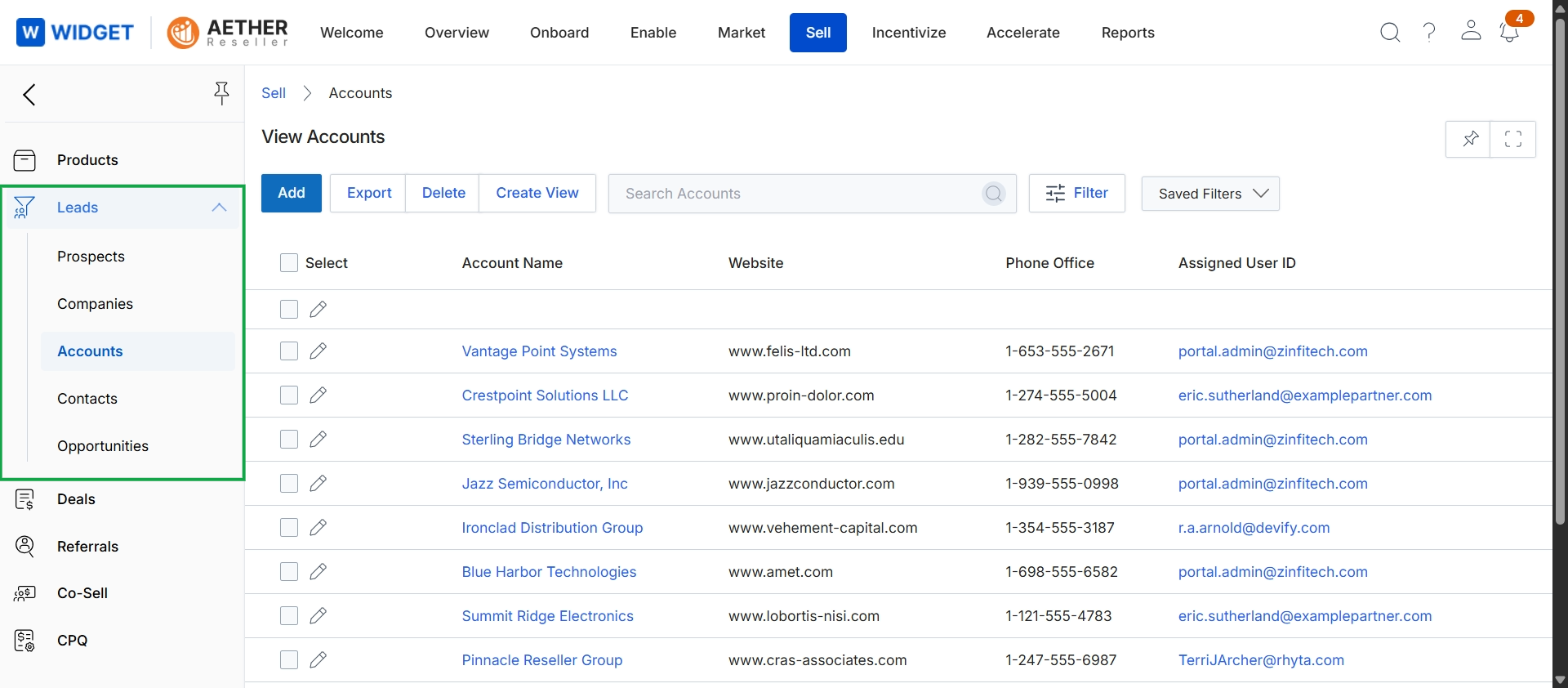
Click Accounts in the left navigation panel.
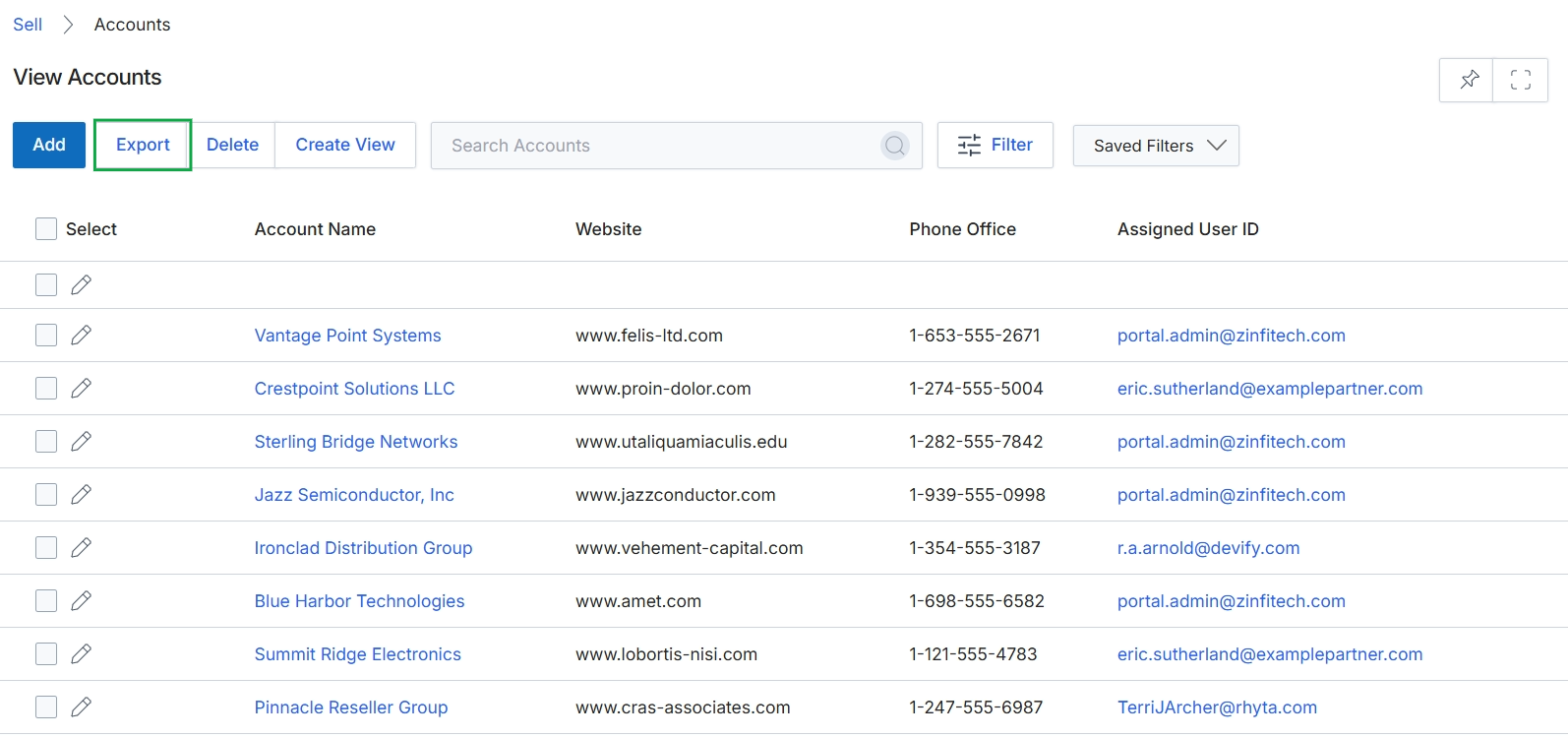
Click Export.
Exporting Account Data
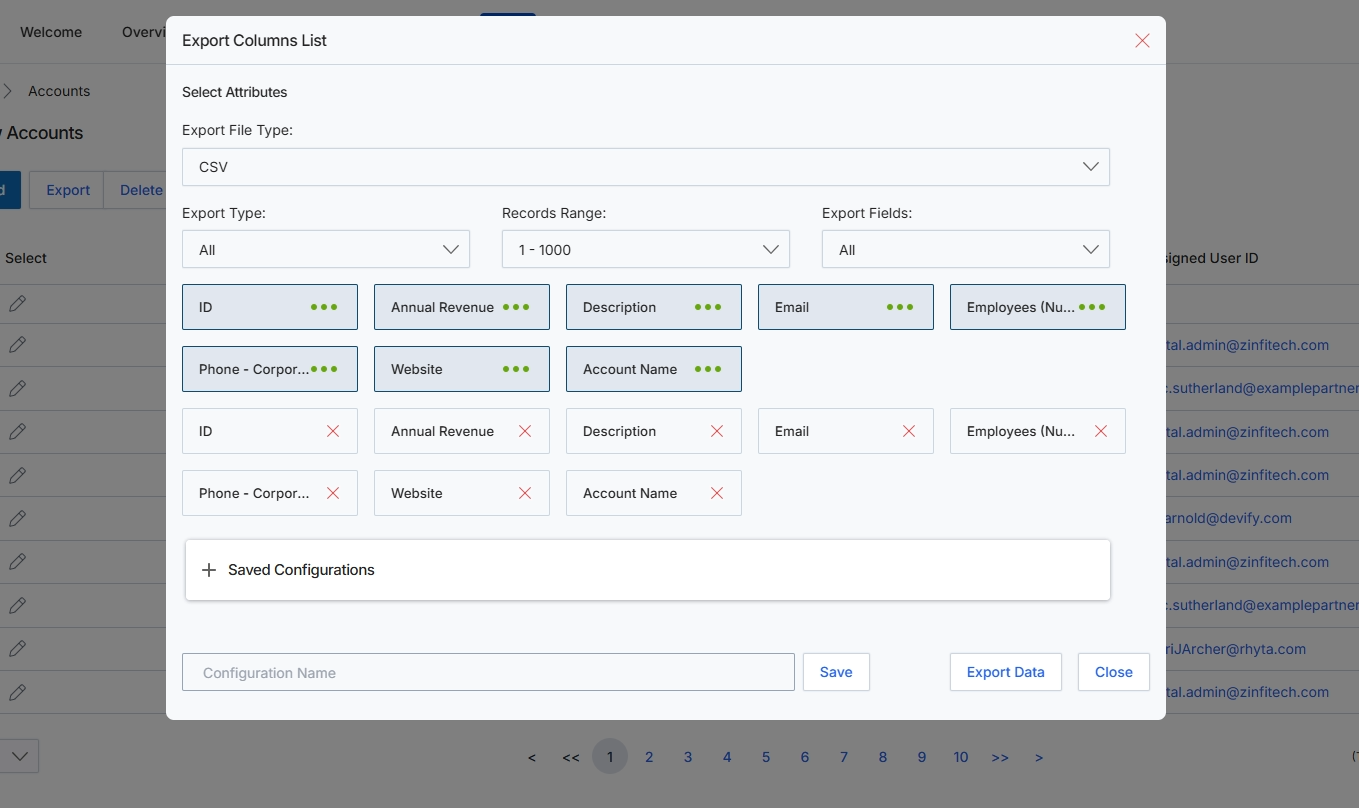
This modal window, 'Export Columns List', enables administrators to configure and initiate data exports from the Accounts list. It provides granular control over the export process, allowing users to specify the file format, the range of records to be included, and precisely which data attributes (columns) should be present in the output file. This feature is crucial for extracting account data for various purposes, such as offline analysis, custom reporting, or integration with external business intelligence tools. Users can also save frequently used export configurations for future reuse, streamlining repetitive data extraction tasks.
Configure the desired export settings by selecting the file type, record range, and specific attributes to include in the export.
Buttons
| Button | Description |
|---|---|
| Save | A button to save the current export configuration under the specified 'Configuration Name'. |
| Export Data | A button to initiate the data export based on the selected attributes and settings. |
| Close | A button to close the 'Export Columns List' modal without performing an export. |
Fields
| Field | Description |
|---|---|
| Export File Type | A dropdown menu to select the format for the exported data, such as CSV. |
| Export Type | A dropdown menu to specify the type of export, such as 'All' records. |
| Records Range | A dropdown menu to define the range of records to be included in the export, for example, '1 - 1000'. |
| Export Fields | A dropdown menu to select specific fields or columns to include in the export. The selected fields are displayed below this control. |
| Saved Configurations | An expandable section that allows users to manage and apply previously saved export configurations. |
| Configuration Name | An input field to enter a name for the current export configuration if the user wishes to save it for future use. |
Managing Account Records
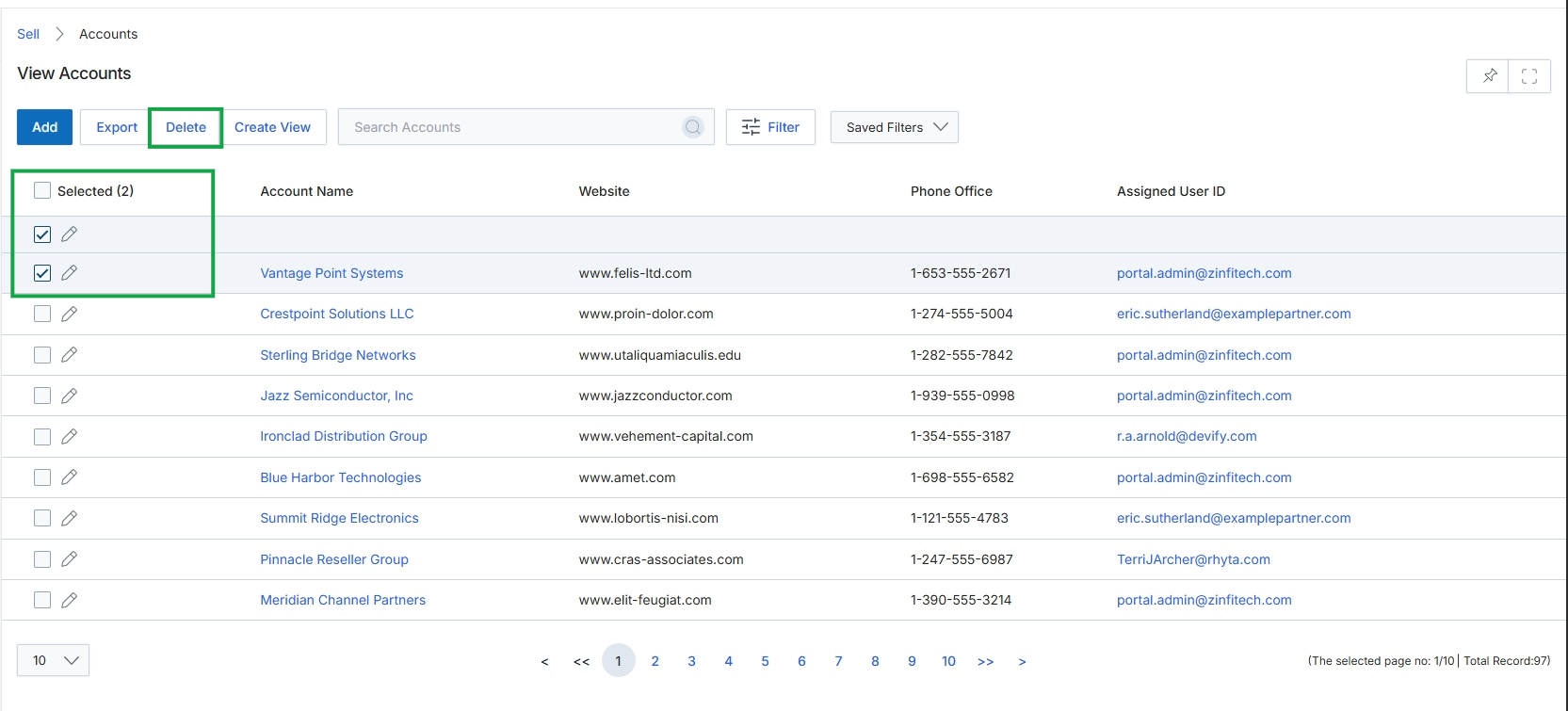
Click Close to exit the Export Columns List modal.
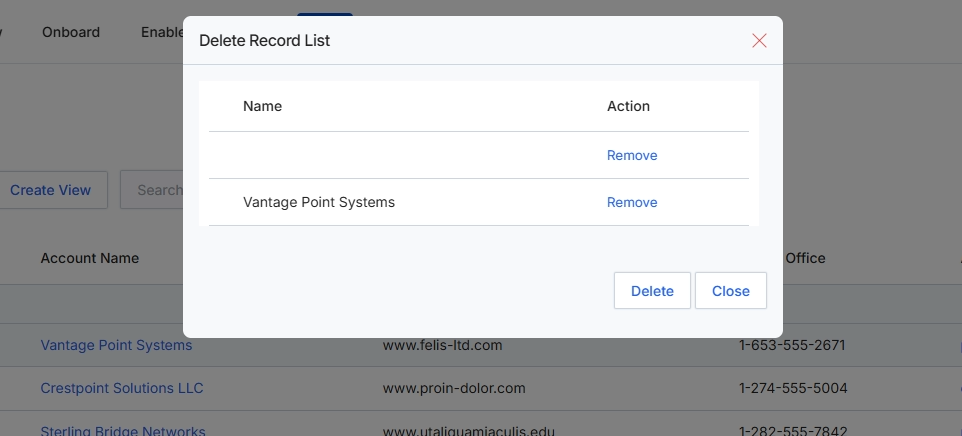
This modal dialog presents a list of records selected for deletion, allowing administrators to review and confirm the items before proceeding with the action. It displays the name of each record and provides an option to remove individual items from the deletion queue. This ensures that administrators can verify the intended records for removal, preventing accidental data loss within the platform.
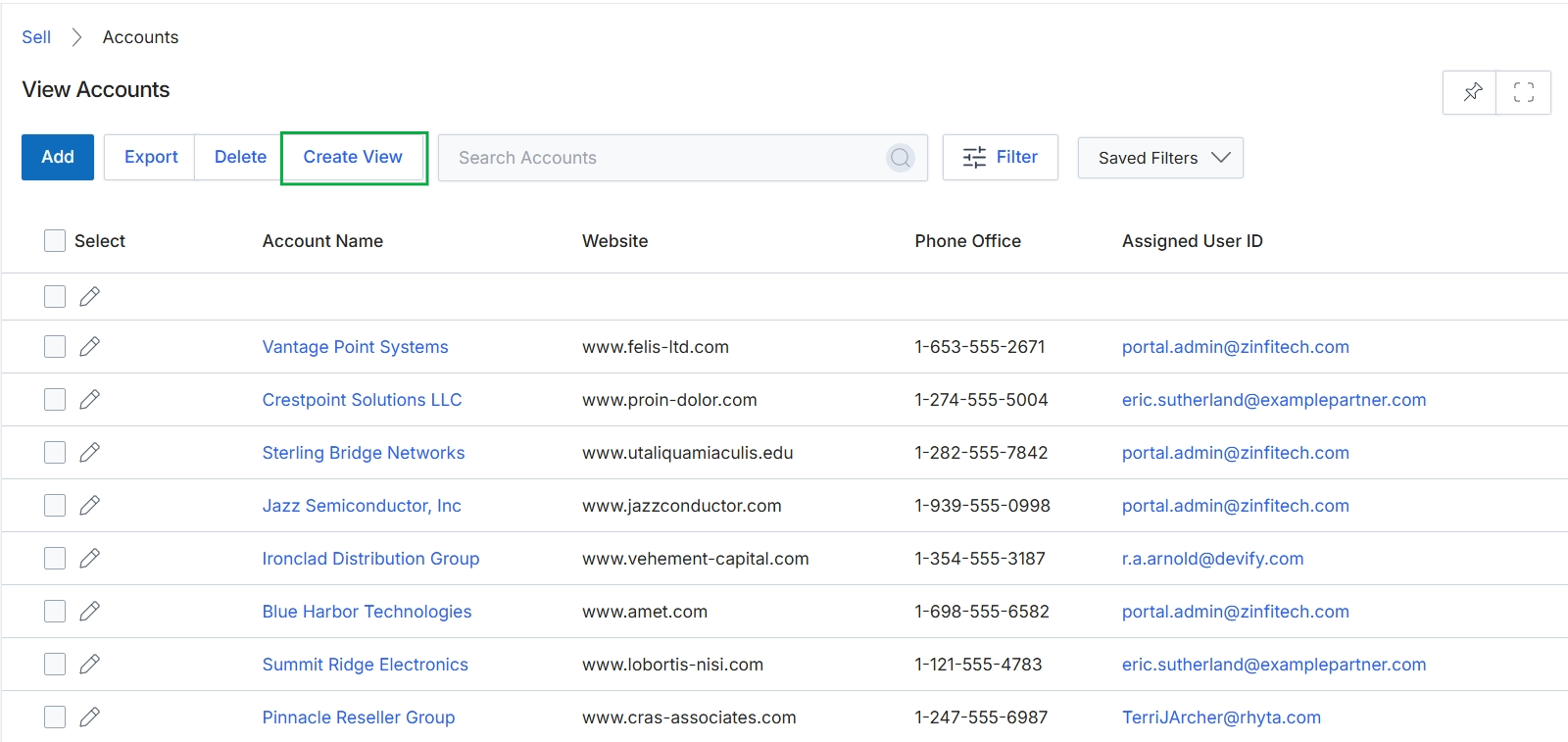
Customizing Account Views
Click Close to exit the Delete Record List modal.
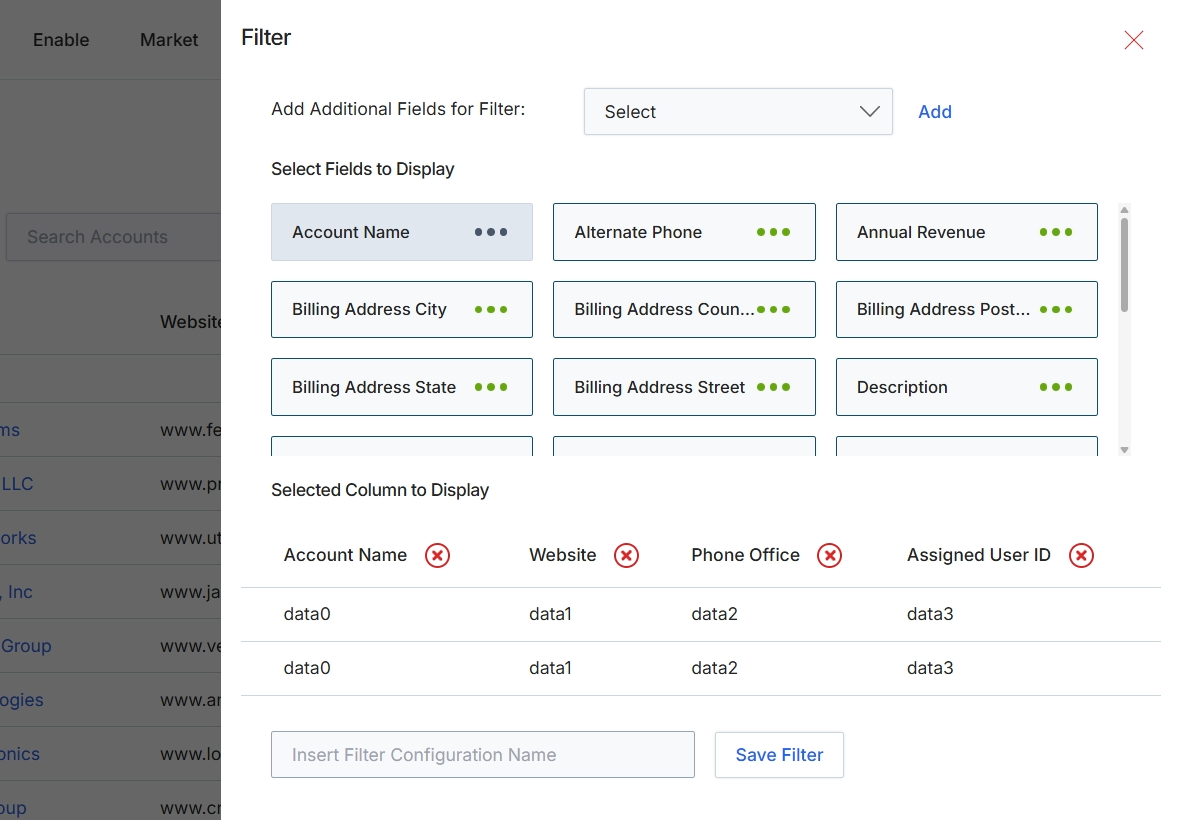
This slide-out panel provides a comprehensive interface for users to customize the display and filtering of list views within the UPM, such as the Accounts list visible in the background. It allows for dynamic adjustment of the data presented, enabling users to select specific fields to be shown as columns in the main table and to define additional criteria for filtering the records. This functionality is crucial for tailoring the user experience to specific analytical needs, improving data accessibility, and streamlining workflows by presenting only the most relevant information. Users can also save their custom filter configurations for repeated use, enhancing efficiency and consistency in data analysis.
Configure the filter settings by adding fields for filtering, selecting fields to display as columns, and optionally saving the configuration.
Buttons
| Button | Description |
|---|---|
| Add | A button to add the selected field from the dropdown as a new filter criterion. |
| Save Filter | A button to save the current filter and column display settings under the specified name. |
Fields
| Field | Description |
|---|---|
| Add Additional Fields for Filter | A label indicating the section for adding new filter criteria. |
| Select | A dropdown menu to choose additional fields that can be used to filter the list view. |
| Select Fields to Display | A label indicating the section where users can choose which fields appear as columns in the main data table. |
| Selected Column to Display | A label indicating the section that previews the currently selected columns for the list view. |
| Insert Filter Configuration Name | An input field to enter a name for the current filter configuration, allowing it to be saved for future use. |
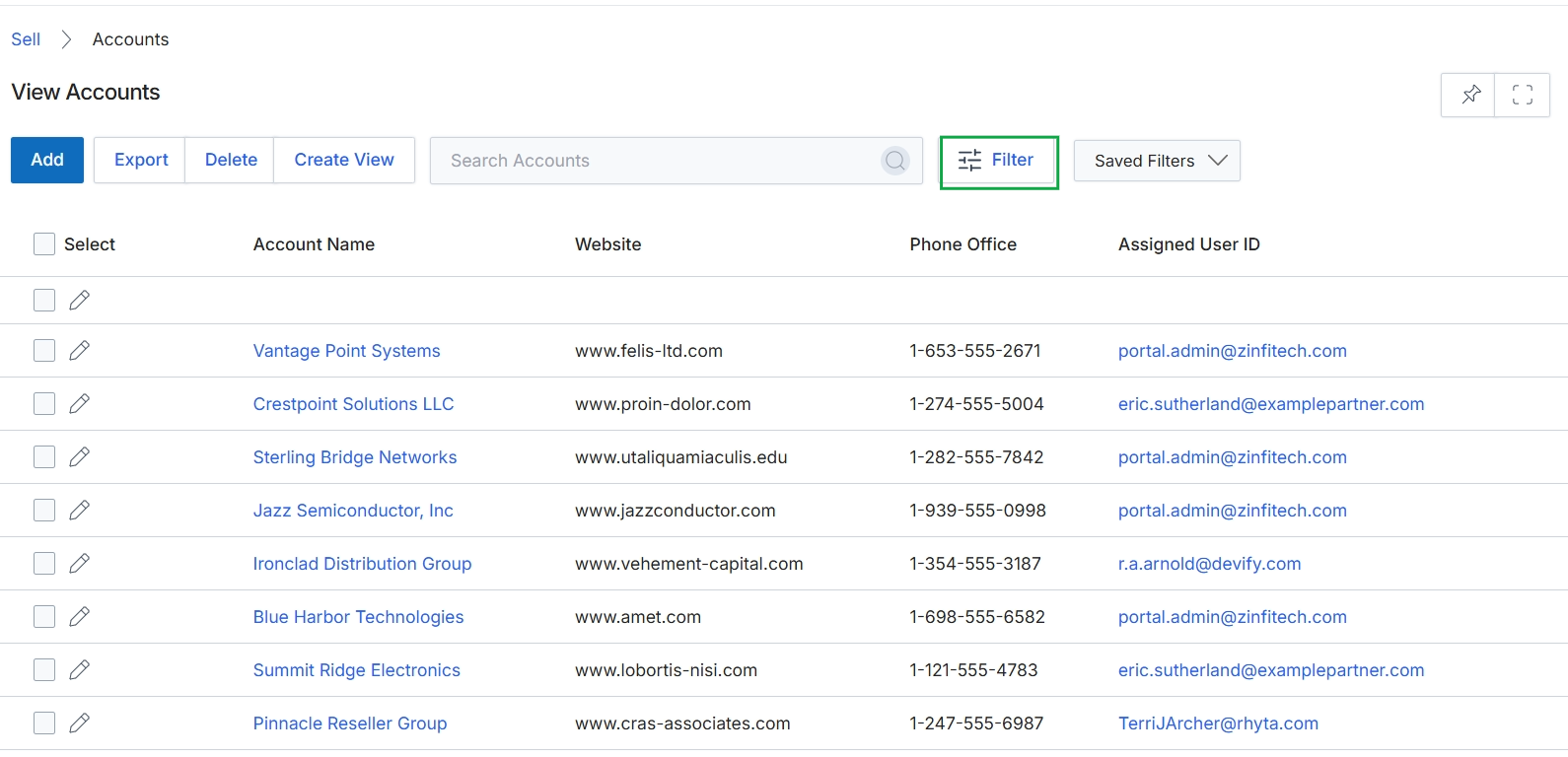
Filtering Account Records
Click the X icon in the top right corner of the Filter panel.
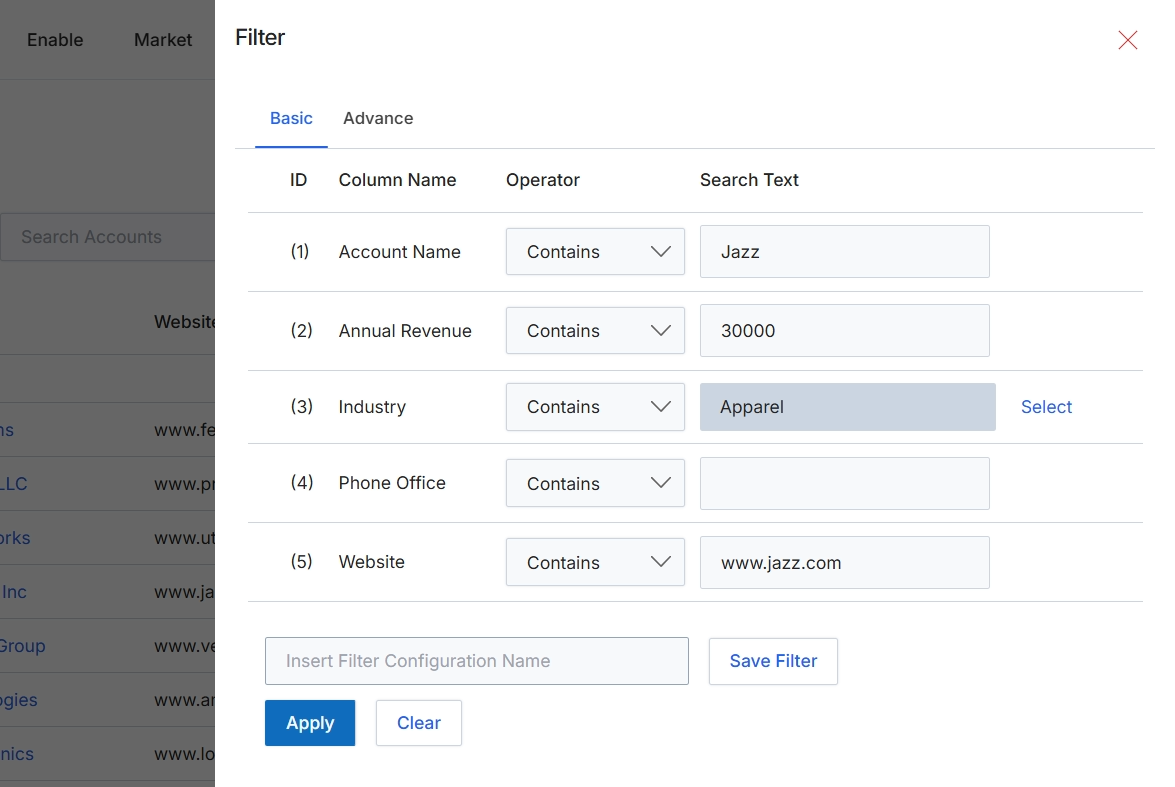
This dialog provides a mechanism for users to filter lists of records, such as accounts, by defining specific criteria. It allows for the construction of simple or advanced filter conditions based on various data fields, enabling users to narrow down large datasets to find specific records that match their requirements. The filter can be applied immediately or saved for future reuse, streamlining data analysis and record retrieval workflows within the platform. This functionality is crucial for managing and navigating extensive lists of entities like accounts, leads, or deals, ensuring users can efficiently access the information relevant to their current tasks.
Define your filter criteria using the available fields and operators, then click "Apply" to filter the account list.
Buttons
| Button | Description |
|---|---|
| Basic | Selects the basic filter configuration mode, allowing users to define filter conditions for individual columns. |
| Advance | Selects the advanced filter configuration mode, which typically allows for more complex logical groupings of filter conditions. |
| Select | Opens a dialog or dropdown to select an industry from a predefined list. |
| Save Filter | Saves the current filter configuration under the name provided in the 'Insert Filter Configuration Name' field. |
| Apply | Applies the defined filter criteria to the list of accounts, updating the displayed records. |
| Clear | Clears all defined filter criteria, resetting the filter form to its default state. |
Fields
| Field | Description |
|---|---|
| Account Name | The name of the account to filter by. |
| Contains | The operator for the 'Account Name' filter, indicating that the account name should contain the specified text. |
| Jazz | The search text for the 'Account Name' filter. |
| Annual Revenue | The annual revenue of the account to filter by. |
| Contains | The operator for the 'Annual Revenue' filter, indicating that the annual revenue should contain the specified value. |
| 30000 | The search value for the 'Annual Revenue' filter. |
| Industry | The industry of the account to filter by. |
| Contains | The operator for the 'Industry' filter, indicating that the industry should contain the specified text. |
| Apparel | The selected industry for the 'Industry' filter. |
| Phone Office | The office phone number of the account to filter by. |
| Contains | The operator for the 'Phone Office' filter, indicating that the phone number should contain the specified text. |
| Website | The website URL of the account to filter by. |
| Contains | The operator for the 'Website' filter, indicating that the website URL should contain the specified text. |
| www.jazz.com | The search text for the 'Website' filter. |
| Insert Filter Configuration Name | An input field to provide a name for the current filter configuration, allowing it to be saved for future use. |
Column Headings
| Column | Description |
|---|---|
| ID | A numerical identifier for each filter row. |
| Column Name | The name of the data field or column to which the filter condition applies. |
| Operator | The logical operator (e.g., Contains, Equals, Starts With) that defines how the 'Search Text' is compared to the 'Column Name' value. |
| Search Text | The value or text to search for within the specified 'Column Name', based on the chosen 'Operator'. |
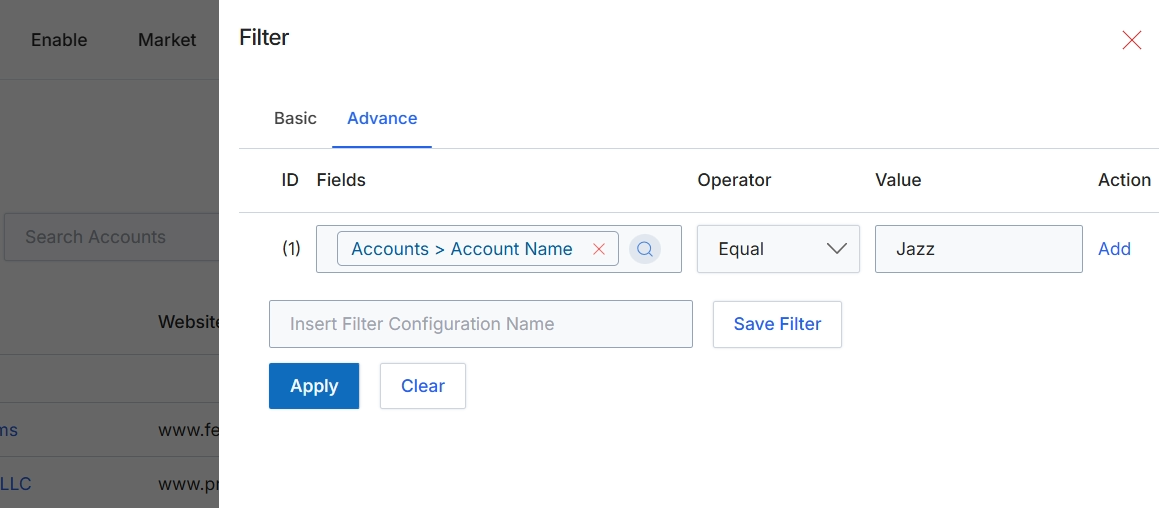
This screen displays the advanced filter configuration dialog, which allows users to define complex criteria for segmenting and refining data displayed in list views, such as the Accounts list. Administrators and program managers utilize this feature to create highly specific views of their data, enabling targeted analysis or management actions. The advanced filter supports multiple conditions, logical operators, and the ability to save frequently used filter configurations for future application. This functionality is crucial for managing large datasets and focusing on specific subsets of information relevant to current operational needs, such as identifying accounts by name, region, or other attributes.
Click 'Apply' to execute the configured advanced filter and update the displayed list of accounts.
Buttons
| Button | Description |
|---|---|
| Basic | A tab to switch to a simpler, basic filter configuration interface. |
| Advance | The currently active tab for configuring advanced filter rules. |
| Add | A link to add another filter rule to the advanced configuration. |
| Save Filter | A button to save the current filter configuration with the specified name. |
| Apply | A button to apply the configured filter rules to the data set. |
| Clear | A button to clear all configured filter rules. |
Fields
| Field | Description |
|---|---|
| (1) | The identifier for the first filter rule. |
| Accounts > Account Name | The selected field for the first filter rule, indicating that the filter applies to the 'Account Name' within the 'Accounts' entity. |
| Equal | The selected operator for the first filter rule, specifying that the 'Account Name' must exactly match the provided value. |
| Jazz | The value entered for the first filter rule, indicating that the 'Account Name' should be 'Jazz'. |
| Insert Filter Configuration Name | An input field to provide a name for the current advanced filter configuration, allowing it to be saved for future use. |
Column Headings
| Column | Description |
|---|---|
| ID | Column header for the rule number/identifier in the advanced filter configuration. |
| Fields | Column header for selecting the data field to which the filter rule applies. |
| Operator | Column header for selecting the logical operator (e.g., Equal, Contains, Starts With) for the filter rule. |
| Value | Column header for entering the specific value to be matched by the filter rule. |
| Action | Column header for actions related to the filter rule, such as adding a new rule. |