

Overview
In the UPM, user profiles are fundamental to access management, enabling granular control over who can access which modules, features, and data. By creating distinct profiles, administrators can align system permissions with organizational roles, whether for internal vendor teams (e.g., Program Managers, Finance) or external partner users (e.g., Partner Admin, Partner Sales Rep). This ensures that each user has the necessary access to perform their duties without being exposed to irrelevant or sensitive information.
Effective profile management is crucial for security, compliance, and operational efficiency. It simplifies user onboarding by allowing quick assignment of predefined permission sets and facilitates auditing by clearly defining access levels. Administrators can customize profiles to reflect specific business processes and partner program structures, ensuring the platform accurately supports their channel strategy.
Accessing and Managing Profiles
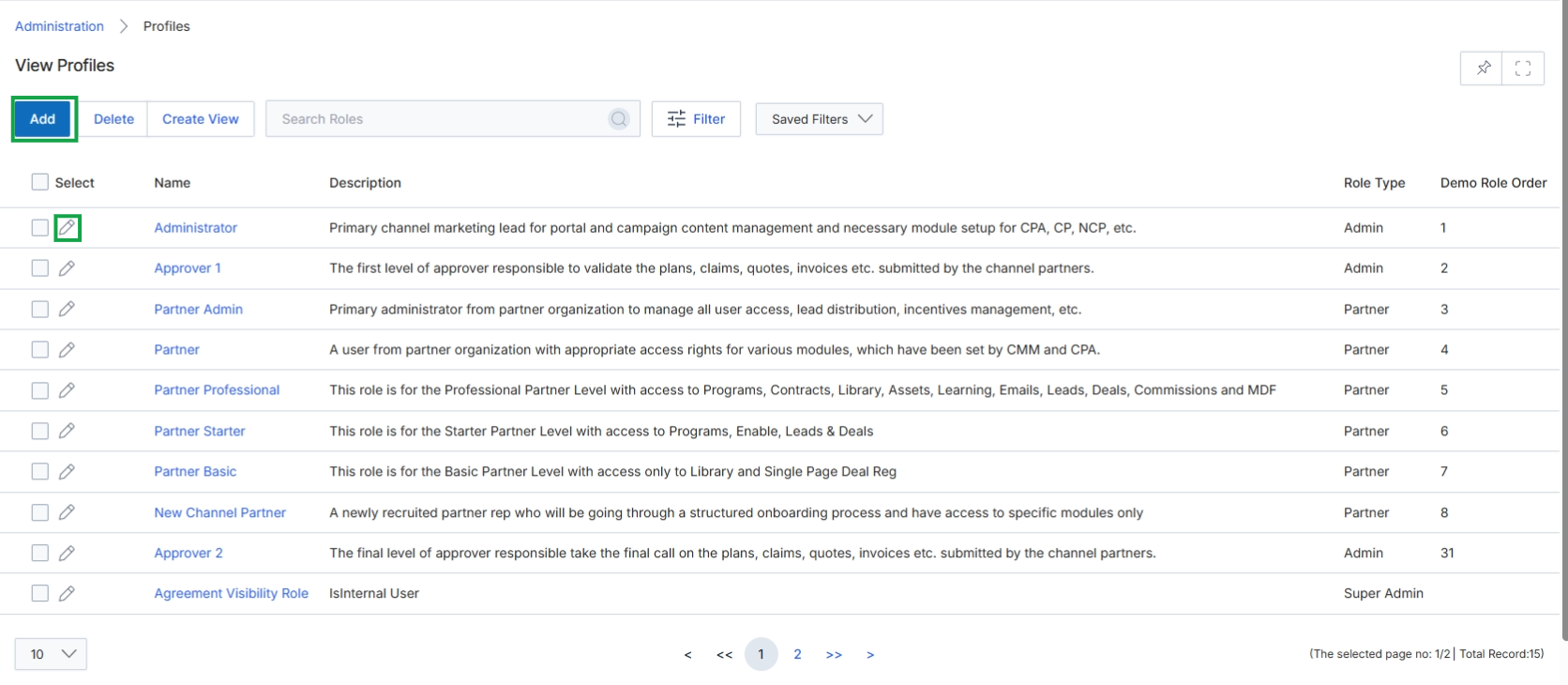
Click the Add button or the pencil icon next to an existing profile to access the Add/Edit a Profile page.
Adding or Editing a Profile
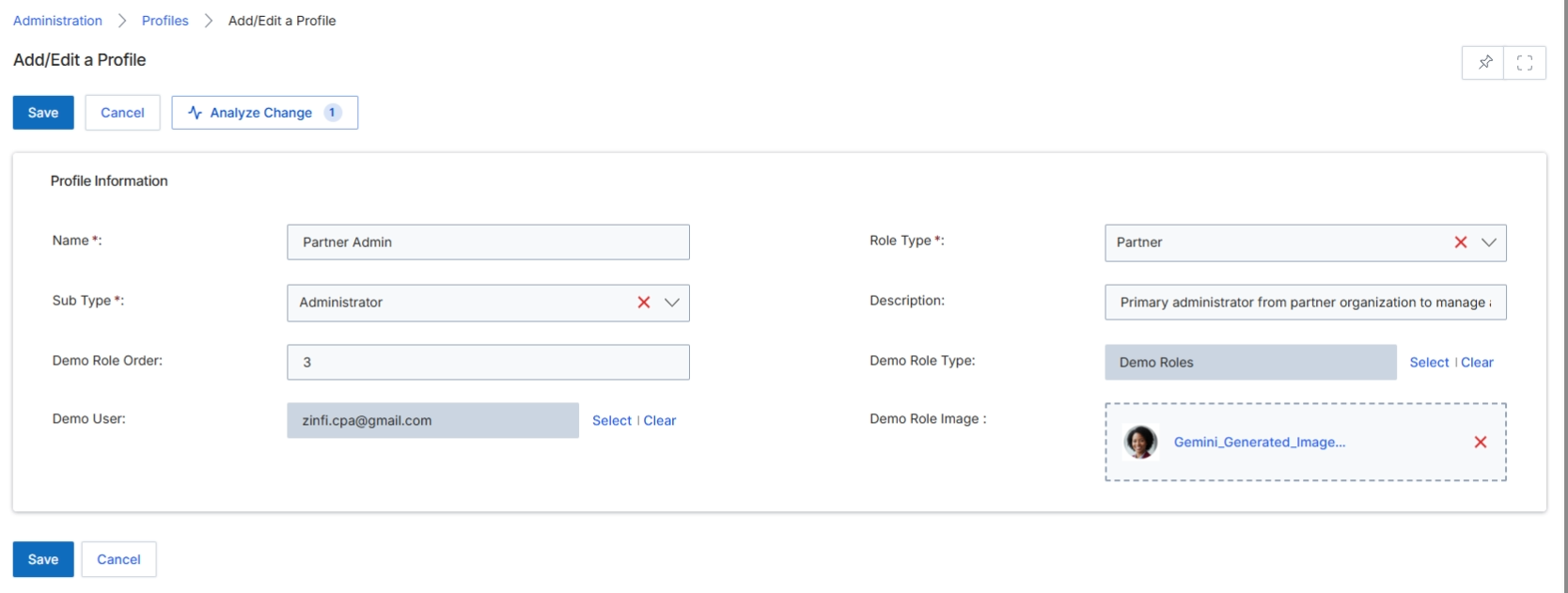
The Add/Edit a Profile page in the Administration module allows administrators to define or modify user profiles, which are permission sets that determine what a user can see and do within the platform. These profiles are crucial for implementing role-based access control (RBAC), ensuring that vendor-side employees and partner users have appropriate access levels tailored to their responsibilities. This screen displays various fields for configuring a profile's name, type, description, and other associated attributes, which collectively dictate the permissions and scope of access for any user assigned to this profile. Properly configured profiles are fundamental to maintaining security and operational efficiency across all modules of the platform.
Complete the 'Add/Edit a Profile' form by entering the required profile information.
Buttons
| Button | Description |
|---|---|
| Save | Saves the changes made to the profile. |
| Cancel | Discards any changes and returns to the previous screen. |
| Analyze Change | Analyzes the impact of the profile changes. |
Profile Information
| Field | Description |
|---|---|
| Name * | The name of the profile, which identifies the permission set. |
| Sub Type * | The specific sub-type or category of the profile. |
| Demo Role Order | A numerical value indicating the display order for demo roles. |
| Demo User | The email address of a demo user associated with this profile. |
| Role Type * | The general classification of the role, such as 'Partner' or 'Vendor'. |
| Description | A brief explanation of the profile's purpose and responsibilities. |
| Demo Role Type | The type of demo role, which can be selected from a predefined list. |
| Demo Role Image | An image associated with the demo role, which can be uploaded or selected. |
Selecting Demo Users and Role Types
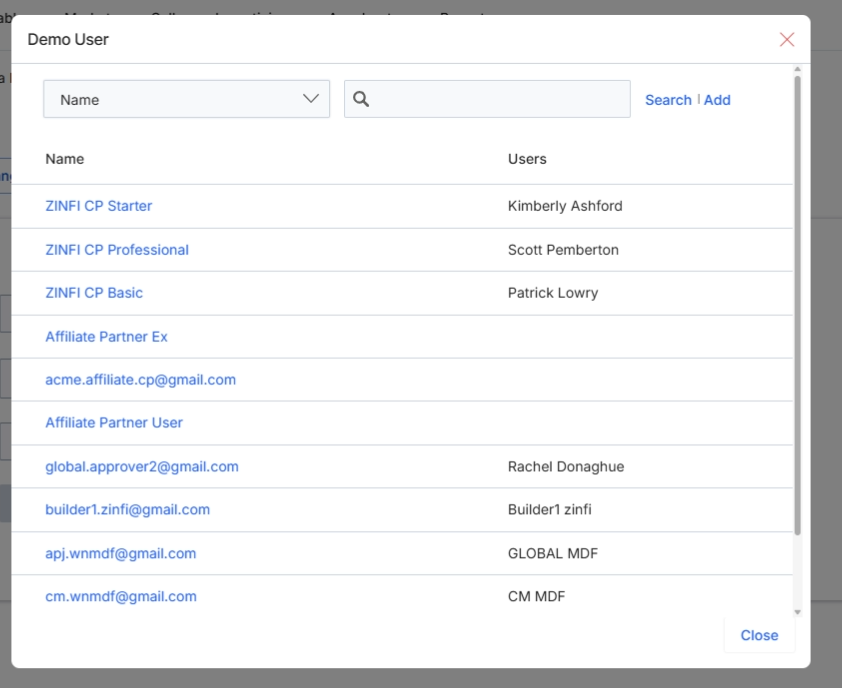
The Demo User pop-up window allows administrators to select a user from a list to associate with a specific profile or role. This selection is crucial for defining which vendor-side employee will manage certain partners, approve specific actions, or have access to particular reports, aligning with the platform's role-based access control. The pop-up provides search and filter capabilities to efficiently locate the desired user within the system, ensuring that the correct individual is assigned to the profile being configured.
Select a user from the list in the Demo User pop-up window.
Buttons
| Button | Description |
|---|---|
| Close | Closes the Demo User pop-up window without making a selection. |
Fields
| Field | Description |
|---|---|
| Name | A dropdown menu to filter the user list by name. |
| Search | A text input field to search for users by name or other criteria. |
Column Headings
| Column | Description |
|---|---|
| Name | The column header for the user's name. |
| Users | The column header for the user's associated identifier or full name. |
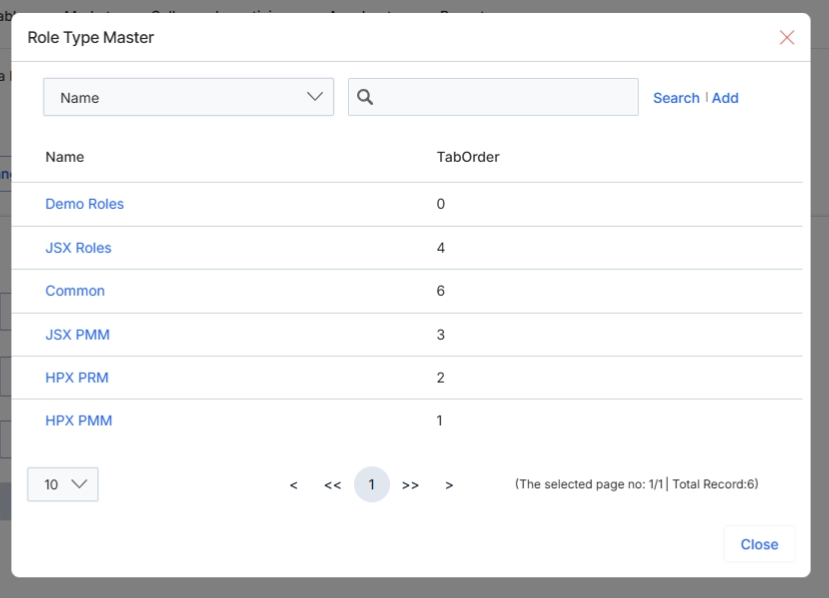
This modal window, titled 'Role Type Master', allows administrators to select a predefined role type to associate with a user profile. Role types define a collection of permissions and access rights within the platform, ensuring that users are granted appropriate capabilities based on their function. This selection is a critical step in configuring user access, as it directly influences what modules, data, and actions a user can perform. The list displays available role types, which can be filtered or searched to quickly locate the desired option. Once a role type is selected, its associated permissions will be applied to the profile being configured.
Click "Demo Roles" to select this role type for the profile.
Buttons
| Button | Description |
|---|---|
| Search | Initiates the search for role types based on the entered keyword. |
| Add | Allows the administrator to add a new role type to the master list. |
| Close | Closes the 'Role Type Master' modal without making a selection. |
Fields
| Field | Description |
|---|---|
| Name | A dropdown menu to filter the list of role types by their name. |
| Search | A text input field for searching role types by keyword. |
| 10 | A dropdown to select the number of records to display per page. |
Column Headings
| Column | Description |
|---|---|
| Name | The name of the role type. |
| TabOrder | The display order of the role type. |