

Overview
Groups are a fundamental component of the platform's access management system, enabling administrators to define logical collections of users. These groups are instrumental in controlling what content, tools, and functionalities users can access within the portal. By assigning users to specific groups, administrators can streamline the management of permissions, ensuring that users only see and interact with the information relevant to their roles or responsibilities. This hierarchical structure allows for granular control over user experiences, from basic content visibility to complex approval workflows and reporting segmentation.
Groups
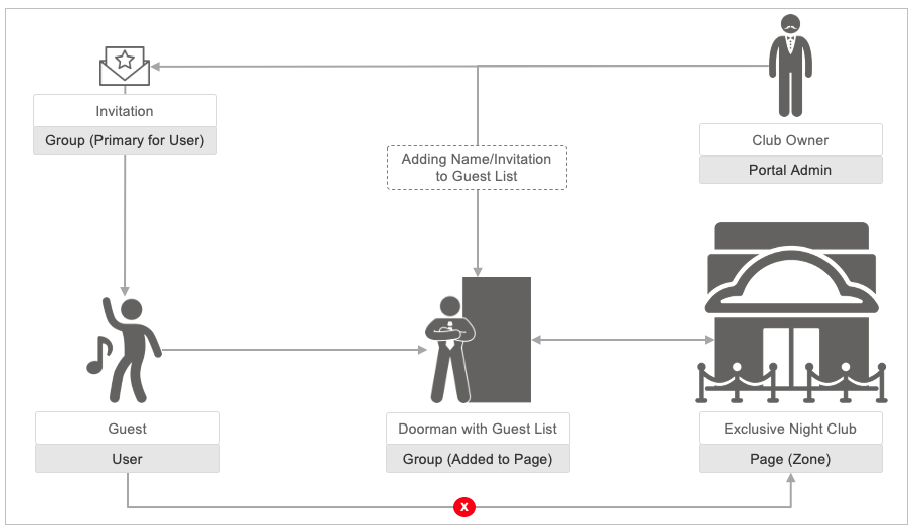
This diagram illustrates the concept of 'Groups' within the platform's access management system, using a nightclub analogy. The 'Club Owner' (Portal Admin) manages access by sending an 'Invitation' to a 'Guest' (User), which assigns them to a 'Group (Primary for User)'. This action is akin to 'Adding Name/Invitation to Guest List'. A 'Doorman with Guest List' (Group (Added to Page)) then controls entry to the 'Exclusive Night Club' (Page (Zone)), ensuring that only authorized users, based on their assigned group, can access specific areas or content within the portal. The red 'X' indicates that a Guest cannot directly enter the Exclusive Night Club without first being added to the Guest List via an invitation.
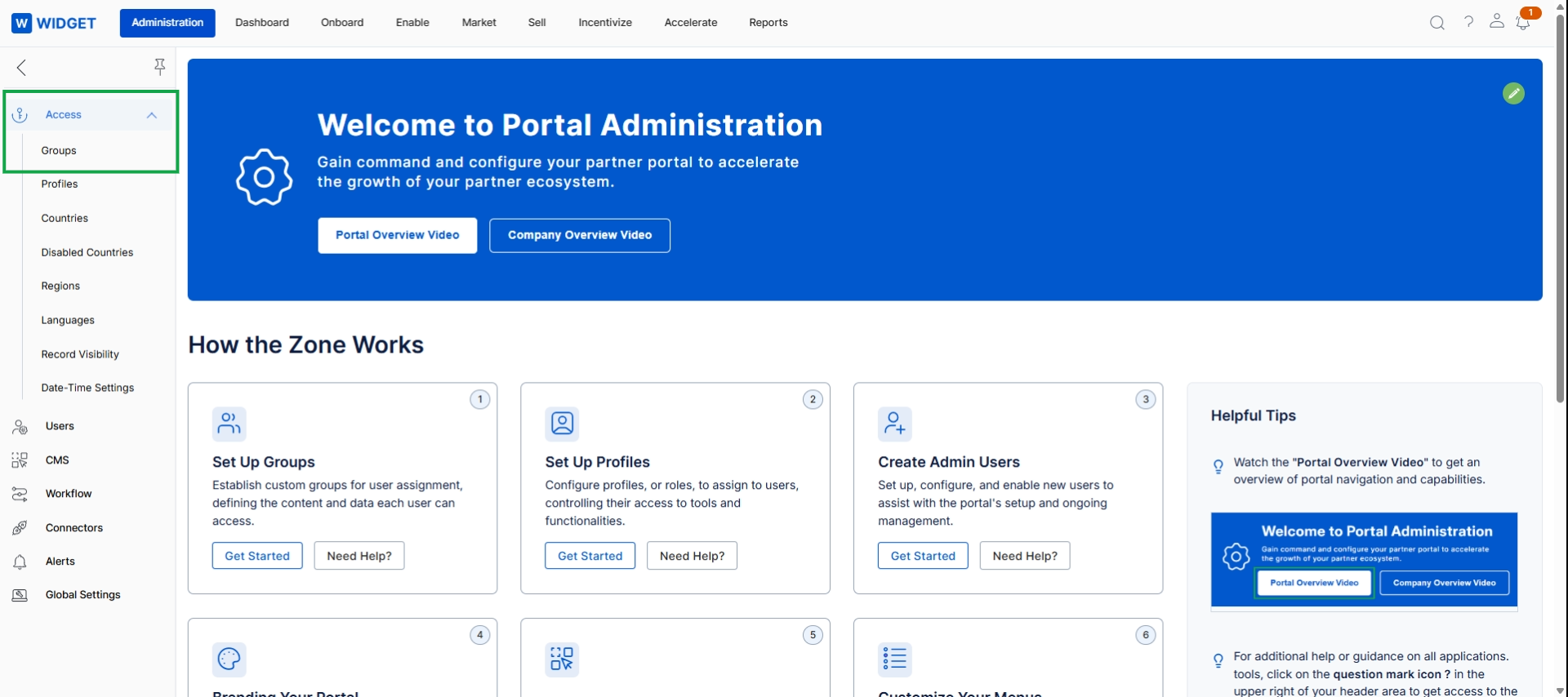
Click Access → Groups.
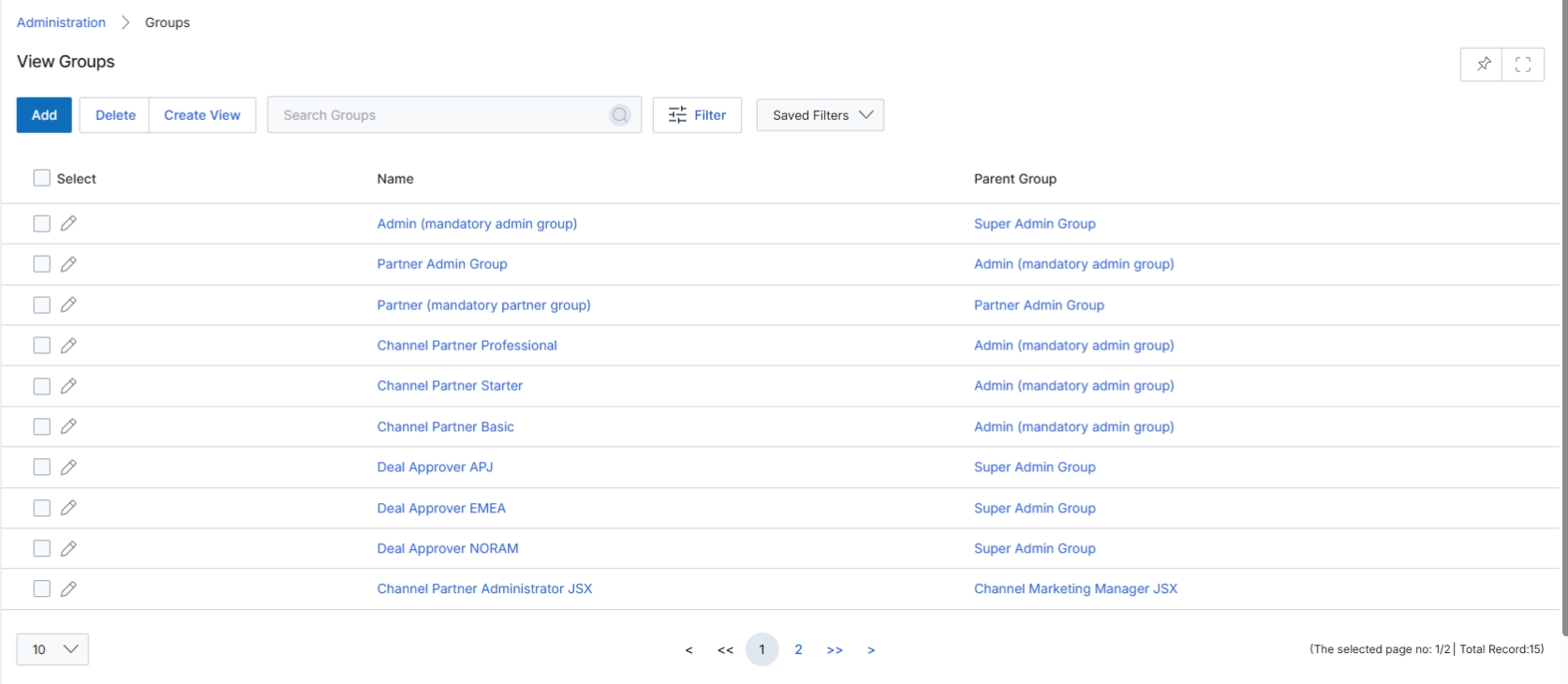
This screen displays the 'View Groups' list, which allows UPM administrators to manage collections of users. Groups are a core entity within the Administration module, serving to organize users for various purposes such as approval routing, reporting, and assigning specific permissions or responsibilities. For instance, an 'Approval Team' is a type of group that can be assigned to an approval flow, ensuring that requests are routed to the correct set of reviewers. This list view provides an overview of all defined groups, including their names and any parent groups, facilitating easy identification and management of the organizational structure. Administrators can use this screen to add new groups, delete existing ones, or apply filters to locate specific groups within the system.
Review the list of existing groups and their parent associations.
Buttons
| Button | Description |
|---|---|
| Add | Click to create a new group. |
| Delete | Click to delete selected groups. |
| Create View | Click to create a custom filtered view of the groups list. |
| Filter | Click to open the filter panel and apply advanced filtering options to the list. |
| Saved Filters | Select from a list of previously saved filter configurations. |
Fields
| Field | Description |
|---|---|
| Search Groups | Enter keywords to search for specific groups by name. |
Column Headings
| Column | Description |
|---|---|
| Select | Checkbox to select individual groups for bulk actions like deletion. |
| Name | The name of the group. |
| Parent Group | The name of the parent group, indicating a hierarchical relationship. |
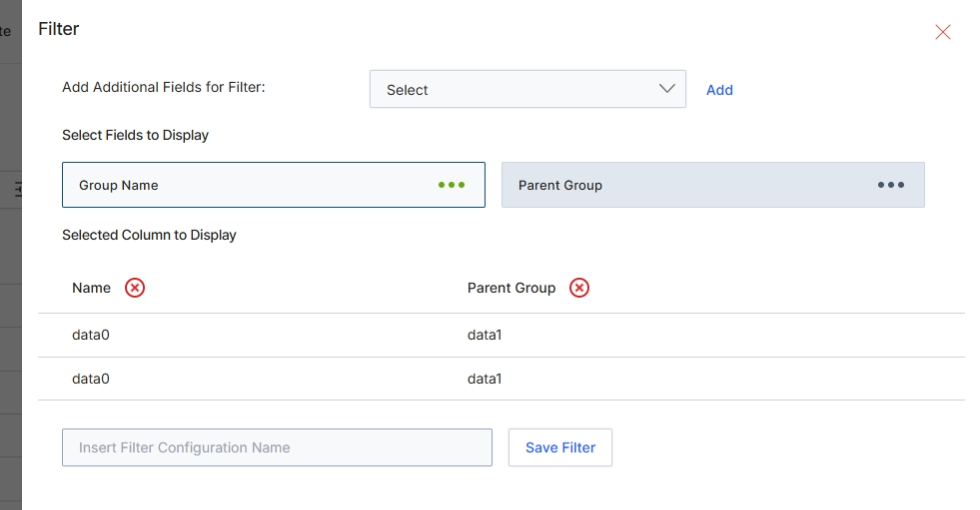
This filter configuration dialog allows administrators to define and save custom filter sets for group lists. By adding specific fields, users can create highly granular views of their groups, focusing on relevant attributes such as group name or parent group. This functionality enhances data analysis and management by enabling quick access to segmented data, which is crucial for tasks like managing access permissions or organizing partner users. The ability to save these configurations streamlines future filtering operations, improving efficiency in navigating large datasets within the platform.
Configure the filter by adding fields to display, and then save the filter configuration.
Buttons
| Button | Description |
|---|---|
| Add | A link to add the selected field from the 'Add Additional Fields for Filter' dropdown to the filter criteria. |
| Save Filter | A button to save the current filter configuration under the specified name. |
Fields
| Field | Description |
|---|---|
| Add Additional Fields for Filter | A dropdown menu to select additional fields that can be used for filtering the group list. |
| Insert Filter Configuration Name | A text input field to enter a name for the custom filter configuration, allowing it to be saved and reused. |
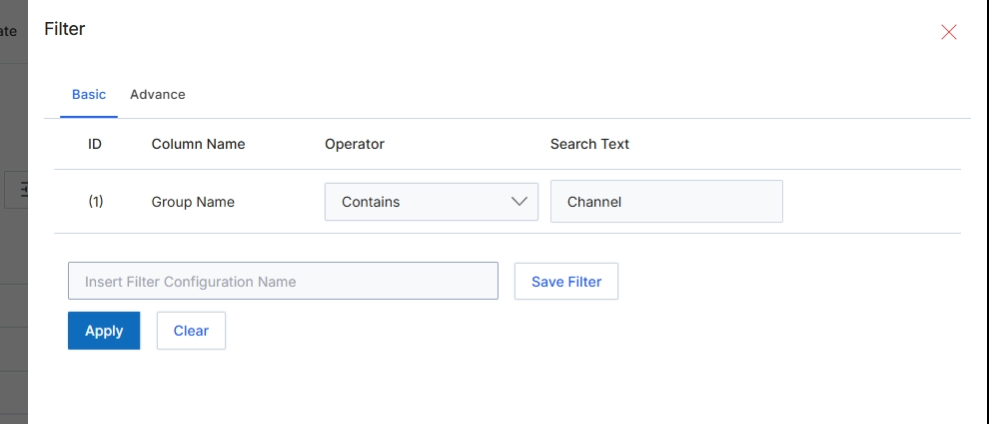
This Filter dialog provides options for refining the data displayed in a list view by applying specific criteria. Users can define one or more filter conditions based on column names, operators, and search text. The dialog supports both basic and advanced filtering capabilities, allowing for simple keyword searches or more complex rule-based filtering. Once configured, filters can be applied immediately or saved for future use, enabling quick access to frequently used data subsets. This functionality is crucial for efficiently navigating and analyzing large datasets within the platform, helping users focus on relevant information.
Enter the desired filter criteria in the "Search Text" field to filter the list by group name.
Buttons
| Button | Description |
|---|---|
| Basic | This tab allows users to define simple filter conditions using column names, operators, and search text. |
| Advance | This tab provides options for creating more complex, rule-based filter configurations. |
| Save Filter | A button to save the current filter configuration with the specified name. |
| Apply | A button to apply the defined filter criteria to the list view. |
| Clear | A button to remove all applied filter criteria and reset the list view. |
Fields
| Field | Description |
|---|---|
| Group Name | The column selected for filtering, indicating that the filter will be applied to the 'Group Name' field. |
| Contains | The selected operator, indicating that the filter will search for group names that contain the specified text. |
| Channel | The text entered as the search criterion for the 'Group Name' column. |
| Insert Filter Configuration Name | A field to enter a name for the current filter configuration, allowing it to be saved for later use. |
Column Headings
| Column | Description |
|---|---|
| ID | A numerical identifier for each filter row. |
| Column Name | The name of the column to which the filter condition will be applied. |
| Operator | The comparison operator (e.g., 'Contains', 'Equals', 'Starts With') used for the filter condition. |
| Search Text | The value or keyword to search for within the specified column. |
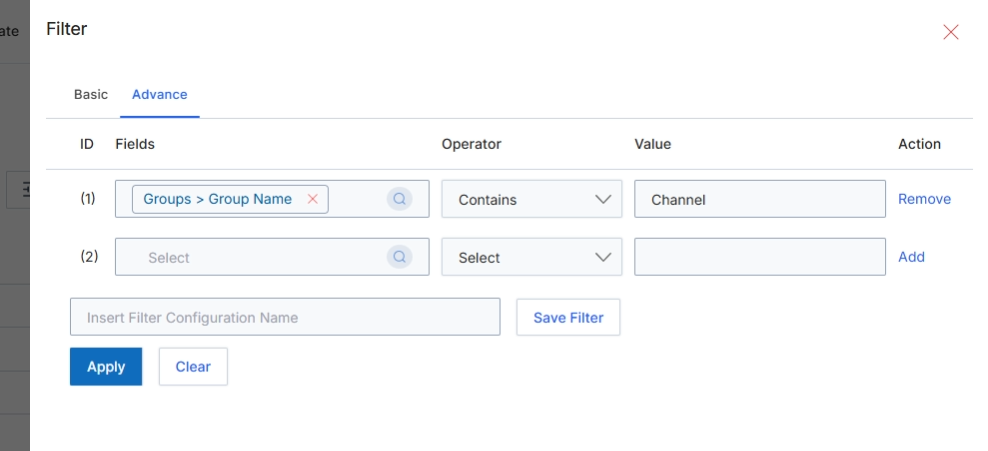
The Advance tab within the Filter dialog allows users to construct complex filter conditions using multiple criteria. This feature is crucial for refining data views in various modules, enabling administrators to pinpoint specific records based on detailed attributes and logical operators. Users can define conditions, specify operators, and input values to create highly targeted data subsets. The ability to save filter configurations streamlines repetitive analysis and reporting tasks, enhancing efficiency in managing large datasets across the platform.
Configure advanced filter conditions by selecting fields, operators, and values.
Buttons
| Button | Description |
|---|---|
| Basic | Tab to switch to basic filter options. |
| Advance | Tab to switch to advanced filter options, allowing for complex, multi-condition filtering. |
| Remove | Button to remove the first filter condition. |
| Add | Button to add a new filter condition. |
| Save Filter | Button to save the current filter configuration with the specified name. |
| Apply | Button to apply the configured filter conditions to the current view. |
| Clear | Button to clear all configured filter conditions. |
Fields
| Field | Description |
|---|---|
| Groups > Group Name | The selected field for the first filter condition, indicating that the filter applies to the 'Group Name' within 'Groups'. |
| Contains | The selected operator for the first filter condition, specifying that the 'Group Name' should contain the specified value. |
| Channel | The value entered for the first filter condition, indicating that the 'Group Name' should contain 'Channel'. |
| Insert Filter Configuration Name | Text input field to enter a name for the current filter configuration to save it for future use. |
Column Headings
| Column | Description |
|---|---|
| ID | Column header for the filter condition identifier. |
| Fields | Column header for the field selection dropdowns for each filter condition. |
| Operator | Column header for the operator selection dropdowns for each filter condition. |
| Value | Column header for the value input fields for each filter condition. |
| Action | Column header for actions related to each filter condition, such as adding or removing a condition. |