

Overview
In the UPM, profiles (also known as roles) are fundamental to access management, defining the permissions and capabilities assigned to different user types. This page provides administrators with a comprehensive view of all configured profiles, enabling them to understand the various access levels granted to both internal vendor users and external partner users. Each profile is associated with specific modules, record scopes, and actions, ensuring that users only have access to the functionalities relevant to their responsibilities.
Administrators frequently use this page when setting up new users, reviewing existing access rights, or making adjustments to permissions as business needs evolve. The ability to filter and search through profiles, along with customizable column displays, helps in efficiently managing a potentially large number of roles within the system. This ensures that the principle of least privilege is maintained, enhancing security and operational efficiency across the partner ecosystem.
Accessing and Viewing Profiles
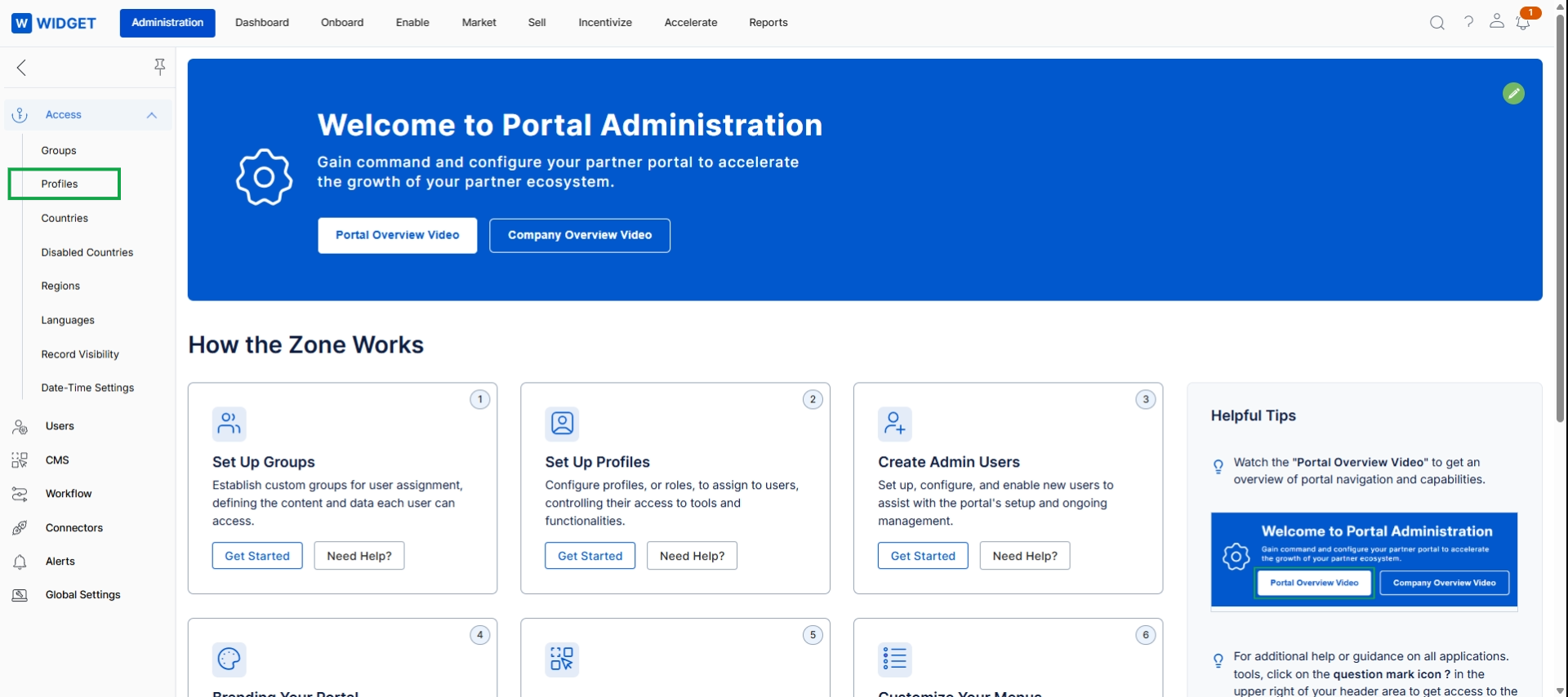
Click Profiles in the left navigation menu.
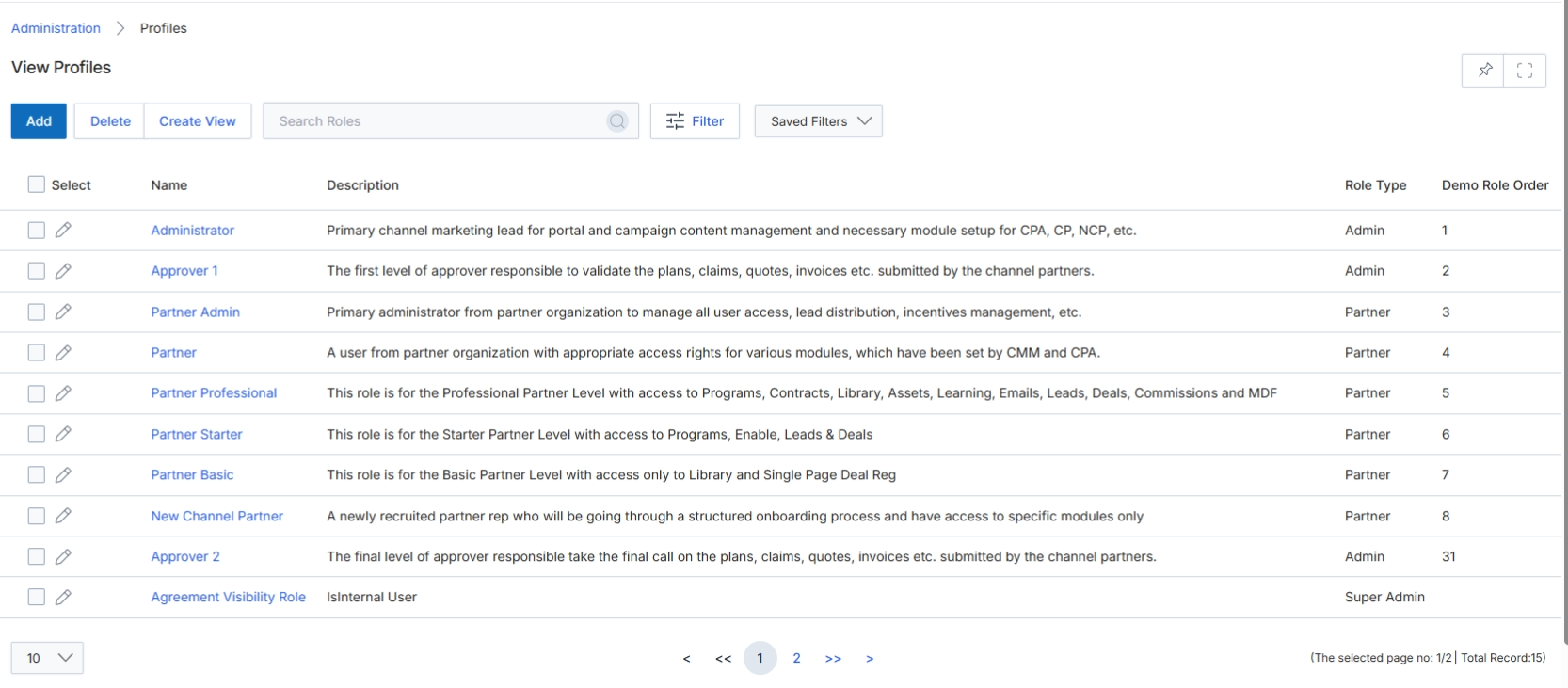
This screen displays a list of all user profiles (roles) configured within the platform. Profiles define the permission sets that determine what a user can see and do across all modules, whether they are vendor-side employees or partner-side users. Each profile is associated with specific access rights, module visibility, and action permissions, ensuring that users only have access to the functionalities relevant to their responsibilities. Administrators use this view to manage existing profiles, create new ones, or delete obsolete profiles, which is a critical aspect of user management and security within the platform.
Review the list of existing profiles to understand their assigned permissions and roles.
Buttons
| Button | Description |
|---|---|
| Add | Click to add a new user profile to the system. |
| Delete | Click to delete selected user profiles. |
| Create View | Click to create a custom filtered view of the profiles list. |
| Filter | Click to apply advanced filters to the list of profiles. |
| Saved Filters | Select from a dropdown of previously saved filter configurations. |
Fields
| Field | Description |
|---|---|
| Search Roles | Enter text to search for specific roles by name or description. |
Column Headings
| Column | Description |
|---|---|
| Select | Checkbox to select one or more profiles for bulk actions like deletion. |
| Name | The name of the user profile, which often indicates its primary function or associated user type. |
| Description | A brief explanation of the profile's purpose and the general scope of its permissions. |
| Role Type | Indicates whether the profile is for an 'Admin' (vendor-side) or 'Partner' (partner-side) user. |
| Demo Role Order | A numerical value used for ordering roles in demonstration or specific display contexts. |
Filtering and Customizing the Profile List
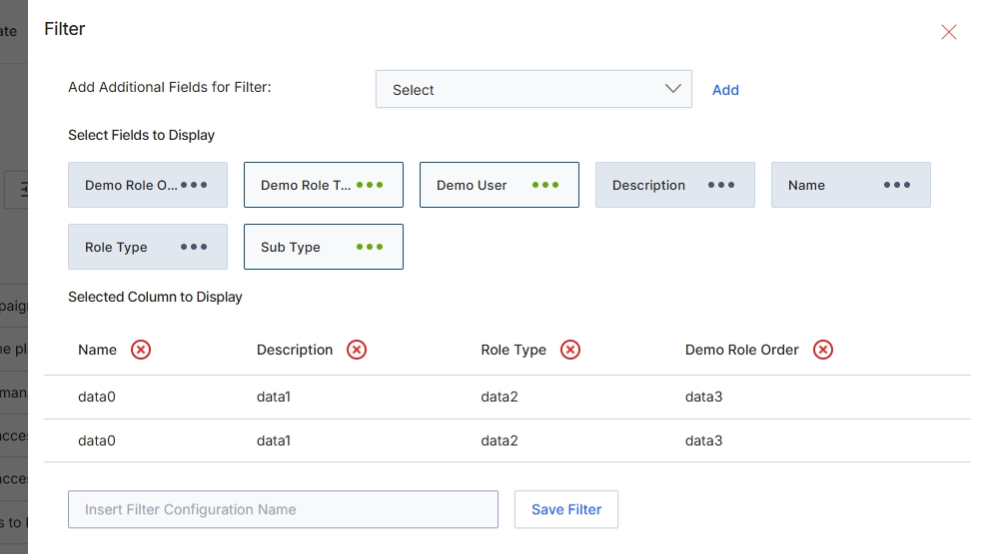
This filter configuration dialog allows administrators to customize the display of data within list views by selecting which fields appear as columns. It enables users to tailor the information presented to their specific needs, improving data visibility and analysis. By adding or removing fields, administrators can create focused views that highlight relevant data points for different operational tasks or reporting requirements. The configuration can then be saved for future use, streamlining the process of accessing specific data sets.
Enter a name for the filter configuration.
Buttons
| Button | Description |
|---|---|
| Add | Button to add the selected field to the filter criteria. |
| Save Filter | Button to save the current filter configuration, including selected columns and any applied filters. |
Fields
| Field | Description |
|---|---|
| Select | Dropdown to add additional fields that can be used for filtering the data. |
| Insert Filter Configuration Name | Input field to provide a name for the custom filter configuration. |
Selected Column to Display
| Column | Description |
|---|---|
| Name | Column header for the Name field, currently selected for display. |
| Description | Column header for the Description field, currently selected for display. |
| Role Type | Column header for the Role Type field, currently selected for display. |
| Demo Role Order | Column header for the Demo Role Order field, currently selected for display. |
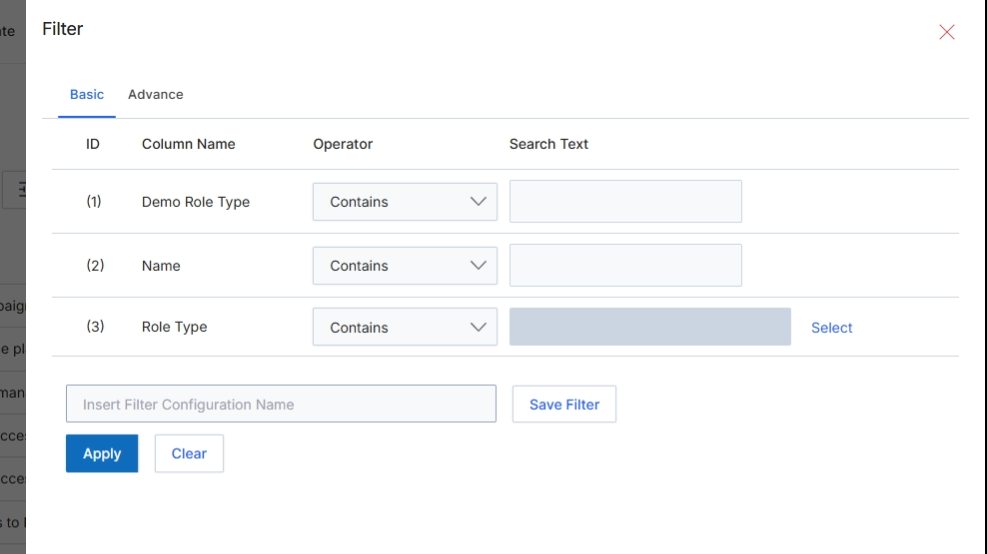
This modal window allows administrators to define and apply filters to the list of profiles displayed in the main 'View Profiles' screen. Filtering helps administrators quickly locate specific profiles based on various criteria, such as role type or name. This feature is crucial for managing a large number of profiles efficiently, enabling targeted actions like editing specific profile types or reviewing profiles that meet certain conditions. The filter can be configured with basic conditions and saved for future use, streamlining administrative tasks within the Access Management module.
Configure the basic filter by specifying conditions for the profile attributes.
Buttons
| Button | Description |
|---|---|
| Basic | Tab to configure simple filter conditions. |
| Advance | Tab to configure advanced filter conditions (not currently selected). |
| Select | Button to open a selection dialog for the 'Role Type' filter. |
| Save Filter | Button to save the current filter configuration under the specified name. |
| Apply | Button to apply the configured filter to the 'View Profiles' list. |
| Clear | Button to clear all filter conditions. |
Fields
| Field | Description |
|---|---|
| Demo Role Type | A profile attribute that can be used for filtering. |
| Name | A profile attribute representing the name of the profile, which can be used for filtering. |
| Role Type | A profile attribute representing the type of role, which can be used for filtering. |
| Insert Filter Configuration Name | Text input field to enter a name for the filter configuration, allowing it to be saved for future use. |
Column Headings
| Column | Description |
|---|---|
| ID | A numerical identifier for each filter row. |
| Column Name | The name of the profile attribute to filter by, such as 'Demo Role Type', 'Name', or 'Role Type'. |
| Operator | The comparison operator to use for the filter condition, such as 'Contains'. |
| Search Text | The value to search for within the specified 'Column Name' using the selected 'Operator'. |
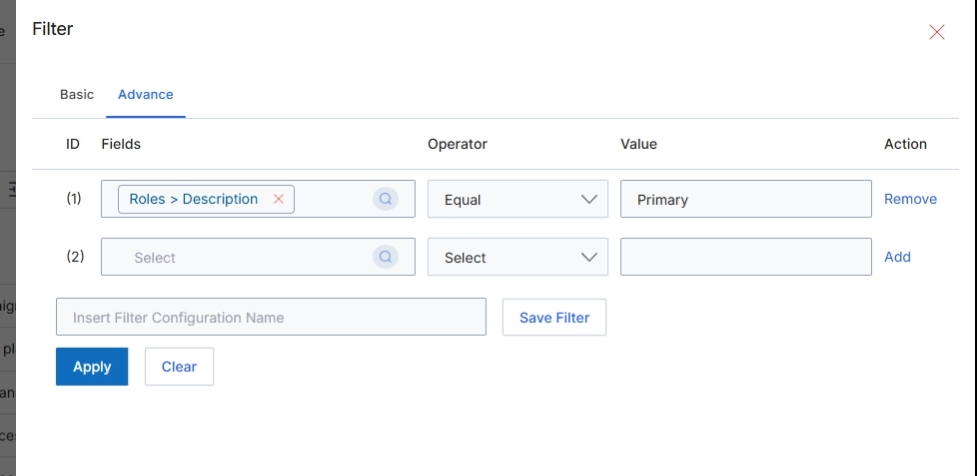
This screen displays the advanced filter configuration options for profiles, allowing administrators to define complex queries to refine the list of user profiles. This advanced filtering capability is crucial for managing access within the platform, enabling administrators to quickly locate specific profiles based on various criteria such as role descriptions, permissions, or other attributes. By applying these filters, administrators can efficiently perform tasks like reviewing profile configurations, assigning permissions, or identifying profiles that need updates, ensuring precise control over user access and system security. The ability to save filter configurations streamlines recurring administrative tasks and enhances operational efficiency.
Enter a value for the existing filter criterion and optionally add more filter rows to refine the profile list.
Buttons
| Button | Description |
|---|---|
| Basic | Switches the filter interface to the basic configuration options, offering a simpler set of filtering tools. |
| Advance | Activates the advanced filter configuration options, providing granular control over filter criteria with multiple conditions. |
| Remove | Button to remove the corresponding filter criterion from the list. |
| Add | Button to add a new filter criterion row, allowing for additional conditions to be specified. |
| Save Filter | Button to save the current filter configuration under the specified name for quick access later. |
| Apply | Button to apply the configured filters to the profiles list, updating the displayed results. |
| Clear | Button to clear all applied filter criteria, resetting the filter to its default state. |
Fields
| Field | Description |
|---|---|
| Roles > Description | The selected field for the first filter criterion, indicating that the filter will be applied to the 'Description' attribute of roles. |
| Select | Dropdown to select a field for the second filter criterion, allowing administrators to add another condition to the filter. |
| Equal | The selected operator for the first filter criterion, specifying that the 'Roles > Description' field must exactly match the provided value. |
| Select | Dropdown to select an operator for the second filter criterion, defining how the selected field will be compared to its value. |
| Primary | The value entered for the first filter criterion, indicating that profiles with 'Primary' in their role description will be matched. |
| Insert Filter Configuration Name | Text input field to provide a name for the current filter configuration, enabling it to be saved for future use. |
Column Headings
| Column | Description |
|---|---|
| ID | Column header indicating the sequential identifier for each filter criterion row. |
| Fields | Column header for the dropdown menus used to select the specific profile field to filter by. |
| Operator | Column header for the dropdown menus used to select the comparison operator for each filter criterion (e.g., Equal, Contains, Starts With). |
| Value | Column header for the input fields where the specific value for each filter criterion is entered. |
| Action | Column header for actions related to each filter row, such as removing or adding a criterion. |