

Overview
In the UPM, profiles (also known as roles) are fundamental to managing user access and permissions. Each profile defines what a user can see and do across different modules and entities within the platform. This detailed view of a profile enables administrators to understand its configuration, including which modules are accessible, which groups are associated with it, and which individual users have been assigned this profile.
Effective profile management is crucial for maintaining security and ensuring that users only have access to the information and functionalities relevant to their responsibilities. This feature provides the tools to assign records to specific users or groups, manage menu links visible to profile members, and ultimately control the user experience and data integrity across the entire platform.
Viewing Profile Details
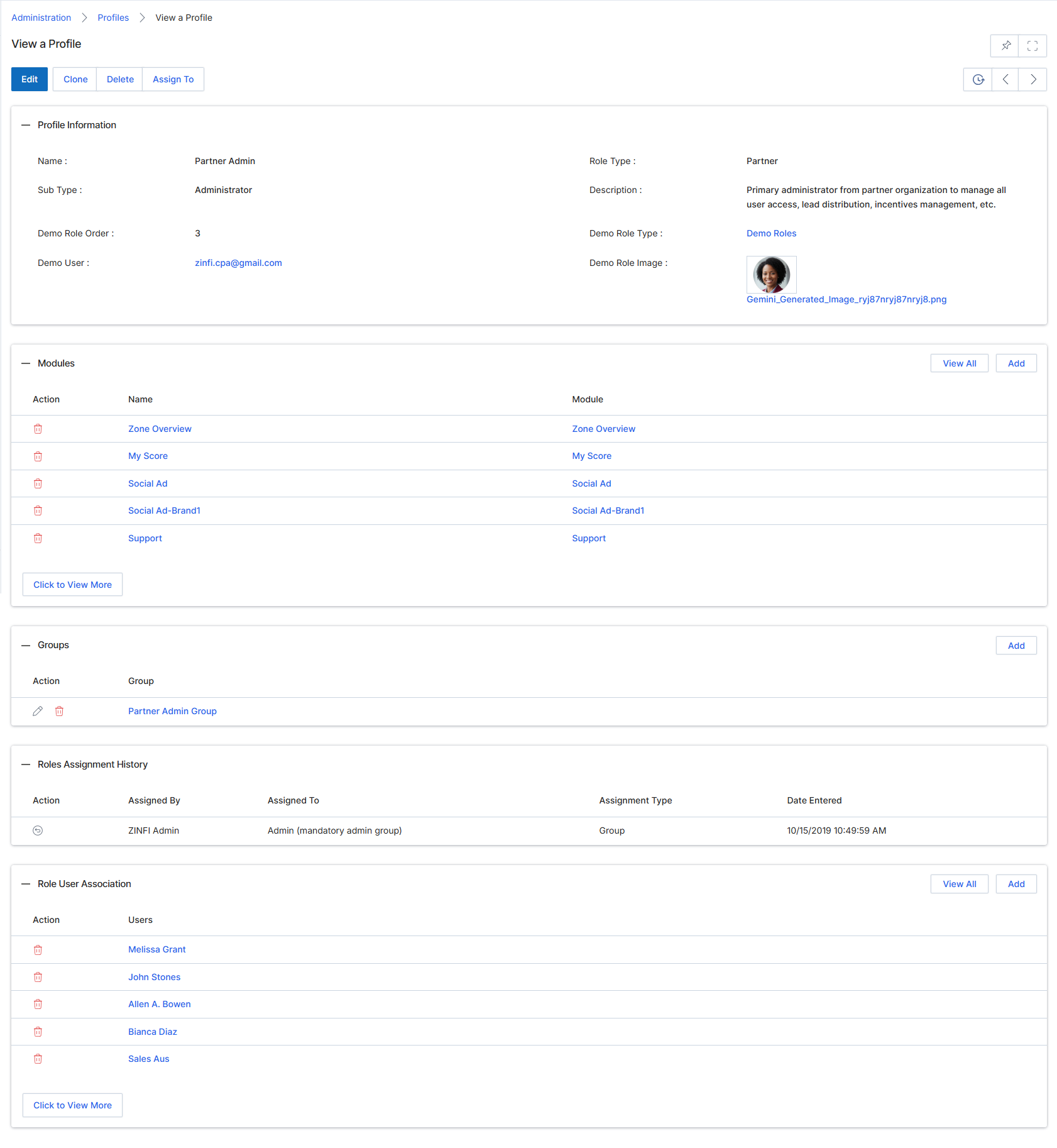
This screen displays the detailed information for a specific Profile, which defines a set of permissions and access rights within the platform. Profiles are critical for managing user access and ensuring that vendor-side employees (users) and partner-side contacts (partner users) have appropriate privileges based on their roles. This view provides a comprehensive overview of the profile's attributes, including its name, type, description, and associated modules, groups, and users. Administrators use this screen to understand the scope of a profile, review its assigned permissions, and manage its associations with various platform components and users, which directly impacts what actions users assigned to this profile can perform across all modules.
Review the detailed information for the selected profile, including its general information, associated modules, groups, roles assignment history, and linked users.
Buttons
| Button | Description |
|---|---|
| Edit | Allows modification of the profile's details. |
| Clone | Creates a duplicate of the current profile, which can then be edited. |
| Delete | Removes the profile from the system. |
| Assign To | Initiates the process to assign this profile to users or groups. |
Profile Information
| Field | Description |
|---|---|
| Name | The display name of the profile. |
| Sub Type | The sub-category or classification of the profile. |
| Demo Role Order | A numerical order associated with demo roles. |
| Demo User | The email address of a demo user associated with this profile. |
| Role Type | The type of role this profile represents, such as 'Partner'. |
| Description | A detailed explanation of the profile's purpose and responsibilities. |
| Demo Role Type | A link to view other demo role types. |
| Demo Role Image | An image associated with the demo role. |
Modules
| Column | Description |
|---|---|
| Action | Provides actions that can be performed on the listed modules, such as deletion. |
| Name | The name of the module associated with this profile. |
| Module | The name of the module associated with this profile. |
Groups
| Column | Description |
|---|---|
| Action | Provides actions that can be performed on the listed groups, such as editing or deletion. |
| Group | The name of the group associated with this profile. |
Roles Assignment History
| Column | Description |
|---|---|
| Action | An icon indicating an action related to the role assignment history. |
| Assigned By | The user who assigned the role. |
| Assigned To | The entity or group to which the role was assigned. |
| Assignment Type | The method or category of assignment. |
| Date Entered | The date and time when the assignment was recorded. |
Role User Association
| Column | Description |
|---|---|
| Action | Provides actions that can be performed on the listed users, such as deletion. |
| Users | The name of the user associated with this profile. |
Assigning Records to Users or Groups
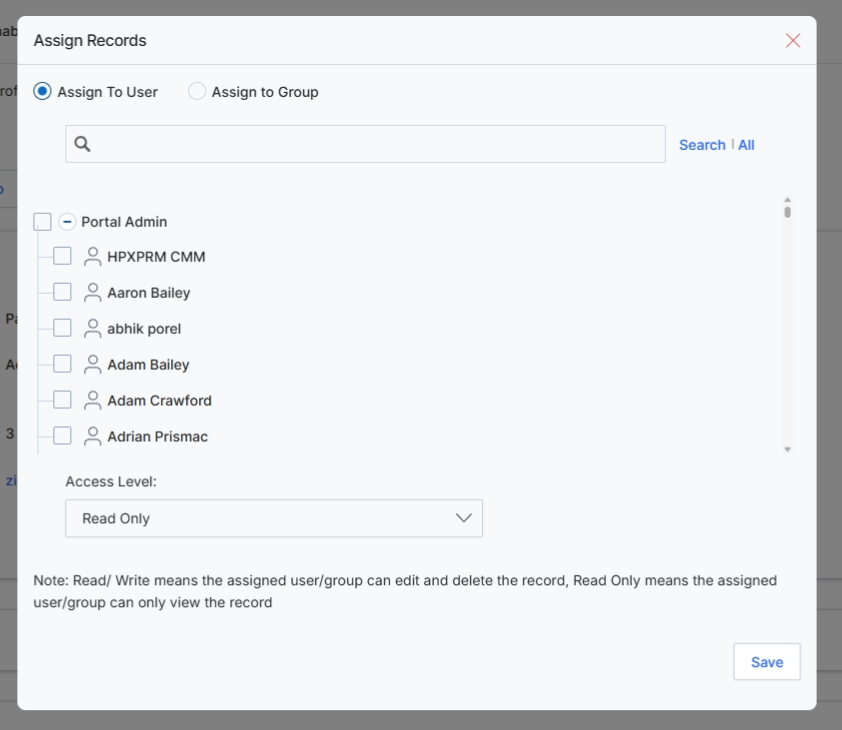
This dialog box allows administrators to assign records to specific users or groups within the platform, controlling who has access to view or modify particular data. This feature is crucial for managing data visibility and ensuring that only authorized personnel can interact with sensitive or relevant records. Administrators can choose between assigning a record to an individual user or to a predefined group, and then define the level of access granted, which typically includes 'Read Only' or 'Read/Write' permissions. This granular control over record assignment supports role-based access control and helps maintain data security and operational efficiency across the UPM.
Select the user or group to whom the record will be assigned and specify their access level.
Buttons
| Button | Description |
|---|---|
| Save | Click to save the record assignment with the selected user/group and access level. |
Fields
| Field | Description |
|---|---|
| Assign To User | Select this option to assign the record to an individual user. |
| Assign to Group | Select this option to assign the record to a group of users. |
| Search | Enter keywords to search for specific users or groups. |
| Access Level | Dropdown to select the access level (e.g., Read Only, Read/Write) for the assigned user or group. |
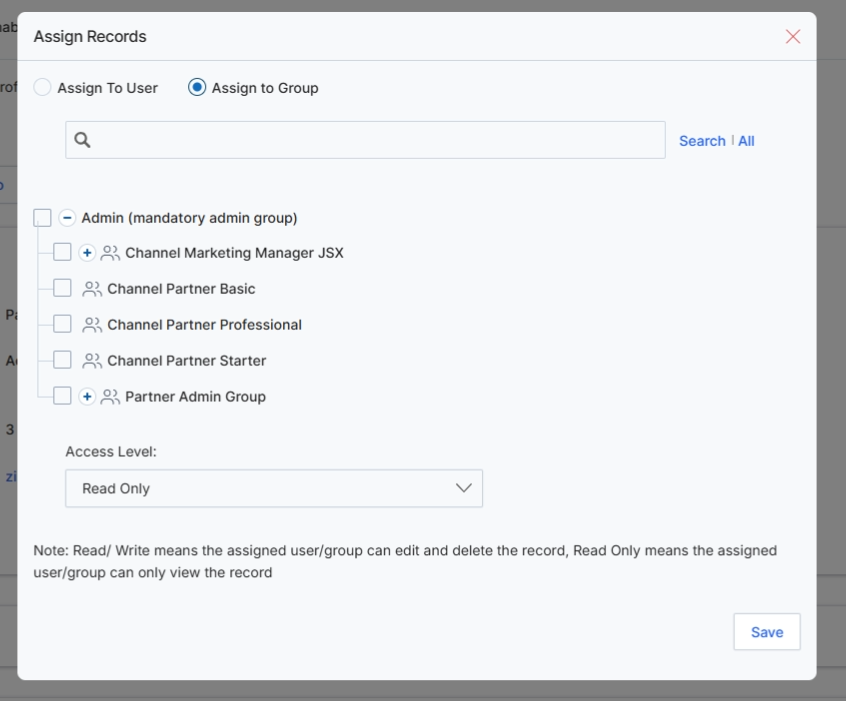
This dialog box allows administrators to assign records to specific user groups, controlling access and permissions for those records. It is a critical component of the platform's role-based access control system, ensuring that only authorized groups can view, edit, or delete particular records. By assigning records to groups, administrators can manage permissions at a broader level, rather than individually for each user, streamlining the management of access for various teams or partner types. The dialog presents options to search for groups, select them, and define the access level (Read Only or Read/Write) that the assigned group will have over the record.
Select the groups to which the record should be assigned and define their access level.
Buttons
| Button | Description |
|---|---|
| Save | Saves the record assignment and closes the dialog. |
Fields
| Field | Description |
|---|---|
| Assign To User | Radio button to assign the record to a specific user. |
| Assign to Group | Radio button to assign the record to one or more user groups. |
| Search | Search box to find specific user groups by name. |
| Access Level | Dropdown to select the access level (Read Only or Read/Write) for the assigned groups. |
Managing Module Menu Links
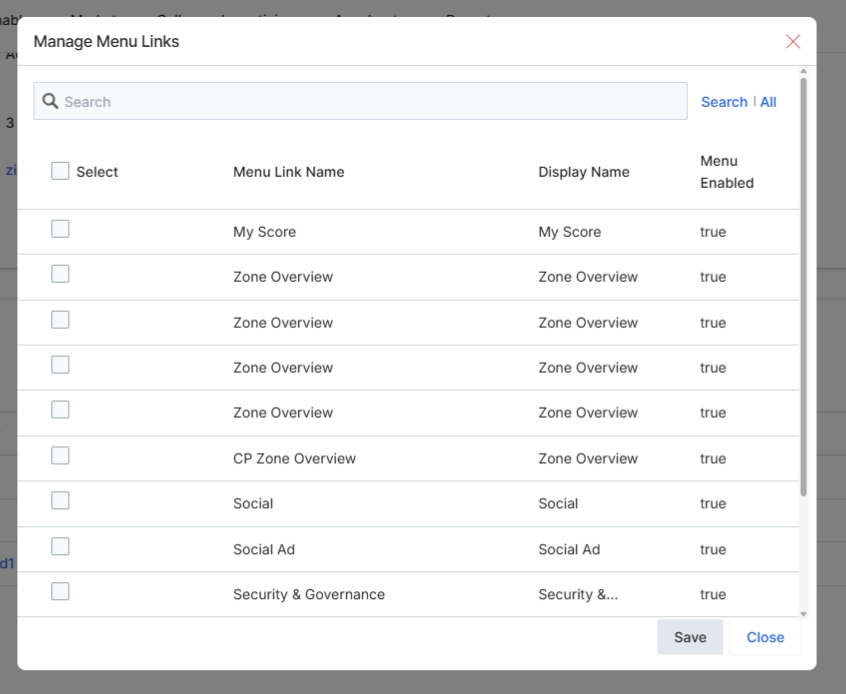
This modal window, titled 'Manage Menu Links', allows administrators to control which menu items are visible and enabled within the partner portal. It displays a comprehensive list of available menu links, each with its internal name, display name, and an indicator of whether it is currently enabled. Administrators can use the search functionality to quickly find specific menu links and then select or deselect them to customize the navigation experience for partners. This configuration directly impacts the partner-side user interface, ensuring that partners only see the modules and features relevant to their role, tier, or the specific partner program they are enrolled in.
Select the menu links you want to manage from the list.
Buttons
| Button | Description |
|---|---|
| Save | Saves the changes made to the menu link selections. |
| Close | Closes the 'Manage Menu Links' modal without saving any changes. |
Fields
| Field | Description |
|---|---|
| Search | A search bar to filter the list of menu links by keyword. |
Column Headings
| Column | Description |
|---|---|
| Select | A checkbox to select individual menu links for bulk actions or to enable/disable them. |
| Menu Link Name | The internal identifier or system name for the menu link. |
| Display Name | The name of the menu link as it appears to partners in the portal. |
| Menu Enabled | Indicates whether the menu link is currently active and visible in the partner portal. |
Managing Profile Group Associations
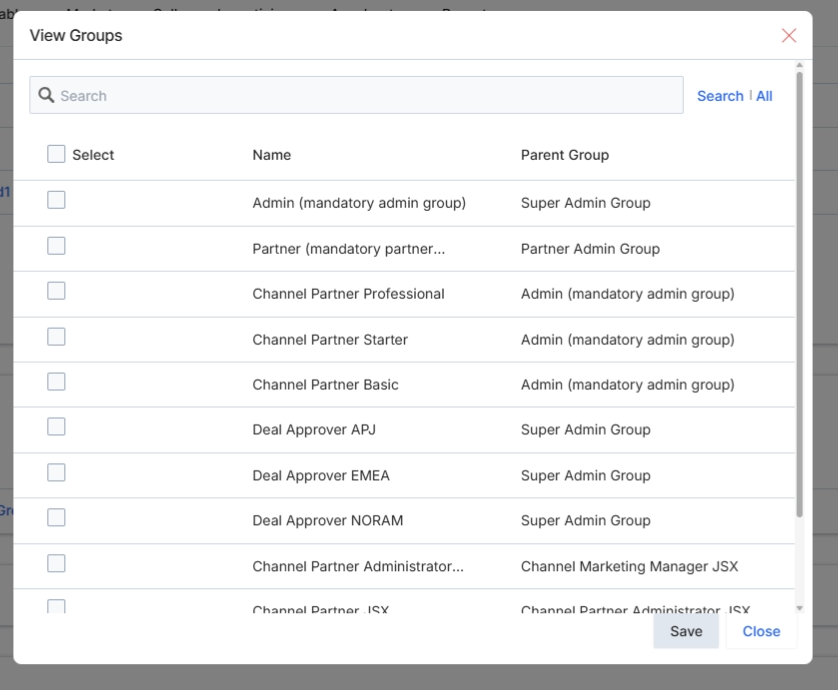
This pop-up window, titled 'View Groups', allows administrators to select and manage groups within the platform. Groups are collections of users and are used for various purposes such as approval routing, reporting, and assigning permissions. This interface displays a list of available groups, along with their parent groups, enabling administrators to understand the hierarchical structure of user assignments. The search functionality helps in quickly locating specific groups, and the checkboxes allow for the selection of one or more groups for further actions, such as associating them with a user profile or a specific approval team.
Select the desired groups from the list by checking the corresponding boxes.
Buttons
| Button | Description |
|---|---|
| Save | Saves the selected groups and closes the pop-up. |
| Close | Closes the pop-up without saving any changes. |
Fields
| Field | Description |
|---|---|
| Search | A search bar to filter the list of groups by name. |
Column Headings
| Column | Description |
|---|---|
| Select | A checkbox to select all visible groups in the list. |
| Name | The name of the group. |
| Parent Group | The parent group to which the listed group belongs, indicating its hierarchical position. |
Managing Profile User Associations
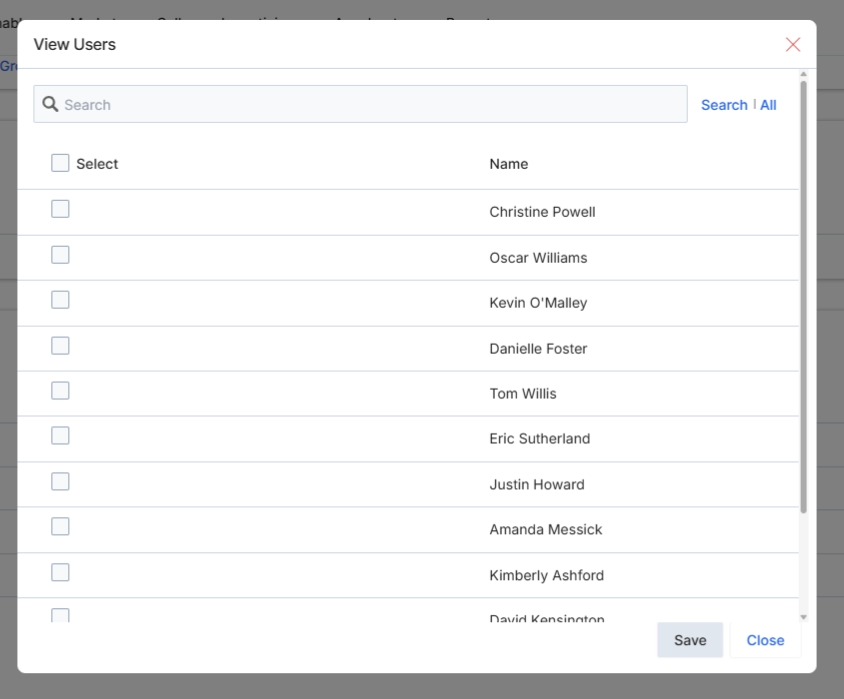
This dialog box displays a list of users available for association, typically with a selected group or other entity within the platform. It functions as a selection interface, allowing administrators to browse, search, and select one or more users from the system. The primary purpose of this screen is to facilitate the assignment of individual users to specific configurations, such as adding them to an approval team, a user group, or associating them with a particular role or profile. This ensures that the correct personnel are linked to relevant system functionalities and permissions, maintaining organizational structure and access control.
Select the users you want to associate from the list and click "Save".
Buttons
| Button | Description |
|---|---|
| Search | Click to initiate the search based on the entered keywords. |
| All | Click to display all available users, clearing any active search filters. |
| Save | Saves the selected users and closes the dialog. |
| Close | Closes the dialog without saving any changes. |
Fields
| Field | Description |
|---|---|
| Search | Enter keywords to filter the list of users by name. |
Column Headings
| Column | Description |
|---|---|
| Select | A checkbox column that allows for selecting individual users from the list. |
| Name | The name of the user. |