

Overview
Consistent date and time formatting is crucial for clarity and usability within any platform, especially one that handles global partners and diverse data. The Date-Time Settings module provides administrators with the tools to standardize how date and time information is displayed throughout the UPM. This prevents confusion and ensures that all users, regardless of their regional settings, interpret time-sensitive data uniformly. Administrators can define specific formats, activate them, and manage these settings to maintain a professional and consistent user experience.
Accessing Date-Time Settings
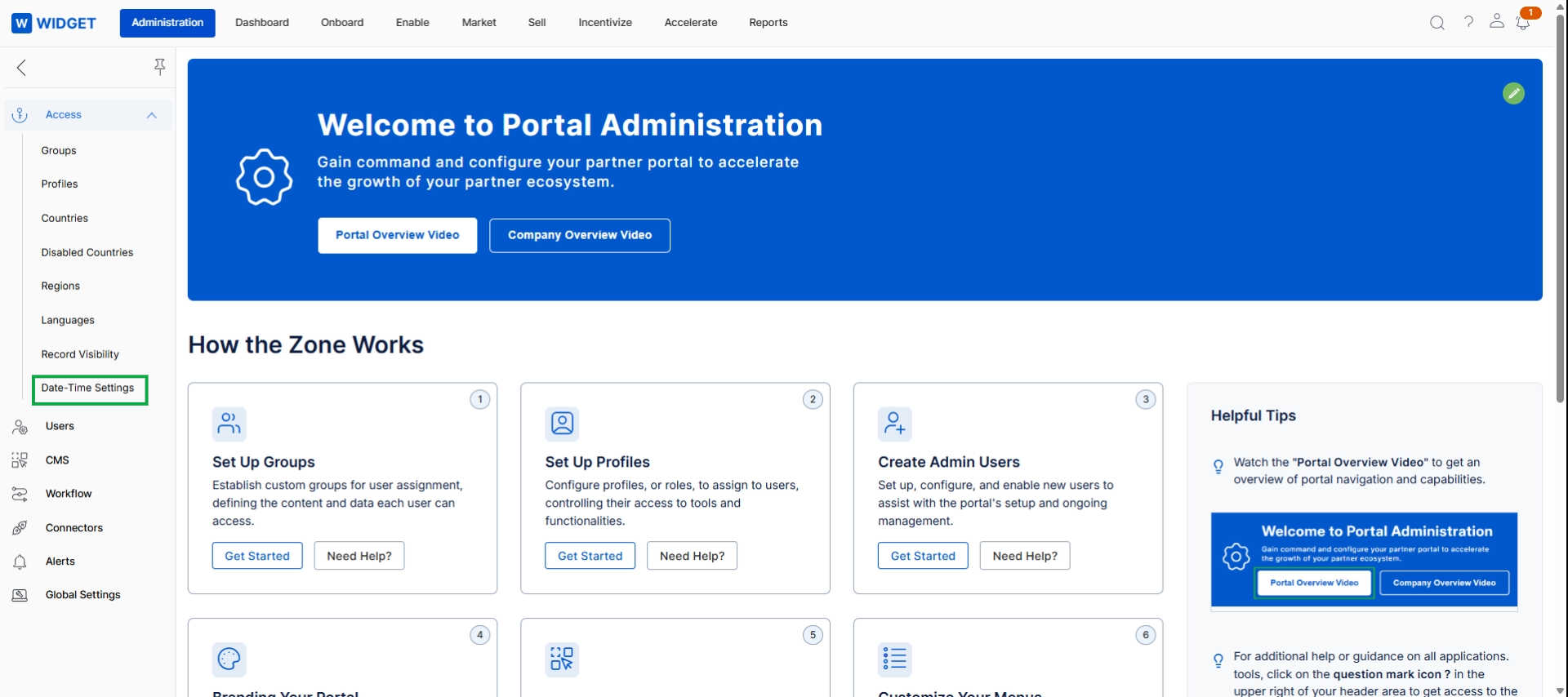
Click Date-Time Settings in the left navigation panel.
Viewing and Managing Date-Time Formats
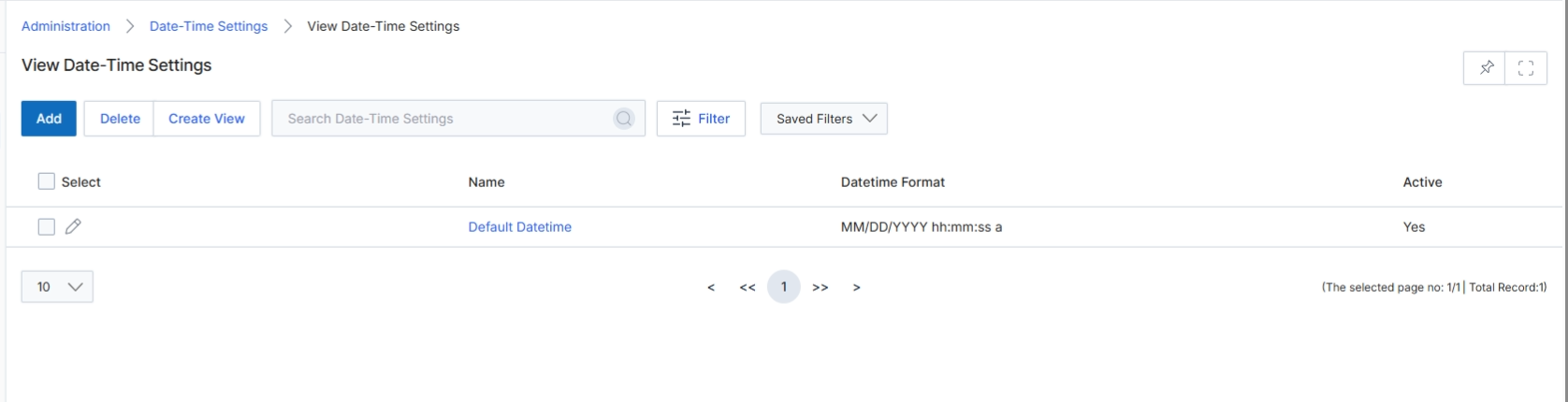
The View Date-Time Settings screen displays a list of configured date and time formats available within the platform. Administrators use this screen to manage how dates and times are displayed across various modules, reports, and user interfaces. Each entry in the list represents a specific date-time format, indicating its name, the format string, and whether it is currently active. This configuration ensures consistency in date and time representation throughout the UPM environment, which is crucial for data interpretation and user experience.
Review the existing date-time settings displayed in the list.
Buttons
| Button | Description |
|---|---|
| Add | Click this button to add a new date-time format configuration. |
| Delete | Click this button to delete selected date-time format configurations. |
| Create View | Click this button to create a custom view for the date-time settings list. |
| Filter | Click this button to apply filters to the list of date-time settings. |
| Saved Filters | Select from a dropdown of previously saved filter configurations. |
Fields
| Field | Description |
|---|---|
| Search Date-Time Settings | Enter keywords here to search for specific date-time settings. |
Column Headings
| Column | Description |
|---|---|
| Select | A checkbox to select individual date-time format entries for bulk actions. |
| Name | The name assigned to the date-time format. |
| Datetime Format | The string representing the actual date and time display format (e.g., MM/DD/YYYY hh:mm:ss a). |
| Active | Indicates whether the date-time format is currently active and in use. |
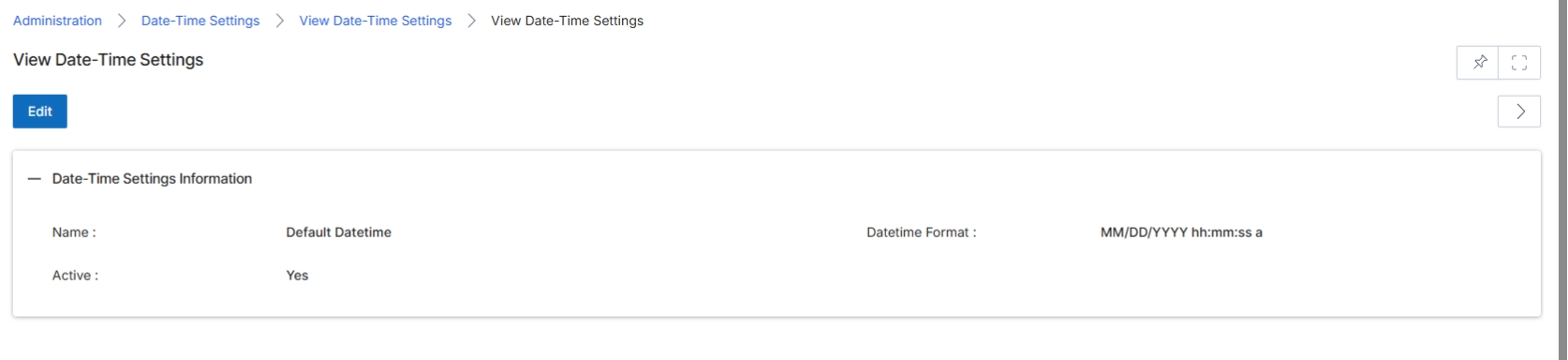
This screen displays the details of a specific Date-Time Setting configuration within the Administration module. Administrators use this view to review the current settings for how dates and times are formatted and whether a particular setting is active. These global settings ensure consistency in how date and time information is presented across the platform, affecting various modules and user interfaces. The information shown here is read-only, providing a snapshot of the configured parameters.
Review the details of the selected Date-Time Settings.
Buttons
| Button | Description |
|---|---|
| Edit | Click to modify the current date-time settings. |
Date-Time Settings Information
| Field | Description |
|---|---|
| Name | The name assigned to this date-time setting configuration, such as 'Default Datetime'. |
| Active | Indicates whether this date-time setting is currently active ('Yes') or inactive ('No'). |
| Datetime Format | The specific format string used for displaying dates and times, such as 'MM/DD/YYYY hh:mm:ss a'. |
Editing Date-Time Settings
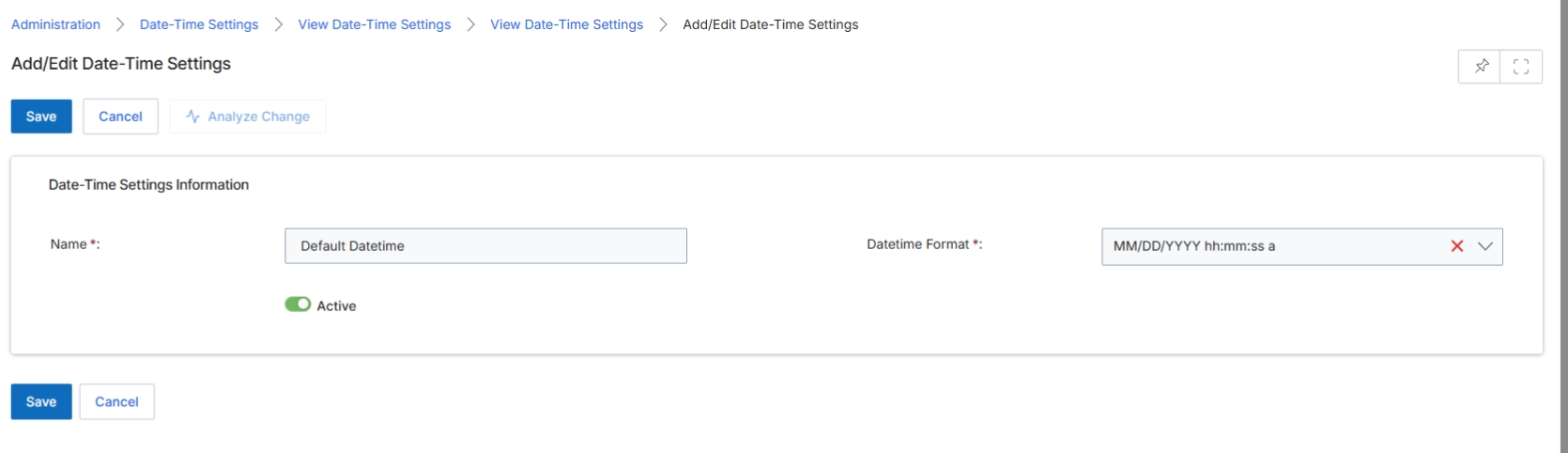
This screen, 'Add/Edit Date-Time Settings', is part of the Administration module, which controls global platform configurations. It allows administrators to define and manage specific date and time display formats that can be used throughout the platform. These settings ensure consistency in how dates and times are presented to users across various modules, reports, and partner portal views. Administrators can create multiple named date-time formats, activate or deactivate them, and specify the exact format string for both date and time components. This level of customization supports different regional preferences and reporting requirements, ensuring data readability and compliance with specific display standards.
Edit the date-time settings by modifying the Name and Datetime Format fields.
Buttons
| Button | Description |
|---|---|
| Save | Saves the changes made to the date-time settings. |
| Cancel | Discards any changes and returns to the previous screen. |
| Analyze Change | Analyzes the impact of the proposed changes before saving. |
Date-Time Settings Information
| Field | Description |
|---|---|
| Name | A descriptive name for the date-time format. |
| Datetime Format | The format string defining how dates and times will be displayed (e.g., MM/DD/YYYY hh:mm:ss a). |
| Active | A toggle switch to activate or deactivate this date-time setting. |