

Overview
In the Administration module, groups are a fundamental entity for organizing users and partners, facilitating efficient management of permissions, communications, and workflows. The 'View a Group' page provides a comprehensive overview of a selected group, detailing its composition and how it was defined. Administrators use this page to understand which users or partners belong to a specific group, either through direct assignment or dynamic rules based on attributes.
This functionality is critical for ensuring that the right individuals have access to relevant information and features, and for segmenting audiences for targeted campaigns or training. For instance, a group might be created for all 'Gold Tier Partners' based on a specific attribute, and this page would show the dynamic rule defining that group, along with its current members.
View a Group
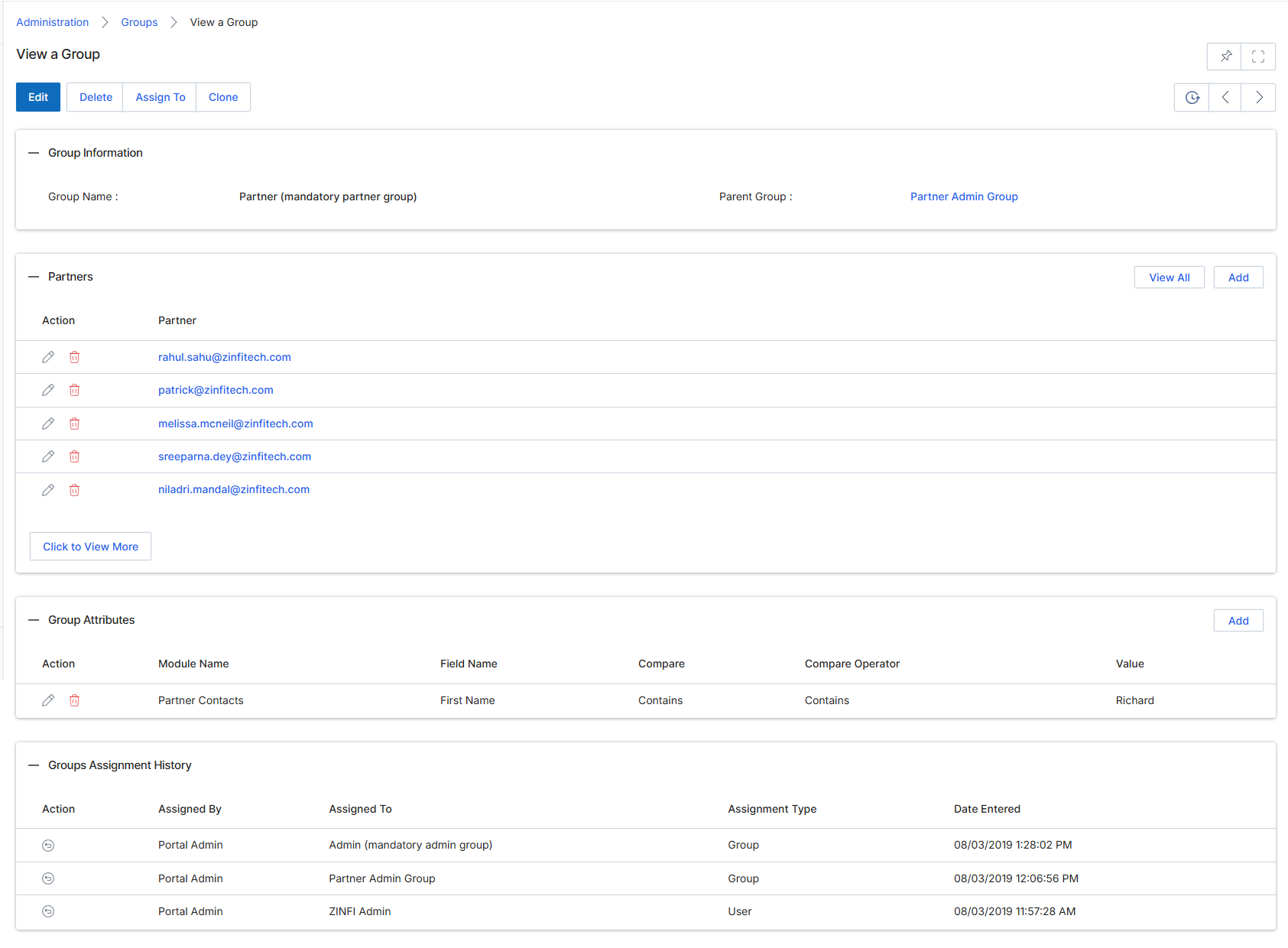
This screen displays the detailed information for a specific group within the Access Management module. Groups are collections of users, partners, or dynamically defined entities that can be used for approval routing, reporting, or applying specific rules and permissions across the platform. This view provides an overview of the group's basic information, lists the partners associated with it, defines the attributes that dynamically include or exclude members, and tracks the history of assignments to this group. Administrators use this screen to understand the composition and behavior of a group, and to perform actions such as editing, deleting, or cloning the group.
Review the details of the selected group, including its information, associated partners, attributes, and assignment history.
Buttons
| Button | Description |
|---|---|
| Edit | Allows modification of the group's details. |
| Delete | Removes the group from the system. |
| Assign To | Assigns the group to a user or another entity. |
| Clone | Creates a duplicate of the current group. |
| View All | Displays all partners associated with the group. |
| Click to View More | Expands the list to show more partners. |
Group Information
| Field | Description |
|---|---|
| Group Name | The name of the group. |
| Parent Group | The parent group, if this group is part of a hierarchy. |
Partners
| Column | Description |
|---|---|
| Action | Actions available for each partner in the list, such as edit or delete. |
| Partner | The email address of the partner associated with this group. |
Group Attributes
| Column | Description |
|---|---|
| Action | Actions available for each group attribute, such as edit or delete. |
| Module Name | The module to which the attribute belongs. |
| Field Name | The specific field being used as an attribute. |
| Compare | The comparison operator used for the attribute. |
| Compare Operator | The operator used for comparison, such as 'Contains'. |
| Value | The value against which the field is compared. |
Groups Assignment History
| Column | Description |
|---|---|
| Action | Actions available for each assignment history entry. |
| Assigned By | The user or entity that performed the assignment. |
| Assigned To | The user or group to which the assignment was made. |
| Assignment Type | The type of assignment, such as 'Group' or 'User'. |
| Date Entered | The date and time when the assignment was recorded. |
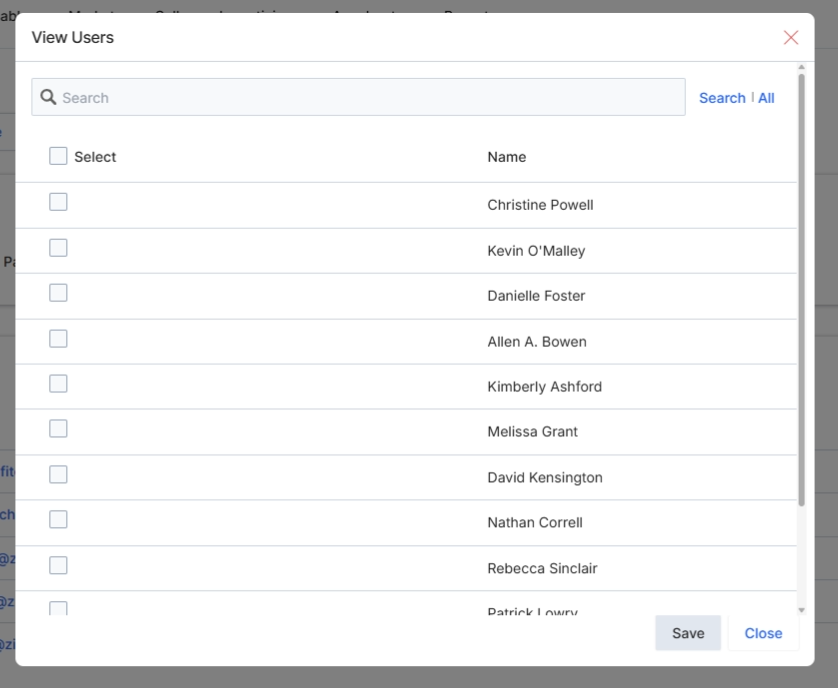
This modal dialog, titled 'View Users', allows administrators to select and add existing vendor-side users to a specific group. User groups are a core component of the Administration module, enabling the organization of users for various purposes such as approval routing, reporting, and assigning specific permissions or responsibilities. By adding users to a group, administrators can streamline management tasks and ensure that the right individuals are associated with relevant workflows and access controls within the platform. The dialog presents a searchable list of available users, from which one or more can be chosen to be included in the group.
Click the checkbox next to each user you want to add to the group from the displayed list.
Buttons
| Button | Description |
|---|---|
| Save | A button to confirm the selection and add the chosen users to the group. |
| Close | A button to close the dialog without saving any changes. |
Fields
| Field | Description |
|---|---|
| Search | A text input field to search for specific users by name or other criteria within the list. |
Column Headings
| Column | Description |
|---|---|
| Select | A checkbox column header to select or deselect all visible users in the list. |
| Name | A column header displaying the full name of each user. |
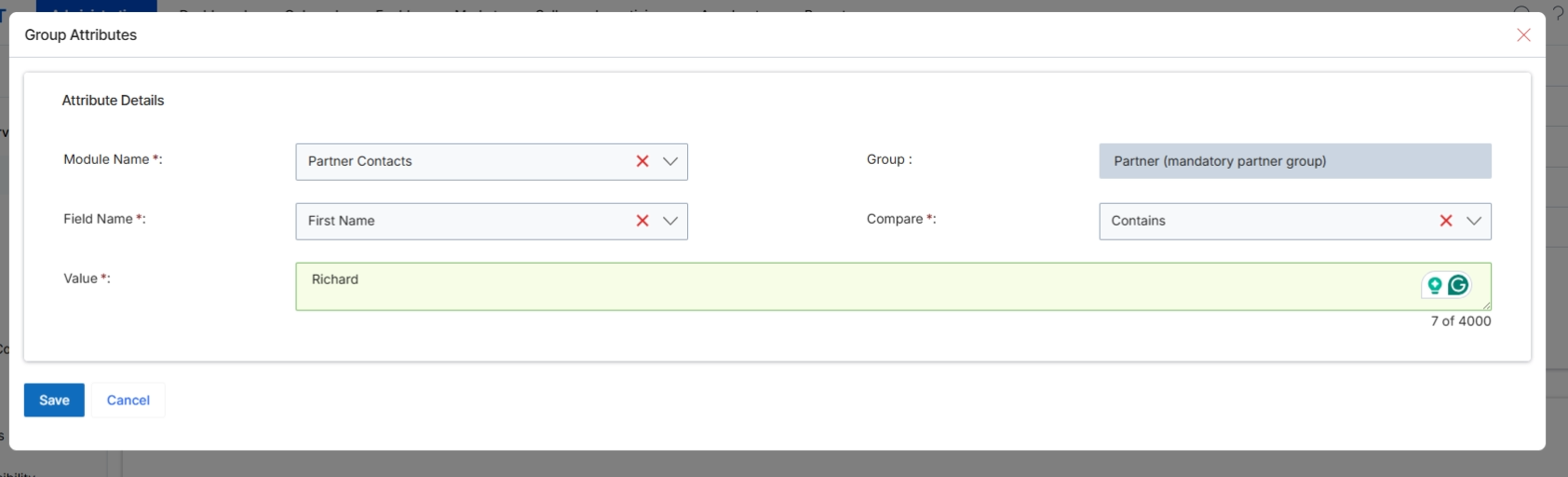
This dialog allows administrators to define a new attribute for a group, which is a collection of users. Group attributes are used to dynamically segment users based on specific criteria, enabling targeted communication, content delivery, or access control. By setting conditions based on module fields and values, administrators can create rules that automatically add or remove users from a group, ensuring that the right users receive relevant information and permissions. This functionality is crucial for managing user access and personalizing the portal experience for different user segments.
Define the group attribute by selecting the module name, field name, comparison operator, and the value to be matched.
Buttons
| Button | Description |
|---|---|
| Save | Saves the newly defined group attribute and applies it to the group. |
| Cancel | Discards any changes and closes the dialog without saving the group attribute. |
Attribute Details
| Field | Description |
|---|---|
| Module Name * | Select the module to which the attribute field belongs. This determines the context for the field being evaluated. |
| Group | Displays the name of the group to which this attribute is being added. This field is read-only. |
| Field Name * | Select the specific field within the chosen module that will be used for comparison. |
| Compare * | Choose the comparison operator (e.g., 'Contains', 'Equals', 'Starts With') to define how the field value will be evaluated against the specified value. |
| Value * | Enter the value that the selected field will be compared against, based on the chosen comparison operator. |