

Overview
Application Settings provide administrators with granular control over the platform's operational parameters. These settings are crucial for tailoring the UPM to specific business needs, enabling or disabling features, defining default values, and integrating with external systems. By centralizing these configurations, the module ensures that changes can be applied consistently across the entire platform, reducing the risk of discrepancies and simplifying maintenance.
Administrators can define settings that impact various modules, such as user management, reporting, or partner program functionalities. This allows for a highly customizable environment where the platform can be fine-tuned to support unique workflows, compliance requirements, and branding guidelines. The ability to create custom views and apply filters further enhances usability, allowing administrators to quickly locate and manage specific settings.
Managing Application Settings
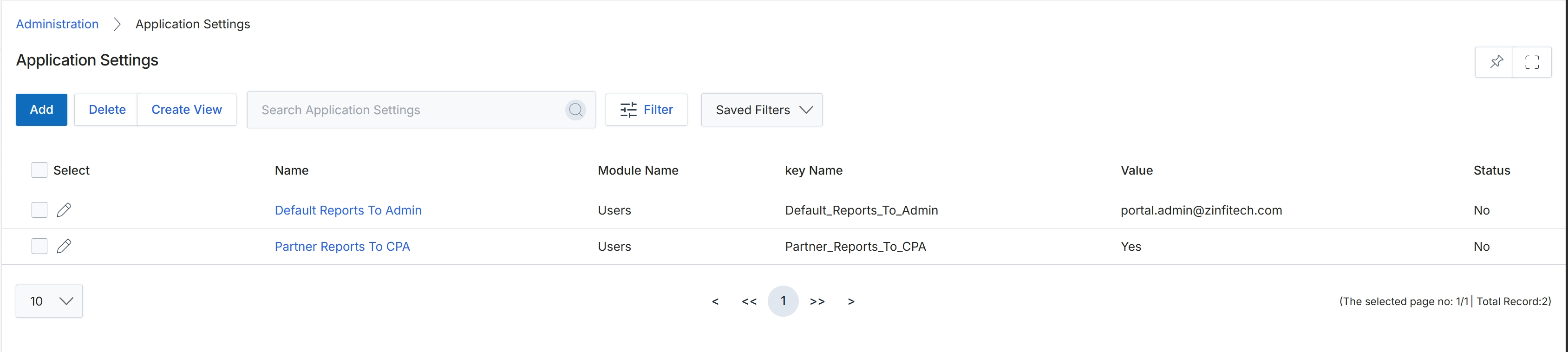
The Application Settings screen, found within the Administration module, provides a centralized location for UPM administrators to manage global configurations that affect the entire platform. These settings can control various aspects of system behavior, from user reporting defaults to integration parameters. This list view displays all configured application settings, allowing administrators to quickly search, filter, and review key parameters. Each setting is defined by a name, the module it pertains to, a unique key name, its current value, and its status, enabling granular control over the platform's operational environment.
Review the list of existing application settings.
Buttons
| Button | Description |
|---|---|
| Add | Click to add a new application setting. |
| Delete | Click to delete selected application settings. |
| Create View | Click to create a custom view for the application settings list. |
| Filter | Click to apply filters to the list of application settings. |
| Saved Filters | Select from a dropdown of previously saved filter configurations. |
Fields
| Field | Description |
|---|---|
| Search Application Settings | Enter keywords to search for specific application settings. |
Column Headings
| Column | Description |
|---|---|
| Select | Checkbox to select individual application settings for bulk actions. |
| Name | The display name of the application setting. |
| Module Name | The module to which the application setting belongs. |
| key Name | The unique programmatic key name for the application setting. |
| Value | The current configured value of the application setting. |
| Status | Indicates the active status of the application setting. |
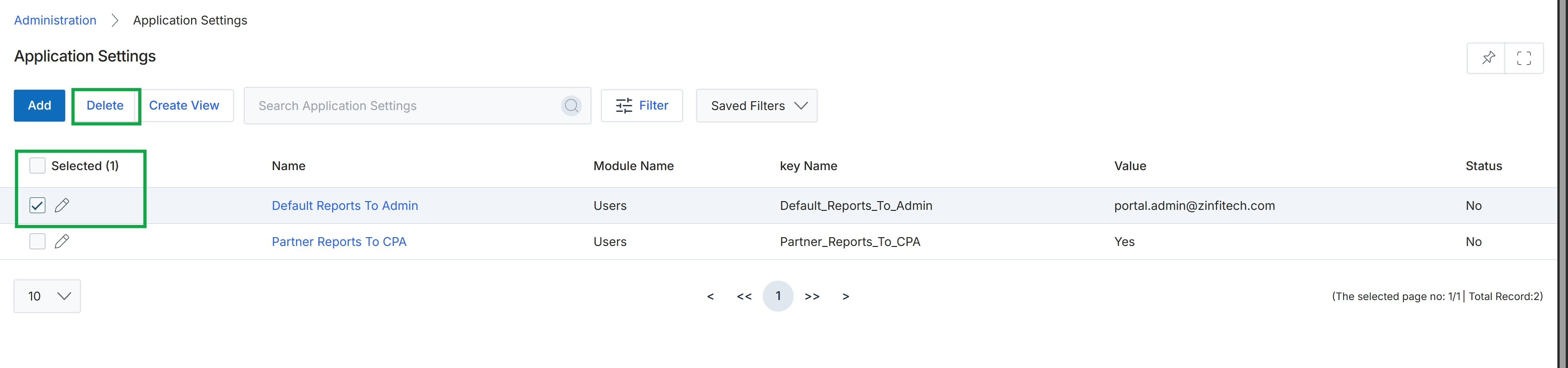
Click the checkbox next to the setting you want to delete, then click Delete.
Creating Custom Views
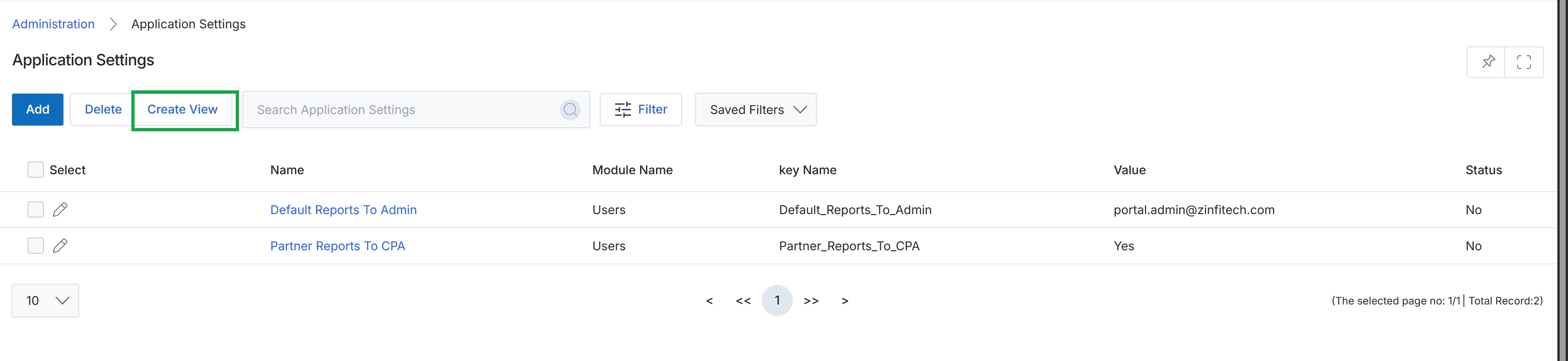
Click Create View.
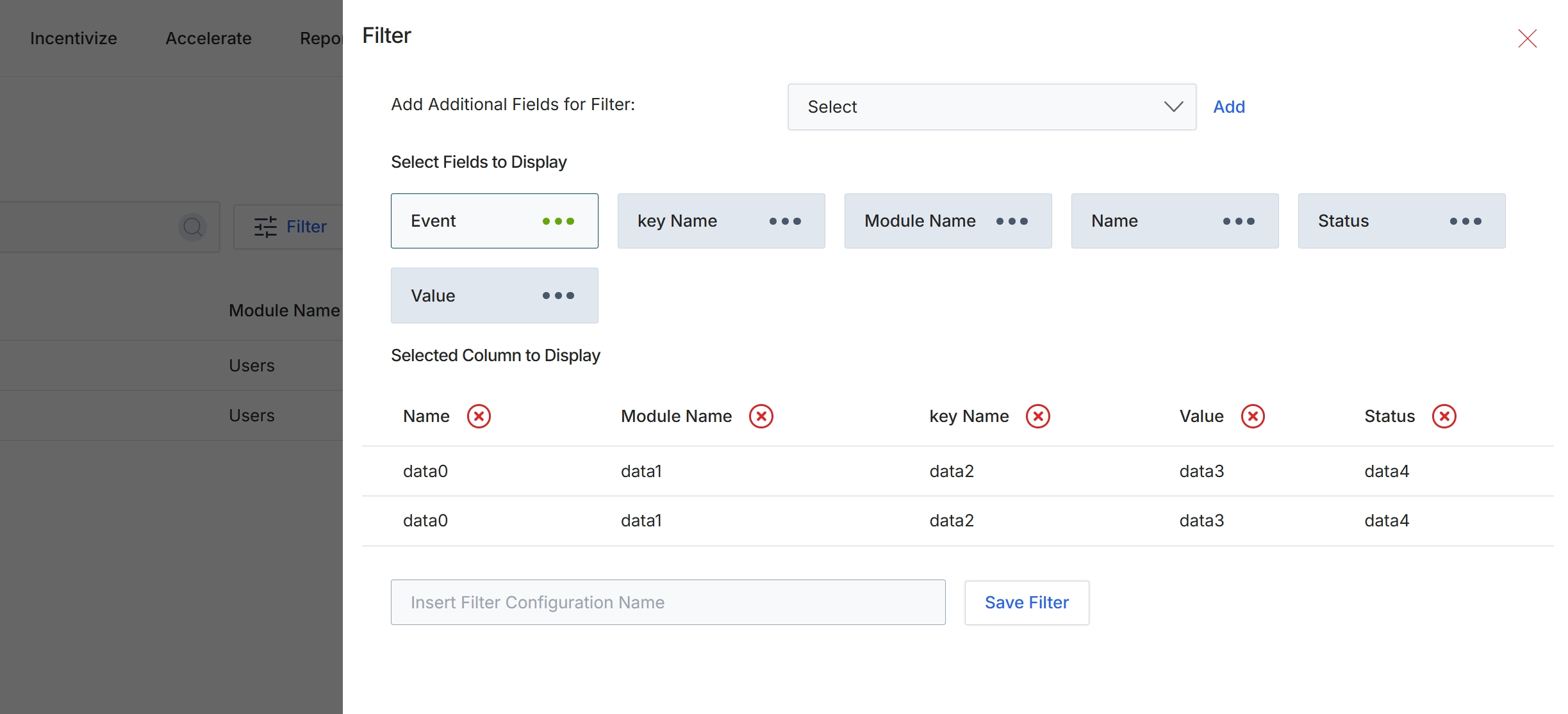
This screen displays the Filter configuration panel, which allows administrators to define custom views for data tables by selecting specific fields for filtering and columns for display. This feature enhances data analysis and reporting by enabling users to focus on relevant information. Administrators can add fields to create filter criteria, and choose which columns are visible in the resulting data table, tailoring the display to their specific analytical needs. Once configured, these filter settings can be saved for future use, streamlining repetitive data review tasks across various modules within the platform.
Enter a name for the filter configuration in the provided field and click 'Save Filter' to apply and store the settings.
Buttons
| Button | Description |
|---|---|
| Add | A button to add the selected field from the dropdown to the 'Select Fields to Display' section. |
| Save Filter | A button to save the current filter configuration with the specified name. |
Fields
| Field | Description |
|---|---|
| Select | A dropdown menu to select additional fields that can be used for filtering the data. |
| Insert Filter Configuration Name | A text input field to provide a name for the current filter configuration, allowing it to be saved and reused. |
Selected Column to Display
| Column | Description |
|---|---|
| Name | A column currently selected for display in the data table. |
| Module Name | A column currently selected for display in the data table. |
| key Name | A column currently selected for display in the data table. |
| Value | A column currently selected for display in the data table. |
| Status | A column currently selected for display in the data table. |
Filtering Application Settings
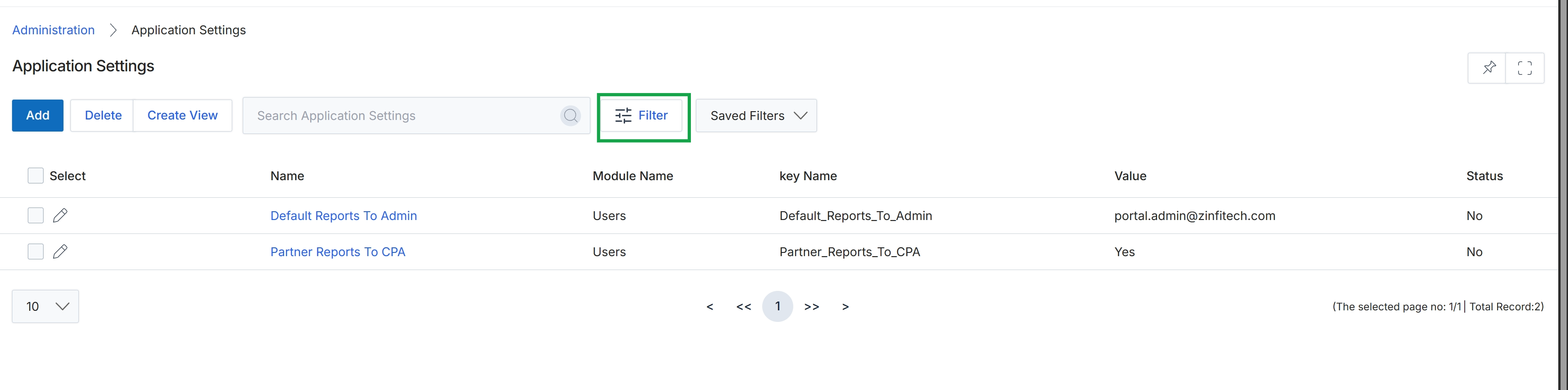
Click the Filter button.
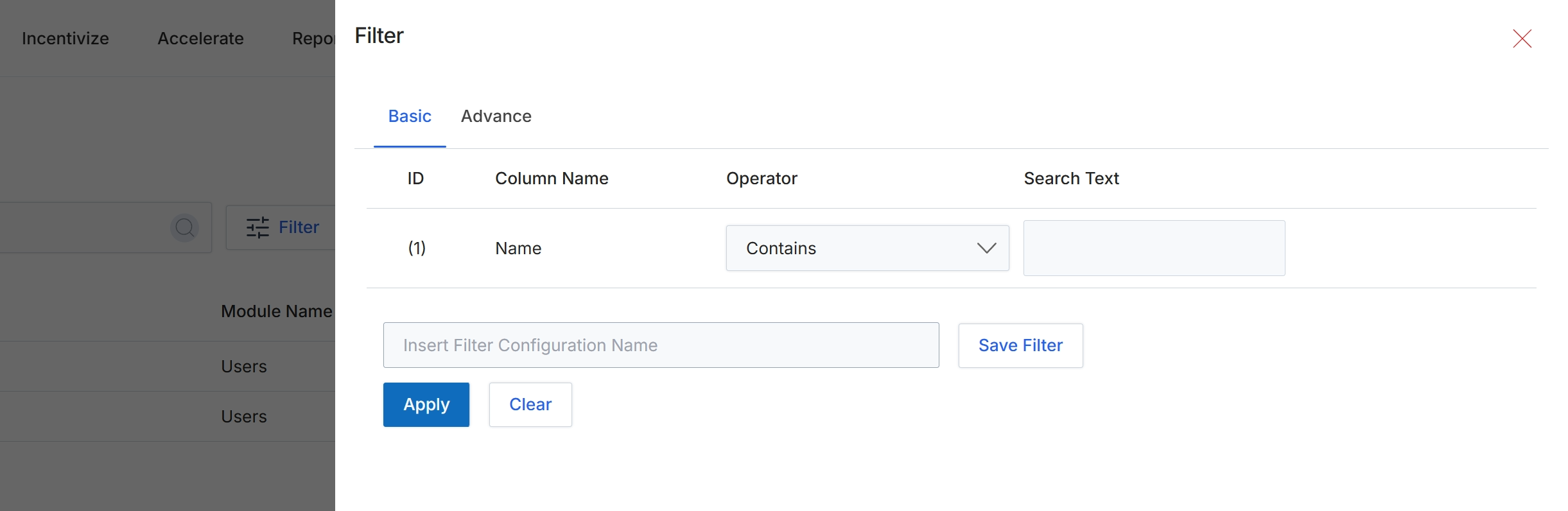
This dialog box allows administrators to apply filters to data displayed in various lists throughout the platform. It provides both basic and advanced filtering options to refine search results based on specific criteria. Users can define conditions using column names, operators, and search text to quickly locate relevant records. The ability to save filter configurations streamlines repetitive searches and enhances data management efficiency across different modules.
Enter the desired text in the 'Search Text' field to filter the list.
Buttons
| Button | Description |
|---|---|
| Basic | Selects the basic filter configuration options. |
| Advance | Selects the advanced filter configuration options. |
| Save Filter | Saves the current filter configuration for future use. |
| Apply | Applies the configured filter to the data list. |
| Clear | Clears all filter criteria and resets the filter dialog. |
Fields
| Field | Description |
|---|---|
| Contains | A dropdown field to select the comparison operator for the filter. |
| Search Text | An input field to enter the text to be used for filtering. |
| Insert Filter Configuration Name | An input field to enter a name for saving the current filter configuration. |
Column Headings
| Column | Description |
|---|---|
| ID | The identifier for the filter row. |
| Column Name | The name of the column to apply the filter to. |
| Operator | The comparison operator for the filter condition, such as 'Contains'. |
| Search Text | The text value to search for within the specified column. |
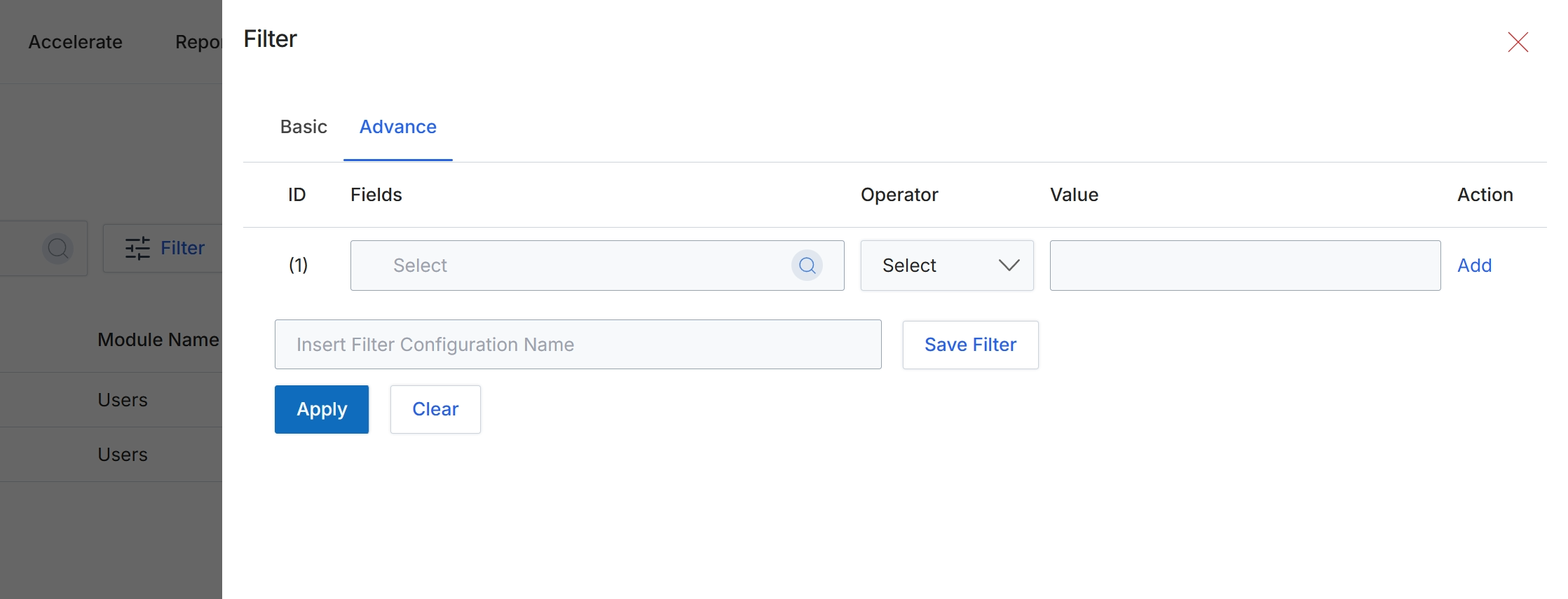
This modal window provides advanced filtering capabilities, allowing users to construct complex queries to refine data displayed in list views across the platform. Users can define multiple filter conditions by selecting a field, an operator, and a value, which are then combined to narrow down results. This advanced filtering is crucial for administrators and program managers who need to analyze specific subsets of data, such as partners meeting certain criteria, deals in a particular stage, or users with specific roles. The ability to save filter configurations streamlines repetitive analysis tasks and ensures consistency in data retrieval.
Click the 'Advance' tab to configure advanced filter conditions.
Buttons
| Button | Description |
|---|---|
| Basic | Tab to switch to basic filtering options. |
| Advance | Tab to access advanced filtering options, allowing for multiple conditions. |
| Add | Link to add another filter condition row. |
| Save Filter | Button to save the current filter configuration with the specified name. |
| Apply | Button to apply the configured filters to the current list view. |
| Clear | Button to clear all applied filter conditions. |
Fields
| Field | Description |
|---|---|
| Fields | Dropdown to select the data field to apply the filter condition to. |
| Select | Dropdown to choose the operator for the filter condition (e.g., equals, contains, greater than). |
| Value | Input field to specify the value for the filter condition. |
| Insert Filter Configuration Name | Input field to enter a name for the current filter configuration to save it for future use. |