

Overview
Accurate financial reporting and planning are critical for managing a partner program effectively. The Quarters feature within Global Settings enables administrators to precisely define their organization's fiscal quarters. This ensures that all financial data, such as MDF claims, reward accruals, and sales reports, are consistently categorized and analyzed according to the correct accounting periods. By standardizing quarter definitions, the platform facilitates clearer insights into partner performance and program profitability over time.
Administrators can create, modify, and delete fiscal quarters, specifying the start and end months for each. The system then uses these definitions across various modules, from incentive calculations to performance dashboards. This centralized management prevents discrepancies and streamlines financial operations, allowing for more reliable forecasting and budget allocation within the partner ecosystem.
Accessing and Viewing Quarters
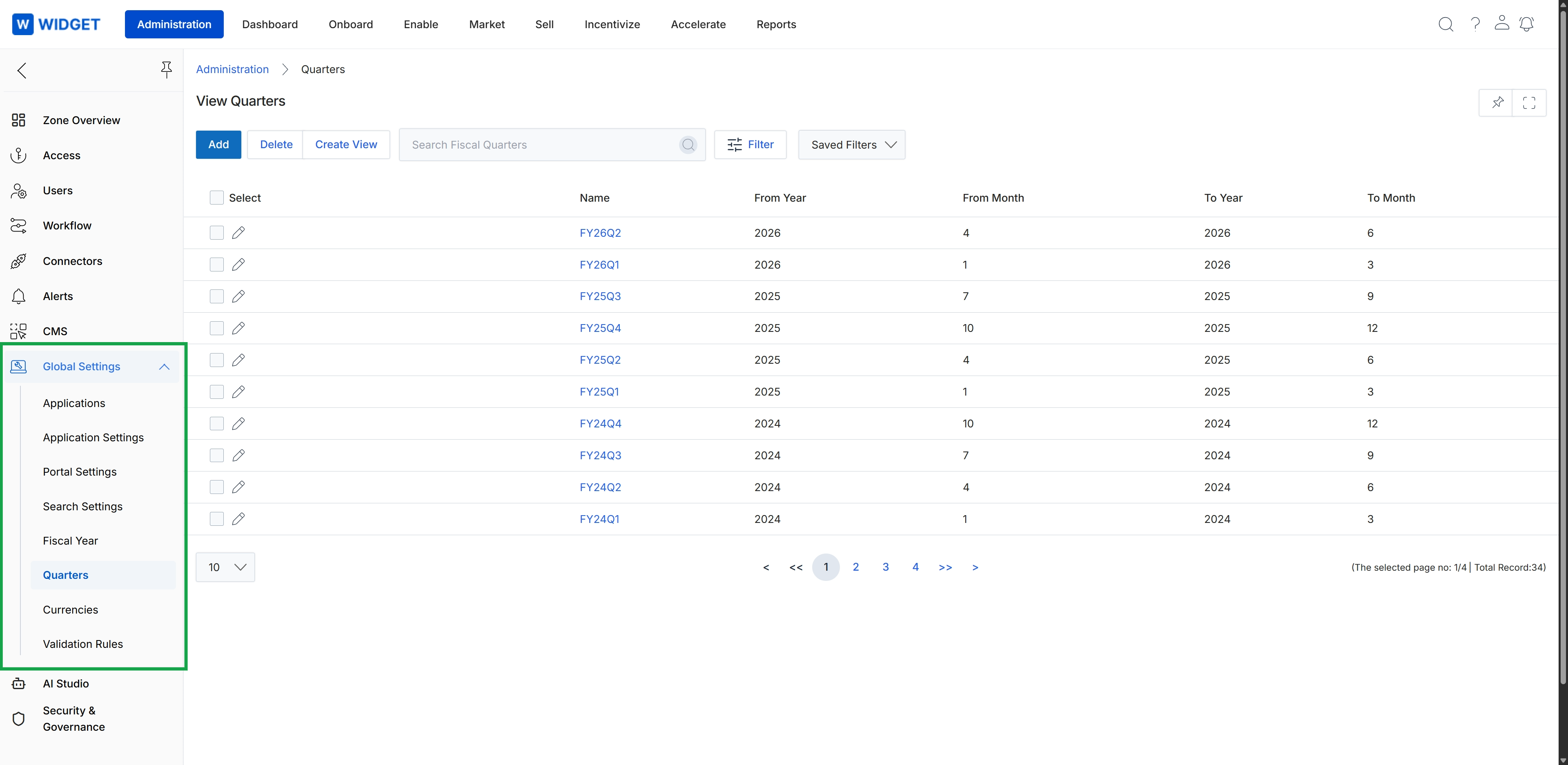
Click Global Settings in the left navigation menu to expand the section, then click Quarters.
Managing Quarters
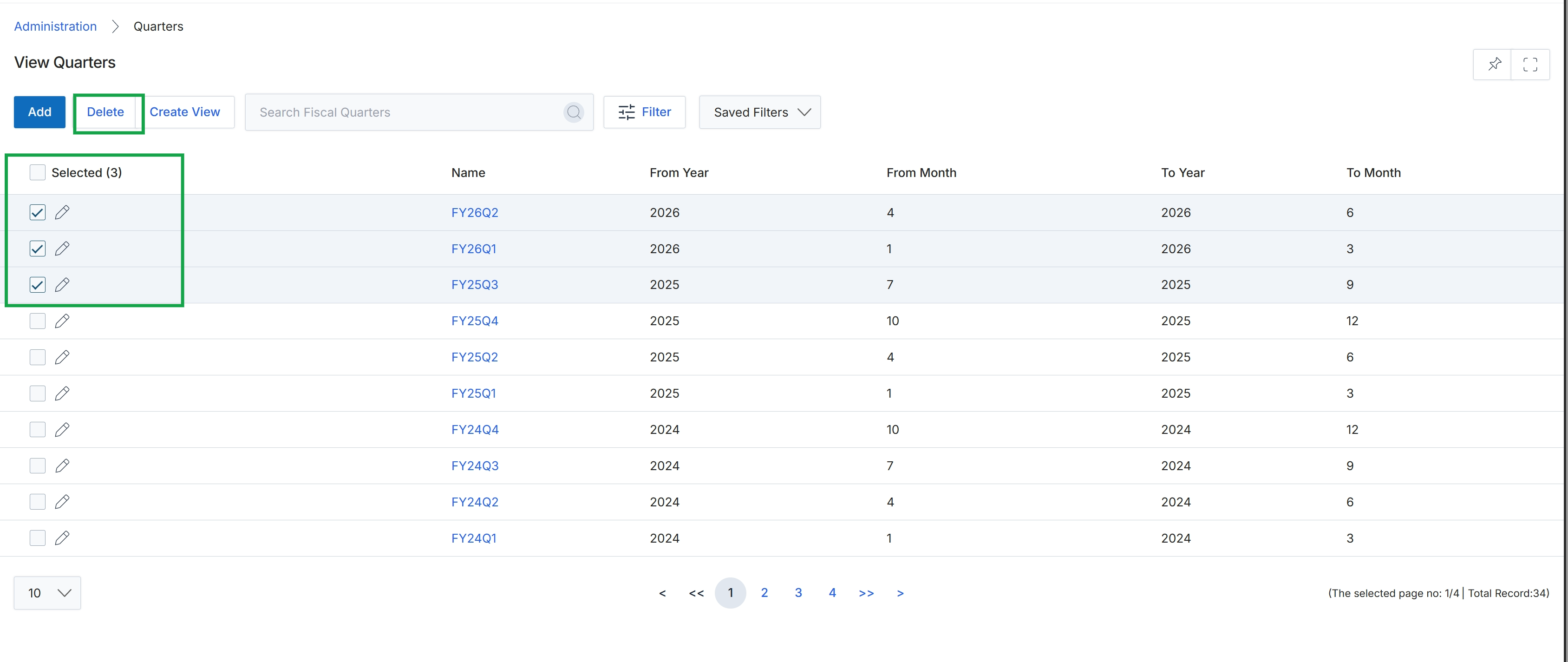
Click Global Settings in the left navigation panel to expand the section, then click Quarters.
Creating Custom Views
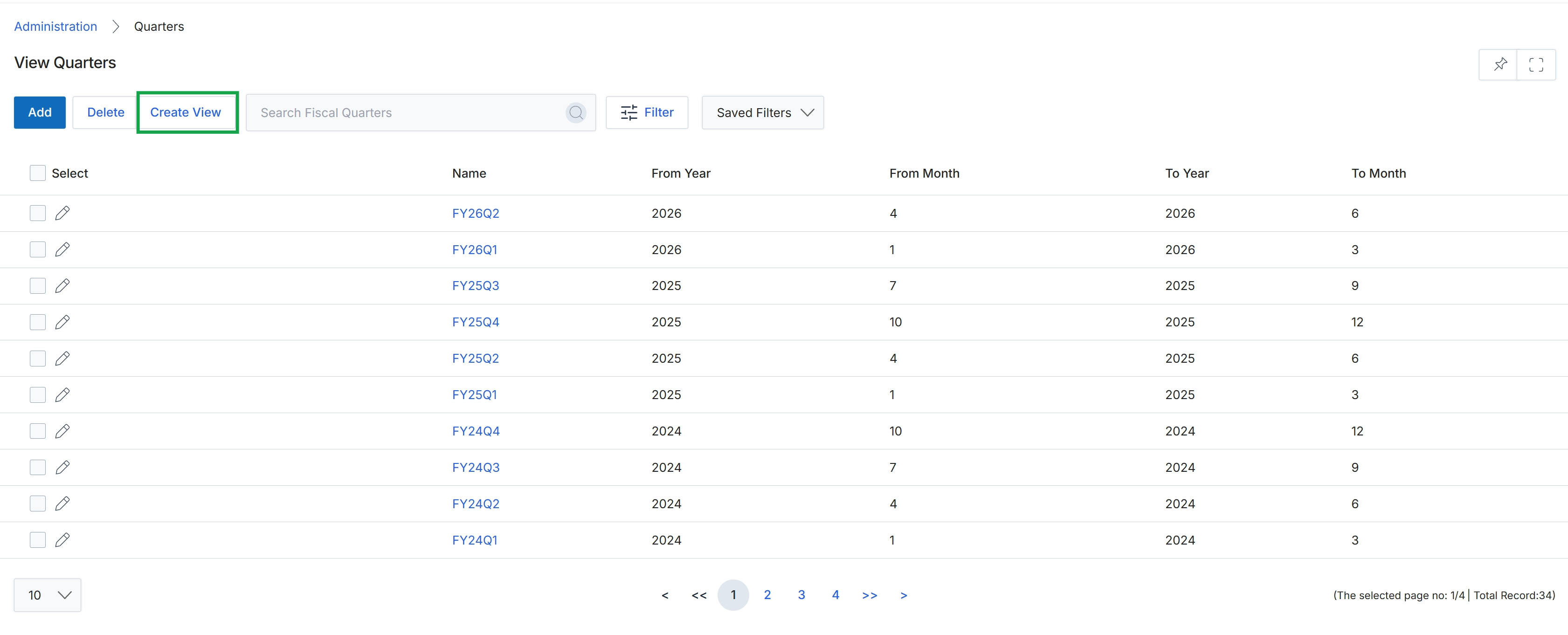
Click the Create View button.
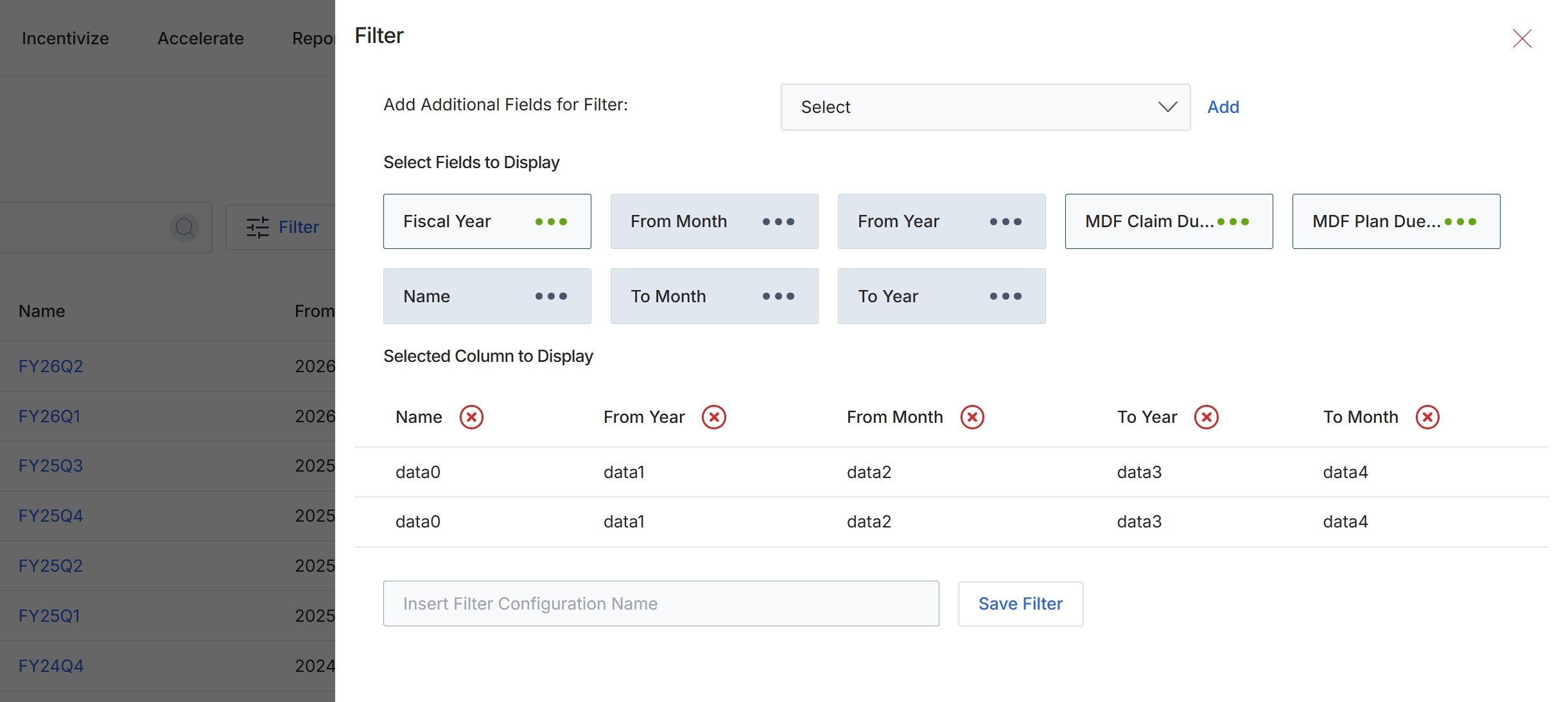
This Filter dialog allows users to customize the display of data by selecting specific fields to be shown as columns and by defining additional filter criteria. It provides a flexible way to tailor list views to specific analytical needs or reporting requirements. Users can choose from available fields, arrange their display order, and then save the configuration for future use, ensuring that frequently used views can be quickly reapplied without manual re-selection of columns and filters each time. This customization enhances data readability and relevance for various administrative tasks.
Enter a name for the filter configuration in the provided text field.
Buttons
| Button | Description |
|---|---|
| Add | A button to add the selected field to the filter criteria. |
| Save Filter | A button to save the current filter configuration with the entered name. |
| Insert Filter Configuration Name | A text input field where the user can enter a name for the custom filter configuration. |
Selected Column to Display
Filtering Quarter Data
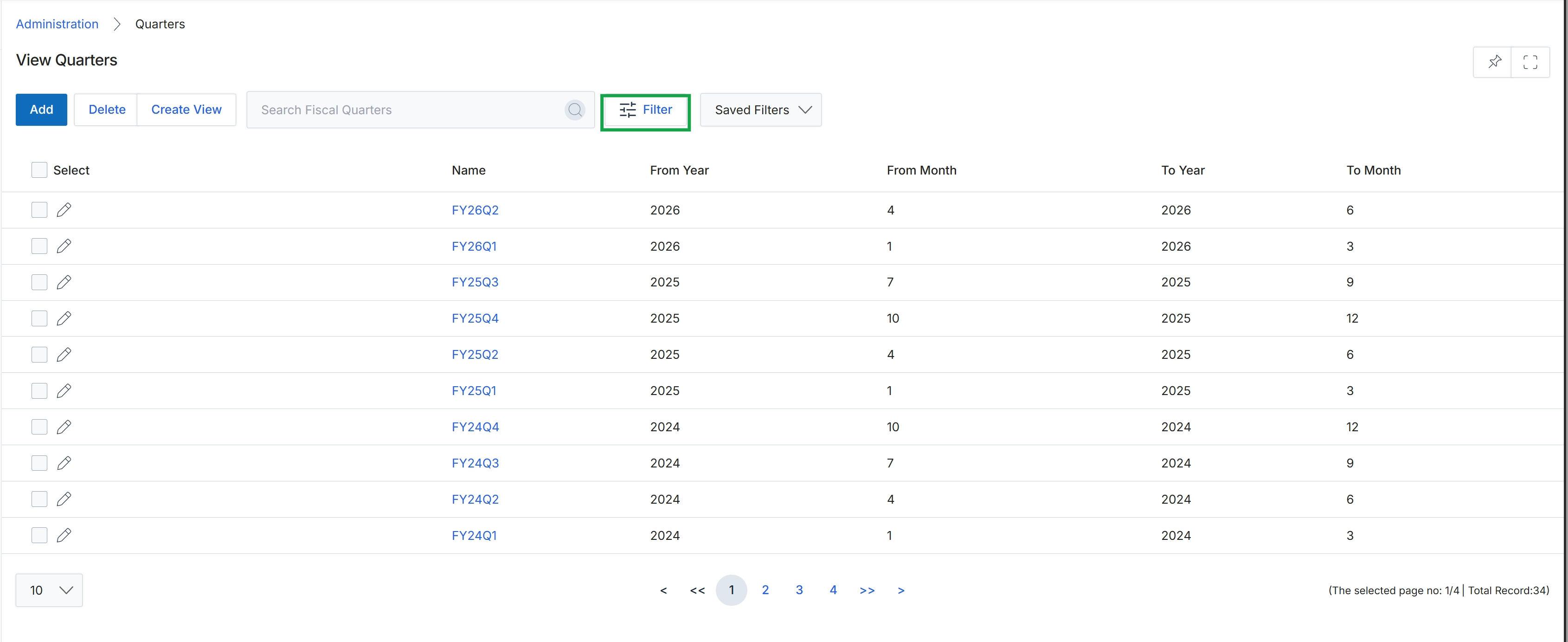
Click the Filter button.
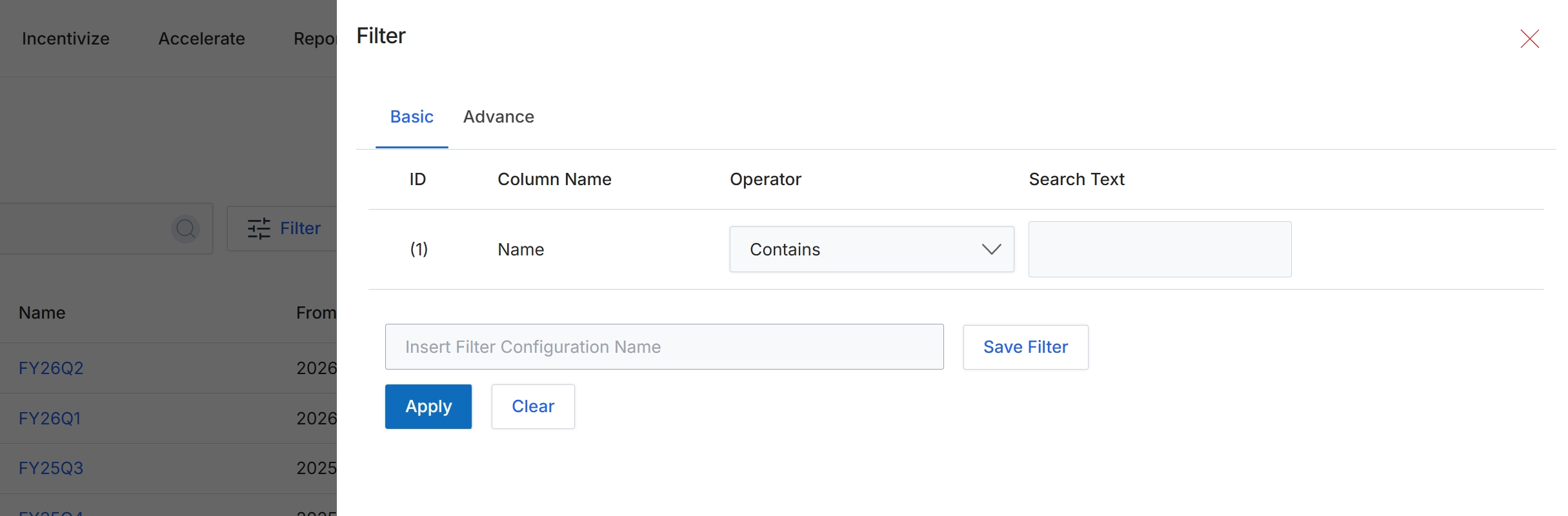
This filter dialog allows administrators to refine the displayed list of quarters by applying specific criteria. It supports both basic and advanced filtering options, enabling users to search for quarters based on various attributes like their name. The dialog provides fields to specify the column to filter, the operator (e.g., 'Contains', 'Equals'), and the search text. Users can also save frequently used filter configurations for quick access in the future. This functionality is crucial for efficiently navigating large datasets of quarters, allowing administrators to quickly locate specific periods for review or management.
Enter a search term into the "Search Text" field to filter the list of quarters by their name.
Buttons
| Button | Description |
|---|---|
| Basic | Tab to configure basic filter rules. |
| Advance | Tab to configure advanced filter rules. |
| Save Filter | Button to save the current filter configuration with the specified name. |
| Apply | Button to apply the configured filter to the list of quarters. |
| Clear | Button to clear all filter criteria. |
Fields
| Field | Description |
|---|---|
| Name | The name of the column to apply the filter to. |
| Contains | Dropdown to select the operator for the filter condition, currently set to 'Contains'. |
| Search Text | Input field to enter the text to search for within the selected column. |
| Insert Filter Configuration Name | Input field to enter a name for the current filter configuration to save it for future use. |
Column Headings
| Column | Description |
|---|---|
| ID | Column header for the filter rule identifier. |
| Column Name | Column header for the name of the column being filtered. |
| Operator | Column header for the comparison operator used in the filter rule. |
| Search Text | Column header for the text value used in the filter rule. |
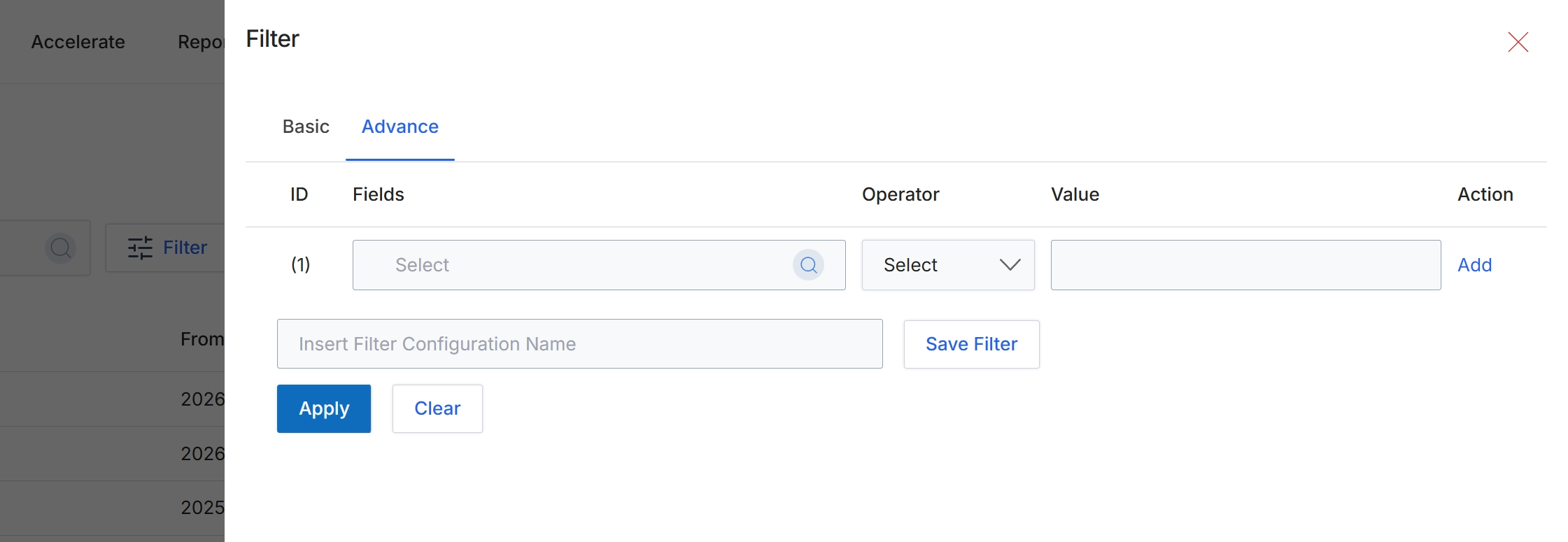
This filter dialog allows users to apply advanced filtering criteria to the data displayed in the current list view. It provides a structured way to define complex search conditions using multiple fields, operators, and values. Users can add multiple filter rows to create compound conditions, and these configurations can be saved for future use, streamlining repetitive data analysis tasks. This advanced filtering capability is essential for administrators who need to quickly isolate specific records based on detailed criteria, such as filtering quarters by specific date ranges or other attributes not available in basic search.
Click the "Advance" tab to access advanced filtering options.
Buttons
| Button | Description |
|---|---|
| Basic | Switches to the basic filter options. |
| Advance | Switches to the advanced filter options, allowing for more complex query building. |
| Add | Adds a new filter row to define additional conditions. |
| Save Filter | Saves the current advanced filter configuration under the specified name. |
| Apply | Applies the defined filter criteria to the list view. |
| Clear | Clears all applied filter criteria. |
Fields
| Field | Description |
|---|---|
| Select | Dropdown to choose the field to filter by. |
| Select | Dropdown to choose the operator for the filter condition. |
| Insert Filter Configuration Name | Text input field to enter a name for the current filter configuration to save it for later use. |
Column Headings
| Column | Description |
|---|---|
| ID | Column header for the filter row identifier. |
| Fields | Column header for selecting the data field to apply the filter to. |
| Operator | Column header for selecting the comparison operator (e.g., equals, contains, greater than). |
| Value | Column header for entering the value to compare against the selected field. |
| Action | Column header for actions related to each filter row, such as adding or removing a row. |