

Overview
Fiscal quarters are fundamental for organizing and tracking financial activities, such as MDF plans and claims, within the platform. By defining these quarters, administrators can align platform operations with the organization's financial calendar, ensuring accurate reporting and timely execution of financial processes. This structured approach helps in managing budgets, tracking performance against quarterly goals, and streamlining financial workflows.
The ability to assign fiscal quarters to specific users or groups with defined access levels (Read Only or Read/Write) is crucial for maintaining data security and operational efficiency. This ensures that only authorized personnel can view or modify sensitive financial planning data, supporting compliance and internal control policies. The assignment history provides an audit trail for accountability and transparency.
Viewing Fiscal Quarters
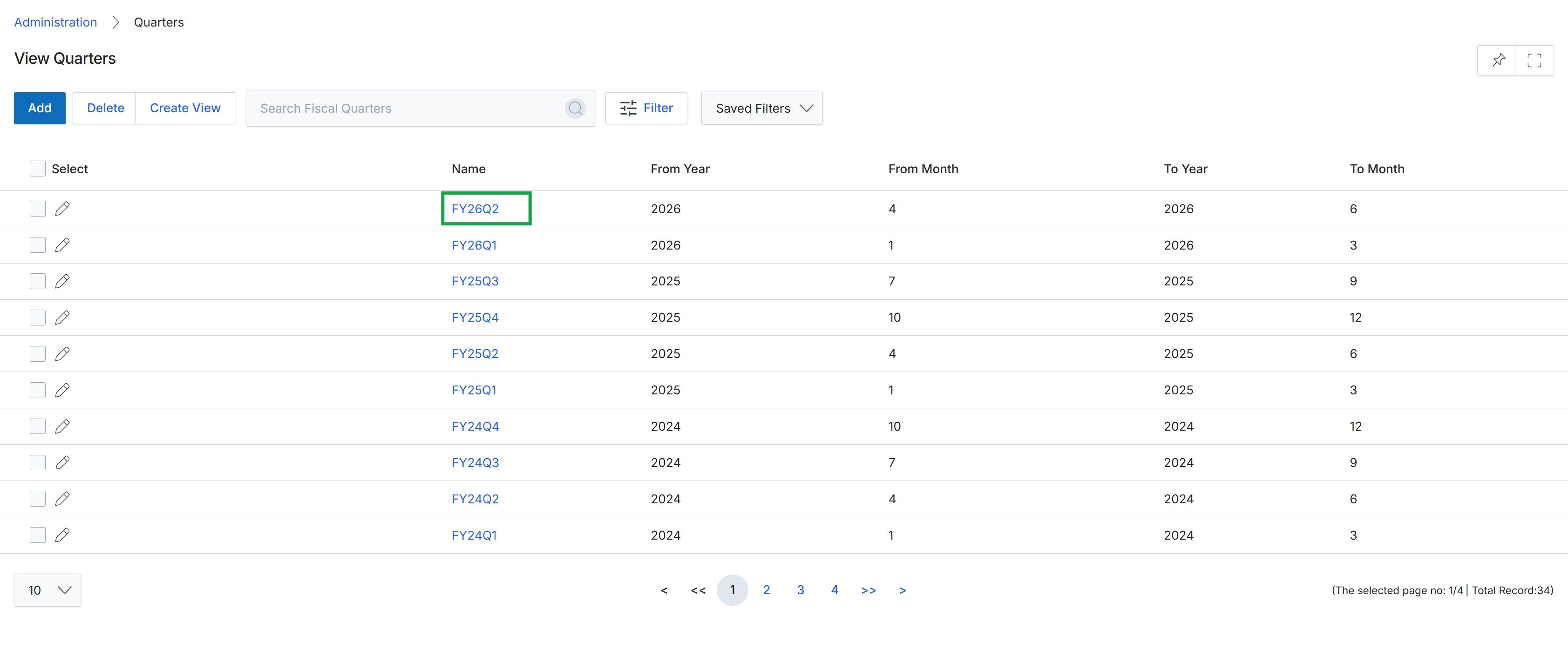
Click the FY26Q2 link in the Name column.
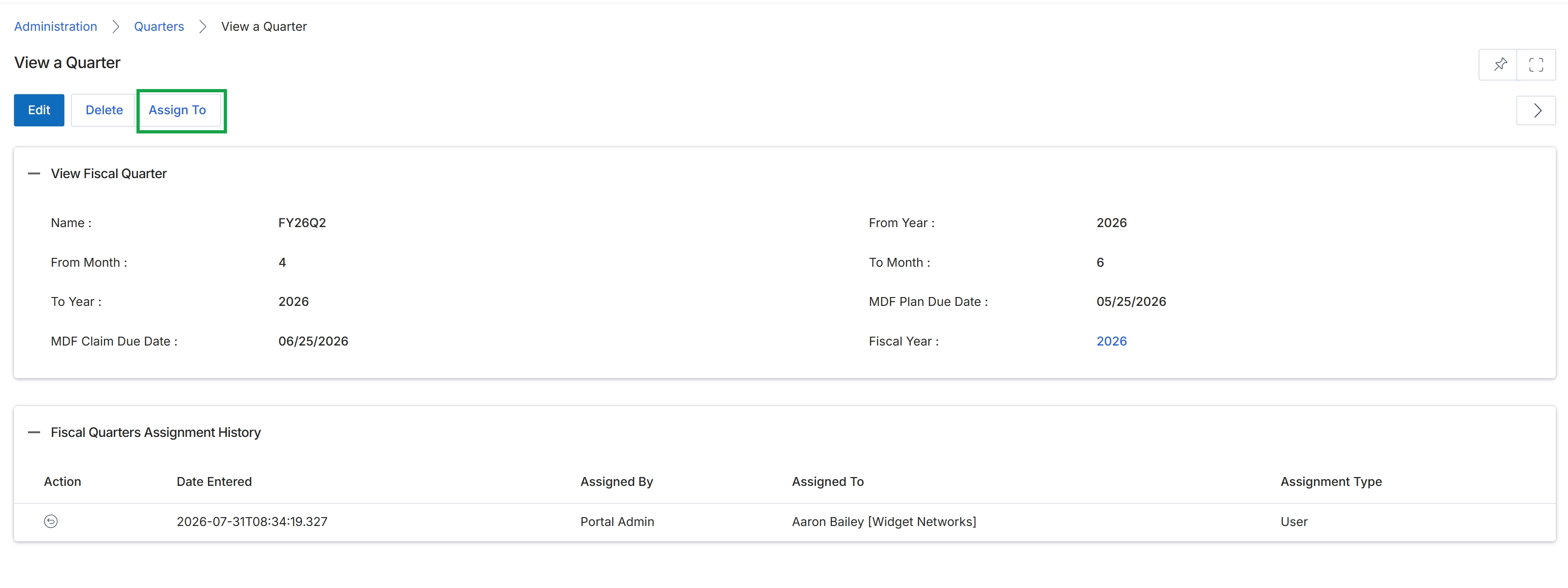
This screen displays the detailed information for a specific fiscal quarter, which is a key entity within the platform's financial and planning modules. Administrators use this view to review the quarter's definition, including its name, start and end months, and associated fiscal year. It also shows important dates such as the MDF Plan Due Date and MDF Claim Due Date, which are critical for managing Market Development Funds. Below the quarter's general information, the 'Fiscal Quarters Assignment History' section provides an audit trail of how this quarter has been assigned, detailing who performed the action, when it occurred, to whom it was assigned, and the type of assignment. This historical record helps administrators track changes and maintain accountability for financial planning periods.
Click the "Assign To" button to assign the current fiscal quarter to a user or group.
Buttons
| Button | Description |
|---|---|
| Edit | Allows modification of the fiscal quarter's details. |
| Delete | Removes the fiscal quarter from the system. |
| Assign To | Initiates the process of assigning the fiscal quarter to a user or group. |
View Fiscal Quarter
| Field | Description |
|---|---|
| Name | The unique identifier or name of the fiscal quarter. |
| From Month | The starting month of the fiscal quarter. |
| To Year | The ending year of the fiscal quarter. |
| MDF Claim Due Date | The deadline for submitting Market Development Fund claims for this quarter. |
| From Year | The starting year of the fiscal quarter. |
| To Month | The ending month of the fiscal quarter. |
| MDF Plan Due Date | The deadline for submitting Market Development Fund plans for this quarter. |
| Fiscal Year | The fiscal year to which this quarter belongs. |
Fiscal Quarters Assignment History
| Column | Description |
|---|---|
| Action | Indicates the type of action performed related to the assignment. |
| Date Entered | The timestamp when the assignment action was recorded. |
| Assigned By | The user who performed the assignment. |
| Assigned To | The user or entity to whom the fiscal quarter was assigned. |
| Assignment Type | The category or nature of the assignment. |
Assigning Records to Users or Groups
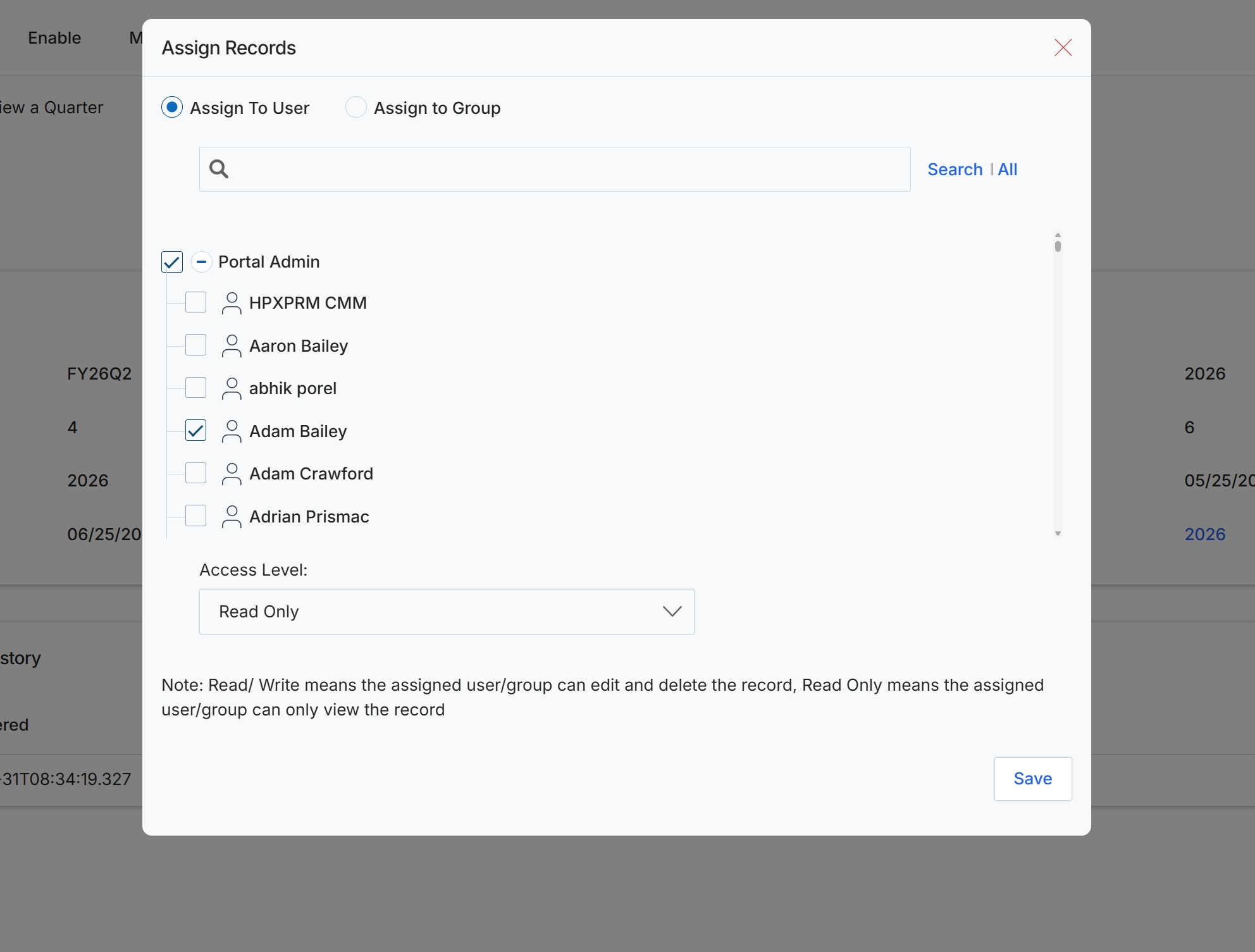
This modal dialog, 'Assign Records', allows administrators to control access to specific records by assigning them to individual users or groups within the platform. This is a critical component of the platform's role-based access control (RBAC) system, ensuring that only authorized personnel can view or modify sensitive data. Administrators can specify the level of access granted, such as 'Read Only' or 'Read/Write', thereby enforcing data governance policies and maintaining data integrity. The ability to search and select multiple users or groups streamlines the process of managing permissions across various records and user types.
Select the users to whom the records will be assigned and choose their access level.
Buttons
| Button | Description |
|---|---|
| Search | All | A link to toggle between searching and viewing all available users or groups. |
| Save | Click to save the record assignment and apply the selected access level. |
Fields
| Field | Description |
|---|---|
| Assign To User | Select this option to assign records to individual users. |
| Assign to Group | Select this option to assign records to a predefined group of users. |
| Search | Enter text here to search for specific users or groups in the list. |
| Portal Admin | A checkbox to select or deselect the 'Portal Admin' user for record assignment. |
| HPXPRM CMM | A checkbox to select or deselect the 'HPXPRM CMM' user for record assignment. |
| Aaron Bailey | A checkbox to select or deselect the 'Aaron Bailey' user for record assignment. |
| abhik porel | A checkbox to select or deselect the 'abhik porel' user for record assignment. |
| Adam Bailey | A checkbox to select or deselect the 'Adam Bailey' user for record assignment. |
| Adam Crawford | A checkbox to select or deselect the 'Adam Crawford' user for record assignment. |
| Adrian Prismac | A checkbox to select or deselect the 'Adrian Prismac' user for record assignment. |
| Access Level | A dropdown menu to select the access level (e.g., Read Only, Read/Write) for the selected users or groups. |
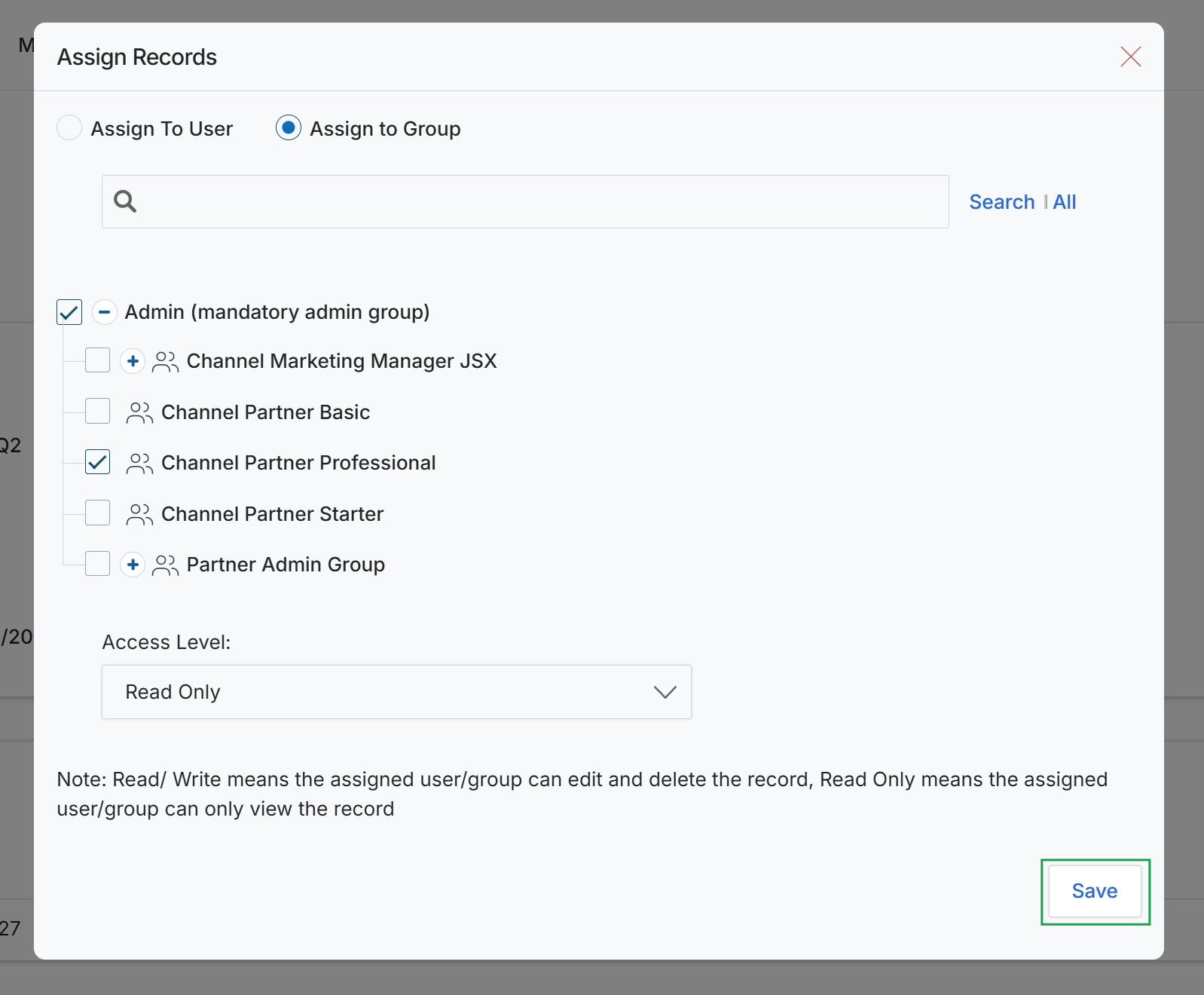
The Assign Records dialog allows administrators to control access to specific records by assigning them to individual users or predefined groups. This granular control ensures that only authorized personnel or partner groups can view or modify sensitive information, aligning with the platform's role-based access control mechanisms. By assigning records to groups, administrators can efficiently manage permissions for multiple users simultaneously, ensuring consistency and reducing administrative overhead. The dialog also allows setting the access level, determining whether the assigned users or groups can only view the record or also edit and delete it.
Select "Assign to Group" to assign the record to one or more user groups, then choose the desired groups and set their access level.
Buttons
| Button | Description |
|---|---|
| Search | A button to initiate the search. |
| All | A button to display all available users or groups. |
| Save | A button to save the record assignment and close the dialog. |
Fields
| Field | Description |
|---|---|
| Assign To User | A radio button to assign the record to a specific user. |
| Assign to Group | A radio button to assign the record to one or more predefined user groups. This option is currently selected. |
| Search | A search bar to find specific users or groups by name. |
| Admin (mandatory admin group) | A checkbox representing the mandatory Admin group, which is currently checked. The minus icon indicates that this group is already selected and cannot be deselected. |
| Channel Marketing Manager JSX | A checkbox representing the 'Channel Marketing Manager JSX' group. The plus icon indicates that this group can be added. |
| Channel Partner Basic | A checkbox representing the 'Channel Partner Basic' group, indicated by a group icon. |
| Channel Partner Professional | A checkbox representing the 'Channel Partner Professional' group, which is currently checked and indicated by a group icon. |
| Channel Partner Starter | A checkbox representing the 'Channel Partner Starter' group, indicated by a group icon. |
| Partner Admin Group | A checkbox representing the 'Partner Admin Group'. The plus icon indicates that this group can be added. |
| Access Level | A dropdown menu to select the access level for the assigned groups, currently set to 'Read Only'. |
Reviewing Assignment History
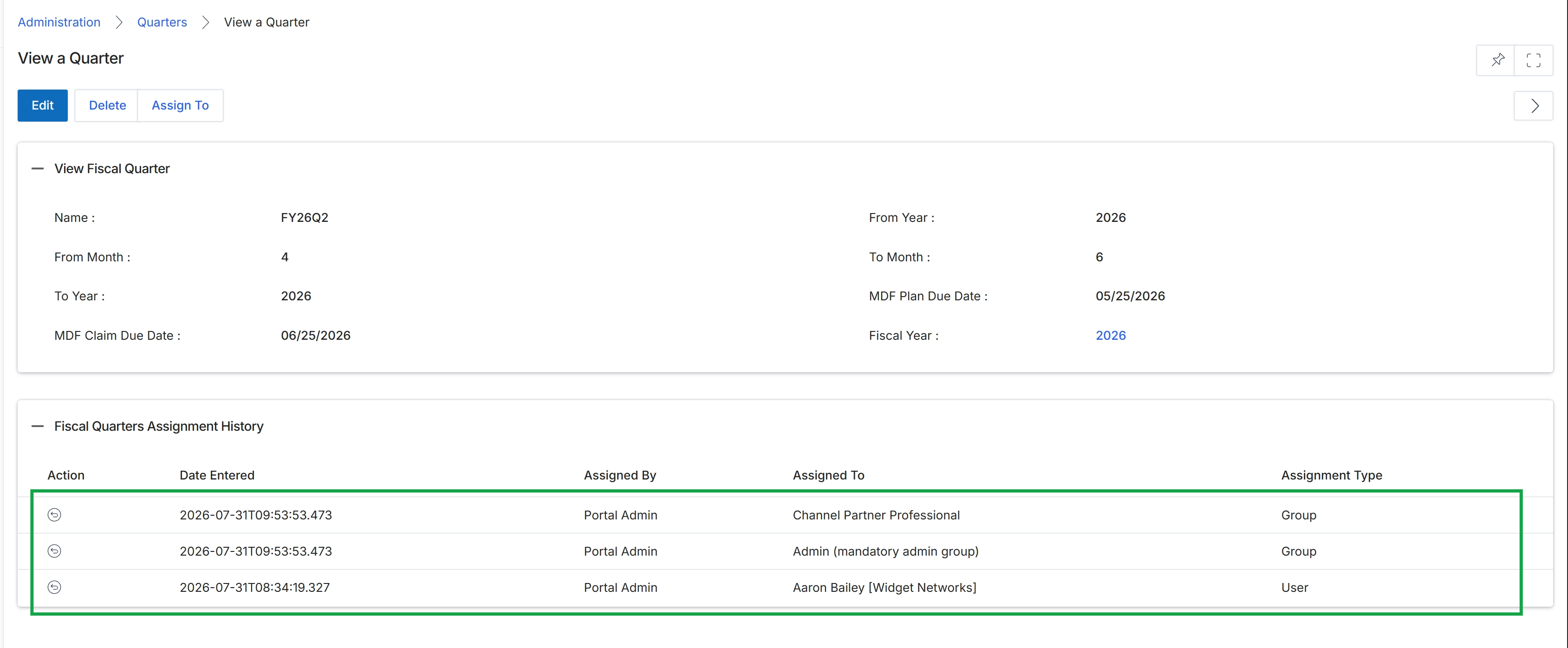
This screen displays the detailed information for a selected fiscal quarter, including its name, start and end months, and associated fiscal year. It also shows important dates such as the MDF Claim Due Date and MDF Plan Due Date, which are critical for managing Market Development Funds. Below the quarter details, a historical log of assignments for this fiscal quarter is presented, indicating who assigned it, to whom, and the type of assignment (e.g., user or group).