

Overview
Fiscal years are fundamental to how businesses track and report their financial performance. In the UPM, defining fiscal years ensures that all financial data, such as commissions, rebates, and MDF claims, is correctly categorized and aligned with the organization's accounting periods. This setup is critical for generating accurate financial reports, analyzing partner performance over specific periods, and planning future incentive programs.
Administrators use this section to establish a consistent financial calendar that applies throughout the entire platform. By clearly defining each fiscal year's start and end dates, the platform can automatically segment data, enabling precise financial reconciliation and strategic decision-making based on standardized reporting periods.
Accessing and Viewing Fiscal Years
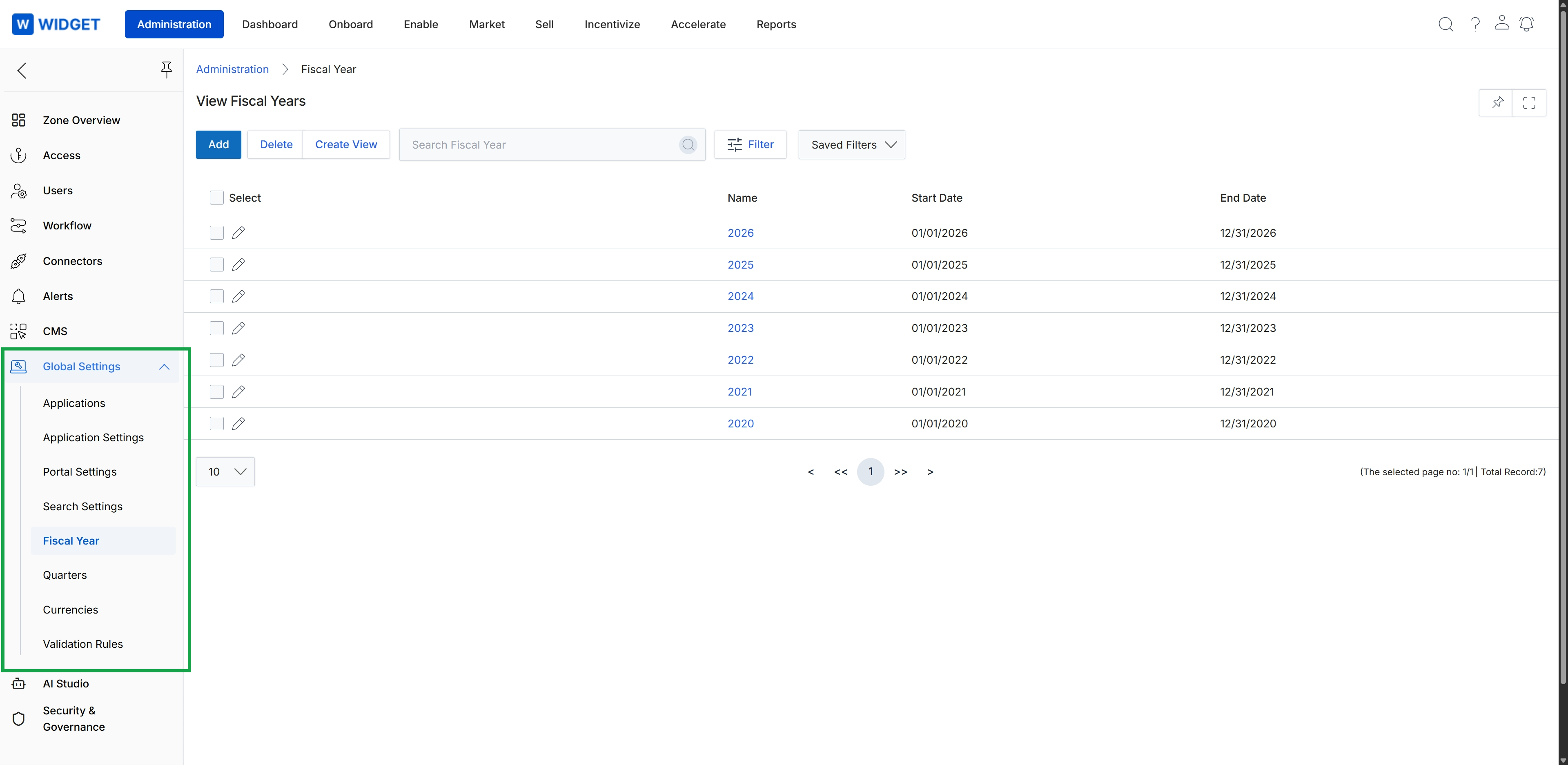
Click Global Settings in the left navigation panel to expand the menu, then click Fiscal Year.
Managing Fiscal Year Records
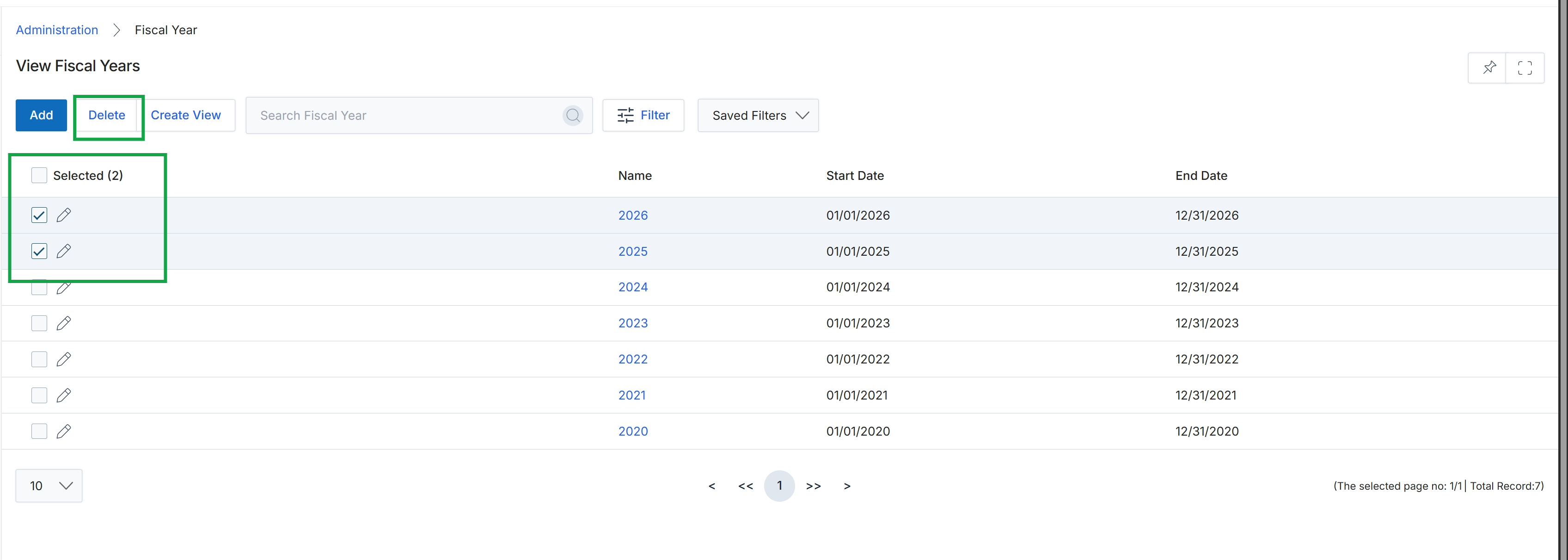
Click the Delete button.
Creating Custom Views
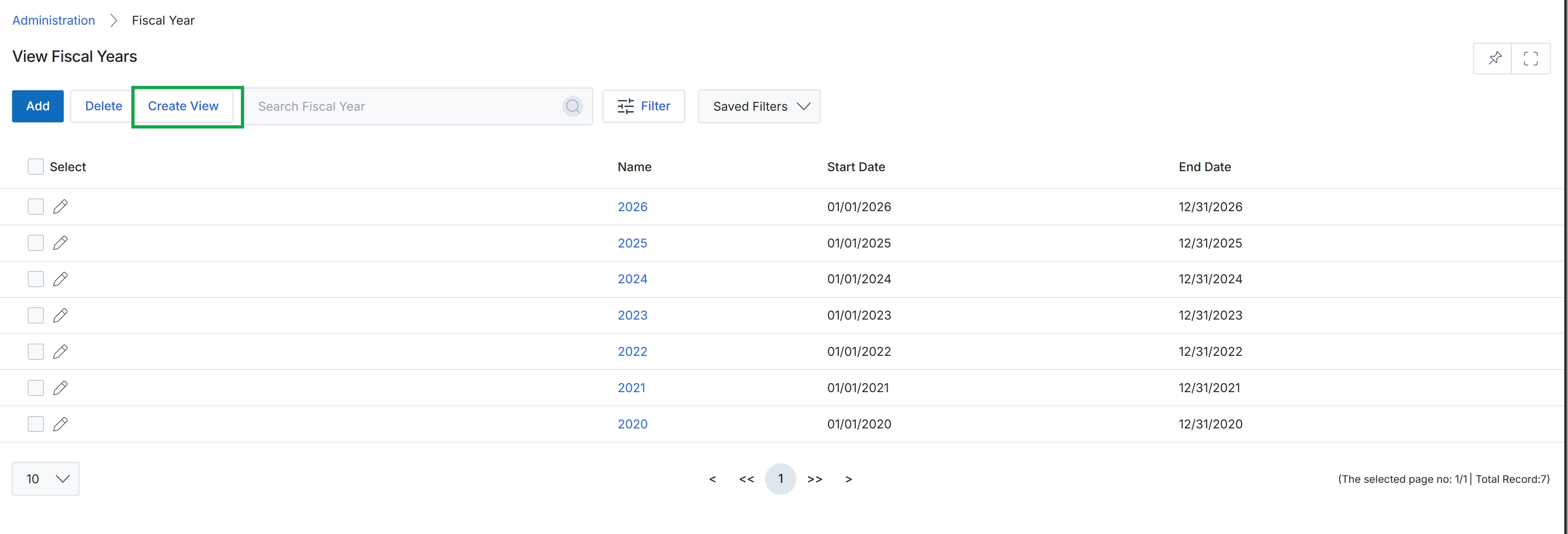
Click Create View.
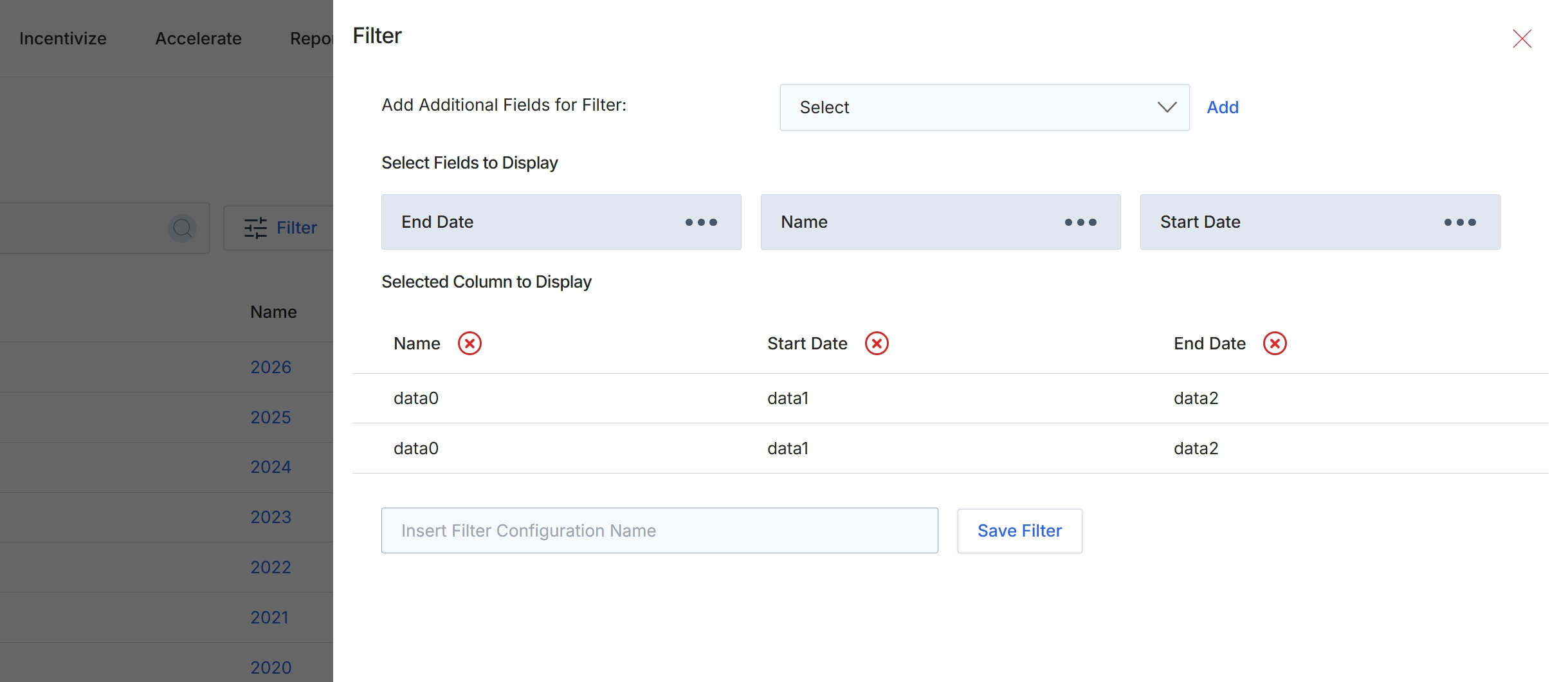
This filter configuration dialog allows administrators to customize the display and filtering of data within list views across the platform. Users can add additional fields to filter by, select which fields are displayed as columns in the list, and save these configurations for future use. This functionality enhances data visibility and user efficiency by enabling personalized views of information, such as fiscal year details, tailored to specific analytical or operational needs. Saved filter configurations can be applied to quickly switch between different data perspectives without reconfiguring the display each time.
Enter a name for the filter configuration in the provided text field.
Buttons
| Button | Description |
|---|---|
| Save Filter | A button to save the current filter configuration with the specified name. |
Fields
| Field | Description |
|---|---|
| Add Additional Fields for Filter | A dropdown menu to select additional fields that can be used to filter the data in the list view. |
| Select Fields to Display | This section shows the fields currently selected to be displayed as columns in the list view. Each selected field can be reordered or removed. |
| Insert Filter Configuration Name | A text input field to enter a name for the current filter configuration, allowing it to be saved and reused. |
Filtering Fiscal Year Data
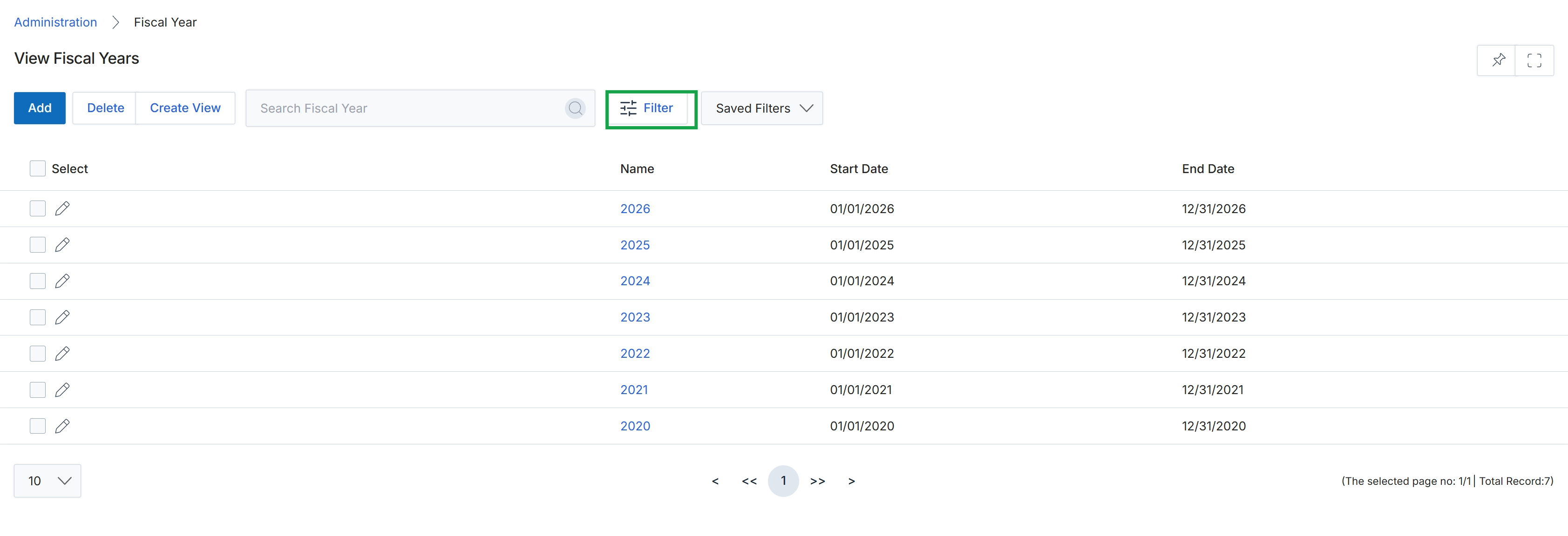
Click the Filter button.
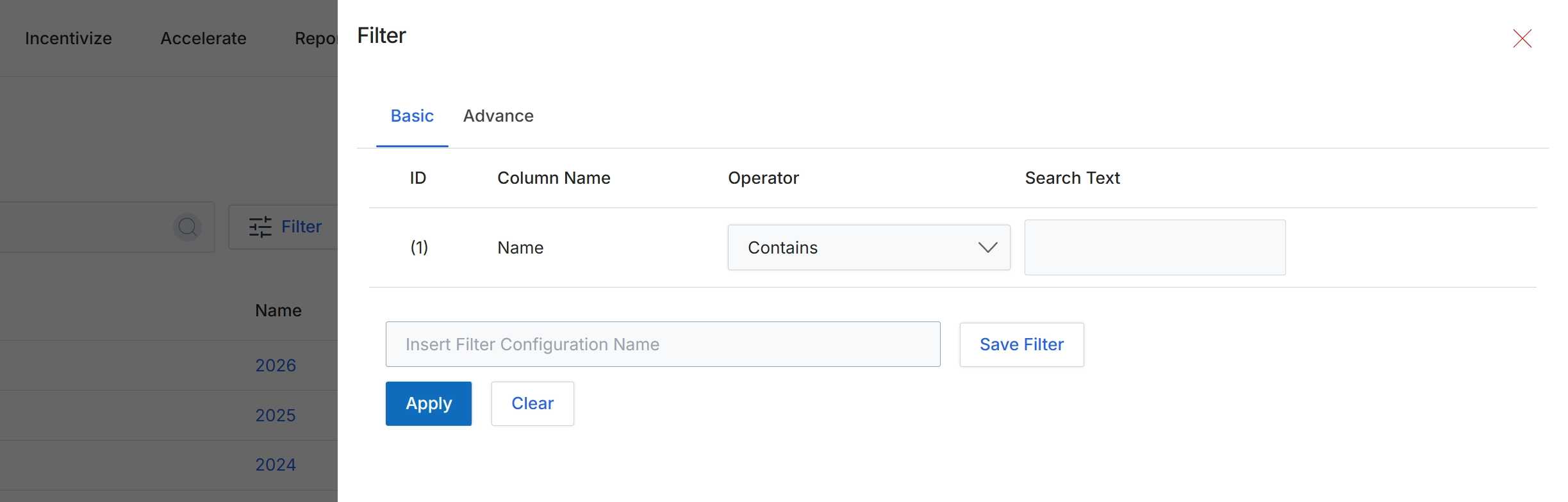
This screen displays the filter configuration dialog, which allows administrators to refine the list of fiscal years shown in the main view. Users can define criteria based on various column names, select operators like 'Contains', and input specific search text to narrow down results. This filtering capability is crucial for efficiently managing and locating specific fiscal year records, especially in environments with a large number of entries. The dialog also provides options to save frequently used filter configurations for future use, streamlining repetitive search tasks.
Enter the desired search text into the 'Search Text' field to filter the list of fiscal years.
Buttons
| Button | Description |
|---|---|
| Basic | Tab to configure basic filter criteria. |
| Advance | Tab to configure advanced filter criteria. |
| Save Filter | Button to save the current filter configuration for future use. |
| Apply | Button to apply the configured filter to the list of fiscal years. |
| Clear | Button to clear all filter criteria. |
Fields
| Field | Description |
|---|---|
| Contains | Dropdown to select the comparison operator for the filter rule. |
| Search Text | Input field to enter the text to search for. |
| Insert Filter Configuration Name | Input field to enter a name for the current filter configuration to save it. |
Column Headings
| Column | Description |
|---|---|
| ID | Column header for the filter rule identifier. |
| Column Name | Column header for the name of the column to be filtered. |
| Operator | Column header for the comparison operator used in the filter rule (e.g., Contains, Equals). |
| Search Text | Column header for the text value to search for within the selected column. |
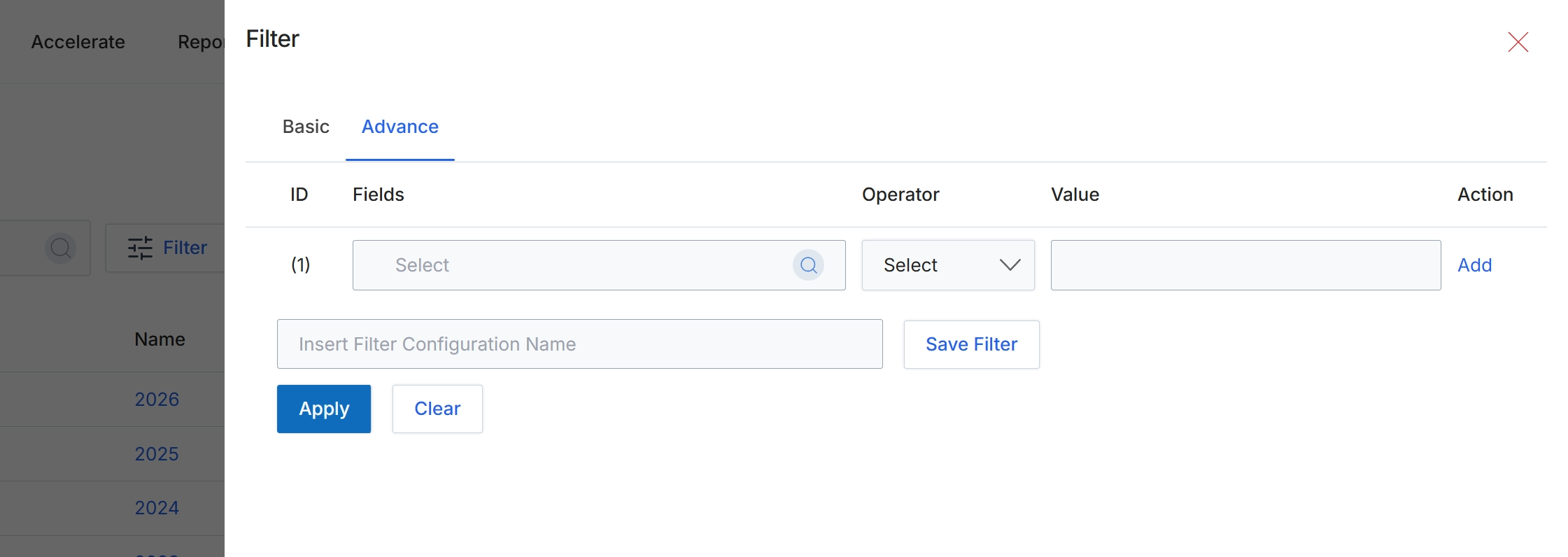
This screen displays the advanced filtering options available for lists within the platform, allowing users to construct complex queries to refine their data views. Unlike basic filters that might offer simple keyword searches or predefined criteria, the advanced filter provides granular control by enabling the selection of specific fields, operators, and values. This functionality is crucial for administrators and other users who need to analyze data based on multiple conditions, identify specific records, or segment lists for targeted actions or reporting. The ability to save filter configurations further enhances efficiency by allowing frequently used complex queries to be reused without re-entering all criteria.
Click the Advance tab to access more detailed filtering options.
Buttons
| Button | Description |
|---|---|
| Basic | Tab to switch to basic filtering options. |
| Advance | Tab to switch to advanced filtering options, allowing for complex query construction. |
| Add | Button to add another filter condition row. |
| Save Filter | Button to save the current filter configuration for future use. |
| Apply | Button to apply the configured filters to the list. |
| Clear | Button to clear all applied filter conditions. |
Fields
| Field | Description |
|---|---|
| Select | Dropdown to choose the field for the filter condition. |
| Select | Dropdown to choose the operator for the filter condition. |
| Insert Filter Configuration Name | Text input field to enter a name for saving the current filter configuration. |
Column Headings
| Column | Description |
|---|---|
| ID | Column header for the filter rule identifier. |
| Fields | Column header for selecting the data field to apply the filter to. |
| Operator | Column header for selecting the comparison operator (e.g., equals, contains, greater than). |
| Value | Column header for entering the value to compare against the selected field. |
| Action | Column header for actions related to the filter rule, such as adding more rules. |