

Overview
The platform supports global partner programs, which often involve transactions and financial reporting in multiple currencies. Accurate currency management is crucial for calculating rewards, MDF claims, and other financial incentives consistently across different regions and partner types. This module provides the necessary tools for administrators to define and maintain the currency settings that underpin all financial operations within the UPM.
By centralizing currency configuration, the platform ensures that all financial data, from partner portals to vendor reports, reflects the correct values and conversion rates. This capability is essential for maintaining financial integrity, simplifying multi-currency accounting, and providing transparent financial information to partners, regardless of their local currency.
Accessing and Viewing Currencies
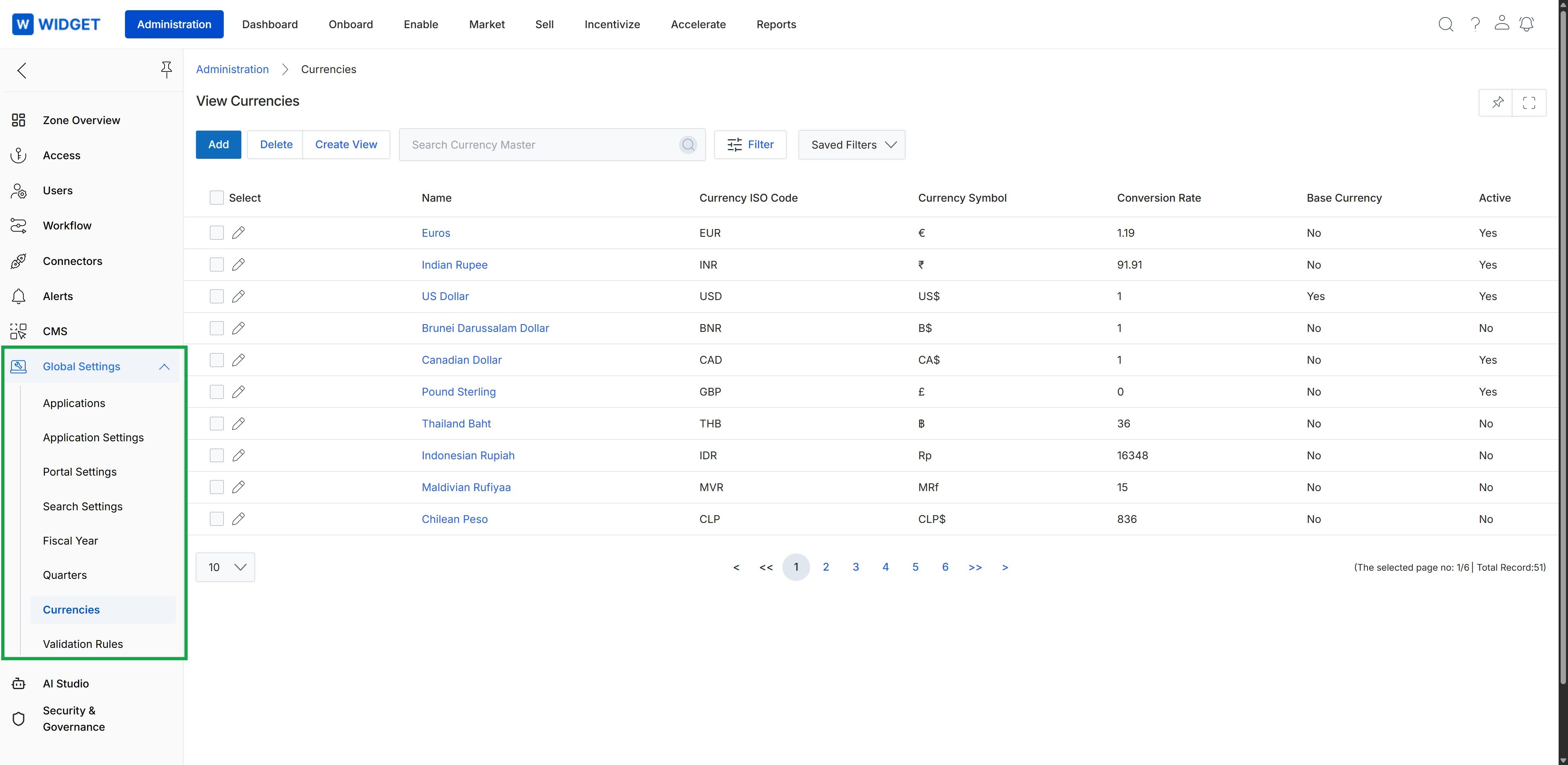
Click Global Settings to expand the menu, then click Currencies.
Managing Currency Records
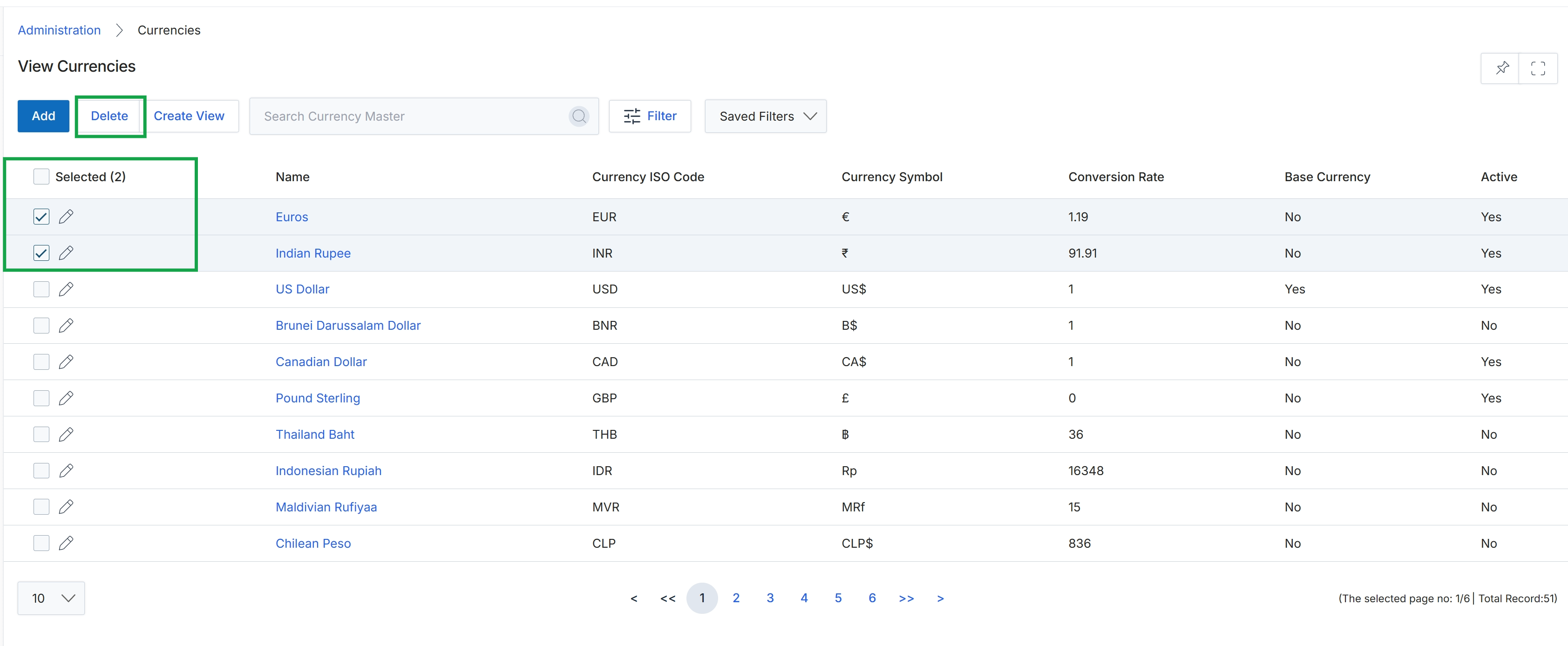
This screen displays the 'View Currencies' page within the Administration module, which is used to manage the various currencies available for use across the platform. It presents a tabular list of currencies, showing details such as their name, ISO code, symbol, conversion rate, whether they are a base currency, and their active status. Administrators can use this view to review existing currency definitions and perform bulk actions like deletion on selected currency records, which is indicated by the highlighted 'Delete' button and the checked checkboxes next to two currency entries.
Creating Custom Views
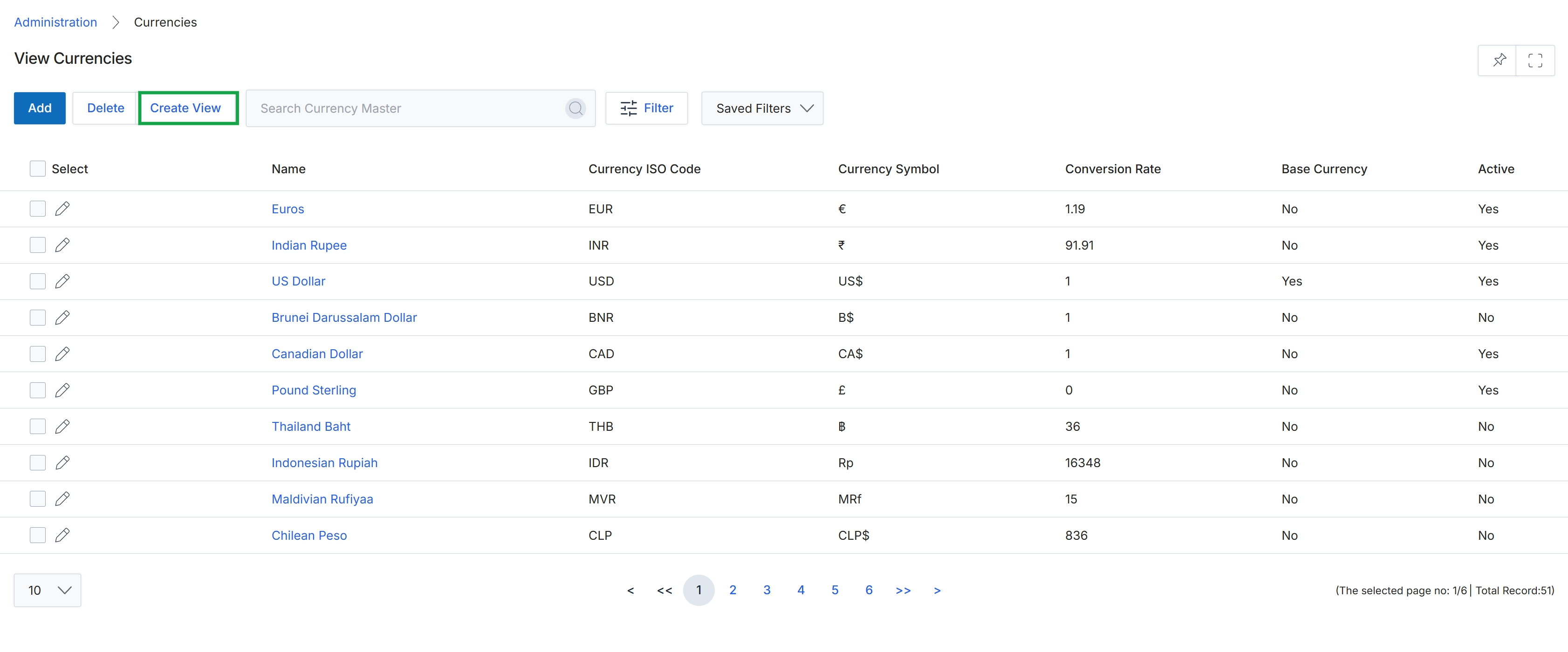
Click the Create View button.
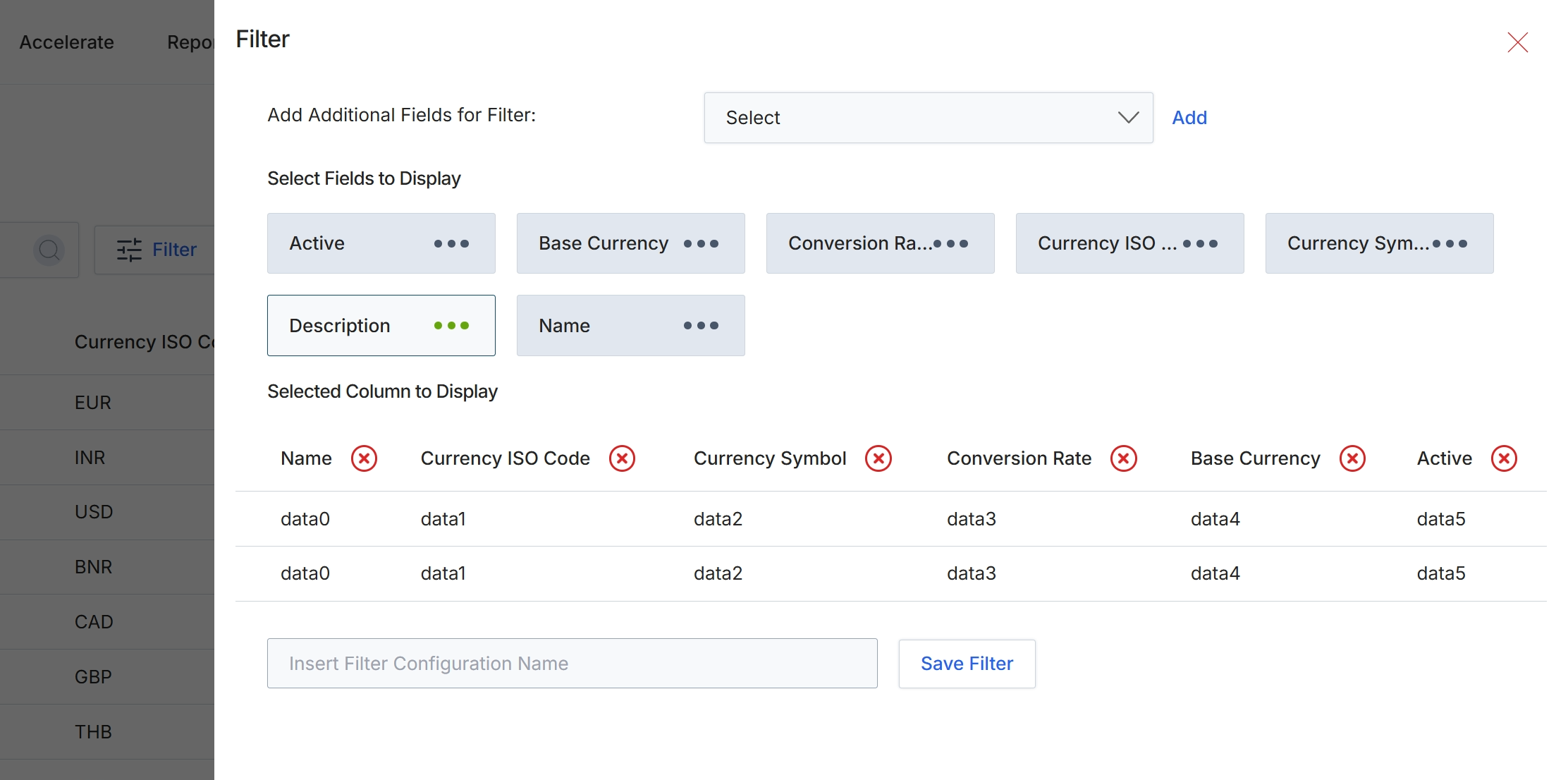
This screen displays the filter configuration panel, which allows administrators to customize the displayed columns and filter criteria for the 'View Currencies' list. This feature is part of the global settings within the Administration module, enabling fine-grained control over how currency data is presented. Users can select which fields to include as filter options and which columns are visible in the main list view, enhancing data analysis and reporting capabilities. The ability to save filter configurations by name allows for quick recall of frequently used views, streamlining administrative tasks related to currency management.
Configure the filter settings by selecting fields to display and defining the columns for the currency list.
Buttons
| Button | Description |
|---|---|
| Add | Button to add the selected field to the filter criteria. |
| Save Filter | Button to save the current filter configuration with the specified name. |
Fields
| Field | Description |
|---|---|
| Select | Dropdown to add additional fields for filtering the currency list. |
| Insert Filter Configuration Name | Text input field to enter a name for the current filter configuration to save it for future use. |
Filtering Currency Data
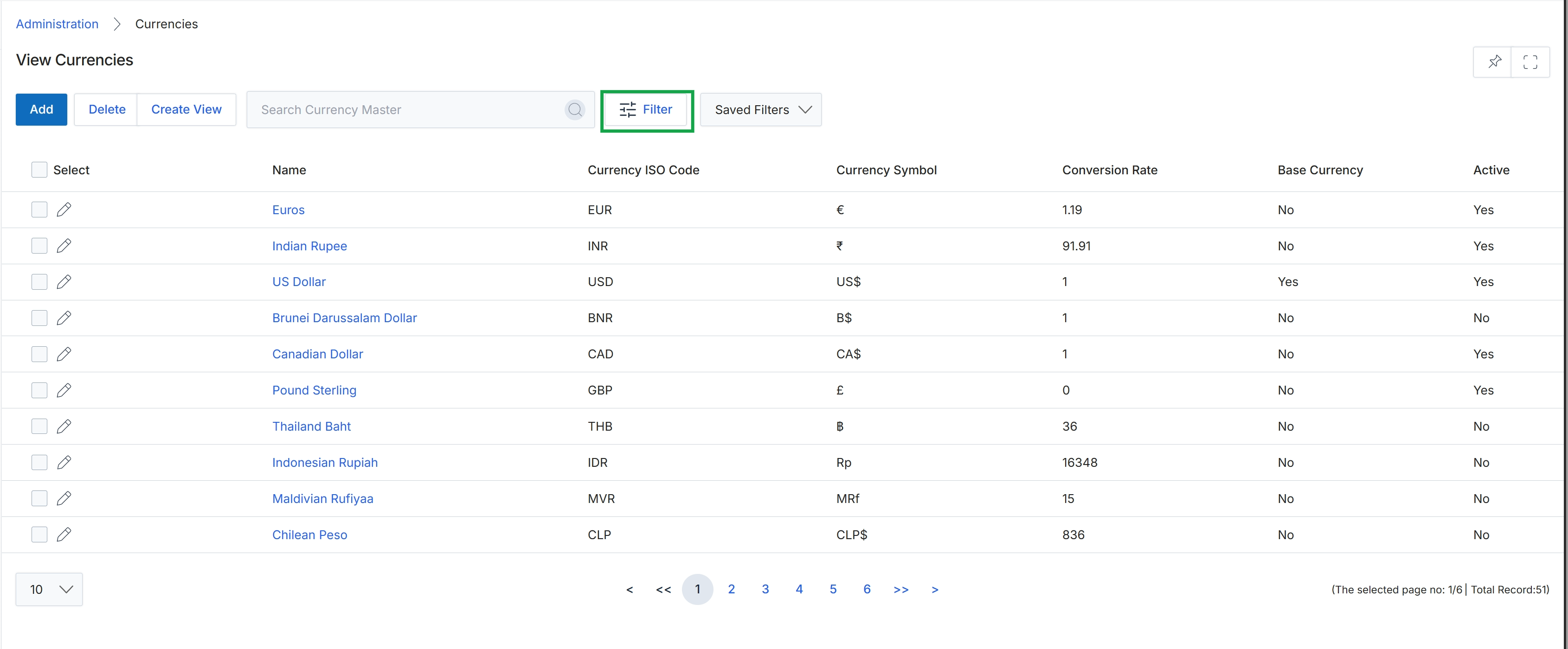
Click the Filter button.
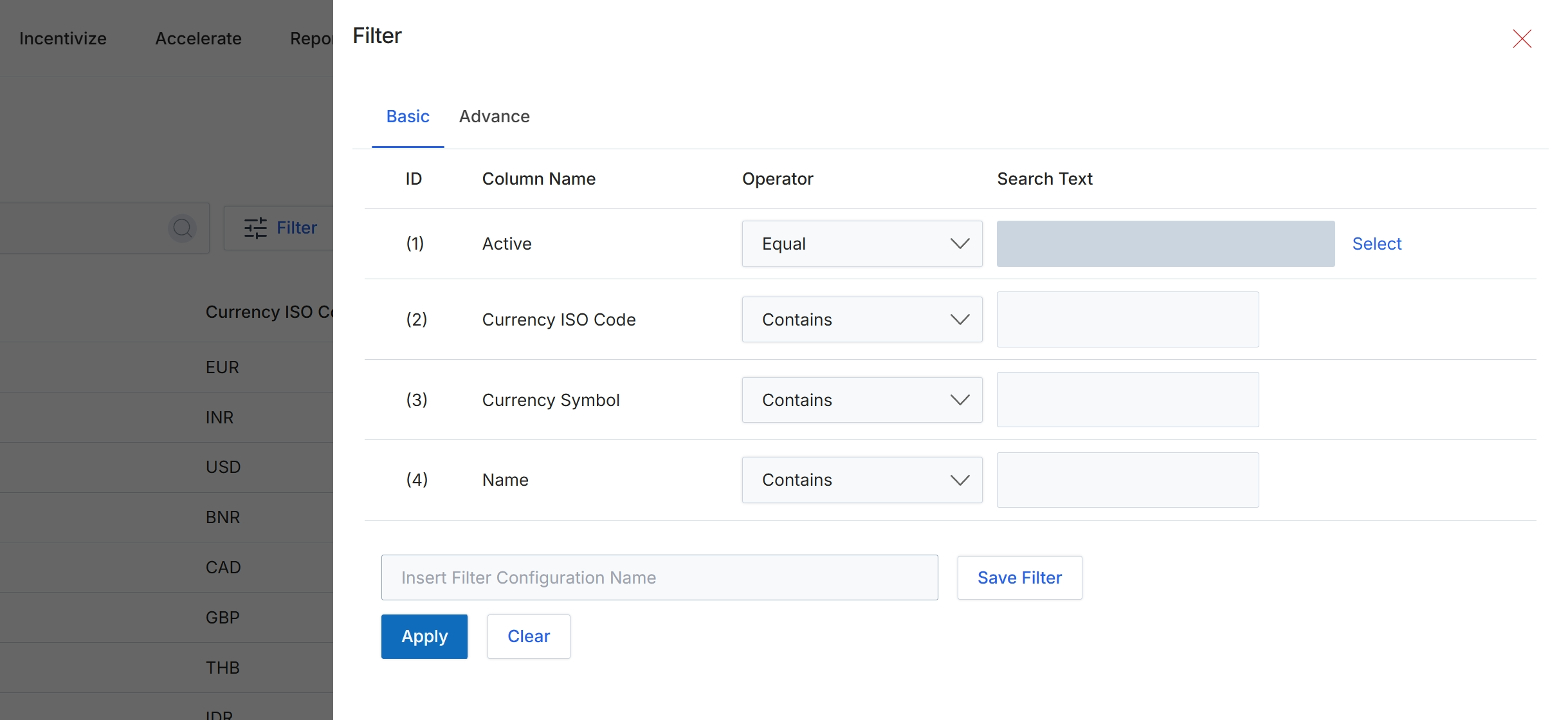
This screen displays the filter configuration panel for the currency list, allowing administrators to define criteria for narrowing down the displayed currencies. It supports both basic and advanced filtering options, enabling precise control over which currency records are visible. Administrators can apply filters based on various currency attributes, such as their active status, ISO code, symbol, or name. This functionality is crucial for managing a potentially large list of global currencies, ensuring that users can quickly locate and work with specific currency definitions within the platform's global settings.
Enter the desired filter criteria into the 'Search Text' fields and click 'Apply' to filter the currency list.
Buttons
| Button | Description |
|---|---|
| Basic | Tab to switch to basic filter options. |
| Advance | Tab to switch to advanced filter options. |
| Select | Link to select a value for the 'Active' filter criterion. |
| Save Filter | Button to save the current filter configuration for future use. |
| Apply | Button to apply the configured filters to the currency list. |
| Clear | Button to clear all entered filter criteria. |
Fields
| Field | Description |
|---|---|
| Active | Filter criterion for the active status of a currency. |
| Equal | Dropdown to select the comparison operator for the 'Active' filter. |
| Currency ISO Code | Filter criterion for the ISO code of a currency. |
| Contains | Dropdown to select the comparison operator for the 'Currency ISO Code' filter. |
| Currency Symbol | Filter criterion for the symbol of a currency. |
| Contains | Dropdown to select the comparison operator for the 'Currency Symbol' filter. |
| Name | Filter criterion for the name of a currency. |
| Contains | Dropdown to select the comparison operator for the 'Name' filter. |
| Insert Filter Configuration Name | Input field to provide a name for saving the current filter configuration. |
Column Headings
| Column | Description |
|---|---|
| ID | Column header for the filter row identifier. |
| Column Name | Column header for the name of the currency attribute to filter by. |
| Operator | Column header for the comparison operator used in the filter (e.g., Equal, Contains). |
| Search Text | Column header for the input field where the filter value is entered. |
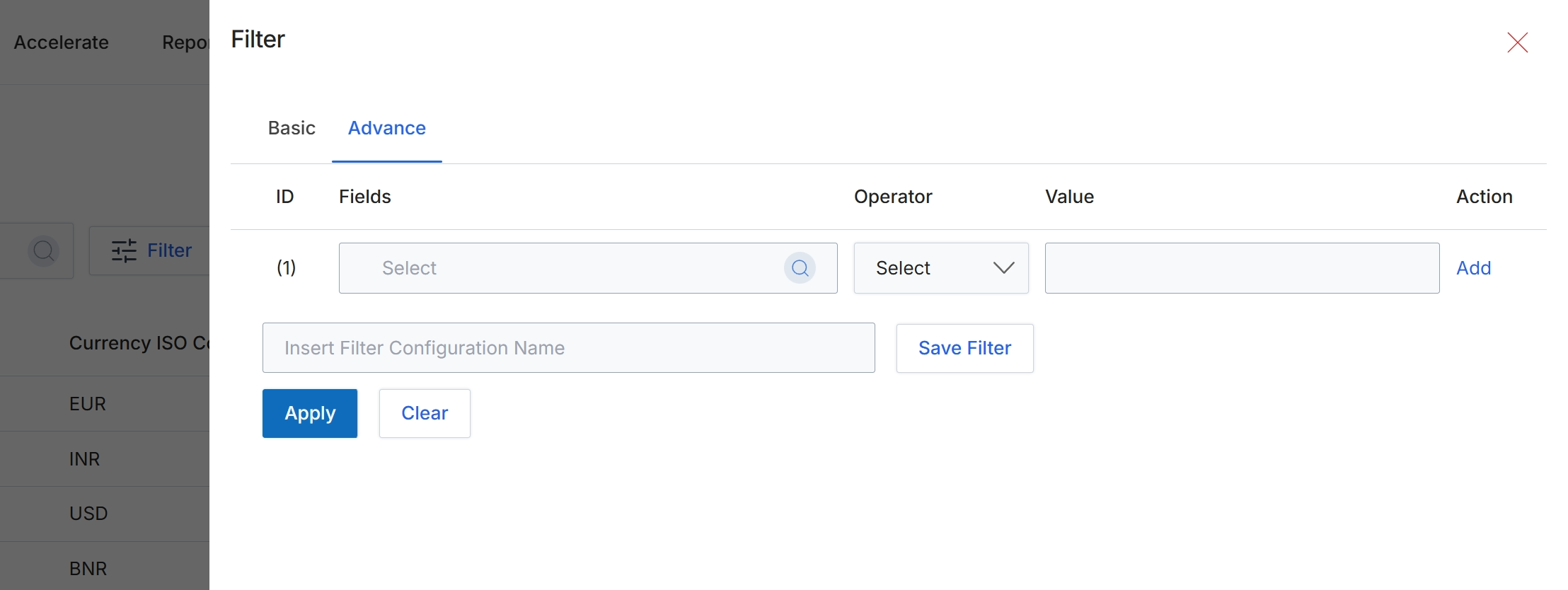
The Advanced Filter dialog provides a granular mechanism for users to construct complex search queries across various data entities within the platform. This feature allows for the definition of multiple filter conditions, each specifying a field, an operator, and a value, which are then combined to narrow down results in list views or reports. Users can save frequently used filter configurations for future application, enhancing efficiency and consistency in data retrieval. This advanced filtering capability is crucial for administrators and power users who need to perform detailed analysis or manage specific subsets of data, such as identifying partners based on multiple criteria or segmenting leads by region and status.
Define advanced filter conditions by selecting a field, operator, and value, then click "Apply" to filter the data.
Buttons
| Button | Description |
|---|---|
| Basic | Tab to switch to basic filtering options. |
| Advance | Tab to switch to advanced filtering options, allowing for complex condition building. |
| Add | Link to add another filter condition row. |
| Save Filter | Button to save the current filter configuration with the specified name. |
| Apply | Button to apply the defined filter conditions to the data. |
| Clear | Button to clear all defined filter conditions. |
Fields
| Field | Description |
|---|---|
| Select | Dropdown to choose the specific field for the filter condition. |
| Select | Dropdown to choose the operator for the filter condition. |
| Value | Input field to enter the value for the filter condition. |
| Insert Filter Configuration Name | Input field to enter a name for the current filter configuration to save it for future use. |
Column Headings
| Column | Description |
|---|---|
| ID | Column header for the identifier of each filter condition row. |
| Fields | Column header for selecting the data field to apply the filter condition to. |
| Operator | Column header for selecting the comparison operator (e.g., equals, contains, greater than). |
| Value | Column header for entering the value to compare against the selected field. |
| Action | Column header for actions related to each filter condition row. |