

Overview
The Portal Settings module within the Administration zone provides administrators with comprehensive control over the partner portal's operational parameters. This module allows for the configuration of various system-wide settings that dictate how partners interact with the platform, what features are available to them, and how certain data is presented or processed. These settings are crucial for tailoring the partner experience to specific program needs, ensuring compliance, and optimizing workflow efficiency.
Administrators can enable or disable specific functionalities, define rules for content visibility, and manage integrations that affect partner-facing processes. The ability to create and save custom views, along with robust filtering options, helps administrators efficiently manage and locate specific settings among a potentially large list of configurable parameters. This granular control ensures that the partner portal remains agile and adaptable to evolving business requirements.
Accessing Portal Settings
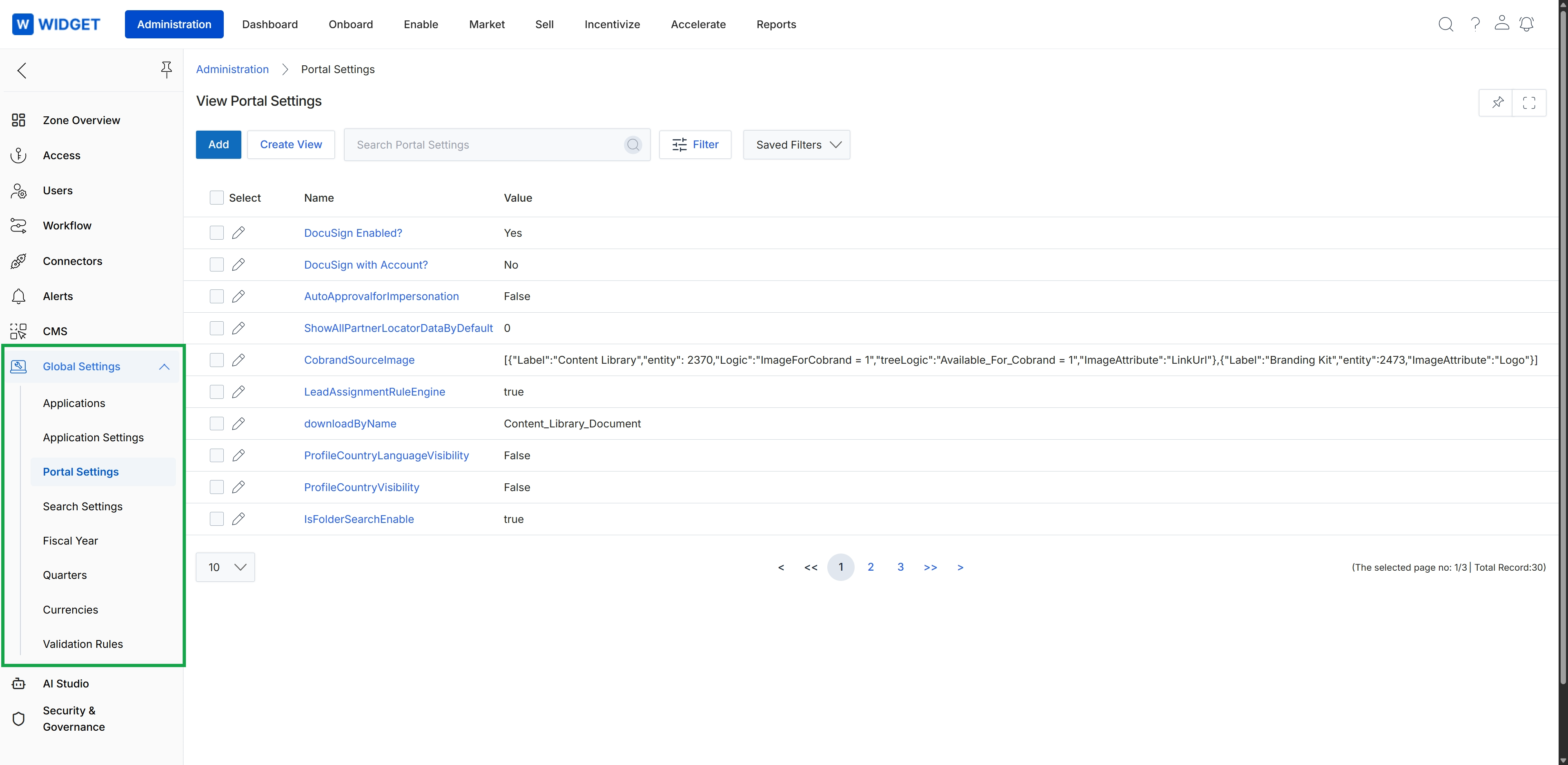
Click Global Settings to expand the menu, then click Portal Settings.
Creating Custom Views
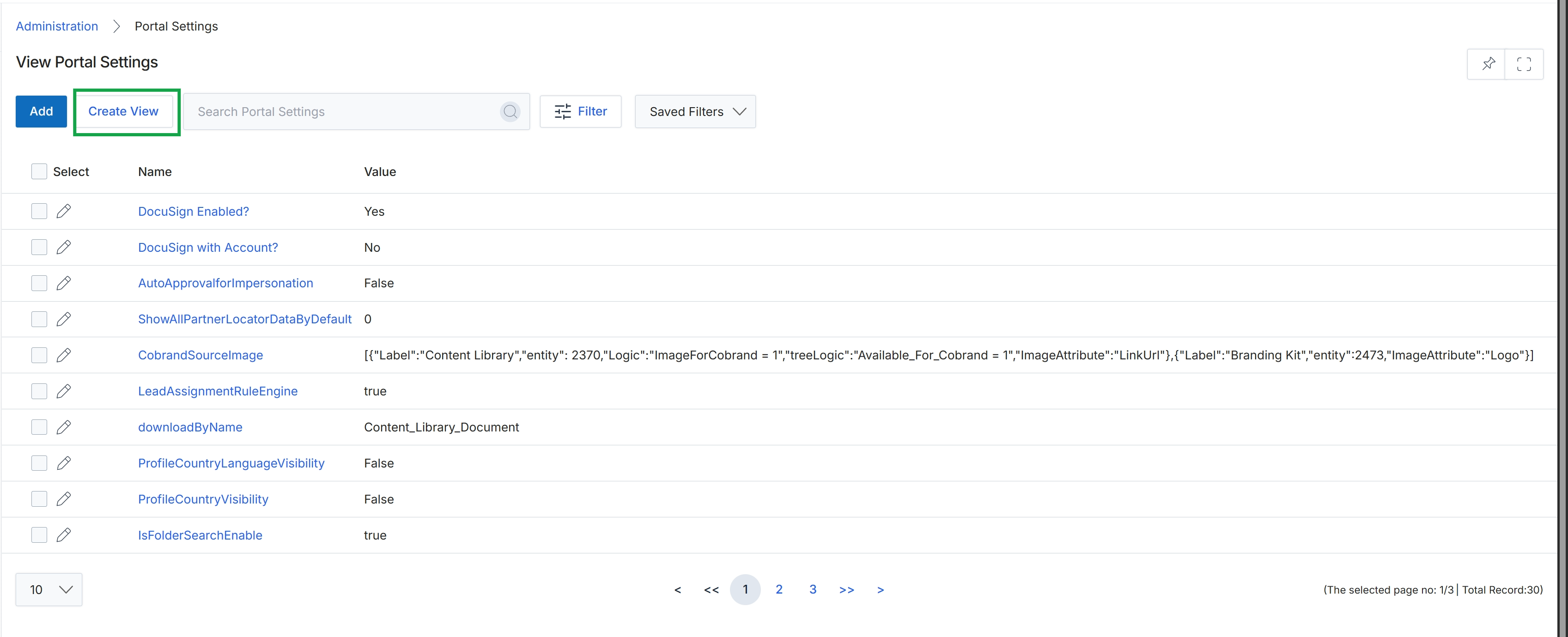
Click the Create View button.
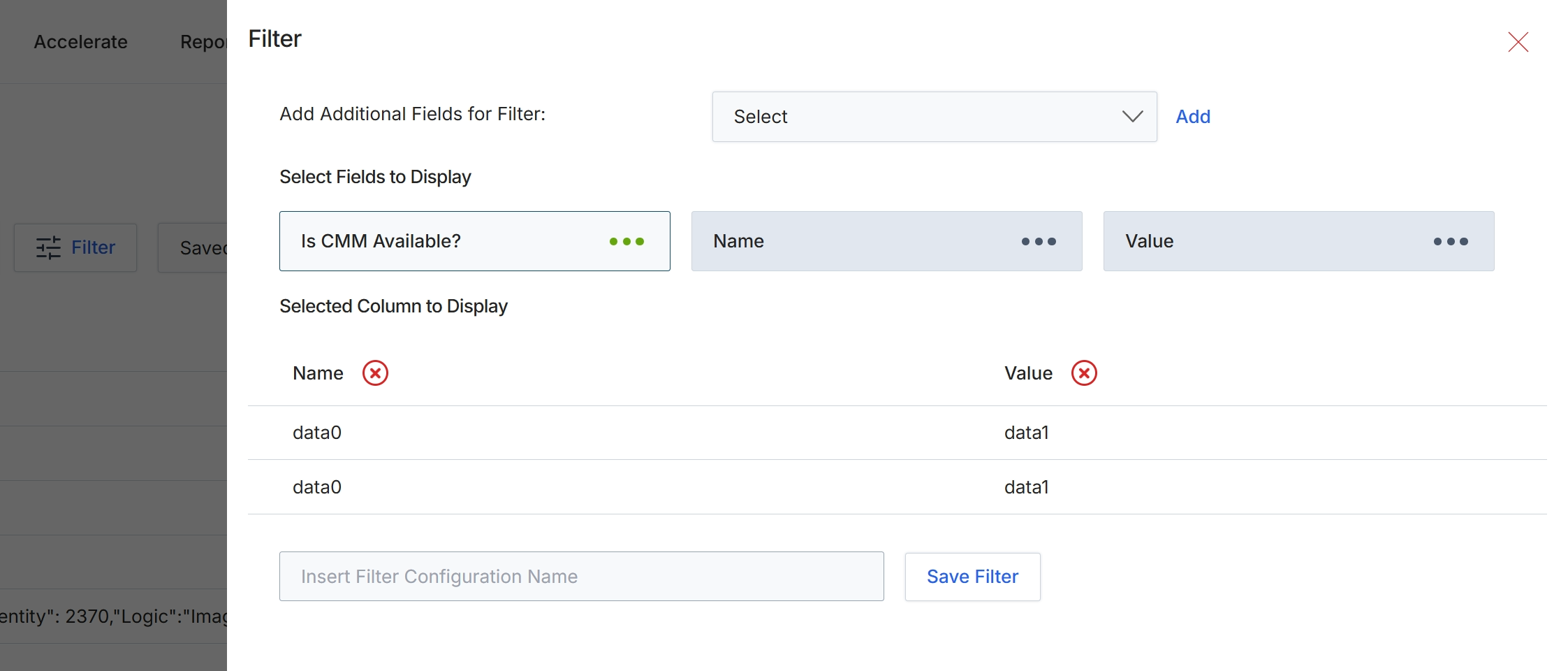
This 'Filter' dialog allows administrators to define and save custom filter configurations for data tables within the UPM. Users can specify criteria by adding fields to filter by, and also select which columns should be displayed in the filtered results. This functionality enhances data analysis by enabling users to quickly narrow down large datasets to relevant information and customize the presentation of that data. Saved filter configurations can be reused, streamlining reporting and data management tasks across various modules.
Enter a name for the filter configuration in the provided text field.
Buttons
| Button | Description |
|---|---|
| Add | Button to add the selected field to the filter criteria. |
| Save Filter | Button to save the defined filter configuration with the given name. |
Fields
| Field | Description |
|---|---|
| Select | Dropdown to select additional fields to add as filter criteria. |
| Insert Filter Configuration Name | Text input field to provide a name for the current filter configuration. |
Selected Column to Display
| Column | Description |
|---|---|
| Name | Column header for the 'Name' data in the selected columns display. |
| Value | Column header for the 'Value' data in the selected columns display. |
Filtering Portal Settings
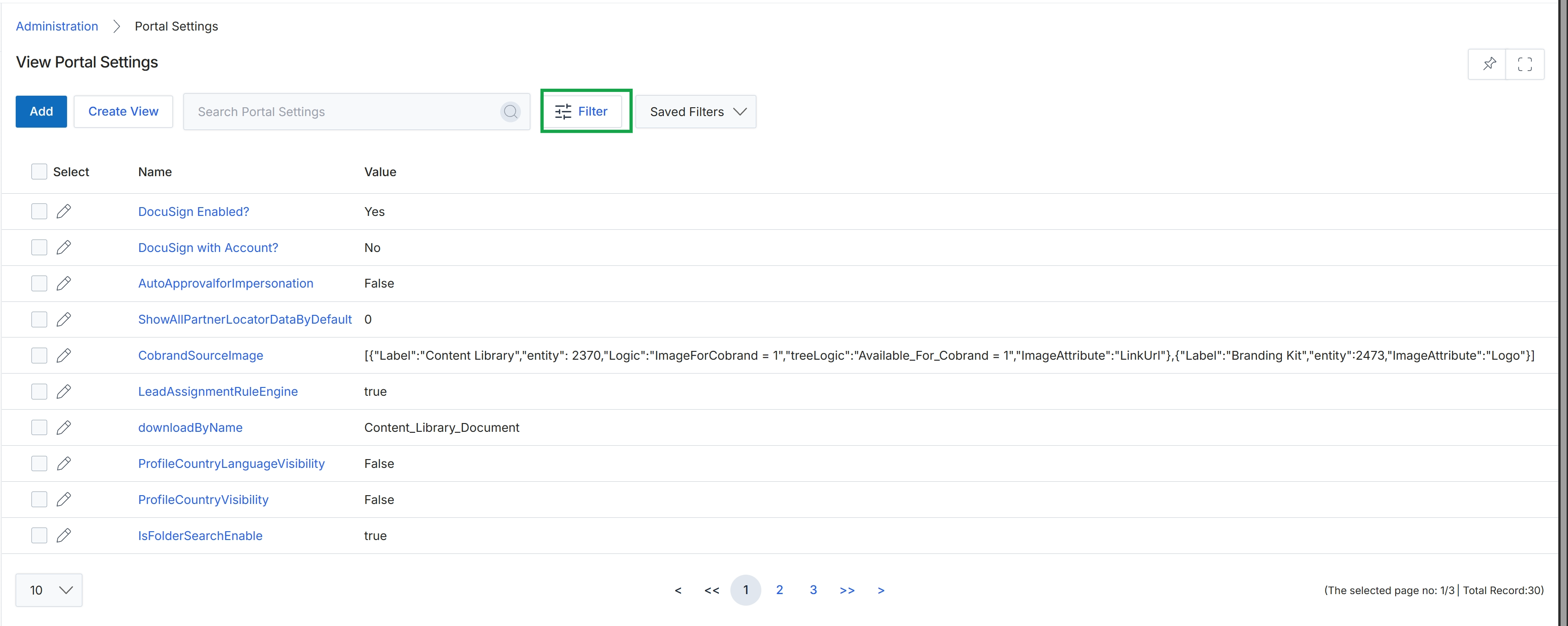
Click the Filter button.
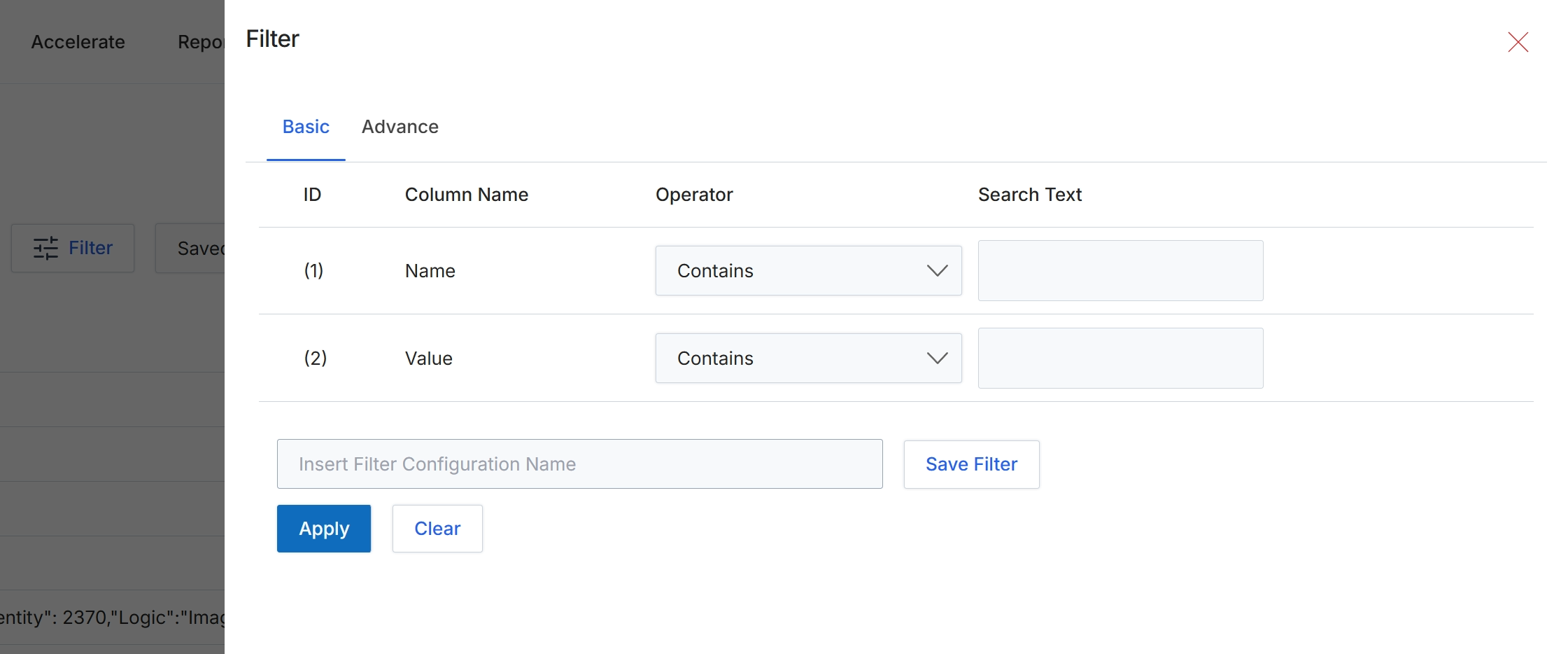
This Filter dialog allows users to refine the data displayed in a list view by applying specific criteria. Users can define filter conditions based on various columns, specifying operators like 'Contains' and providing search text. This functionality is crucial for efficiently navigating large datasets, enabling users to quickly locate specific records or analyze subsets of information relevant to their current task. The dialog supports both basic and advanced filtering options, and users can save frequently used filter configurations for future use, streamlining their workflow.
Define your filter conditions by entering text into the 'Search Text' fields and then click 'Apply' to filter the list.
Buttons
| Button | Description |
|---|---|
| Basic | Selects the basic filter configuration mode, allowing for straightforward condition definition. |
| Advance | Selects the advanced filter configuration mode, which typically offers more complex logical operators and grouping options. |
| Save Filter | A button to save the currently defined filter configuration under the specified name. |
| Apply | A button to apply the defined filter conditions to the list view, updating the displayed records. |
| Clear | A button to clear all defined filter conditions and reset the filter dialog. |
Fields
| Field | Description |
|---|---|
| Name | A pre-filled value in the 'Column Name' column, indicating that the filter condition applies to the 'Name' field of the records. |
| Contains | A dropdown field to select the operator for the 'Name' filter condition, pre-selected to 'Contains'. |
| Search Text | An input field to enter the search text for the 'Name' filter condition. |
| Value | A pre-filled value in the 'Column Name' column, indicating that the filter condition applies to the 'Value' field of the records. |
| Contains | A dropdown field to select the operator for the 'Value' filter condition, pre-selected to 'Contains'. |
| Search Text | An input field to enter the search text for the 'Value' filter condition. |
| Insert Filter Configuration Name | An input field to enter a name for the current filter configuration, allowing it to be saved for future use. |
Column Headings
| Column | Description |
|---|---|
| ID | The column header for the filter condition's sequential identifier. |
| Column Name | The column header indicating the data field to which the filter condition applies. |
| Operator | The column header for the comparison operator used in the filter condition (e.g., Contains, Equals, Starts With). |
| Search Text | The column header for the input field where users enter the value to search for. |
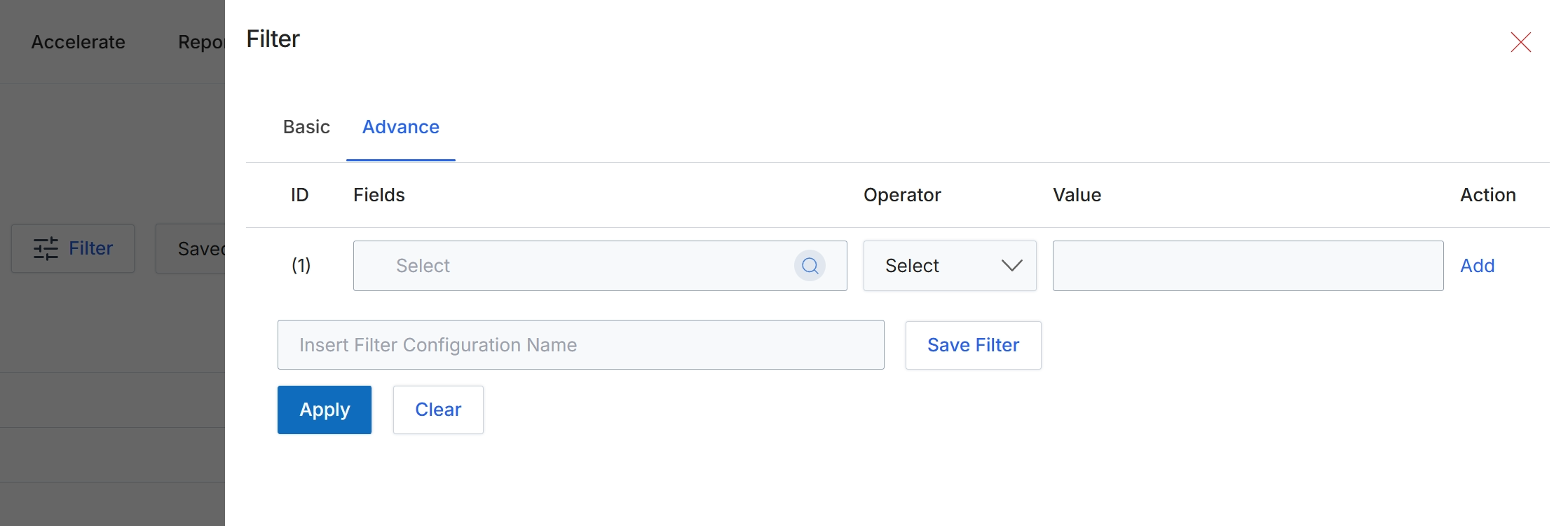
This screen displays the advanced filter configuration options, allowing users to define complex filtering rules for data tables. Unlike the basic filter, which typically offers simpler, predefined criteria, the advanced filter provides granular control over multiple conditions, operators, and values. This functionality is crucial for administrators and power users who need to segment data precisely, identify specific records based on intricate criteria, or prepare targeted reports. The interface supports building multi-clause filter statements, which can then be applied to the current data view or saved for future use, enhancing data analysis and management capabilities across the platform.
Click the 'Advance' tab to access the advanced filtering options.
Buttons
| Button | Description |
|---|---|
| Basic | Tab to switch to basic filtering options. |
| Advance | Tab to switch to advanced filtering options, allowing for more complex rule creation. |
| Add | Button to add another filter condition row. |
| Save Filter | Button to save the current filter configuration under the specified name. |
| Apply | Button to apply the configured filters to the data table. |
| Clear | Button to clear all applied filter conditions. |
Fields
| Field | Description |
|---|---|
| Select | Dropdown to choose the field for the filter condition. |
| Select | Dropdown to choose the operator for the filter condition. |
| Insert Filter Configuration Name | Text input field to enter a name for the filter configuration to save it for future use. |
Column Headings
| Column | Description |
|---|---|
| ID | Column header for the filter rule identifier. |
| Fields | Column header for selecting the data field to apply the filter to. |
| Operator | Column header for selecting the comparison operator (e.g., equals, contains, greater than). |
| Value | Column header for entering the value to compare against the selected field. |
| Action | Column header for actions related to the filter rule, such as adding or removing a rule. |