

Overview
The platform's global search functionality is a critical tool for users to quickly find information across various modules, from partner contacts to help content and deals. Effective search settings ensure that users can efficiently locate the data they need without being overwhelmed by irrelevant results. This administrative section empowers Super Admins and Program Managers to fine-tune the search experience.
By managing search settings, administrators can optimize platform usability, ensuring that both vendor-side and partner-side users can effectively navigate and utilize the vast amount of information stored within the system. This control helps maintain data relevance and improves overall operational efficiency.
Accessing Search Settings
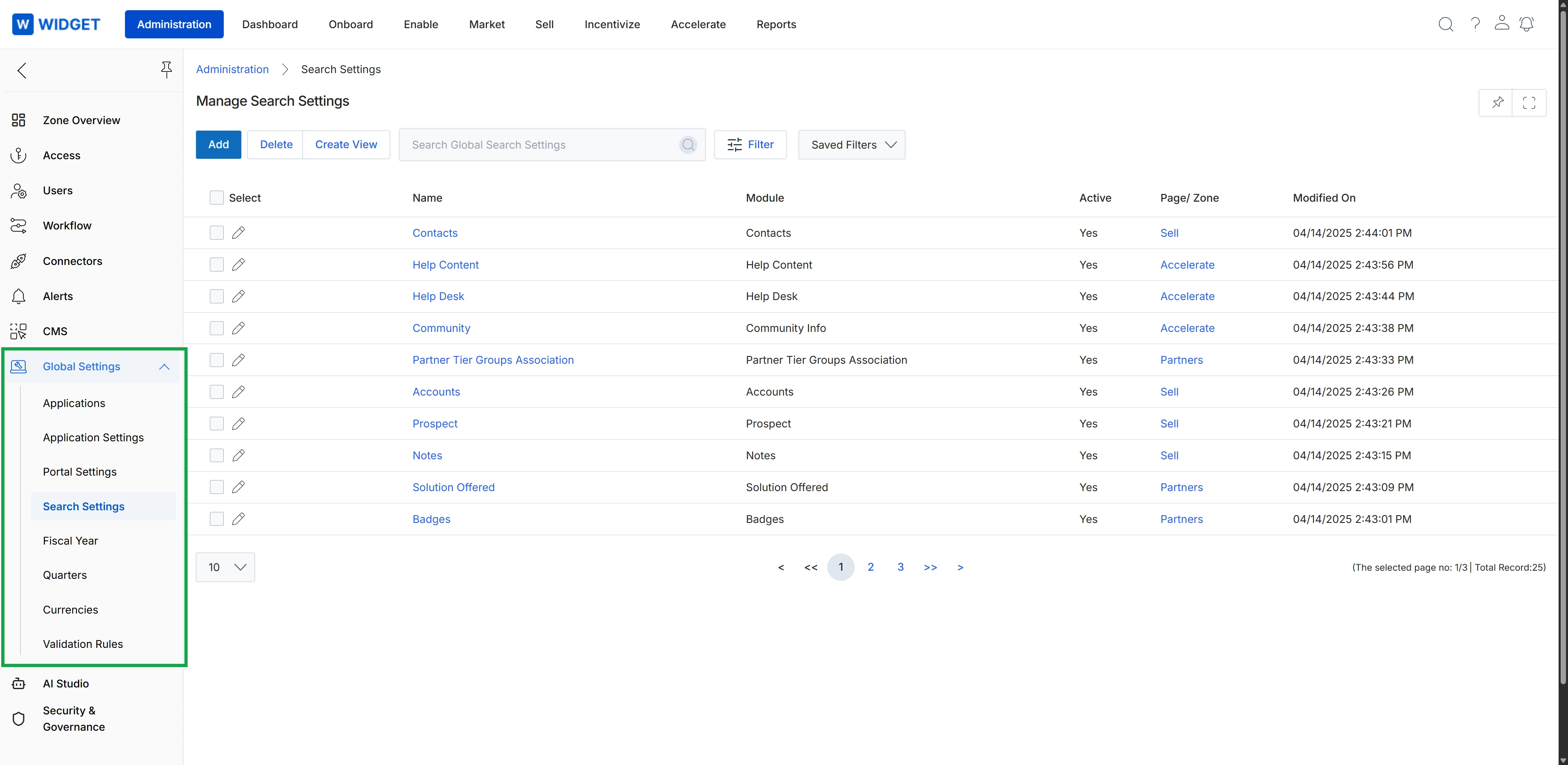
Click Global Settings in the left navigation panel to expand the section, then click Search Settings.
Managing Searchable Entities
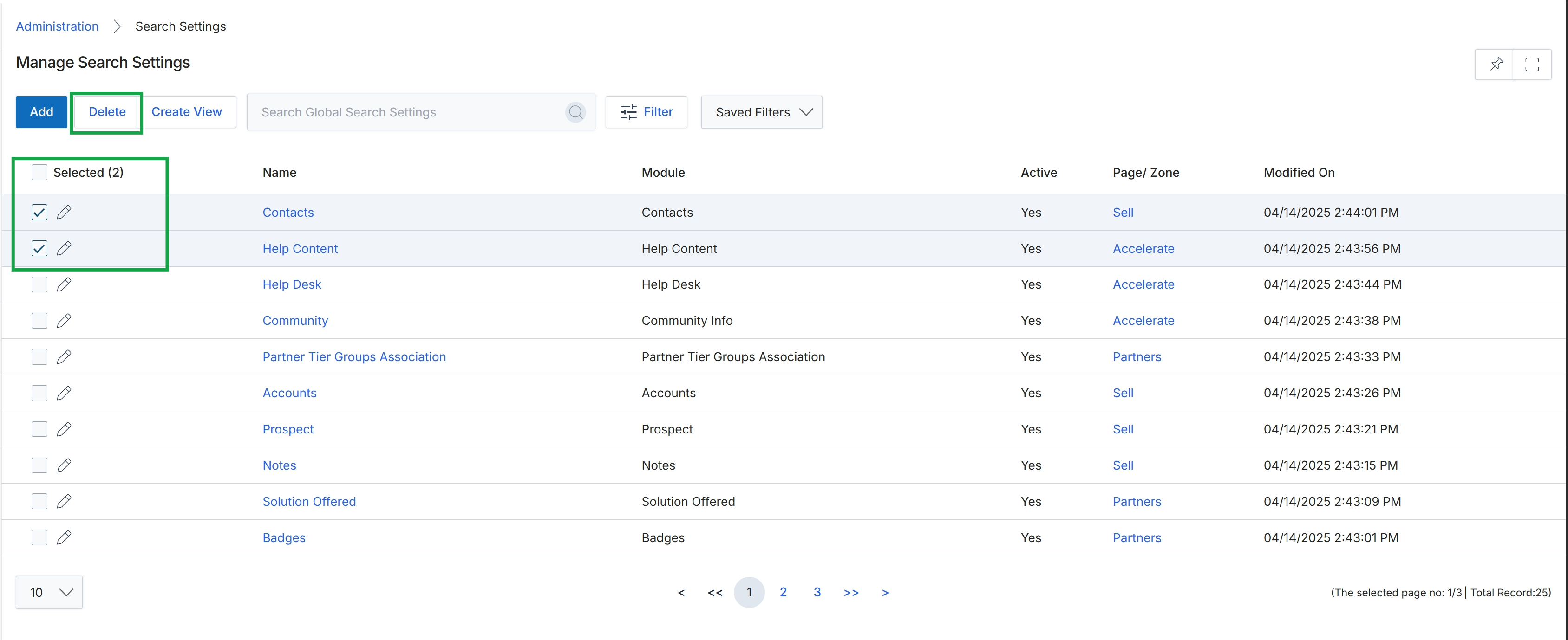
Select the checkboxes next to the desired search settings, then click the Delete button.
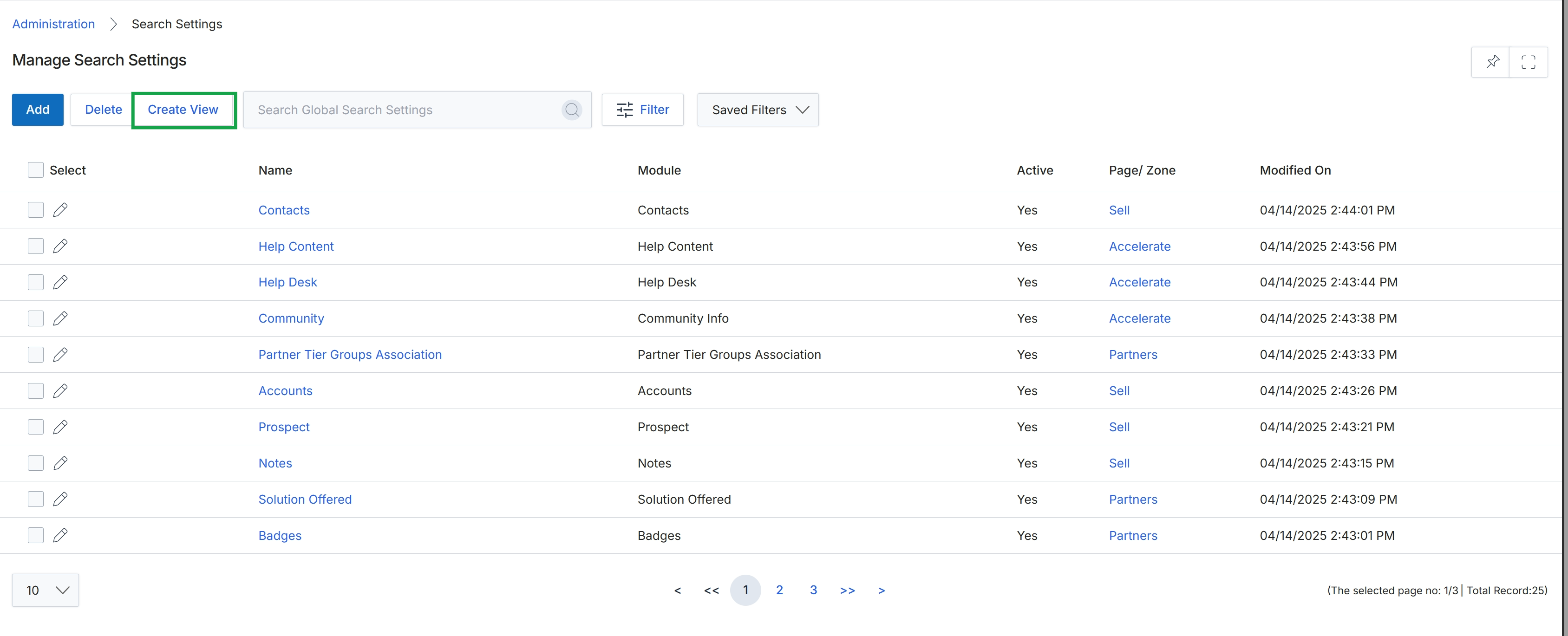
Click the Create View button.
Configuring Filters and Views
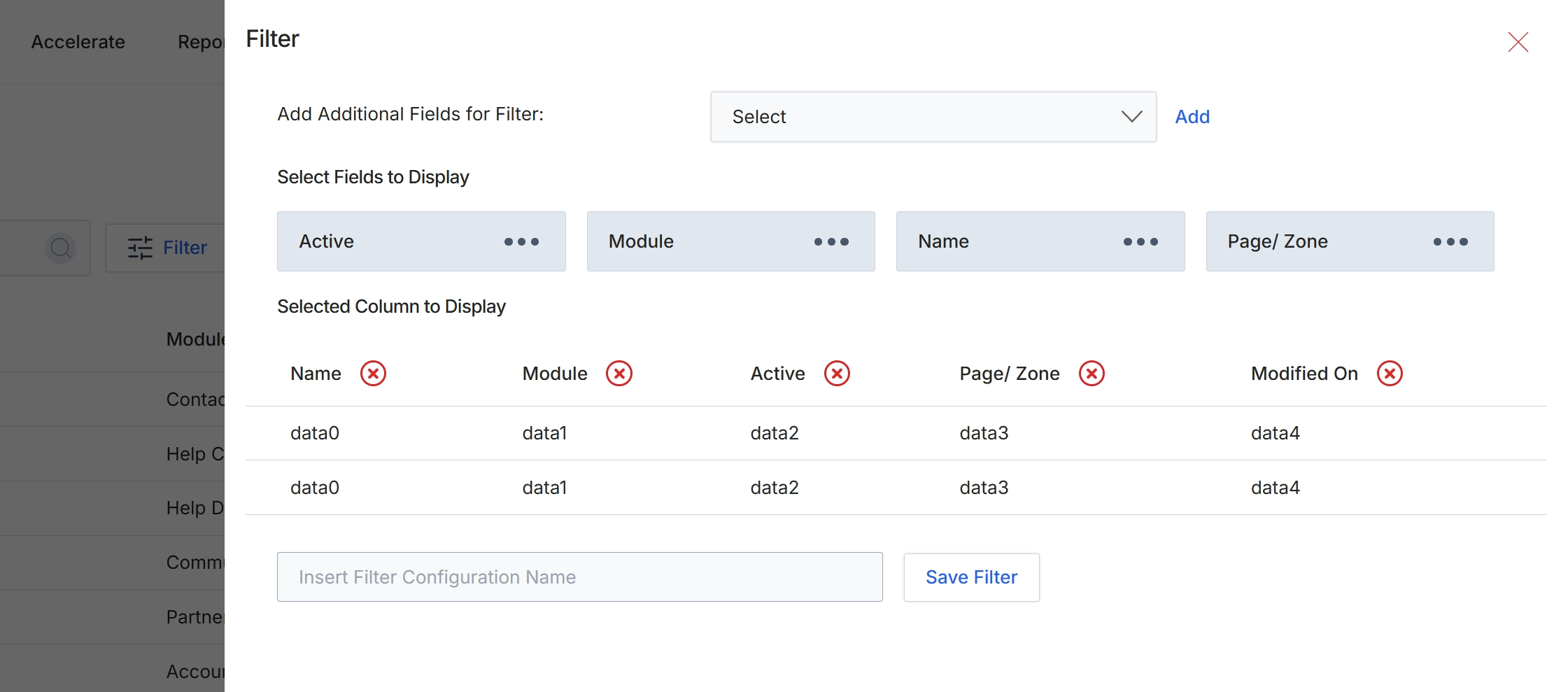
This screen displays the filter configuration interface, allowing administrators to customize the columns and fields shown in a list view. It enables users to define which data points are relevant for their specific analysis or reporting needs, enhancing the usability and efficiency of data navigation within the platform. Administrators can add new fields to filter by, select which fields are displayed as columns, and save these configurations for future use, ensuring consistent data presentation across different sessions or for different user roles. This customization is crucial for tailoring the platform's interface to various operational requirements and improving data accessibility.
Enter a name for the filter configuration to save it for future use.
Buttons
| Button | Description |
|---|---|
| Add | A button to add the selected field to the filter criteria. |
| Save Filter | A button to save the current filter configuration under the specified name. |
Fields
| Field | Description |
|---|---|
| Add Additional Fields for Filter | A dropdown menu to select additional fields that can be used to filter the list view. |
| Select | The dropdown selector for choosing additional fields to add to the filter. |
| Insert Filter Configuration Name | An input field to enter a name for the current filter configuration. |
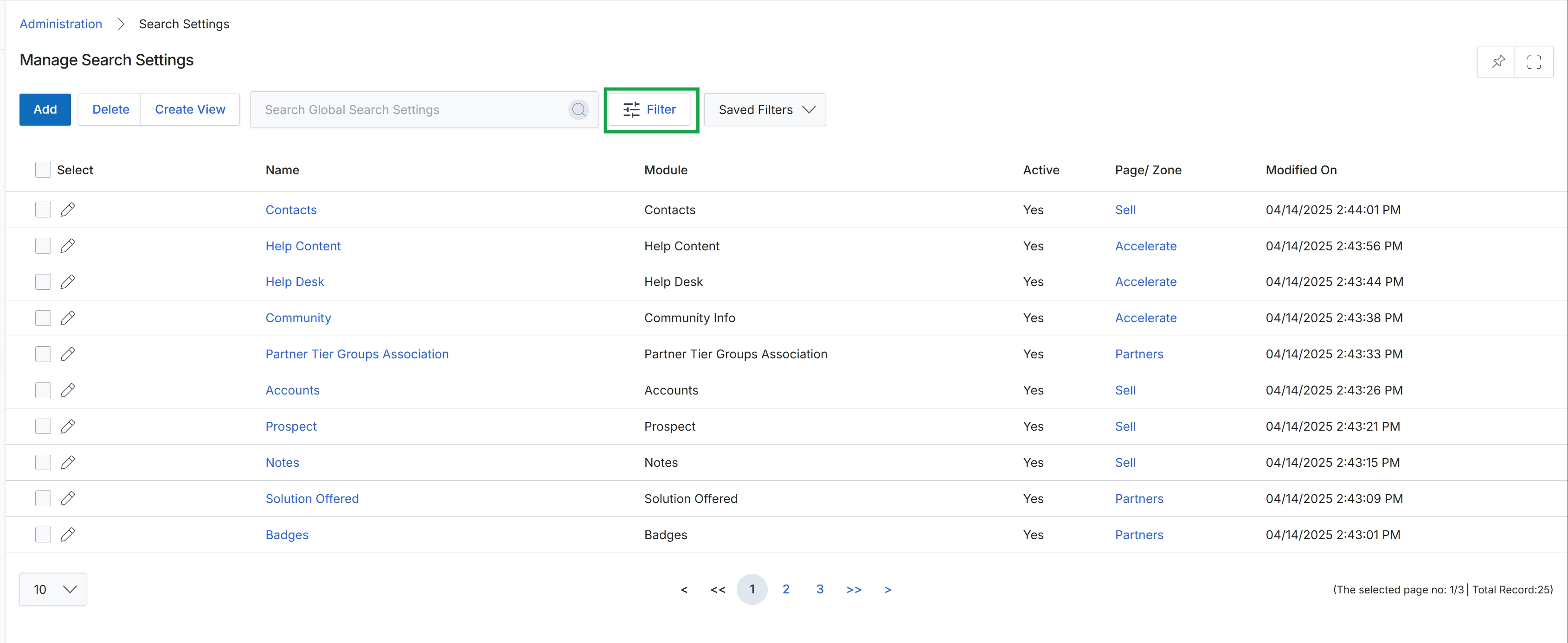
Click the Filter button.
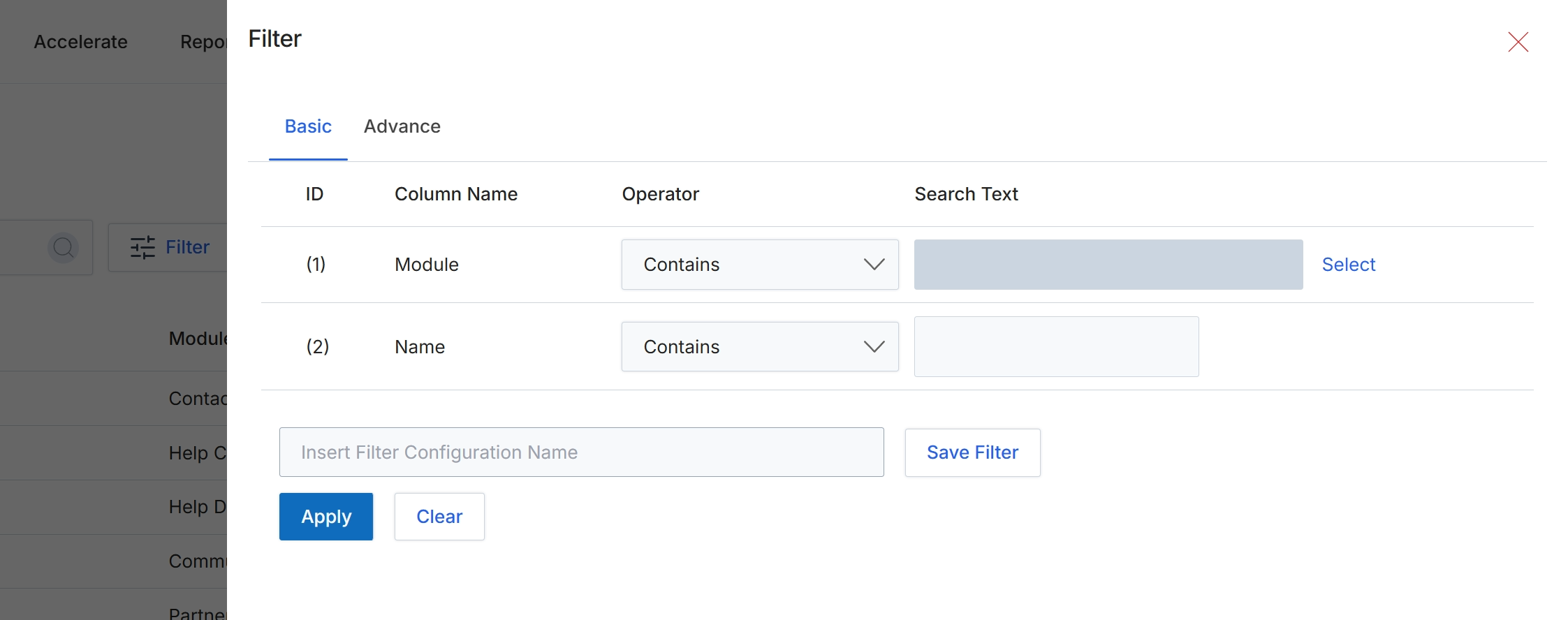
This filter dialog allows administrators to refine the displayed list of search settings by applying specific criteria. It provides both basic and advanced filtering options, enabling users to narrow down results based on various attributes of the search settings, such as the module they belong to or their name. This functionality is crucial for efficiently managing and locating specific search configurations within the platform's global settings, especially in deployments with numerous custom search parameters.
Apply the desired filters to the search settings list.
Buttons
| Button | Description |
|---|---|
| Basic | Selects the basic filtering options. |
| Advance | Selects the advanced filtering options. |
| Select | Opens a dialog to select a specific module. |
| Save Filter | Saves the current filter configuration with the specified name. |
| Apply | Applies the selected filter criteria to the search settings list. |
| Clear | Clears all applied filter criteria. |
Fields
| Field | Description |
|---|---|
| Module | Filters search settings by the module they are associated with. |
| Contains | Specifies the operator for the 'Module' filter, indicating that the module name should contain the entered search text. |
| Name | Filters search settings by their name. |
| Contains | Specifies the operator for the 'Name' filter, indicating that the search setting name should contain the entered search text. |
| Insert Filter Configuration Name | Enter a name to save the current filter configuration for future use. |
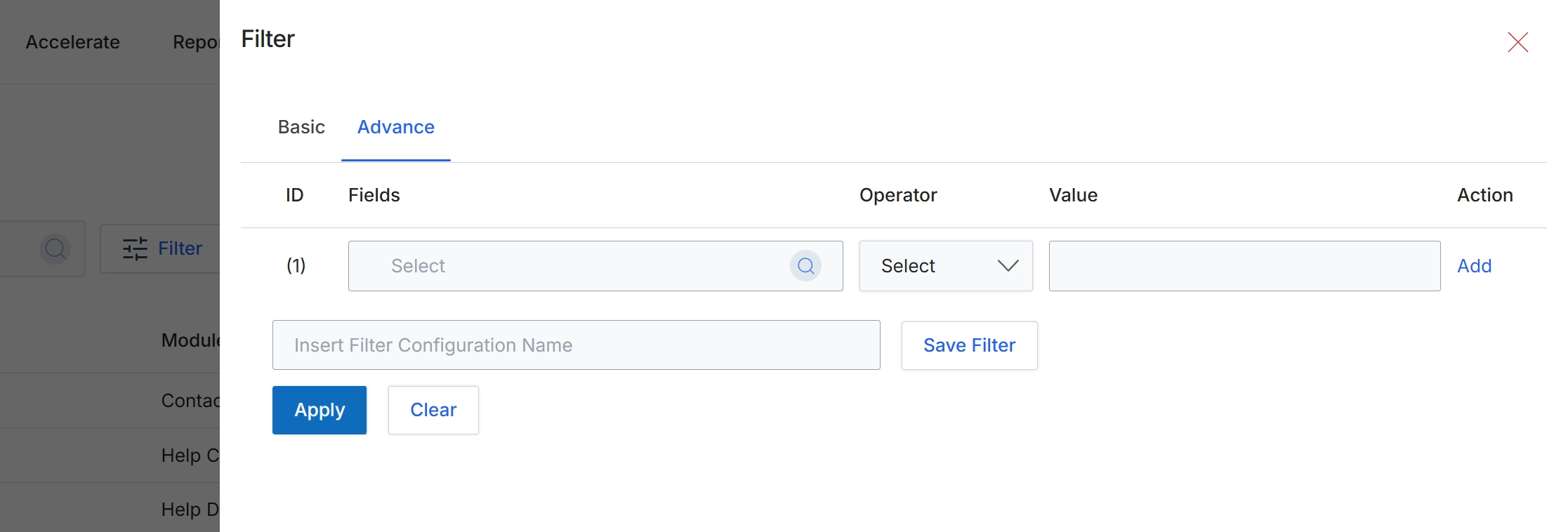
This dialog box allows administrators to define and apply advanced filters for data displayed in various lists and reports across the platform. The filtering mechanism supports creating complex search queries by combining multiple criteria based on specific fields, operators, and values. This functionality is crucial for segmenting data, focusing on relevant records, and saving frequently used filter configurations for quick access, thereby enhancing data analysis and operational efficiency. The 'Advance' tab provides a structured interface for building these multi-conditional filters.
Click the 'Advance' tab to configure advanced filtering options.
Buttons
| Button | Description |
|---|---|
| Basic | Tab to switch to basic filtering options, typically for single-criterion searches. |
| Advance | Tab to switch to advanced filtering options, allowing for multi-criterion and complex search queries. |
| Add | Button to add the current filter condition to the list of active filters. |
| Save Filter | Button to save the defined filter configuration with the specified name. |
| Apply | Button to apply the configured filters to the data. |
| Clear | Button to clear all applied filter conditions. |
Fields
| Field | Description |
|---|---|
| Select | Dropdown to choose the field for the first filter condition. |
| Select | Dropdown to choose the operator for the first filter condition. |
| Insert Filter Configuration Name | Text input field to provide a name for the current filter configuration to save it for future use. |
Column Headings
| Column | Description |
|---|---|
| ID | Column header for the filter rule identifier. |
| Fields | Column header for selecting the data field to apply the filter condition to. |
| Operator | Column header for selecting the comparison operator (e.g., equals, contains, greater than). |
| Value | Column header for entering the value to compare against the selected field. |
| Action | Column header for actions related to the filter rule, such as adding or removing a rule. |