

Overview
Market Development Funds (MDF) enable vendors to co-invest in partner-led marketing initiatives, driving demand generation and co-selling opportunities across the partner ecosystem. Within the Incentivize module, MDF Rules define the operational boundaries of co-marketing programs, including partner eligibility, entitlement frequencies, allocation schedules, and required application fields. The View MDF Rules dashboard serves as the administrative command center for supervising these policies and verifying their statuses.
Through this interface, administrators can audit active, pending, and draft rules, evaluate partner tier scopes, and maintain data integrity at scale. Platform utilities embedded within the view allow administrators to bulk import account and rule configurations with custom attribute mapping, design tailored views with specific display columns, apply granular basic and multi-condition advanced filters, and execute bulk removals when retiring legacy fund policies.
Key Features
- MDF Rule Repository
- Bulk Data Import & Mapping
- Custom View Configuration
- Batch Record Deletion
- Basic & Advanced Filtering
- Keyword Rule Search
- Entitlement Frequency Tracking
Navigating the MDF Rules List
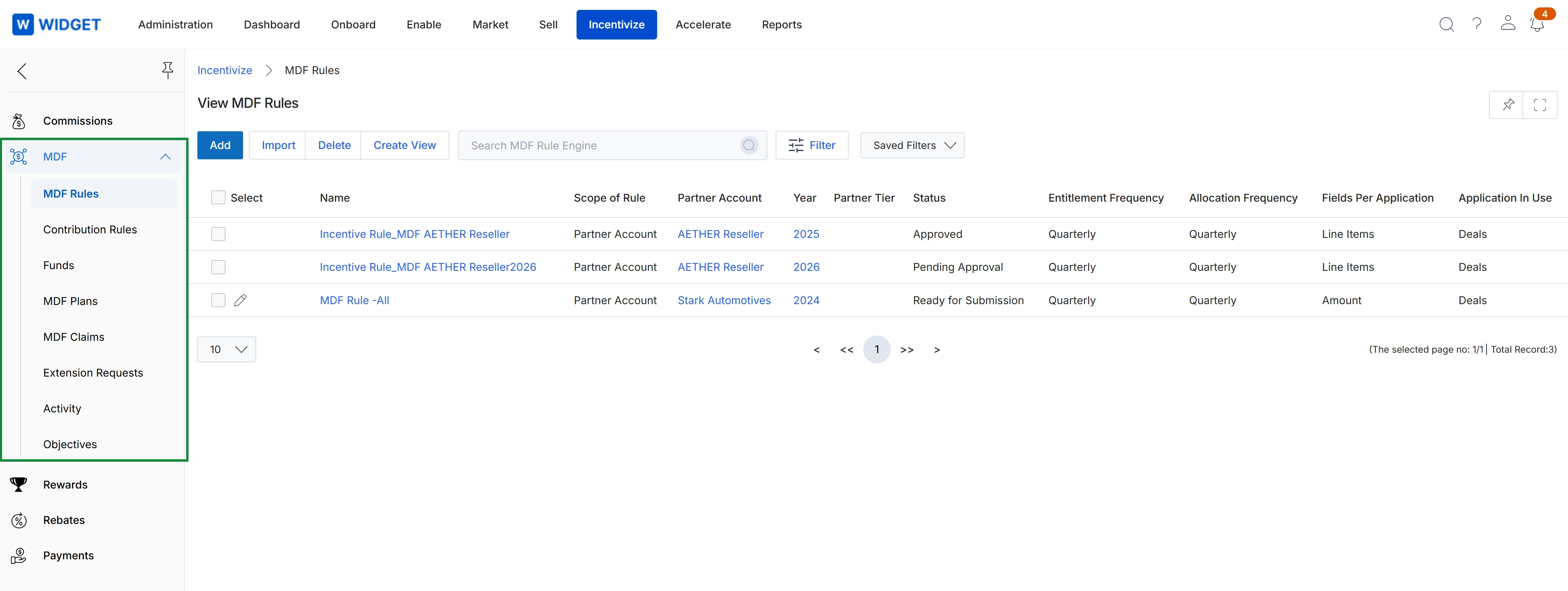
Click Incentivize → MDF → MDF Rules.
Importing Rule Data and Field Mapping
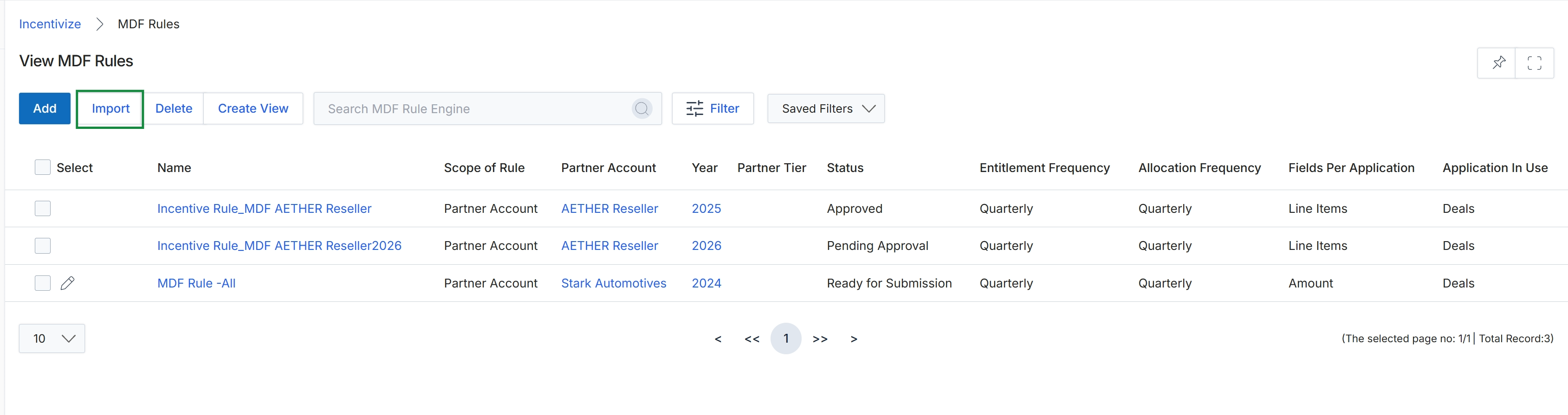
Click Import.
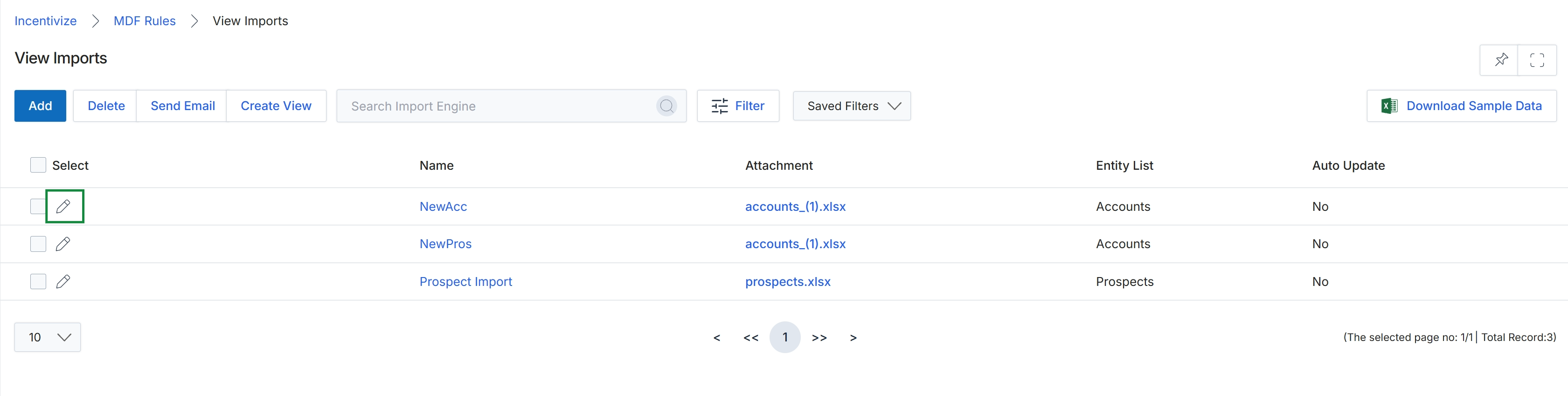
Click the Edit icon next to the import record.
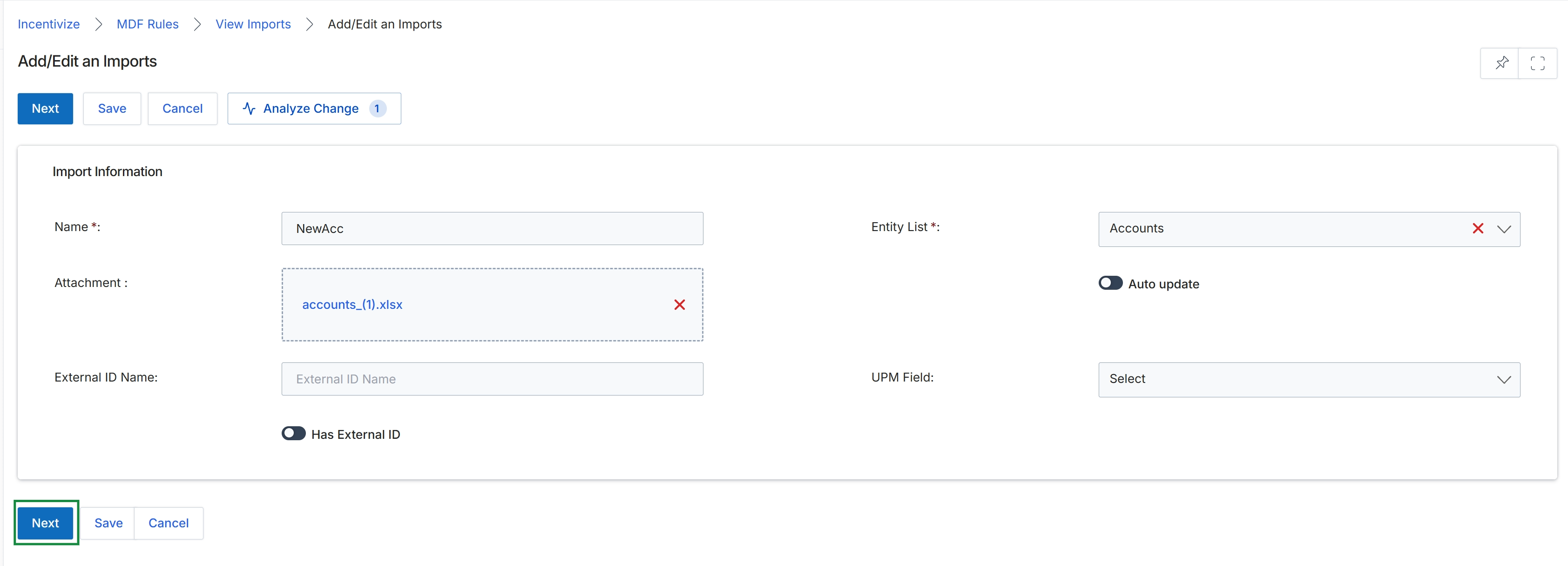
Click Next to proceed to the next step of the import configuration.
Buttons
| Button | Description |
|---|---|
| Next | Advances to the field mapping step of the import workflow. |
| Save | Saves the current import configuration. |
| Cancel | Cancels the import configuration and returns to the imports list. |
| Analyze Change | Opens change analysis details for the import configuration. |
Import Information
| Field | Description |
|---|---|
| Name | Specifies a name to identify the import job. |
| Entity List | Selects the target entity type being imported into the platform. |
| Attachment | Displays the uploaded file containing the records to import. |
| Auto update | Enables automatic updating of existing records that match imported data. |
| External ID Name | Defines the identifier field name used in the external source system. |
| UPM Field | Selects the corresponding platform field to map against the external ID. |
| Has External ID | Toggles whether imported records include an external system identifier for cross-referencing. |
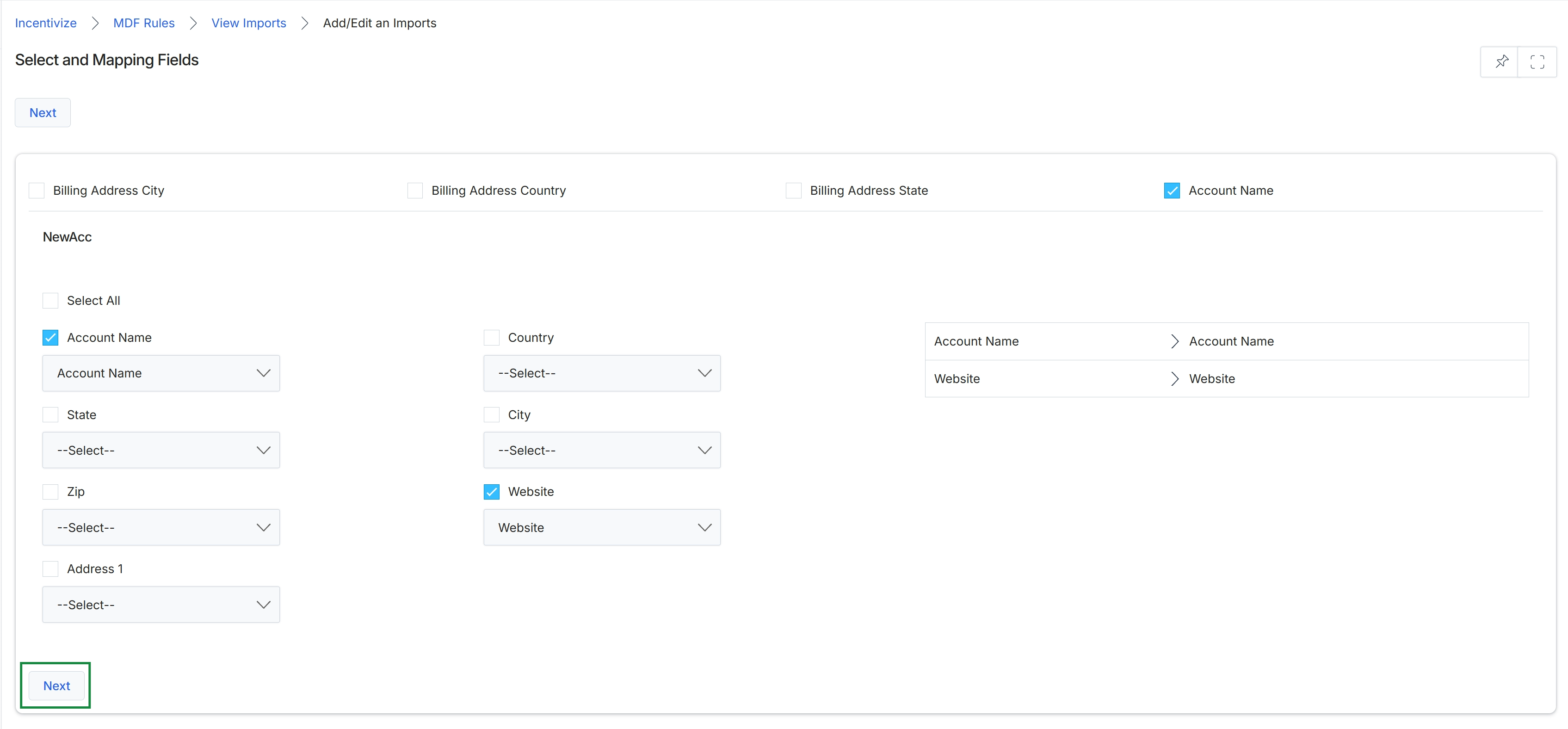
The Select and Mapping Fields screen is part of the import workflow in the Market Development Funds (MDF) Management area of the Incentivize module. Administrators use this interface to align columns from an imported file with the platform's standard data fields before completing the record creation or update process. Mapping source attributes such as account names, addresses, and web domains ensures that partner and rule records maintain integrity and adhere to system validation standards. This step verifies that incoming external data accurately populates the corresponding target fields across channel incentive workflows.
Click Next to proceed with the selected and mapped fields.
Buttons
| Button | Description |
|---|---|
| Next | Advances to the next step of the import workflow. |
Fields
| Field | Description |
|---|---|
| Billing Address City | Checkbox to select and include the billing address city field from the import source. |
| Billing Address Country | Checkbox to select and include the billing address country field from the import source. |
| Billing Address State | Checkbox to select and include the billing address state field from the import source. |
| Select All | Checkbox to select all listed target fields for mapping at once. |
| Account Name | Checkbox and dropdown to map the incoming account name data to the platform account name field. |
| Country | Checkbox and dropdown to map the incoming country data to the platform country field. |
| State | Checkbox and dropdown to map the incoming state or province data to the platform state field. |
| City | Checkbox and dropdown to map the incoming city data to the platform city field. |
| Zip | Checkbox and dropdown to map the incoming postal or ZIP code data to the platform zip field. |
| Website | Checkbox and dropdown to map the incoming website URL to the platform website field. |
| Address 1 | Checkbox and dropdown to map the primary street address data to the platform address field. |
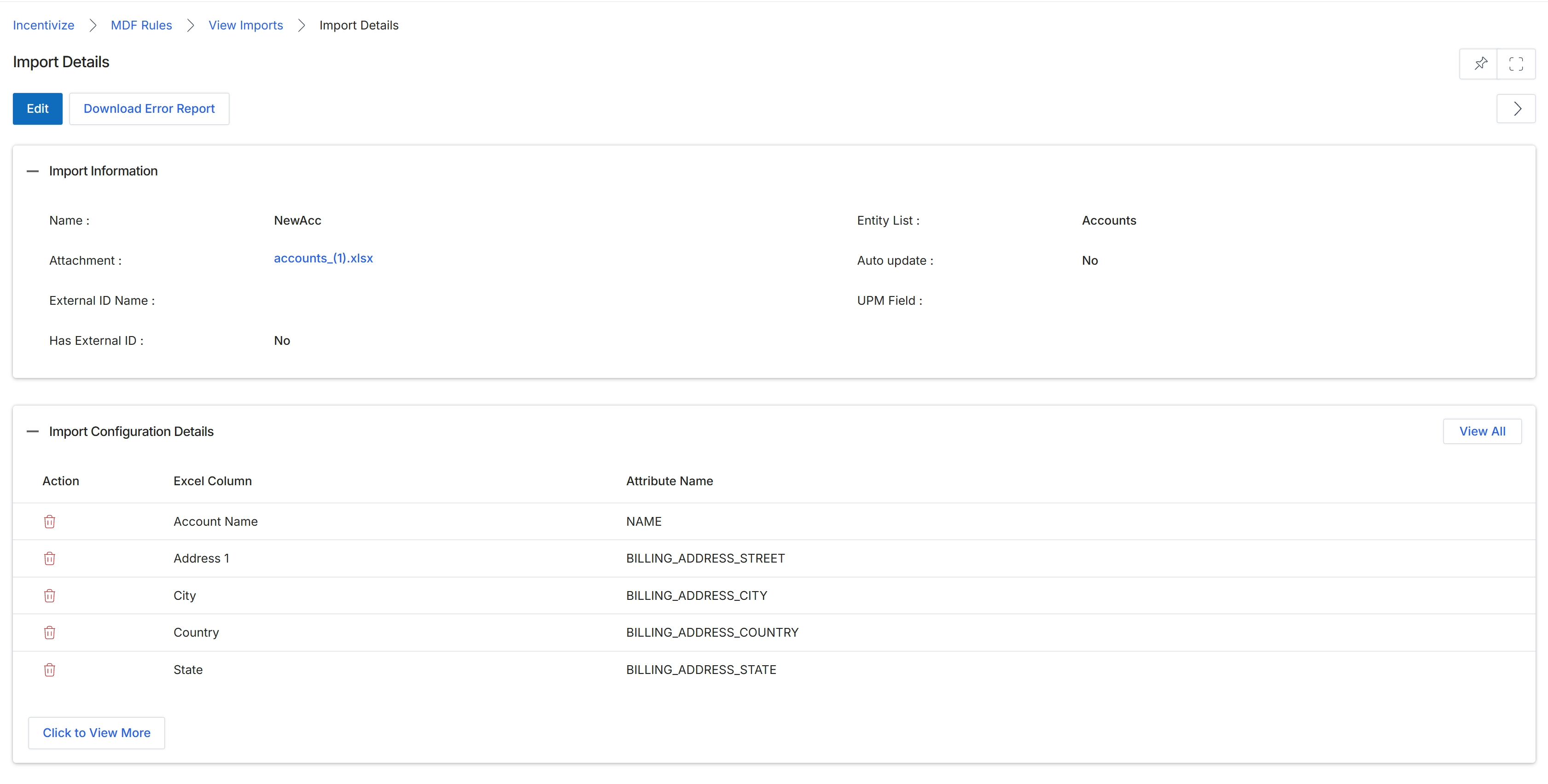
Review the import details, file attachment, and column-to-attribute mappings for the imported data.
Buttons
| Button | Description |
|---|---|
| Edit | Opens the import configuration in edit mode to modify settings or column mappings. |
| Download Error Report | Downloads a detailed report listing any row-level errors or failed records encountered during the import process. |
| View All | Expands the table to display all configured column mappings. |
| Click to View More | Loads additional rows of column-to-attribute mappings into the grid. |
Import Information
| Field | Description |
|---|---|
| Name | Displays the assigned name of the import job. |
| Entity List | Displays the target platform entity type associated with the import. |
| Attachment | Displays the filename of the uploaded spreadsheet file as a downloadable link. |
| Auto update | Indicates whether existing records will be automatically updated when matching records are identified. |
| External ID Name | Displays the name of the external identifier used for record matching. |
| UPM Field | Displays the platform field mapped to the external identifier. |
| Has External ID | Indicates whether external ID tracking is enabled for this import job. |
Import Configuration Details
| Column | Description |
|---|---|
| Action | Provides options to remove individual mapped field pairs from the import configuration. |
| Excel Column | Lists the column header names detected in the uploaded spreadsheet. |
| Attribute Name | Lists the destination platform attributes mapped to the corresponding spreadsheet columns. |
Deleting MDF Rules in Batch
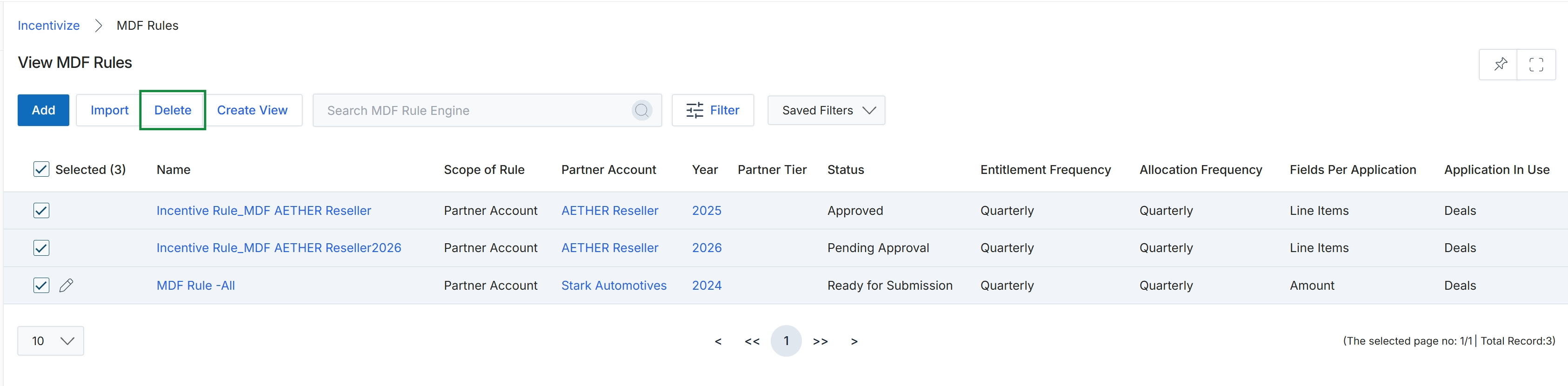
Click Delete.
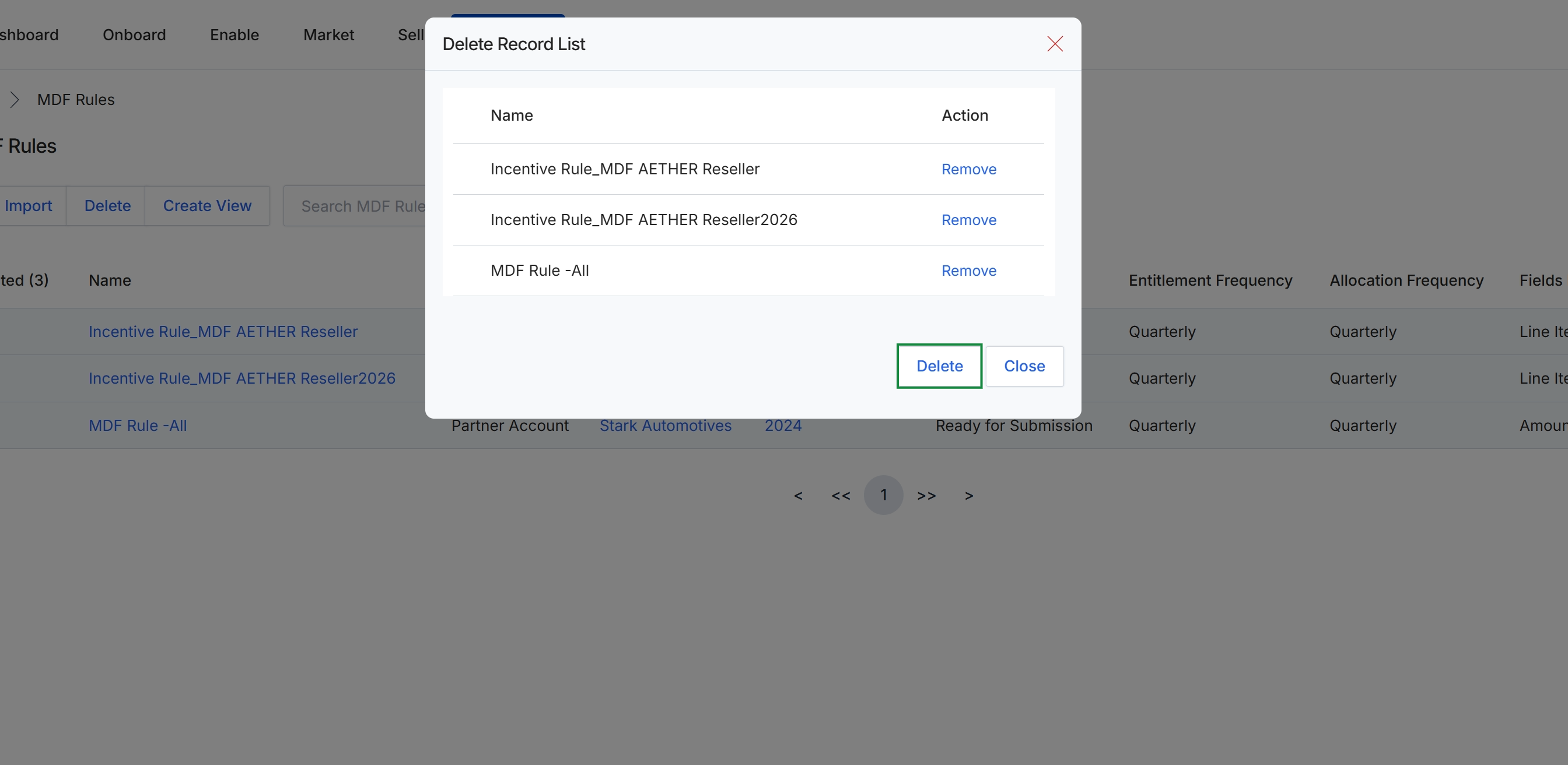
This screen displays the Delete Record List confirmation modal over the MDF Rules management view. It lists the specific Market Development Fund rules selected for bulk deletion, providing administrators an opportunity to review the designated records or remove items from the queue before confirming permanent removal. This safeguard ensures that co-marketing funding eligibility frameworks and allocation structures are not unintentionally purged from the platform.
Creating Custom Table Views
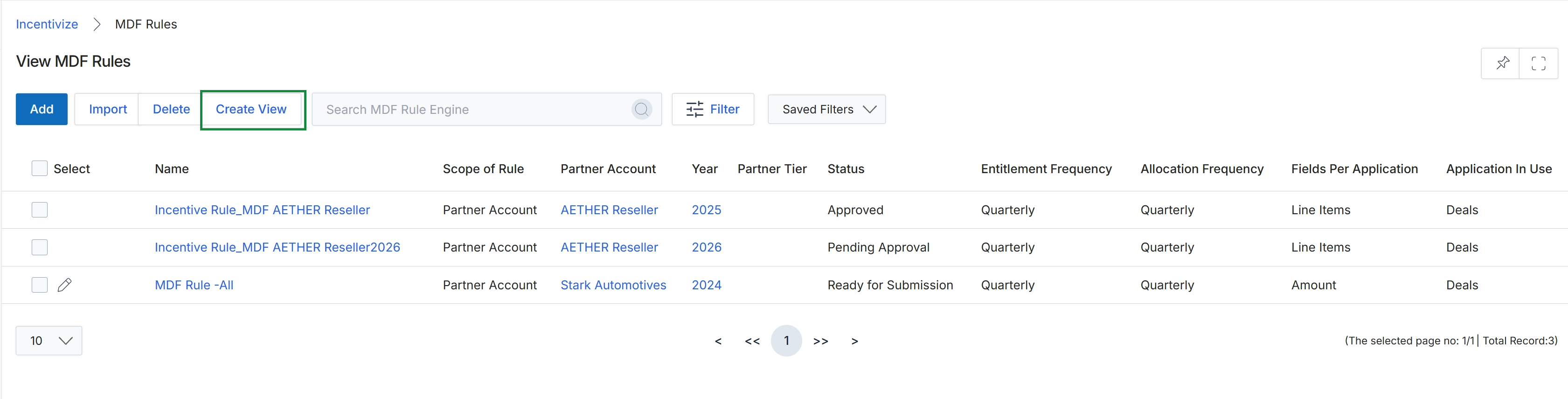
Click Create View.
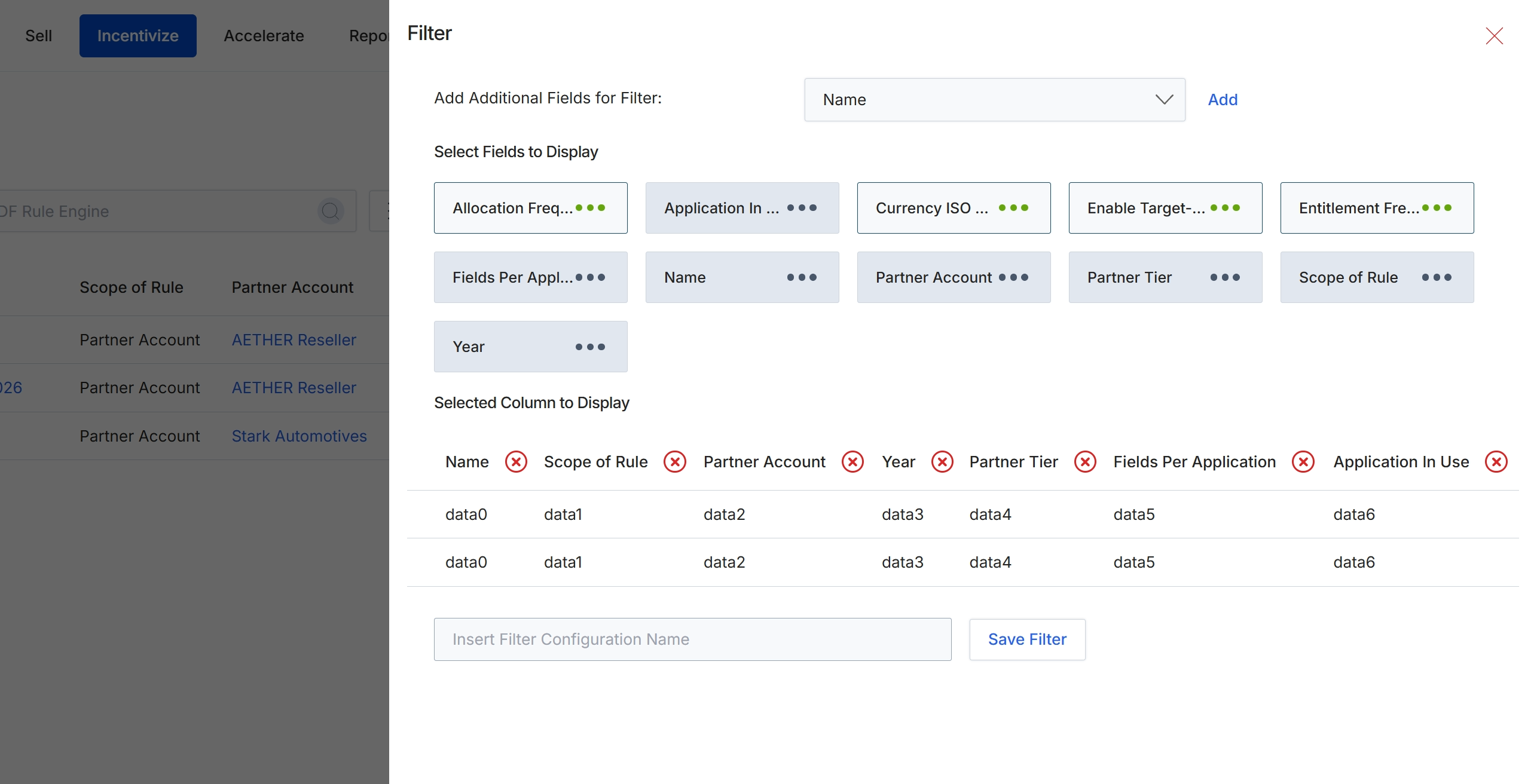
The Filter drawer allows administrators to customize and refine the records displayed within the MDF Rule Engine. Through this panel, users can append additional filtering criteria, select specific rule attributes to display as table columns, and view a preview of the resulting grid layout. Saving named filter configurations enables program managers to quickly toggle between targeted views when managing and auditing market development fund policies across diverse partner accounts and tiers. This modular filtering system streamlines rule governance by allowing customized views to be preserved for recurring administrative tasks.
Enter a name for the filter configuration in the Insert Filter Configuration Name field.
Buttons
| Button | Description |
|---|---|
| Add | Adds the selected additional field into the active filter parameters. |
| Save Filter | Saves the specified filter criteria and column preferences for future use. |
Fields
| Field | Description |
|---|---|
| Add Additional Fields for Filter | Dropdown menu used to choose an additional field attribute to include in the filter criteria. |
| Insert Filter Configuration Name | Text entry field used to specify a unique name for saving the current filter and column layout. |
Searching and Filtering Rules
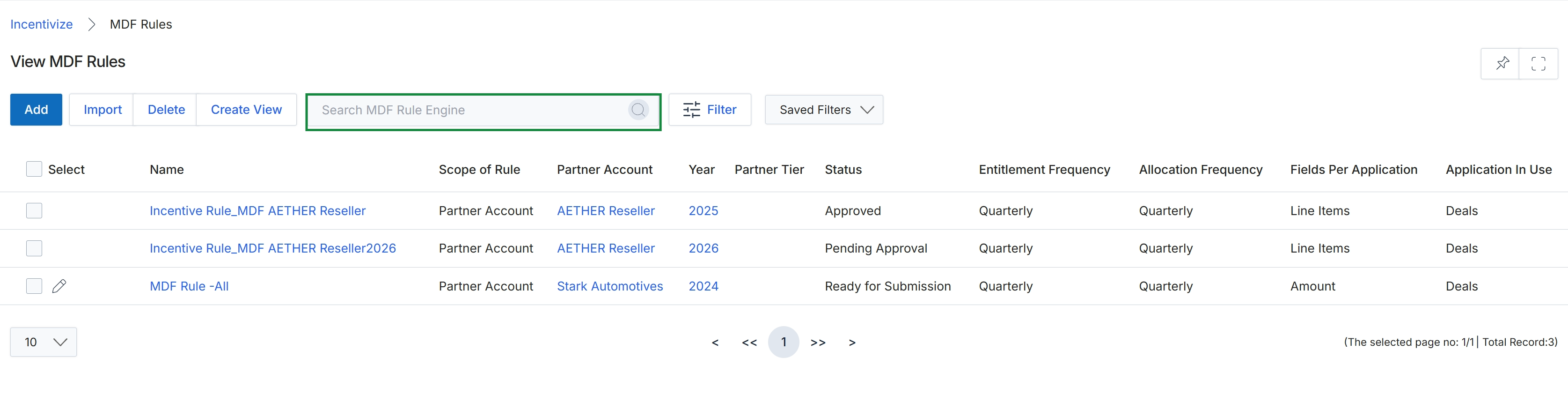
This screen displays the central registry of Market Development Fund rules configured within the Incentivize module. Administrators use this table to review, manage, and track fund allocation policies, including each rule's scope, associated partner accounts, program year, review status, and distribution frequencies. The view serves as the operational baseline for establishing co-marketing fund governance, ensuring eligible partners receive approved marketing allocations based on defined budgetary schedules and program parameters.
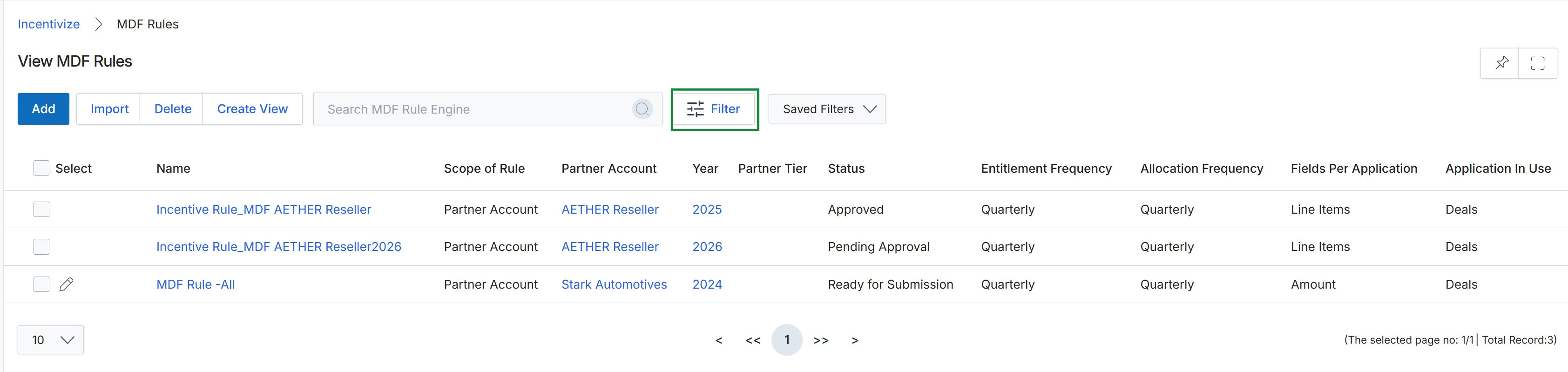
Click Filter.
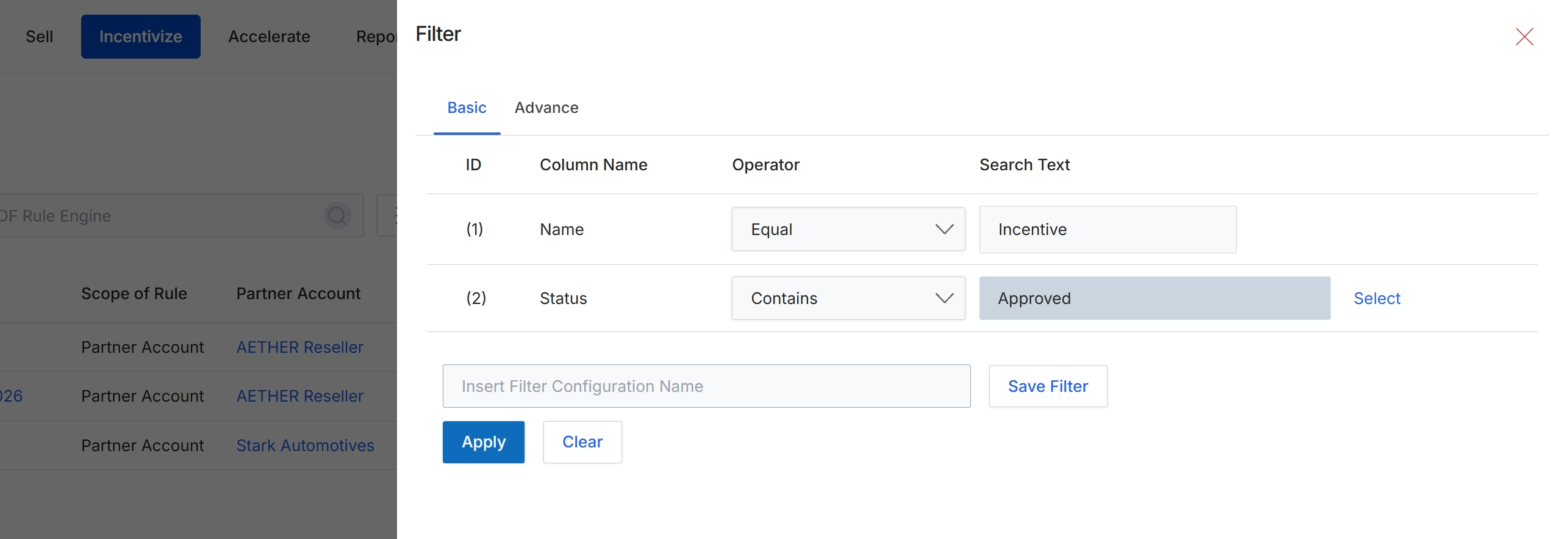
The Filter dialog enables administrators to narrow down the list of Market Development Funds (MDF) rules using targeted field criteria. MDF rules govern partner co-marketing fund allocations, request eligibility, and approval thresholds across programs, tiers, and partner types. Within this filter panel, administrators can construct multi-condition queries using basic or advanced operators against rule attributes such as Name and Status. Frequently used filter combinations can also be saved with a custom configuration name to streamline ongoing fund governance and program administration within the platform.
Click Apply to filter the MDF rules list based on the configured criteria.
Buttons
| Button | Description |
|---|---|
| Basic | Displays the basic filter configuration view. |
| Advance | Navigates to the advanced filter configuration view. |
| Select | Opens a value selector to choose valid status values for filtering. |
| Save Filter | Saves the configured filter under the specified name for future reuse. |
| Apply | Applies the specified filter criteria to the MDF rules list. |
| Clear | Clears all currently entered filter criteria. |
Fields
| Field | Description |
|---|---|
| Insert Filter Configuration Name | Specifies a custom name to save the current filter configuration. |
Column Headings
| Column | Description |
|---|---|
| ID | Displays the sequential identifier for each filter condition row. |
| Column Name | Displays the name of the rule field being evaluated in the filter. |
| Operator | Displays the comparison operator selected to evaluate the filter criterion. |
| Search Text | Displays the search value or criteria applied to the filter row. |
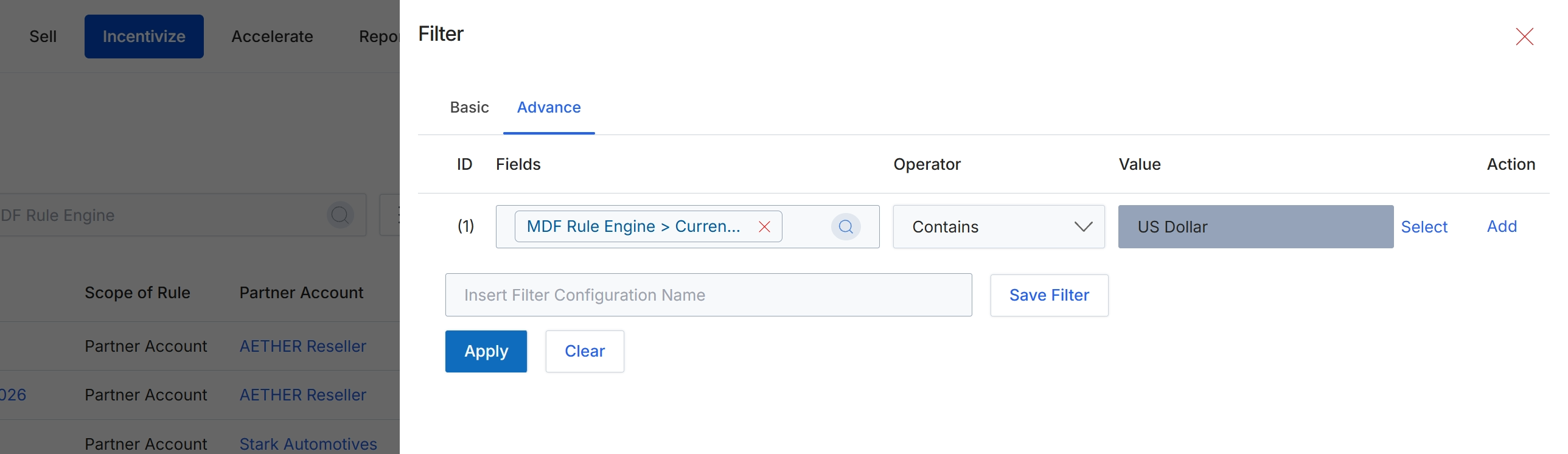
Click Apply to filter the MDF rules list according to the specified criteria.
Buttons
| Button | Description |
|---|---|
| Basic | Switches to the basic filter configuration mode. |
| Advance | Displays advanced multi-condition filter settings. |
| Select | Opens a value selector to choose an attribute value. |
| Add | Appends an additional condition row to the filter logic. |
| Save Filter | Saves the current filter criteria as a reusable preset. |
| Apply | Executes the filter and updates the list view with matching records. |
| Clear | Resets all entered filter parameters to default. |
Fields
| Field | Description |
|---|---|
| Fields | Selects the specific entity attribute used to evaluate the filter condition. |
| Operator | Selects the comparison operator applied to the filter field. |
| Value | Specifies the value matched against the selected field. |
| Insert Filter Configuration Name | Allows entering a name to save the current filter setup for future use. |
Frequently asked questions
- What is the purpose of the View MDF Rules interface?
The interface serves as the central administrative repository to review, track, and govern partner co-marketing fund allocation rules, entitlement frequencies, and program eligibility across tiers.
- How can administrators import external MDF rule data?
Administrators open the imports workflow to upload spreadsheet files, map external data attributes to platform fields, and configure automatic record updates.
- Can administrators save custom filter configurations in the MDF rules list?
Yes, administrators can configure basic or multi-condition advanced filters and enter a unique name to save reusable filter layouts for recurring administrative tasks.
- How does the platform prevent accidental deletion of MDF rules?
When performing a batch deletion, a confirmation modal displays all selected records, allowing administrators to review and adjust the queue before confirming permanent removal.